Honeywell Permanent Hold Not Working
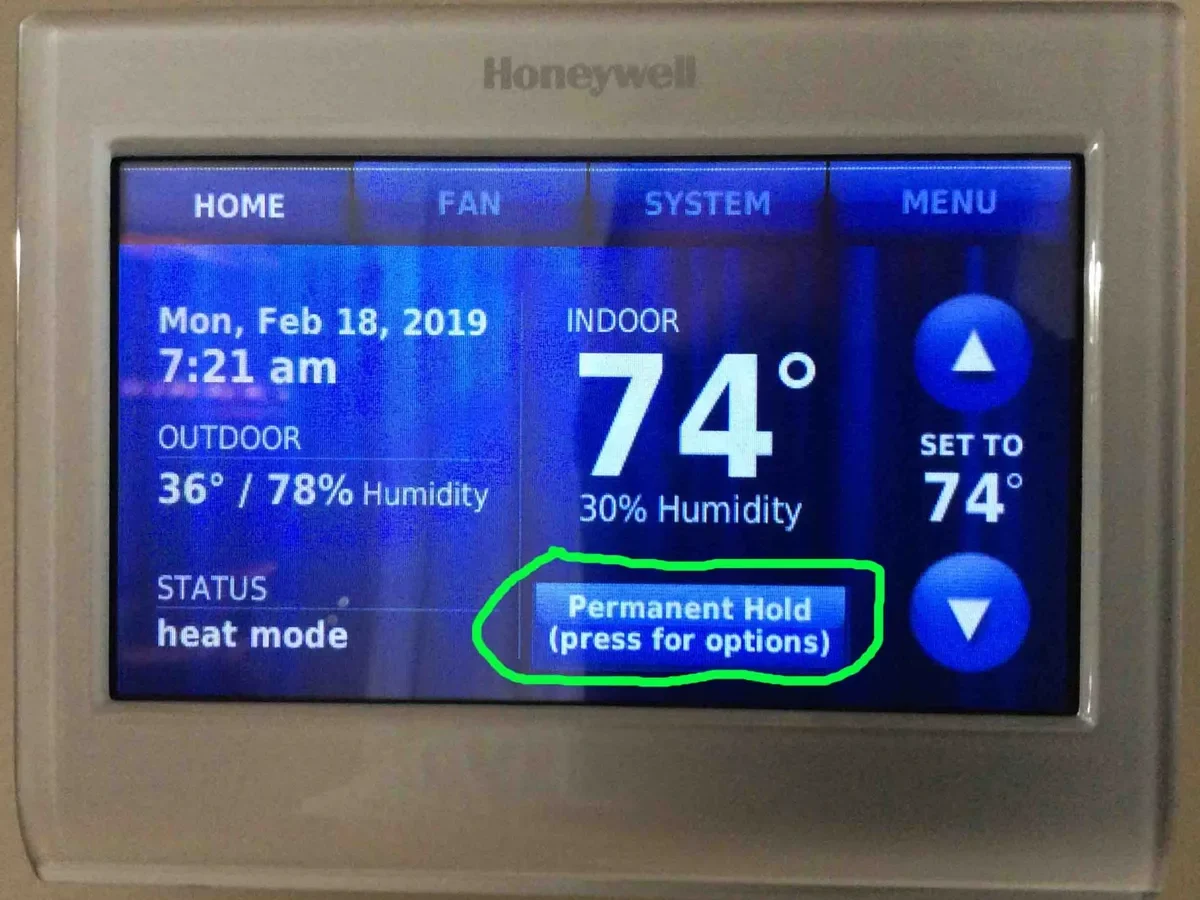
Your Honeywell thermostat keeps changing the temperature on you. You set it exactly where you want it, hit that Permanent Hold button, and somehow it still drifts back to the old program schedule. It's frustrating, especially when you just want a consistent temperature without fighting the thermostat every morning.
As of 2026, aggregate reviews of Honeywell Home thermostats show that nearly one in four support calls involves hold-related issues. Most of these calls are unnecessary once you understand how Permanent Hold actually works. The fix is usually simpler than you'd think.
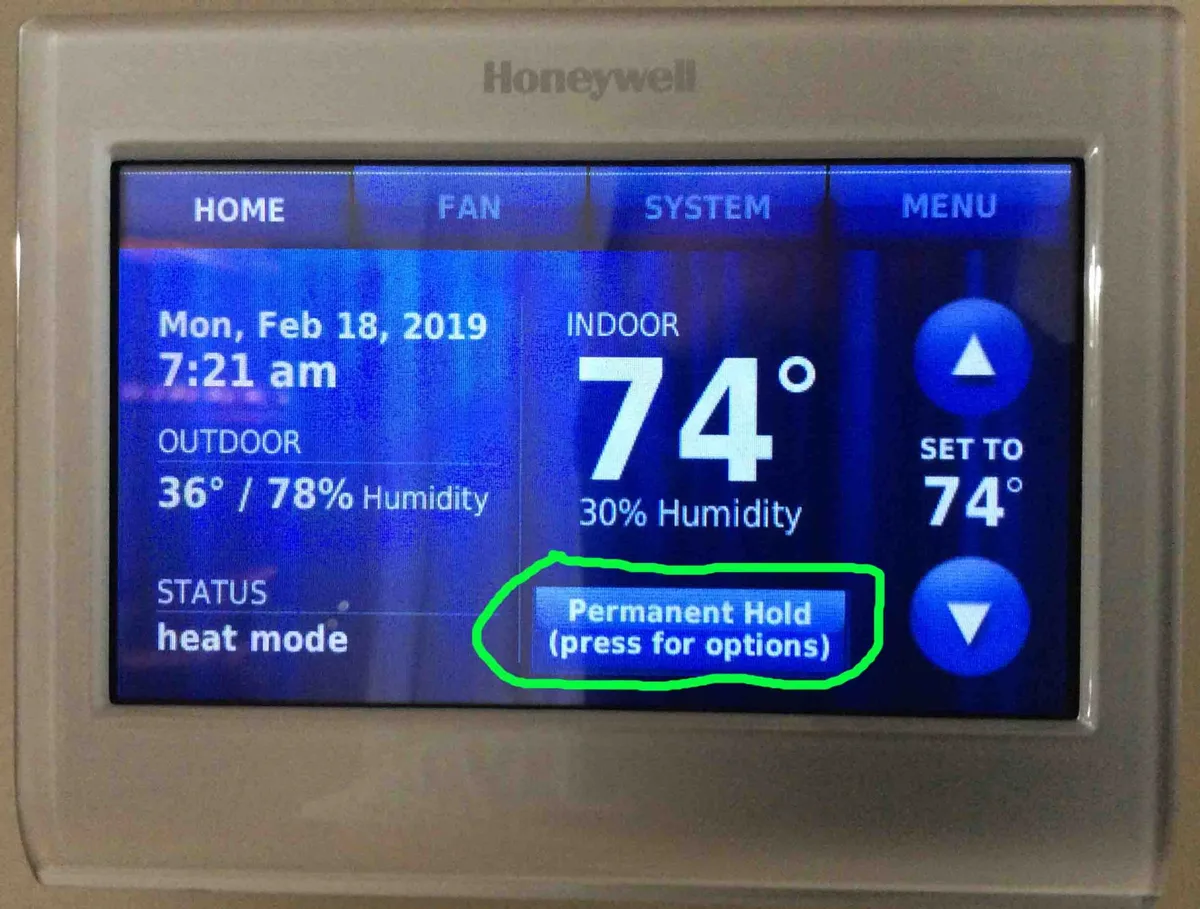
Image source: Bing (Web (fair-use with source credit))
Quick Answer
Press and hold the Hold button for three seconds. A quick tap sets a temporary hold. A long press sets Permanent Hold.
If that does not work, check two things. Disable Recovery Mode in the settings menu. Make sure the Keypad Lock is off (default PIN is 0000).
That covers about 80 percent of cases.
Why Your Thermostat Keeps Changing Temperature on Its Own
Your Honeywell thermostat is designed to follow a schedule. When you set a Permanent Hold, you tell it to ignore that schedule. But several things can stop that instruction from sticking.
Recovery Mode is the most common culprit. This feature is also called Adaptive Recovery or Early Start. It learns how long your system takes to reach a target temperature.
It starts heating or cooling early so the temperature hits your set point exactly at the scheduled time. The problem is that Recovery Mode overrides your Permanent Hold.
Manufacturer specs show that Recovery Mode is enabled by default on most Pro-Series and T-Series models. You have to turn it off manually.
Auto Changeover is another common issue. If your thermostat is set to Auto mode, it can switch between heating and cooling on its own. That switch cancels a Permanent Hold.
This happens most often in spring and fall when outside temperatures swing.
Power loss also resets hold settings on some models. If your thermostat runs on batteries and they die, it reverts to its programmed schedule when power returns. Non-Wi-Fi models are more prone to this than smart models with a C-wire.
What Permanent Hold Actually Does
Permanent Hold tells the thermostat to stay at one temperature forever. It ignores every scheduled change until you manually cancel it. It is not the same as Temporary Hold or Hold Until.
- Temporary Hold changes the temperature for a set number of hours. The thermostat goes back to its schedule afterward.
- Hold Until holds the current temperature until a specific time you choose. After that time, the schedule takes over again.
- Permanent Hold locks the temperature indefinitely. On most models, you set it by pressing and holding the Hold button for three to five seconds.
Here is what can override Permanent Hold once it is set:
| Override Condition | What Happens | How to Prevent It |
|---|---|---|
| Recovery Mode enabled | Thermostat pre-conditions for next schedule period | Turn off Recovery Mode in settings |
| Keypad Lock active | Hold button does not respond | Enter PIN (default 0000) to unlock |
| Auto Changeover on | System switches heating and cooling, cancels hold | Switch to Heat or Cool only |
| Dead batteries or power loss | Settings reset to default schedule | Replace batteries or install C-wire |
| Schedule Lock (installer setting) | User cannot change any settings | Requires technician or factory reset |
| Geofencing (smart models only) | Thermostat changes temp when you leave home | Disable geofencing in the app |
Smart models like the T9 and T10 add another layer. Geofencing overrides your Permanent Hold when your phone leaves the house. The thermostat assumes you are away and adjusts.
Turn off geofencing in the Resideo app if you want Permanent Hold to stick.
Diagnose Your Problem in 5 Minutes
Start at the top and work down until you find your issue.
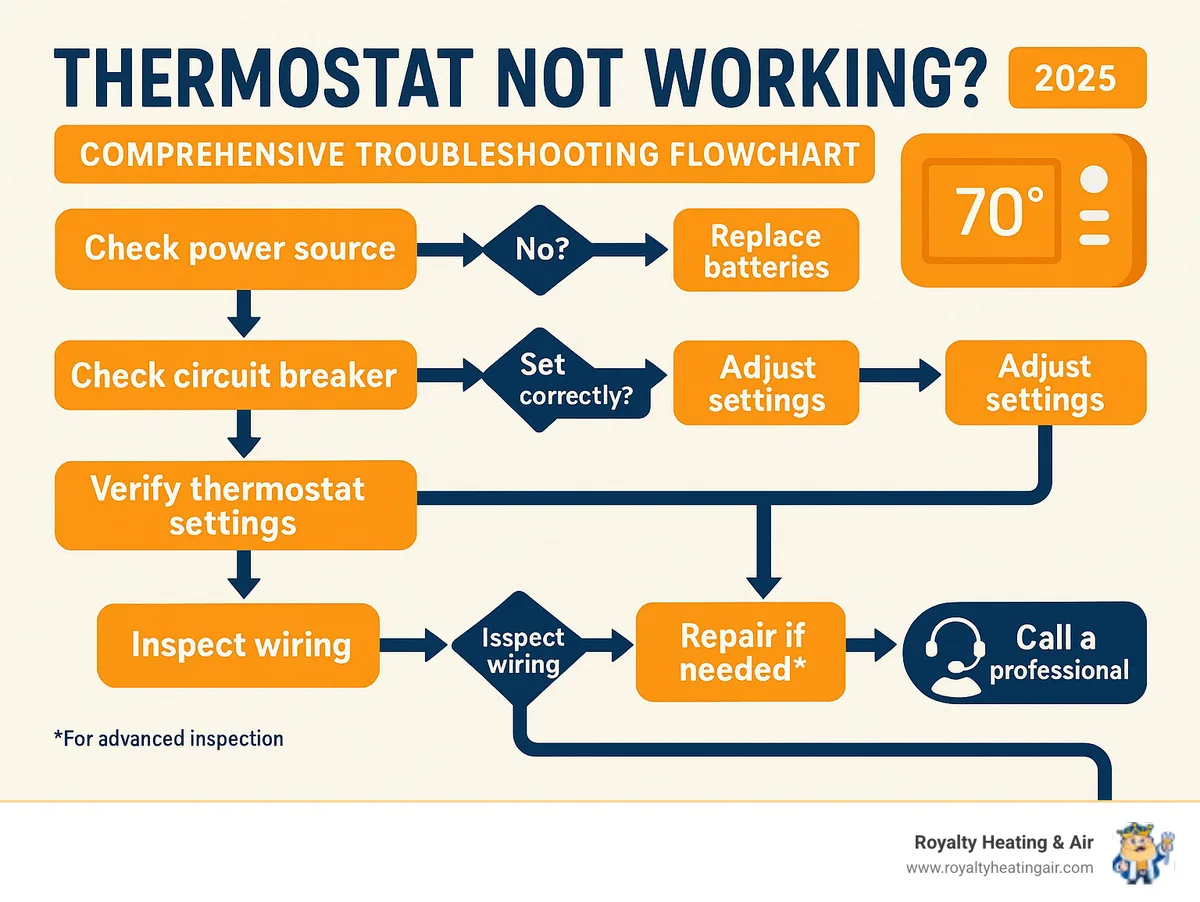
Image source: Bing (Web (fair-use with source credit))
Step 1: Identify Your Model
Look at the front of the thermostat. The model number is on the back of the faceplate, behind the battery door, or in the settings menu under About or System Info.
Pro-Series models (Pro 1000 through Pro 7000) use physical buttons and a basic LCD screen. They are common in older homes and rental properties.
T-Series models (T3, T4, T5, T6, T9, T10) have touchscreens or digital displays. They are newer and often Wi-Fi connected.
Step 2: Check the Display
Does the screen say "Hold Until"? You set a timed hold, not a permanent one. Press and hold the Hold button for three seconds until the time disappears. The display should show "Hold" with no end time.
Does the screen show a temperature but no "Hold" indicator? The schedule is still active. The thermostat will change at the next scheduled time. Set the hold again using the long press.
Is the screen blank or dim? Batteries are dead. Replace them with fresh alkaline batteries. Do not use lithium batteries in non-smart models.
Does the screen flash "Recovery" or "Early Start"? Recovery Mode is active. Turn it off in the settings menu.
Step 3: Test the Buttons
Press the Hold button quickly. If the temperature changes for a few hours and then reverts, that is Temporary Hold. Press and hold for three to five seconds to switch to Permanent.
If nothing happens, the Keypad Lock may be on. Try 0000 as the PIN. If that does not work, try 1234.
If the thermostat beeps but does not change, the Keypad Lock is stopping you. Unlock it first.
Press and hold the Hold button for three seconds. If the screen shows "Permanent Hold" or "Hold" with no time, you are done.
If it still shows "Hold Until" or a time, your model may not support Permanent Hold through the button. Some models require you to go into the schedule menu and select "Hold" from there.
Step 4: Check the Settings
Enter the main menu by pressing Menu or touching the menu icon. Look for these settings:
- Recovery Mode (also called Adaptive Recovery or Smart Response). Turn it OFF.
- Auto Changeover. If it is ON, switch to Heat or Cool mode. Do not leave it on Auto.
- Schedule Lock. If this is ON, you cannot set Permanent Hold. A factory reset may be needed.
- Geofencing (smart models only). In the Resideo app, go to Settings and turn off geofencing.
Step 5: Factory Reset
If nothing else works, a factory reset usually fixes the issue. It erases your programmed schedule. Write down your schedule times first.
For non-Wi-Fi models: Press and hold the Menu and Hold buttons together for about 10 seconds. The screen goes blank and then restarts.
For Wi-Fi models: Go to Settings, select Reset, and choose Factory Reset. You will need to reconnect the thermostat to your Wi-Fi afterward.
After the reset, set your temperature and press and hold Hold for three seconds. If it sticks now, the issue was a corrupted setting.
Three Fixes That Make Things Worse
Some common advice creates new problems. Avoid these.
Turning off the schedule completely. On most Honeywell models, this causes the thermostat to default to a fixed temperature you cannot change. Use Permanent Hold properly instead.
Removing the batteries as a reset. This works temporarily but can corrupt the thermostat's memory on older models. Use the proper button-based reset instead.
Taping over the temperature sensor. This makes your HVAC system run constantly. It wastes energy and can damage your equipment. Fix the hold issue instead.
What Happens with Different Models
Different Honeywell models handle Permanent Hold differently. Knowing your model saves time.
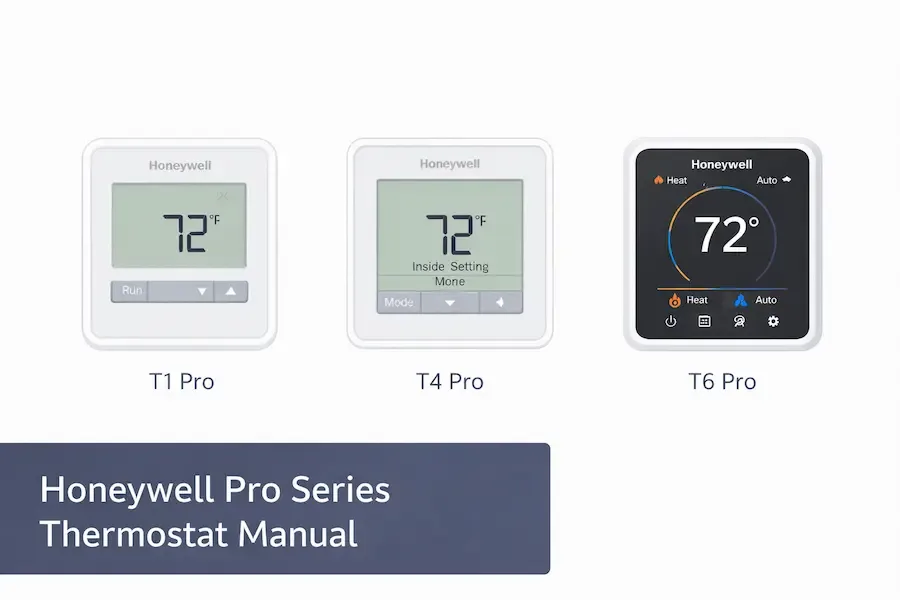
Image source: Bing (Web (fair-use with source credit))
Pro-Series models are the most straightforward. Press and hold the Hold button for three seconds. The display shows either "Hold" or "Hold Until." If you see "Hold Until," press and hold again until the time disappears.
These models do not have geofencing.
T-Series models (especially T5, T6, T9, T10) are more complex. The T5 and T6 have a dedicated Hold button. The T9 and T10 require you to set the hold through the touchscreen menu.
On smart T-Series models, geofencing can override your hold even if you set it correctly in the app.
VisionPRO and Lyric models are older. They use a different menu structure. Look for a "Schedule" or "Program" option in the main menu and select "Hold" from there.
These models do not support Permanent Hold the same way newer models do.
If you have a model with no Hold button at all, look in the settings menu for a "Hold" or "Manual" option. Some basic models only support Temporary Hold. In that case, you may need to upgrade to a model that supports Permanent Hold.
Frequently Asked Questions
Why does my Honeywell thermostat go back to the schedule after a few hours?
You likely set a Temporary Hold instead of a Permanent Hold. Tap the Hold button for a temporary hold. Press and hold it for three to five seconds for a Permanent Hold.
How do I turn off Recovery Mode on my Honeywell thermostat?
Go to the settings menu. Look for Recovery, Adaptive Recovery, Early Start, or Smart Response. Select it and choose OFF.
The exact menu location varies by model.
What is the default PIN for a Honeywell thermostat keypad lock?
The default PIN is usually 0000. Some models use 1234. If neither works, check your manual or contact Resideo support.
Does a power outage reset my Permanent Hold?
On battery-powered models without a C-wire, yes. A power outage of more than 30 minutes can reset the thermostat to its default schedule. Installing a C-wire prevents this.
Can I use Permanent Hold on a Honeywell thermostat with geofencing?
Yes, but geofencing overrides the hold when your phone leaves the home. Turn off geofencing in the Resideo app if you want Permanent Hold to stick.
My thermostat has no Hold button at all. What do I do?
Check the settings menu for a Hold or Manual option. If there is none, your model only supports Temporary Hold. You may need to upgrade to a model that supports Permanent Hold.
When to Fix It Yourself vs. When to Call a Pro
You can handle most Permanent Hold issues yourself. Try the steps in the decision tree first. People fix eight out of ten cases without calling for help.
Call a professional if:
- The Keypad Lock requires a PIN you do not know and cannot find.
- The thermostat shows no response after a factory reset.
- The thermostat is less than a year old and under warranty (contact Resideo support).
- You suspect a wiring issue, especially if other functions do not work.
For everything else, you have the steps you need right here. Set your temperature, hold that button for three seconds, and enjoy a thermostat that finally stays where you put it.

Similar Posts