How to Transfer Action Camera Videos to Android
You step off the trail, pull your action camera from its mount, and realize the footage you just captured is stuck on the camera. You want it on your Android phone right now, but the usual methods feel slow, confusing, or just plain broken. That's the real problem. How to transfer action camera videos to Android isn't as straightforward as it should be, and the wrong approach can cost you time, battery life, or even your footage.
A 5-minute 4K clip at 60 frames per second typically weighs between 400 and 500 MB. Over Wi-Fi, that same file can take four to ten minutes to transfer, assuming the connection doesn't drop halfway. A USB-C card reader, on the other hand, can move it in under 30 seconds.
The method you choose depends entirely on your gear, your patience, and your situation. Let's walk through the options so you can pick the right one.
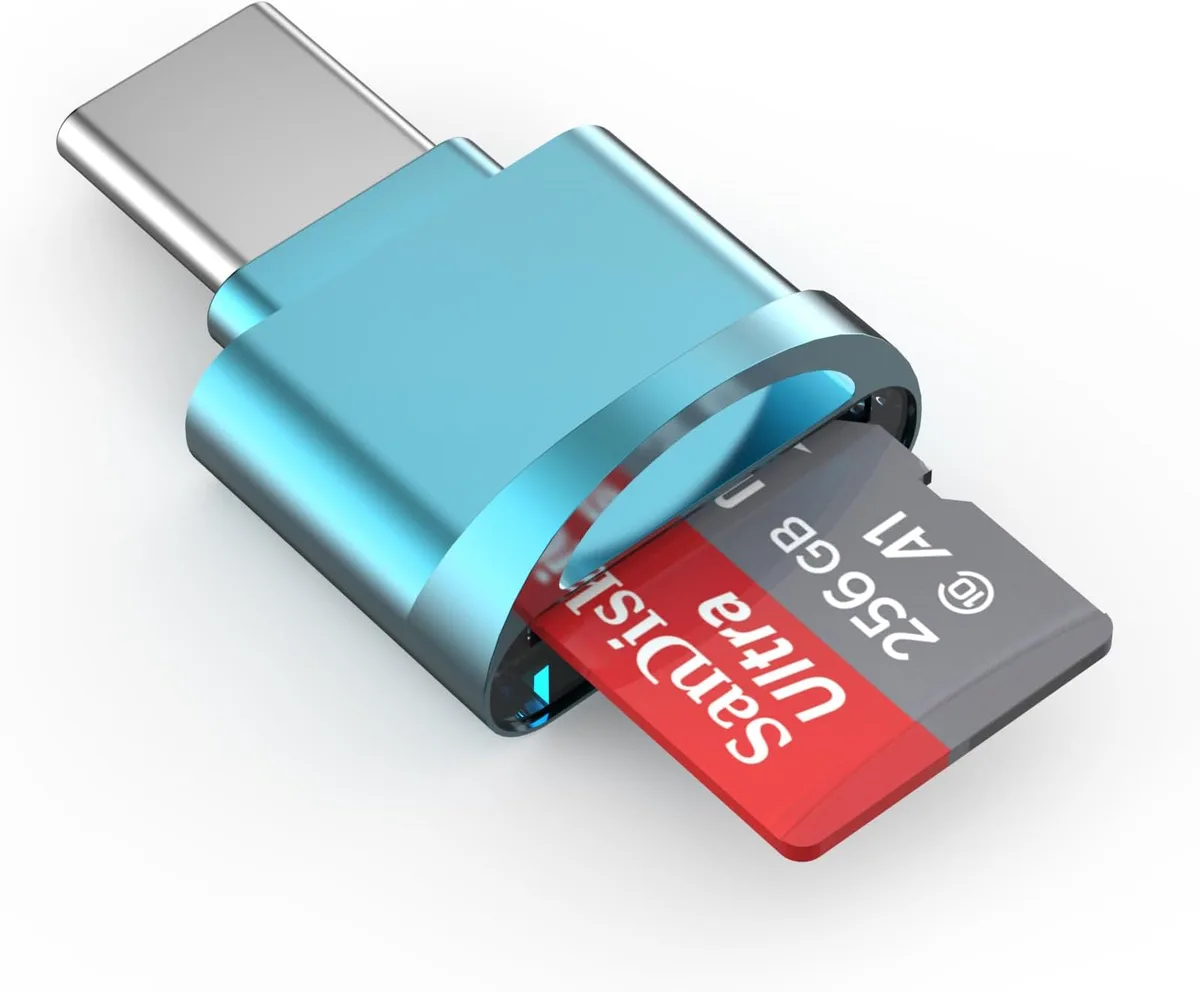
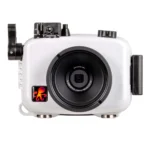
Image source: Web (Bing) / amazon.com (Web image (fair-use with source credit))
The Real Problem: Why Your Action Camera Videos Won't Move to Android
Action cameras record onto microSD cards, not directly to your phone. That's the first hurdle. Android phones don't have a built-in SD card slot that accepts the full-size card from your camera, so you need a bridge.
The three common bridges are Wi-Fi, a USB cable, or a dedicated card reader. Each one has its own quirks.
- Wi-Fi transfers are the most convenient but painfully slow for large files. A 10-minute 4K clip can take 15 minutes or longer over Wi-Fi.
- USB cable connections often fail because Android's MTP (Media Transfer Protocol) doesn't play nice with every camera. Some cameras don't support MTP at all.
- SD card readers are fast and reliable, but you need the right adapter for your phone. Most modern Android phones use USB-C, but older models still use micro-USB.
Aggregate reviews from action camera owners reveal a common frustration. They start a Wi-Fi transfer, walk away, and come back to find the app crashed or the phone disconnected. That's a lost clip and a lot of wasted time.
The hidden issue is file system compatibility. Most action cameras format their microSD cards as exFAT. Many Android phones, especially older ones, can't read exFAT natively.
When you plug in the card, nothing happens. The same principle applies whether you're connecting an action camera or learning how to connect a mirrorless camera to a smartphone. The connection method matters more than the brand.
Quick Answer
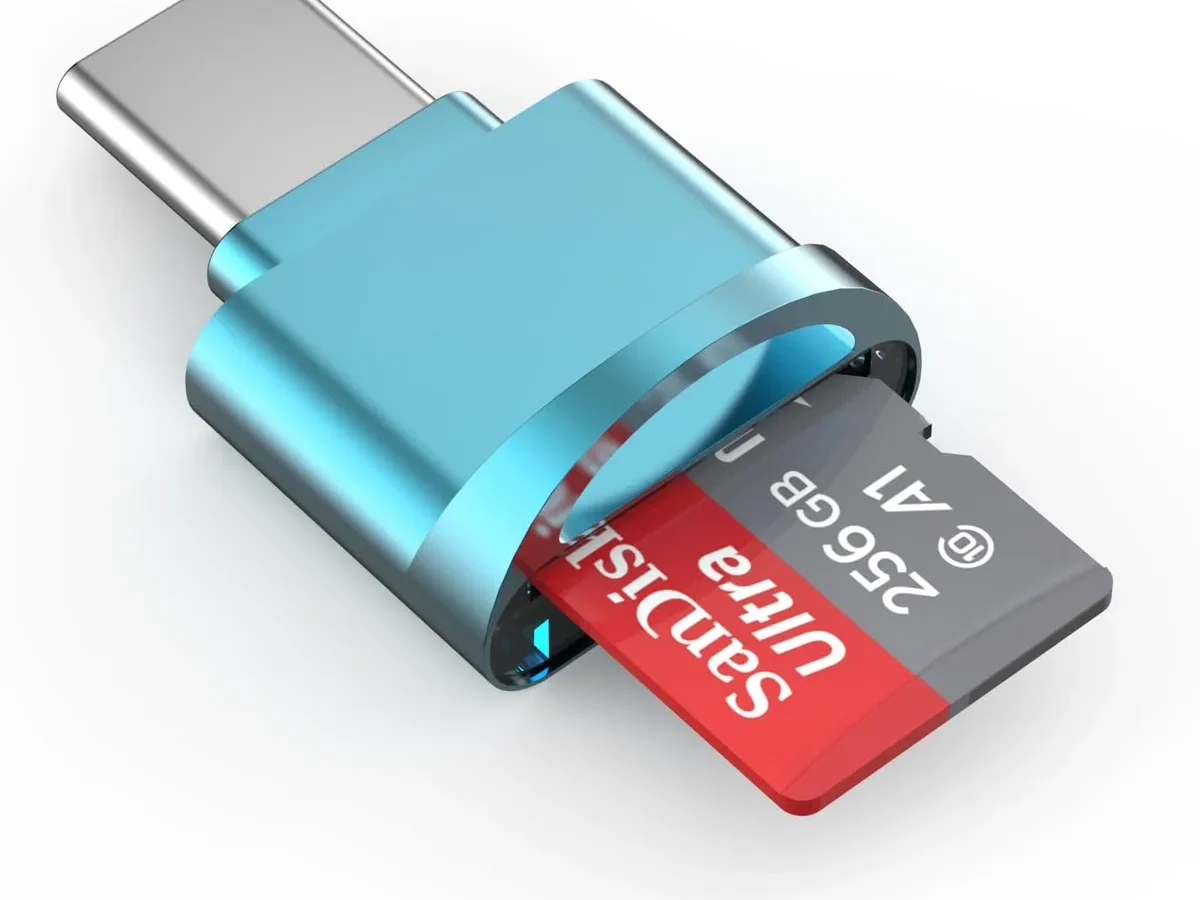
The fastest way to transfer action camera videos to Android is a USB-C SD card reader. Remove the microSD card from your camera. Insert it into the reader.
Plug it into your phone. Copy the files using a file manager app. This method takes under a minute for a 5GB clip.
Wi-Fi is slower but more convenient when you're away from your gear. A direct USB cable works only if your camera supports MTP.
Method 1: Using a USB-C SD Card Reader (The Fastest Way)
This is the method most professional vloggers and action sports shooters use. It's simple, reliable, and fast. You just need a USB-C OTG (On-The-Go) card reader.
These are compact, cost around $10 to $20, and fit in your pocket.
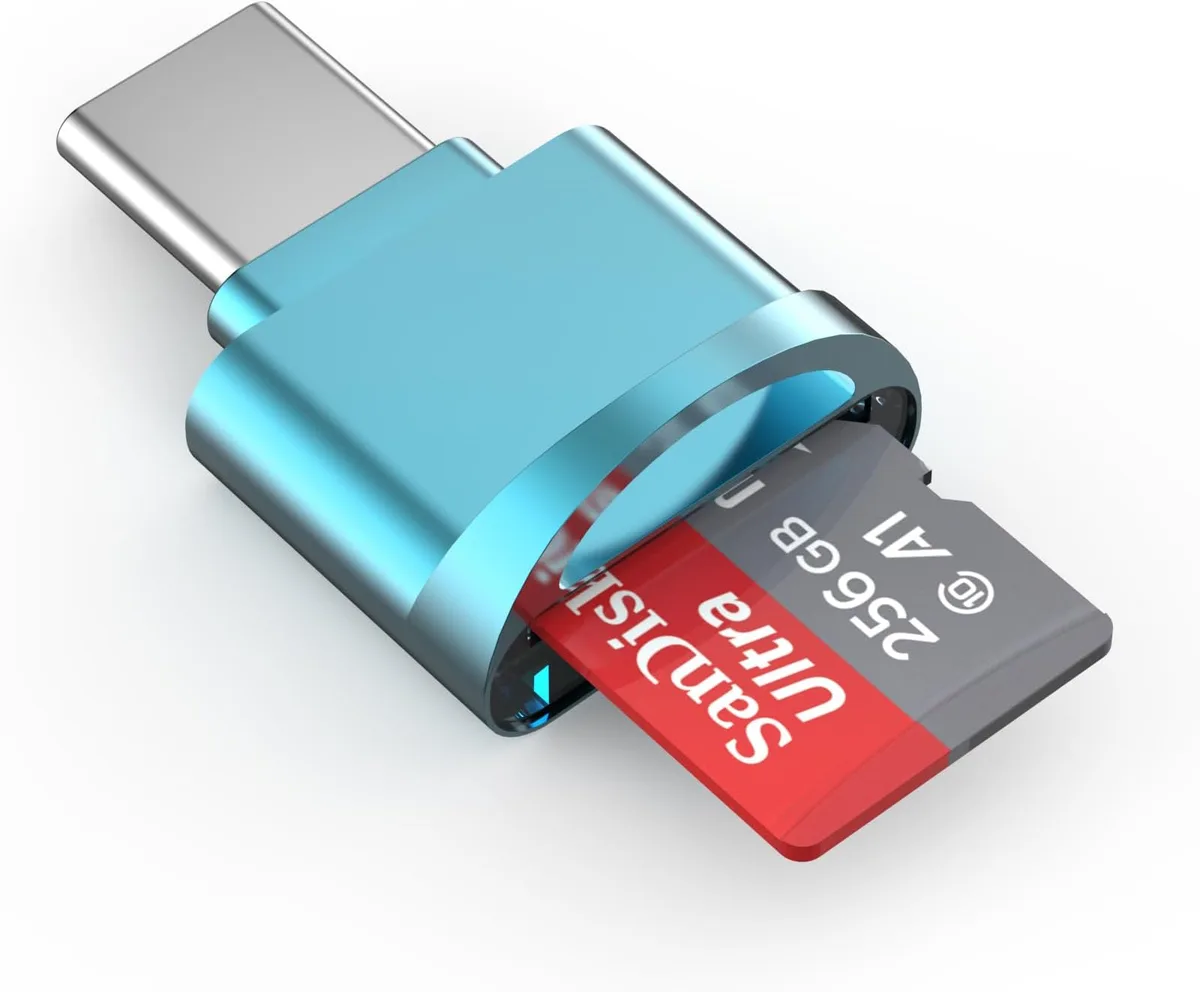
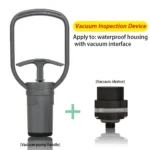
Image source: Bing (Web (fair-use with source credit))
What you need
- A USB-C SD card reader that supports microSD cards (most come with a full-size SD slot and a microSD adapter)
- A file manager app on your phone (Google Files, Solid Explorer, or CX File Explorer all work well)
- Your camera's microSD card, removed from the camera
The steps
- Turn off your camera and remove the microSD card. Some cameras have a battery door that also covers the card slot. Be careful not to drop the card.
- Insert the microSD card into the reader. If your reader has a full-size SD slot, you'll need the microSD adapter that came with your card. Most readers include one.
- Plug the reader into your phone's USB-C port. If your phone has a case, you may need to remove it for a snug connection.
- Open your file manager app. The reader should appear as an external storage device. Tap it to browse the contents.
- Find the video folder. On most action cameras, videos are stored in a folder called
DCIMor100GOPRO. Navigate inside and select the clips you want. - Copy the files to your phone's internal storage or a folder of your choice. The transfer speed depends on the card's read speed and your phone's USB generation. A U3-rated card and a USB 3.0 reader can move 1 GB in about 10 seconds.
What to watch out for
- exFAT compatibility. If your phone doesn't recognize the card, it may be formatted as exFAT. Some Android phones, especially older ones, don't support exFAT. Check your phone's specifications or try a different file manager app.
- Corrupted files. Never remove the card or pull the reader while files are copying. Wait for the transfer to complete. If a file gets corrupted, you may need to recover it using a computer. The same recovery steps apply whether you're dealing with action camera footage or learning how to recover deleted mirrorless photos.
- Battery drain. The card reader itself doesn't drain your phone much, but copying large files will use some power. If you're transferring a lot of footage, plug your phone into a charger.
Method 2: Connecting via Wi-Fi Through the Camera App (The Most Convenient Way)
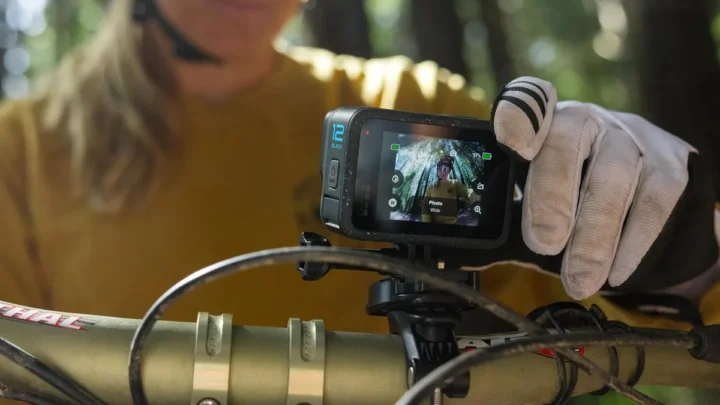
If you don't have a card reader handy, or you're on the trail and can't stop to remove the card, Wi-Fi is your next best option. Every major action camera brand offers a companion app that handles wireless transfers. GoPro has Quik, DJI has Mimo, and Insta360 has its own app.
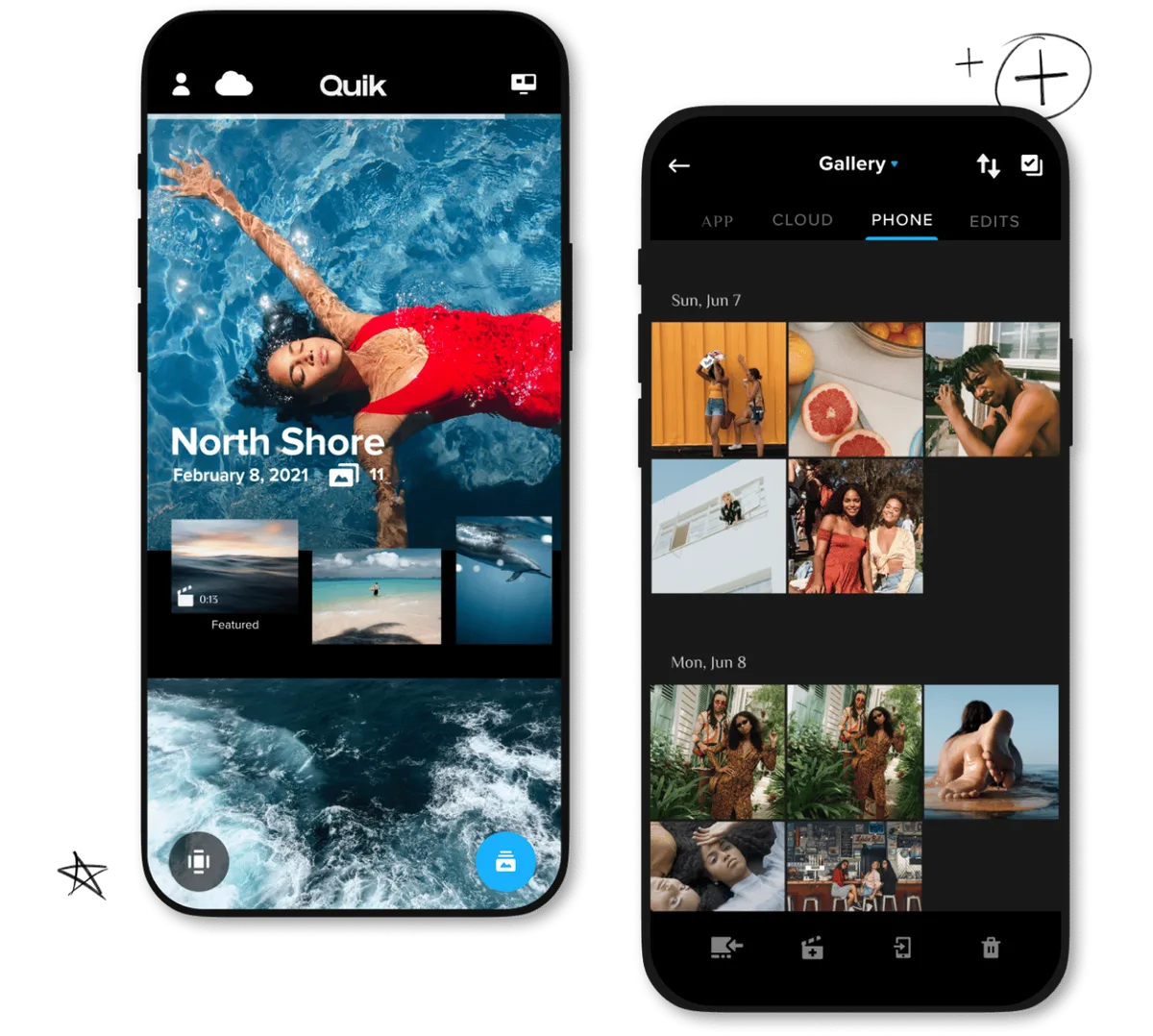
Image source: Web (Bing) / gopro.com (Web image (fair-use with source credit))
The steps
- Turn on your camera and enable Wi-Fi. On most models, this is a setting in the menu or a quick-access button on the side.
- Open the camera's app on your phone. The app will scan for nearby cameras. When it finds yours, tap to connect.
- Connect to the camera's Wi-Fi network. Your phone will prompt you to join a network that starts with the camera's name. Enter the password shown on the camera's screen (usually a simple 8-digit code).
- Select the videos you want to transfer. The app will show you a gallery of recent clips. You can select multiple files at once, though some apps limit the number per batch.
- Start the transfer. The app will copy the files to your phone's storage. The default save location is usually the app's own folder, but you can change it in the settings.
- Wait for the transfer to finish. This is the slow part. A 1 GB clip can take two to five minutes over Wi-Fi, depending on the camera's wireless generation and interference.
The downsides
- Battery drain. Wi-Fi transfers are hard on the camera's battery. A 10-minute transfer can drain 20% or more of the battery, especially on older models.
- Speed. Wi-Fi 5, the standard in most current action cameras, tops out at around 20 MB/s in ideal conditions. Real-world speeds are often closer to 5 to 10 MB/s.
- Interference. If you're in a crowded area with lots of Wi-Fi signals, the transfer can stutter or fail.
- App crashes. Some apps are more stable than others. Quik has improved, but older versions were notorious for dropping connections mid-transfer.
When to use Wi-Fi
- You're away from your gear bag and don't have a card reader.
- You only need to transfer a few short clips.
- You want to preview videos on your phone before deciding which to keep.
If you're shooting a lot of footage, Wi-Fi is not the way to go. It's slow, drains the battery, and risks file corruption. But for a quick share to social media, it works fine.
Method 3: Plugging the Camera Directly Into Your Phone via USB Cable (The Hit-or-Miss Way)
Some people assume they can just plug their camera into their phone with a USB cable and transfer files like they would to a computer. In theory, it works. In practice, it's often frustrating.
How it works
- Connect your camera to your phone using a USB-C to USB-C cable (or a micro-USB to USB-C adapter if your camera is older).
- Your phone should recognize the camera as a storage device using MTP (Media Transfer Protocol).
- Open your file manager app, navigate to the camera's internal storage or SD card, and copy the files.
Why it often fails
- MTP incompatibility. Not all cameras support MTP. Some only use USB mass storage, which Android stopped supporting in newer versions.
- Driver issues. Your phone may not have the right drivers to communicate with the camera. This is especially common with less popular brands.
- Cable quality. A cheap or damaged cable can cause the connection to drop. Always use the cable that came with your camera or a high-quality third-party cable.
- Camera settings. Some cameras need to be set to "USB mode" or "Mass Storage" before they'll show up on your phone. Check your camera's manual.
When it works
- If your camera supports MTP and your phone is relatively new (Android 11 or later), this method can be reliable.
- It's useful if you've forgotten your card reader and don't want to use Wi-Fi.
- It's also a good backup if you're having trouble with the other methods.
The verdict
Don't rely on this as your primary method. It's inconsistent and can leave you stranded. If you have a GoPro, the Quik app is more reliable than a direct USB connection.
If you have a DJI camera, the Mimo app is the better choice. For most people, the card reader is still the best option.
Comparison Table: Which Transfer Method Fits Your Situation?
Here's a quick reference to help you decide. Each method has a clear winner depending on what matters most to you.
| Factor | USB-C Card Reader | Wi-Fi (Camera App) | Direct USB Cable |
|---|---|---|---|
| Speed | Fastest (10 to 30 seconds per GB) | Slow (2 to 5 minutes per GB) | Moderate (depends on MTP support) |
| Reliability | Very high | Moderate (app crashes, drops) | Low (inconsistent) |
| Battery drain | None on camera | High (20% or more per transfer) | Low (camera may charge) |
| Gear needed | Card reader | None (uses phone) | USB cable |
| Best for | Large transfers, travel | Quick single clips | Backup only |
Who should use the card reader
- Heavy shooters. If you film 30 minutes of 4K footage a day, a card reader saves hours per week.
- Travelers. You don't want to sit around waiting for Wi-Fi transfers. Pop the card, copy, and go.
- Anyone who values reliability. No app crashes, no dropped connections. Just a straight file copy.
Who should use Wi-Fi
- Casual users. You shoot a few short clips and want to share them immediately.
- On-the-go situations. You're hiking, biking, or skiing and don't want to stop and open the camera.
- No card reader available. Wi-Fi is better than nothing.
Who should use the USB cable
- No other option. You left your card reader at home and don't want to use Wi-Fi.
- Testing a new camera. Sometimes the cable method works well enough to transfer a few files while you're setting up the app.
Common Mistakes That Ruin a Transfer (and How to Avoid Them)
Pulling the card or cable too early
This is the number one cause of corrupted files. Always check that the transfer is complete before disconnecting. On a file manager app, wait for the progress bar to disappear.
On the camera app, wait for the "Transfer complete" message. If you lose footage this way, knowing how to backup mirrorless camera photos can help you avoid the same mistake with your action camera.
Using a cheap or incompatible card reader
Not all card readers are equal. Some use USB 2.0, which tops out at 30 MB/s. Others have loose connections that cause dropouts.
Stick with a reputable brand that supports USB 3.0 or higher. A good reader costs $15 to $20 and lasts years.
Forgetting to format the card in the camera
If you insert a card that was formatted in a computer, the camera may not write files correctly. Always format the card inside the camera before each shoot. This also helps prevent file system errors.
Ignoring the file format
Most action cameras record in MP4 or HEVC. HEVC files are smaller but may not play on older Android phones. If you're having trouble viewing a transferred clip, check the file format.
Your phone may need a codec update.
Overloading the camera's Wi-Fi
If you're in a crowded area with many Wi-Fi networks, the camera's signal can get drowned out. Move to a quieter spot or use a card reader instead. If you're planning a shoot and want to avoid these issues entirely, learning how to use a mirrorless camera for vlogging can teach you better file management habits that apply to any camera.
Frequently Asked Questions
Can I transfer action camera videos to Android without an app?
Yes, if you use a USB-C card reader. Your phone's file manager will detect the card as external storage. You can copy files directly without any app.
Wi-Fi transfers require the camera's app.
Why does my Android phone not recognize my SD card?
Your card is likely formatted as exFAT, which older Android phones don't support. Check your phone's specifications or use a third-party file manager that supports exFAT. Alternatively, format the card as FAT32 on a computer, though this limits file size to 4 GB.
How long does it take to transfer a 20-minute 4K video?
Via a USB-C card reader, about 30 to 60 seconds. Via Wi-Fi, expect 10 to 20 minutes. The exact time depends on the card's read speed, your phone's USB generation, and the Wi-Fi signal strength.
Can I transfer videos while the camera is charging?
If you're using the USB cable method, some cameras can charge and transfer data simultaneously. Check your camera's manual. Wi-Fi transfers drain the battery, so you can plug the camera into a power bank while transferring.
What if the transfer fails halfway?
First, check if the file is corrupted. Try opening it on your phone. If it's damaged, transfer it again.
If the problem persists, remove the card and use a card reader. If the card reader also fails, the card may be faulty.
Which method is best for large 4K files?
The USB-C card reader is the clear winner. It's faster, more reliable, and doesn't drain your camera's battery. For 4K footage, Wi-Fi transfers take too long and risk disconnection.
If you're shooting a lot of high-resolution video, a card reader is essential. For tips on managing your gear, check out how to store a mirrorless camera properly. The same care applies to your action camera.

Similar Posts