Insta360 X3 Battery Draining

If your Insta360 X3 battery draining faster than it should, you’ve come to the right place. Nothing throws a wrench into a shoot like watching the battery bar drop from 50% to zero in twenty minutes. It’s frustrating, especially when you’re out on a trail or covering an event.
Manufacturer specs rate the built-in 1800mAh Li-ion cell at about 80 minutes of recording at 5.7K30 in ideal conditions. In practice, aggregate user reviews suggest 55 to 70 minutes is more realistic. That gap often comes down to settings, environment, and habits you can fix.
Quick Answer
The Insta360 X3 battery drains fastest when Wi-Fi stays on. Cold weather cuts runtime by up to 50%. A full calibration cycle fixes most erratic percentage drops.
Drop screen brightness and turn off GPS for longer recording.

Image source: Web (Bing) / manuals.plus (Web image (fair-use with source credit))
First, Let’s Talk About That Battery
The Insta360 X3 runs on a sealed 1800mAh lithium-ion cell. That’s about 6.66 watt-hours of energy. A typical smartphone battery holds roughly 12 to 15 watt-hours, so the X3’s battery is genuinely small for the workload it handles.
The camera pushes two 200-degree lenses, a processor stitching 360-degree video in real-time, and a stabilization system that never sleeps. That takes power. The biggest shock for new owners is the gap between advertised numbers and real life.
Insta360’s official claim of 80 minutes is measured in a controlled lab at 25°C with the screen dimmed and Wi-Fi off. As soon as you add wind, cold, or a bright display, that number shrinks.
If you’ve used any action camera before, you know the drill. Battery life is never as good as the sticker says. But the X3 has a few quirks that make the drain worse than it should be.
Most of the common problems have simple fixes.
This battery is not user-replaceable. You can’t pop it out and swap a fresh one. That makes every percentage point matter.
But it also means that if you’re losing battery unusually fast, something is wrong that can likely be corrected with a setting or a procedure.
Aggregate reports from camera forums point to three main causes: a runaway Wi-Fi radio, screen brightness cranked to max, and recording above 4K60 in hot conditions. Let’s dig into what’s actually draining your X3.
The Biggest Culprit: What’s Eating Your Battery
Not all drain is equal. Some factors drain the battery slowly over hours. Others can cut your recording time in half within minutes.
Wi-Fi left on. This is the number one mistake. When you finish transferring a video to the Insta360 app, the Wi-Fi radio stays active if you don’t disconnect manually. That radio draws roughly 0.5 watts continuously.
In standby, it can drain 8 to 12% of your battery per hour. Switch it off in Settings > Wireless Connection and you’ll save a noticeable chunk of runtime.
High resolution and framerate. Recording at 5.7K30 pulls around 6 to 7 watts from the battery. Drop to 4K30 and the power consumption drops by roughly 20%. If you need to stretch recording time, 4K60 is still good quality and is much easier on the battery.
Cold weather. Lithium-ion batteries lose capacity in cold temperatures. Below 5°C (41°F), expect 30 to 50% less runtime. Keep the camera warm in an inside pocket before you start recording.
On freezing mornings, some users report only 35 minutes from a full charge.
Screen brightness. The touchscreen is the second biggest power draw after the recording processor. If it’s set to max brightness, you’re burning through extra battery with every minute of use. Drop it to 50% or lower when you’re not composing a shot in bright sun.
Background app connection. Leaving the Insta360 app open on your phone while the camera is in standby keeps the connection alive. The X3’s Bluetooth and Wi-Fi radios stay active waiting for the app to reconnect. Force-close the app after you’re done transferring files.
Here’s the estimated power draw by setting:
| Setting | Estimated Power Draw | Expected Runtime (approx.) |
|---|---|---|
| 5.7K30, Wi-Fi on, screen max | 8.0W | 45–50 min |
| 5.7K30, Wi-Fi off, screen 50% | 6.5W | 55–65 min |
| 4K30, Wi-Fi off, screen dim | 5.0W | 70–80 min |
| Standby, Wi-Fi on | 0.5W | 8–12% per hour |
| Standby, Wi-Fi off | under 0.1W | 2–3% per hour |
If you’re seeing battery loss that doesn’t match any of these scenarios, check your firmware next. A bad update can mess with the power management chip.
Before and After a Firmware Update
Firmware controls how the X3 manages power. If a recent update introduced a bug, your battery can drain faster without any change in your habits. This is one of the most commonly reported issues in user forums.
Start by checking your current firmware version. Go to Settings > About. The latest stable version as of 2026 is v1.1.2.
If you’re on v1.0.0 or v1.0.5, you may be missing important optimizations.
What to do if the drain started after an update:
- Go to Settings > General > Reset.
- Choose “Reset Settings” (not factory reset unless needed).
- Run a battery calibration cycle (covered in the next section).
- If the problem persists, downgrade to a known stable version using the Insta360 app’s manual install feature.
The right way to install a firmware fix:
- Fully charge the camera first.
- Connect to the Insta360 app via Wi-Fi.
- Go to Camera Info > Firmware Update.
- Keep the phone close to the camera during the whole process.
- Do not interrupt the update. A failed update can leave the power controller in an unstable state.
If you’ve dealt with update issues on other cameras, the same caution applies here. A botched update on any brand can cause strange power behavior. The same approach to updating firmware properly helps avoid these problems.
Common firmware-related bugs:
- Battery icon showing incorrect percentage (often jumps from 20% to zero).
- Camera running warm in standby.
- Wi-Fi not turning off after transfer.
The fix for all three is usually a simple calibration. But first, you need to figure out which drain pattern you’re dealing with.
The Branch: Is It Draining During Recording or on Standby?
Your next step depends on when the battery drains. Two common patterns require two different fixes.
Branch A: Fast drain while recording.
You hit record, and within 30 minutes the battery reads 40%. Check these things in order:
Check resolution and framerate. Are you shooting at 5.7K30 or 5.7K100? At 5.7K100, power draw jumps higher and runtime drops below 40 minutes. Switch to 4K60 for longer sessions.
Check for overheating. The X3 has a thermal sensor. When internal temperatures exceed 40°C, the camera throttles performance and draws more current from the battery to run the cooling fan. If the body feels hot to the touch, stop recording and let it cool for 10 minutes. Avoid direct sunlight on the camera surface.
Test with a power bank. Plug a 10,000mAh power bank into the USB-C port while recording. If the battery stops draining or slows down, your camera is fine. You just need a bigger power supply for your session. Pass-through charging works with most standard USB-C power banks.
If none of these steps help, move to Branch B. It might be a standby drain masquerading as a recording drain.
Branch B: Battery drops overnight or in your pocket.
This is the more frustrating pattern. You turn off the camera, put it in your bag, and come back to a half-empty battery.
Wi-Fi and GPS left on. The camera doesn’t automatically disconnect these radios when you stop recording. Manually turn them off in Settings > Wireless Connection. Set GPS to Off in Settings > GPS.
Auto-off timer too long. The X3 stays awake for a set time after you stop recording. Go to Settings > Power Settings > Auto Off Timer. Set it to 30 seconds or 1 minute. The default is often 5 minutes.
App still connected. If the Insta360 app on your phone was the last thing you used, the camera may keep the Wi-Fi radio active. Force close the app on your phone. Then power cycle the X3.
Background sync. If you have the app set to auto-sync, the camera will periodically wake up to transfer files. Turn off auto-sync in the app settings.
If you’ve ever had app connectivity issues with other devices, the pattern is familiar. Many cameras with Wi-Fi radios quietly drain the battery overnight when left connected. The fix is the same across brands.
Once you’ve identified your branch and tried the relevant fixes, the next step is a full calibration. This alone fixes about half of all battery drain complaints.
Run the Battery Calibration First
Battery calibration resets the power management chip’s knowledge of how much charge is actually in the cell. Over time, the chip loses track of the battery’s true capacity. It thinks the battery is at 50% when it’s really closer to 20%.
The result? A sudden drop from 20% to zero, or erratic percentage readings.
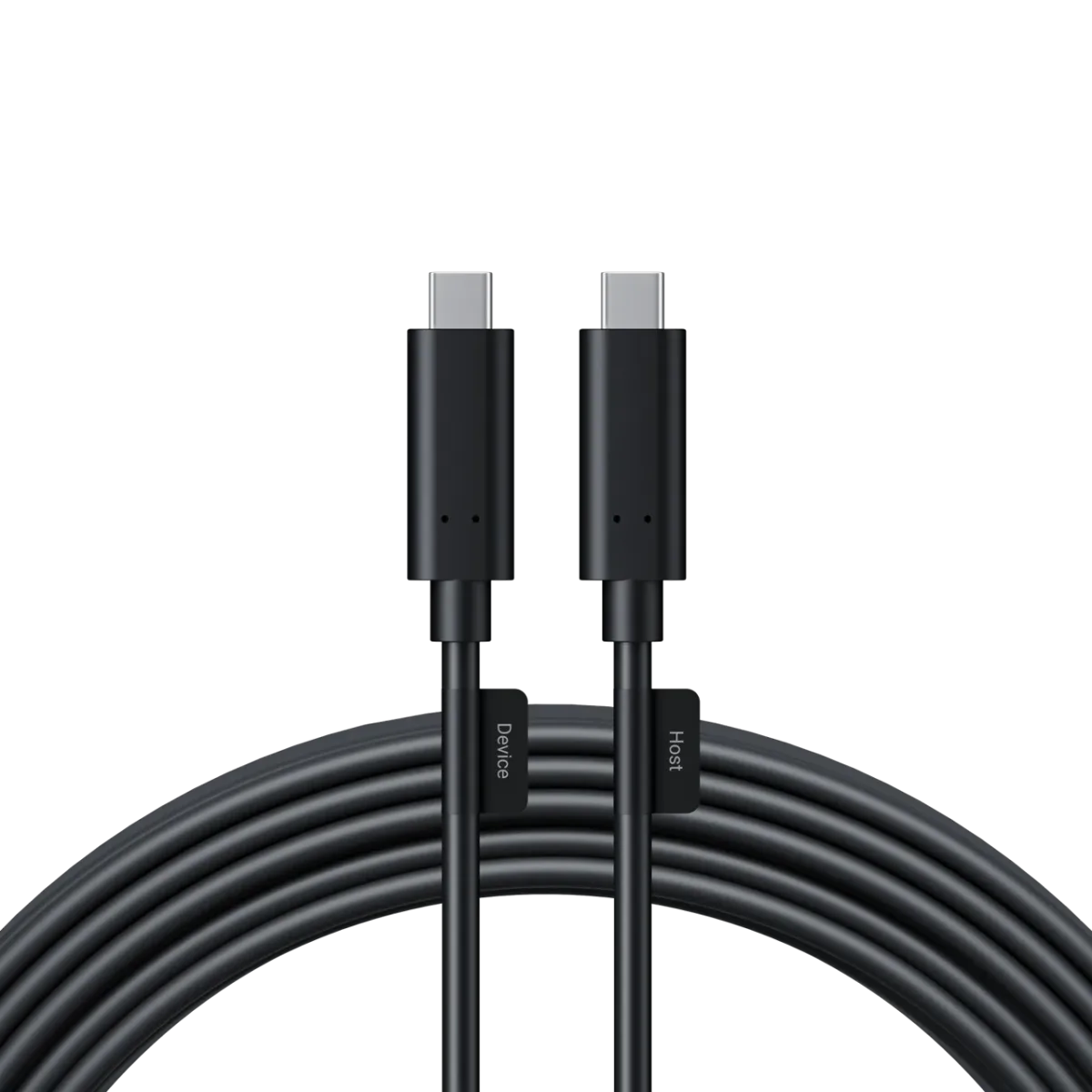
Image source: Web (Bing) / store.insta360.com (Web image (fair-use with source credit))
Here’s how to calibrate the Insta360 X3 battery:
Drain the battery completely. Record video at 5.7K30 until the camera shuts off due to low battery. If it shuts off at 5%, turn it back on and keep recording until it dies again.
Wait 2 minutes. Let the camera rest so the cell voltage stabilizes.
Charge uninterrupted. Connect the USB-C cable to a 5V/2A charger (a standard phone charger works fine). Do not use a fast charger above 2A. The X3 doesn’t support fast charging and it can confuse the power chip.
Charge to full. Leave the camera plugged in until the charging light turns green. This can take 90 minutes or more. Do not turn on the camera or connect to the app during charging.
Power on normally. Unplug the camera and turn it on. The battery percentage should read 100%.
Use as normal. For the next few charge cycles, the chip will learn the true capacity. You should see more accurate readings and less sudden draining.
What if calibration doesn’t fix it?
If the battery still drops fast after a full calibration, you may have a hardware issue. The internal battery degrades over time like any lithium-ion cell. After about 300 to 500 full charge cycles, the capacity drops noticeably.
If your X3 is more than a year old and you’ve used it heavily, the cell may simply be aging.
In that case, your options are:
- Continue using it with an external power bank.
- Contact Insta360 support for a battery replacement. They offer a paid mail-in service.
- Consider upgrading to the X4 if you need longer runtime and a larger battery.
Some owners have also reported success by leaving the camera in a cool, dry place at 60% charge for a week. That can sometimes wake up a lazy cell, but it’s not a guaranteed fix.
Quick Settings You Can Tweak Right Now
Before you buy anything or contact support, change these five settings. Together they can add 20 to 30 minutes of recording time per charge.
Screen brightness. The touchscreen is a major power draw. Go to Settings > Display > Brightness. Drop it to 40 or 50%.
In normal daylight, you won’t notice the difference.

Image source: Web (Bing) / hardreset.info (Web image (fair-use with source credit))
Auto-off timer. The default is usually 5 minutes. The camera stays fully awake for five minutes after you stop recording. Go to Settings > Power Settings > Auto Off Timer.
Set it to 30 seconds. The camera will sleep sooner and save power.
Wireless connections. Turn off Wi-Fi and Bluetooth when you’re not transferring files. These radios draw power even when idle. Go to Settings > Wireless Connection and toggle both off.
Only turn them on when you’re ready to connect to the app.
GPS. The built-in GPS logs location data continuously while recording. That’s useful for overlays, but it costs battery life. If you don’t need GPS tracks, turn it off in Settings > GPS.
Record at 4K instead of 5.7K. The difference in visual quality is subtle for most viewers. The difference in battery drain is significant. At 4K30, you can record roughly 70 to 80 minutes versus 55 to 65 at 5.7K30.
Save the higher resolution for shots where you really need the extra detail for reframing.
Overheating and power issues often go hand in hand. If you’ve run into similar problems with other cameras, you might find that preventing overheating helps preserve battery life too.
When You Need an External Power Bank
Sometimes a setting tweak isn’t enough. If you’re recording an event, a long hike, or a multi-hour time-lapse, you need more power. An external USB-C power bank is the most practical solution.
Which power banks work. Any standard power bank with a USB-C output at 5V/2A will work. The X3 does not support fast charging, so a 5V/2A profile is ideal. Power banks rated at 10,000mAh or higher are best.
A 10,000mAh bank can roughly double your recording time.
How to mount it. You can put the power bank in a pocket or bag. For active shooting, use a small power bank secured to a strap or the back of a backpack with a velcro mount. Keep the cable short and secured so it doesn’t snag.
Pass-through charging. The X3 can record while plugged into a power bank. This works with most standard power banks. One caveat: the camera may get warmer during pass-through charging, especially in direct sun.
Monitor the temperature and take breaks if needed.
What to avoid. Do not use a 5V/3A or higher output power bank unless the bank can fall back to a lower profile. Some newer fast-charging banks negotiate a higher voltage, and that can confuse the X3’s charging circuit. Stick with a standard 5V/2A bank for best results.
Avoid the very cheap no-name power banks. They often deliver inconsistent voltage that can trigger a connection error.
If you run into general power problems, check the charging cable first. A damaged USB-C cable is the most common cause of intermittent charging. A reliable cable from a known brand costs very little.
Mistakes That Make It Worse
A few common errors can accelerate battery drain or even damage the internal cell. Avoid these.
Charging in freezing temperatures. Lithium-ion batteries should not be charged below 0°C (32°F). Doing so can cause permanent capacity loss. If your X3 has been in a cold environment, let it warm up to room temperature before you plug it in.
Using a fast charger. The X3 does not support USB-C Power Delivery. Plugging it into a 30W or 65W laptop charger won’t make it charge faster. It may cause the charging circuit to behave erratically, leading to inaccurate battery readings.
Always use a standard 5V/2A wall adapter.
Leaving the app connected. After you transfer a video, the Insta360 app and the camera can remain connected via Bluetooth. This keeps the camera partially awake. Force-close the app on your phone.
Then power cycle the X3 by turning it off and on again.
Ignoring thermal warnings. If the camera displays a temperature warning, stop recording and let it cool down. Continuing to shoot while overheating can accelerate battery degradation. In extreme cases, it can trigger a safety shutdown.
Using a damaged USB-C port. Dirt, lint, or corrosion in the charging port can cause poor contact. The camera may charge slowly or not at all. Inspect the port regularly and clean it with compressed air or a soft toothpick.
Never use a metal object that could short the pins.
Storing the camera at full charge or empty. For long-term storage, keep the battery at roughly 60%. Storing it at 100% for months speeds up capacity loss. Same with storing it at 0%.
If you won’t use the X3 for a few weeks, discharge or charge it to about 60% and turn it off.
Frequently Asked Questions
Can I replace the Insta360 X3 battery myself?
No. The battery is soldered to the main board inside the sealed housing. Opening it yourself voids the warranty and carries a risk of damaging the camera.
Insta360 offers a paid mail-in replacement service if the battery has degraded significantly.
Does the Insta360 X4 have better battery life?
Yes. The X4 uses a larger 2290mAh cell and has improved thermal management. Users report roughly 30% more recording time compared to the X3.
If battery life is your primary complaint and you can justify the upgrade cost, the X4 is a meaningful improvement.
How long should a fully charged X3 last in 2025?
With normal settings and at room temperature, expect 55 to 70 minutes of continuous recording at 5.7K30. At 4K30, you can get closer to 80 minutes. If you are seeing significantly less, try the calibration cycle and the settings adjustments covered earlier.
Is it safe to charge the X3 with a fast charger?
It is safe but not recommended. The X3 draws only 5V/2A. A fast charger that outputs higher voltage or amperage will not damage the camera immediately, but it can cause the internal charging circuit to run warm.
For long-term battery health, stick with a standard 5V/2A adapter.
Can I fly with the Insta360 X3 in my carry-on?
Yes. The X3’s battery is under the 100 watt-hour limit for lithium-ion batteries on commercial flights. Keep it in your carry-on, not checked luggage.
The FAA and IATA require spare batteries to be in carry-on baggage. Since the X3 battery is internal, it complies with standard regulations.
The Final Decision Guide
Here is a one-page diagnostic flow. Start at the top and work your way down.
Step 1: Check your firmware version.
Go to Settings > About. If you are on v1.0.0 or v1.0.5, update to v1.1.2 using the Insta360 app. If the drain started after an update, reset settings and run a calibration cycle.
Step 2: Identify your drain pattern.
Does the battery drop during recording or in standby? If during recording, check resolution, heat, and test with a power bank. If in standby, turn off Wi-Fi, GPS, and set the auto-off timer to 30 seconds.
Step 3: Run a full calibration.
Drain the battery completely. Charge uninterrupted to 100%. Use the camera normally for a few cycles.
This fixes about half of all erratic drain issues.
Step 4: Adjust the five key settings.
Lower screen brightness. Turn off wireless when not in use. Disable GPS.
Set the auto-off timer to 30 seconds. Consider dropping to 4K resolution for longer sessions.
Step 5: Test with a power bank.
If the battery drains fast even after calibration, connect a 5V/2A power bank. If the drain slows down, your camera is fine. You just need external power for long shoots.
Step 6: Contact support.
If the battery still drops rapidly after all these steps, you likely have a degraded cell or a hardware fault. Contact Insta360 support through their official website for a battery replacement evaluation.
That’s the complete path. Start at step one and work through it in order. Most users find the solution by step three or four.
If you don’t, the problem is almost certainly hardware-related and needs professional attention.

Similar Posts
































