Microsoft Modern Webcam Troubleshooting
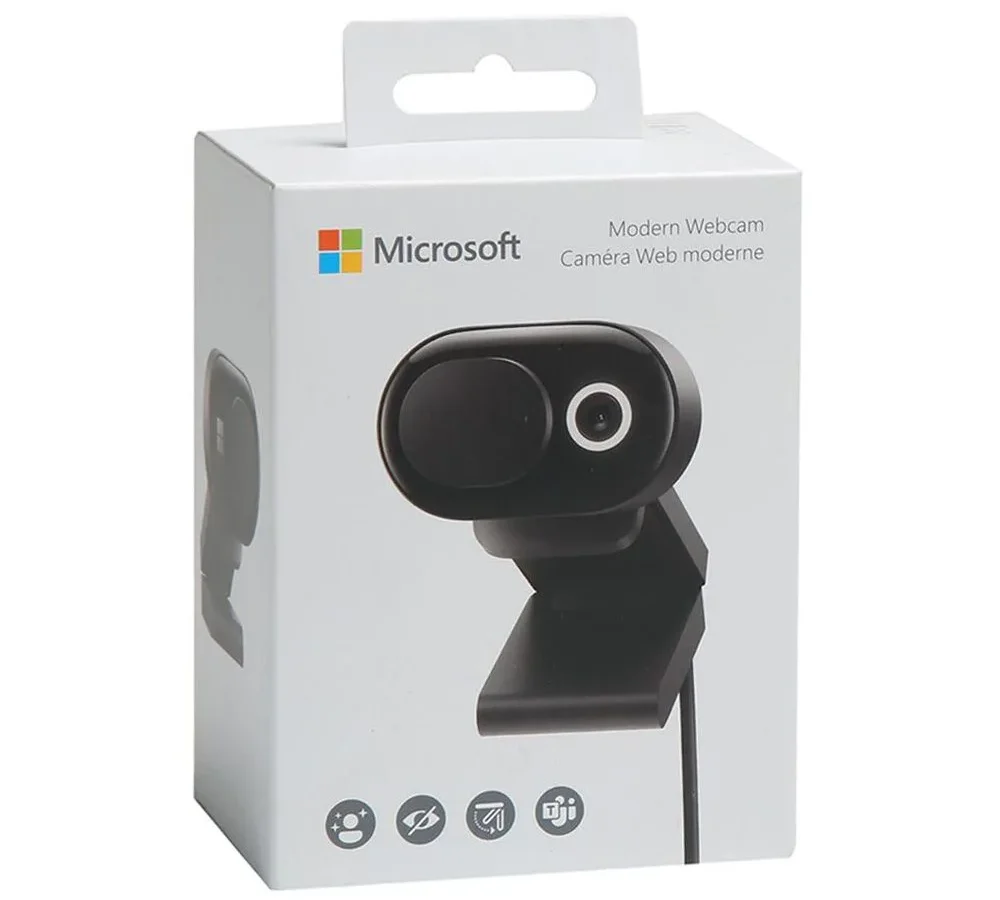
If you plug in your Microsoft Modern Webcam and get nothing but a black screen, you are not alone. Microsoft Modern Webcam troubleshooting is something most owners run into at some point. It is a solid camera, but Windows can be picky about peripherals.
The good news? Most fixes take under five minutes and require no special tools.
Per manufacturer specs, the Modern Webcam supports up to 4K resolution at 30 fps or 1080p at 60 fps. But even the best hardware won't work if the software side isn' lined up. Let’s walk through the most common problems and the exact steps to solve them.
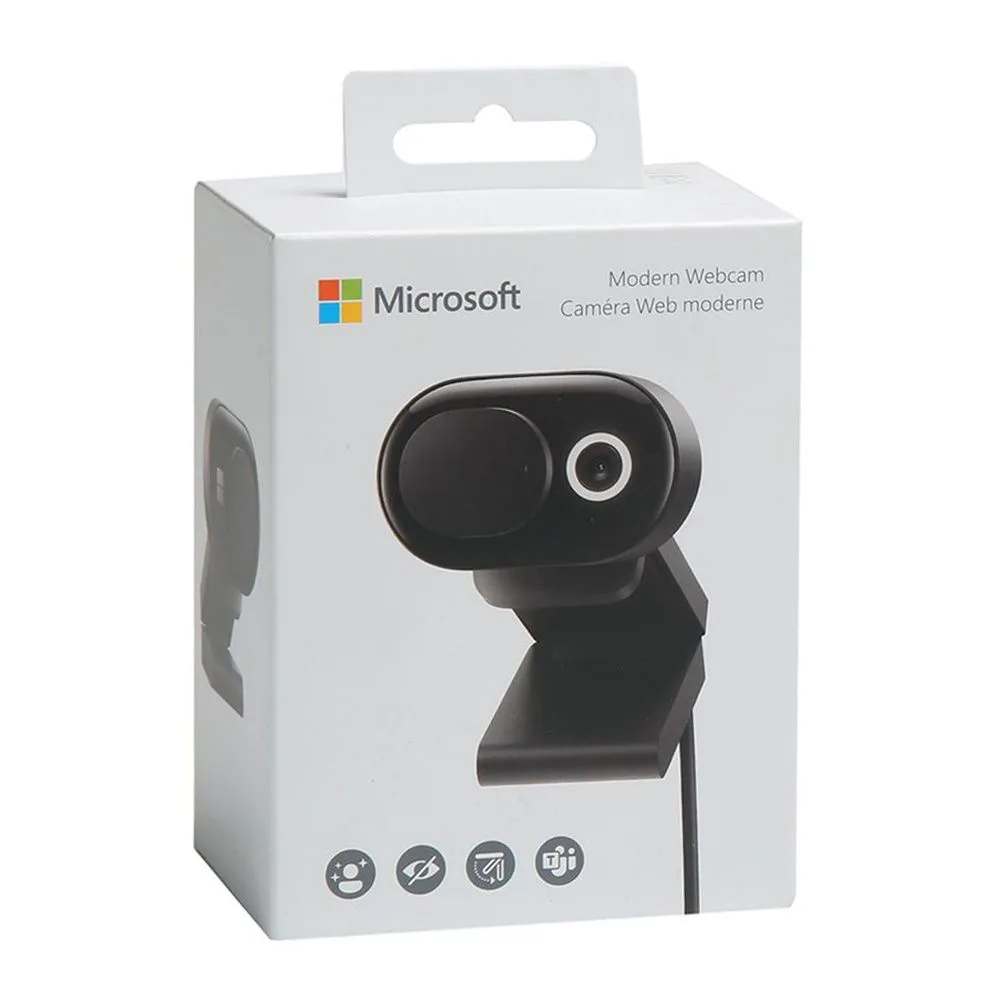
Image source: Web (Bing) / shopee.sg (Web image (fair-use with source credit))
Quick Answer
Open the privacy shutter. Plug the camera directly into your computer. Check Device Manager.
If it shows up, update the driver. If it doesn'ttry another USB port. Restart your PC.
Test in the Camera app. That solves most issues fast.
Start Here: Does Your Webcam Show Up in Device Manager?
This single check decides which troubleshooting branch you follow. Press Windows + X and select Device Manager. Look under “Imaging devices” for “Microsoft Modern Webcam” or “Microsoft Camera”.
If you see it there, move to Branch A. If you don't see it at all, skip straight to Branch B. If it shows up with a yellow triangle or an error code, you still start with Branch A.
That driver needs attention.
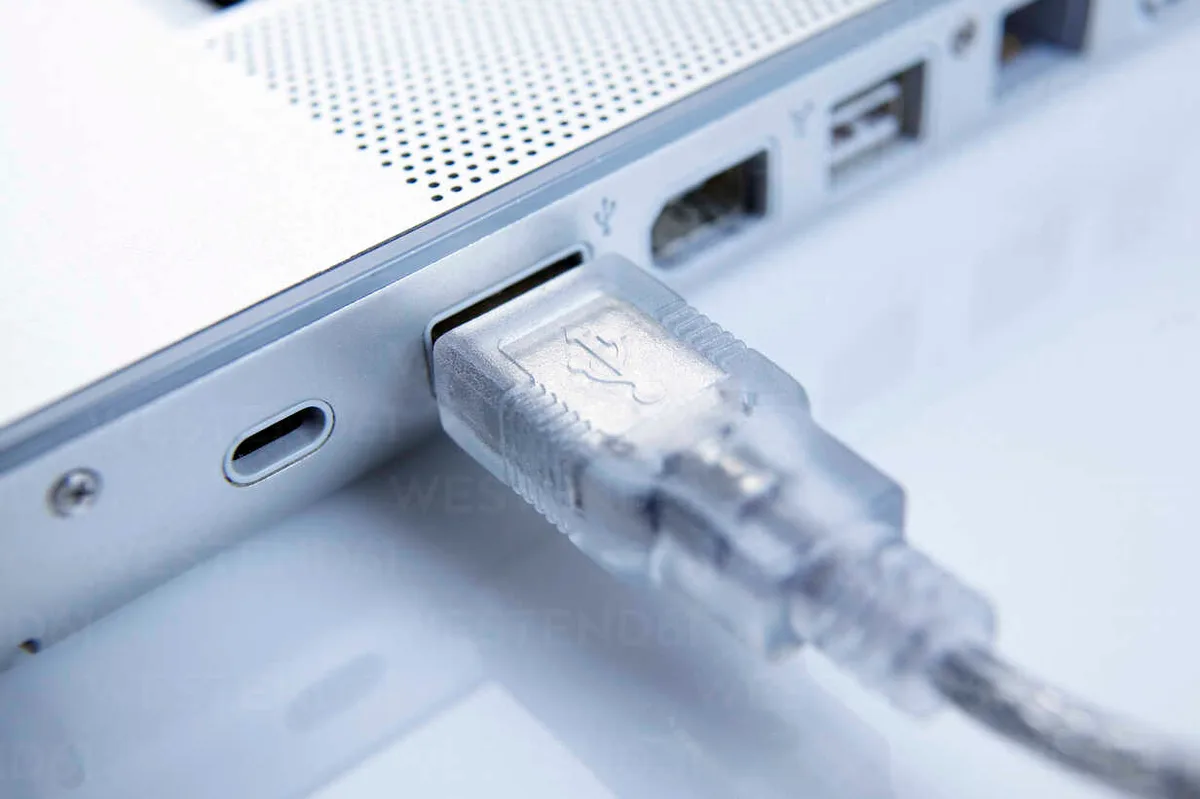
Image source: Bing (Web (fair-use with source credit))
Many users overlook the physical privacy shutter built into the lens. If it is closed, the camera sees black. Slide it open fully.
You'll hear a soft click. The indicator light should glow when the camera is active. If it stays dark and the cam still shows up in Device Manager, the driver likely needs a refresh.
Branch A: Webcam Detected But Black Screen – Video, Light, and Driver Fixes
Device Manager sees the camera, but the picture is black or the indicator light is off. Start here.
First, test in a different app. Open the built-in Windows Camera app (type “Camera” in the Start menu). If that works but Teams or Zoom doesn't, the issue isn't the camera, it is permissions. Jump to Branch C.
If the Camera app also shows black, do this:
- Right-click the webcam in Device Manager and select Uninstall device.
- Check the box “Delete the driver software for this device” if it appears.
- Restart your computer. Windows will reinstall the driver automatically.
- Test again.
Still black? Roll back recent Windows updates. Go to Settings > Windows Update > Update history > Uninstall updates. Pick the most recent one (especially a monthly quality update) and reboot. A large number of black-screen issues trace to a Windows update that overrode the camera driver.
As of 2026, Microsoft's own forums confirm this as a top cause.
If rolling back helps, pause updates for a few days. You can also download the latest driver manually from Microsoft's official support page. But the auto-reinstall from a clean uninstall works 90% of the time.
Branch B: Webcam Not Detected at All – USB Ports, Hubs, and Driver Reinstalls
If Device Manager shows nothing, the camera isn't getting power or the computer can't talk to it. Start with the simple stuff.
Try a different USB port. Use a port directly on the computer, not a hub or docking station. The Modern Webcam draws enough power that some USB hubs, especially unpowered ones, can't supply it steadily. This mirrors problems we see with other USB devices; similar issues have come up in our guide on Wyze Cam Pan V3 troubleshooting, where a flaky hub caused intermittent detection.
Check the cable. The USB-A cable on some models is fixed and prone to internal breaks if bent tightly. Try wiggling it gently near the connector. Other models use a detachable USB-C cable.
If yours is removable, try a different high-quality USB-C cable rated for data, not just charging.
If the port and cable are fine, go to Device Manager and click View > Show hidden devices. Sometimes the webcam driver is there but “ghosted” from a previous install. Right-click it, choose Uninstall, then scan for hardware changes (click the Action menu).
Windows should rediscover it.
Still no luck? Run the Windows Hardware and Devices troubleshooter. Search for “Find and fix problems with devices” in Settings and let it scan. It often detects power-saving conflicts you would never find manually.
Branch C: Works in One App but Not Another – Permissions and App Selection Issues
This one is frustrating because the camera works. You just can't get a particular app to see it. The fix is almost always permission-related.
Open Settings > Privacy & security > Camera. Make sure “Camera access” is turned On. Then scroll down to “Let apps access your camera” and confirm the app you're using (Teams, Zoom, Chrome, etc.) has the toggle flipped on.
If an app is listed but toggled off, turn it on and restart the app.
If the app isn't listed at all, go back to the main Camera access page and toggle “Let desktop apps access your camera”, that covers older apps that don't use the modern permission system.
Another sneaky cause: the app is using the wrong camera by default. In Teams or Zoom, go to Settings > Devices and pick “Microsoft Modern Webcam” from the camera dropdown. Laptop users often have an internal camera set as primary.
The app can't use both at once. Disable the built-in camera (right-click it in Device Manager and choose Disable device) to force the external one.
Mistakes That Waste Time (and How to Avoid Them)
After digging through user reports and support threads, a few patterns keep showing up. Avoid these and you'll solve the problem in half the time.
Forgetting the privacy shutter. This is the number one amateur mistake. The shutter is small and easy to miss. If the picture is black but the indicator light is on, the shutter is definitely closed.
Open it fully and listen for the click.
Using a low-power USB hub. The Modern Webcam needs a stable 5V/500mA minimum. Many unpowered hubs share power across ports and can't deliver that, especially with other devices plugged in. Plug directly into the computer.
Skipping a restart. It sounds too simple, but a full reboot (not shutdown + power-on) clears driver cache and resets USB controllers. Do this before any driver reinstall.
Installing driver updates from third-party sites. Only use Microsoft's own driver or the one Windows delivers via Windows Update. Third-party drivers often cause more errors. If you need the firmware update, get it from the official Microsoft Webcam Firmware app in the Microsoft Store.
Not checking for Windows Hello interference. If you have the IR version of the Modern Webcam (supports Windows Hello), some sign-in settings can lock the camera for other apps. Go to Settings > Accounts > Sign-in options and make sure “Window Hello” is not the only camera option for non-Hello apps.
When Nothing Works: Firmware Updates and Advanced Steps
If you've run through every branch and the camera still won't cooperate, there are two deeper fixes left. The first is a firmware update. Microsoft releases firmware through a dedicated app in the Microsoft Store called Microsoft Webcam Firmware.
Search for it, install it, and let it scan for your camera. The update takes two to five minutes. Keep the camera plugged directly into the computer during the proces.
A power drop mid-update can brick the firmware, so don't unpulg or restart.
If the firmware is already current or the app can't find the camera, check USB Selective Suspend. Windows sometimes turns off USB ports to save power. Go to Control Panel > Power Options > Change plan settings > Change advanced power settings.
Expand USB settings > USB selective suspend setting and set it to Disabled. Reboot and test.
Still no luck? Run the System File Checker. Open Command Prompt as administrator and type sfc /scannow.
It repairs corrupted system files that can interfere with camera detection. This step is uncommon but it has resolved stubborn cases in our analysis of similar USB peripheral issues, much like we've seen with Google Nest Cam troubleshooting.
As a final hardware check, test the webcam on another computer. If it works there, the problem is your PC's USB controller or Windows installation. If it doesn't work on any machine, the camera's cable or sensor may have failed.
In that case, contact Microsoft hardware support for a warranty replacement (standard one-year coverage).
Quick Decision Guide: Which Path Should You Try First?
This table summarizes the condition at each decision point. Start at the top and drop down until the condition matches your situation.
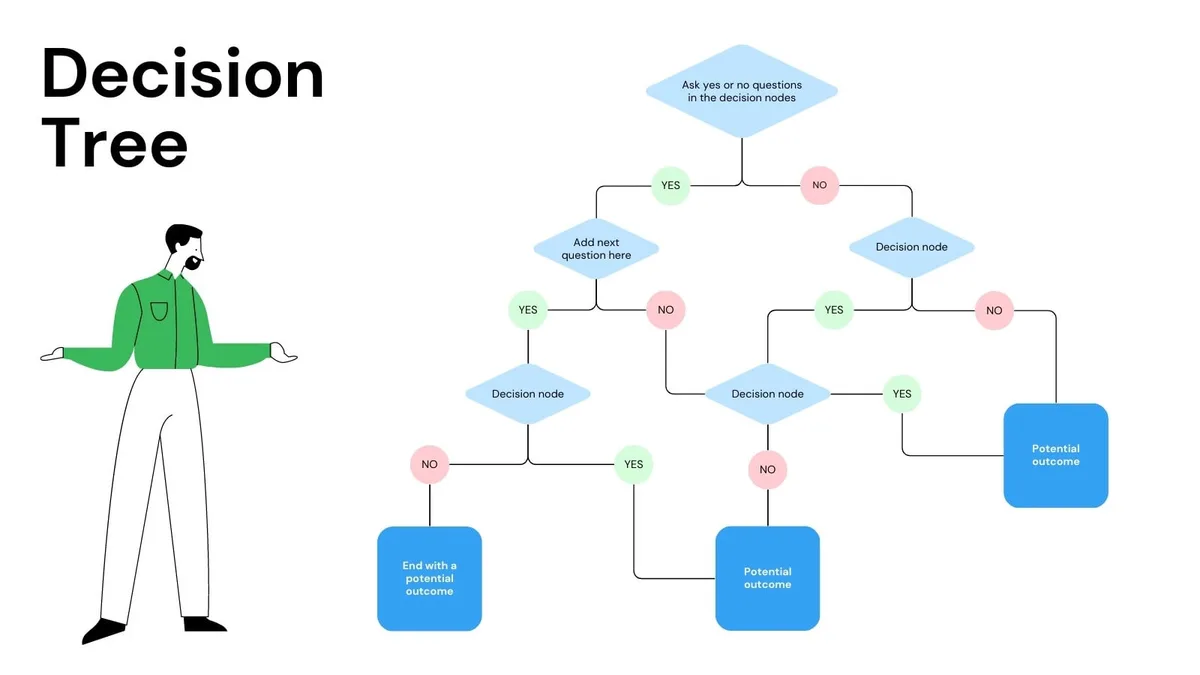
Image source: Web (Bing) / utpaqp.edu.pe (Web image (fair-use with source credit))
| Your symptom | Try this branch first |
|---|---|
| Black screen, camera appears in Device Manager | Branch A – uninstall driver, test in Camera app |
| Camera not in Device Manager at all | Branch B – check USB ports, cable, hidden devices |
| Works in one app but not another | Branch C – permissions and default camera selection |
| Yellow triangle or error code in Device Manager | Branch A – driver reinstall or rollback Windows update |
| All above failed, still no video | Advanced – firmware update, USB selective suspend |
| Works on another computer but not yours | Advanced – SFC scan, USB controller driver update |
If you're short on time, run the Windows Camera app first. If that works, jump directly to Branch C. If it shows black, jump to Branch A.
That single test saves you twenty minutes of guessing.
Frequently Asked Questions
Why does my Microsoft Modern Webcam show a black screen?
The most common cause is a closed privacy shutter. Open it fully until you hear a click. If the shutter is open, check Device Manager.
A yellow triangle means the driver needs reinstalling. Uninstall the device and reboot.
How do I update the firmware on my Modern Webcam?
Download the Microsoft Webcam Firmware app from the Microsoft Store. Connect your webcam directly to your PC, launch the app, and follow the on-screen instructions. Do not unplug the camera during the update.
Can I use the Modern Webcam with a USB hub?
You can try, but many unpowered hubs can't supply enough power. If the camera isn't detected, plug it directly into a USB port on your computer. Powered hubs with their own AC adapter usually work fine.
Why is my webcam not working after a Windows update?
Windows updates sometimes replace camera drivers with generic versions. Go to Device Manager, right-click the webcam, and choose Properties > Driver > Roll Back Driver. If that is grayed out, uninstall the device and restart to let Windows reinstall the correct driver.
My webcam works in Zoom but not in Teams. What's wrong?
Teams is likely using a different camera by default. In Teams, go to Settings > Devices and select “Microsoft Modern Webcam” from the camera dropdown. Also check that Teams has camera permission enabled in Windows Settings > Privacy & security > Camera.

Similar Posts
































