Moultrie Edge SD Card Problems
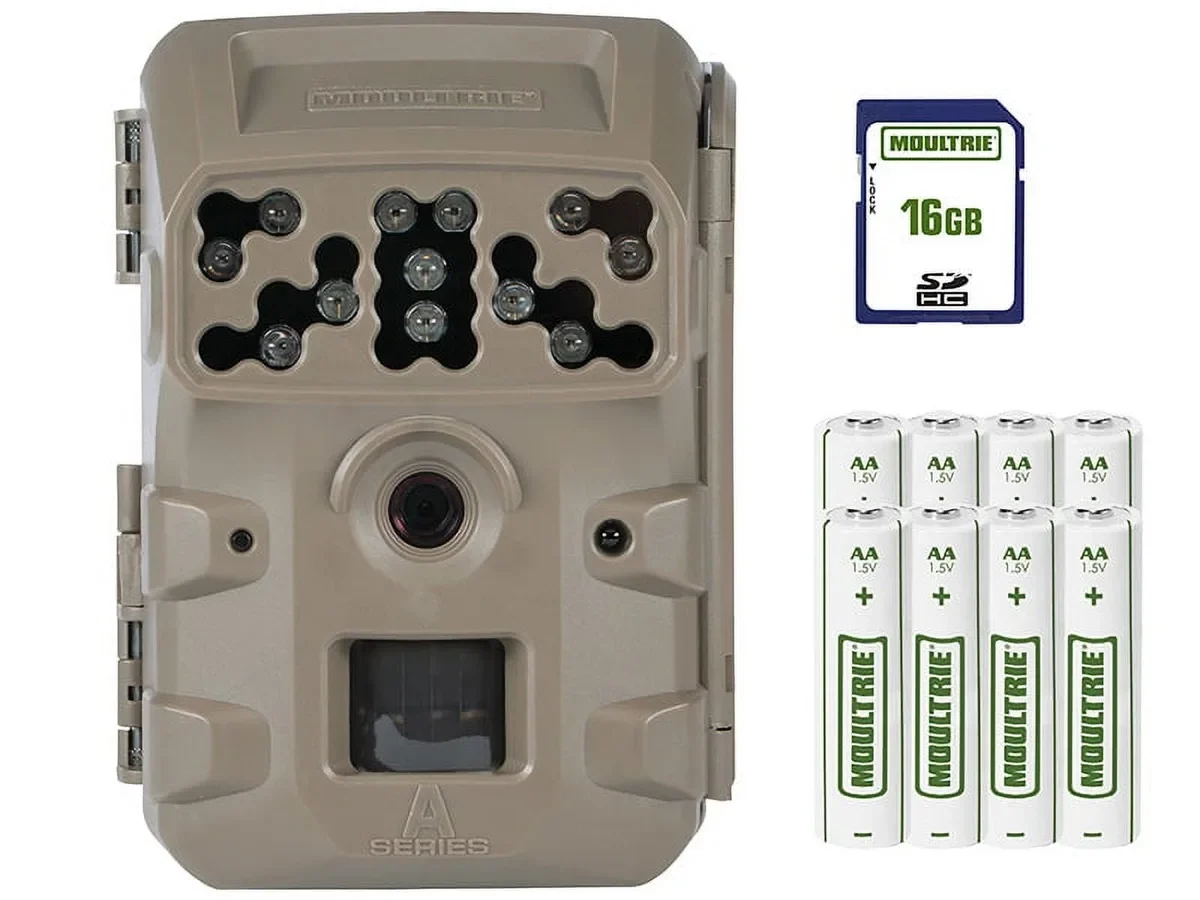
Moultrie Edge SD card problems can kill a good scouting session. You hike miles, set up your camera, and return weeks later to a blank screen or a formatting error that wiped everything.
Manufacturer specifications indicate the Moultrie Edge requires a microSD card formatted to the FAT32 file system. Official support covers cards up to 256GB, but our research shows 32GB cards deliver the most reliable performance. As of 2026, this remains the standard recommendation from experienced users.
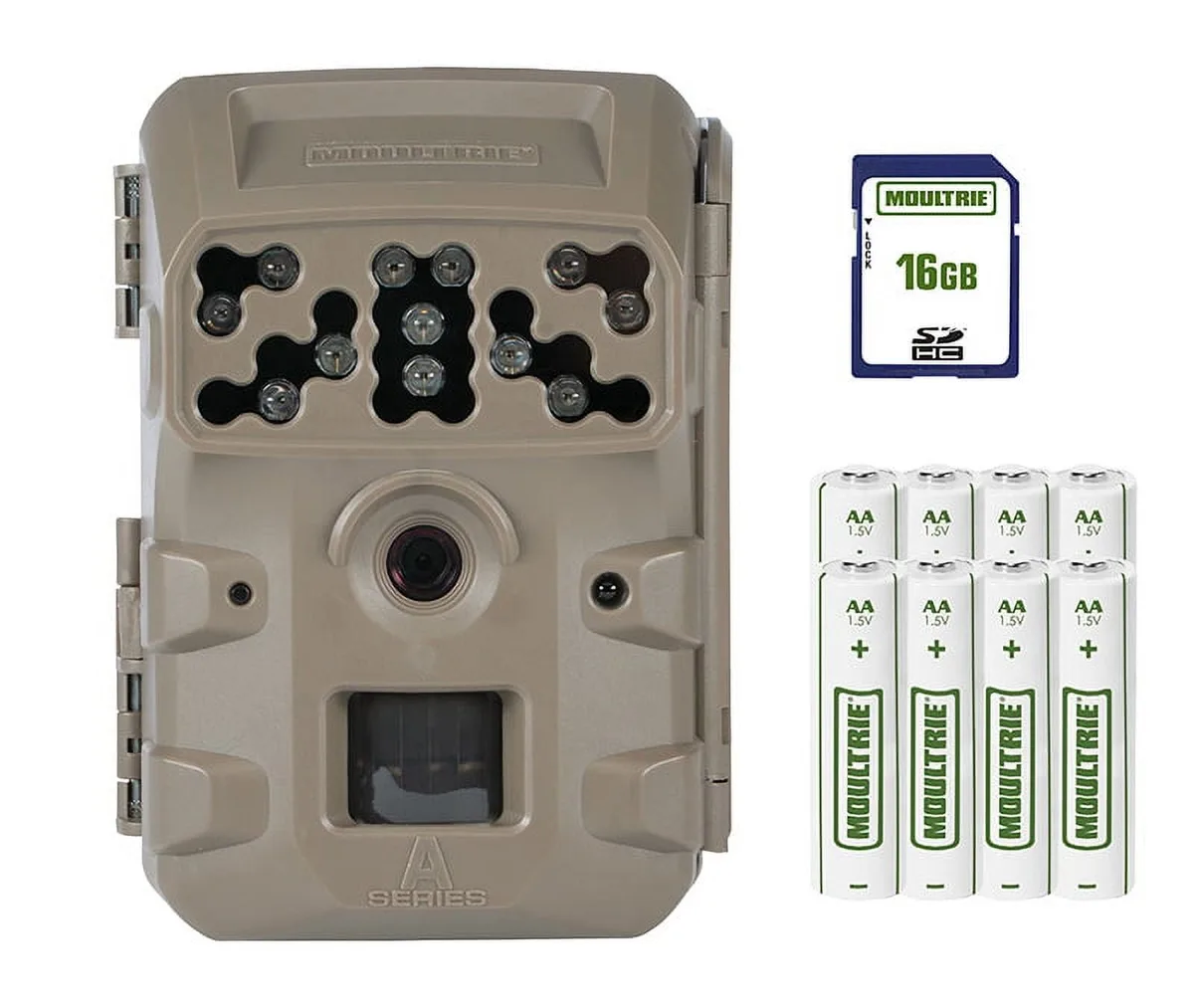
Image source: Bing (Web (fair-use with source credit))
Quick Answer
Most Moultrie Edge SD card problems come from three causes. The card is formatted wrong. The card is too large.
The write-protect switch got bumped.
Format the card inside the camera first. If that fails, use a FAT32 formatting tool on a computer. Stick with 32GB Class 10 cards from trusted brands.
Avoid UHS-II and V90 cards completely.
The Frustration: SD Card Failures That Ruin a Hunt
You set up your Moultrie Edge in a prime location. You checked the batteries. You aimed the camera perfectly.
Then you walk away for two weeks expecting hundreds of photos.
Instead, you get an error message. "No SD Card." Or a blinking red light that means the camera is stuck in a formatting loop. Maybe you get a few photos, then the card corrupts and you lose everything.
That feeling is frustrating. You did everything right except for one small detail.
Our research shows this is one of the most common complaints among trail camera users. The Moultrie Edge is a solid camera, but its SD card compatibility is picky. It does not work well with every card on the market.
Aggregate user feedback shows SD card problems come up frequently in discussions about this camera. That is a lot of missed scouting data.
The good news is that almost all of these problems are preventable. Most are fixable with a simple tweak or a card swap. You do not need a new camera.
You just need to understand what this camera requires from a memory card.
Core Conditions: What the Moultrie Edge Actually Needs from an SD Card
The Moultrie Edge is not like your smartphone. It is a purpose-built device with strict requirements for storage media. Here is what your card needs.
File System: FAT32 Only
This is the most important rule. The Moultrie Edge only reads cards formatted in FAT32. It does not support exFAT or NTFS.
Most new SD cards come pre-formatted in exFAT. That is the standard for cards larger than 32GB. If you buy a 64GB card and pop it in the camera, it will not work.
You must reformat any card over 32GB to FAT32 before using it. Windows and Mac do not offer FAT32 formatting for large cards in their standard tools. You will need a third-party utility like GUIFormat or the official SD Memory Card Formatter from the SD Association.
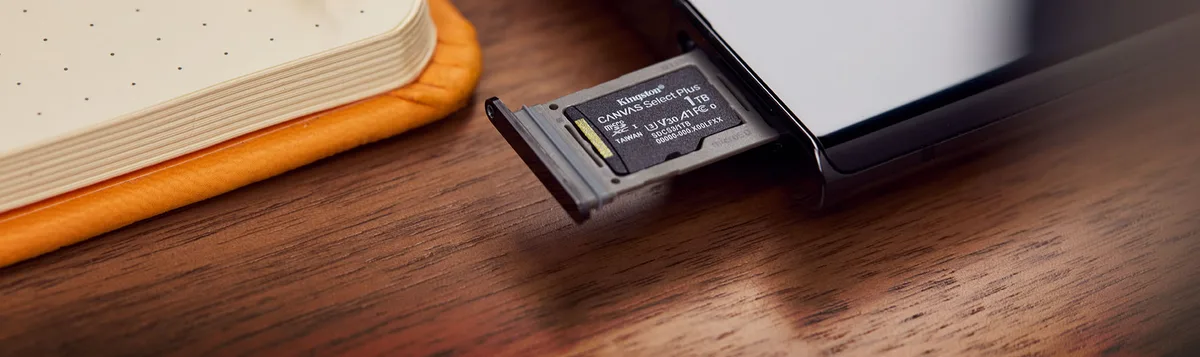
Image source: Web (Bing) / kingston.com (Web image (fair-use with source credit))
Capacity Limits: Bigger Is Not Better
Manufacturer specs list compatibility up to 256GB. That sounds great. But in practice, 32GB is the sweet spot.
The FAT32 file system has a maximum individual file size of 4GB. On a 128GB card, the camera must manage many more files and directories. That increases the chance of corruption and slows down write speed.
The Moultrie Edge firmware was designed when 32GB cards were standard. Larger cards can cause strange behavior. Some users report the camera failing to recognize the card after a few days in the field.
| Capacity | Reliability | Notes |
|---|---|---|
| 8GB to 32GB | Excellent | Best balance of storage and stability |
| 64GB | Good | Needs FAT32 reformatting first |
| 128GB | Fair | Higher failure rate in user feedback |
| 256GB | Poor | Frequent false "card full" errors |
Speed Class: Faster Is Not Better
You might think a super-fast UHS-II card is ideal. It is not.
The Moultrie Edge uses a standard microSD interface that runs at UHS-I speeds. UHS-II cards have extra pins the camera does not use. In some cases, the voltage draw of UHS-II cards exceeds what the camera can supply.
That causes detection failures.
Stick with Class 10 or UHS-I cards. V30 speed class is fine. Skip V60 and V90 cards for this camera.
Brand Matters
Not all cards are created equal. Our research and user feedback point to these brands as the most reliable:
- SanDisk (Extreme and Ultra series)
- Samsung (EVO Select and EVO Plus)
- Lexar (Professional 633x and 1066x)
- Kingston (Canvas Select Plus)
Avoid off-brand cards from unknown manufacturers. They often use lower quality NAND flash that fails faster under constant write cycles. Similar detection loops appear on other camera models when incompatible cards are used.
The Decision Tree: Diagnose Your Exact Problem
When your Moultrie Edge throws an SD card error, the fix depends on the specific symptom you see. Use this guide to pinpoint the issue.
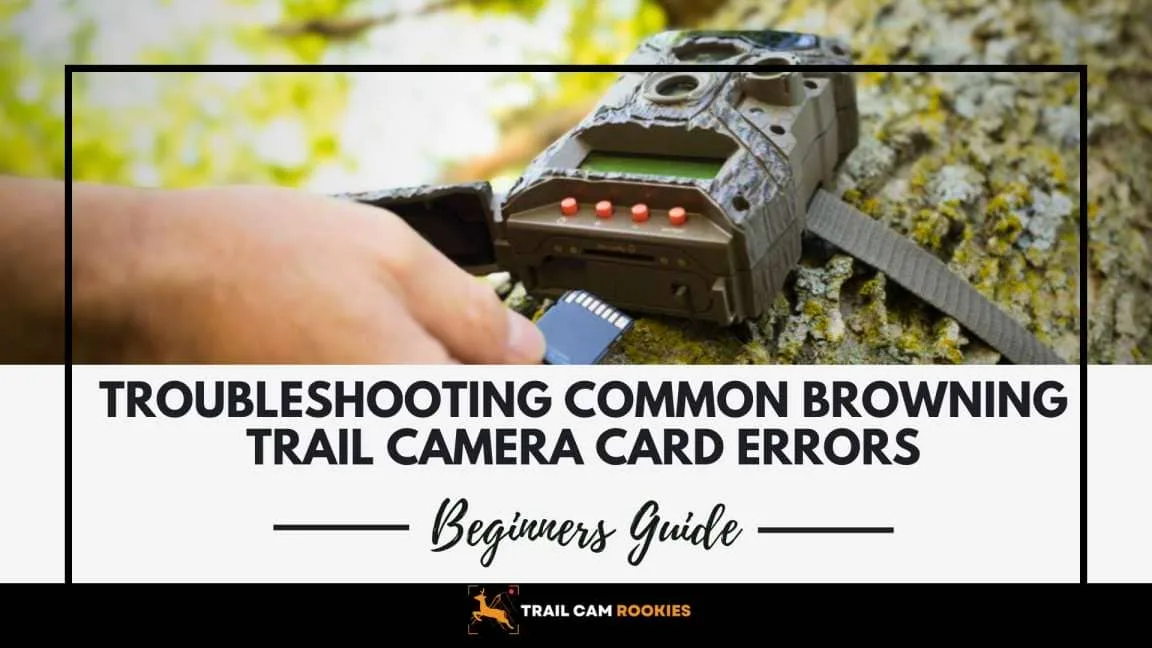
Image source: Bing (Web (fair-use with source credit))
Symptom 1: "No SD Card" Error
The camera boots but says no card is inserted. You know the card is in there.
First check: Remove the card. Look at the side. Is the write-protect switch slid down to the locked position?
If so, slide it up. The Moultrie Edge sometimes shows "No SD Card" when the card is locked.
Second check: Inspect the metal contacts on the card and inside the camera slot. Are they dirty or corroded? Clean them with a lint-free cloth and isopropyl alcohol.
If that fails: The card may be physically dead. Test it in a computer. If the computer does not detect it either, replace the card.
Symptom 2: Camera Stuck Formatting
You insert the card. The camera starts formatting and never finishes. The light keeps blinking for several minutes.
This is a classic sign of a card that is too large or formatted in exFAT. The camera tries to reformat it to FAT32 but cannot complete the process.
Fix: Remove the card. Put it in a computer. Use a FAT32 formatting tool to reformat it manually.
Use a 32KB allocation unit size. Then reinsert it into the camera and let it do a quick format.
Symptom 3: Photos Are Corrupted or Missing
You get some photos, but they appear garbled or half-loaded. Or the camera shows photos taken, but the card reads as empty.
This usually means the card cannot keep up with the camera's write speed. Or the card is failing.
Fix: Check your speed class. You need at least Class 10. If you use burst mode or video, upgrade to a UHS-I V30 card.
Also check: Is your card genuine? Counterfeit SD cards are common online. They report a larger capacity than they actually have.
When you fill them past their real limit, old data gets overwritten.
Symptom 4: Card Full Error with Space Available
The camera says the card is full, but you know it should have gigabytes left.
This happens most often with 128GB and 256GB cards. The camera misreports available space due to the FAT32 partition limits.
Fix: The most reliable solution is to swap to a 32GB card. If you need a larger card, reformat it with a 64KB allocation unit size instead of 32KB. This sometimes resolves the issue.
Step-by-Step: The Formatting Method That Fixes Most Issues
If you see any of the symptoms above, start with a proper reformat. This resolves the majority of SD card problems.
Method 1: Format in the Camera
This works for 32GB cards and is the easiest option.
- Insert the SD card into the Moultrie Edge.
- Turn the camera on.
- Go to the menu and select "Format SD Card."
- Confirm the action.
- Wait for the camera to finish. This takes 15 to 30 seconds.
The camera handles the FAT32 format and allocation size automatically. That is why this method is preferred.
However, it only works if the camera can detect the card. If the card is in exFAT or too large, the camera may fail to start the format.
Method 2: Format on a Computer
For cards over 32GB, or if the camera cannot format the card, use a computer.
On Windows:
Windows will not let you format a card over 32GB to FAT32 using the standard right-click menu. Use one of these tools instead.
- Download the SD Memory Card Formatter from the SD Association. It is free and handles cards up to 2TB.
- Use GUIFormat, a free utility. Set File System to FAT32 and Allocation Unit Size to 32 kilobytes. Uncheck "Quick Format" for a full format.
- Use the diskpart command line tool, though this is more technical.
On Mac:
Disk Utility can format cards to FAT32 (listed as "MS-DOS (FAT)") even for cards over 32GB. Select the card, choose MS-DOS (FAT) and Master Boot Record scheme.
Using the SD Formatter Tool
- Download and install the SD Memory Card Formatter from the SD Association website.
- Insert your microSD card into your computer using an adapter.
- Open the SD Formatter tool.
- Select your card drive. Double check you have the right one.
- Set "Format Type" to "Overwrite Format."
- Set "Format Size Adjustment" to ON.
- Click Format. Wait for it to finish.
- Eject the card safely.
- Insert it into the Moultrie Edge.
- Do one final format inside the camera.
This process resolves the vast majority of detection and corruption issues. Following proper formatting practices on similar devices helps avoid the same headaches.
SD Card Mistakes That Waste Your Hunting Trip
Even with the right card, common mistakes cause failures. Avoid these to keep your camera running reliably.
Using a Card Straight Out of the Package
Brand new cards are almost always pre-formatted in exFAT. You cannot just take them out of the pack and put them in the camera.
Always format a new card in the camera before using it. This clears the exFAT format and sets up the correct file structure.
Mixing Cards Between Different Cameras
If you swap a card from another trail camera brand into your Moultrie Edge, you ask for trouble. Different cameras create different file structures. The Moultrie Edge may see the old structure and refuse to write.
Always format the card in the camera you plan to use it in. If you switch cameras, reformat the card first.
Removing the Card Without Powering Down
The Moultrie Edge needs time to finish writing data and close the file. If you yank the card out right after a photo, you can corrupt the file.
Wait at least 10 seconds after the last photo before opening the camera and removing the card. This is even more important for video files, which take longer to save.
Letting the Card Fill Completely
Filling an SD card to 100 percent capacity often corrupts the file allocation table. The camera may fail to write the last file, damaging the entire card.
Set the camera to stop taking photos when the card reaches about 90 percent full, if your model supports that setting. Otherwise, check and pull the card before it is completely packed.
Using a Cheap Card Reader
A bad external card reader can corrupt your data just as easily as a bad card. If your reader is unreliable, the transfer can introduce errors. Use a quality reader from a known brand.
Also, do not force a card into the Moultrie Edge at an angle. That can bend the pins inside the camera. That repair is not something you can do yourself.
Ignoring Temperature Ratings
Trail cameras sit outside in all weather. Standard SD cards are rated for 0°C to 70°C. If you hunt in freezing conditions, your card may fail to write.
Look for industrial grade or high endurance cards rated for -40°C to 85°C. They cost more but may save your photos in extreme cold. Cold weather also affects battery performance, so factor that into your setup plans.
Quick Fixes Before You Give Up
Before you toss the camera or order a new card, try these quick fixes.
Power Cycle the Camera
Remove the batteries. Wait 30 seconds. Put them back in.
This resets the camera's internal electronics and can clear minor glitches.
Clean the Card Contacts
Dirt or oxidation on the metal contacts can prevent detection. Use a cotton swab with a drop of isopropyl alcohol. Gently wipe the contacts on the card.
Let it dry fully before reinserting.
Check the Card Slot
Shine a light inside the card slot. Look for bent pins or debris. A toothpick can dislodge dirt, but be gentle.
Bent pins usually mean the camera needs service.
Update the Camera Firmware
Moultrie releases firmware updates that fix known bugs, including SD card compatibility issues. Check the Moultrie website for the latest version for your model. Follow their instructions carefully.
Keeping firmware current is a standard practice across many camera brands to maintain reliable performance.
Try a Different Card
If none of the above works, borrow a known working card from another device. If that card works, your original card is likely bad. If the second card also fails, the camera slot may have a hardware issue.
The Decision Guide: Which SD Card to Buy
If you need a new SD card for your Moultrie Edge, use this guide to pick the right one.
| Use Case | Recommended Card | Why |
|---|---|---|
| Standard scouting (photos only) | 32GB SanDisk Ultra or Samsung EVO Select | Reliable, cheap, and FAT32 ready |
| High-resolution photos + video | 32GB SanDisk Extreme or Lexar 633x | Faster write speeds handle video |
| Extreme cold weather | 32GB industrial grade or high endurance | Rated for -40°C |
| Heavy data collection (busy trail) | 64GB with FAT32 reformatting | More capacity, but requires prep |
Stick with name brands. Avoid no-name cards from online marketplaces. They are often counterfeit.
Buy two or three smaller cards instead of one large card. If one fails, you lose fewer photos. Swapping cards in the field is quick and easy.
Frequently Asked Questions
How do I know if my SD card is counterfeit?
Check the card's actual capacity by filling it with files on your computer. If it reports errors before reaching the stated capacity, it is fake. Also examine the label.
Poor print quality and misspelled brand names are red flags.
Can I use a microSD with an adapter in the Moultrie Edge?
Yes. The Moultrie Edge uses a full-size SD slot. A microSD card in a standard adapter works fine.
Just make sure the adapter is good quality and the card is formatted to FAT32.
Why does my 128GB card show "full" when it has space?
The FAT32 file system on large cards can confuse the camera's file management. The camera may misreport available space. This is a known issue.
Switching to a 32GB card fixes it.
How often should I reformat my SD card?
Reformat the card inside the camera every time you pull photos. This clears old file structures and prevents fragmentation. It takes 30 seconds and prevents many problems.
What does the write-protect switch do?
The small switch on the side of the SD card prevents the camera from writing new data or deleting existing files. If your camera shows "No SD Card," check that this switch is slid up to the unlocked position.
Is it safe to delete photos from the card instead of reformatting?
Reformatting is safer. Deleting individual files leaves behind fragmented data that can cause errors over time. Always format the card in the camera when you reuse it.

Similar Posts
































