Moultrie Mobile 6000 Troubleshooting
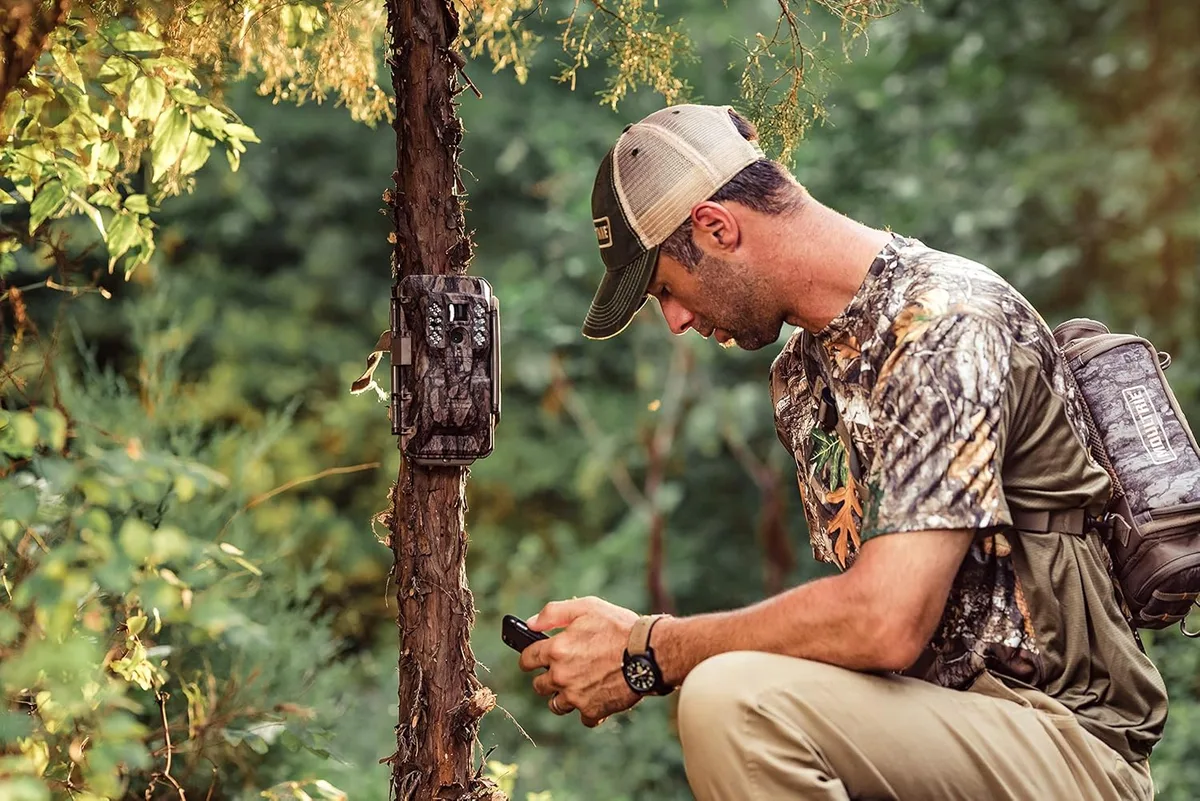
If your Moultrie Mobile 6000 has stopped sending photos or just won't power on, the frustration is real. Moultrie Mobile 6000 troubleshooting starts with checking three things: power, cellular signal, and the app connection. Most issues fall into one of those buckets.
As of 2026, many users still hit the same common snags. Let's walk through the most frequent problems and the fix that actually works for each.
Image source: Web (Bing) / waxmeltshop.co.uk (Web image (fair-use with source credit))
Quick Answer
Start with the batteries. Weak or wrong batteries cause most power failures. Then check the app for signal strength.
A weak or dead cellular signal blocks all photo delivery. If those two are fine, your app connection or data plan is likely the culprit. This sequence solves about 80% of common issues.
When Your Moultrie Mobile 6000 Goes Dark – First Things to Check
Does the camera have power? Open the battery compartment. Look for a green status light when you slide the switch to ON.
If you see nothing, the problem is almost certainly power-related.
Check that you are using fresh AA batteries. Lithium cells are strongly recommended over alkaline in cold weather or for long deployments. Alkaline batteries can leak and damage the contacts.
If the contacts look corroded, clean them gently with a pencil eraser or a small brush.
Verify battery polarity. Each slot has a plus and minus marking. It is easy to misload one battery when you are rushing in the field.
The camera requires all eight slots to be filled correctly. Mixing brands or battery ages can also cause trouble.
If the camera has power but the app cannot find it, try a forced restart. Remove all batteries. Wait 60 seconds.
Reinstall them and power on again. This clears a hung processor and is a solid first step for any freezing or unresponsive behavior.
Is It a Signal Issue, Power Problem, or App Glitch? – Follow the Symptom That Fits
The fastest path to a fix is matching your symptom to the right branch. Here is how to decide which problem you actually have.
If the camera shows no lights at all: You have a power issue. Go straight to the battery compartment. Check polarity, corrosion, and battery type.
Skip the app and the SIM card for now.
If the camera powers on but shows "No Service": You have a cellular signal problem. Move the camera to higher ground or a more open area. Check the SIM card is properly seated.
Verify your data plan is active in the app.
If the camera powers on, shows service, but no photos arrive: You likely have an app pairing issue or a data plan that has run out of photos. Delete the camera profile from the app. Restart both devices and re-pair.
Then check your plan allowance.
If the camera powers on, sends photos for a while, then stops: This points to a dying battery or a corrupted SD card. Replace the batteries first. If that does not fix it, swap the SD card with a freshly formatted one.
If the camera freezes or becomes unresponsive mid operation: A firmware bug or a corrupted card is the usual suspect. Force restart by pulling all batteries for 60 seconds. Then update the firmware through the app.
Following this symptom map cuts troubleshooting time significantly. You avoid checking things that are not relevant to your specific problem.
Cellular Signal and Transmission Problems – Dead Zones, SIM Cards, and Antenna Fixes
The Moultrie Mobile 6000 relies on a cellular modem to send images. If the camera is in a known dead zone, no photos will transmit. The only fix for a dead zone is moving the camera to higher ground or a more open area.
Check the signal strength using the app. Open the Moultrie Mobile app. Look for the field signal meter under camera settings.
A reading of one bar or "No Service" means the camera is in a weak spot. Moving it even 20 feet can make a huge difference.
The unit comes with an internal antenna. It also has an external antenna port for an optional accessory. Adding an external antenna can boost reception in marginal areas.
The antenna port is located on the side of the camera behind a small rubber plug.
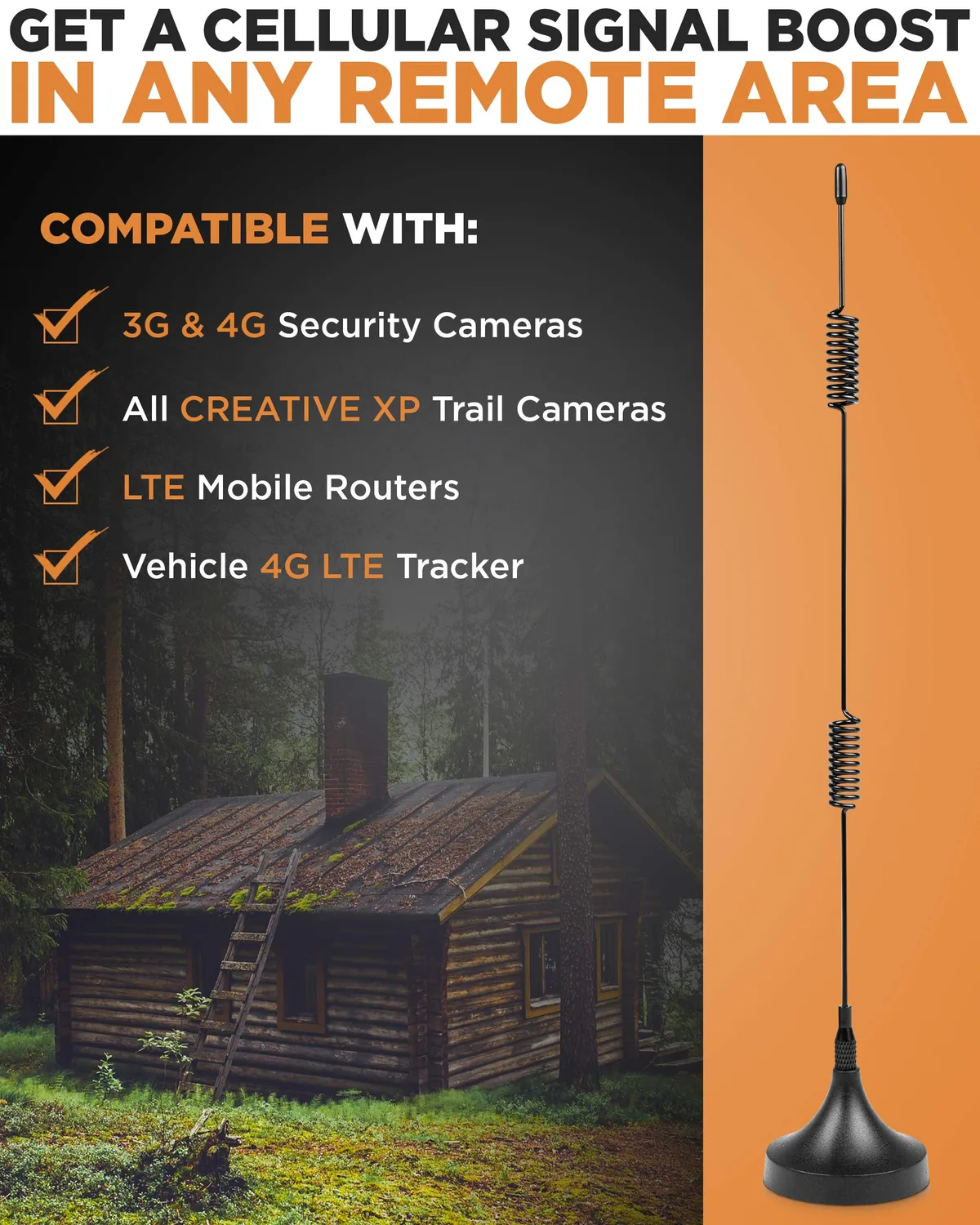
Image source: Web (Bing) / storage.googleapis.com (Web image (fair-use with source credit))
If the SIM card is loose, that is another cause of persistent "No Service" errors. The SIM slot is inside the battery compartment. Gently press the card back in until it clicks.
Avoid touching the metal contacts with your fingers. Oil from your skin can interfere with the connection.
If you have moved the camera to a known good area and still see no signal, the issue may be the data plan. Log into your Moultrie Mobile account online or through the app. Confirm the plan is active and has not expired.
The FCC regulates cellular frequencies used by these devices, and a deactivated SIM is a common oversight.
Power and Battery Troubles – Camera Won't Turn On or Dies Too Fast
This is the most frequent complaint in aggregate user feedback. The camera powers on initially but runs down in days or weeks. The fix is straightforward.
First, confirm you are using all eight AA batteries. Using only four or six will not work. The camera needs the full set to operate the cellular modem.
Battery type matters heavily. Lithium batteries cost more but last three to five times longer than alkaline. In winter temperatures below freezing, alkaline batteries lose capacity rapidly.
Lithium holds voltage much better in cold weather. If you need reliable operation through a hunting season, lithium is the better investment.
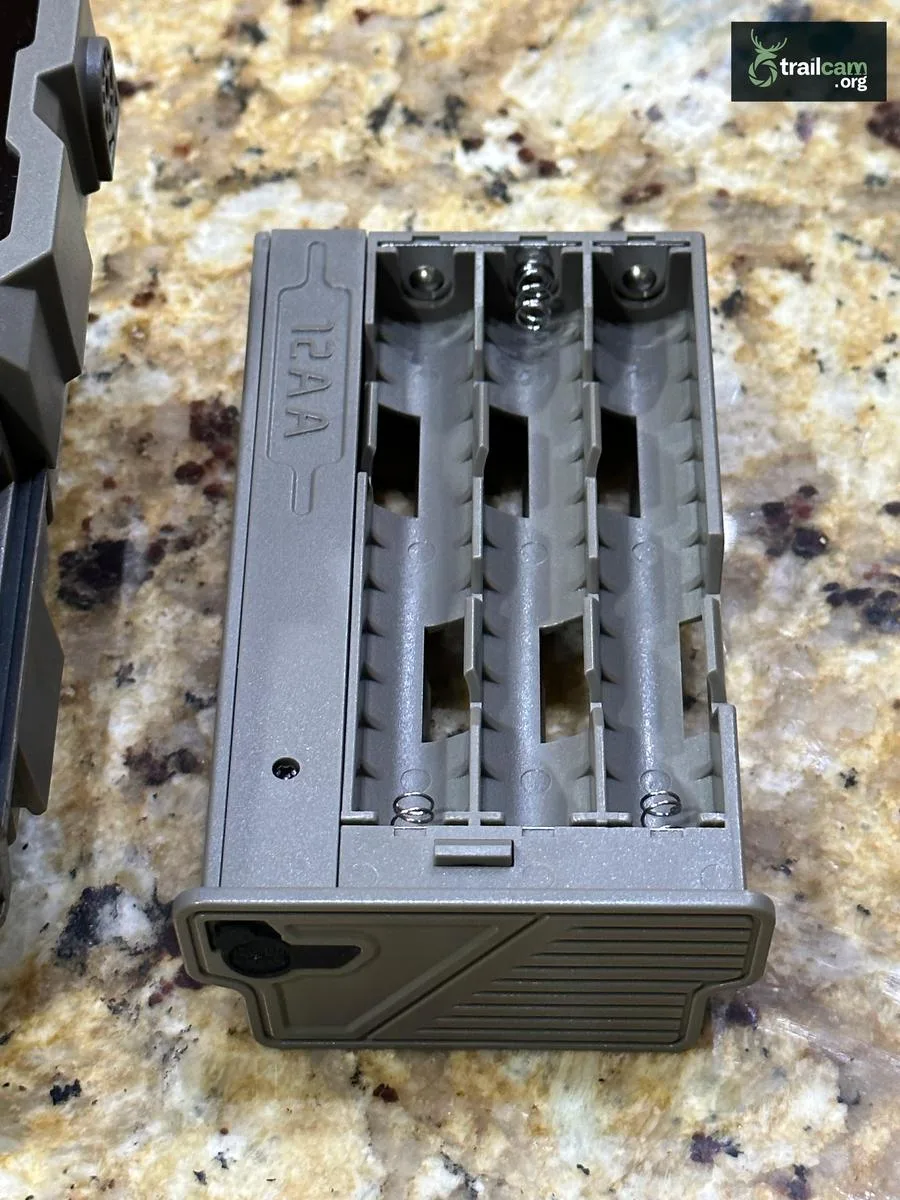
Image source: Web (Bing) / support.moultriemobile.com (Web image (fair-use with source credit))
Check the battery contacts for corrosion. White or green residue on the springs or terminals is a common problem. Clean them with a small brush or a Q-tip dipped in white vinegar.
Dry them thoroughly before reinstalling batteries.
Firmware bugs can also cause rapid battery drain. A camera that is stuck trying to reconnect to the cell tower will chew through power fast. Update the camera's firmware using the app.
This can resolve battery-related glitches.
If the camera still dies quickly after new lithium batteries, check the SD card. A corrupted card can cause the camera to keep writing and retrying, draining power. Try formatting a known good card inside the camera.
App Pairing and Photo Delivery Issues – When the Camera Shows Up But Won't Send
You have power and signal. The camera is green-lit. But photos never arrive in the app.
This is usually a pairing or account problem.
First, verify that Bluetooth is enabled on your phone. The initial pairing and setup rely on Bluetooth. Once paired, the camera uses cellular data to send images.
But if Bluetooth is off during setup, the camera will not register to your account.
Make sure the camera is in pairing mode. Press and hold the power button until the status light blinks blue. Then open the app and follow the on-screen instructions.
If the first pairing fails, delete the camera profile from the app. Restart both your phone and the camera. Then try again.
Another common issue is a full data plan or a plan that only supports a low number of photos. The Moultrie Mobile app shows your remaining plan allowance. If you are near the limit, the camera may stop sending.
Upgrade the plan or wait for the next billing cycle.
SD card errors can also mimic app connection issues. The camera writes images to the card before uploading. If the card is full, too old, or corrupted, the upload process hangs.
Replace the card with a fresh one that is 32GB or smaller and formatted as FAT32. Larger cards often cause problems.
Three Common Mistakes That Make Troubleshooting Harder
Mistake one: mixing old and new batteries. Users often top off a nearly dead set with a few fresh cells. This creates uneven voltage across the eight slots. The camera may power on briefly but fail to transmit.
Always install a full set of identical batteries from the same pack.
Mistake two: formatting the SD card on a computer. The Moultrie Mobile 6000 prefers cards formatted inside the camera itself. Computer formatting can use the wrong file system or cluster size. This leads to write errors that stop photo delivery.
Format the card inside the camera using the app settings menu.
Mistake three: ignoring the antenna port. The rubber plug on the side of the camera covers an external antenna connection. Many users never check it. If the plug is missing or damaged, moisture can enter and corrode the port.
Inspect it during each battery change. Keep it sealed when not using an external antenna.
Mistake four: leaving the camera in direct sunlight. The unit generates heat during cellular transmission. Direct sun adds to the thermal load. Overheating can cause the camera to shut down temporarily or corrupt the SD card.
Mount the camera in a shaded spot or use a sun shield.
Mistake five: skipping the app update prompt. The Moultrie Mobile app updates regularly. These updates improve Bluetooth pairing stability and add bug fixes. Running an outdated app version can cause connection failures that look like camera hardware problems.
Keep the app current on your phone.
Frequently Asked Questions About the Moultrie Mobile 6000
How do I know if my camera has a SIM card issue?
Open the battery compartment. Locate the SIM slot next to the battery tray. If the card is loose or partially ejected, push it gently until it clicks.
A loose SIM is a common cause of "No Service" errors. Do not touch the gold contacts.
Can I use a different carrier SIM card in this camera?
No. The Moultrie Mobile 6000 uses a locked SIM tied to Moultrie's own cellular network. You cannot swap in a SIM from another carrier.
If you need different coverage, consider a model with an unlocked modem or look at the Moultrie Edge series.
Why does my camera send photos for a week then stop?
This is usually a battery issue. The voltage drops below the threshold needed for cellular transmission. The camera can still take photos but cannot upload them.
Replace the batteries with fresh lithiums. If the problem returns, check the SD card for corruption.
How far can the camera be from the phone app?
Bluetooth pairing requires proximity of about 10 feet. After setup, the camera uses cellular data to send images. You can be anywhere with cell service and still receive photos.
Bluetooth is only needed during initial pairing and troubleshooting.
What does a blinking red light mean?
A blinking red status light indicates a low battery warning. Replace the batteries soon. If the light blinks red and the camera does not power on, the batteries are fully depleted.
Install a fresh set before attempting any other troubleshooting.
Is there a way to test the camera indoors before taking it to the field?
Yes. Install batteries and a formatted SD card. Place the camera near a window with a cellular signal.
Complete the Bluetooth pairing in the app. Take a test photo by walking in front of the lens. Wait up to two minutes for the image to appear in the app.
This confirms all systems work before deployment.

Similar Posts
































