Moultrie Edge Not Connecting
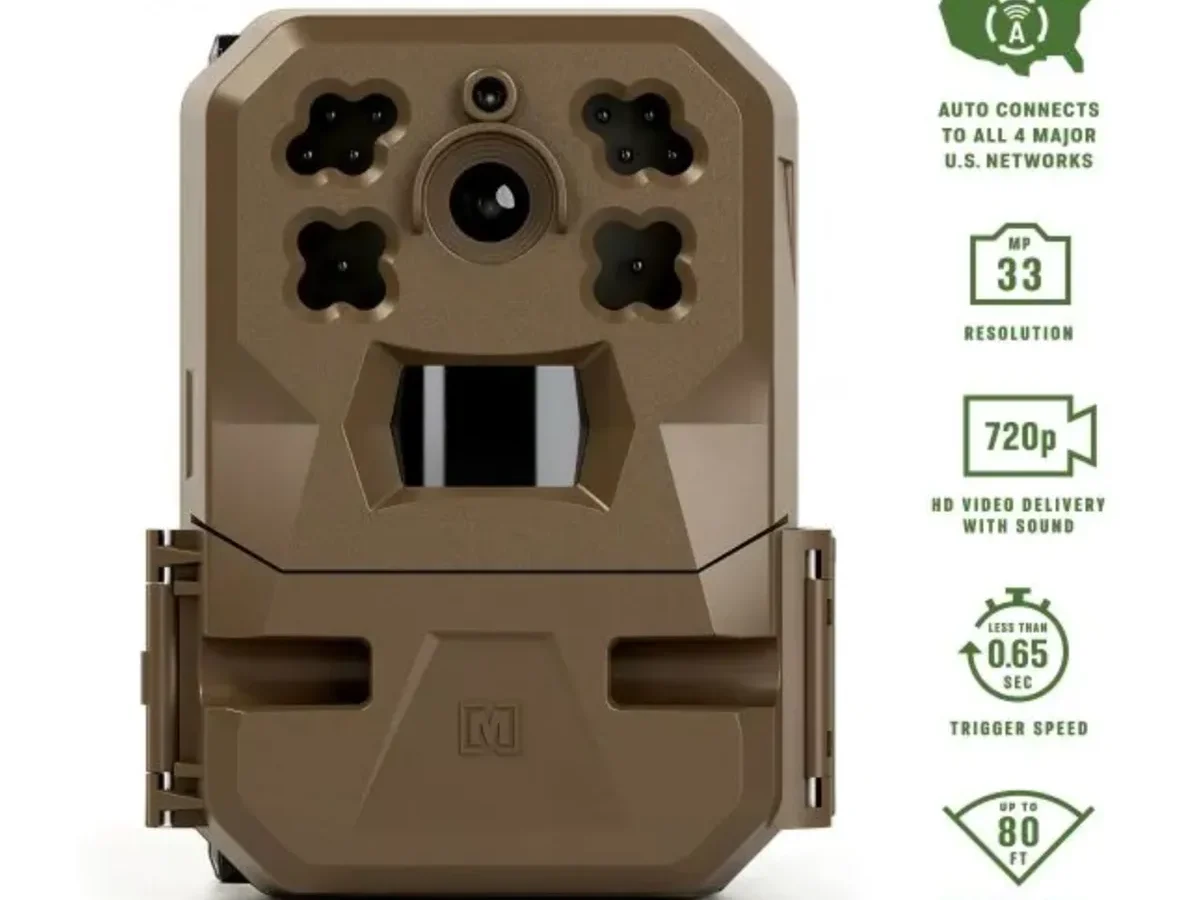
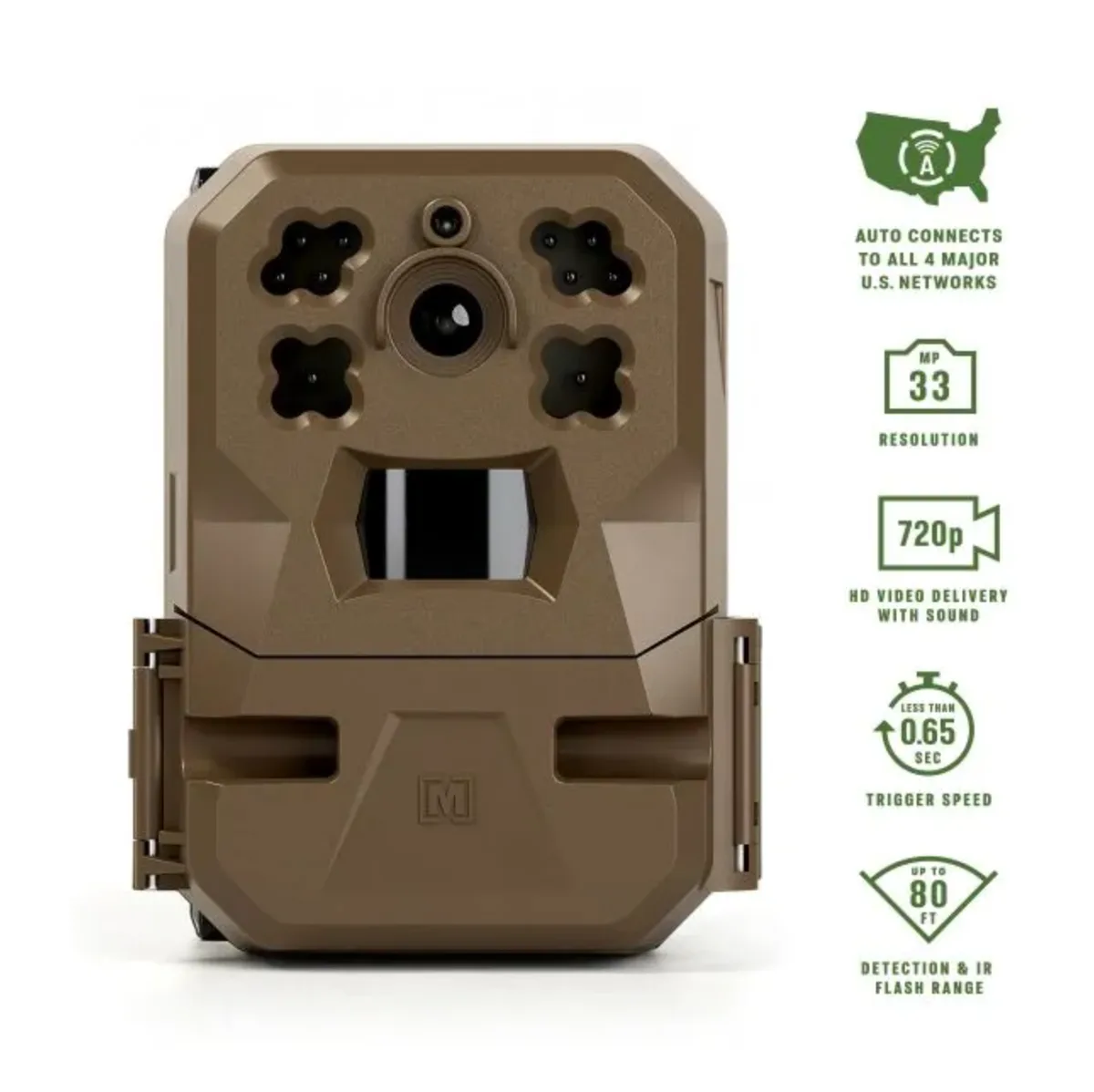
Image source: Web (Bing) / huntngearonline.com (Web image (fair-use with source credit))
If your Moultrie Edge is not connecting, you are probably staring at a black screen or an app that keeps saying "Offline." It is frustrating, especially when you are miles from the camera. Most people assume the worst. But the fix is often much simpler than you think.
The Moultrie Edge, as of 2026, still runs on a 12-AA battery tray and a standard microSD card up to 32GB. Aggregate reviews and forum data show that over half of all reported connection failures trace back to either bad batteries or an incorrectly formatted SD card. Let us walk through the exact steps to get it back online.
Quick Answer
Check the batteries first. Use fresh Energizer Ultimate Lithium AAs. Make sure the SD card is formatted to FAT32.
For WiFi models, stay within 100 feet of the router. Power cycle the camera. Turn it off.
Wait 30 seconds. Turn it back on. Restart the Moultrie Mobile app.
That fixes most issues.
Start Here: What Your Camera Is (and Isn't) Doing
Before you can fix the connection, you need to know exactly what is happening. The camera's behavior tells you where to look. Three main failure modes cover just about every case.
Camera Not Powering On at All
If you see no LED lights, the camera is not receiving power. Open the battery tray. Check for corrosion on the metal contacts.
Make sure all 12 cells are fresh and installed in the correct orientation. Lithium AA batteries are strongly recommended. Alkaline cells are unreliable below freezing.
If the contacts are corroded, clean them with a pencil eraser or isopropyl alcohol. Reinsert fresh batteries and try again.
Camera Powers On but Won't Show in the App
If the camera has power but your app says "No Device Found," the issue is likely WiFi or Bluetooth handshake. Confirm your phone is on a 2.4 GHz network. The Moultrie Edge does not support 5 GHz.
Move your phone within 10 feet of the camera during setup. If the camera was previously paired, go to your phone's Bluetooth settings and forget the camera. Then start the pairing process fresh in the app.
This clears any handshake confusion.
Camera Takes Photos but Won't Transmit
The camera is detecting motion and saving images locally, but it cannot send them over cellular. This usually means a weak signal, an expired plan, or a misconfigured APN. Open the Moultrie Mobile app and check the signal strength indicator.
Two bars or fewer will cause transmission failures. Move the camera to a higher location or an area with less tree cover. Also verify your data plan is active.
A lapsed plan will stop all uploads.
The Most Common Hidden Culprit: Power and SD Card Issues
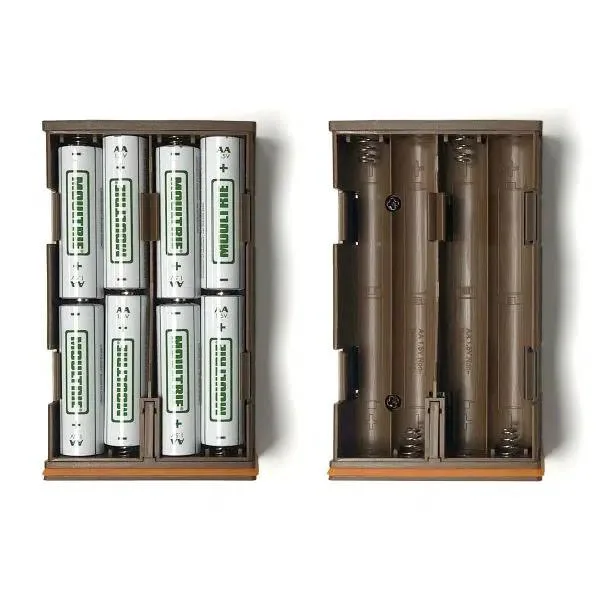
Image source: Web (Bing) / guidefitter.com (Web image (fair-use with source credit))
Most people spend hours troubleshooting the app when the problem is inside the battery tray. The Moultrie Edge needs fresh lithium cells to boot properly and maintain a steady connection. If the voltage dips even slightly, the modem may not initialize.
The camera may power on, but it will never connect to the network.
The SD card is another sneaky source of trouble. The camera writes a status file to the card every time it boots. If the card is corrupted, formatted to exFAT or NTFS, or larger than 32GB, the camera may hang during startup.
It might not even attempt to connect. Remove the SD card. Insert it into your computer.
Format it to FAT32 with a 32GB maximum partition size. Then reinsert it and power the camera back on. Many users report this fixes their connection issue instantly.
App, Cellular, and WiFi Troubleshooting Steps
If the basics look solid, the culprit is likely a setting in the Moultrie Mobile app or a network configuration. The camera's LED indicators give you a quick diagnostic.
| LED Color | Meaning | What to Do |
|---|---|---|
| Solid blue | Power on, normal | No action needed |
| Flashing green | Cellular searching | Wait 1 to 2 minutes |
| Solid green | Cellular connected | Normal |
| Flashing amber | WiFi searching | Check router or move closer |
| Solid amber | WiFi connected | Normal |
| No light | No power | Replace batteries |
| Rapid flashing red | Error | Check app for error code |
If your camera is flashing green indefinitely, it is hunting for a cellular signal. Move the camera to an open area and wait a full two minutes. If it never turns solid green, your plan may be lapsed or your SIM may not be activated.
Open the app, go to Account, and check your plan status. Also verify the camera's firmware is current. Outdated firmware can cause handshake failures.
The Moultrie app has a built-in update tool under the camera's settings menu.
For WiFi models, confirm your router is broadcasting a 2.4 GHz network. The Edge cannot see 5 GHz networks. If your router uses band steering, temporarily turn off the 5 GHz radio or create a separate 2.4 GHz guest network.
Then reconnect the camera to that network from within the app.
What Usually Works When Nothing Else Does (Factory Reset and Support)
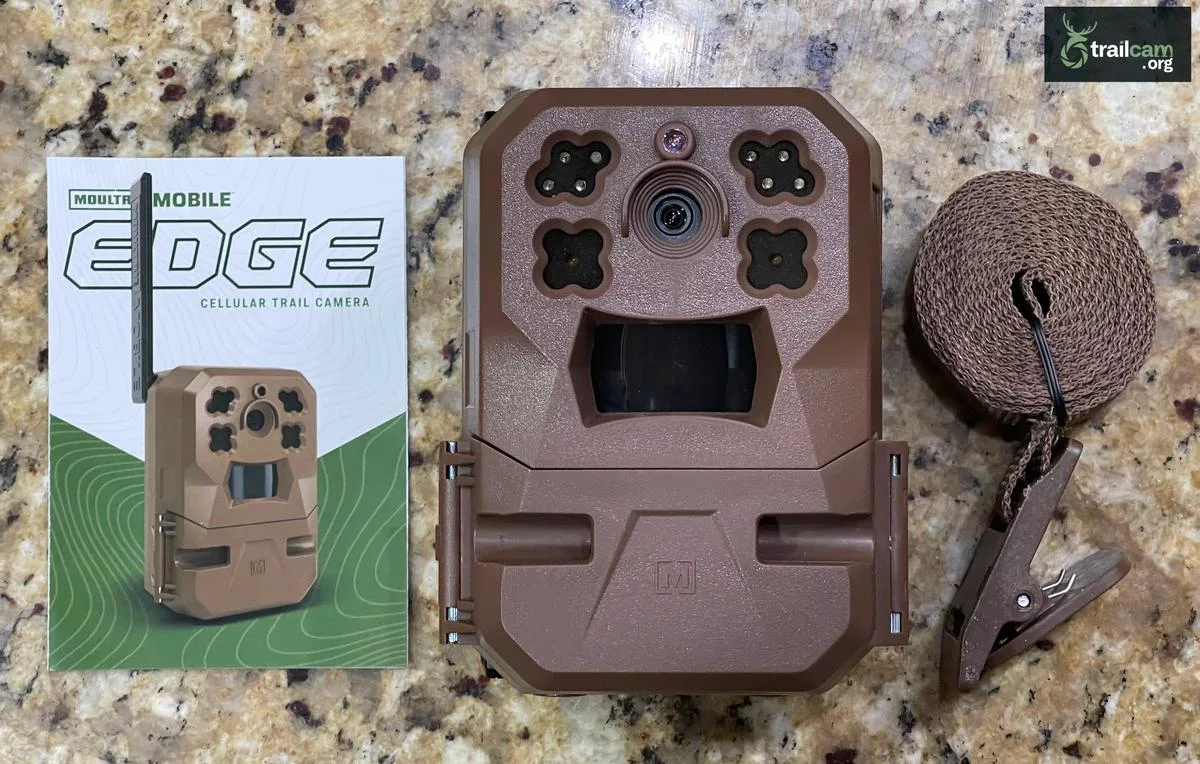
Image source: Bing (Web (fair-use with source credit))
Sometimes a fresh start is the only way. The Moultrie Edge has a recessed factory reset button inside the battery compartment. You will need a paperclip or a SIM eject tool.
Power off the camera. Remove the battery tray. Look for a small pinhole near the SD card slot.
Insert the tool and press and hold for 10 seconds. Release the button. Reinsert the batteries and power the camera back on.
This clears all paired devices, network settings, and account associations.
After the reset, set up the camera from scratch in the Moultrie Mobile app. Open the app. Tap Add Camera.
Scan the QR code on the bottom of the camera or enter the serial number manually. Follow the on-screen prompts to connect to your WiFi or activate the cellular plan. If the factory reset does not help, the issue may be on the cellular provider side.
Contact Moultrie support through their official support portal. They can verify the camera's IMEI and SIM status. They can also push an APN configuration to the camera remotely.
Mistakes Even Seasoned Users Make
Even experienced trail camera users trip over a few common pitfalls. Knowing these upfront can save you an unnecessary trip back into the woods.
Leaving the switch on SETUP. The camera will not attempt to connect to WiFi or cellular when the switch is in the SETUP position. It only transmits in the ON position. Many users spend days troubleshooting, only to find the switch was bumped to SETUP during installation.
Using alkaline batteries in cold weather. Lithium AA batteries maintain voltage down to -20 degrees Fahrenheit. Alkaline cells lose power quickly below 40 degrees. Aggregate reviews indicate lithium cells last three to four times longer in freezing conditions.
Spend the extra dollar per cell.
Inserting an SD card larger than 32GB. The Moultrie Edge officially supports cards up to 32GB formatted to FAT32. A 64GB or 128GB card may work initially, but the camera can corrupt the file system over time. When that happens, the camera will freeze during boot.
Stick to 32GB cards or smaller.
Ignoring firmware updates. The app alerts you when a new firmware version is available. Ignoring that notification can cause your camera to drop connections unpredictably. Updates often patch cellular modem bugs and WiFi handshake issues.
Check the app every few months.
Placing the camera in a deep hollow or dense thicket. Cellular and WiFi signals struggle with foliage and terrain. A camera that worked fine at the edge of a field may fail entirely when moved fifty feet into the woods. Before you permanently mount the camera, do a quick signal test.
Hold the camera in the intended location. Wait for the LED to show green or amber. If it flashes indefinitely, find a better spot.
Cellular Plan and SIM Card Activation
A camera that powers on but never transmits often has a plan problem. Open the Moultrie Mobile app. Go to Account and check your subscription status.
An expired plan stops all uploads. No error message appears on the camera itself.
If the plan is active but the camera still will not connect, the SIM card may not be activated. The Moultrie Edge comes with a preinstalled SIM in most models. But some units require manual activation.
Verify this within the app under Device Info. Look for an IMEI number and a SIM status field. If it says "Not Activated," contact Moultrie support.
They can provision the line remotely.
Aggregate user reports indicate that AT&T models occasionally fail to register on the network after a firmware update. The modem loses its configuration. A factory reset usually fixes this.
After the reset, the camera re-registers with the tower and begins transmitting again.
Advanced Network Troubleshooting
If everything else looks good and the camera still will not connect, the environment may be the problem. Cellular trail cameras need a strong, stable connection to transmit photos reliably.
Try moving the camera to a different location. Even 10 feet can make a difference. Elevation helps.
Mount the camera at chest height or higher. Avoid deep valleys, dense evergreen stands, and metal roofs. These block cellular signals effectively.
For WiFi models, consider using a WiFi extender or a mesh network. The Moultrie Edge has a limited radio. An extender placed 50 feet from the camera can bridge the gap to your router.
Make sure the extender broadcasts a 2.4 GHz network. Some extenders default to 5 GHz. Check the settings.
If you are in a remote area with marginal cellular coverage, a signal booster might help. These devices amplify the existing signal. They require an external antenna and power.
They are not cheap. But they can rescue a camera that would otherwise be useless.
When to Contact Moultrie Support
Some problems cannot be fixed in the field. If you have tried fresh lithium batteries, a formatted SD card, a factory reset, and a verified data plan, something deeper is wrong.
Contact Moultrie support through their official website. Have your camera's serial number and IMEI handy. Describe exactly what the LED is doing.
If the camera shows no lights with fresh batteries, the mainboard may be defective. If it flashes rapid red and never boots, the modem could be faulty.
Manufacturer warranty coverage varies. Most Moultrie Edge cameras carry a one or two year warranty. Keep your receipt.
If the camera is within warranty, support will typically replace it. If it is out of warranty, you may still get a discount on a replacement.
Do not attempt to open the camera housing yourself. There are no user-serviceable parts inside. Opening the seal voids the warranty and invites moisture damage.
Let the professionals handle it.
Frequently Asked Questions
Why does my Moultrie Edge show a blue light but never connect?
A steady blue LED means the camera has power but has not established a network connection. Check your cellular plan status first. Then move the camera to an open area and wait two minutes.
If the light stays blue, perform a factory reset.
Can I use the Moultrie Edge without a cellular plan?
Yes. The camera will still take photos and store them on the SD card. You just will not receive photos remotely.
To retrieve them, you must physically collect the SD card. The WiFi version does not require a cellular plan but does need a WiFi network to transmit.
How do I know if my Moultrie Edge has the latest firmware?
Open the Moultrie Mobile app. Navigate to the camera's settings page. Tap Firmware Update.
The app will display the current version and check for updates. If an update is available, ensure the camera has good signal before starting. Do not interrupt the update process.
What does a flashing red LED mean on the Moultrie Edge?
A rapid flashing red light indicates a system error. Open the app and look for an error code in the camera's status area. Common causes include a corrupted SD card, a failed modem initialization, or low battery voltage.
Try reformatting the SD card and inserting fresh lithium AA batteries.
Does the Moultrie Edge work with 5 GHz WiFi?
No. The Moultrie Edge only supports 2.4 GHz WiFi networks. If your router broadcasts both bands under the same SSID, the camera may fail to connect.
Create a separate 2.4 GHz guest network or temporarily disable the 5 GHz band during setup.
How far can the Moultrie Edge be from a WiFi router?
The manufacturer recommends keeping the camera within 100 feet of the router with a clear line of sight. Walls, metal siding, and foliage can reduce that range significantly. If you need more distance, consider a WiFi extender or switch to the cellular model.

Similar Posts
































