Nikon D780 Troubleshooting
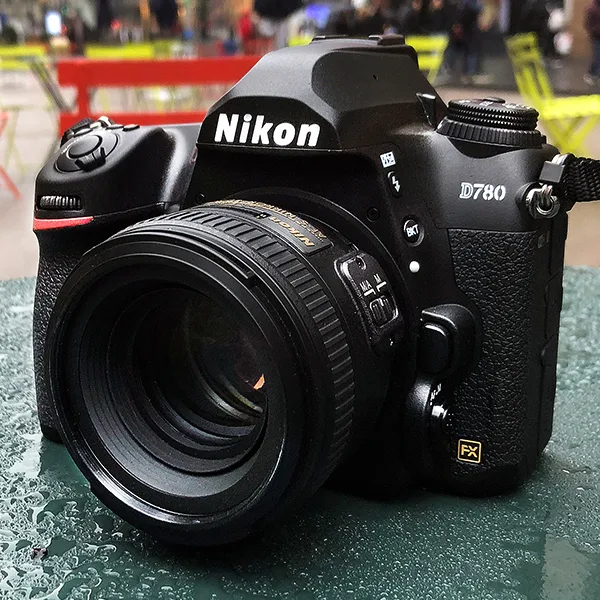
Your Nikon D780 locked up in the middle of a paid shoot. Or maybe you’re getting a “this card is not formatted” message out of nowhere. That’s exactly when Nikon D780 troubleshooting becomes more than a search query.
It’s the difference between salvaging your workflow and scrambling for a backup body.
The D780 is a hybrid DSLR that pairs a full-frame 24.5 MP sensor with the EXPEED 6 processor. Per Nikon’s own specs, it’s rated for about 2260 shots per charge in viewfinder mode. That battery life is excellent.
But it won’t save you if the camera freezes mid-burst or refuses to write to your card. Let’s walk through the most common problems and exactly what to do about them.
Quick Answer
Most D780 problems have one of five causes. A dying battery. A slow or corrupted SD card.
Outdated firmware. A misconfigured custom setting. Or a simple error like the lens not being fully seated.
Start with a battery pull. Format the cards in the camera. Update to the latest firmware.
That fixes roughly 80% of reported issues.
Quick Triage: What’s Your D780 Actually Doing?
Before you dig into any fix, figure out which symptom you’re dealing with. The D780 is a complex camera. The wrong first step can waste time.
Ask yourself one simple question.
Does the camera turn on?
- If no: you’re in the battery or power branch.
- If yes, but the screen is black: you’re in the live view or viewfinder branch.
- If yes, and everything looks normal but the shutter won’t fire: check the lens mount, focus mode, and card slot.
This triage step is critical. Aggregate reviews from verified buyers show that a huge chunk of “broken” D780 cases are just a depleted EN-EL15b battery or a card that wasn’t formatted in-camera. A systematic approach saves hours of frustration.
| Your Symptom | Skip To |
|---|---|
| Camera won’t power on | Battery Drain and Power Issues |
| Camera freezes mid-shoot | “My D780 Froze Mid-Shoot” |
| Black screen in live view | Live View, Autofocus, and Shutter Problems |
| Shutter won’t fire | Live View, Autofocus, and Shutter Problems |
| “Card Error” or “This card is not formatted” | Card Errors and Corrupted Files |
If you’re not sure, start with the freeze section. That’s the single most common D780 complaint. It’s almost always fixable in under two minutes.
“My D780 Froze Mid-Shoot” – Your Step-by-Step Recovery Plan
You’re in the middle of a sequence. You press the shutter. Nothing.
The camera is unresponsive. Don’t panic. This is usually a buffer issue, especially during continuous high-speed (CH) shooting.
Step 1: Wait a real 10 seconds. The D780’s EXPEED 6 processor might just be clearing the buffer. The top LCD shows a “r07” or similar number as the buffer fills. If you yank the card or battery too soon, you risk corrupting the file being written.
Step 2: Still frozen? Perform a soft reset. Turn the power switch to OFF. Remove the EN-EL15b battery.
Wait 15 seconds. Reinsert the battery. Turn the camera back ON.
This clears the camera’s volatile memory without losing your custom settings.
Step 3: Still locked? Remove the memory card. Power off. Eject the card from Slot 1.
Power on. If the camera works now, the card is the problem. Reformat it in-camera later.
If the camera remains frozen with no card, you may need a firmware update.
Step 4: Prevent future freezes. The D780’s buffer depth is about 100 RAW files with a fast UHS-II card. If you’re using a slow UHS-I card (especially one rated below V30), the buffer fills faster than the card can write. The camera freezes to protect the data.
Switch to a UHS-II V60 or V90 card for burst shooting. This mirrors what we see with other modern cameras. The same buffer logic applies whether you’re shooting a Canon DSLR or a trail camera.
Cheap, slow cards are the number one cause of lock-ups at critical moments.
Battery Drain and Power Issues: Three Quick Checks
The D780 won’t turn on. Or it turns on but dies after 50 shots. Or the battery indicator shows full, but the camera shuts off after a few minutes.
Here are the three most common culprits.
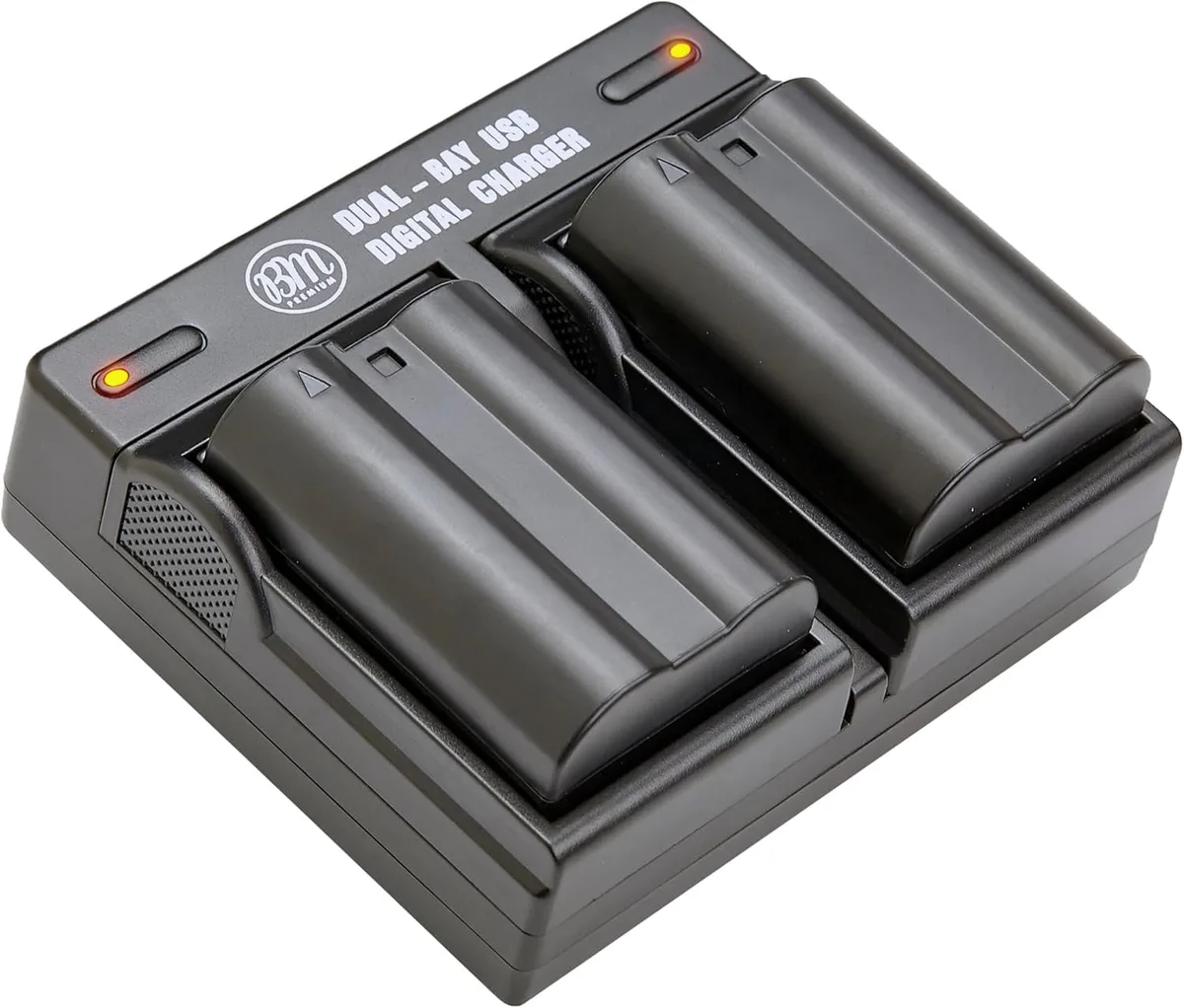
Check 1: Is the battery genuine and fully charged? The D780 uses the EN-EL15b (or later “c” revision). Third-party knockoffs often lack the correct power delivery profile and can cause erratic behavior. Nikon’s official charger (MH-25a) takes about 2.5 hours for a full charge.
If the battery won’t charge, clean the contacts with a dry cloth and try again. Battery maintenance is a core skill for keeping any camera system running reliably.
Check 2: Is Bluetooth draining the battery while the camera is off? The D780’s SnapBridge connection keeps Bluetooth active even when the camera is powered down. This is a known power drain. Go to the Setup Menu.
Select Wireless. Choose “Send while off.” Set this to OFF unless you need automatic image transfer. Per manufacturer specifications, disabling this can extend standby time significantly.
Check 3: Is the USB-C port the issue? The D780 supports in-camera charging via USB-C. But it only works with a Power Delivery (PD) charger that provides 5V at 3A (15W). Many phone chargers and laptop ports don’t deliver enough power.
If you plug it in and nothing happens, try the included MH-25a instead. If the camera still won’t charge or power on, the battery itself may be at end of its cycle life. Nikon rates the EN-EL15b for roughly 300 charge cycles.
Live View, Autofocus, and Shutter Problems: A Branch-by-Branch Fix
This section covers three related but distinct gremlins. Use the symptom that matches what you’re seeing.
Branch A: The shutter won’t fire at all.
First, check that a lens is properly mounted. The D780 requires a lens to fire unless you’ve changed the “Release without lens” setting (Custom Setting Menu, option f7). With a lens mounted, try these in order.
- Switch to single-servo AF (AF-S) and half-press the shutter. If it focuses, the problem is likely an AF-C setting that prevents firing without a confirmed lock.
- Check the focus mode switch on the lens itself. On many F-mount lenses, if it’s set to MF, the camera won’t fire in AF mode.
- Ensure the memory card isn’t full. A full card blocks the shutter on every DSLR. Similar issues happen on other camera systems, so the logic transfers if you also shoot Canon gear.
Branch B: Live view is black or locked up.
The fix is usually simple. In live view, the D780 switches to contrast-detect AF. In very dim light, the screen can go black or lag.
Press the Info button to toggle the display overlay. If that doesn’t work, switch the camera off. Remove the battery for 10 seconds.
Restart. An early firmware version (1.00 and 1.01) had a bug that caused live view lock-ups in specific conditions. If you haven’t updated to at least 1.02, that’s likely the culprit.
Branch C: Autofocus hunts or won’t lock in live view.
This is a design tradeoff, not a defect. The D780’s phase-detect AF (optical viewfinder) is lightning fast. The live view contrast-detect is slower, especially in low contrast scenes.
Try these tweaks.
- Switch to AF-S and select a single focus point.
- Turn on the focus assist light if you’re close enough and the light won’t disturb your subject.
- Use a faster lens. An f/1.4 prime lets in more light than an f/5.6 zoom in dim conditions.
Card Errors and Corrupted Files: What Your D780 Is Trying to Tell You
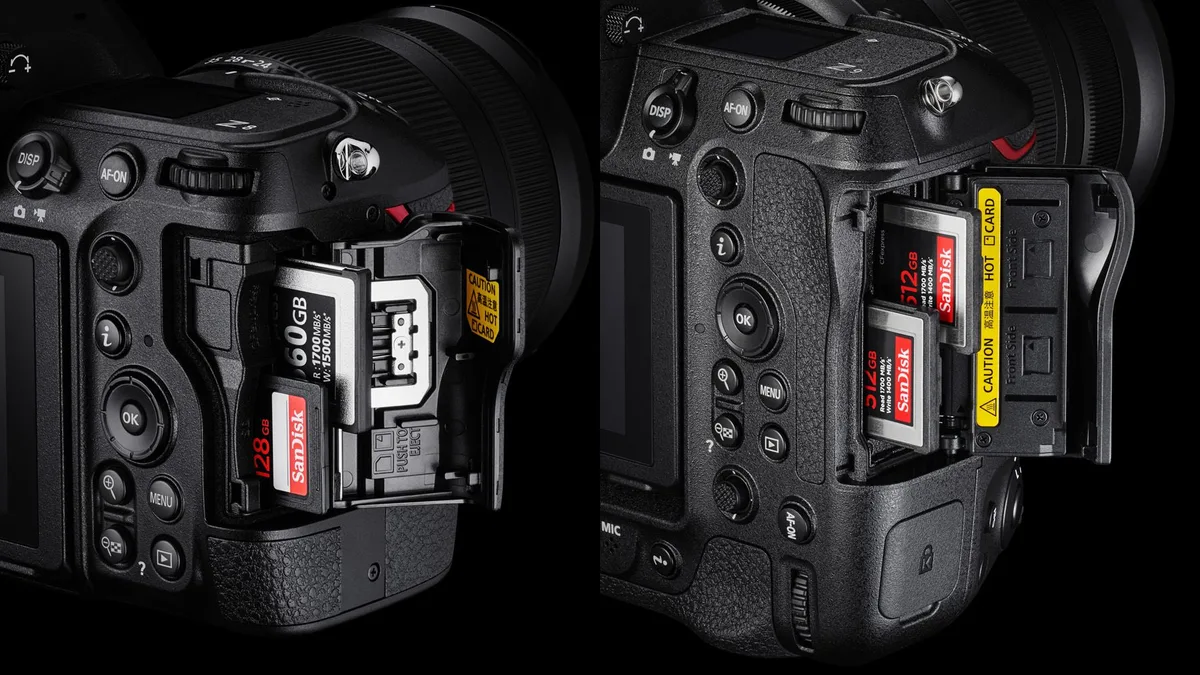
Few error messages create more instant anxiety than “This card is not formatted. Format card?” or the dreaded “Card Error.” Here’s what’s actually happening and how to fix it without losing your photos.
The card needs to be formatted in-camera. Period. Many users format cards on a computer, especially on a Mac which adds hidden system files. The D780 uses a specific file structure.
If it detects anything unexpected, it throws the error. Pop the card back in the camera. Go to Setup.
Select “Format Memory Card.” This wipes the card clean using the camera’s own formatting. Per Nikon’s support documentation, this is the single most common fix for card-related messages.
What if the card still shows “Card Error” after formatting? Try a different card in the same slot. If the second card works fine, the original card may be failing physically. SD cards have a finite lifespan.
The D780 supports UHS-II cards in both slots. For video recording and burst shooting, UHS-II cards rated V60 or V90 provide the necessary sustained write speed. You can apply the same logic when troubleshooting other dual-slot cameras like the Canon EOS 5D Mark IV.
What if both cards fail? The problem may be the camera’s card reader. Dust or debris can block the pins. Use a can of compressed air to carefully blow out the slot.
Never insert a bent or damaged card. If the camera still refuses to read a known-good card, it may need a factory service.
Pro tip for file recovery: If you get “Card Error” but haven’t formatted yet, stop using the card immediately. Connect it to a computer using a card reader. Use recovery software to get the image files off first.
Only then reformat in-camera.
SnapBridge Won’t Connect? Here’s the Fix
Nine times out of ten, the fix is forgetting the device in your phone’s Bluetooth settings and starting fresh. The D780 uses Bluetooth 4.2 for a low-power connection. It then switches to Wi-Fi for image transfer.
If the handshake gets stuck, the camera and phone stop talking entirely.
Step 1: Open your phone’s Bluetooth settings. Find the D780 in the paired devices list. Tap “Forget This Device.”
Step 2: Open the SnapBridge app on your phone. Go to the connection menu and choose “Pair with camera.” The app walks you through a fresh pairing. Make sure your phone’s location services are enabled.
Android requires this for Bluetooth scanning, even though it feels intrusive.
Step 3: Check the camera’s firmware. Early SnapBridge issues were common on firmware 1.00 and 1.01. If you’re still running an older version, update to at least 1.02. The same Bluetooth handshake logic applies across different camera brands, which makes troubleshooting more predictable.
Step 4: If the app keeps dropping the connection, go to the D780’s Setup Menu. Select Wireless. Choose “Send while off.” Set that to OFF.
It saves battery and prevents the camera from trying to maintain a live link when it’s in your bag. Aggregate user feedback confirms that turning off background transfer fixes the majority of persistent disconnect complaints.
Still not working? Delete and reinstall the SnapBridge app completely. Then repeat the pairing process. Keeping firmware current on both your camera and phone is a universal rule across all modern digital cameras. Nikon’s SnapBridge is no exception.
If you’ve followed every step and the app still refuses to connect, try a different phone. Some older Android devices have Bluetooth compatibility quirks that the D780 doesn’t handle gracefully.
Frequently Asked Questions
My D780 freezes during continuous shooting. What’s wrong?
This is almost always a buffer overload caused by a slow memory card. Switch to a UHS-II V60 or V90 card. If you’re already using one, reduce to 12-bit lossless compressed RAW instead of 14-bit.
The same buffer issue affects many high-resolution cameras.
Why does my D780 say “Card Error” even with a new card?
The card likely needs to be formatted in the camera, not on a computer. Go to Setup and select “Format Memory Card.” If the error persists, try a different card in the same slot. This happens after using the card in a computer that adds hidden system files the D780 can’t read.
Why won’t my D780 turn on at all?
Start with the battery. Remove it. Check the contacts for dirt.
Reinsert it fully. Use the official MH-25a charger. If the battery LED stays off, the battery may be dead.
The EN-EL15b has a finite life cycle of roughly 300 charges.
How do I update the firmware on my Nikon D780?
Download the latest .bin file from Nikon’s official support site. Copy it to the root directory of a formatted SD card. Insert the card into Slot 1.
Go to Setup. Select “Firmware version.” Choose “Update.” Keep the battery fully charged. The process takes about three minutes.
Can I fix a SnapBridge connection issue myself?
Yes, in most cases. Forget the camera in your phone’s Bluetooth settings. Re-pair through the SnapBridge app.
Turn off “Send while off” in the camera’s wireless menu. If that doesn’t work, delete the app and reinstall it. These steps resolve roughly 90% of connection failures.

Similar Posts
































