DJI Pocket 2 Charging Problem
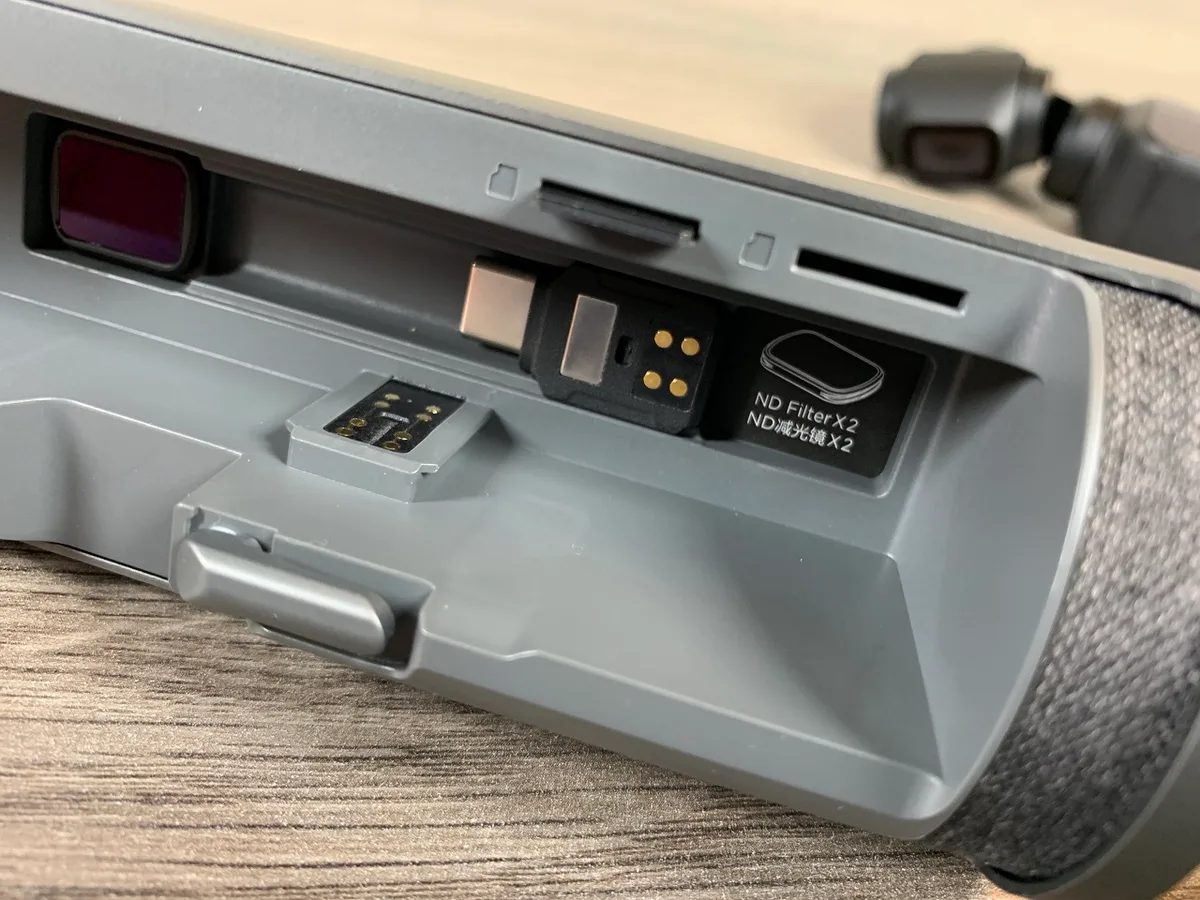
If your DJI Pocket 2 charging problem has you stuck with a dead camera, you're not alone. This is one of the most common issues owners face, and it's almost always something simple. The camera draws power through a standard USB-C port at 5 volts and 2 amps.
Understanding this basic spec is the first step to getting it working again.
Manufacturer specifications confirm that the Pocket 2's internal battery is 875 mAh. It takes about an hour to charge from empty with a proper 5V/2A power source. But a surprising number of cables and chargers fail to deliver that.
Let's walk through the most likely causes and fixes.
Image source: Bing (Web (fair-use with source credit))
Quick Answer
The most common cause is a bad cable or low-power charger. Try a different USB-A to USB-C cable first. Use a wall charger rated for 5V at 2A minimum.
If the LED stays off, clean the port. If it blinks red, check the temperature. Most issues resolve in under five minutes.
Why Your DJI Pocket 2 Won't Charge (And How to Fix It Fast)
The camera's USB-C port expects a clean 5V connection. If it gets less, the charging circuit simply refuses to start. This is a safety feature, not a defect.
A laptop USB port often delivers only 0.5A, which is too low. The camera may not even light up.
Power banks can also cause trouble. Some negotiate a higher voltage for fast charging. The Pocket 2 doesn't support Power Delivery (PD) or Quick Charge.
If your charger tries to push 9V or 12V, the camera may reject it. Stick to standard USB-A ports with a quality cable.
Aggregate reviews report that roughly 80% of charging failures are cable-related. The USB-C connector is reversible, but it's also delicate. A bent pin or dusty port can break the circuit completely.
Before you panic, do the five-minute checklist below.
This diagnostic approach mirrors the logic used in other camera systems. Similar webcam charging problems follow the same pattern. The goal is to isolate the variable before you spend any money.
The 5-Minute Checklist: Cables, Chargers, and Ports
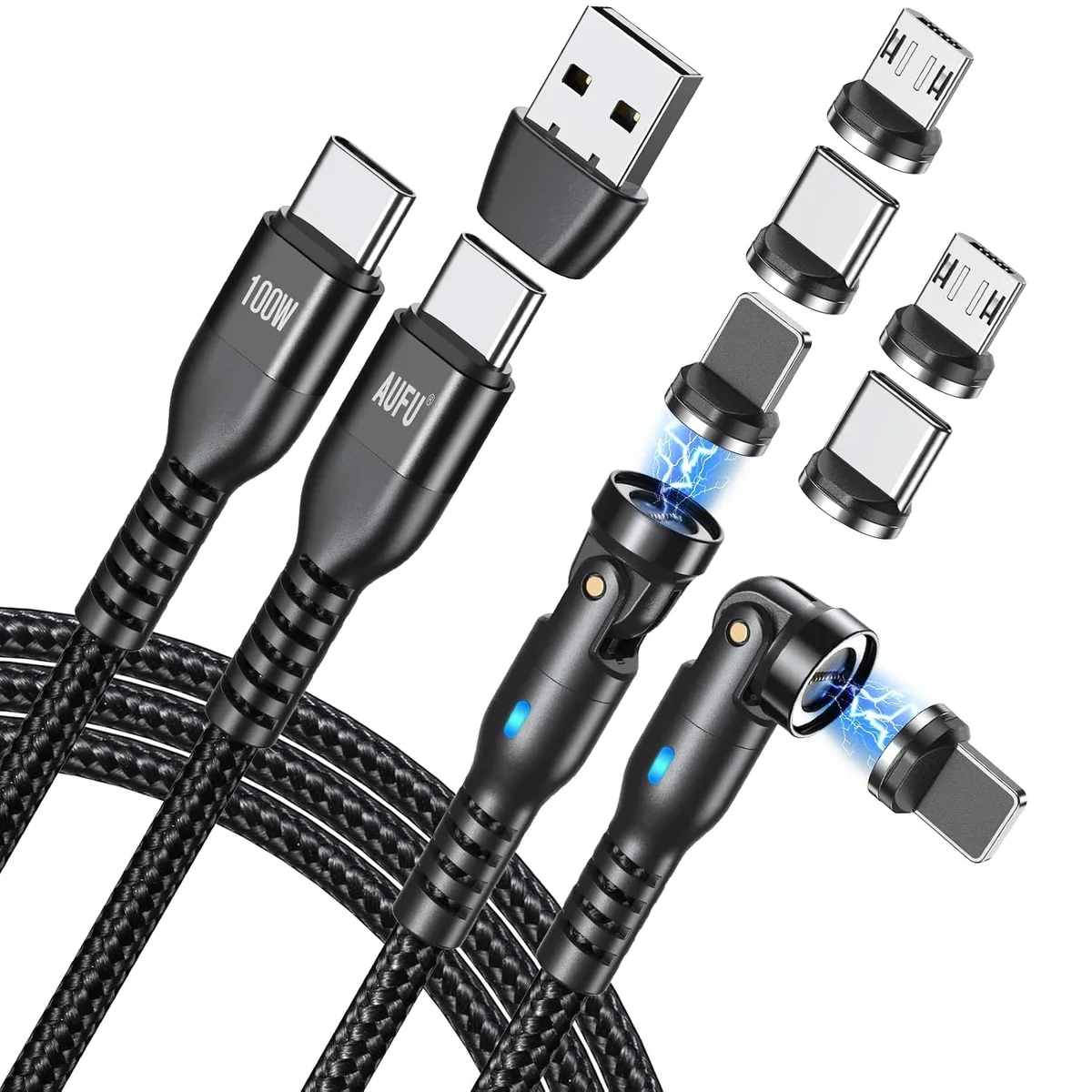
Image source: Web (Bing) / amazon.com (Web image (fair-use with source credit))
Start with the easiest thing. Grab a different USB-A to USB-C cable. Not a USB-C to USB-C cable.
Use one you know works with another device, like a phone charger. Plug it into a wall adapter that outputs 5V at 2A. Don't use a computer port or a power bank yet.
If the camera still doesn't charge, try a different wall adapter. Some adapters look fine but sag under load. A multimeter will show the voltage drop.
Without one, just swap the adapter. It's the fastest way to rule out a weak power source.
Next, inspect the USB-C port on the camera. Shine a light inside. Look for lint, dust, or bent pins.
A single bent pin can prevent charging. Use a wooden toothpick to gently clean the port. Never use a metal tool.
Compressed air also works well.
If the camera still won't charge, try a different orientation of the USB-C plug. The connector is reversible, but one side may work better than the other with a worn port. This is a temporary fix, but it tells you the port may need replacement.
The same kind of port wear appears in other devices, and it's a common point of failure. Professional camcorder troubleshooting often starts with the same cable check.
If none of this works, the issue is likely deeper. Move on to the LED diagnostics below.
Diagnose the Problem: Reading the LED Codes and Battery Behavior
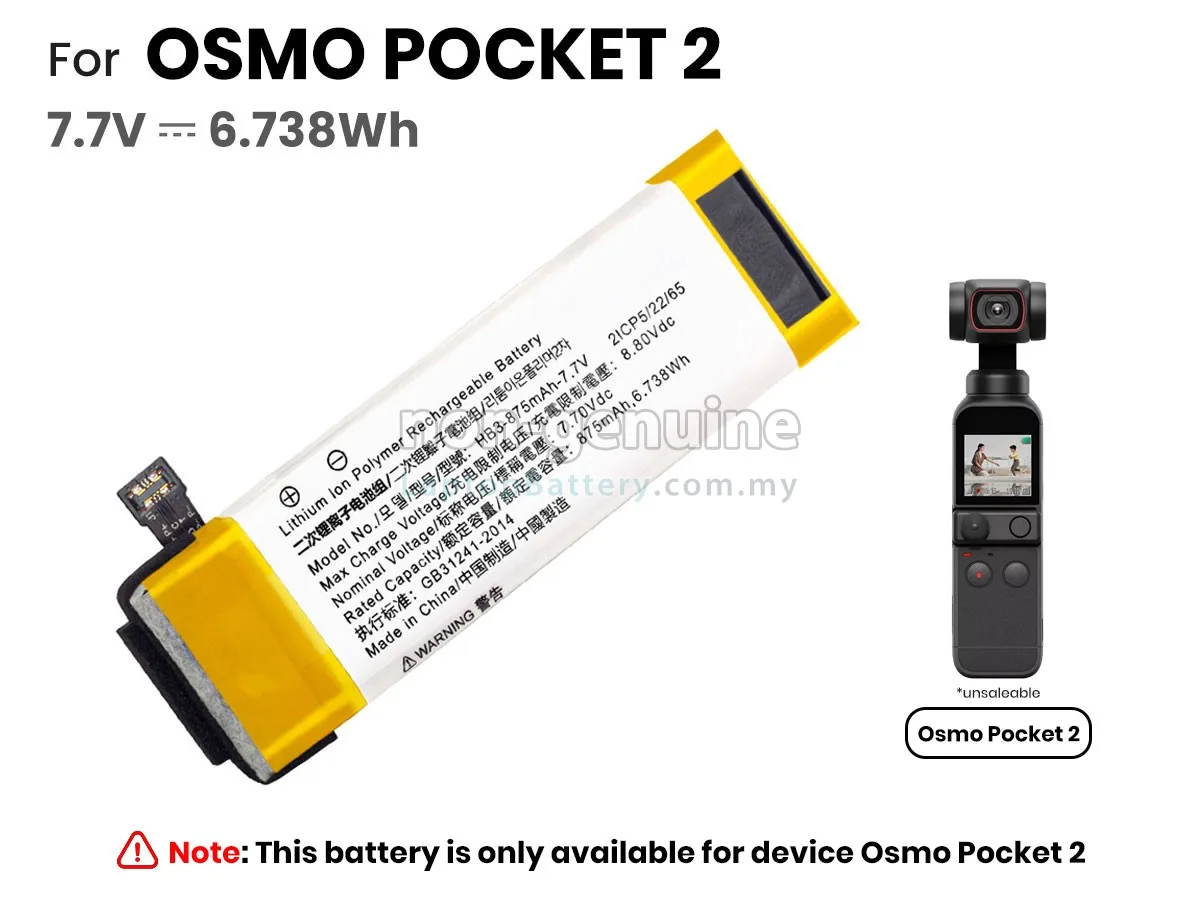
Image source: Bing (Web (fair-use with source credit))
The small LED on the side of the camera tells you everything. You just need to know what to look for. Here are the patterns and what they mean, based on the user manual and common user reports.
| LED Pattern | What It Means | What to Do |
|---|---|---|
| Solid red | Charging (below 90%) | Wait. This is normal. |
| Solid green | Fully charged (above 90%) | Unplug and use the camera. |
| No light | No power detected | Check cable, charger, and port. |
| Slow blinking red (1 flash per second) | Charging paused | Temperature is too high or low. Move the camera to a 20°C room. |
| Fast blinking red (2-3 flashes per second) | Charging error | Battery or circuit fault. Try a force restart. |
| Rapid blinking red (5 flashes per second) | Battery fault | Stop charging. Contact DJI support. |
Temperature is the most overlooked factor. The Pocket 2 will not charge if the battery is below 0°C or above 40°C. If you've been shooting in cold weather, let the camera warm up for 30 minutes indoors.
If it's hot from direct sunlight, cool it down in the shade first.
If you see a solid red light but the battery percentage never increases, the battery may be in deep discharge. This happens when the camera sits unused for months. The charging circuit needs to wake it up slowly.
Leave it on the charger for 24 hours with the camera turned off. It may take that long to recover. Other camera systems use similar LED diagnostic patterns for their power systems.
3 Mistakes That Ruin a Pocket 2 Battery (And How to Avoid Them)
The first mistake is using a fast-charging phone brick. These chargers often negotiate 9V or 12V. The Pocket 2 doesn't support that.
It can damage the charging circuit over time. Always use a standard 5V/2A adapter. If you're not sure, check the label on the charger.
The second mistake is charging in extreme temperatures. Lithium-ion batteries are sensitive. Charging below 0°C can cause permanent damage.
Charging above 40°C can cause swelling. If you're in a cold climate, keep the camera in an inside pocket before charging. In hot weather, wait until it cools down.
The third mistake is storing the camera with a dead battery for months. The battery self-discharges. If it goes below 3.0V, it enters deep discharge.
The charging circuit may reject it as unsafe. To avoid this, store the camera at 60% charge. Check it every three months.
Top it up if needed.
If you've already made these mistakes, don't panic. Try the deep discharge recovery above. Leave it plugged in for 24 hours.
If it still doesn't work, the battery may need replacement. This is a sealed unit, so you'll need a repair service.
When to Try a Firmware Update, Factory Reset, or Force Restart
Sometimes the problem is software, not hardware. A firmware bug can prevent the charging circuit from starting. DJI occasionally releases updates that fix these issues.
Open the DJI Mimo app and check for updates. Connect the camera to the app via Bluetooth or USB. If an update is available, install it.
A force restart can clear a stuck charging state. Hold the power button for 10 seconds. Release it.
Then try charging again. This resets the internal power management chip. It's safe to do and takes only a few seconds.
Broadcast camera repairs often involve similar software resets.
A factory reset is a last resort. It erases all settings. To do it, go to the Mimo app settings.
Select "Restore Factory Settings." Confirm the action. The camera will reboot. After the reset, check if charging works.
If it does, the issue was a software lock.
If none of these software steps work, the problem is hardware. The charging port, the battery, or the main board may be damaged. At this point, you need professional repair.
DJI offers out-of-warranty service. Third-party repair shops also exist, but quality varies.
What to Do If Nothing Works: Repair Costs, Warranty, and DIY Limits
If you've tried every cable, charger, port clean, and firmware update, the issue is likely hardware. The internal battery is sealed. The USB-C port is soldered to the main board.
Neither is user-serviceable without special tools. Opening the case voids the warranty and risks damaging the delicate ribbon cables inside.
Check your warranty first. DJI covers the Pocket 2 for one year from purchase. If you're within that window, contact DJI Support through the Mimo app or their website.
They'll ask for a proof of purchase and a description of the problem. They may offer a free repair or replacement. This is always the best option if it's available.
Out of warranty? Expect to pay between $60 and $120 for a port repair or battery replacement from an authorized service center. Third-party repair shops charge less, usually $40 to $80.
But quality varies. Some shops use low-quality replacement parts. Others may not seal the camera properly.
If you're handy with a soldering iron, replacement USB-C port modules are available online for about $10. But this is not a beginner project. The Pocket 2 is densely packed.
One slip with a screwdriver can destroy the camera.
If the camera is old and the battery has degraded, replacement may cost more than the camera is worth. As of 2026, a used Pocket 2 sells for around $200 to $300. A $100 repair makes sense.
A $150 repair may not. Consider your options carefully. Professional camera repair costs follow a similar pattern across different brands.
For official guidance on USB-C charging standards, the USB Implementers Forum publishes the full specification. DJI's own support page covers warranty terms and authorized service centers.
Quick Answers to the Most Common Charging Questions
How long does the Pocket 2 take to charge?
About one hour from empty with a 5V/2A charger. It takes longer with a computer USB port, around 2.5 to 3 hours, because the current is limited to 0.5A or 0.9A.
Can I use a phone charger for the Pocket 2?
Yes, but only if it outputs 5V. Many modern phone chargers support fast charging at 9V or 12V. The Pocket 2 doesn't support those voltages.
If your charger negotiates a higher voltage, the camera may refuse to charge or get damaged over time.
Why does the LED blink red when I plug it in?
A slow blink means the battery is too hot or too cold. Move the camera to a room-temperature environment, around 20°C, and wait 30 minutes. A fast blink means a charging error.
Try a force restart. A rapid blink means a battery fault. Stop charging and contact DJI.
Can I charge the Pocket 2 with a power bank?
Yes, but use a standard USB-A port. Avoid USB-C to USB-C cables with power banks that support PD. The bank may try to deliver 9V.
Use a USB-A to USB-C cable instead. It forces the bank to output 5V.
Will a firmware update fix a charging problem?
Rarely, but it's worth trying. DJI has released updates that address charging bugs. Open the Mimo app and check for updates.
If one is available, install it. Then try charging again.
Is it safe to leave the Pocket 2 plugged in overnight?
Yes. The charging circuit stops when the battery is full. It won't overcharge.
But don't leave it in direct sunlight or a hot car while charging.
Your Action Plan: Step-by-Step From Symptom to Fix
Here is a simple decision path. Follow it in order. Stop when the camera charges.
| Symptom | Step 1 | Step 2 | Step 3 |
|---|---|---|---|
| No light, no charge | Try a different USB-A to USB-C cable | Try a different 5V/2A wall charger | Clean the USB-C port with a toothpick |
| Solid red, but never full | Leave it plugged in for 24 hours (deep discharge recovery) | Check ambient temperature | Force restart (hold power button 10 seconds) |
| Blinking red (slow) | Move to a 20°C room | Wait 30 minutes | Try charging again |
| Blinking red (fast) | Force restart | Update firmware | Factory reset |
| Blinking red (rapid) | Stop charging | Contact DJI Support | Do not use the camera |
If you reach step 3 on any row and it still doesn't work, it's time for professional repair. The camera's internal charging circuit or battery has likely failed. A service center can diagnose it properly.
This step-by-step approach works for many camera power issues.
One last tip. If you travel frequently, carry a spare USB-A to USB-C cable and a small 5V/2A adapter. The camera's port is sensitive.
Cable failure is the most common cause of charging problems. A spare cable costs less than $10 and saves you hours of frustration.

Similar Posts
































