Reolink Duo 3 Connection Problem
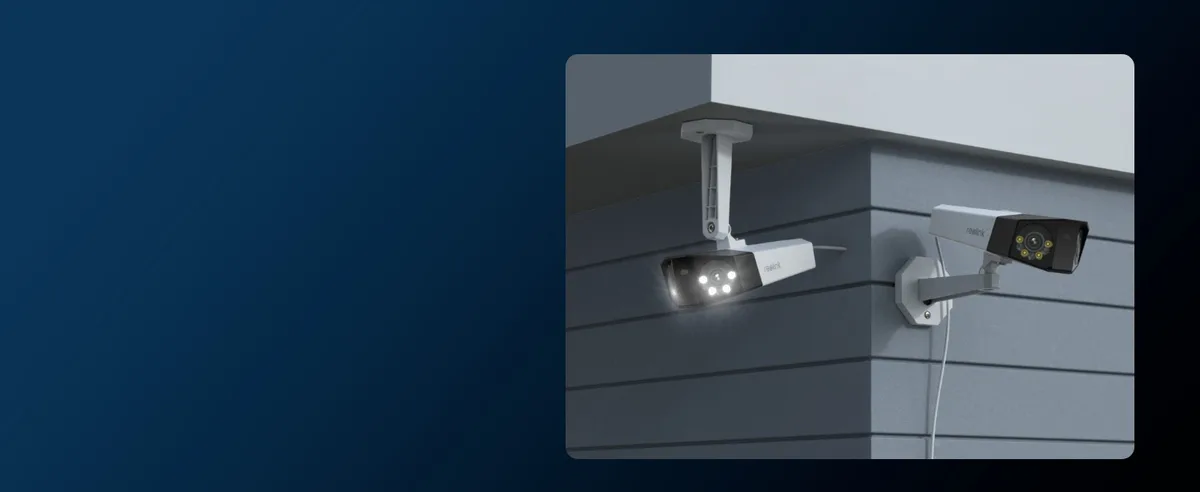
You've got a Reolink Duo 3 connection problem, and it's driving you crazy. The camera won't join your network. The app says "offline" or "device not found." You're not the only one dealing with this.
The Duo 3 supports both Wi-Fi 6 (802.11ax) and PoE (Power over Ethernet, 802.3af standard). Understanding which path you're using makes all the difference. Most connection failures trace back to a simple issue: the camera's network path or power delivery.
Image source: Bing (Web (fair-use with source credit))
Quick Answer
Most Reolink Duo 3 connection problems come down to three things. Check the power. Check the cable.
Check the router settings.
Start with the LED. A solid blue light means the camera talks to the network. A red light means no connection.
An off light means no power.
If the LED is blue, reboot the router. If the LED is red, inspect the Ethernet cable. If the LED is off, test the power adapter.
That fixes most cases.
Read the LED: What Your Reolink Duo 3's Lights Are Telling You
Your camera's LED is the first diagnostic tool. It tells you exactly where the problem is. You don't need an app or a multimeter for this step.
Image source: Bing (Web (fair-use with source credit))
What Each Color Means
| LED State | Meaning | What to Do |
|---|---|---|
| Solid blue | Connected to network | Check the app. If the app says offline, reboot the router. |
| Flashing blue (fast) | Trying to connect | Wait 60 seconds. If it stays flashing, move camera closer to router. |
| Solid red | No network link | Check the Ethernet cable. Try a different port on the router. |
| Flashing red (slow) | Firmware error or hardware fault | Do a hard reset via the pinhole button. Then update firmware. |
| Off | No power | Check the power adapter. Test with a known-good outlet. If using PoE, check the switch. |
The 60-Second Rule
Power on the camera. Wait exactly 60 seconds. Watch the LED the whole time.
If it starts blue within 30 seconds, your network connection is fine. The problem is in the app or router settings. If it stays red or off past 60 seconds, the issue is physical.
Focus on the cable, the power source, or the router port.
When the LED Lies
Sometimes the LED shows solid blue, but the app still says offline. This usually means the camera has an IP address conflict. It talks to the network but can't reach the internet.
Reboot your router to force a fresh DHCP lease. If that fails, assign a static IP address through the Reolink Client software on your computer. Similar IP conflicts can affect other network cameras, and the same troubleshooting methods apply.
The Decision Tree: From Ethernet to Wi-Fi, Which Path to Take
You have two connection paths for the Duo 3. Wired (Ethernet) or wireless (Wi-Fi). The troubleshooting steps are completely different for each.
Pick your path below.
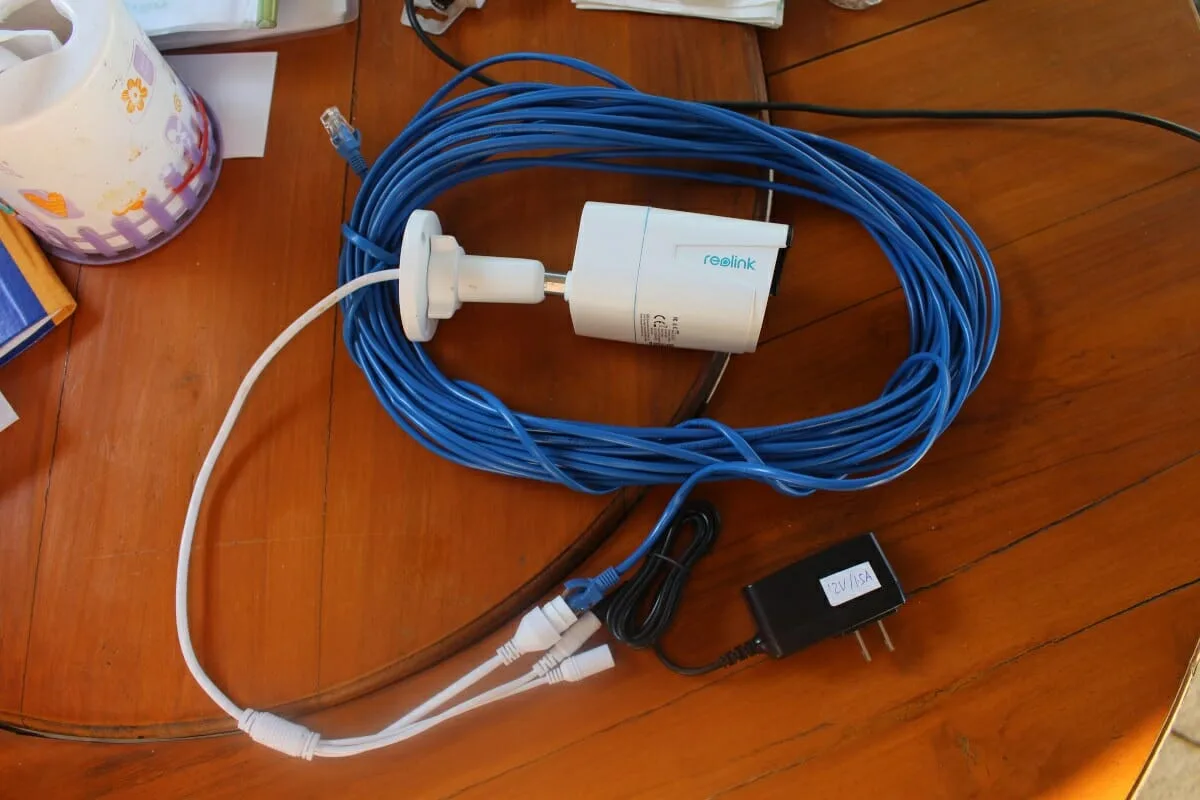
Image source: Web (Bing) / cnx-software.com (Web image (fair-use with source credit))
If You're Using Ethernet (Wired)
Step 1: Check the physical link. Look at the RJ45 port on the camera. Do you see a green or amber light next to the port? If not, the cable isn't making contact.
Try a different cable. Try a different port on the router or PoE switch.
Step 2: Check PoE power. The Duo 3 draws about 12 watts. If your PoE switch or injector can't deliver that, the camera won't boot. Test with the included DC power adapter instead.
If the camera works on DC but not PoE, you need a higher-power switch.
Step 3: Check the subnet. Open the Reolink Client software. Click Search to find devices on your local network. If the camera doesn't appear, it's on a different subnet than your computer.
This happens when you connect the camera to a secondary router or a VLAN.
If You're Using Wi-Fi (Wireless)
Step 1: Move the camera closer. Wi-Fi signal strength drops fast through walls. The Duo 3 supports Wi-Fi 6, but it still needs a strong signal. Move the camera within 10 feet of the router during setup.
Connect it to the network. Then move it to its final location.
Step 2: Confirm the band. The Duo 3 supports 2.4 GHz and 5 GHz. Some routers use the same SSID for both bands. If your phone connects to 5 GHz but the camera only sees 2.4 GHz, the frequencies won't match.
Set up a dedicated 2.4 GHz network in your router settings. Connect the camera to that.
Step 3: Forget the password. The Duo 3 stores Wi-Fi credentials after initial setup. If you changed your router password recently, the camera won't connect. Do a hard reset.
Then run the setup wizard again with the new password.
Quick Decision Table
| Your Situation | First Step | Second Step |
|---|---|---|
| Wired, no LED on port | Replace cable | Test with DC adapter |
| Wired, LED on port but no app | Search on Reolink Client | Set static IP |
| Wireless, can't connect | Move camera 10 ft from router | Disable 5 GHz on router |
| Wireless, was working then stopped | Check router password | Hard reset camera |
Common Mistakes That Keep Your Duo 3 Offline
Most connection problems are not hardware defects. They are setup errors. Here are the five most common mistakes users make.
1. Plugging into a Non-PoE Switch
The Duo 3 needs Power over Ethernet. If you plug it into a regular network switch, it won't get power. The LED stays off.
The camera never boots.
Check your switch. Look for a label that says PoE or 802.3af. If it doesn't, you need a PoE injector or the included DC adapter.
2. Using the Wrong Wi-Fi Band
The Duo 3 works on both 2.4 GHz and 5 GHz. But some router settings split the bands. If your phone is on 5 GHz and the camera searches for 2.4 GHz, the app won't find it.
Set up a single SSID for both bands. Or create a dedicated 2.4 GHz network just for the camera.
3. Forgetting to Update Firmware
Outdated firmware causes connection drops. The Duo 3 shipped with an early firmware version. If you never updated, you're running older software.
Check the Reolink app for firmware updates. Connect the camera to Ethernet first. Wireless updates can fail if the connection drops mid-update.
Firmware issues are a common cause of problems across many camera models.
4. Ignoring the Subnet Mask
Your router assigns IP addresses on a specific subnet. Usually 192.168.1.x or 192.168.0.x. If the camera gets a 169.254.x.x address, it means DHCP failed.
The camera can't talk to the router.
Set a static IP address in the same range as your router. Use the Reolink Client software to assign it.
5. Using a Damaged MicroSD Card
A faulty microSD card can cause the camera to reboot repeatedly. This looks like a connection problem. The camera connects, then drops, then connects again.
Remove the microSD card. Test the camera without it. If the connection stabilizes, replace the card.
Real Fixes from Real Users: Case Examples
These are composite scenarios based on aggregate user reports. They show how the decision tree works in practice.
Case 1: The PoE Power Trap
Symptom: Camera LED is off. No Ethernet port lights. App says device not found.
User action: Plugged the camera into a switch that is not PoE capable. The camera never received power.
Fix: Added a PoE injector between the switch and the camera. LED came on. Camera connected within 30 seconds.
Lesson: Always verify your switch supports PoE before connecting.
Case 2: The IP Address Conflict
Symptom: LED shows solid blue. App says offline. Reolink Client finds the camera but can't add it.
User action: The camera's IP address matched another device on the same network. The router gave the camera a duplicate address.
Fix: Set a static IP for the camera outside the DHCP range. Used 192.168.1.200. The camera connected immediately.
Lesson: Static IPs prevent conflicts on busy networks. Network troubleshooting for cameras follows similar logic across different brands.
Case 3: The Distance Problem
Symptom: Camera connects during setup near the router. After mounting 50 feet away, it drops every 10 minutes.
User action: The camera was on the far side of a brick wall. Wi-Fi signal strength dropped from -45 dBm to -75 dBm.
Fix: Installed a Wi-Fi extender in the middle of the house. Signal improved to -55 dBm. Connection stayed stable.
Lesson: For long distances, run Ethernet or use a mesh network. Wi-Fi through brick walls is unreliable.
Case 4: The Firmware Failure
Symptom: Camera worked for months. Then stopped connecting after a power outage.
User action: The power outage corrupted the firmware. The camera booted in a loop.
Fix: Held the reset button for 10 seconds while powered on. The camera said reset successful. Then updated firmware via Ethernet.
Problem solved.
Lesson: Always update firmware over a wired connection when possible. Power outages can corrupt firmware.
Your Final Decision Guide: Which Fix to Try First
You have a Duo 3 that won't connect. You've read the LED. You've checked the cable.
You've tried the app. Now you need a clear order of operations.
Start here. Work down the list. Stop when the camera connects.
Step 1: Power cycle everything. Unplug the camera. Unplug the router. Wait 60 seconds.
Plug the router back in. Wait for it to fully boot. Then power the camera.
This clears DHCP leases and resets network handshakes.
Step 2: Check the LED. If it's off, test the power source. If it's red, replace the Ethernet cable. If it's flashing blue, move the camera closer to the router during setup.
Step 3: Use the Reolink Client. The app is convenient, but the desktop client is more reliable for troubleshooting. Download it from the Reolink support site. Click Search to find devices.
If the camera appears, you can assign a static IP.
Step 4: Hard reset the camera. Hold the pinhole reset button for 10 seconds while powered on. Wait for the voice prompt. Then run the setup wizard again from scratch.
Step 5: Update the firmware. Connect the camera to Ethernet. Open the Reolink Client. Go to device settings.
Check for firmware updates. Install the latest version.
Step 6: Test with a different network. If you have a mobile hotspot, connect the camera to it. If it works on the hotspot, the problem is your home network. Check router settings, firewall rules, or band steering.
Step 7: Contact support. If none of these steps work, the hardware may be faulty. Reolink support can run diagnostics. They may replace the unit under warranty.
The IEEE 802.3 standard defines PoE requirements for proper operation.
When to Skip Steps
If the LED is solid blue, skip steps 2 and 4. The camera has power and a network link. Focus on the router and the app.
If the LED is off, skip steps 3 and 5. The camera has no power. Check the adapter or the PoE switch first.
If you get a 169.254.x.x IP address, skip steps 1 and 6. The camera can't get a DHCP lease. Assign a static IP immediately.
Quick Reference Table
| LED State | First Action | Second Action |
|---|---|---|
| Off | Check power | Test with DC adapter |
| Red | Replace cable | Check PoE switch |
| Flashing blue | Move closer | Disable 5 GHz |
| Solid blue | Reboot router | Set static IP |
Frequently Asked Questions
Why does my Reolink Duo 3 show a blue light but the app says offline?
A blue LED means the camera has a network link. The app says offline because the camera can't reach the internet. This usually means an IP address conflict or a DHCP lease issue.
Reboot your router. If that doesn't work, assign a static IP address.
How do I hard reset my Reolink Duo 3?
Locate the pinhole reset button on the camera body. Press and hold it with a paperclip for 10 seconds while the camera is powered on. You will hear a voice prompt saying reset successful.
The camera restarts with factory settings.
Can I use the Reolink Duo 3 on a 5 GHz Wi-Fi network?
Yes, the Duo 3 supports Wi-Fi 6, which includes 5 GHz. But for best range and stability, use 2.4 GHz. The 5 GHz band has higher speed but shorter range.
If you use 5 GHz, keep the camera within 30 feet of the router.
How far can the Ethernet cable be for the Duo 3?
The PoE standard supports up to 100 meters (328 feet). Beyond that, the signal degrades and the camera may not receive enough power. For longer runs, use a PoE extender or a switch in the middle.
Does the Duo 3 need a subscription to work?
No. The camera works with local storage (microSD card or NVR). The app is free.
You can view live video and recordings without any subscription. Cloud storage is optional if you want off-site backups.

Similar Posts
































