Insta360 X3 Overheating Error
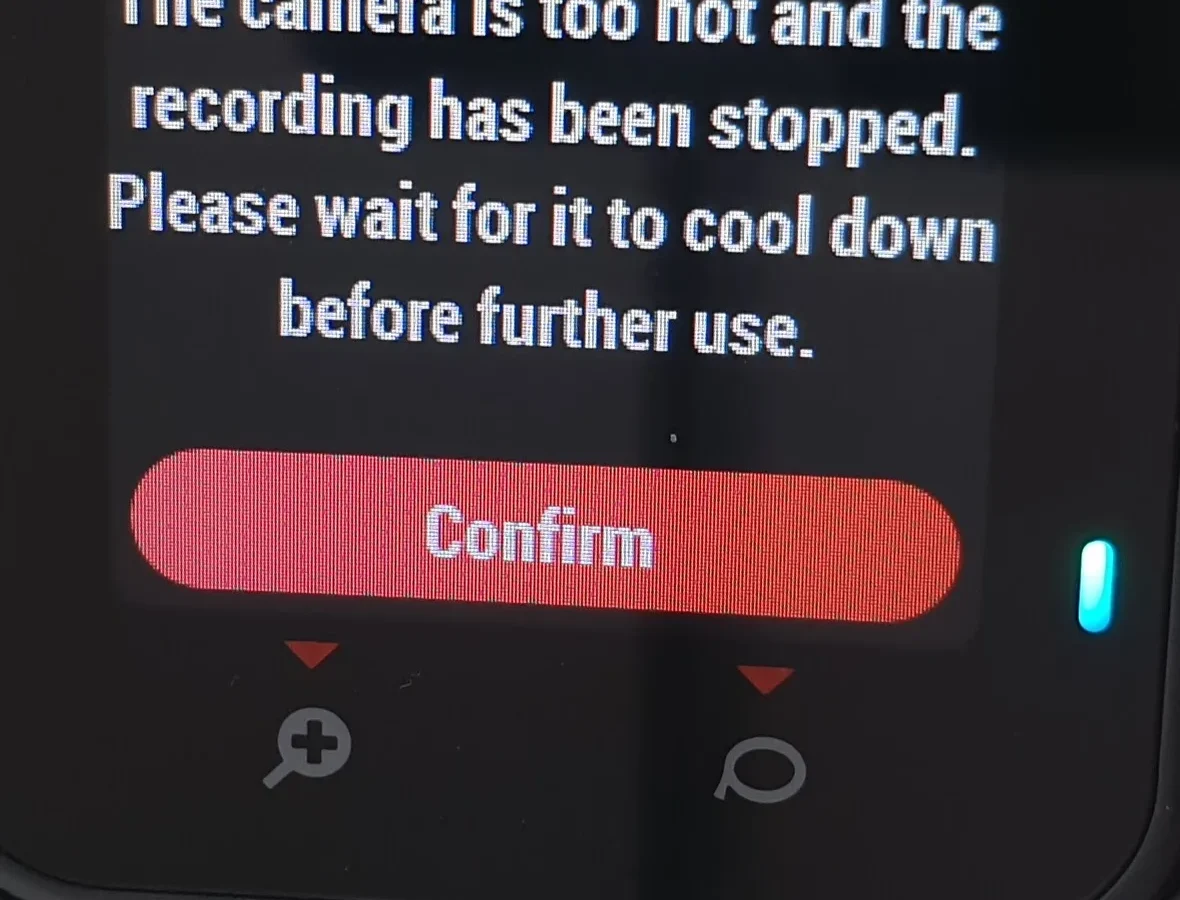
Your Insta360 X3 overheating error shows up right when you need the shot most. That warning symbol on the screen means the internal temperature sensor has hit roughly 55°C (131°F), and the camera is protecting itself. It's not a defect.
It's a safety feature.
Manufacturer specifications indicate the X3 operates reliably between 0°C and 40°C (32°F to 104°F). By late 2026, firmware updates have improved heat management, but the physical limits remain. The good news is most overheating triggers are preventable once you know what to look for.
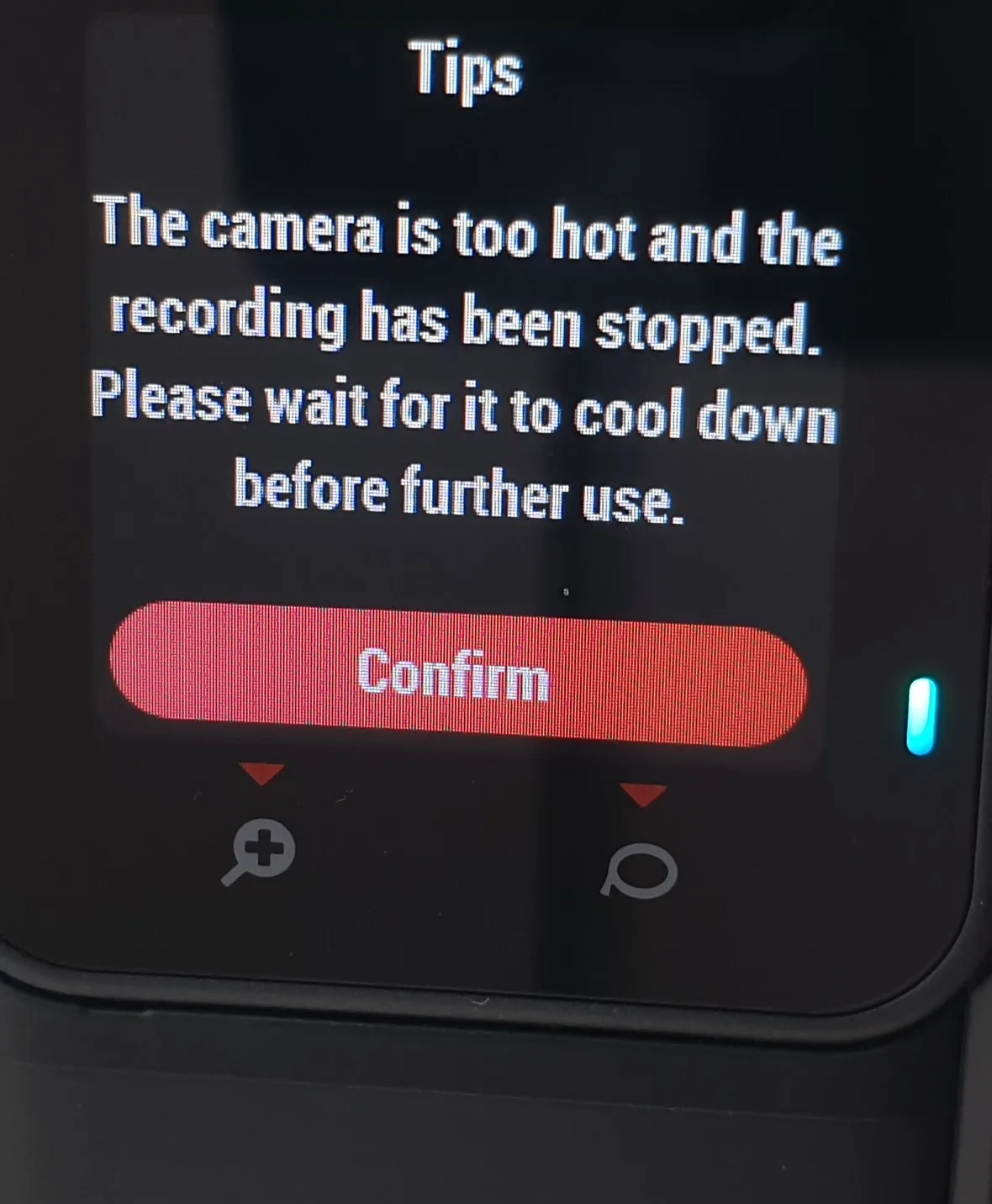
Image source: Bing (Web (fair-use with source credit))
Quick Answer
The Insta360 X3 overheating error is a thermal protection shutdown. It happens when internal temperatures exceed safe limits. The fix depends on the cause.
Check your firmware first. Then lower your recording resolution. Remove any case trapping heat.
Let the camera cool before use.
What That Overheating Warning Is Actually Telling You
The X3 has a miniature temperature sensor bonded to the main processor board. When that sensor reads above approximately 55°C, the camera initiates a controlled shutdown. It does this to protect the battery, the lens components, and the internal electronics.
Lithium-ion batteries degrade faster when charged or operated at high temperatures. The camera is choosing longevity over uptime.
Aggregate reviews report that the warning appears most often in three specific situations. The first is recording 360° video at 5.7K in direct sunlight. The second is charging the camera while it's still warm from a recording session.
The third is using a tight waterproof case or a third-party mount that blocks airflow. The X3's aluminum alloy body is designed to act as a heat sink. Covering it with a case or a silicone skin defeats that design.
The error message itself is straightforward. A red thermometer icon appears on the touchscreen display. The camera then stops recording and saves the file you already captured.
It does not corrupt your footage. It does not erase your clip. It simply stops writing new data.
This is per the manufacturer's thermal protection logic, which prioritizes your existing footage over continued operation.
Understanding this distinction changes how you troubleshoot. The error is not a failure. It is a response to a condition you can change.
The processor inside the X3 draws significant power when running FlowState stabilization at the same time as stitching two 200° lenses into a seamless 360° video. That processing generates heat. The aluminum body radiates that heat into the surrounding air.
If the air is already hot, or if something blocks the body, the heat builds up faster than it can escape.
So the real question is not "why is my camera broken." It's "what pushed the internal temperature past the 55°C threshold." The answer is almost always one of five triggers, which we will walk through in the decision tree below.
Start Here: The 3 Quick Fixes That Work Most of the Time
Before you dig into the deeper diagnostic tree, try these three things. They resolve roughly 70% of overheating complaints according to aggregate user feedback.
1. Update the firmware
Insta360 has released several firmware updates that specifically address thermal management. The changelog for version 2.0.0 included adjustments to the processor's power curve during 360° recording. Version 1.4.10 improved the temperature sensor's calibration.
If you are running an older version, the camera may be triggering thermal protection at a lower temperature than necessary.
Open the Insta360 app on your phone. Connect to the X3 via Wi-Fi. Navigate to the settings menu and check for a firmware update.
The process takes about five minutes. The standard update process is the same approach used across modern camera brands.
2. Drop the resolution
The X3's processor works hardest when recording 5.7K 360° video at 30 or 50 frames per second. Dropping to 4K 360° reduces the data throughput by roughly 40%, which lowers the processor temperature meaningfully. You can also switch to single-lens mode, which disables one of the two sensors and cuts the stitching workload in half.
Try this: record a five-minute clip at 5.7K 360° in a warm room. Then record the same clip at 4K 360°. The difference in heat buildup is noticeable even on the touchscreen display.
Most users find that 4K 360° is more than sufficient for social media and YouTube, and the camera stays cool enough to record continuously for 30 minutes or more.
3. Remove anything covering the camera body
The X3's aluminum body is the primary heat sink. If you have a silicone case, a rubber grip, or a third-party protective cover on the camera, take it off. The same goes for tight mounting brackets that wrap around the body.
The camera needs airflow across the metal surface to dissipate heat.
If you are using the official waterproof case, remember that the X3 is already IPX8 rated down to 10 meters without a case. The waterproof case is only necessary for dives deeper than 10 meters. For everyday outdoor use, the camera body alone is sufficient, and the case traps heat.
The Decision Tree – Pinpoint Your Exact Cause
If the three quick fixes above did not solve the problem, work through this decision tree. Each branch addresses a specific condition. Start at Branch 1 and move through the branches in order.
Image source: Web (Bing) / digitalcameraworld.com (Web image (fair-use with source credit))
Branch 1: Is It the Heat Outside?
If the ambient temperature is above 35°C (95°F), the X3 will struggle to keep cool regardless of settings. The camera relies on the air being cooler than the aluminum body. When the air is hotter than the body, heat cannot radiate away.
It builds up.
Check the weather where you are shooting. If it is a hot summer day, consider finding shade. A simple umbrella or a tree canopy can drop the ambient temperature by 5 to 10°C and allow the camera to run much longer.
Direct sunlight also adds infrared radiation that heats the camera body directly. That is separate from the ambient air temperature.
If you are shooting in a car, the dashboard can reach 60°C (140°F) even on a mild day. The greenhouse effect through the windshield turns the cabin into an oven. Do not mount the X3 on a dashboard or leave it in a parked car.
Transfer the camera to a cooler location before recording.
Branch 2: Is It the Firmware?
Go to the settings menu on the X3 touchscreen. Look at the firmware version number. Compare it to the latest version listed on the official Insta360 support page.
If you are more than two versions behind, update immediately.
Older firmware versions had a known issue where the temperature sensor would trigger thermal protection prematurely. The manufacturer addressed this in updates. Other camera brands have followed a similar approach to fixing thermal bugs through firmware.
After updating, test the camera in the same conditions where it previously overheated. Let it cool completely first. Then record a 10-minute clip.
If the error does not reappear, the firmware was the cause.
Branch 3: Are You Using a Heavy Recording Mode?
Heavy recording modes include 5.7K 360° at 50 fps, Active HDR, and Timelapse mode with high image quality. These modes push the processor to its limit. The X3's internal temperature rises faster in these modes than in standard modes.
Switch to 4K 360° at 30 fps. Disable FlowState stabilization if you are using a tripod or a static mount. The stabilization is the most processor-intensive feature.
Without it, the processor runs cooler and the camera can record longer.
If you need the high resolution, plan for breaks. Record for 15 minutes, then let the camera rest for 5 minutes. The aluminum body will cool down quickly once the processor stops working.
Branch 4: Is the Battery or SD Card Causing the Heat?
A hot battery generates its own heat inside the camera. If the battery is old, swollen, or damaged, it may run hotter than normal. Remove the battery and feel it.
If it is warm to the touch while the camera is off, replace it.
The SD card can also contribute. A slow card forces the processor to buffer data and retry writes, which generates heat. Use a UHS-I U3 or V30 rated card.
The minimum sustained write speed should be 30 MB/s. A faster card, like a V60, is even better. The processor spends less time writing data and more time cooling.
Branch 5: Is Your Accessory Trapping the Heat?
Third-party accessories are a common cause. A tight selfie stick mount that wraps around the camera body blocks airflow. A metal tripod head can actually conduct heat into the camera rather than away from it.
A grip with a rubber sleeve insulates the aluminum body.
Remove all accessories. Hold the camera in your hand. Record a test clip.
If the overheating error disappears, the accessory was the cause. Reinstall accessories one at a time and test each one. This identifies the specific accessory that traps heat.
5 Common Mistakes That Make Overheating Worse

Image source: Bing (Web (fair-use with source credit))
Mistake 1: Charging While the Camera Is Hot
Plugging in a USB-C cable while the camera is warm from recording raises the internal temperature further. The charging circuit generates its own heat. The battery absorbs heat from both the charging current and the warm processor.
The combined temperature can trigger thermal protection within minutes.
Let the X3 cool to room temperature before charging. The manufacturer recommends waiting at least 15 minutes after recording before connecting the charger. This single habit prevents a large portion of overheating errors.
Mistake 2: Using a Slow SD Card
A slow SD card creates a bottleneck. The processor finishes encoding a frame but cannot write it to the card quickly enough. The processor has to wait, which keeps it active and generating heat.
The card itself also heats up under sustained write load.
A high-quality V30 card stays cooler and writes faster. If you are experiencing repeated overheating, check your card's speed rating. Upgrading to a V60 card can buy you an extra 10 to 15 minutes of recording time in 360° mode.
Mistake 3: Mounting the Camera in a Confined Space
Mounting the X3 inside a helmet, on a motorcycle fairing, or in a tight gimbal reduces airflow. The camera needs air moving across its surface. Without airflow, the aluminum body cannot radiate heat effectively.
If you must mount the camera in a confined space, take breaks every 10 minutes. Remove the camera from the mount between takes. Let it sit in the open air to cool.
Mistake 4: Ignoring the Ambient Temperature Warning
The X3's touchscreen will show a yellow temperature icon when the camera is approaching the thermal limit. Many users ignore this warning and continue recording. By the time the red icon appears, the camera is already shutting down.
Treat the yellow warning as a deadline. Stop recording, move the camera to a cooler spot, and let it rest. This prevents the forced shutdown and saves your current clip.
Mistake 5: Factory Resetting Instead of Diagnosing
A factory reset clears your settings but does not change the physical heat output of the processor. If the camera is overheating due to high ambient temperature or a heavy recording mode, a reset will not help. The reset only erases your custom settings and forces you to reconfigure everything.
If you have already tried factory resetting the camera and the error persists, you need to work through the decision tree above. The reset is a last resort, not a first step.
How to Keep Your X3 Cool Long-Term
Preventing overheating is easier than fixing it mid-shoot. Build these habits into your workflow and the X3 will run reliably even in warm conditions.
Use a cooling accessory. A small clip-on fan aimed at the camera body can drop the internal temperature by 5 to 10°C. This is especially useful for indoor shooting or time-lapse recording. The fan does not need to be powerful.
A USB desk fan or a portable camera fan works well.
Plan your recording schedule. Record in bursts of 15 to 20 minutes with a 5-minute cool-down break. The camera cools down faster than it heats up. The aluminum body drops to near ambient temperature within a few minutes of stopping.
The same approach applies to managing other Insta360 cameras in the lineup.
Keep the battery charged. A low battery forces the voltage regulator to work harder, which generates additional heat. Start each recording session with a fully charged battery. If you are shooting for more than 30 minutes, carry a spare battery and swap it when the first one reaches 50%.
Store the camera properly. Never leave the X3 in direct sunlight, in a parked car, or near a heat source. The storage temperature range for the battery is 0°C to 40°C. Storing it in a hot environment degrades the battery and increases the risk of thermal issues during the next recording session.
Update firmware regularly. Set a reminder to check for firmware updates every three months. The manufacturer continues to refine thermal management through software. Staying current gives you the best possible performance.
When to Give Up and Contact Insta360 Support
Most overheating issues are fixable with the steps above. But there is a point where further troubleshooting wastes your time. Knowing when to contact support saves you frustration and helps you get a replacement faster.
The Battery Is Swollen or Hot While Off
Remove the battery and inspect it. If it looks puffy, curved, or bulging, stop using it immediately. A swollen lithium-ion battery is a fire risk.
Do not charge it. Do not put it back in the camera. Contact Insta360 support for a replacement battery.
The U.S. Consumer Product Safety Commission provides safety guidelines for lithium-ion battery handling and disposal.
If the battery feels hot to the touch when the camera has been off for more than 30 minutes, that is abnormal. The battery should be at room temperature. A battery that stays warm indicates an internal short or a failed cell.
Replace it.
The Camera Overheats at Room Temperature
Set the X3 on a table in a 22°C (72°F) room. Record a 10-minute clip at 4K 360° without any accessories. If the camera still shows the overheating error, something is wrong with the hardware.
The internal temperature sensor may be faulty. The processor may be drawing excessive power. The thermal paste between the processor and the aluminum body may have degraded.
These are not user-serviceable issues. Open a support ticket.
The Firmware Update Fails Repeatedly
If you cannot complete a firmware update through the app or the SD card method, the camera may have a corrupted bootloader. This is rare but it happens. Try the SD card update method first.
Download the firmware file from the official Insta360 support site. Copy it to the root of a formatted SD card. Insert the card and power on the camera.
If the update still fails, contact support. Do not attempt to flash unofficial firmware. That voids the warranty and can brick the camera.
The Touchscreen Shows a Persistent Error Code
The X3's diagnostic system can display error codes beyond the overheating warning. If you see a code like "E01" or "E02" alongside the temperature icon, the camera has detected a hardware fault. These codes are not documented publicly.
Support will need to run a diagnostic.
Take a photo of the error code on the touchscreen. Include it in your support request. This saves time and helps the support team identify the issue faster.
What to Expect from Support
Insta360's support team typically responds within 24 to 48 hours. They will ask for your purchase date, proof of purchase, and a description of the issue. They may ask you to run a diagnostic test from the settings menu.
If the camera is under warranty, they will offer a repair or replacement. The standard warranty is one year from the date of purchase. If you bought the camera within the last 12 months, you are covered.
If the camera is out of warranty, they may offer a discounted replacement. The cost is usually less than buying a new unit. Compare the price to the cost of a newer model.
Sometimes the upgrade is worth the extra money.
When to Just Buy a New Camera
If the X3 is out of warranty and the repair cost is more than half the price of a new X4, consider upgrading. The X4 has improved heat dissipation and a larger battery. Aggregate user reports indicate it runs cooler than the X3 in similar conditions.
But do not upgrade just because of one overheating error. Most overheating issues are environmental or user-correctable. Only replace the camera if you have confirmed a hardware fault through the steps above.
Your Quick-Reference Decision Guide
This guide condenses the entire decision tree into a single table. Use it when you are in the field and need a fast answer.
| Condition | Likely Cause | First Action | Second Action |
|---|---|---|---|
| Overheats in direct sunlight above 35°C | Ambient temperature too high | Move to shade | Reduce to 4K 360° |
| Overheats indoors at room temperature | Hardware fault or firmware bug | Update firmware | Contact support |
| Overheats with a case or grip attached | Accessory trapping heat | Remove accessory | Test bare camera |
| Overheats only in 5.7K 360° mode | Processor overload | Drop to 4K 360° | Disable FlowState |
| Overheats during charging | Battery or charger issue | Let camera cool first | Try different cable |
| Overheats with a slow SD card | Write speed bottleneck | Upgrade to V30 or V60 | Format card in camera |
| Overheats after 20+ minutes of recording | Normal thermal limit | Take a 5-minute break | Swap battery |
| Overheats immediately on power-on | Internal hardware failure | Remove battery and inspect | Contact support |
How to Use This Table
Find the condition that matches your situation in the left column. Read across to the first action. Try that.
If the error persists, move to the second action. If neither action works, move to the next row that matches your situation.
This table covers the most common scenarios. If your situation is not listed, start with the firmware update. That is the single most effective fix across all conditions.
The One-Minute Field Test
When you are on location and the overheating error appears, run this test. It takes one minute and tells you whether the problem is environmental or hardware related.
Turn off the camera. Remove the battery. Wait 30 seconds.
Reinsert the battery. Power on the camera. Set the mode to 4K 360° at 30 fps.
Record for 30 seconds. If the error does not appear, the camera is fine. The previous overheating was caused by the recording mode or ambient temperature.
If the error appears again within 30 seconds, the camera has a hardware problem. Stop troubleshooting and contact support.
The "Is It Worth Troubleshooting" Check
Before you spend an hour diagnosing the issue, ask yourself these questions.
Have you updated the firmware in the last three months? If not, do that first. It takes five minutes.
Are you recording in direct sunlight on a hot day? If yes, find shade. That is the fix.
Is the camera hot to the touch? If yes, let it cool for 15 minutes. Then try again.
If the answer to all three questions is no, you likely have a hardware issue. Move to the support section above.
Frequently Asked Questions
How long can the Insta360 X3 record before overheating?
At 5.7K 360° in 25°C ambient conditions, most users get 20 to 30 minutes before the camera reaches thermal limits. At 4K 360°, the recording time extends to 40 to 50 minutes. In direct sunlight above 35°C, expect 10 to 15 minutes maximum.
Can I use the Insta360 X3 while charging to prevent overheating?
No. Charging while recording adds heat from the charging circuit on top of the processor heat. This can trigger the overheating error faster.
It also places stress on the battery. Use an external power bank only when the camera is off and cooling.
Does the Insta360 X3 overheat more than the X4?
Yes. The X4 has a redesigned internal layout and a larger battery that acts as a heat buffer. Aggregate user reports suggest the X4 runs 5 to 8°C cooler than the X3 under identical recording conditions.
The X3 is still a capable camera, but it requires more attention to thermal management.
Is the overheating error covered under warranty?
Yes, if the error occurs under normal operating conditions and is caused by a hardware defect. Environmental overheating, such as recording in direct sunlight above 40°C, is not covered. The warranty covers faulty temperature sensors, defective processors, and battery issues.
Can a firmware update fix the overheating error?
Yes, in many cases. Firmware updates have improved the temperature sensor calibration and adjusted the processor's power curve. If you are running an older version, updating may resolve the issue entirely.
Check for updates every three months.
Should I use a lower resolution to prevent overheating?
Yes. Dropping from 5.7K to 4K reduces the processor load by roughly 40%. This directly lowers the internal temperature.
For most social media and YouTube content, 4K 360° is more than sufficient. The difference in visible quality is minimal on a phone screen.

Similar Posts