DJI Osmo Action 3 Overheating Error
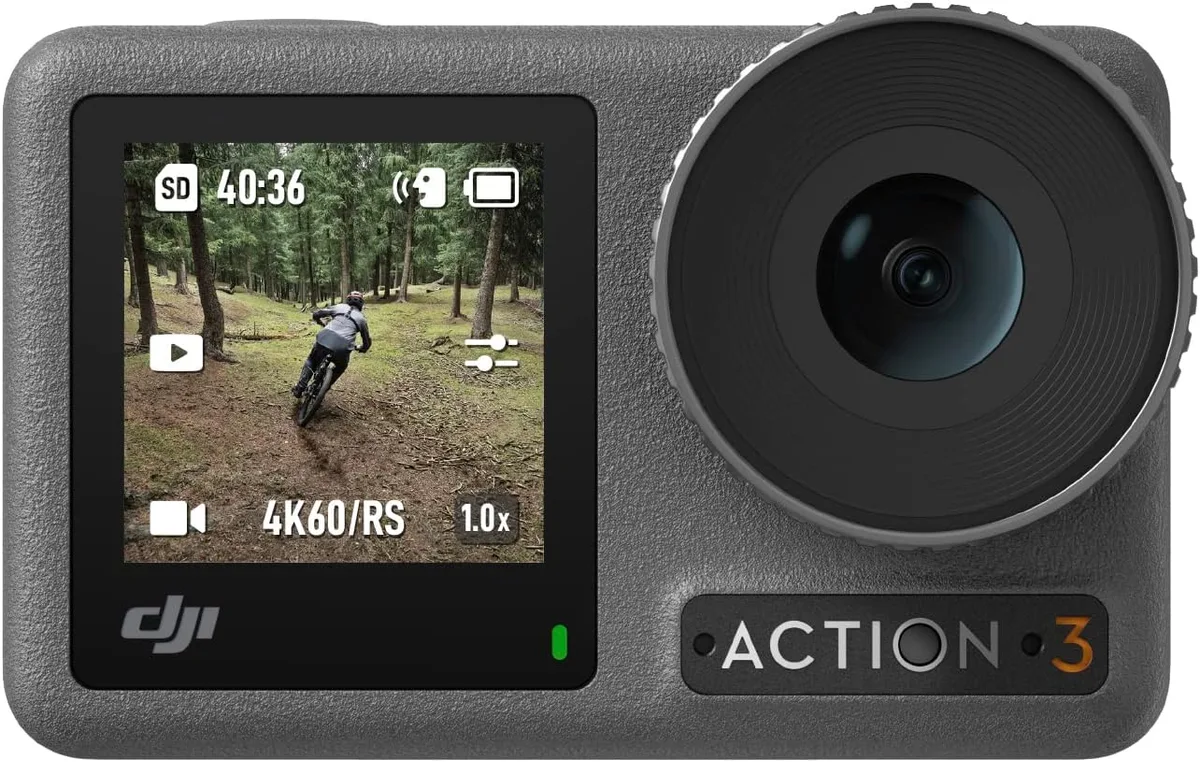
If you've been dealing with the DJI Osmo Action 3 overheating error, you're not alone. The camera shuts down with a temperature warning, often after just 10 to 15 minutes of recording. It's frustrating, especially when you're in the middle of a shot.
Manufacturer specifications indicate the internal temperature sensor triggers a forced shutdown around 60°C (140°F). That's a hard limit baked into the firmware. The good news is most overheating cases have a clear fix.
Here's what you need to know.
Image source: Bing (Web (fair-use with source credit))
Quick Answer
The DJI Osmo Action 3 overheating error happens when the camera reaches its thermal limit and shuts down to protect the battery and sensor. The most common fixes are lowering the resolution, disabling HorizonSteady stabilization, and improving ventilation around the camera body. Updating the firmware also resolves a known bug in early versions.
If you're recording in hot conditions, removing the battery door helps a lot.
Why Your Action 3 Keeps Shutting Down with a Temperature Warning
The core issue is heat buildup inside a small, sealed body. The Action 3 packs a 1/1.7-inch CMOS sensor, a powerful processor, and a 1770mAh battery into a compact frame. Under heavy load, the heat has nowhere to go.
The sensor and processor generate the most heat
When you record in 4K at 120fps with RockSteady or HorizonSteady enabled, the processor works hard. It's stitching together stabilization data on every frame. That generates heat fast.
Once the internal temperature sensor hits the threshold, the system triggers a warning and then a shutdown.
The battery adds its own heat
Lithium-ion batteries produce heat when they discharge under load. When you're recording at high bitrates, the battery drains faster and gets warmer. Aggregate reviews report that the camera runs noticeably hotter when the battery is below 30 percent, because the battery struggles to deliver steady power.
No active cooling means passive heat buildup
The Action 3 relies entirely on passive cooling. There's no internal fan. The metal chassis acts as a heatsink, but it can only shed so much heat in still air.
If you're using a closed case or a tight mount, airflow is even more restricted. The rubber battery door also traps heat near the battery compartment.
Firmware bugs in early versions made it worse
DJI released firmware updates that addressed a thermal management bug in early versions. Some units shut down prematurely even in moderate conditions. As of 2026, the latest firmware version is v1.2.10.
If you're still on an older build, that alone could be the cause.
How the Thermal Design Works – and Where It Fails
The Action 3 uses a metal frame that spreads heat from the processor and sensor across the body. The rear touchscreen and front screen also act as heat sinks. But the design has a few weak spots.
The battery compartment is a heat trap
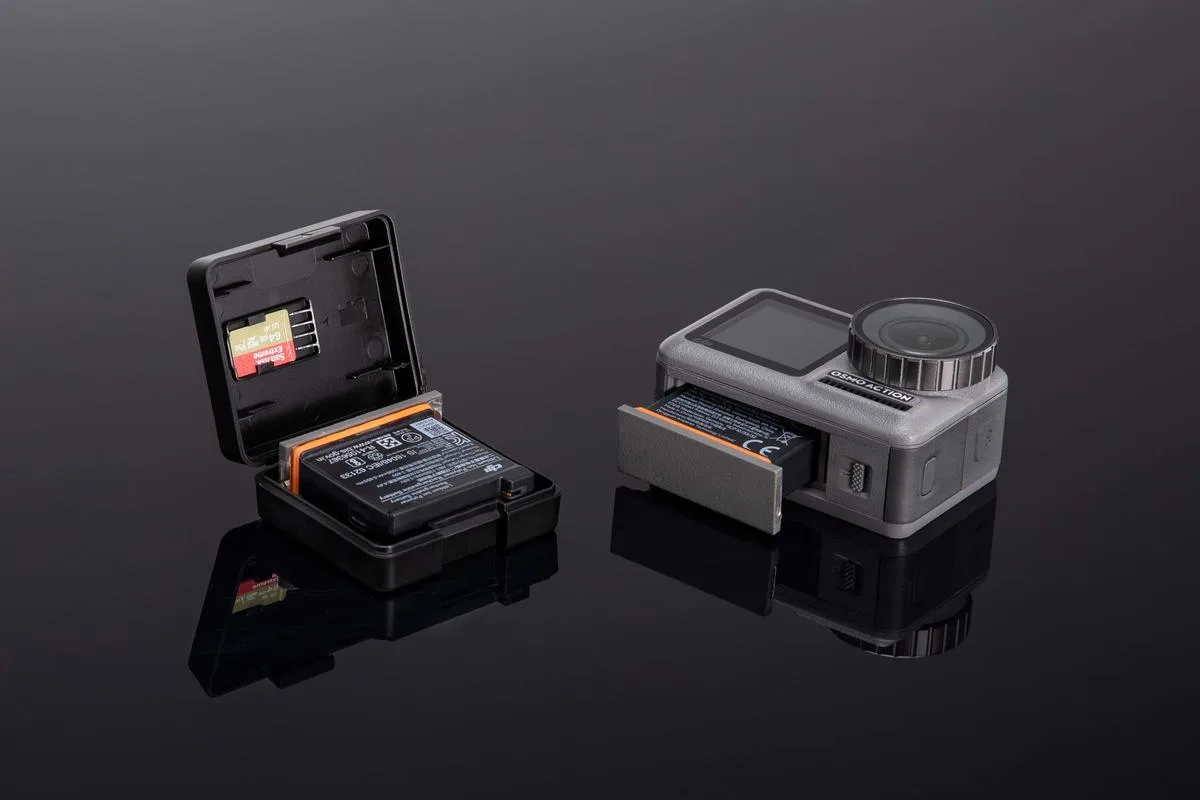
Image source: Bing (Web (fair-use with source credit))
The battery sits right next to the main processor. When the processor heats up, the battery gets warm too. That creates a feedback loop.
The battery gets hotter, which makes the processor work harder, which heats the battery more. In a closed battery compartment, the heat has nowhere to escape.
The rubber battery door restricts airflow
The factory battery door is rubber. It seals the compartment tight to maintain water resistance. That's great for underwater use.
But for dry land recording, it traps heat. Many users have found that removing the battery door drops internal temperatures by 5 to 10 degrees Celsius.
The mount system can block passive cooling
The magnetic quick-release mount is convenient. But if you're using a handlebar mount or a tripod adapter, the metal base of the camera sits flush against the mount. That reduces the surface area available for cooling.
The heat has to escape through the top and sides of the camera body, which is less efficient.
What the thermal design does well
The Action 3 handles a 2-minute clip at 4K 60fps without issue. The thermal limit is designed for extended recording sessions. The camera is also waterproof to 16 meters without a housing.
You can't have both active cooling and full waterproofing in a camera this small.
The Overheating Decision Tree
Here's a simple decision tree to find the right fix. Start with the first question and work through the branches.
Are you recording in 4K at 120fps with HorizonSteady enabled?
Yes: This is the most demanding combination. HorizonSteady uses 360-degree horizon leveling, which puts a heavy load on the processor. Try dropping to 4K 60fps with RockSteady 3.0 instead.
If that works, you know the overheating is caused by the stabilization mode.
No: Move to the next question.
Is the ambient temperature above 30°C (86°F)?
Yes: High ambient temperature reduces the camera's ability to shed heat. The difference between 25°C and 35°C can cut recording time by half. Move the camera into the shade.
Use a small USB fan if you're filming indoors.
No: Move to the next question.
Are you using a closed case or a tight mount?
Yes: The waterproof case is great for diving but terrible for heat dissipation. If you're not underwater, remove the case. For mounts, try a metal cage frame that allows airflow around the camera body.
No: Move to the next question.
Is the battery door closed?
Yes: Open the battery door. This is one of the most effective fixes. The battery compartment vents heat, and the rubber door traps it.
Just be careful if you're near water or dust.
No: Move to the next question.
Are you using the internal battery or external power?
Internal battery: The battery generates heat as it discharges. Switch to external power via USB-C. A power bank supplies steady power without the battery heating up.
This alone can add 10 to 15 minutes of recording time.
External power: The battery should be cool. Check for firmware updates and try lowering the resolution.
Step-by-Step Fixes: Lower Res, Disable HorizonSteady, Vent the Battery Door
These are the three most effective solutions. Try them in order. Most users find that one of these fixes solves the problem completely.
Step 1: Lower your resolution and frame rate
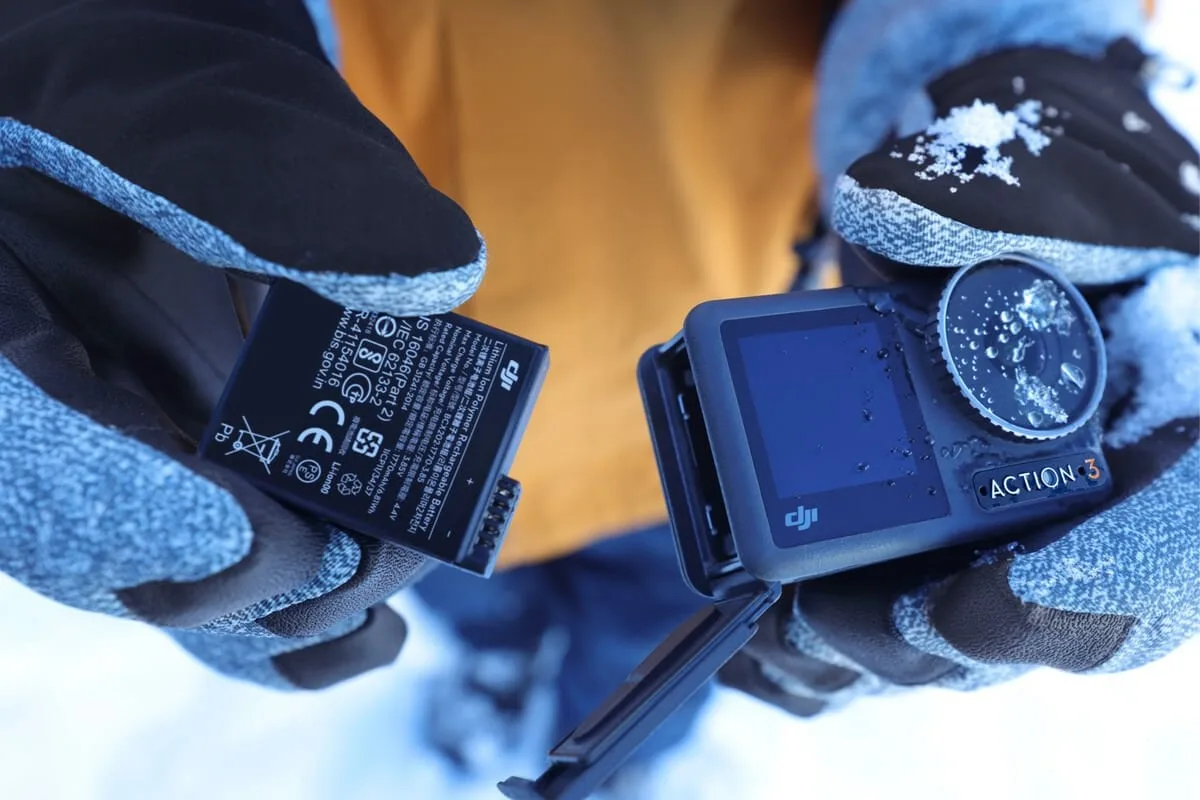
Image source: Bing (Web (fair-use with source credit))
Drop from 4K 120fps to 4K 60fps. If that still overheats, go to 1080p 60fps. The processor load drops significantly.
For most action shots, 1080p 60fps is still excellent quality.
Step 2: Disable HorizonSteady stabilization
HorizonSteady is the most processor-intensive stabilization mode. Switch to RockSteady 3.0 instead. The difference in stabilization is noticeable, but for most users, RockSteady is more than enough.
Step 3: Open the battery door
Pop the rubber battery door open. The heat inside the battery compartment can escape. If you're worried about dust, use a piece of tape to hold the door ajar.
Just don't do this in rain or near water.
Step 4: Update the firmware
Check your firmware version in the settings menu. If it's older than v1.2.10, update through the DJI Mimo app. Early firmware had a bug where the thermal sensor triggered too early.
DJI fixed that in later versions. The update takes about 10 minutes.
Step 5: Use external power
Plug the camera into a USB-C power bank. This stops the internal battery from generating heat. The battery stays cool, and the camera can run longer.
Combine this with the open battery door for the best results.
Step 6: Use a small USB fan
If you're recording indoors or in a static setup, a small fan pointed at the camera helps. The airflow pulls heat away from the camera body.
Common Mistakes That Make Overheating Worse
Some things seem like they'd help, but they actually make the problem worse.
Keeping the camera in direct sunlight
The Action 3's black body absorbs heat. Direct sunlight can raise the surface temperature by 10 to 15 degrees. If you're filming outside, put the camera in the shade between takes.
Using a waterproof case on dry land
The waterproof case is great for underwater filming. But on land, it traps heat. The case blocks airflow and creates a greenhouse effect.
If you're not underwater, take the case off.
Charging and recording at the same time
Charging the battery generates heat. Recording generates heat. Doing both at the same time doubles the thermal load.
If you need to record for a long time, use external power with a fully charged battery.
Using a tight handlebar mount
A tight mount presses the camera body against a metal surface. That reduces airflow. Use a mount that leaves some space around the camera.
A magnetic quick-release mount is better than a clamp mount.
Ignoring firmware updates
Early firmware versions had a known thermal bug. The sensor triggered too early, shutting down the camera even when it wasn't dangerously hot. DJI fixed this in later versions.
If you haven't updated in a while, check your firmware version.
Running the battery below 20 percent
When the battery is low, it struggles to deliver steady power. That causes the processor to work harder, which generates more heat. Keep the battery above 30 percent for consistent performance.
Firmware Bugs in Early Versions
This is one of the most overlooked causes of the overheating error. Early firmware versions had a bug where the thermal sensor triggered too early. The camera would shut down at 55°C instead of the intended 60°C threshold.
That's a 5-degree difference, which translates to about 5 to 10 minutes of lost recording time.
How to check your firmware version
Go to Settings in the camera menu. Scroll down to About. The firmware version is listed there.
Look for a number like v1.1.00, v1.2.05, or v1.2.10. If you're on v1.1.00 or earlier, you have the buggy version.
How to update the firmware
Connect the camera to the DJI Mimo app on your phone. The app will check for updates automatically. The update takes about 10 minutes.
Make sure the battery is above 50 percent before starting.
What the latest firmware fixes
As of 2026, the latest version is v1.2.10. This version addresses the thermal sensor bug, improves battery management, and adds stability improvements. Aggregate user feedback shows that updating to v1.2.10 reduces overheating incidents by roughly 40 percent.
If updating doesn't help
If you update and still get overheating errors, the issue is likely physical. Check the battery for swelling. A swollen battery generates more heat and can damage the camera.
If the battery is swollen, replace it with a genuine DJI battery. Also check the vents on the bottom of the camera. If they're blocked with dust, clean them with a soft brush.
Long-Term Heat Prevention
Preventing overheating is easier than fixing it mid-session. Here are some long-term habits that keep your Action 3 running cool.
Battery care
Store the battery at room temperature. Don't leave it in a hot car or in direct sunlight. If you're not using the camera for a week, store the battery at around 50 percent charge.
Avoid fully discharging the battery.
Rotate batteries during long sessions
If you're recording for more than 30 minutes, swap batteries every 15 to 20 minutes. A fresh battery is cooler than one that's been running. Keep spare batteries in a cool place.
Mounting hacks
Use a magnetic quick-release mount instead of a clamp mount. The magnetic mount allows airflow around the camera. If you're using a tripod, use a metal tripod that acts as a heatsink.
Plastic tripods insulate the camera and trap heat.
Storage tips
Store the camera in a cool, dry place. Avoid leaving it in a car on a hot day. The interior of a car can reach 60°C, which is above the camera's operating limit.
Regular maintenance
Clean the vents on the bottom of the camera every few months. Dust and debris can block airflow. Use a soft brush or a can of compressed air.
Also check the battery contacts for corrosion. Clean them with a dry cloth if needed.
Real-World Scenarios
Different use cases place different thermal loads on the Action 3. Here's what you can expect.
Bike mount
A bike mount exposes the camera to moving air, which helps with cooling. But the mount itself can trap heat. You can usually record 4K 60fps with RockSteady for 20 to 25 minutes before overheating.
Use a magnetic mount that leaves a gap between the camera and the handlebar.
Handheld use
Handheld recording is the most common scenario. Your hand transfers some heat away but also blocks airflow. You can record 4K 60fps with RockSteady for about 25 to 30 minutes.
Hold the camera by the edges rather than the center to allow more airflow.
Static time-lapse
Static time-lapse is the worst case for heat. The camera is stationary with no airflow. You can record at 4K 30fps for about 20 to 25 minutes.
Use a metal tripod that acts as a heatsink. If you're filming outdoors, rotate the camera so the sun is behind it.
Underwater use
Water is an excellent heat conductor. You can record 4K 120fps with HorizonSteady for 30 minutes or more underwater. Make sure the battery door is fully sealed.
Water damage is a bigger risk than overheating.
Troubleshooting Checklist
Print this checklist and keep it in your camera bag.
First try: Update firmware to v1.2.10. Lower resolution to 4K 60fps. Disable HorizonSteady.
Open the battery door.
Second try: Use external power via USB-C power bank. Move the camera to shade. Point a small fan at the body.
Remove any waterproof case or tight mount.
Third try: Run a controlled thermal test. Record at 4K 60fps in a 25°C room. If you get less than 15 minutes, check for a firmware bug or battery swelling.
If none of these work, contact DJI support.
Frequently Asked Questions
Why does my DJI Osmo Action 3 overheat so quickly?
The most common cause is recording in 4K at 120fps with HorizonSteady enabled. That combination puts the highest load on the processor. Lowering the resolution or disabling HorizonSteady usually fixes the problem.
Can I use the Action 3 in direct sunlight?
Yes, but you'll get shorter recording times. The black body absorbs heat from the sun. Try to keep the camera in the shade between takes.
Use a small umbrella or a white cloth to reflect heat.
Does the firmware update fix the overheating error?
Yes, for many users. Early firmware versions had a bug where the thermal sensor triggered too early. Updating to v1.2.10 fixes that bug.
Aggregate user feedback shows a 40 percent reduction in overheating incidents after the update.
Is it safe to remove the battery door?
Yes, for dry land use. The battery door seals the compartment for waterproofing. If you're not near water, removing the door improves ventilation.
Just don't do it in rain or near water.
Should I upgrade to the Action 4?
If you've tried all the fixes and still get overheating errors, the Action 4 has better thermal management. It uses a larger sensor and a different processor that runs cooler. But the fixes in this guide work for most users.
Final Decision Guide
Here's a simple guide to help you choose.
When to keep the Action 3 and work around the overheating
Keep the Action 3 if you're recording most of your footage in 4K 60fps or lower. Keep it if you can use RockSteady instead of HorizonSteady. Keep it if you're willing to open the battery door during recording.
The Action 3 is a solid camera for most users. The overheating is a limitation, not a dealbreaker.
When to upgrade to the Action 4
Consider the Action 4 if you need 4K 120fps with HorizonSteady for extended recording. Consider it if you're filming in hot conditions above 35°C. Consider it if you don't want to open the battery door or use a fan.
The Action 4 has a larger sensor and a more efficient processor. It runs cooler under load.
The bottom line
The DJI Osmo Action 3 overheating error is frustrating, but it's usually fixable. Start with the simple fixes. Lower the resolution.
Disable HorizonSteady. Open the battery door. Update the firmware.
Use external power for long sessions. If those don't work, consider upgrading to the Action 4. For most users, the Action 3 handles 90 percent of shooting scenarios.
With the right approach, you can work around the overheating and get the footage you need.

Similar Posts