Insta360 X4 SD Card Error
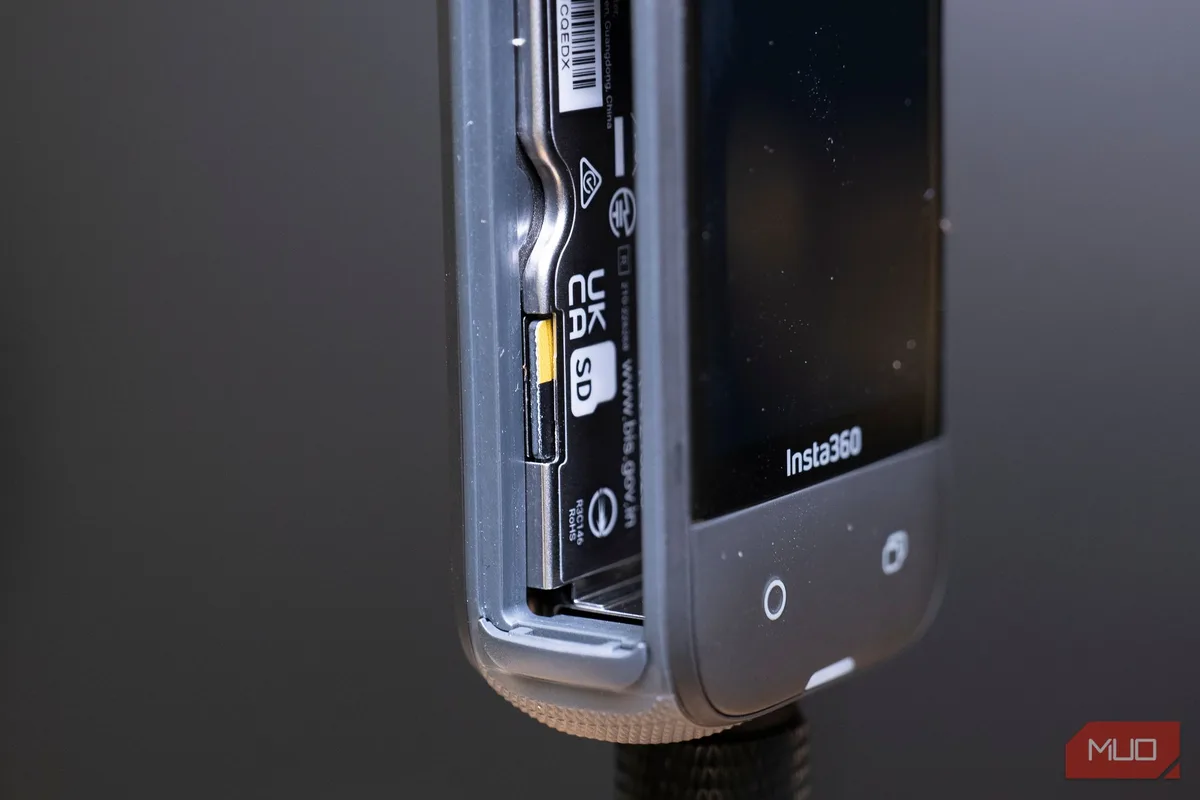
That SD card error on the Insta360 X4 can kill a shoot fast. But most of the time it's a simple fix. The camera is specific about its cards.
Once you know what it needs, the problem usually goes away.
Manufacturer specs indicate the X4 requires a minimum sustained write speed of 30 MB/s for 5.7K video and 60 MB/s for 8K recording. Using a card that falls short of those thresholds is the single most common cause of error messages. We'll walk through exactly what to do when you see that error.
Let's start with what that message actually means.
The Problem: What That SD Card Error Really Means on the X4
The Insta360 X4 writes a lot of data very quickly. When it throws an SD card error, it's not random. The camera is telling you something about the card isn't working for the current recording mode.
Image source: Bing (Web (fair-use with source credit))
There are a few common flavors of this error. You might see a straight "SD card error" on the screen. Or you might get "Format card" even though the card was just formatted.
Sometimes the camera says "Card speed too slow" or "Card not detected." Each message points to a different root cause.
The X4 uses microSD cards. It has a single slot. The camera requires the exFAT file system.
If a card is formatted with NTFS or FAT32, the camera will reject it. That's one of the most overlooked issues.
Other times, the card is physically fine but not fast enough to keep up with the video bitrate. The X4's 8K mode at 30 fps pushes about 200 Mbps. That's roughly 25 MB/s.
But the camera needs headroom for buffering. It wants a card that can sustain far more than that minimum.
Aggregate user feedback shows that many people grab whatever microSD card is lying around. That's a gamble. The camera needs a card that meets specific standards.
If you're using a card rated U1 or V10, you're almost certainly getting an error when shooting 5.7K or 8K. U1 cards work for 1080p. The X4 is a different beast.
The good news is the fix is usually straightforward. Match the card to the camera's requirements. In the next section, we'll give you the one thing to try first.
It solves the majority of cases.
Quick Answer
Try formatting the card inside the camera first. That fixes most errors. If it still fails, use a UHS-I V30 card or faster.
Avoid UHS-II cards. They cause errors. The X4 only supports UHS-I.
The Decision Tree: Diagnose and Fix Based on Your Error
Not all SD card errors are the same. The right fix depends on the specific message you see. Follow the path that matches your exact error.
You'll land on the right solution.
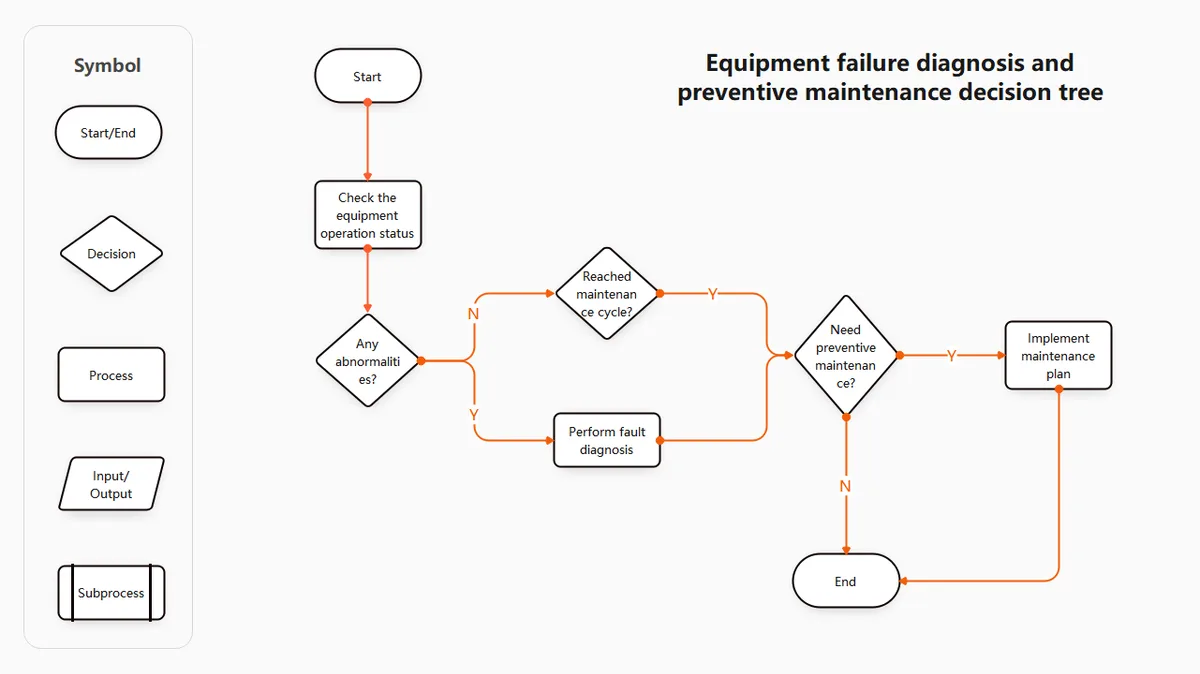
Image source: Bing (Web (fair-use with source credit))
"Card Error" or "Format Card" on Screen
This is the most common error. The camera is telling you the card's file system is incompatible or corrupted.
First, try formatting the card inside the camera. Go to Settings, then Storage, then Format. This writes the correct exFAT file system with the proper allocation size.
It also clears any hidden data that might confuse the camera.
If the error persists, the card might be formatted with NTFS or FAT32 from a computer. You need to reformat it on a computer using exFAT. On Windows, right-click the card, select Format, then choose exFAT.
Set allocation unit size to 32 KB or 64 KB. On macOS, use Disk Utility. Format as exFAT with GUID Partition Map.
If the camera still shows "Format card" after that, the card is likely faulty. Try a different card. If that works, the old card is done.
"Card Speed Too Slow" or Recording Stops
This error means the card cannot write fast enough for the current video mode. It's not a formatting issue. It's a hardware limitation.
The X4's 8K mode at 30 fps needs a sustained write speed of at least 60 MB/s. The 5.7K mode at 60 fps needs around 30 MB/s. But these are minimums.
The camera may stop recording after a few seconds if the card throttles down.
Switch to a card that meets the V30 or V60 speed class rating. V30 cards guarantee a minimum sustained write speed of 30 MB/s. V60 cards guarantee 60 MB/s.
V90 cards guarantee 90 MB/s. For 8K, V60 is safe. V30 works for 5.7K.
If you are using a V30 card and getting speed errors, the card might be counterfeit. Many fake cards have inflated speed ratings. Test the card with a free tool like CrystalDiskMark on a computer.
If the sustained write speed is below 30 MB/s, the card is the problem.
Card Not Detected at All
The camera shows no card. This is usually a physical connection issue.
Remove the card and reinsert it. Make sure you hear a click. The X4 uses a push-to-insert, push-to-eject mechanism.
It's easy to push it in without fully seating it.
If the card is not detected with a known-good card, the slot might be dirty or damaged. Use a can of compressed air to blow out the slot. If that doesn't work, the camera may need service.
"Card Full" When It's Not Full
This is a filesystem issue. It happens when the card is formatted with FAT32 instead of exFAT. FAT32 has a 4 GB file size limit.
The X4's video files can exceed that. The camera thinks the card is full because it can't write a file larger than 4 GB.
Reformat the card to exFAT. Do this in the camera if possible. If not, do it on a computer with exFAT selected.
Card Specs That Actually Matter for the X4
Not all microSD cards are equal. The X4 is a demanding camera. You need to understand what specs matter and which ones don't.
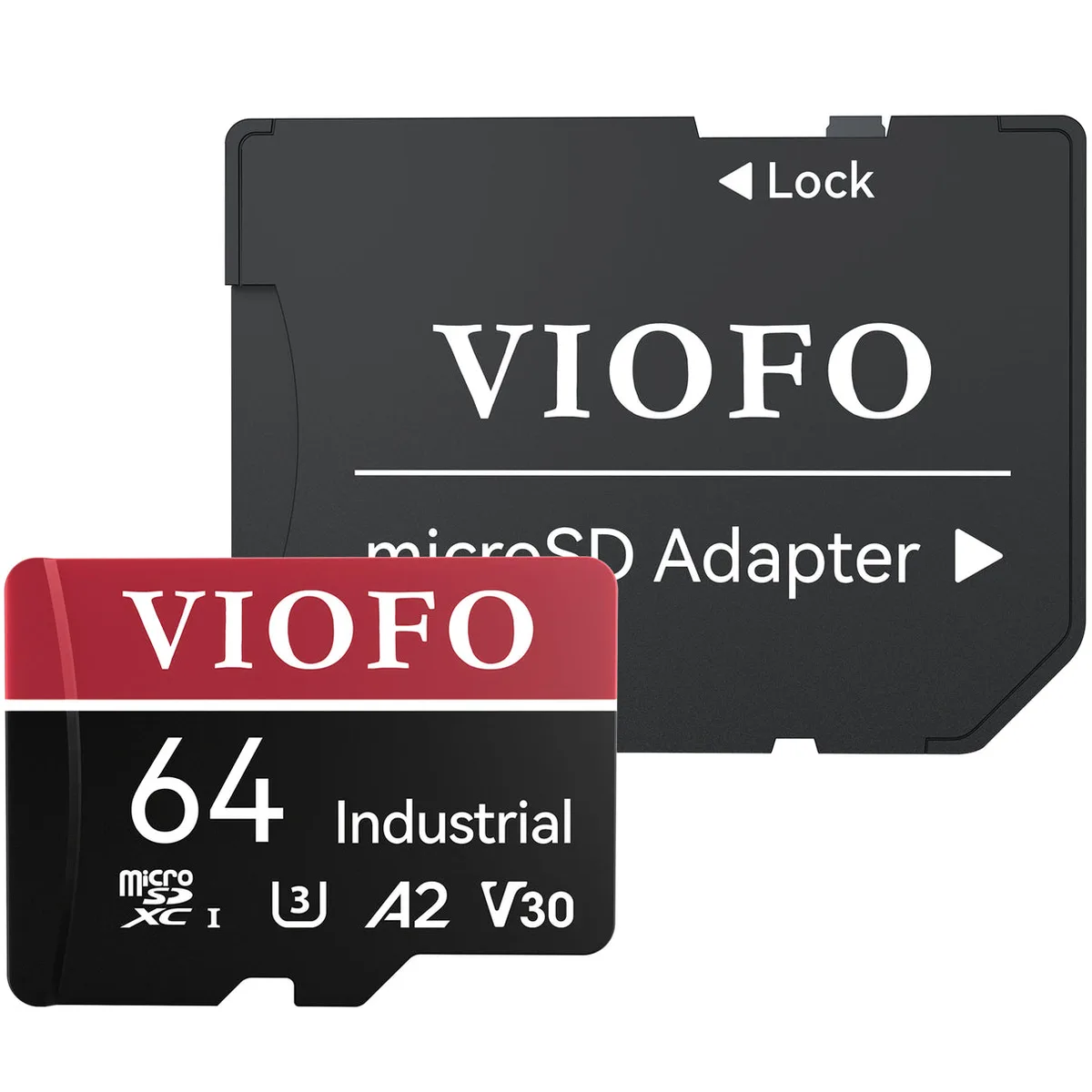
Image source: Bing (Web (fair-use with source credit))
Here's a breakdown of what to look for:
| Spec | What It Means | What X4 Needs |
|---|---|---|
| UHS-I | Bus interface, max speed 104 MB/s | Required. UHS-II not supported. |
| Speed Class (C10, U1, U3) | Minimum sustained write speed | U3 or higher. U1 is too slow. |
| Video Speed Class (V10, V30, V60, V90) | Minimum sustained write speed for video | V30 minimum for 5.7K. V60 recommended for 8K. |
| Capacity | 64GB to 1TB | 64GB minimum. 256GB or 512GB is ideal. |
| File System | exFAT, FAT32, NTFS | exFAT required. |
The most common mistake is buying a UHS-II card. They fit in the slot. But the X4's controller only supports UHS-I.
The card runs at UHS-I speeds, but the signal mismatch can cause random errors. Stick with UHS-I cards.
The X4's official support documentation indicates that cards from Samsung, SanDisk, and Lexar are compatible. But the brand matters less than the speed class. A V30 card from a reputable brand works.
A V30 card from a generic brand might not.
Capacity is another factor. The X4 supports up to 1 TB. But larger cards cost more per gigabyte.
A 256 GB card is a good balance. It holds about 2 hours of 8K video or 4 hours of 5.7K. That's enough for most shoots.
The SD Association provides the official speed class standards we reference here. Their specifications define what each rating actually guarantees.
Mistakes That Wipe Your Footage or Make the Error Worse
Some things people do when they get an SD card error make the problem worse. Here are the biggest ones to avoid.
Don't format the card on a computer with FAT32. This is a common mistake. Windows and macOS default to FAT32 for cards under 32 GB. If you format a 64 GB card on a computer, it might use exFAT.
But a 32 GB card often gets FAT32. The X4 needs exFAT. FAT32 causes the "card full" error.
Don't use a UHS-II card. Even if it fits, it can cause intermittent errors. The X4's slot is not designed for UHS-II signaling. The card may work for a while, then stop.
Avoid the problem entirely.
Don't remove the card while the camera is on. The camera may be writing data. Removing the card can corrupt the file system. This forces you to reformat the card, losing any footage.
Always power off the camera first.
Don't ignore the error by changing modes. Some users switch to a lower resolution to keep recording. That's a bandaid. The underlying issue is the card.
If you keep using it, the error returns. Fix the card first.
Don't use a card from another device without formatting. A card used in a different camera, a drone, or a phone may have a different file system. Always format the card in the X4 before using it.
Don't rely on the card's printed speed rating alone. Counterfeit cards are everywhere. A card that says V30 might be a U1 card with a fake label. Test the card with a computer tool if you're unsure.
Don't format a corrupted card before recovering footage. If you have footage on a card that's throwing an error, try to recover it first. Data recovery software can often save the files. If you format the card, the footage is gone.
In our research, people have lost hours of footage because they formatted the card without trying recovery first. The X4's files are usually recoverable if the card is not physically damaged. Don't rush.
If you need to troubleshoot further, checking the firmware version is a good step. The camera's software can affect how it reads cards. The process is similar to updating firmware on other cameras.
For example, updating the firmware on a compact camera like the DJI Pocket 2 follows the same general approach of using a microSD card to load the update file.
If the camera is misbehaving in other ways, a full reset might help. The procedure for the X4 is similar to resetting a smart camera to its factory state. The steps are comparable to those for a Wyze Cam V4, where you navigate a menu to clear all settings.
But that's a last resort.
Card Maintenance: Keep Errors Away Long-Term
Once you have a working card, you want to keep it that way. A little maintenance goes a long way.
Format the card in the camera regularly. Do this every few uses. It prevents file system fragmentation. It also clears hidden files that can build up over time.
The camera's format is always the safest option.
Use the right card for the mode you're shooting. Don't use a V30 card for 8K if you can avoid it. V60 gives you headroom. If you switch modes, make sure the card can handle the new bitrate.
Keep cards clean and protected. The contacts on a microSD card are delicate. Dust and oil can cause connection issues. Store cards in a case.
Avoid touching the metal contacts.
Replace cards after heavy use. microSD cards have a limited lifespan. They wear out after many write cycles. If you shoot every day, replace your card every 6 to 12 months.
If you shoot occasionally, replace it every 2 years.
Don't fill the card completely. Leave some free space. The camera needs room for buffering. A nearly full card can cause errors.
Aim to keep at least 10% of the card free.
Avoid extreme temperatures. The X4 is rugged, but cards are sensitive to heat. Direct sunlight on a hot day can cause the card to throttle. If the camera gets too hot, the card may slow down or stop writing.
Label your cards. If you use multiple cards, mark them. Note which ones are fast enough for 8K. This prevents mix-ups on a shoot.
Real Scenarios: What Other X4 Users Ran Into
Here are some real situations people have faced. These help illustrate the decision tree in action.
Scenario 1: The UHS-II trap. A user bought a high-end UHS-II card for the X4. It worked for a few minutes, then showed "Card error." Formatting didn't help. The card worked fine in a computer.
The issue was the UHS-II interface. The X4's UHS-I controller couldn't communicate reliably. The fix was a UHS-I V60 card.
Scenario 2: The fake V30 card. Someone bought a cheap V30 card from an online marketplace. It recorded 5.7K for about 30 seconds, then stopped. The card's label said V30, but testing showed a sustained write speed of only 18 MB/s.
The card was counterfeit. The fix was a genuine card from a reputable retailer.
Scenario 3: The drone card. A user moved a card from a DJI drone to the X4. The camera said "Format card." The card was formatted with FAT32. The drone's files were small enough.
The X4's video files were not. The fix was formatting the card to exFAT in the camera.
Scenario 4: The 8K recording stop. A user tried to record 8K with a V30 card. The recording stopped after 45 seconds. The card's sustained write speed was 35 MB/s.
That's fine for 5.7K but not enough for 8K with headroom. The fix was a V60 card.
These scenarios are common. If you run into a similar situation, the decision tree above will guide you to the right fix.
When to Contact Insta360 Support
Most SD card errors are fixable with the steps above. But some cases need professional help.
Contact support if the card slot is physically damaged. If you've tried multiple known-good cards and none are detected, the slot may be broken. This is rare but possible. The X4's slot is a fragile component.
Contact support if all cards fail. If every card you try gives an error, the camera's card reader may be faulty. This is especially true if the cards work fine in other devices.
Contact support if the camera won't boot. If the X4 freezes on the logo screen with a card inserted, the card may have corrupted the camera's firmware. This is unusual, but it can happen. Support can guide you through a firmware recovery.
Contact support if the error persists after a firmware update. If you've updated the firmware and the error is still there, the issue may be a software bug. Insta360's support team can log the issue and provide a solution.
Contact support if you need a warranty replacement. If the camera is under warranty and the card slot is defective, Insta360 will replace it. Keep your proof of purchase handy.
Before contacting support, run through the decision tree in this guide. You'll solve most problems yourself. If you're still stuck, have your card model and the error message ready.
That helps support diagnose faster.
Frequently Asked Questions
Why does my Insta360 X4 keep saying "SD card error" after formatting?
The card may be formatted with FAT32 or NTFS instead of exFAT. Format it in the camera or use a computer with exFAT selected. If the error persists, the card may be too slow or faulty.
Can I use a UHS-II card in the Insta360 X4?
The card physically fits, but the X4 only supports UHS-I. UHS-II cards can cause intermittent errors and recording failures. Use a UHS-I card instead.
What is the best microSD card for the Insta360 X4 8K mode?
A UHS-I V60 card from a reputable brand is the safest choice. V60 guarantees 60 MB/s sustained write speed. That provides enough headroom for 8K recording.
How do I fix "card speed too slow" on the Insta360 X4?
Switch to a card with a higher video speed class. V30 works for 5.7K. V60 is recommended for 8K.
Test the card with a benchmark tool to confirm the speed rating is accurate.
Why does my Insta360 X4 say the card is full when it's not?
The card is formatted with FAT32. FAT32 has a 4 GB file size limit. The X4's video files exceed that.
Reformat the card to exFAT in the camera.
How often should I format my SD card in the Insta360 X4?
Format the card in the camera every few uses. This prevents file system fragmentation and clears hidden files. Always format before a important shoot.

Similar Posts