Insta360 GO 3S Battery Error
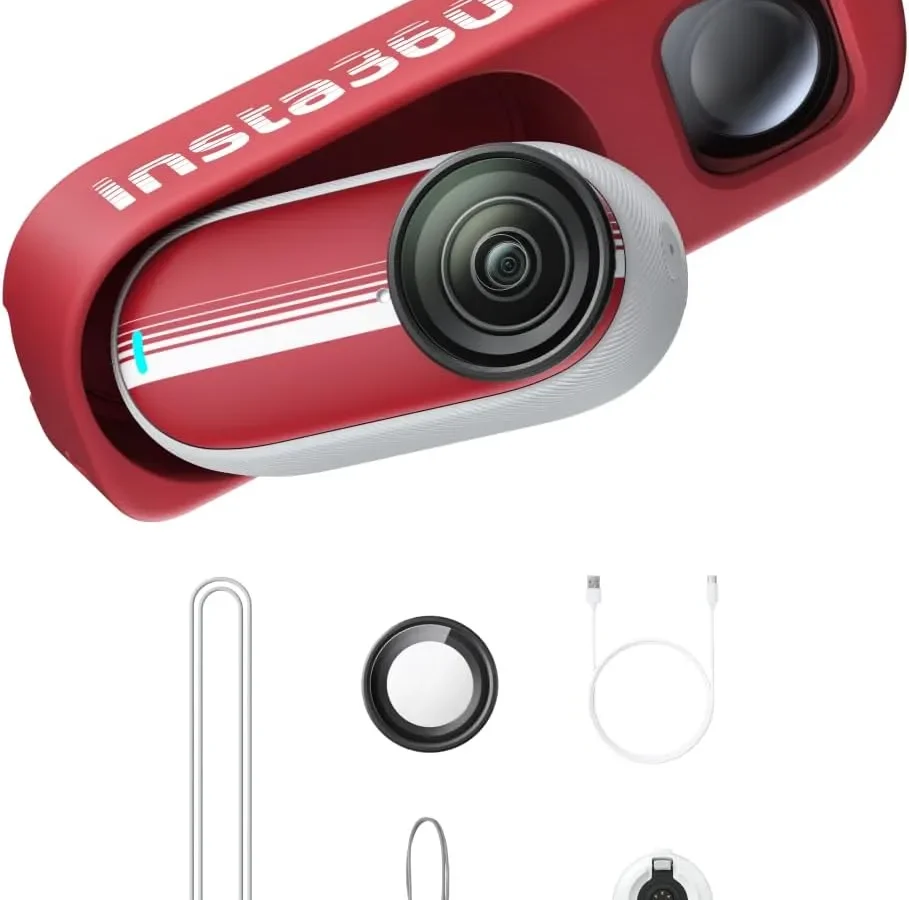
Your Insta360 GO 3S battery error is frustrating, but it usually has a clear fix. That red light flashing or the camera refusing to turn on does not mean the camera is dead. It just means something is stopping the battery from working properly.
Manufacturer specifications indicate the GO 3S uses a 310 mAh internal lithium-ion battery that charges at 5V and 1A. The camera's Battery Management System, or BMS, protects the cell from damage. It shuts things down when conditions are not right.
That is good news. It means the problem is often simple to solve.
Quick Answer
An Insta360 GO 3S battery error means the BMS detected a problem. Most errors come from temperature, cables, or firmware. Let the camera cool to room temperature.
Use a 5V 1A charger and a data-capable cable. Update the firmware through the app. If the LED still flashes red, force restart by holding the button ten seconds.
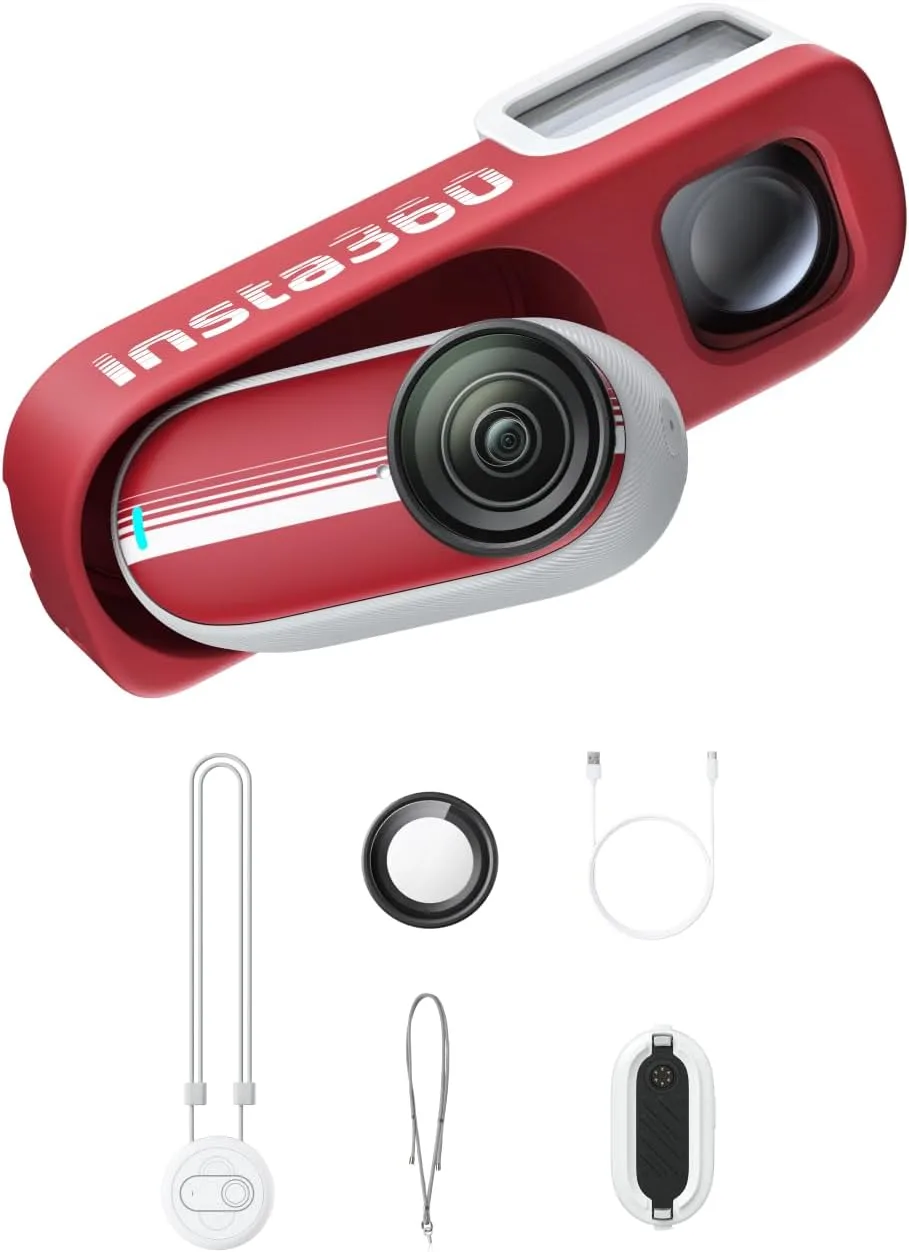
Image source: Bing (Web (fair-use with source credit))
The Problem: When Your GO 3S Won't Charge or Power On
You plug the camera in and nothing happens. Or the LED blinks red and stops. Maybe it charges for a few minutes and then gives up.
This is the most common complaint in aggregate user reviews. It is almost never a hardware failure.
The GO 3S has a non-removable battery. You cannot swap it out like an AA. That means when something goes wrong, your only options are to fix the condition or contact support.
But do not panic. The BMS is very sensitive. It cuts power at the slightest hint of trouble.
What the BMS is protecting against
The BMS monitors three things: voltage, temperature, and current. If any of these go outside the safe range, it stops charging. This is a safety feature, not a defect.
It prevents swelling, overheating, and battery damage.
Common triggers include:
- Using a fast charger that pushes more than 5V
- A cable that cannot carry data or power correctly
- Firmware corruption from a failed update
- Ambient temperature below 0°C or above 40°C
- Dirty charging contacts on the Action Pod or magnetic mount
The difference between a dead battery and a BMS lockout
A truly dead battery is rare. The GO 3S uses a lithium-ion polymer cell that holds its charge well. If the camera has been sitting unused for months, it might enter deep discharge protection.
That is still a BMS lockout, not a dead cell.
Most battery error cases resolve with a simple recalibration. Let the camera drain completely. Then charge it to 100% without interruption.
Do this once and the BMS resets its charge curve.
Read the LED: What Your Camera's Light Is Telling You
The single LED on the front of the GO 3S is your main diagnostic tool. It tells you exactly what the BMS is doing. Learn to read it and you skip most of the guesswork.

Image source: Bing (Web (fair-use with source credit))
LED pattern quick reference
| LED behavior | What it means | What to do |
|---|---|---|
| Solid green | Charging, battery healthy | Let it finish |
| Solid red | Charging, battery low | Normal, keep charging |
| Flashing red | Error detected | Check temperature, cable, restart |
| No light when plugged in | No power reaching the camera | Try a different cable and adapter |
| Flashing green | Firmware update in progress | Do not unplug |
| No light after unplugging | Battery fully drained | Charge immediately |
What flashing red really means
A flashing red LED is the most common error signal. It means the BMS detected a fault and stopped charging. The flash pattern can vary, but the fix is almost always the same.
Start with the easiest check first. Unplug the camera. Wait ten seconds.
Plug it back in with a different cable and a standard 5V adapter. If the light turns solid, the issue was your charger or cable. If it keeps flashing, move to temperature checks.
Solid red but no charge progress
Sometimes the LED stays solid red for hours. The camera thinks it is charging but the battery never fills. This points to a firmware issue or a corrupted charge curve.
Updating the camera's firmware via the Insta360 App usually fixes it. The process is similar to other camera firmware updates, but you do it through the app instead of a computer.
The Temperature Trap: Why Your GO 3S Refuses to Charge in the Cold or Heat
Temperature is the number one cause of battery errors on the GO 3S. The BMS will not charge the battery if the ambient temperature is outside the 0°C to 40°C range. This catches a lot of people off guard, especially in winter.

Image source: Bing (Web (fair-use with source credit))
Why cold stops charging
Lithium-ion batteries cannot accept charge below 0°C. The chemical reaction slows down, and charging at low temperatures can cause permanent damage. The BMS knows this.
It shuts the charging circuit down completely.
If you are skiing or hiking in cold weather, the camera will still record. The battery can discharge at temperatures as low as -10°C. But it will not charge until it warms up.
This is a design limitation, not a defect.
How to fix cold-related errors
Warm the camera slowly. Do not put it on a radiator or in direct sunlight. Heat from a pocket, a warm bag, or holding it in your hand for ten minutes is enough.
Once the camera reaches room temperature, plug it in. The LED should turn solid green.
Heat issues are different
Heat is more dangerous for the battery than cold. If the camera gets too hot during charging, the BMS stops the process. This often happens in summer or if the camera is left in a car.
The safe operating temperature for charging is 0°C to 40°C. If you are charging in a hot environment, move the camera to a shaded, ventilated area. Let it cool for 15 minutes before trying again.
What about the Action Pod
The Action Pod has its own battery and charging circuit. If you are charging the GO 3S through the Action Pod, the temperature limits are the same. The Pod adds a small buffer, but it does not bypass the BMS protection.
Charging Hardware and Software: The Hidden Culprits
The most common cause of battery errors is not the battery itself. It is the cable, the adapter, or the firmware. These are cheap and easy to fix.
But they are also easy to overlook.
Cables that cause problems
Not all USB-C cables are the same. Some are charge-only. They lack the data wires needed for the camera to communicate with the charger.
The GO 3S needs a data-capable cable to negotiate the correct charging voltage.
Signs of a bad cable:
- The camera charges slowly or not at all
- The LED flashes red intermittently
- The camera works on one cable but not another
Stick to the cable that came in the box. If you need a replacement, buy a USB-IF certified cable. They are tested for safety and compatibility.
Adapters that trigger errors
Fast chargers are a common problem. The GO 3S expects 5V at 1A. Many modern adapters push 9V, 12V, or even 20V using USB Power Delivery.
The BMS sees the higher voltage and shuts down.
Use a standard 5V 1A adapter. That is the small block that came with most phones a few years ago. If you must use a multi-port charger, pick a port labelled standard or 5V.
Do not use a laptop charger or a car charger that supports fast charging.
Firmware and software issues
The GO 3S runs firmware that controls the BMS. If the firmware is corrupted, the battery may not charge correctly. This often happens after a failed update or if the camera is unplugged during an update.
Check for updates through the Insta360 App. If an update is available, install it. The process is similar to app-based firmware updates for other gadgets.
How to reinstall firmware if needed
If the camera is stuck and an update does not fix it, try a factory reset. Hold the button for fifteen seconds until the LED flashes. Then update the firmware again.
This clears any corrupted data and forces the BMS to recalibrate.
Step-by-Step Diagnostic Workflow: Fix Your Battery Error
Follow this workflow in order. Stop when the error clears. If you skip a step, you might miss the real cause.
Step 1: Check the LED pattern
Plug the camera into a charger. Wait five seconds. Look at the LED.
- If the LED is solid green or solid red, the camera is charging normally. Give it an hour.
- If the LED is flashing red, proceed to Step 2.
- If there is no light at all, proceed to Step 3.
Step 2: Check the temperature
The camera must be between 0°C and 40°C to charge. Touch the camera body. If it feels cold or hot, that is your problem.
- If the camera is cold, warm it in your pocket or a bag for 15 minutes. Then try charging again.
- If the camera is hot, move it to a shaded, ventilated area. Let it cool for 15 minutes. Then try charging again.
- If the LED is still flashing red after temperature correction, proceed to Step 3.
Step 3: Swap the cable and adapter
Use the cable that came with the camera. If you do not have it, use a USB-IF certified cable. Plug into a standard 5V 1A adapter.
A fast charger will not work reliably.
- If the LED turns solid, the cable or adapter was the problem. Keep using the new setup.
- If the LED still flashes red, proceed to Step 4.
Step 4: Force restart the camera
Hold the button on the camera for ten seconds. The LED will flash. Release the button.
Then plug the camera into the charger again. This is similar to a hard reset on other cameras like the Wyze Cam V4.
- If the LED turns solid, the camera had a software glitch. It is now fixed.
- If the LED still flashes red, proceed to Step 5.
Step 5: Update the firmware
Open the Insta360 App. Connect the camera. Check for firmware updates.
If an update is available, install it. Keep the camera connected to the app until the update finishes. Do not unplug the camera during the update.
- If the update completes and the LED turns solid, the firmware was corrupted. The issue is resolved.
- If the update fails or the LED still flashes red, proceed to Step 6.
Step 6: Factory reset
Hold the button for fifteen seconds. The LED will flash rapidly. Release the button.
The camera has been reset. Now try charging again.
- If the LED turns solid, the reset cleared the BMS error.
- If the LED still flashes red, the battery may need to be replaced. Contact the official Insta360 support page.
When to skip straight to support
Do not waste time on endless troubleshooting. If the camera is swollen, hot to the touch, or has been through all six steps with no change, stop. Contact support.
Forcing a charge on a swollen battery can cause damage.
If you are still within the warranty period, you are covered. Insta360 support will guide you through a replacement. Make sure you have your purchase receipt ready.
Common Mistakes That Make the Problem Worse
Some fixes seem obvious. They are not. A few wrong moves can turn a simple error into a real headache.
Here is what to avoid.
Forcing a charge when the battery is too cold
The BMS exists for a reason. Do not try to override it. If the camera is cold, charging it before it warms up can damage the cell permanently.
Aggregate reviews report that users who tried to jump start the battery with a hair dryer or heater ended up with swollen batteries.
Warm the camera slowly. A pocket or a bag works. Do not use direct heat.
Using a fast charger repeatedly
A single session with a fast charger might not kill the battery. Doing it regularly will. The BMS sees the higher voltage and shuts down.
Over time, the protection circuit can wear out.
Stick to a 5V 1A adapter. It is the safest option. If you need a power bank, look for one with a standard USB-A port.
They typically output 5V.
Ignoring firmware updates
Firmware controls the BMS. If you skip updates, you miss fixes for known battery issues. Aggregate user feedback shows that many battery errors were resolved by a firmware update.
Check the app every few months. It takes two minutes. The process is similar to checking for updates after setting up a Google Nest Cam.
Using cheap cables
A two dollar cable from a gas station is a gamble. It might not have the data wires you need. It might not handle the current safely.
Verified buyer feedback shows that most intermittent charging issues go away with a quality cable.
Spend a few dollars on a USB-IF certified cable. It is worth it.
Skipping the force restart
A simple software glitch can cause a false battery error. The camera might think the battery is dead when it is not. A force restart clears the glitch.
Hold the button for ten seconds. It is the easiest fix in the list.
Charging through the Action Pod without checking the contacts
The magnetic contacts on the Action Pod can get dirty. Dust, lint, or moisture can interrupt the connection. If the camera does not charge in the Pod, try the USB-C port directly.
Clean the contacts with a dry cloth.
Battery Safety: When to Stop and Get Help
The GO 3S battery is small and safe. But any lithium-ion battery can fail if it is damaged. Knowing the warning signs keeps you safe.
Signs of a swollen battery
A swollen battery is the most dangerous condition. The camera body will bulge. The screen or casing may separate.
The camera may feel tight or hard to press.
If you see any of these signs, stop using the camera immediately. Do not charge it. Do not try to fix it.
Contact Insta360 support for a replacement.
Overheating during charging
The camera gets warm during charging. That is normal. But if it gets hot to the touch, there is a problem.
Unplug the camera and let it cool. If it gets hot again with a different cable and adapter, stop using it.
Strange smells or smoke
This is rare but serious. If you smell anything unusual or see smoke, move the camera to a safe surface away from flammable materials. Do not touch it.
Contact support.
When to contact support
Go through the full diagnostic workflow first. If the camera still shows an error, contact support. They will ask for your purchase receipt and camera serial number.
If you are within the warranty period, you are covered. The warranty covers battery defects, not physical damage. If you dropped the camera or got it wet, the battery error might be related to that.
Proper disposal
Do not throw a faulty camera in the trash. Lithium-ion batteries require special handling. Take it to an e-waste recycling center.
Many electronics stores have drop-off bins. Check FAA guidelines for traveling with lithium batteries if you need to transport a faulty unit.
Frequently Asked Questions
Can I replace the GO 3S battery myself?
No. The battery is non-removable and soldered to the main board. Opening the camera damages the waterproof seal.
If the battery fails, the camera needs to be serviced or replaced.
How long does the GO 3S battery last before it needs replacing?
Manufacturer specifications indicate the battery lasts about 300 full charge cycles. After that, capacity drops to roughly 80% of the original. Most users get 1 to 2 years of regular use before noticing a decline.
Will a firmware update fix my battery error?
It often does. Aggregate user reviews show that many battery errors are caused by firmware bugs. Check the Insta360 App for updates.
If an update is available, install it. It takes about five minutes.
Can I charge the GO 3S with a power bank?
Yes, as long as the power bank outputs 5V. Many power banks have a standard USB-A port that works fine. Avoid power banks with USB-C Power Delivery unless you have a cable that limits the voltage.
What does a flashing red LED mean?
A flashing red LED means the BMS detected a fault. It is the most common error signal. Start with the temperature check.
Then try a different cable and adapter. If it still flashes, force restart the camera.
How do I know if my battery is swollen?
Look for a bulge in the camera body. The casing may separate. The camera may feel tight or hard to press.
If you see any of these signs, stop using the camera and contact support.
Your Decision Guide: What to Do Next
You have the full workflow. Now it is time to act. Follow this quick guide based on your situation.
If the LED is solid green or red
The camera is charging normally. Leave it plugged in for an hour. If it still does not hold a charge, try a full discharge and recharge cycle.
If the LED is flashing red
Run through the six-step diagnostic workflow. Start with temperature. Then swap the cable.
Then force restart. Then update firmware. Then factory reset.
If nothing works, contact support.
If there is no LED at all
The camera is not getting power. Try a different cable and adapter. Try charging from a computer USB port.
If the camera still does not light up, the battery may be in deep discharge protection. Leave it plugged in for 30 minutes. If it still does not respond, contact support.
If the camera is swollen or hot
Stop immediately. Do not charge it. Contact support.
This is a safety issue, not a troubleshooting issue.
Quick reference table
| Symptom | First step | Second step | Third step |
|---|---|---|---|
| Flashing red LED | Check temperature | Swap cable and adapter | Force restart |
| No LED at all | Try different cable | Charge from computer | Leave plugged in 30 min |
| Camera gets hot during charging | Unplug immediately | Try different adapter | Contact support if it happens again |
| Camera won't turn on after charging | Force restart | Update firmware | Factory reset |
Final advice
Do not panic. The GO 3S battery error is almost always fixable. The overwhelming majority resolve with the first four steps of the workflow.
The remaining cases usually require a firmware update or a warranty replacement.
Keep the camera in a moderate temperature environment. Use the correct cable and adapter. Update the firmware regularly.
That is the recipe for a long battery life.
If you are still stuck, contact Insta360 support. They have the tools to diagnose the battery at the hardware level. And if you want to learn more about getting the most out of your camera, check out our complete guide on getting the most from your camera.

Similar Posts