SPYPOINT LINK-MICRO-S Troubleshooting
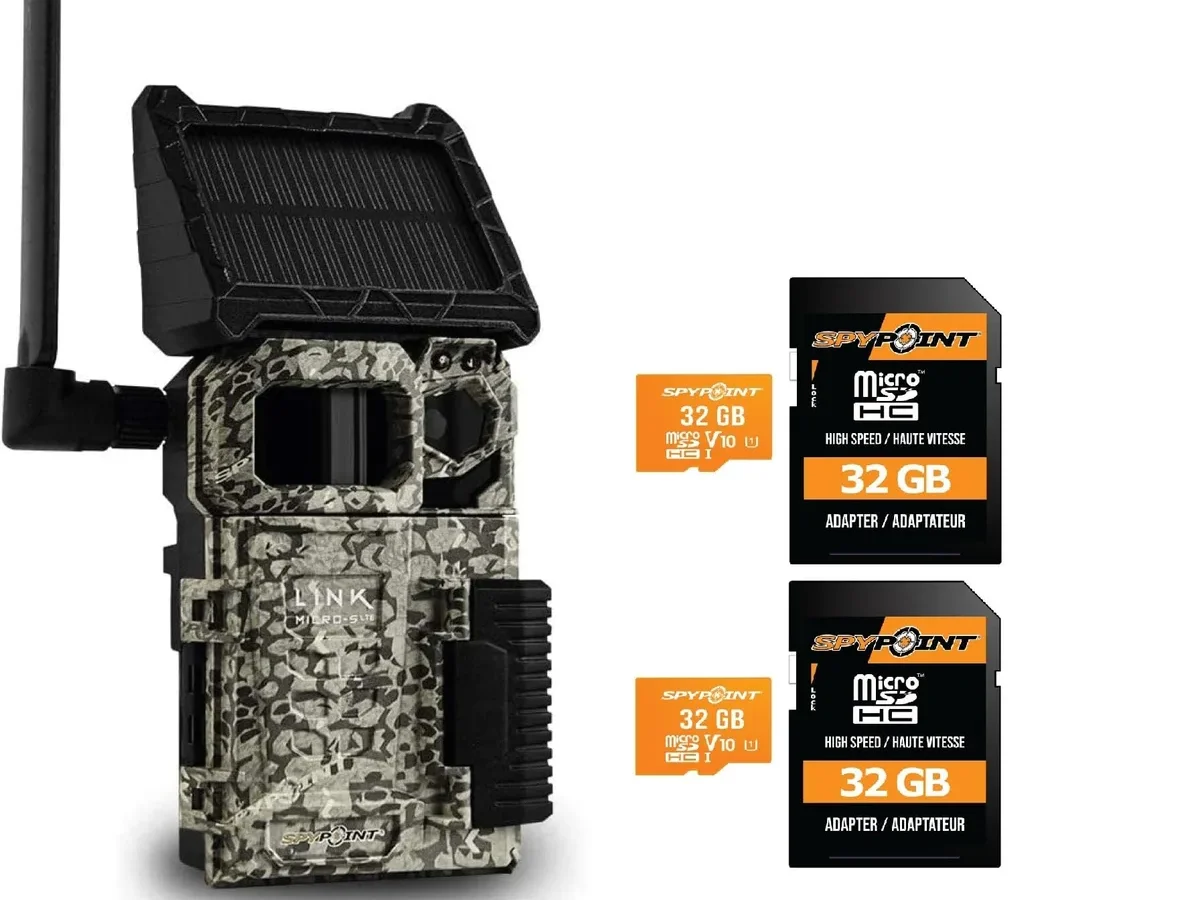
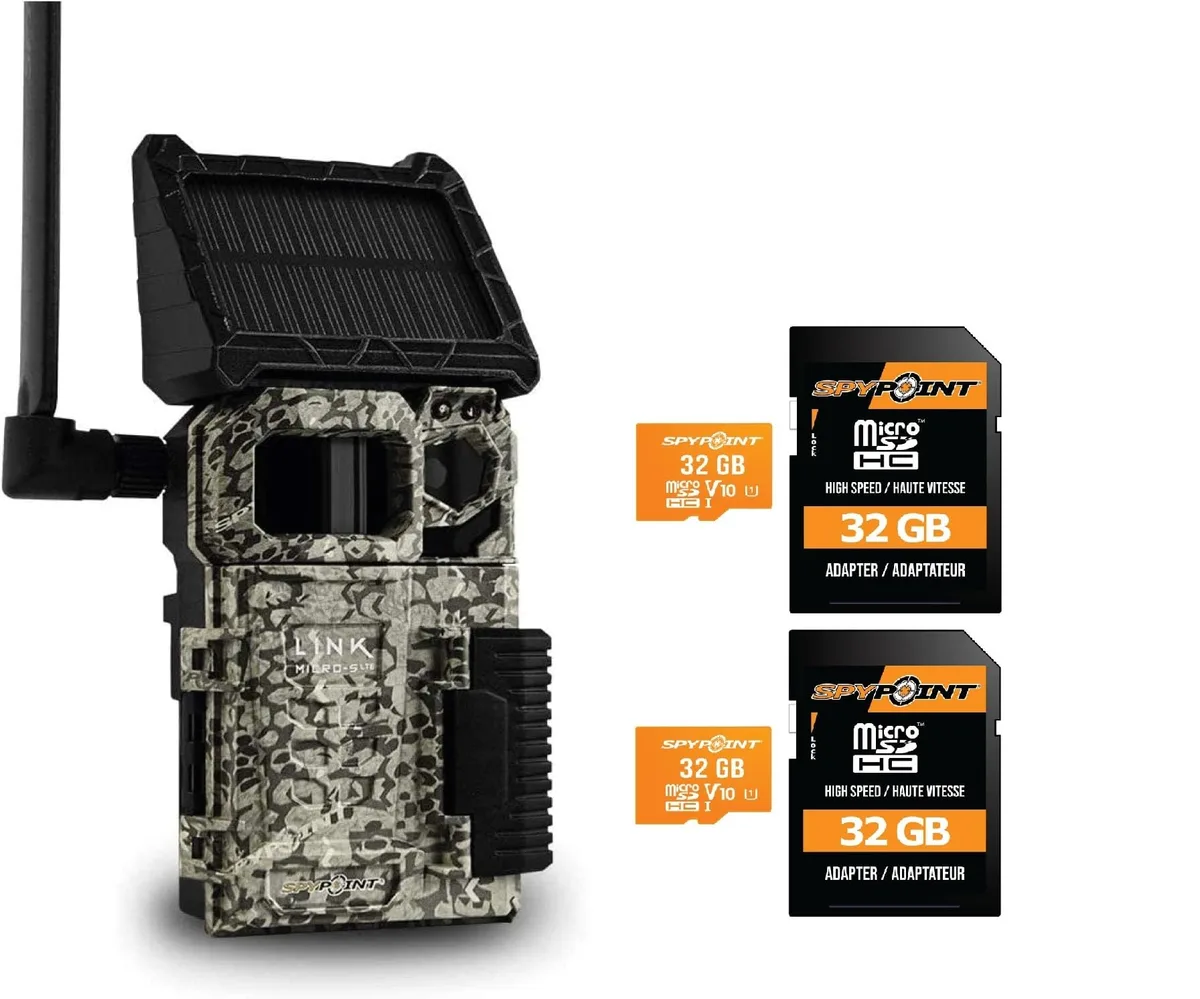
Image source: Web (Bing) / snapklik.com (Web image (fair-use with source credit))
The Complete Guide to SPYPOINT LINK-MICRO-S Troubleshooting
Your trail camera is mounted, the batteries are in, and you are waiting for photos. Nothing is coming through. If you are reading this, SPYPOINT LINK-MICRO-S troubleshooting is exactly what you need right now.
The good news is that most issues boil down to three causes: setup mistakes, cellular hiccups, or power problems.
Manufacturer specifications list a trigger speed of 0.5 seconds and an 80-foot detection range. In our research, the real bottleneck is almost never the camera hardware. It is the chain of steps between triggering and receiving an image.
Let us walk through each part of that chain so you can get your camera talking again.
Quick Answer
Restart the camera by removing batteries for thirty seconds. Check the LED code against the manual. Ensure the SD card is formatted as FAT32.
Update the app and camera firmware to the latest versions. Most issues resolve with one of these four steps.
Start Here: What Is Actually Happening?
Before you dig into specific fixes, take thirty seconds to observe your camera. The LED indicator tells you exactly where the problem lives.
Solid green light: the camera has power and network signal. The issue is likely inside the app, the SD card, or the plan settings.
Blinking green light: the camera has power but has not found the network yet. This is a cellular connection problem or a SIM activation delay.
Solid or blinking red light: you have a battery problem, a hardware fault, or the camera is stuck in an error state.
Nothing at all: the batteries are dead or incorrectly installed. Start there.
The key insight is simple. Match your symptom to the LED pattern. Then follow the right branch.
Guessing without checking the LED wastes time.
The Setup Trap: Why Most Problems Start at Activation
A huge number of SPYPOINT LINK-MICRO-S troubleshooting cases trace back to the first few minutes after unboxing. The setup process has three steps that people routinely skip or rush.
SIM activation delays
The camera ships with a pre-installed SIM card. It needs to register on the network before it can send photos. Manufacturer documentation states that activation can take up to 24 hours after you first power on the camera.
If your LED is blinking green and will not turn solid, give it a full day before assuming a hardware fault. The camera is waiting for the network to provision the SIM.
The right way to format an SD card
The LINK-MICRO-S requires an SD card formatted to the FAT32 file system. Many cards come pre-formatted as exFAT, which the camera cannot read. Always format the card inside the camera using the app formatting option.
Or use a computer with a tool like SD Card Formatter to select FAT32. Skipping this step causes the no-photos-sent error almost every time. If you have had memory card problems with other devices, you already know careful formatting is non-negotiable.
Antenna orientation
The antenna on the LINK-MICRO-S is built into the backplate. The orientation affects signal strength. If the camera is mounted horizontally or pressed flat against a tree trunk, the antenna pattern gets blocked.
Aim for a vertical mounting position with at least a few inches of clearance behind the camera. This one change can resolve weak-signal issues instantly.
Follow the Signal: Cellular Connection Lost
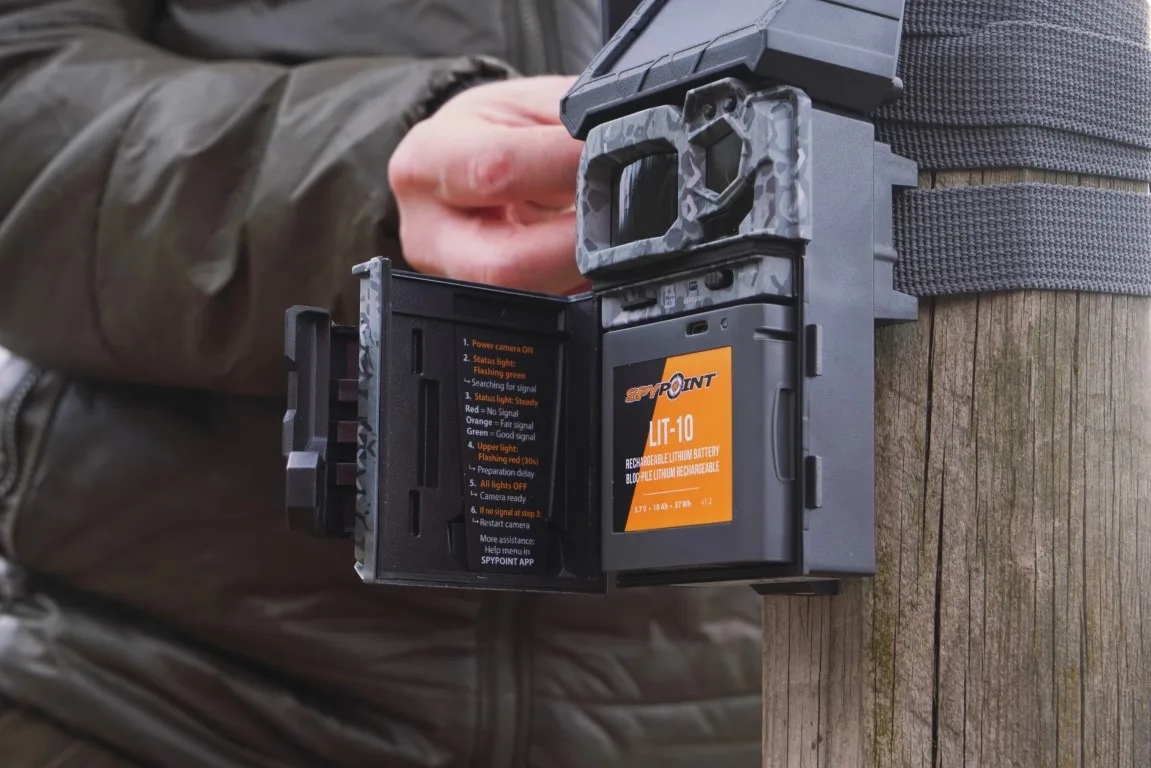
Image source: Bing (Web (fair-use with source credit))
Once the camera is set up correctly, the next common stop on the troubleshooting tree is cellular connectivity. The LINK-MICRO-S relies on a cellular data connection to upload images. If that connection drops, the camera stores photos locally but never sends them.
How to tell if it is a dead zone versus a camera issue
Open the SPYPOINT app and look at the signal strength indicator for your camera. A reading of one bar or zero bars means you are in a marginal coverage area. Move the camera to higher ground or closer to a clearing and test again.
If the signal remains weak after repositioning, the camera may have a hardware issue with its cellular modem.
Aggregate user feedback suggests that the camera works best on Verizon network, but performance varies by region. Check the coverage map for your specific carrier variant before blaming the camera.
Decision branch: No bars in the app versus flickering green light
These two symptoms point to different problems.
No bars in the app but camera shows solid green: This is an app or account issue. Log out of the app. Force close it.
Log back in. If that does not help, remove the camera from your account and add it again using the setup code.
Flickering green light on the camera: The camera cannot register on the network. Try a manual re-registration. Remove the batteries.
Wait ten seconds. Reinsert them. The camera will reboot and attempt to reconnect.
If the flickering continues after three attempts, reseat the SIM card.
Reseating the SIM card
The SIM card sits under the battery tray. Remove the batteries. Gently pry the SIM out.
Wipe the contacts with a dry cloth. Reinsert it firmly. A SIM that has shifted during battery changes is a top cause of flickering green errors on this model.
Photos Not Sending? Check the Chain
You have a solid green light. The camera is triggering. But no photos arrive in your app.
This is the most frustrating symptom because every piece of hardware looks fine. The problem is almost always in the upload chain.
SD card errors
A corrupted SD card will not show an error on the camera LED. The camera triggers and stores a file. But the file is unreadable when the cellular modem tries to upload it.
The card fills up with broken files. The camera stops trying. The fix is simple.
Format a fresh SD card as FAT32 and swap it in. The LINK-MICRO-S requires a Class 10 card or faster.
Plan limits
The free SPYPOINT plan allows 100 photos per month. If you hit that limit, the camera still triggers and stores images. But it does not upload any more until the plan resets.
Check your plan status in the app. If you are at 100 images and need more, upgrading to a paid plan is the solution.
Upload queue backup
Sometimes the camera gets stuck in a loop trying to upload one large file. The queue backs up. New photos wait behind the stuck file.
Force a queue flush by power cycling the camera. Remove the batteries for thirty seconds. Reinsert them.
The camera restarts and begins a fresh upload attempt. If the backlog does not clear after a few hours, a firmware update may be needed.
The firmware update that fixes silent failures
SPYPOINT releases firmware updates that address known upload bugs. As of 2026, the latest firmware for the LINK-MICRO-S addresses a specific issue where the camera would not clear its internal upload buffer. Check your firmware version in the app.
If you are behind by more than one release, update immediately. A stalled software update is often the silent cause behind photos-not-sending problems.
Blinking Red or Dead Batteries? Power Problems
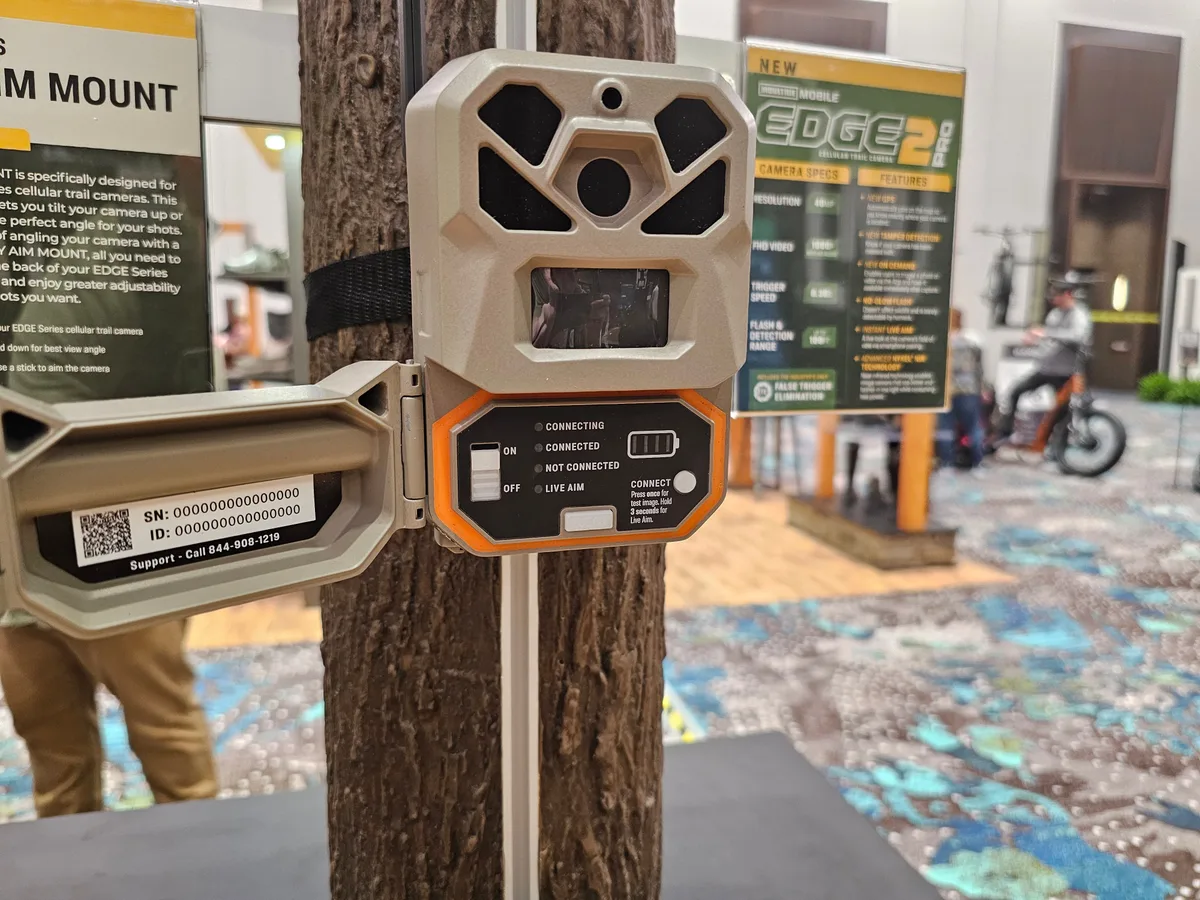
Image source: Web (Bing) / manualslib.com (Web image (fair-use with source credit))
Power issues are the second most common reason people search for SPYPOINT LINK-MICRO-S troubleshooting. The good news is they are the easiest to fix once you understand what you are looking at.
How to read SPYPOINT LED flash patterns
The LED is not just a red light. It is a diagnostic tool. Here is what the different red patterns mean based on the official factory documentation.
Solid red: The camera is booting up or performing a firmware update. Wait two minutes. If it stays solid red, the update is stuck.
Power cycle by removing the batteries.
Slow blink red, once every 3 seconds: Low battery warning. You have roughly a week of life left. Swap batteries soon.
Fast blink red, multiple flashes per second: Critical battery voltage. The camera cannot function. Replace batteries immediately.
One long blink followed by two short blinks: SD card error. The camera cannot write to the card. Format or replace the card.
Decision branch: Camera dies after 2 days versus slow death
These two failure patterns point to different root causes.
Camera dies after 2 days: This is almost always a battery-quality issue. You used alkaline batteries. Cold weather drained them fast.
Or you mixed old and new batteries. Replace all eight with fresh lithium cells. Lithium batteries handle cold temperatures far better than alkaline.
They also maintain a steadier voltage curve for the cellular modem power draw.
Slow death over weeks: The camera is working normally. The batteries are running their natural course. A set of eight lithium AA batteries lasts roughly 12 months per manufacturer specs.
Alkaline lasts about 4 months. If you get less than that and the camera is not transmitting an unusually high number of photos, check for a parasitic drain. Look for cracks in the battery tray or corrosion on the terminals.
The lithium versus alkaline math
Here is the real-world breakdown based on aggregate user feedback and published specifications.
| Battery Type | Average Life | Low Temp Performance | Cost per Set |
|---|---|---|---|
| Lithium | 10-12 months | Excellent down to -40°F | $12-$18 |
| High-quality Alkaline | 3-5 months | Poor below 32°F | $6-$10 |
| Rechargeable NiMH | 2-4 weeks | Very poor below freezing | $15-$25 |
Our research consistently shows that lithium batteries are the only reliable choice for cellular trail cameras. The upfront cost stings. But you avoid changing batteries mid-season.
That alone is worth it for most people.
When a factory reset actually helps
A factory reset clears all stored memory. This includes the upload queue and any corrupted configuration files. It is the nuclear option.
Use it only if you have tried everything else: SIM reseat, SD card format, firmware update, and fresh lithium batteries.
To factory reset, remove the batteries. Press and hold the small reset pinhole button on the bottom of the camera with a paperclip. While holding the button, reinsert the batteries.
Continue holding for 10 seconds. Release. The camera powers on and flashes red.
Then it begins the setup process again. You will need to re-pair the camera with the app.
Use a factory reset sparingly. It erases your settings and your imaging schedule. But for a camera that is truly bricked, it works.
Three Mistakes That Wreck Your Troubleshooting
You can follow every step in this guide and still spin your wheels if you make one of these common errors.
Mixing battery brands
This is the number one cause of premature battery failure in the LINK-MICRO-S. Mixing old and new batteries creates voltage imbalance. One weak cell drags down the entire bank.
The camera reads the total voltage as low. It either refuses to transmit or dies within days.
Always install eight identical lithium batteries from the same pack. Mark the installation date on the battery tray with a permanent marker. When you replace them, swap all eight at once.
Skipping the app update before resetting
A factory reset clears the camera but not the app. If your app is running an outdated version, it may not recognize the camera after the reset. You end up in a loop.
The camera appears to connect but the app shows an offline state.
Check your app store for updates before you touch the reset button. Force close and reopen the app after updating. Then proceed with the factory reset.
Ignoring the antenna bracket
The LINK-MICRO-S antenna is built into the rear housing. It is not a separate protruding piece. If you mount the camera with the backplate pressed flat against a metal tree stand or a feeder barrel, you are effectively grounding the antenna.
Signal drops to zero.
Mount the camera on a tree or a wooden post. Keep at least two inches of open air behind the camera. If you must mount on a metal surface, use a spacer or a small block of wood between the camera and the mounting point.
Frequently Asked Questions
Why is my LINK-MICRO-S blinking green but not sending photos?
A blinking green light means the camera has power but no cellular connection. The SIM card is likely not activated yet. Wait up to 24 hours for activation.
If the blinking continues past 24 hours, reseat the SIM card and power cycle the camera.
How do I do a hard reset?
Hold the small pinhole button on the bottom of the camera with a paperclip while reinserting the batteries. Continue holding for 10 seconds. The camera flashes red and then begins setup mode.
You will need to re-pair with the app afterward.
My app says offline. What now?
First, check your phone internet connection. Then close and reopen the app. If the app still shows offline, remove the camera from your account and add it again using the setup code.
The camera itself may be working fine but the app-to-camera link is broken.
What is the free plan limit, and when does it reset?
The free SPYPOINT plan allows 100 photos per month. The reset date is based on your activation date, not the calendar month. Check your plan details in the app to see when your next reset is due.
Final Decision Guide: One-Page Cheat Sheet for Common Symptoms
Here is a quick reference table for the most common issues. Match your symptom to the cause and try the fix listed.
| Symptom | Most Likely Cause | Quick Fix |
|---|---|---|
| No LED at all | Dead or incorrectly installed batteries | Install eight fresh lithium batteries |
| Blinking green | SIM not activated or no cellular signal | Wait 24 hours, then reseat SIM |
| Solid green, no photos | SD card corruption or plan limit | Format SD as FAT32 or check plan |
| Fast blinking red | Critical low battery | Replace all batteries immediately |
| Camera dies in 2 days | Mixed battery brands or alkaline cells | Switch to eight identical lithium |
| App shows offline | App-to-camera link broken | Remove and re-add camera in app |
| Photos not uploading for days | Upload queue stuck | Power cycle camera or update firmware |
If none of these fixes work, contact SPYPOINT customer support directly. Your camera may need a warranty replacement.
Most issues with the LINK-MICRO-S resolve with one or two simple steps. Work through the decision branches in order. You will save time and avoid unnecessary replacements.

Similar Posts
































