Thinkware Q200 SD Card Problems
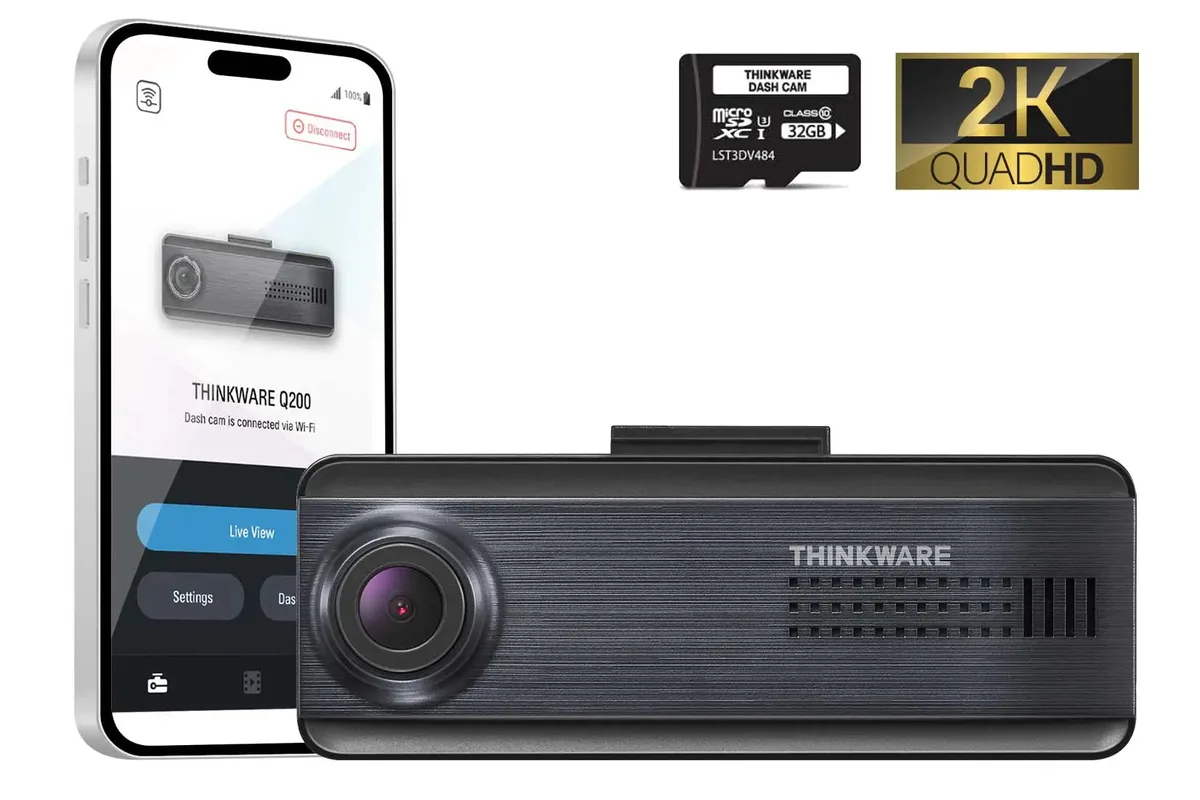
If your Thinkware Q200 dashcam keeps flashing a “Card Error” message, you’re not alone. Thinkware Q200 SD card problems are one of the most common frustrations owners report, and the fix usually comes down to three things: the card type, the formatting, and the slot condition. Most of these issues are easy to solve yourself without sending anything back.
Manufacturer specifications state that the Q200 supports microSD cards up to 128GB with a U3 or V30 speed rating. That speed class matters more than the brand or price. A card that barely meets the minimum write speed will struggle with 2K video, especially in parking mode.
Let’s walk through what’s really going on and how to get your dashcam recording again.
Image source: Web (Bing) / dashcamspecialists.com.au (Web image (fair-use with source credit))
Why Your Thinkware Q200 Keeps Saying “Card Error”
The “Card Error” alert on the Q200 is the camera’s way of telling you it can’t reliably write data. That can happen for several reasons, but the most common is that the card isn’t fast enough or was formatted incorrectly. The Q200 expects a microSD card formatted to FAT32 (for cards 32GB and under) or exFAT (for 64GB and up).
If the file system is wrong, the camera rejects it.
Another frequent cause is a failing card. Dashcams write data constantly, and standard SD cards wear out quickly. Even a “High Endurance” card can fail after a year of daily use in hot weather.
The Q200 does not have a built-in card health check, so you may not know the card is dying until the error appears.
Sometimes the error is just a dirty or loose connection. Dust and lint can get into the slot, preventing the card from seating fully. A quick inspection often solves that.
First Things First: Check the Basics
Before you dive into complex troubleshooting, try these three quick checks. They solve about half of all Thinkware Q200 SD card problems.
1. Power cycle the camera. Turn off the Q200, wait 30 seconds, then turn it back on. Sometimes a temporary glitch triggers the error message.
If it goes away, you’re good.
2. Remove and reinsert the card. Eject the microSD, blow gently into the slot (or use compressed air), then push the card back in until it clicks. Make sure it’s fully seated.
One firm click is enough.
3. Try a different card. If you have another microSD laying around, even a small 16GB one, pop it in. If the error disappears, you know the original card is the problem.
This is the fastest way to isolate the issue.
If those steps don’t work, it’s time to look at the card itself. Most Q200 problems trace back to using the wrong card or formatting it wrong.
Decision Tree: Which Symptom Are You Seeing?
The Q200 can show a few different error messages. Each one points to a different root cause. Here’s how to match your symptom to the fix.
| Symptom | Most Likely Cause | What to Try |
|---|---|---|
| “Card Error” pops up at startup | Card not compatible or formatted wrong | Check compatibility list, reformat in camera |
| “SD Card Not Recognized” | Card won’t initialize | Remove, clean slot, try PC format |
| Recording stops after a few hours | Card overheating or speed too slow | Use U3/V30, avoid direct sun on camera |
| “Format Failed” in camera | Card file system corrupted | Format on PC using SD Formatter |
| Error appears only in parking mode | Card can’t handle buffered writes | Upgrade to high endurance card |
If you are seeing the first or third symptom, the card itself is usually the issue. If you get “Format Failed,” do not keep trying to format in the camera. That will make things worse.
Move to a PC format first.
How to Properly Format an SD Card for the Q200
Formatting sounds simple, but doing it wrong causes many Thinkware Q200 SD card problems. The right method depends on the card size.
For cards 32GB and below: The camera expects FAT32. Most cameras format to FAT32 automatically, but some Windows PCs format small cards to NTFS by default. If you insert a NTFS card, the Q200 will reject it.
For cards 64GB and up: The Q200 uses exFAT. Windows does that automatically for cards over 32GB, but Mac users sometimes end up with Mac OS Extended format by accident. That will fail.
Here is the safest process:
Use the SD Association’s official SD Formatter tool. Download it from sdcard.org (it’s free and doesn’t install bloatware). Select your card, choose “Overwrite format,”” then run it. This sets the correct file system and cluster size.
Try a quick in-camera format next. Put the freshly formatted card into the Q200. Go to Menu > SD Card > Format. The camera will set its own preferred partition alignment. This is the most reliable way to prepare a card.
**If the camera still errors, do a full PC format.**On Windows, right-click the card and choose Format, then set FAT32 for 32GB or exFAT for 64GB+. Use default allocation size. Do not use quick format. Do a full format instead.
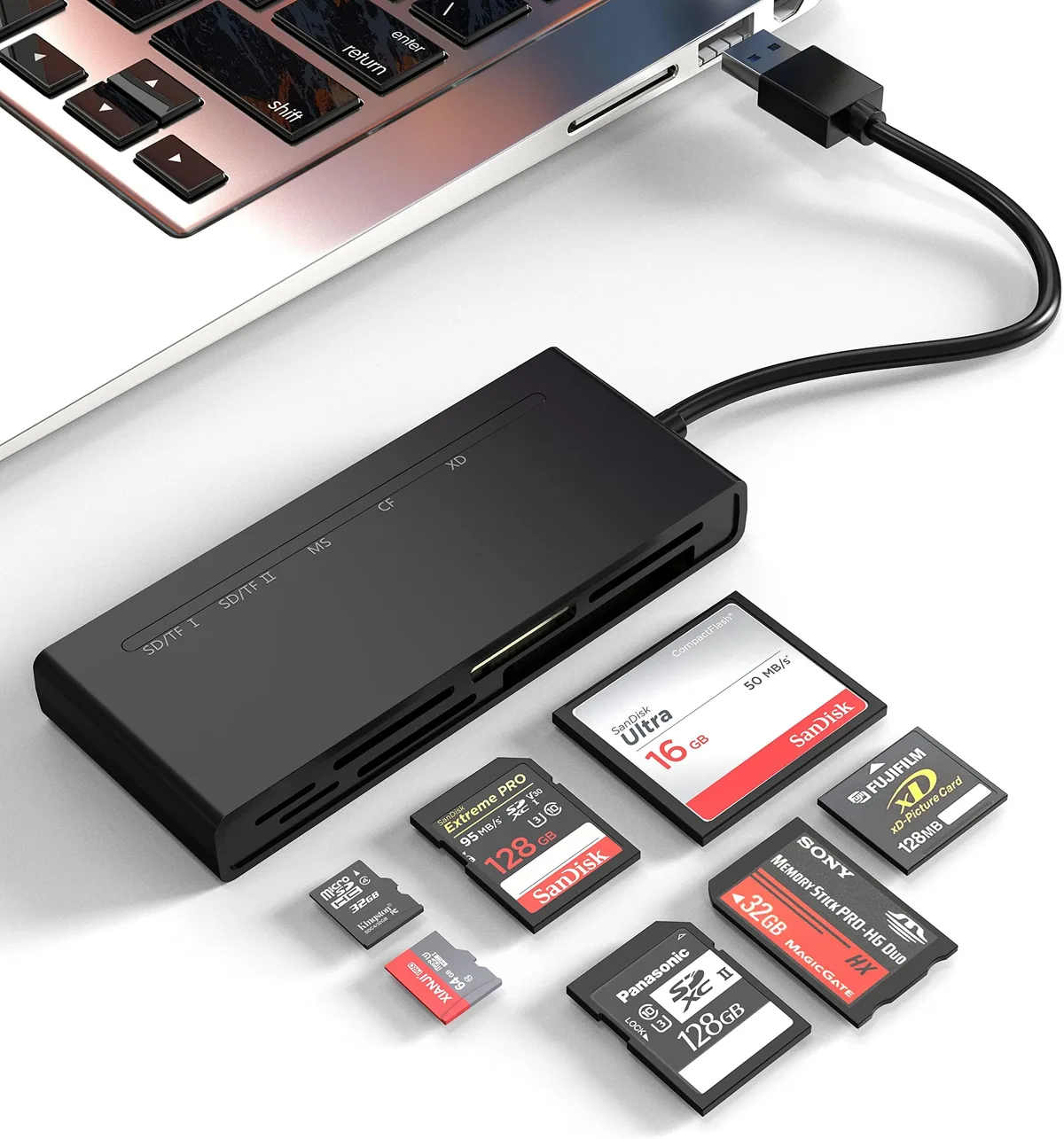
Image source: Web (Bing) / amazon.com (Web image (fair-use with source credit))
A good external card reader helps avoid slot wear. If you have an old card reader that’s slow, get a USB 3.0 one. It’s faster and more reliable than the camera’s own USB connection for formatting.
The Official Compatibility List (and Why It Mattes)
Thinkware publishes a list of tested microSD cards for the Q200. Per manufacturer documents, the following cards are known to work reliably as of 2026:
| Brand | Model | Capacity | Speed Class | Endurance |
|---|---|---|---|---|
| Samsung | Pro Endurance | 64GB / 128GB | U3, V30 | High |
| SanDisk | High Endurance | 64GB / 128GB | U3, V30 | High |
| Lexar | High Performance | 64GB | U3, V30 | Standard |
| Kingston | Canvas Select Plus | 128GB | U3, V30 | Standard |

Image source: Web (Bing) / shopee.sg (Web image (fair-use with source credit))
This list matters because the Q200 is picky about the controller chip inside the card. Some high-speed cards like the SanDisk Extreme Pro (which is great for cameras) actually cause errors in the Q200 because they use a different memory architecture optimized for burst writes rather than sustained writes. Dashcams need sustained write speed, not burst speed.
If you use a card not on this list, you may still get fine results. But if you are having problems, switching to one of these four will almost certainly fix it. Avoid no-name brands and “value” cards.
They lack the write endurance for dashcams.
A trustworthy external source for SD card standards is the SD Association’s official site at sdcard.org. Their speed class specifications help you verify any card’s real write speed.
Mistakes That Wreck Your SD Card (and How to Avoid Them)
Even with a compatible card, a few habits can shorten its life or trigger repeated errors. Avoiding these five mistakes saves you time and card replacements.
Using a standard card instead of a high endurance one. Standard microSD cards are designed for phones and cameras where you write a few files per day. A dashcam writes constantly. Aggregate user feedback shows that a non-endurance card in the Q200 often fails within three months.
A high endurance card lasts one to three years.
Writing on the card while formatting. Never remove the card while the dashcam is recording or formatting. That corrupts the file allocation table. If you accidentally do that, you will need to reformat the card on a PC before the camera will recognize it again.
Skipping regular formatting. Thinkware recommends formatting the card every four to six weeks inside the camera. This clears old file fragments and resets the directory. Many owners skip this and then wonder why recording stops mid-drive.
Storing the camera in direct sun for hours. The Q200 itself handles heat fine, but the card inside can exceed 80°C in a closed car on a summer day. High endurance cards tolerate up to 85°C, but sustained heat near that limit accelerates degradation. Park in shade or use a sunshade when possible.
Using a card over 128GB. The Q200 officially supports up to 128GB. Some users have gotten 256GB cards to work after formatting, but the camera may still show errors during long recordings. Stick to 64GB or 128GB for trouble-free operation.
Keep an eye on card health. If you see the same error message returning every few weeks, replace the card. A dying card can also cause other odd behavior like the camera restarting randomly or failing to save the last recording.
Quick Troubleshooting FAQ
How do I know if my SD card is failing in the Thinkware Q200?
The most common sign is the “Card Error” message appearing more than once a month. Other signs include recordings that stop mid-file, files that won’t play on your computer, or the camera freezing during startup. Run a health check using H2testw on your PC to confirm.
Can I use a SanDisk Extreme Pro in the Q200?
SanDisk Extreme Pro cards are not on Thinkware’s official compatibility list. While some users report success, many get intermittent errors. The SanDisk High Endurance model is the safer choice.
It uses a controller designed for sustained writes.
Why does my Q200 show “Format Failed” every time I try to format in camera?
This usually means the card has a corrupted file system or bad sectors. Remove the card and format it on your PC using the SD Association’s SD Formatter with the “Overwrite format” option. If that fails, the card is likely dead and needs replacement.
How often should I replace the SD card in my Thinkware Q200?
Aggregate user feedback indicates that a high endurance card lasts 12 to 18 months in daily use. If you live in a hot climate or use parking mode heavily, replace it every 12 months. Mark the install date on the card with a permanent marker so you remember.
Does the Q200 work with 256GB cards?
The official spec says 128GB maximum. Some 256GB cards may be recognized after formatting to exFAT, but the camera may still trigger errors during continuous recording, especially in parking mode. For reliability, stick to 64GB or 128GB.
Can a dirty SD card slot cause errors?
Yes. Dust and lint in the slot can prevent proper contact. If you see an error after removing and reinserting the card, inspect the slot with a flashlight.
Use compressed air or a toothpick to gently clean the inside. Be careful not to damage the pins.

Similar Posts
































