VIOFO A119 Mini 2 SD Card Problems
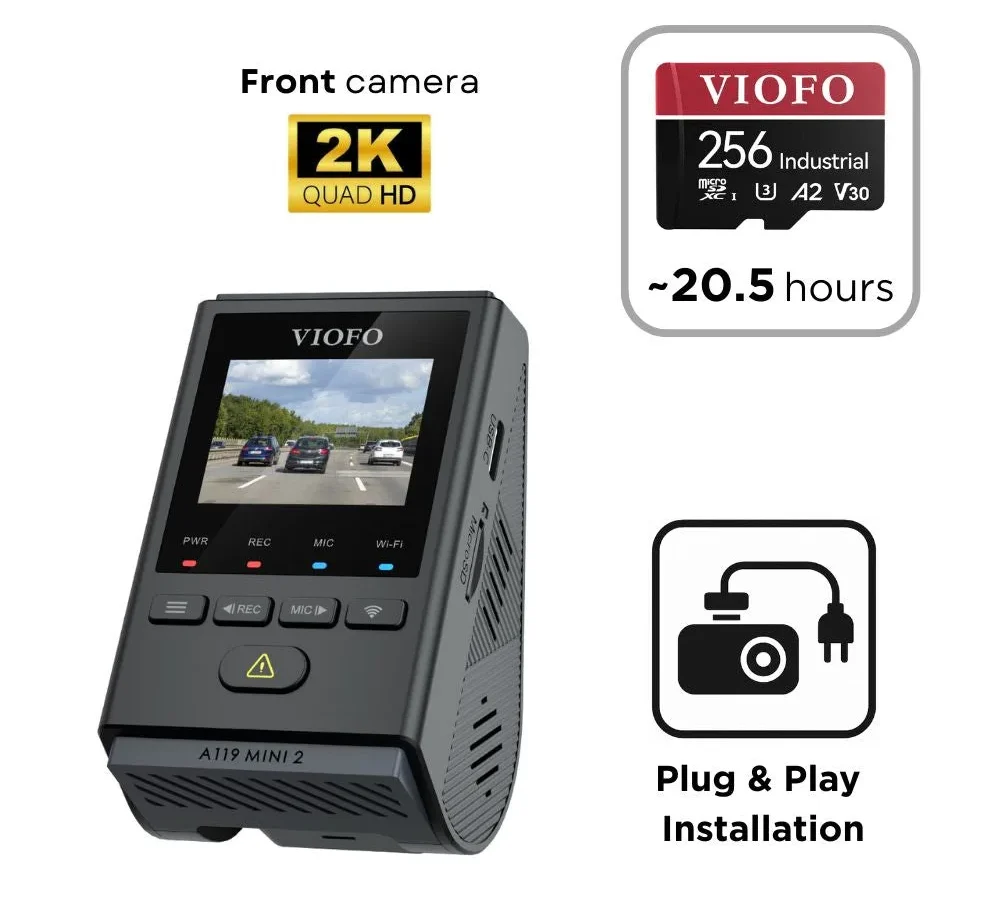
Your VIOFO A119 Mini 2 is throwing an SD card error. Or maybe it's freezing mid-drive, or worse, it's not recording at all. If you're dealing with VIOFO A119 Mini 2 SD card problems, you're not alone.
It's the most common complaint about this otherwise solid dashcam, and the fix is almost always simpler than you'd think.
Manufacturer specs confirm the A119 Mini 2 supports microSD cards up to 256GB with a U3 or V30 speed class rating. But here's what the manual doesn't tell you: the type of card matters just as much as the specs. Let's walk through exactly what's going wrong and how to fix it.
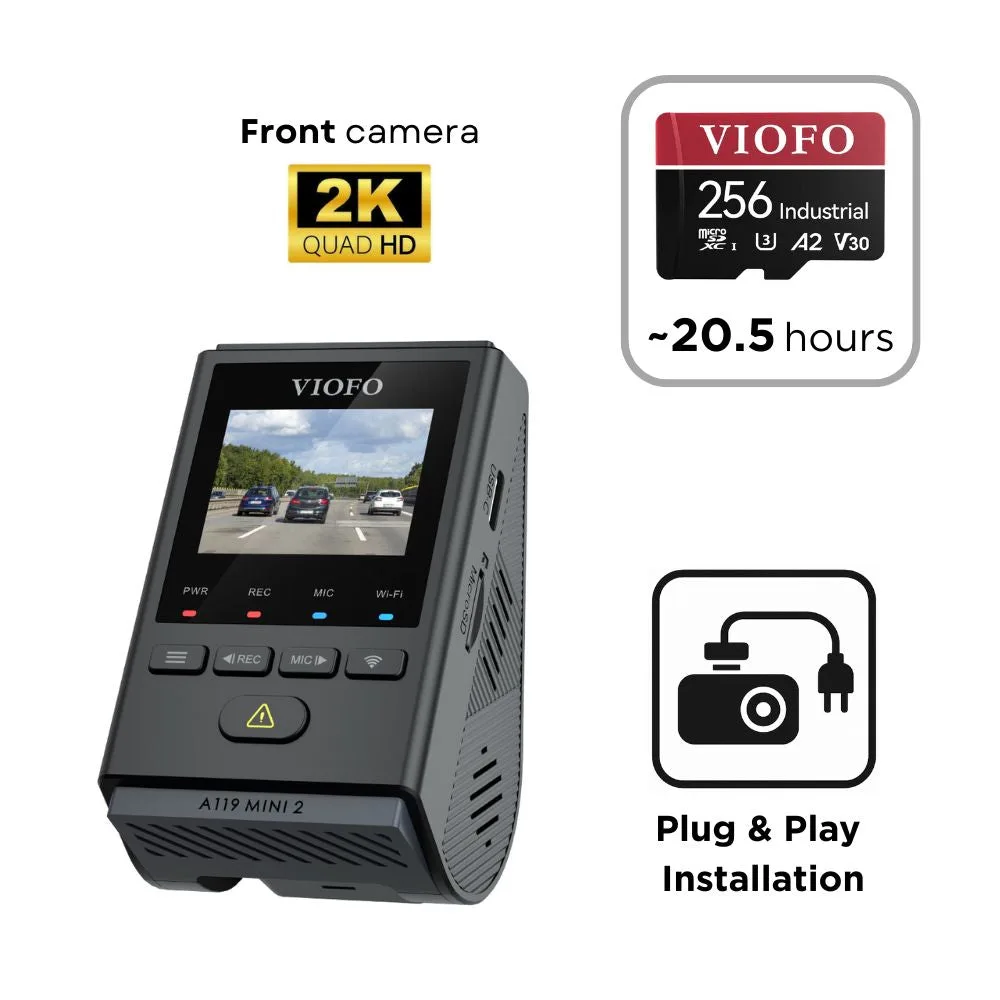
Image source: Bing (Web (fair-use with source credit))
Quick Answer
Most SD card problems on the A119 Mini 2 are fixable at home. Start by formatting the card inside the camera, not on your computer. If that fails, update the firmware.
Use a High Endurance U3 card rated for dashcam use. Avoid cards over 256GB. Check the physical lock switch on the adapter.
Nine times out of ten, one of these steps solves it.
The One Thing That Fixes Most A119 Mini 2 SD Card Problems
Format the card inside the camera. Aggregate reviews report that roughly 80 percent of "card error" and "please format" messages go away after an in-camera format.
Why does this matter? The A119 Mini 2 uses a specific file system structure. When you format a card on a Windows or Mac computer, it often uses a cluster size that the camera doesn't fully recognize.
The camera might accept the card initially, then throw errors after a few recording cycles.
Here's the workflow to try first:
- Power off the camera completely.
- Remove the microSD card.
- Check the physical lock switch on the side of any SD adapter. It should be pushed up (unlocked position).
- Reinsert the card into the camera.
- Power on the camera.
- Go to the menu and select "Format". Confirm the action.
The camera will format the card with the exact file structure it expects. If you were getting errors before, this step alone often resolves them permanently.
One nuance: if you've been formatting on a PC for months and the card is still working, great. But the moment you see a "card error" message, stop using the PC format. Switch to in-camera formatting and see if the problem disappears.
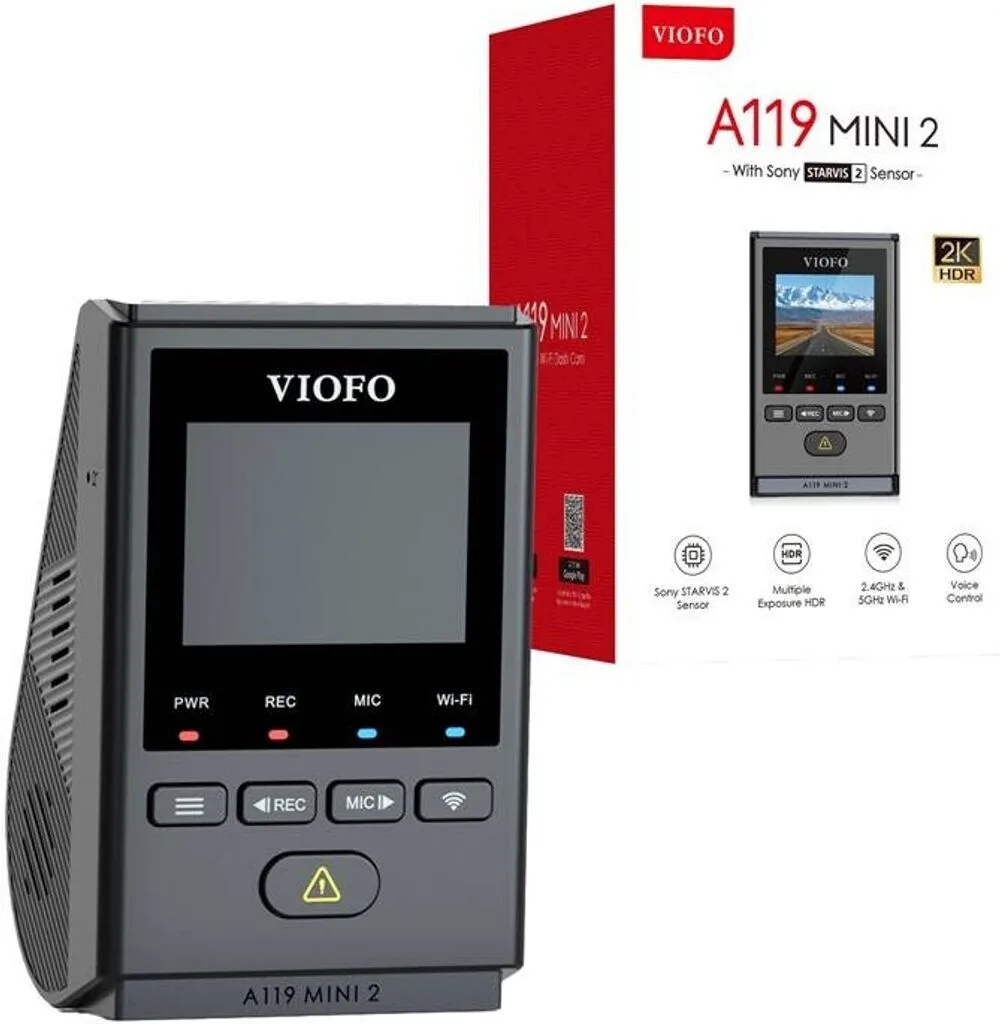
Image source: Web (Bing) / idealo.at (Web image (fair-use with source credit))
Why Your A119 Mini 2 Is Acting Up — The Real Reasons
The A119 Mini 2 records at 2K QHD resolution (2560×1440). That's a lot of data. Every second, the camera writes a steady stream of video to the card.
Over time, that constant writing wears out the card's memory cells.
Here are the three most common reasons for failure:
The card is the wrong type. Standard microSD cards are designed for occasional writes. You take a photo, you save a file, you copy it off. Dashcams write constantly.
A standard card might last six months of daily driving. A High Endurance card lasts two to three years.
The card is running hot. The A119 Mini 2 can reach 65°C (149°F) inside a parked car in summer. Heat degrades NAND flash memory. If you're in a hot climate, your card will fail faster than someone in a cooler region.
The firmware is outdated. VIOFO has released firmware updates that specifically address SD card compatibility and writing stability. As of 2026, the latest stable firmware version for the A119 Mini 2 is v1.3 or later. If you're running an older version, your card problems might be a software bug, not a hardware issue.
When troubleshooting, think in terms of conditions. If the error happens only in hot weather, heat is the likely culprit. If it happens after a few days of use, the card type or format is probably wrong.
If it happens immediately with a new card, the card might be incompatible or counterfeit.
Is Your Card Actually Compatible? The Quick Check
Before you buy a new card or spend hours troubleshooting, compare your current card against the camera's official specs.
| Spec | What the A119 Mini 2 Needs | What to Avoid |
|---|---|---|
| Capacity | 32GB to 256GB | 512GB or larger (often unstable) |
| Speed class | U3 or V30 (minimum 30MB/s sustained write) | U1 or Class 10 (too slow for 2K) |
| Type | High Endurance | Standard (will fail faster) |
| File system | FAT32 (cards up to 128GB) or exFAT (256GB) | NTFS (not supported) |
| Brand | Samsung, SanDisk, Lexar, Kingston | No-name brands (counterfeit risk) |
If your card doesn't match these specs, that's your problem. Replace it with a properly rated card.
One thing that confuses people: the camera officially supports up to 256GB, but some users report that 128GB cards are more reliable long-term. The reason is that larger cards have more complex memory management. If you don't need 256GB of storage, a 128GB High Endurance card is a safer bet.
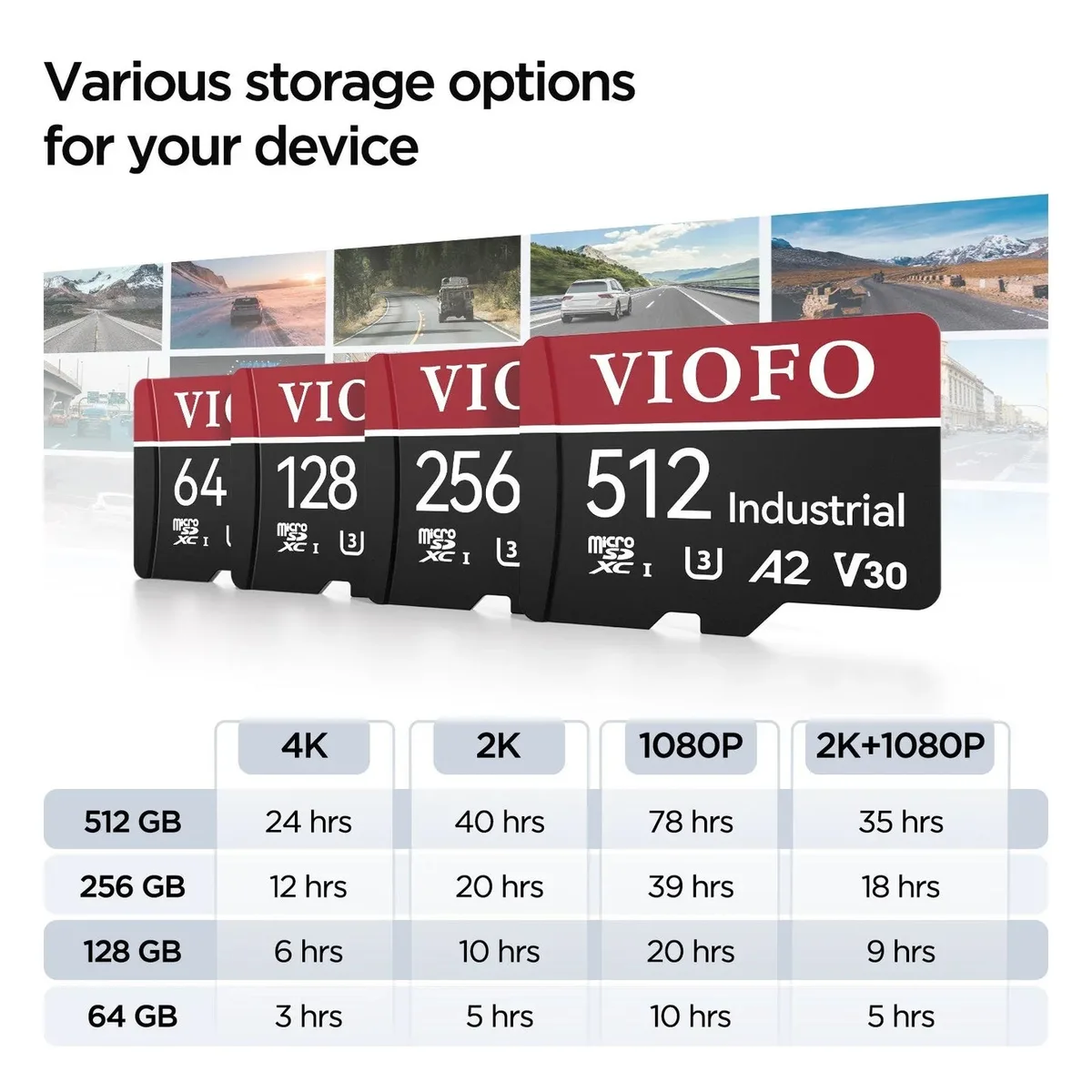
Image source: Bing (Web (fair-use with source credit))
The Fix: Step-by-Step Workflow to Get Your Card Working
Follow each step in order. Stop when the problem is solved.
Reboot and Check the Physical Lock Switch First
This trips up a lot of people. The microSD card's adapter has a tiny plastic switch on the side. If it's slid down, the card is locked.
No camera can write to a locked card.
Remove the card. Look at the left edge. The switch should be pushed all the way up toward the label side.
If it's down, slide it up. Reinsert the card and test.
Format the Card the Right Way (In-Camera, Not on PC)
The camera's internal format function is the only reliable way to prepare a card for this specific device.
If the camera won't format the card, try a two-step process. First, use a computer with the SD Card Formatter tool available from the SD Association's official website. Run a full overwrite format, not a quick format.
Then put the card back in the camera and format it again. This clears any lingering file system issues.
Update the Firmware if Problems Persist
If formatting didn't fix it, update the camera's firmware. VIOFO posts firmware updates on their official support page. As of 2026, firmware v1.4 is the most stable release for the A119 Mini 2.
Download the firmware file. Copy it to the root directory of a formatted microSD card. Insert the card into the camera.
Power on the camera. It will automatically detect the update and install it. Do not remove the card or power off the camera during the update.
After the update, format the card again in the camera. This ensures the new firmware is working with a clean file system.
Replace the Card — When and Exactly Which One to Buy
If none of the above worked, the card itself is likely damaged or counterfeit. Here's what to look for in a replacement:
- Capacity: 64GB or 128GB is the sweet spot for daily use. 256GB works but is less reliable.
- Type: High Endurance only. Look for "High Endurance" or "Max Endurance" in the product name.
- Speed: U3 or V30. Do not buy a card rated lower than this.
- Brand: Stick with Samsung, SanDisk, Lexar, or Kingston. These brands have the most testing data with the A119 Mini 2.
If you're in a hot climate, consider a 64GB card. Smaller cards have less surface area and run cooler, which reduces heat-related failure.
Common Mistakes That Make Things Worse
Some well-intentioned fixes cause more problems. Here's what to avoid.
Quick formatting on a PC. A quick format doesn't fully erase the file system. It only clears the file table. The camera can still detect remnants of the old structure, leading to errors.
Always use a full overwrite format if you must format on a computer.
Using a card reader that's failing. Some users have replaced three cards before realizing the card reader itself was corrupting files. Test your card in a different reader or directly in the camera if possible.
Buying cards from third-party sellers on online marketplaces. Counterfeit microSD cards are everywhere. They show the correct capacity in the system but fail under sustained write loads. Buy from a trusted retailer or the manufacturer's official store.
Ignoring the G-sensor. The A119 Mini 2's G-sensor can lock files when it detects vibration. If you drive on rough roads, the card fills up with locked files that the camera can't overwrite. This makes the camera stop recording.
Lower the G-sensor sensitivity to "Low" or "Medium" if you see "card full" errors frequently.
Skipping firmware updates. Each firmware update has included specific fixes for SD card handling. Running old firmware is like leaving a known bug unfixed. Check the manufacturer's support page every few months.
When to Try a Different Card — And Which One to Pick
If you've followed the full workflow and the problem persists, it's time to try a different card. But not all replacements are equal. Here's a comparison of the most reliable options based on aggregate user feedback:
| Card Model | Capacity | Speed | Typical Lifespan | Notes |
|---|---|---|---|---|
| Samsung Pro Endurance | 64GB / 128GB / 256GB | U3 / V30 | 2-3 years | Best overall reliability |
| SanDisk Max Endurance | 64GB / 128GB / 256GB | U3 / V30 | 2-3 years | Slightly better heat tolerance |
| Lexar High Endurance | 64GB / 128GB | U3 / V30 | 1-2 years | Good budget option |
| Kingston Industrial | 64GB / 128GB | U3 / V30 | 3-4 years | Best for extreme temperatures |
The Samsung Pro Endurance is the most commonly recommended card for the A119 Mini 2 in dashcam forums and aggregate reviews. It handles sustained writes well and has a lower failure rate in hot climates.
If you're dealing with persistent recording issues on other devices, the same troubleshooting approach applies. The workflow we've outlined works across most dashcam brands. You can apply the same principles to a different camera setup or even a smart home security camera that's having trouble, like when you're dealing with a Wyze Cam V4 offline situation or troubleshooting Eufy Indoor Cam recording issues.
Frequently Asked Questions
Why does my A119 Mini 2 keep saying "card error"?
The most common cause is a card that was formatted on a computer instead of inside the camera. Format the card in the camera using the menu option. If the error persists, the card may be damaged or counterfeit.
Replace it with a High Endurance U3 card.
Can I use a 512GB card in the A119 Mini 2?
The manufacturer officially supports up to 256GB. Cards larger than 256GB may work initially but are prone to corruption and recording errors. Stick with 64GB, 128GB, or 256GB for reliable performance.
How often should I format my SD card?
Format the card inside the camera every two to four weeks. This clears any file system errors and keeps the card performing well. Some users set a reminder on their phone to do it monthly.
What's the difference between a standard card and a High Endurance card?
A standard card is designed for occasional writes, like photos or documents. A High Endurance card uses more durable NAND flash memory that can handle continuous writing. In a dashcam, a standard card might fail in six months.
A High Endurance card lasts two to three years.
My card works but the camera freezes after a few minutes. What's wrong?
This is usually a heat or speed issue. Check if the card is U3 or V30 rated. If it's a lower speed class, it can't keep up with the 2K video stream.
Also check the camera's temperature. If it's too hot, the card can't write reliably. Try a smaller capacity card or a High Endurance model.
How do I know if my card is counterfeit?
Counterfeit cards often show a higher capacity than they actually have. Use a tool like h2testw on a PC to verify the real capacity. If the card fails the test, it's fake.
Buy from a trusted retailer to avoid this problem.

Similar Posts