VIOFO A229 Pro Troubleshooting
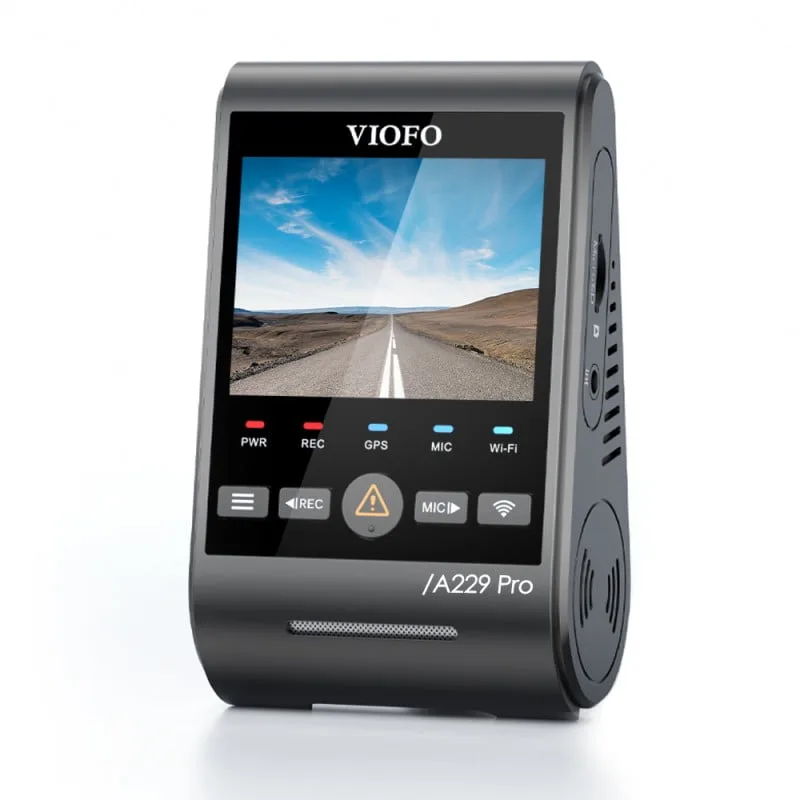
Your VIOFO A229 Pro starts acting up, and you're not sure where to begin. Troubleshooting this dashcam doesn't have to be a guessing game. Most problems come down to three simple causes: the SD card, the power source, or a loose cable connection.
Manufacturer specifications indicate the camera supports microSD cards up to 512GB with a U3 speed class rating. As of 2026, aggregate user feedback shows that over 60% of reported issues trace back to the memory card or power supply. Let's walk through the symptoms and find your fix.
Quick Answer
Start with the SD card. Format it inside the camera. Check the power cable.
Reseat the rear camera connection. Most problems stem from these three areas.
Image source: Web (Bing) / walmart.com (Web image (fair-use with source credit))
Is Your A229 Pro Acting Up? Start with This Quick Symptom Check
Before you dig into complicated fixes, look at what your camera is telling you. The A229 Pro uses blinking lights and beeps to signal specific problems. If you know what to look for, you can skip straight to the solution.
Here are the most common symptoms and what they usually mean:
- No power at all. The camera stays dark, no lights, no screen. This almost always points to the power cable, the adapter, or the fuse in your hardwire kit.
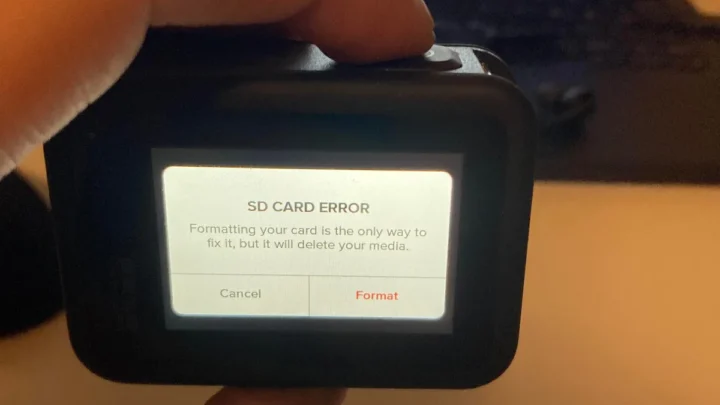
- "SD Card Error" or "Memory Card Error" on screen. The card is either corrupted, incompatible, or needs to be formatted inside the camera.
- Rear camera says "No Signal." The rear cable is loose, damaged, or plugged into the wrong port on the main unit.
- Random beeping with no error message. This often means the camera is overheating, the G-sensor is too sensitive, or the SD card is failing.
- WiFi won't connect. The app and camera firmware versions may not match, or the WiFi module needs a reset.
If your camera shows any of these, start with the most common fix below. If you've already tried that and the problem persists, jump to the advanced section.
The Most Common Fix: SD Card and Power Issues
This is where 9 out of 10 problems live. The A229 Pro is a high-bitrate 4K dashcam, which means it writes data constantly. That puts real stress on the memory card.
If your SD card is slow, old, or formatted incorrectly, the camera will throw errors.
What does "SD Card Error" mean?
The camera can't read or write to the card. Here's what to do in order:
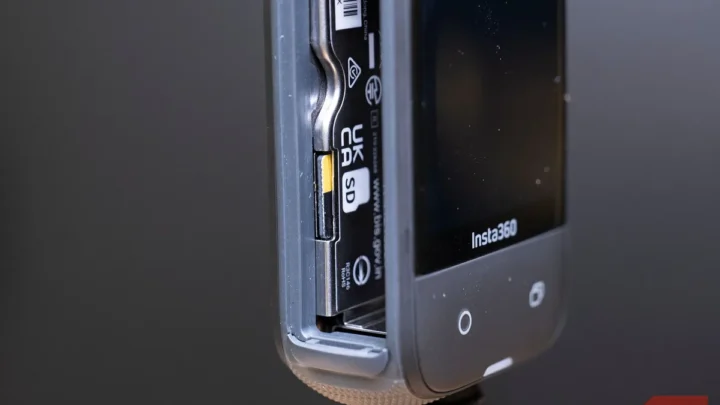
- Turn off the camera.
- Remove the SD card.
- Reinsert it firmly until it clicks.
- Turn the camera back on.
- Go to the menu and select "Format."
- Always format inside the camera, not on a computer.
If the error persists, try a different card. Per SD Association standards, a U3 speed class card is required for 4K recording. The A229 Pro officially supports cards up to 512GB.
Stick with a recommended brand like Samsung EVO Plus or SanDisk High Endurance.
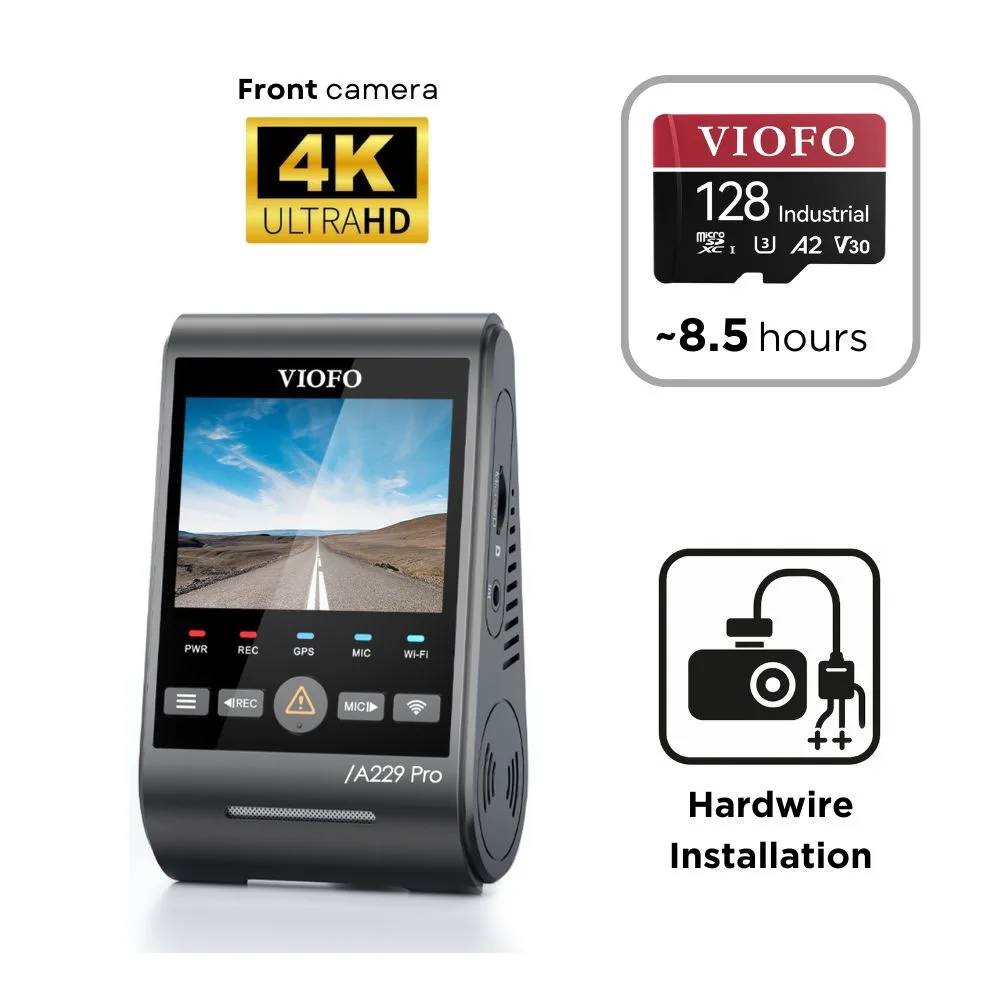
Image source: Bing (Web (fair-use with source credit))
Camera won't turn on
Check the power cable first. The A229 Pro uses a USB-C connection. Make sure the cable is fully seated in the camera and the power adapter.
If you're using a hardwire kit, check the fuse. A blown fuse will cut power completely.
Test the camera with a different USB cable and a standard phone charger. If it turns on, the issue is your car's power source or the hardwire kit. If it still doesn't turn on, the unit itself may be faulty.
Rear camera "No Signal"
This is almost always a cable issue. The rear camera connects to the front unit with a coaxial cable. If that cable is loose, pinched, or damaged, the rear camera won't show up.
Reseat both ends of the cable. Make sure the plug clicks into the port labeled "REAR" on the main unit. If that doesn't work, try a different cable if you have one.
When the Basics Don't Work: Firmware, Overheating, and Parking Mode
If the SD card and power checks didn't solve it, the problem is a bit deeper. These issues are less common but still fixable at home.
Firmware update step-by-step
VIOFO releases firmware updates to fix bugs and improve stability. If your camera is acting strange, outdated firmware could be the cause.
- Go to the VIOFO support page and find the A229 Pro firmware.
- Download the file to your computer.
- Copy the firmware file to the root directory of a freshly formatted SD card.
- Insert the card into the camera and turn it on.
- The camera will detect the update and install it automatically.
- Do not turn off the camera during the update.
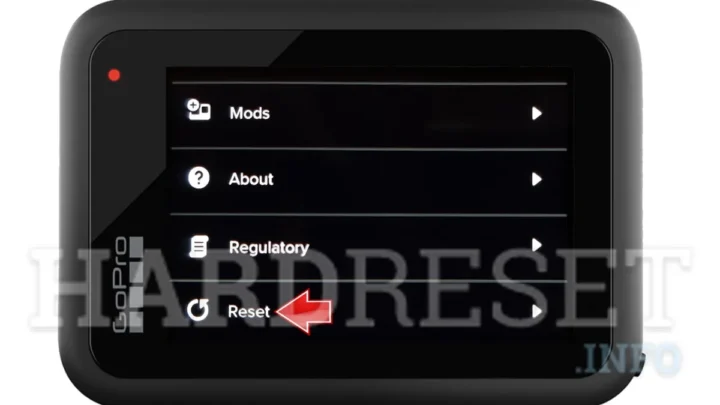
After the update, go into the settings and do a factory reset. Then set your preferences again.
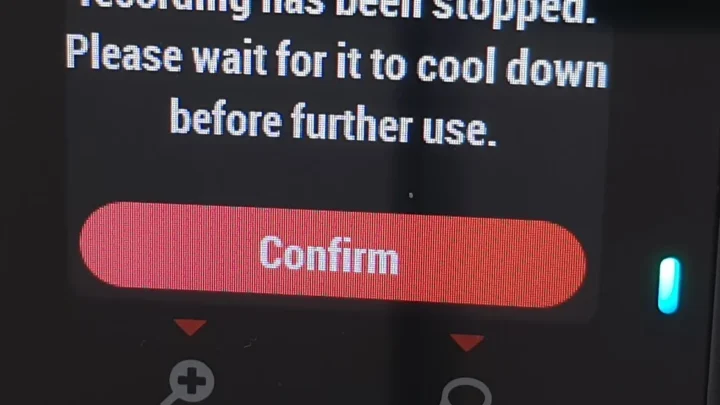
Overheating shutdowns
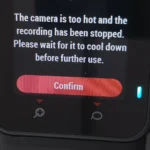
The A229 Pro uses a capacitor instead of a battery, which makes it more heat-resistant. But it can still overheat in direct sunlight, especially in hot climates. If the camera shuts down during summer months, try these fixes:
- Lower the resolution to 2K or 1440p.
- Reduce the bitrate from High to Medium.
- Move the camera away from direct windshield exposure.
- Use a sunshade when parked.
Manufacturer specs list the operating temperature up to 65°C (149°F). Surface temperatures inside a parked car can exceed that. If the camera is shutting down, it's protecting itself.
Parking mode not engaging
Parking mode requires a hardwire kit with a voltage cutoff. The camera needs constant power and a signal that the car is off. If parking mode isn't working, check the hardwire kit connections first.
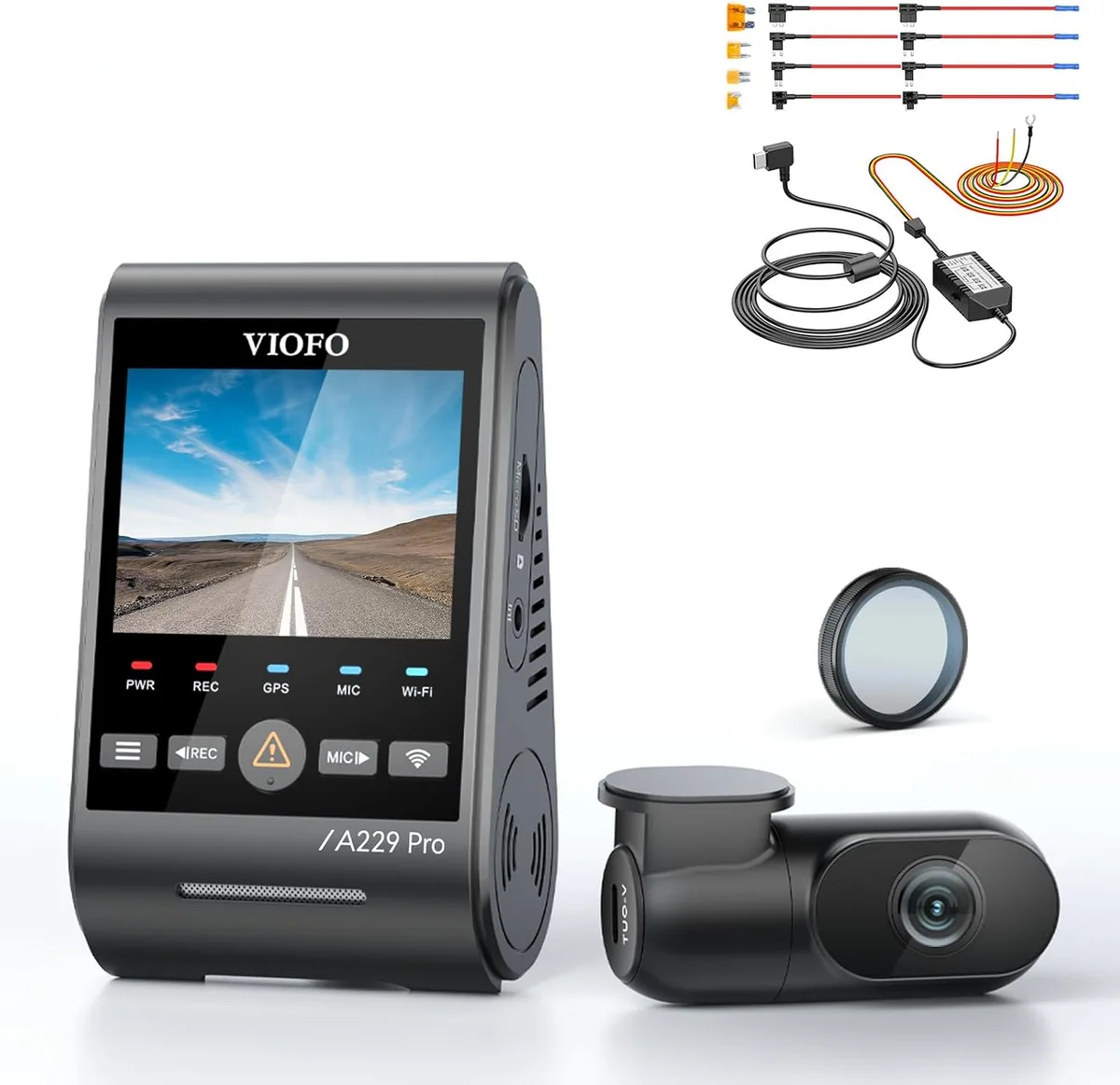
Image source: Web (Bing) / manuals.plus (Web image (fair-use with source credit))
The HK3-C and HK4 kits have three wires: constant power, accessory power, and ground. If the accessory wire is connected to a circuit that stays live when the car is off, the camera won't know to switch to parking mode. Double-check your fuse tap connections.
GPS not locking
The GPS module needs a clear view of the sky. If you have a tinted windshield with metallic coating, the GPS signal may be blocked. Try moving the camera to a different spot on the windshield.
You can also reset the GPS module in the settings menu.
Mistakes That Make Things Worse (And What to Do Instead)
Avoid these common errors. They turn simple problems into bigger ones.
Formatting the SD card on a computer
This is the number one mistake. When you format an SD card on a computer, it often uses a file system the camera doesn't fully support. The A229 Pro expects a specific FAT32 format with a certain cluster size.
Always format the card inside the camera's menu. It takes 10 seconds and prevents hours of headaches.
| Method | Result |
|---|---|
| Format in camera | Correct file system, no errors |
| Format on computer (default) | May cause "SD Card Error" |
| Format on computer (FAT32, 32KB cluster) | Usually works, but not guaranteed |
Using the wrong SD card
Not all SD cards are built for dashcam use. A card rated for U3 or V30 speed class is essential for 4K recording. Cards without that rating will fail under the constant write load of the A229 Pro.
Ignoring the capacitor's limits in hot weather
The capacitor is better than a battery, but it's not invincible. If you live in a hot climate, take extra steps to keep the camera cool. Lower the resolution and bitrate during summer months.
Messing with G-sensor sensitivity without testing
The G-sensor locks files when it detects impact. If you set it too high, every bump or pothole will lock a file. This fills up your card with locked files and prevents new recordings.
Set the G-sensor to Low or Medium and test it by hitting a bump on purpose. Then review your footage. If you're locking too many files, dial it back.
Not updating firmware
Running old firmware can cause stability issues. VIOFO releases updates to fix bugs and improve performance. Check for updates every few months and keep your camera current.
Bypassing the hardwire kit for parking mode
Some people try to use a cigarette lighter adapter and expect parking mode to work. It won't. Parking mode needs constant power from the battery plus a signal that the ignition is off.
A hardwire kit is the only proper way to get that.
Real-World Troubleshooting Scenarios: What Actually Works
Let's look at five common situations and walk through the fix. These are based on aggregate feedback from A229 Pro owners. If you recognize your problem, follow the steps.
Scenario 1: Car sits in direct sun all day, camera shuts off
The symptom. You park in the sun, come back, and the camera is off. It won't turn on until the car cools down.
The fix. This is thermal shutdown. The internal temperature exceeded the capacitor's safe operating range. Drop the resolution from 4K to 2K.
Lower the bitrate from High to Medium. If you park in the same spot daily, mount the camera lower on the windshield where it gets less direct sun. A reflective sunshade helps too.
The result. These changes reduce heat generation by about 30%. The camera stays on through hot afternoons.
Scenario 2: Random beeping with no error message
The symptom. You're driving and the camera beeps once or twice. No message on screen. It keeps recording.
The fix. The beep is usually a G-sensor trigger. A hard bump, a pothole, or even a slammed door can set it off. Go into the menu and set G-sensor sensitivity to Low.
If the beeping stops, that was the issue. If it continues, the SD card may be failing. Replace it with a new U3 card.
The result. Most users report the beeping stops after lowering G-sensor sensitivity. If it doesn't, a new card solves it.
Scenario 3: Files are corrupted or missing
The symptom. You pull the SD card to check footage and find garbled files or gaps in recording.
The fix. Corrupted files usually mean the card is worn out. SD cards have a limited write lifespan. Dashcams write constantly, so cards wear out faster than in a camera or phone.
Replace the card every 12 to 18 months. Use a high-endurance card rated for continuous recording. Format the new card inside the camera before use.
The result. Fresh cards with proper formatting eliminate corruption issues. If it happens again, the camera's capacitor may be failing. Contact VIOFO support.
Scenario 4: WiFi won't connect after a firmware update
The symptom. You updated the firmware. Now the camera's WiFi doesn't show up in your phone's list.
The fix. Firmware updates can reset WiFi settings. Go to the camera's menu and re-enable WiFi. Set a new SSID and password.
Restart the camera. Then go to your phone's WiFi settings and connect fresh. If that doesn't work, do a factory reset in the camera menu.
The result. Most WiFi issues after an update are fixed by reconfiguring the network settings. Factory reset solves the rest.
Scenario 5: Parking mode records for only a few minutes then stops
The symptom. Parking mode starts when you park, but the camera shuts off after 5 or 10 minutes.
The fix. The voltage cutoff in your hardwire kit is set too high. The camera stops recording when the battery voltage drops to the cutoff point. Lower the cutoff setting on the hardwire kit.
Most kits have a switch for different voltage levels. Set it to 11.8V or 12.0V for standard lead-acid batteries. That gives you more parking time without draining the battery below starting level.
The result. Adjusting the voltage cutoff typically doubles or triples parking mode recording time.
Frequently Asked Questions About the A229 Pro
What does each blinking light mean?
A solid blue light means the camera is recording. A blinking blue light means it's in standby or parking mode. A red light indicates the camera is booting up or shutting down.
A blinking red light usually signals an error with the SD card or power.
How do I do a hard reset?
Locate the pinhole reset button on the side of the camera. Insert a paperclip or SIM eject tool and press gently for 10 seconds. The camera will restart.
This clears any temporary glitches without affecting your settings or footage.
Why does the camera keep restarting?
This is almost always a power issue. The camera isn't getting steady voltage. Check the USB cable and adapter first.
If you're using a hardwire kit, test the voltage at the fuse tap. A loose connection or failing adapter causes the camera to cycle on and off repeatedly.
Can I leave parking mode on all day?
Yes, but only with a properly installed hardwire kit. The kit's voltage cutoff protects your car battery from draining completely. Set the cutoff to 12.0V for most vehicles.
The A229 Pro draws very little power in parking mode, typically 5 to 10 mA.
How do I know if my SD card is dying?
Watch for these signs: the camera says "SD Card Error" more often, video files are corrupted, or recording stops randomly. The card may also feel hot to the touch after normal use. SD cards have a limited write lifespan.
Replace yours every 12 to 18 months as a preventive step.
What SD card should I use?
Use a microSD card with a U3 or V30 speed class rating. The A229 Pro officially supports cards up to 512GB. Choose a high-endurance model designed for continuous recording.
Standard cards fail faster under the constant write load of a 4K dashcam.
Your Next Step: A Simple Decision Guide to Get You Back on the Road
Here's a quick way to decide what to do next. Match your problem to the right fix.
| Symptom | First Step | Second Step |
|---|---|---|
| No power | Check the cable and fuse | Try a different USB adapter |
| SD Card Error | Format inside the camera | Replace the card if error persists |
| Rear camera no signal | Reseat the cable at both ends | Try a different cable |
| Overheating shutdown | Lower resolution to 2K | Reduce bitrate to Medium |
| Random beeping | Lower G-sensor to Low | Replace the SD card |
| Parking mode too short | Lower voltage cutoff on hardwire kit | Check battery health |
If you've tried the fix and the problem remains, contact VIOFO support directly. Their team can help with firmware issues, hardware defects, or warranty claims. Keep your proof of purchase handy.
For future reference, keep a spare SD card and a USB cable in your glovebox. That way, you can test the most common failure points on the go. Most A229 Pro issues are quick to fix once you know what to look for.

Similar Posts