Why Is Netgear Nighthawk AX5400 Router Blinking Orange: Fixes
The orange blinking light usually means the NETGEAR Nighthawk AX5400 is booting, connecting, or facing an internet or sync issue.
If your NETGEAR Nighthawk AX5400 router blinking orange has you worried, you are not alone. I have seen this on home networks, office setups, and mesh-style systems, and in most cases the light is trying to tell you something simple: the router is working on a connection problem, not always failing outright. In this guide, I’ll break down what the orange light means, why it happens, and what you can do to fix it fast without guesswork.
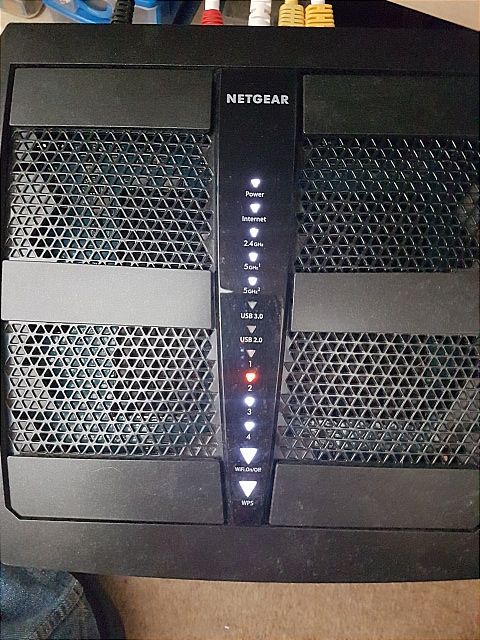
What the Orange Blinking Light Means on a NETGEAR Nighthawk AX5400
The NETGEAR Nighthawk AX5400 router blinking orange is usually a status signal, not a random warning. On many NETGEAR routers, orange or amber lights point to a weak connection, startup process, firmware update, or no internet access.
In plain words, the light is like a dashboard warning on a car. It does not always mean the engine is broken. It often means something needs attention, like the WAN link, modem sync, or wireless backhaul.
From my own troubleshooting work, the first mistake people make is panicking and resetting too soon. A blinking orange light often clears after a few minutes if the router is still booting or negotiating with the modem. The key is to watch the pattern, not just the color.
Why Is NETGEAR Nighthawk AX5400 Router Blinking Orange?
There are several common reasons the NETGEAR Nighthawk AX5400 router blinking orange appears. Some are simple and temporary, while others point to hardware or service issues.
1. The router is still starting up
When the router powers on, it runs checks, loads firmware, and tries to connect to the modem and internet. During this time, the light may blink orange before turning white, green, or another normal status color.
This is very common after a power outage or restart. If the light changes after a few minutes, it was just a startup phase.
2. The internet connection is down
If your modem is offline or your ISP is having an outage, the router may keep blinking orange because it cannot reach the internet. The router can still broadcast Wi-Fi locally, but devices may show “connected, no internet.”
This is one of the most common causes I have seen in real homes. People often blame the router when the real issue is the modem, the coax line, the fiber ONT, or the internet provider.
3. The Ethernet cable is loose or damaged
A bad cable between the modem and router can cause the WAN link to fail. If that connection drops, the router may keep blinking orange because it cannot establish a stable handoff.
Check that the cable clicks into place on both ends. If the cable is old, bent, or frayed, replace it with a known-good Cat5e or Cat6 cable.
4. The router is updating firmware
NETGEAR routers often use firmware updates to improve security and performance. During an update, the light may blink orange while the router installs changes and reboots.
Do not unplug the router during this time. I have seen users interrupt updates and end up with a much bigger problem than the original orange light.
5. The modem and router are not syncing correctly
Sometimes the router and modem need a clean handshake. If the modem is slow to fully boot or the router starts too early, the WAN link may fail and trigger the orange blinking light.
This is especially common after a power outage. The modem and router need to restart in the right order.
6. There is a ISP authentication or service issue
Some internet setups need proper login, provisioning, or activation from the ISP. If the service is not active or the modem is not authorized, the router may appear healthy but still blink orange because it cannot get online.
This can happen after moving service to a new home, changing modems, or replacing the router.
7. Wireless backhaul or mesh link problems
If your AX5400 is part of a mesh or extender setup, the orange light may indicate a weak wireless link between units. In that case, the issue is not your internet line itself, but the signal path between devices.
This usually gets worse when the satellite unit is too far away or blocked by thick walls. A better placement often fixes it quickly.
How to Fix a NETGEAR Nighthawk AX5400 Router Blinking Orange
Before you change settings, start with the basics. Most orange light problems can be fixed with a few simple checks.
Step 1: Check the modem first
Make sure the modem is powered on and online. Look for its status lights and confirm it is getting a signal from your ISP.
If the modem itself is down, the router cannot complete the connection. This is why troubleshooting should always start at the source.
Step 2: Reboot in the correct order
A proper restart can fix a lot of connection glitches.
Follow these steps:
- Unplug the router and modem from power
- Wait 30 to 60 seconds
- Plug in the modem first
- Wait until the modem is fully online
- Plug in the router
- Wait 2 to 5 minutes for the lights to stabilize
This simple order matters more than most people think. I have fixed “failing” routers with this exact method many times.
Step 3: Inspect the cables
Check every cable connected to the router and modem. Make sure the WAN or Internet port cable is seated tightly and not damaged.
If possible, swap in a fresh Ethernet cable. A bad cable can mimic a major router failure.
Step 4: Test the internet line with another device
If another device, such as a laptop connected directly to the modem, also cannot get online, the problem is likely with the ISP or modem. If direct modem access works but the router still blinks orange, the router or its settings may be the issue.
This quick test saves time and avoids unnecessary resets.
Step 5: Update the firmware if you can access the admin page
If the router is partly working, log in to the NETGEAR admin interface and check for firmware updates. Updated firmware can fix bugs, improve stability, and correct status-light behavior.
Only do this if the router is stable enough to stay online during the update. If the router keeps dropping connection, a reboot and cable check should come first.
Step 6: Check the WAN settings
If your ISP uses special connection settings, the router may need the correct WAN mode, VLAN tag, or PPPoE details. A wrong setting can keep the NETGEAR Nighthawk AX5400 router blinking orange because it never completes the internet session.
This is more common with fiber providers and some cable setups. If you are not sure, your ISP can confirm the required settings.
Step 7: Factory reset only as a last resort
A factory reset can clear bad configuration problems, but it also wipes your custom Wi-Fi name, password, and settings. Use it only after you have tried the easier fixes.
If you do reset it, write down your settings first. That saves you from redoing everything from memory.
Common Situations That Trigger the Orange Blink
The NETGEAR Nighthawk AX5400 router blinking orange often appears in a few repeat situations. Knowing them can help you act faster the next time.
After a power outage
Power loss can interrupt boot cycles and modem sync. The router may blink orange until all devices reconnect in the right order.
After moving the router
New placement can affect signal quality, cable length, and mesh backhaul strength. A move that looks harmless can trigger a blinking orange status.
After a firmware update
Temporary orange blinking can happen during or after an update. This is usually normal unless it lasts too long.
When the ISP is having trouble
If your provider has an outage, the router may blink orange even though your hardware is fine. Always check for service problems before assuming the router is broken.
When using a new modem
A new modem may need activation or provisioning. Until that is complete, the router may keep reporting a connection issue.
What the Light Patterns Can Tell You
Understanding the light pattern helps you troubleshoot faster. A solid light and a blinking light do not mean the same thing.
Blinking orange
This often means the router is trying to connect, is updating, or has no internet link.
Solid orange
This may indicate a warning state, limited connection, or poor link quality depending on the model and current mode.
White or green
These usually mean the connection is stable and functioning normally on many NETGEAR systems.
Keep in mind that exact meanings can vary slightly by model and firmware version. That is why the user manual and admin dashboard are useful if the label behavior seems unclear.
Real-World Troubleshooting Tips That Save Time
After working on many home network issues, I learned a few habits that make fixing the NETGEAR Nighthawk AX5400 router blinking orange much easier.
Start with the simplest cause
Most people skip the modem check and jump straight into resets. That often wastes time and creates new problems.
Test one change at a time
If you change cables, restart the devices, and reset settings all at once, you will not know what actually fixed the issue. One step at a time is slower, but it is smarter.
Give the router time to settle
A router that has just rebooted may need several minutes. Patience matters, especially after updates or power interruptions.
Keep the ISP info handy
If your connection uses PPPoE or special provisioning, write down the details. That makes recovery much easier after a reset.
Do not ignore weak placement
If the router sits behind a TV, inside a cabinet, or near thick walls, the signal can suffer. Heat and interference can also make the system less stable.
When to Contact NETGEAR or Your Internet Provider
If the NETGEAR Nighthawk AX5400 router blinking orange continues after basic troubleshooting, it is time to narrow down responsibility.
Contact your ISP if:
• The modem is offline
• Direct modem testing shows no internet
• There is a neighborhood outage
• Your service was recently changed, moved, or reactivated
Contact NETGEAR support if:
• The router will not finish booting
• The orange light never clears after rebooting and cable checks
• Firmware seems corrupted
• The router behaves strangely after a reset
If the device is still under warranty, support may guide you through recovery or replacement options. That is better than guessing and risking a longer outage.
How to Prevent the Orange Light From Coming Back
Once you fix the issue, a few habits can reduce future problems.
• Use good quality Ethernet cables
• Keep firmware updated
• Restart modem and router in the correct order after outages
• Place the router in an open, central spot
• Avoid overheating by leaving room around the device
• Check ISP service status before assuming the router has failed
These small steps make a big difference. In my experience, many repeat orange-light issues come from heat, cable wear, or bad restart habits rather than serious hardware damage.
Frequently Asked Questions of Why Is NETGEAR Nighthawk AX5400 Router Blinking Orange?
Why is my NETGEAR Nighthawk AX5400 router blinking orange after a restart?
It is often normal right after a restart because the router is booting and reconnecting to the modem. If it keeps blinking for more than a few minutes, check the modem, cables, and internet service.
Does a blinking orange light mean my router is broken?
Not usually. It more often points to a connection problem, startup process, or update state rather than permanent damage.
How long should the orange light blink on a NETGEAR Nighthawk AX5400?
A few minutes is common during startup or after firmware updates. If it lasts much longer, especially with no internet access, troubleshooting is needed.
Can bad Ethernet cables cause the router to blink orange?
Yes, absolutely. A loose, damaged, or low-quality cable can stop the modem and router from syncing properly.
Should I factory reset my router if it keeps blinking orange?
Only after trying rebooting, cable checks, and modem checks first. A factory reset can help with bad settings, but it should be a last resort because it erases your custom configuration.
Conclusion
The NETGEAR Nighthawk AX5400 router blinking orange is usually a sign of a startup delay, modem sync problem, cable issue, firmware update, or internet outage. In most cases, the fix is simple: check the modem, reboot devices in the right order, inspect the cables, and confirm your ISP service is active.
The big lesson is not to rush into a reset. Slow, steady troubleshooting almost always saves time and protects your settings. If the orange light still will not clear, use the clues in this guide to decide whether the issue belongs to the router, the modem, or the internet provider.
If this helped, try the steps today and share your experience with others facing the same orange light problem.

Similar Posts