Why Is Elgato Stream Deck XL Not Working: Fixes
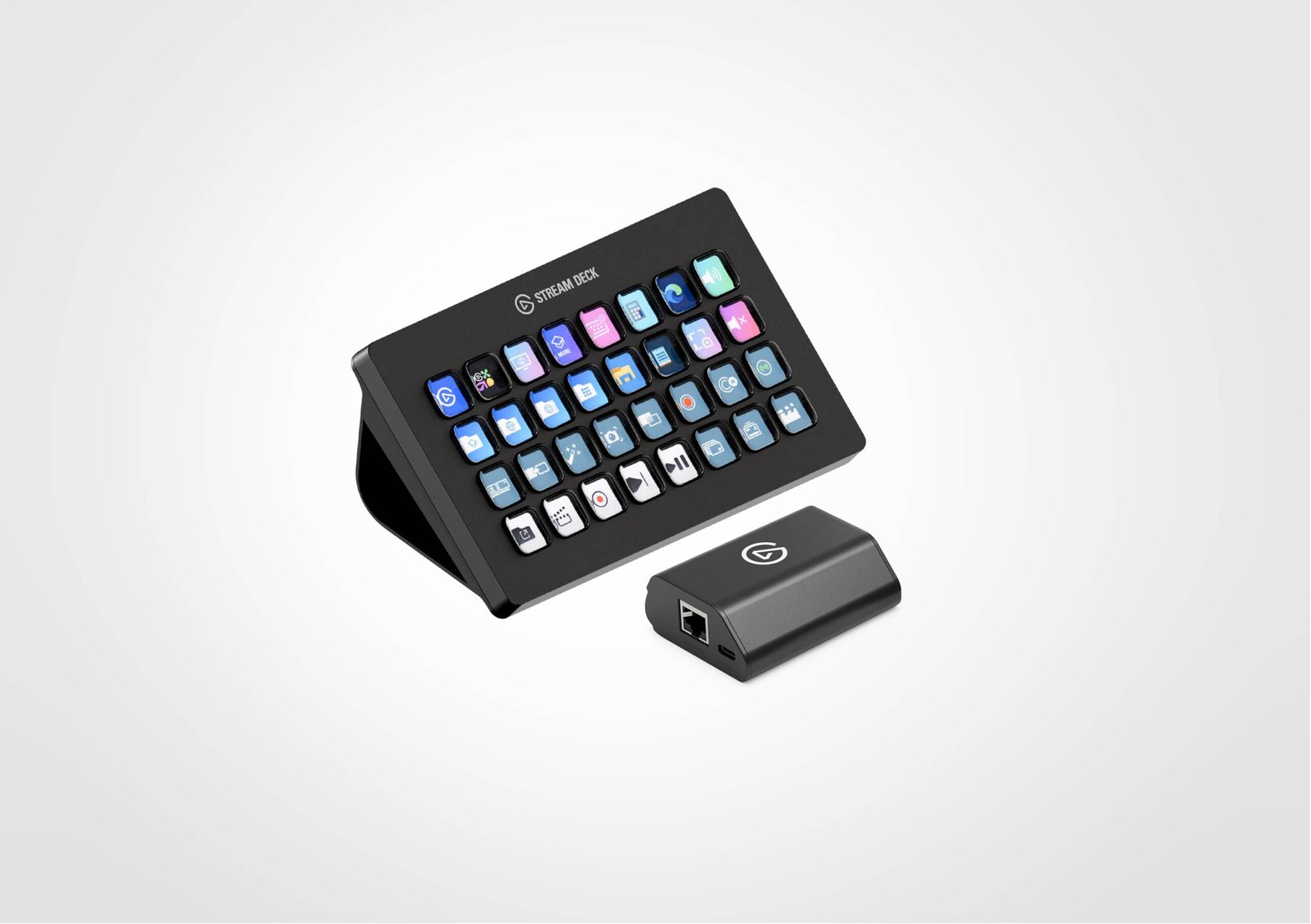
Elgato Stream Deck XL usually stops working because of software conflicts, USB issues, bad profiles, or outdated firmware.
If your Elgato Stream Deck XL is acting up, you are not alone. I have seen this happen in real setups, and the cause is often simpler than it looks. In most cases, the fix comes down to a bad connection, a software glitch, or a setting that got changed without notice. This guide walks through the real reasons the Elgato Stream Deck XL not working problem happens and shows you how to get it back on track fast.
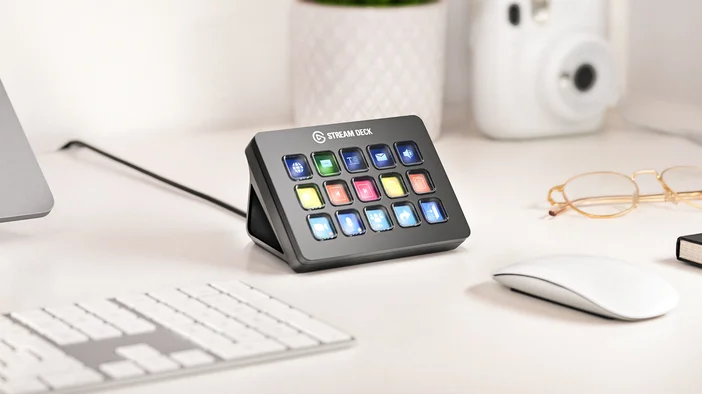
Why Is Elgato Stream Deck XL Not Working?
The Elgato Stream Deck XL not working issue usually comes from one of five areas: the USB connection, the Stream Deck app, firmware, conflicting software, or profile errors. Sometimes the device is powered but not detected. Other times, the buttons are frozen, the display is blank, or actions do not trigger inside OBS, Discord, or other apps.
From hands-on use, I have found that people often blame the device first when the real problem is the cable or a hidden app conflict. Think of it like a power strip with one loose plug. Everything looks fine until you try to use it.
The good news is that most Elgato Stream Deck XL not working problems are fixable without replacing the device.

Common Reasons the Elgato Stream Deck XL Stops Working
Before jumping into repairs, it helps to know what usually goes wrong. The Stream Deck XL is a smart peripheral, so it depends on a clean chain of hardware and software working together.
USB connection problems
A weak or unstable USB connection is one of the most common causes. If the cable is loose, damaged, or plugged into a low-power port, the Stream Deck XL may not wake up properly.
Outdated Stream Deck software
The Stream Deck app controls the device. If the app is old, corrupted, or partially installed, the hardware may still light up but fail to respond.
Firmware issues
Firmware is the device’s internal software. If an update did not complete or the firmware is mismatched with the app, the Elgato Stream Deck XL not working issue can show up right away.
Conflicting apps and plugins
Streaming tools, macro apps, keyboard software, and overlay tools can clash with Stream Deck. I have seen profile switching and button actions fail simply because another app was grabbing the same shortcuts.
Corrupted profiles or actions
Sometimes the device is fine, but the profile is broken. A missing icon file, bad plugin, or damaged action can make some buttons seem dead.
System permission problems
On macOS and Windows, privacy permissions matter. If the app does not have access to accessibility features, input monitoring, or background activity, some actions may fail.
Start With the Fastest Fixes First
When the Elgato Stream Deck XL not working issue appears, start simple. In my experience, the best troubleshooting path is the one that rules out the easy stuff before the deeper stuff.
Check the USB cable and port
Try these steps first:
- Unplug the Stream Deck XL and plug it back in
- Use a direct USB port on the computer, not a hub
- Try another USB port
- Test a different USB cable if you have one
- Avoid long extension cables for now
If the device works on one port but not another, the issue is likely power or port related.
Restart the Stream Deck app
A quick app restart can clear a temporary software freeze. Fully quit the app, wait a few seconds, then open it again. If that fails, restart the computer too.
Reboot the computer
This sounds basic, but it fixes more problems than people expect. Background drivers and device services can get stuck, and a reboot often clears the issue.
Test another app or profile
If only one button or one profile is failing, the issue may not be the hardware. Switch to a default profile and see whether the device responds normally.
How to Fix Elgato Stream Deck XL Not Working on Windows
Windows users often deal with driver conflicts, USB power settings, and background app issues. The fix is usually a mix of cleanup and reinstallation.
Reinstall the Stream Deck software
If the app is corrupted, a clean reinstall can help.
- Uninstall the Stream Deck app
- Restart the computer
- Download and install the latest version
- Open the app and test the device
This is one of the most reliable fixes when the Elgato Stream Deck XL not working problem appears after an update.
Check Device Manager
Open Device Manager and look for unknown devices or USB warnings. If you see any issues, try updating the USB controller drivers. In some cases, unplugging the device, restarting, and plugging it back in will force Windows to re-detect it.
Turn off USB power saving
Windows may try to save power by shutting down USB devices.
- Open Device Manager
- Find USB Root Hub or similar entries
- Open Properties
- Look for power management settings
- Uncheck any option that allows the computer to turn off the device
This fix helped in one of my past setups where the Stream Deck XL kept disconnecting after sleep mode.
Run the app as administrator
Some shortcuts and integrations need higher permissions. Right-click the app and choose Run as administrator to test whether permissions are the issue.

How to Fix Elgato Stream Deck XL Not Working on Mac
On Mac, the problem often comes from permission blocks or app conflicts. macOS is strict about what hardware control apps can do, so even a small permission miss can break things.
Grant the right permissions
Go to System Settings and check these areas:
- Accessibility
- Input Monitoring
- Background App Refresh or Login Items
- Screen Recording, if you use capture-related actions
If the Stream Deck app is not allowed, some buttons may not trigger properly.
Remove and reinstall the app
A clean reinstall can fix damaged app files. Delete the app, restart your Mac, then install the latest version again. After that, reopen permissions if macOS asks for them.
Check for conflicting input tools
Apps that manage hotkeys, macros, or overlays can interfere. I have seen keyboard remappers and game overlay tools cause the Elgato Stream Deck XL not working issue on Mac more than once.
Test with a fresh profile
Create a simple test profile with one or two basic actions. If those work, your original profile may be corrupted.
Firmware and Software Updates Matter More Than People Think
Old firmware and old app versions often create silent failures. The device may appear connected but still refuse to respond.
Update the Stream Deck app
Always use the latest stable version. Updates often include bug fixes for device detection, profile loading, and plugin support.
Update device firmware
If the app prompts you to update firmware, do it carefully and do not unplug the device during the process. A partial firmware update can make the Elgato Stream Deck XL not working issue worse.
Keep plugins current
Third-party plugins can be useful, but they can also break after app updates. If the problem started right after adding a plugin, disable it first.
Profile, Folder, and Action Errors Can Look Like Hardware Failure
A lot of people think the hardware is dead when the real issue is inside the profile. That is why it helps to test from the inside out.
What to check in profiles
Look for:
- Missing icons
- Broken plugin actions
- Empty folders
- Incorrect app targets
- Duplicate hotkeys
- Wrong profile assigned to the current app
Why this happens
Profiles can get messy over time, especially if you move between games, streaming tools, and work apps. It is like a toolbox where every wrench got mixed with spare screws. The tools are still there, but finding the right one is the problem.
Best way to test
Create a brand-new profile and add:
- One mute button
- One scene switch
- One text action
- One folder button
If the new profile works, the device is fine and the old profile needs cleanup.
Hardware Problems to Consider
If the software checks out, the issue may be physical. That does not always mean the device is broken, but it does mean you should inspect it closely.
Signs of a hardware issue
- The screen stays black
- Buttons do not light up
- The device disconnects randomly
- The device works on one computer but not another
- The cable feels loose or damaged
What to inspect
Look at:
- The USB cable
- The USB port
- The housing for any damage
- Dust or debris near the connection
- Any bend or strain on the cable end
If the Stream Deck XL works on another computer, the original computer is the likely cause. If it fails everywhere, the device or cable may need replacement.
My Practical Troubleshooting Order
When I troubleshoot the Elgato Stream Deck XL not working problem, I follow a simple order. It saves time and avoids guesswork.
- Test another USB port
- Swap the cable
- Restart the computer
- Reopen the Stream Deck app
- Update the app and firmware
- Check permissions
- Disable conflicting plugins
- Try a clean profile
- Test on another computer
This order works because it moves from the easiest fix to the most likely deeper cause. It also helps you avoid wiping profiles too early.
How to Prevent Future Problems
Once the device is working again, a few habits can keep it stable.
Use a direct USB connection
Avoid cheap hubs unless you know they provide stable power. A direct port is the safest choice.
Keep software updated
Update the Stream Deck app, your OS, and plugins on a regular schedule. Small updates often prevent big headaches later.
Back up your profiles
If you spend time building custom setups, back them up. A profile backup can save hours if something gets corrupted.
Keep profiles simple
Do not overload one profile with too many experimental actions. Simple layouts are easier to maintain and less likely to break.
Monitor plugin quality
Only install plugins you really trust and use. Too many plugins can make the app unstable over time.
Frequently Asked Questions of Why Is Elgato Stream Deck XL Not Working?
Why is my Elgato Stream Deck XL connected but not responding?
This usually means the device has power, but the app or profile is not working right. Check the Stream Deck software, permissions, and current profile first.
Why does my Stream Deck XL go blank after sleep mode?
Sleep mode can cut USB power or confuse the app when the computer wakes up. Reconnecting the device, changing USB power settings, or updating the app often fixes it.
Why are only some buttons on my Stream Deck XL not working?
That usually points to a profile or plugin issue, not full hardware failure. Test the buttons in a fresh profile to see whether the problem follows the action or stays with the device.
Can a bad USB hub cause Stream Deck XL problems?
Yes, a weak or overloaded USB hub can cause disconnects or missed inputs. Plug the device directly into the computer to rule this out.
Do I need to reinstall the Stream Deck app if the device stops working?
Not always, but it is one of the best next steps if basic checks fail. A clean reinstall can fix damaged files, broken updates, and detection issues.
Can third-party plugins break my Stream Deck XL?
Yes, plugins can conflict with updates or other software. If the device started failing after a plugin install, disable that plugin first.
Conclusion
The Elgato Stream Deck XL not working issue is usually caused by something fixable, not a dead device. In most cases, the problem comes from USB instability, app errors, firmware mismatch, permissions, or a broken profile. When you work through the checks in the right order, you can usually bring it back without much stress.
The key is to stay methodical. Start with the cable and port, then move into software, permissions, and profiles. If you treat it like a puzzle instead of a panic moment, you will solve it much faster.
If this guide helped, try the troubleshooting steps on your own setup and share what fixed it for you in the comments.

Similar Posts