Zebra Zd410 Troubleshooting
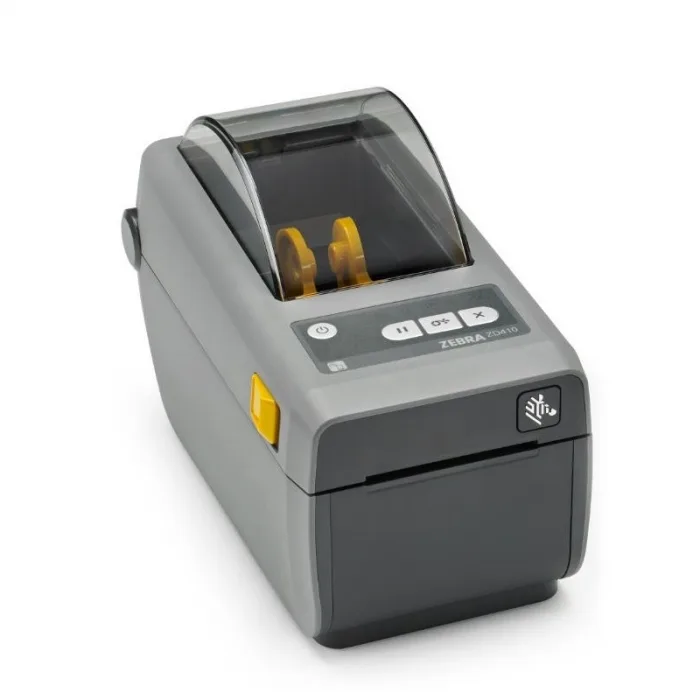
Your Zebra ZD410 is acting up, and you need answers now. This guide will walk you through the most common problems in a logical order, so you can get back to printing labels without the frustration.
The ZD410 is a solid little printer, but like any piece of hardware, it has its quirks. Most issues come down to three things: a dirty printhead, incorrect media settings, or a sensor that needs recalibration. Let's start there and work through the fixes step by step.
Image source: Bing (Web (fair-use with source credit))
Decoding the Status Light Patterns
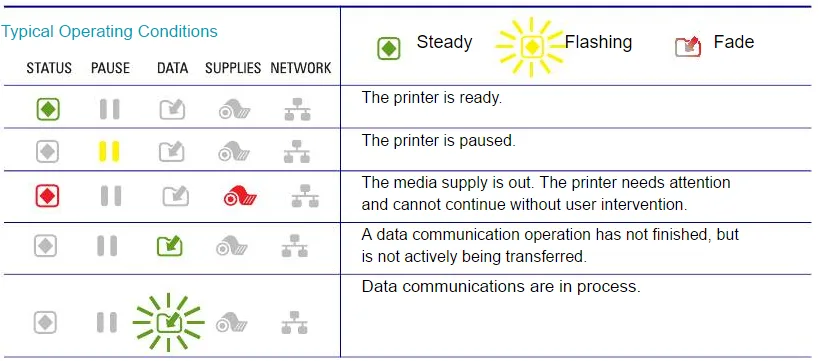
Image source: Bing (Web (fair-use with source credit))
The status light on the front of the printer is your first clue. It tells you what the printer thinks is wrong. Learn to read it, and you'll save yourself a lot of guesswork.
Blinking Green
The printer is online and waiting for data. It's ready, but nothing is coming through. Check the connection.
- If you're using USB, unplug it and plug it back in.
- If you're on a network, verify the printer's IP address hasn't changed.
- Try sending a test print from your computer.
Solid Red
A solid red light usually means a label jam or an open door. Open the top cover and inspect the media path. Remove any stuck labels or pieces of liner.
Close the door firmly. If the issue is cleared, the light should turn green.
Blinking Red
Blinking red typically means "out of labels" or "ribbon out." Check the media roll first. If labels are present and you're using thermal transfer, check the ribbon. A misaligned or empty ribbon will trigger this light.
Alternating Green/Red
This pattern means the firmware is updating. Do not unplug the printer during this cycle. Wait a few minutes for it to finish.
If it's stuck in this pattern for over ten minutes, you'll need to reflash the firmware manually using a USB cable.
Blank Labels or Faded Print
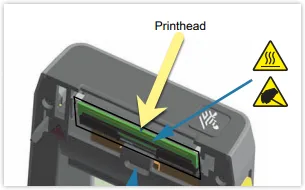
Image source: Bing (Web (fair-use with source credit))
Blank labels are the most common complaint. The printer feeds paper and makes noise, but nothing shows up. The cause is usually one of three things: a dirty printhead, wrong driver settings, or a sensor that can't find the gap between labels.
Clean the Printhead
The printhead picks up residue over time, especially with thermal transfer printing. Direct thermal printers collect dust too. Turn the printer off, open the top, and gently wipe the dark element with a cotton swab dipped in 90% isopropyl alcohol.
Let it dry completely before printing. This single step fixes a surprising number of print quality issues.
Recalibrate the Sensor
The sensor must see the gap between labels to know where one ends and the next begins. If it can't, the printer might print in the middle of a roll or feed multiple blank labels. Hold the pause button while turning the printer on.
The printer will run a calibration routine and feed a few labels. Sometimes you need to run this twice to get a clean read.
Check Driver Settings
This is a frequent culprit. Open your printer preferences and verify the label dimensions match the actual roll. If the software says 4×6 inches but the roll is 2×2 inches, the printer will behave erratically.
Also, confirm you've selected the correct media type: thermal transfer or direct thermal.
| Symptom | Likely Cause | Quick Fix |
|---|---|---|
| Blank labels | Dirty printhead | Clean with 90% isopropyl alcohol |
| Faded print | Low darkness setting | Increase darkness in driver preferences |
| Vertical white lines | Debris on printhead element | Wipe printhead with cotton swab |
| Print offset | Wrong label size in driver | Adjust label dimensions in preferences |
Label Jams and Feed Issues
Jams happen. That's normal. But if the ZD410 jams repeatedly, you have a setup or mechanical issue.
It's rarely a broken printer. It's usually a roll problem or a sensor problem.
Inspect the Media Path
Open the top cover and look at the path. The labels should run straight from the roll to the tear bar. Check for peeled edges.
A label that's lifted slightly will catch on the platen roller and cause a jam. Trim any curled corners with scissors.
Adjust Roll Tension and Alignment
The media roll needs to sit flush against the guides. If it's loose, the labels will shift and feed unevenly. Adjust the media guides so they hold the roll snugly without pinching it.
The roll should spin freely with minimal resistance.
Match Sensor to Media Type
The sensor sits underneath the media path. It needs to align with the gap between labels. If you're using continuous paper with no gaps, you must change the media type in the driver to "continuous." Otherwise, the sensor will search for a gap that doesn't exist, causing feed errors.
If the printer feeds multiple labels before printing, the sensor isn't detecting the gaps correctly. Run the auto-calibration routine again. If that doesn't help, manually clean the sensor with compressed air.
Dust buildup on the sensor window is common.
Connectivity Problems: USB, Serial, and Network
Connectivity issues are frustrating because the printer seems fine, but your computer can't see it. Let's isolate the problem step by step.
USB Recognition Issues
Unplug the USB cable, wait ten seconds, and plug it back in. Listen for the Windows "device connected" sound. If you don't hear it, try a different USB port.
Avoid USB hubs, as they often don't supply enough power. If the device still isn't recognized, reinstall the driver.
Serial Port Configuration
If you're using a serial connection, check the baud rate and parity settings. The ZD410 defaults to 9600 baud, 8 data bits, no parity, and 1 stop bit. Your software must match these settings exactly.
Any mismatch results in garbled data or no response at all.
Ethernet and Network Setup
For network printing, ping the printer's IP address from your computer. Open Command Prompt and type ping [printer IP]. If you get replies, the printer is on the network.
If you get a timeout, check the Ethernet cable and the link light on the printer's port.
A solid green link light means a good connection. A blinking or absent light means a cable issue or a bad switch port. Try a different cable or plug into a different port.
Print Quality Issues
Beyond blank labels, you might see streaks, dark spots, or uneven print. These issues usually point to the printhead or the media itself.
Dark Spots or Streaks
Dark spots that repeat at regular intervals indicate debris on the printhead or a damaged platen roller. Clean the printhead first. If the spots persist, inspect the platen roller for nicks or gouges.
A damaged roller needs replacement.
Uneven Print Density
If one side of the label prints darker than the other, the printhead pressure is uneven. The printhead should apply even pressure across the label. Check the release levers on each side of the printhead.
Make sure they're both fully locked.
Faded Edges
Faded edges often happen when the label stock is wider than what the driver expects. The printhead can't reach the full width. Verify the label width setting matches the actual media.
Also, check that the media guides aren't blocking the printhead path.
Media and Ribbon Settings for Thermal Transfer
If you're using thermal transfer, the ribbon settings matter just as much as the label settings.
Ribbon Tension
The ribbon should move smoothly with the labels. If it's too loose, it will wrinkle, causing poor print quality. If it's too tight, it can snap or cause the printer to stall.
Adjust the tension knob or the ribbon guide until the ribbon feeds evenly.
Ribbon Ink Transfer
If the print is faint even at high darkness settings, the ribbon might be coating the wrong side. The ribbon's ink side must face the label. Install the ribbon so the ink side contacts the media.
You can test this by rubbing your finger on both sides, one will feel slightly waxy.
Ribbon Sensor Issues
The ZD410 uses a sensor to detect the ribbon's end. If the ribbon is loaded incorrectly, the sensor might think there's no ribbon. Reinstall the ribbon, ensuring it threads through the sensor properly.
Calibrate the printer again after reinstalling.
Firmware Updates and Resets
Sometimes the printer just needs a software refresh. Outdated firmware can cause erratic behavior, communication errors, and print quality issues.
Check Current Firmware
Print a configuration report to see the current firmware version. Press and hold the pause button while turning the printer on. Release the pause button when the light starts flashing.
The printer will print a report showing the version number. Visit the Zebra support site to see if a newer version is available.
Update Firmware
Download the latest firmware to your computer. Connect the printer via USB and run the firmware update utility. Follow the on-screen instructions.
Do not disconnect the printer during the update, or you risk bricking the device.
Factory Reset
If firmware updates don't help, perform a factory reset. This restores the printer to its default state. You'll lose all custom settings, so have your configuration ready to reapply.
To reset, turn off the printer, then hold the pause button while turning it on. Wait for the light to blink four times, then release.
Routine Maintenance That Prevents Issues
Prevention beats troubleshooting every time. A little regular care keeps the ZD410 running smoothly.
Weekly Cleaning Schedule
Wipe the printhead with a dry cotton swab after every ribbon change or every few rolls of labels. Use isopropyl alcohol for deeper cleaning once a week. Clean the platen roller with a lint-free cloth dampened with alcohol.
Remove any sticky residue from the media guides.
Use Quality Media
Cheap label stock can cause more problems than it saves. Inferior labels often have poor adhesive, inconsistent gaps, or excessive dust. These issues lead to jams, sensor errors, and poor print quality.
Stick with reputable brands that match Zebra's specifications.
Store Labels Properly
Labels and ribbons are sensitive to heat and humidity. Store them in a cool, dry place. Avoid direct sunlight.
If labels have been in a cold storage area, let them reach room temperature before loading them into the printer. This prevents condensation from forming on the media.
When to Call for Professional Help
Some issues require a technician. If you've worked through these steps and the printer still fails, it's time for professional service.
Unusual Noises
Grinding or clicking sounds during printing indicate a mechanical problem, often a worn gear or a failing motor. These parts need replacement with specialized tools.
Persistent Error Codes
If the same error keeps returning after a reset and recalibration, there's likely a hardware fault, such as a damaged sensor or a failed logic board. A technician can diagnose this quickly.
Physical Damage
Broken latches, cracked covers, or damaged connector pins need professional attention. Attempting DIY repairs can void the warranty and cause further damage.
Final Thoughts
The Zebra ZD410 is a reliable workhorse, but it needs care and correct setup. Most issues boil down to a dirty printhead, misaligned media, or incorrect driver settings. Work through this guide in order, and you'll resolve the majority of problems without calling for help.
Keep a routine maintenance schedule, use quality labels, and store your media properly. These simple habits prevent most issues before they start. And if you do get stuck, you now know exactly what to check and when to bring in a professional.

Similar Posts