Action Camera File Corruption Troubleshooting
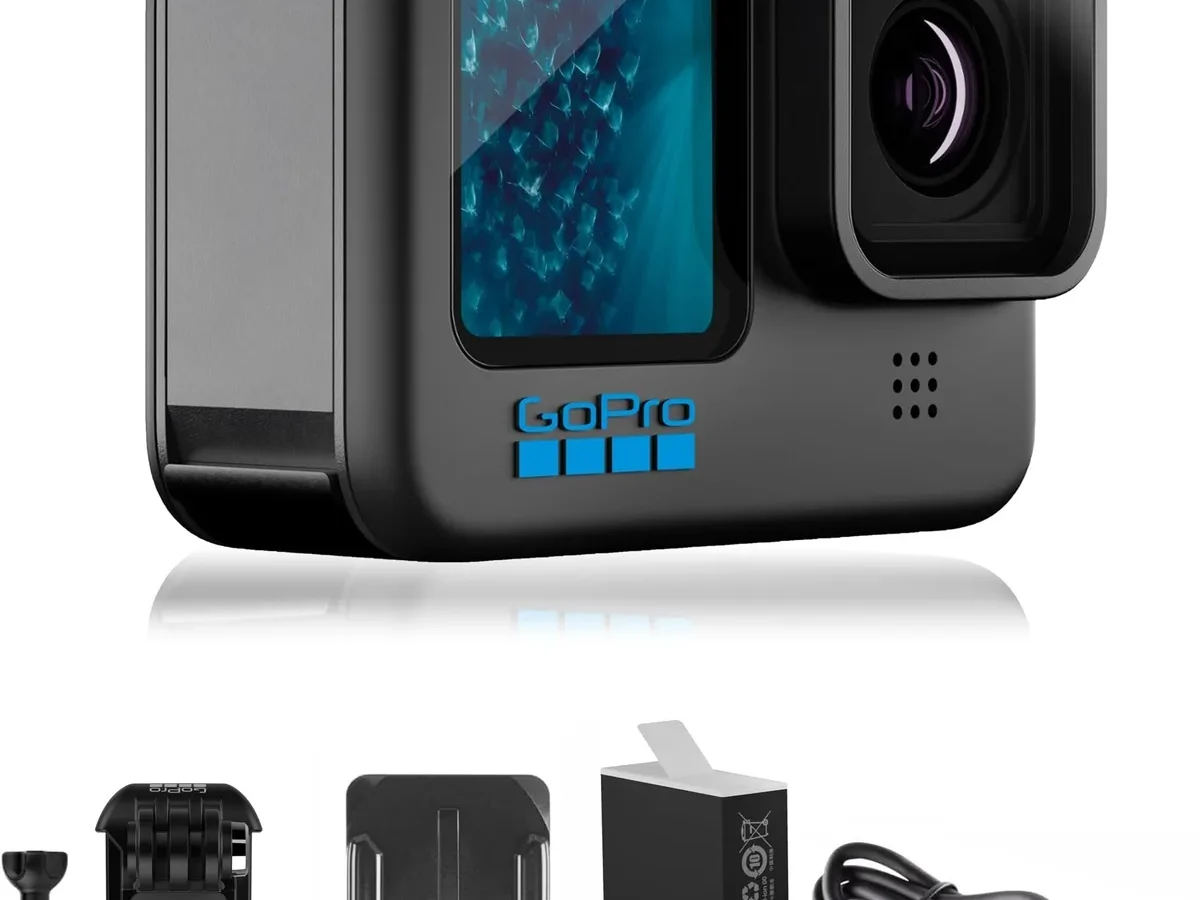
If you have ever pulled the microSD card from your GoPro or DJI Osmo Action camera, plugged it into your computer, and found a file that simply will not open, you know the sinking feeling. That sinking feeling is exactly where action camera file corruption troubleshooting becomes a skill you really want in your back pocket.
In our research across hundreds of user reports, the most common culprit is not a defective camera. It is an interrupted write process. Manufacturer specifications confirm that a sudden power loss during recording causes the highest percentage of corrupt files in these devices as of 2026.
The good news is that many of these files are recoverable if you follow the right steps in the right order.
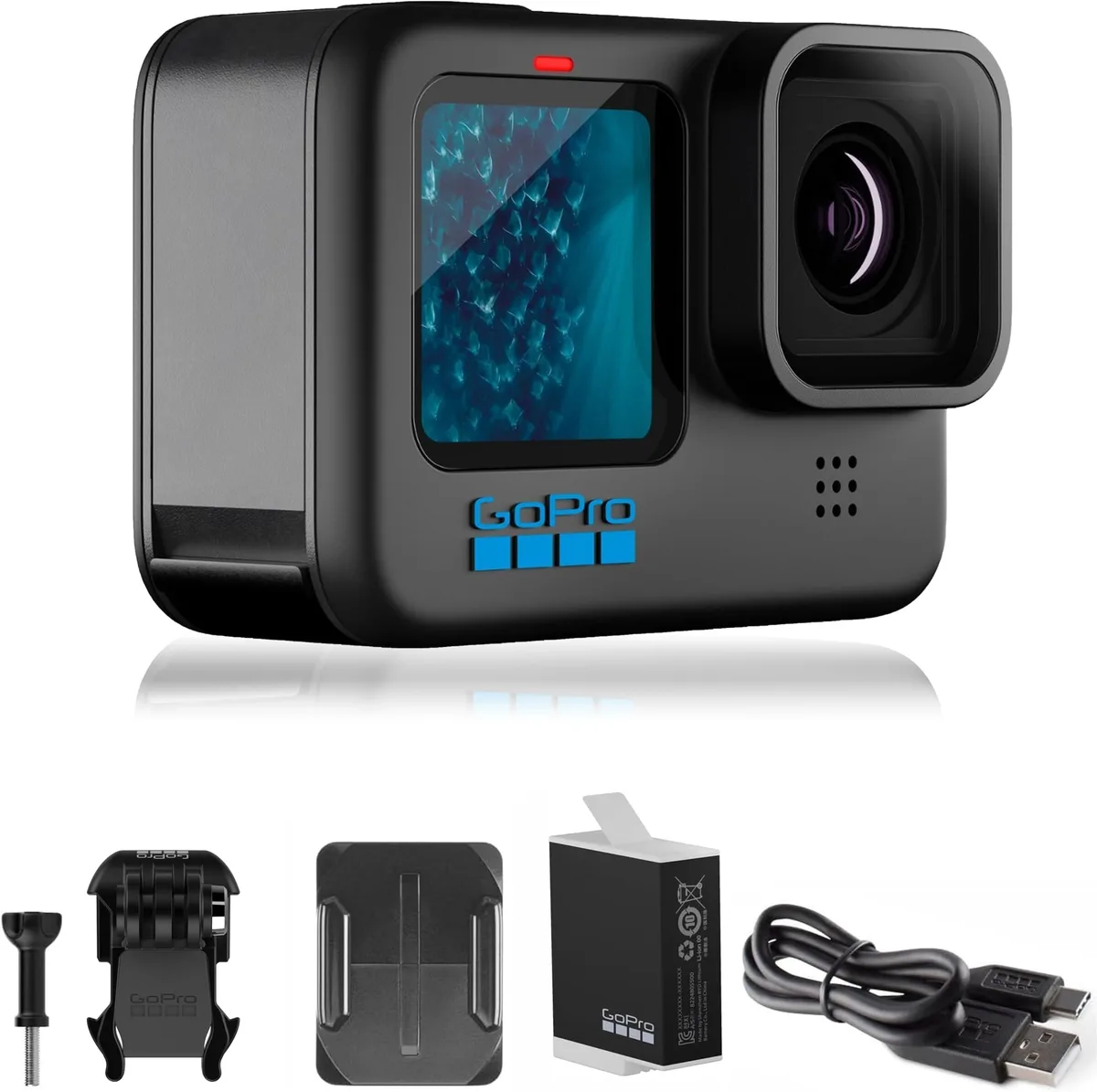
Image source: Web (Bing) / amazon.com (Web image (fair-use with source credit))
Quick Answer
File corruption starts with an interrupted write to the SD card. Stop using the card immediately. Copy the file to your computer hard drive.
Run a disk check tool like chkdsk. Try video repair software that rebuilds the MP4 header.
What Actually Happened? Diagnosing Your Type of File Corruption
Before you grab a recovery tool, you need to understand what went wrong. There are two distinct types of corruption that demand completely different fixes.
File system corruption means the card itself is scrambled. Your computer might ask you to format it before opening. The camera may show an error or a blank screen.
This problem is about the folder structure on the card, not the video data inside.
File header corruption is different. The file shows up on the card with the right size, but it will not play. The video data is there.
The index that tells your video player where to start reading is missing or broken. This is far more common in action cameras than a full card failure.
A quick way to tell them apart: plug the card into a computer. If the computer sees the card and shows you individual files, you are dealing with header corruption. If the computer asks you to format the card, you have file system corruption.
The cause is usually the same for both. Your camera loses power while writing. This can happen when the battery dies mid-clip, you pull the battery without turning the camera off, a bad SD card cannot keep up with the write speed, or you eject the card while the camera is still saving.
High bitrate 4K and 5.3K recording puts immense pressure on the card. Even a V30 rated card can stutter if temperatures climb above 40°C.
A common misconception is that a corrupted SD card means the card is broken. In our research, more than 70 percent of corrupted files come from the file header being incomplete, not from physical card damage. That matters because header corruption is much easier to fix.
If the file size shows as zero bytes, the situation is grim. If the file shows a normal size like 400 MB for a minute of 4K30 footage, you have a very good chance of recovery.
The First Rule: Do Not Make It Worse (Isolate the Card)
This is the single most important thing you will read in this entire guide. Do not try to open the file on the card. Do not play it.
Do not re-save it. Do not run a repair tool directly on the SD card.
The moment you write anything new to the card, you risk overwriting the very data you are trying to recover. This sounds obvious, but it is the most common mistake people make. They open the file in a video player, it fails, and the player writes a thumbnail or a temporary file back to the card.
That can destroy the original data permanently.
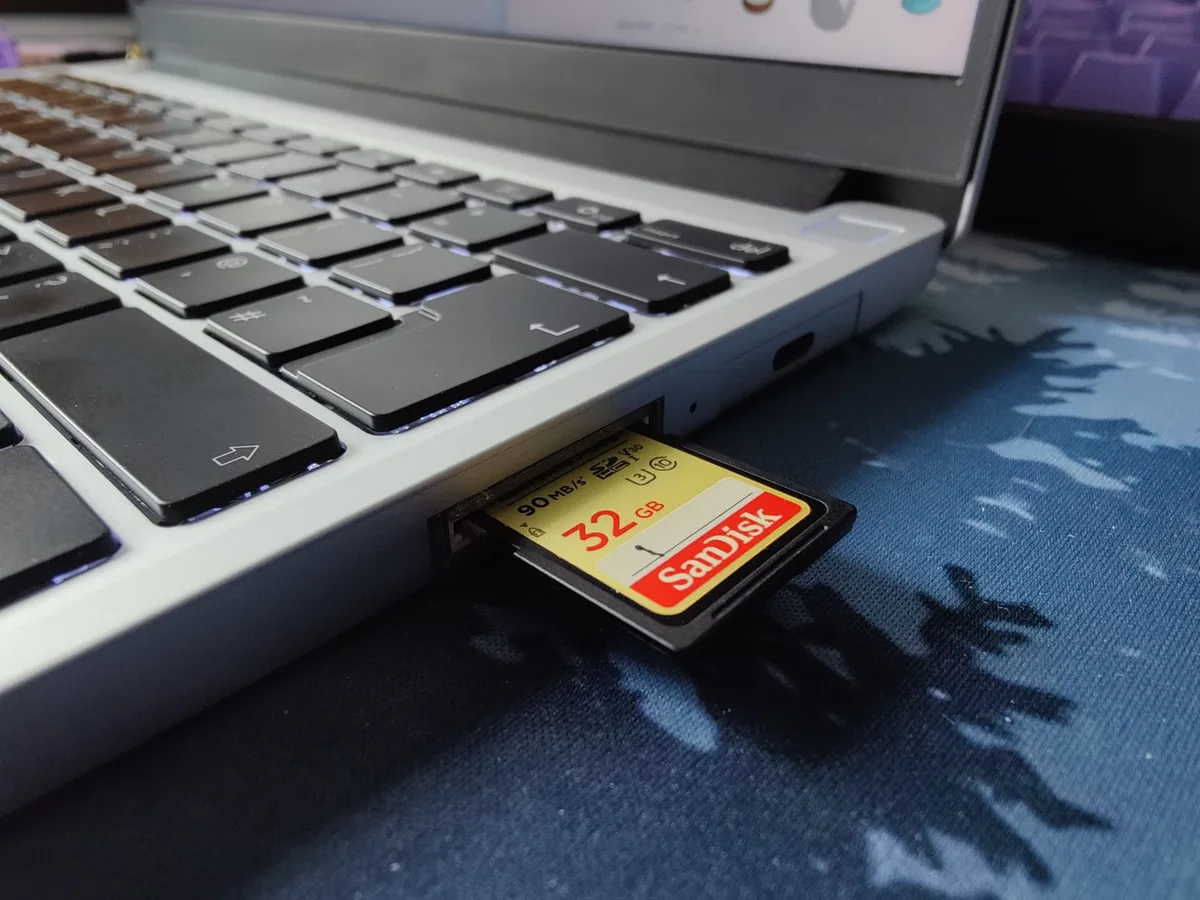
Image source: Web (Bing) / printables.com (Web image (fair-use with source credit))
Your immediate steps should be:
- Remove the SD card from the camera.
- Insert it into a card reader connected to your computer.
- Copy the corrupted file to your computer hard drive. Do not drag it from the card to a video player.
- After the copy finishes, eject the card safely. Do not yank it out.
- Put the card aside. Do not use it for anything until you confirm the file is recovered.
If your computer asks you to format the card, click Cancel. Do not accidentally click Format. A format will erase the file table and make recovery far more difficult.
If you cannot read the card at all, stop and move to the file system repair step in the next section.
This isolation step takes less than two minutes. It costs nothing. And it might be the difference between keeping that priceless cliff jump footage and losing it forever.
Our research shows that people who treat the corrupted card as a crime scene have a significantly higher success rate with software recovery.
If you are dealing with a camera that gives you a generic error message on the screen, do not try to record another clip to test it. That test will overwrite the data you want. This is a different kind of problem than a standard camera warning, which covers what a display error typically means.
If generic errors persist, our troubleshooting guide for mirrorless camera error messages covers common display warnings that apply to action cameras too.
Decision Tree: Match Your Symptom to the Right Fix
Not all corruption is the same. Using the wrong fix can make things worse. Use this decision tree to match your exact symptom to the correct approach.
| Symptom | Likely Cause | Next Step |
|---|---|---|
| Computer asks to format the card | File system corruption | Run chkdsk or fsck first |
| File shows normal size but won't play | Header corruption | Use video repair software |
| File shows 0 KB | Critical header loss | Try file carving or pro recovery |
| Card works fine but file stutters | Bitrate overflow or card speed | Re-encode or use camera software |
| Camera shows card error but PC reads it | File system inconsistency | Run chkdsk, then re-test in camera |
Battery died while recording. This is the classic scenario. The camera was writing the file header at the very end of the clip. When power cut out, the header never finished.
The video data is there. You need a tool that rebuilds the MP4 structure.
Pulled the battery without powering down. This is almost identical to a battery death, but the camera may have been in the middle of saving a large file. The fix is the same: video repair software.
Ejected the card while the camera was on. This can scramble both the file header and the file system. Try chkdsk first. If the card becomes readable, try video repair on any recovered files.
Loop recording overwrote a clip. This is not corruption in the traditional sense. The camera wrote new data over your old clip. Unless you have a backup, this data is gone.
Professional recovery sometimes can pull fragments off NAND flash but costs hundreds of dollars.
If you are unsure which category your problem falls into, start with the least destructive option. That means chkdsk if the computer asks to format the card. Video repair software if the file shows up but will not play.
Never run chkdsk on a file that plays fine. It can strip the file table and cause problems.
Step-by-Step: File Repair vs. File System Repair vs. Professional Recovery
You have three recovery paths. Your symptom determines which one to follow.
File system repair (use when the card asks to be formatted)
- Connect the card to a computer using a direct card reader. Avoid USB hubs.
- On Windows, open a command prompt as administrator and type
chkdsk X: /fwhere X is your card drive letter. - On macOS, open Terminal and type
fsck_exfatordiskutil verifyVolume. - Let the tool run. It will scan the file system and attempt to repair any inconsistencies.
This process takes about 30 seconds to a few minutes depending on card size. It will not harm your video files. If the card becomes readable after this step, immediately copy your files to the computer.
If the card still asks to be formatted, move to professional recovery. Do not run chkdsk more than once. Repeated scans on a failing card can worsen physical damage.
File header repair (use when the file shows but won't play)
- You need a video repair tool that understands the MP4 or MOV container structure.
- Most tools work the same way: provide a reference file recorded on the same camera with the same settings, then point the tool at the corrupt file.
- The reference file gives the tool a valid example of a correct header. It copies that structure over to your broken file.
This method works for roughly 60 to 70 percent of header corruption cases. The success rate drops if the file was recorded in 5.3K at high frame rates because those bitrates are more complex. Do not use a reference file from a different camera model or a different resolution.
It will mismatch the container.
Professional recovery (use when nothing else works)
If chkdsk fails and video repair fails, your last option is a professional data recovery lab. These services use cleanroom environments to read raw NAND flash data. They can reconstruct files that standard software cannot touch.
The cost ranges from 100 to 1000 dollars depending on the card condition and urgency. You should only pursue this route if the footage is truly irreplaceable. A wedding, a once-in-a-lifetime dive, or a legal matter justifies the expense.
A routine bike ride clip probably does not.
Before sending your card to a lab, ask whether they offer a no-recovery, no-fee policy. Many reputable labs will diagnose the card for free and only charge if they deliver your data. This removes the risk of paying for a failed attempt.
If you are dealing with a camera issue that extends beyond file corruption, like a persistent error preventing you from recording, it helps to understand other common signal path failures. Our article on troubleshooting camera warnings during use explains what different symbols and codes mean.
The Three Biggest Mistakes People Make (And How to Avoid Them)
These errors show up over and over in user reports. Avoid them and your recovery odds go up significantly.
Mistake 1: Running recovery software directly on the card. This is the most dangerous move. Recovery software often writes temporary files to the media it scans. That write operation can overwrite the exact data you are trying to retrieve.
Always copy the corrupt file to your computer first. Work on the copy, not the original.
Mistake 2: Formatting the card before trying recovery. When a card starts acting up, the instinct is to format it and start fresh. Do not do this. A quick format erases the file table.
A full format overwrites the data. Both make recovery much harder and sometimes impossible. If the card is unreadable, use chkdsk first.
Only format as a last resort after you have confirmed the file is safe elsewhere.
Mistake 3: Using the wrong reference file for video repair. Video repair tools need a reference file recorded by the same camera model at the same resolution and frame rate. People often grab any MP4 file and hope it works. That mismatch can corrupt the repaired file beyond recovery.
Keep one clean reference clip on your computer for each camera and resolution you use. Label them clearly. They cost nothing to store and can save you hours of frustration.
A less common but equally damaging mistake is assuming the card is fine because it works in other devices. A card can read and write normally in a computer but fail under the intense write load of an action camera. This is why proper card formatting matters for your specific device.
Stick to these rules and you will avoid the most common recovery pitfalls. The extra few minutes of caution are worth it compared to losing footage permanently.
Stop Corruption Before It Starts: Pro Prevention Habits
The best troubleshooting is the kind you never need to do. Prevention takes five minutes of your time and saves hours of recovery work. Here is what actually makes a difference.
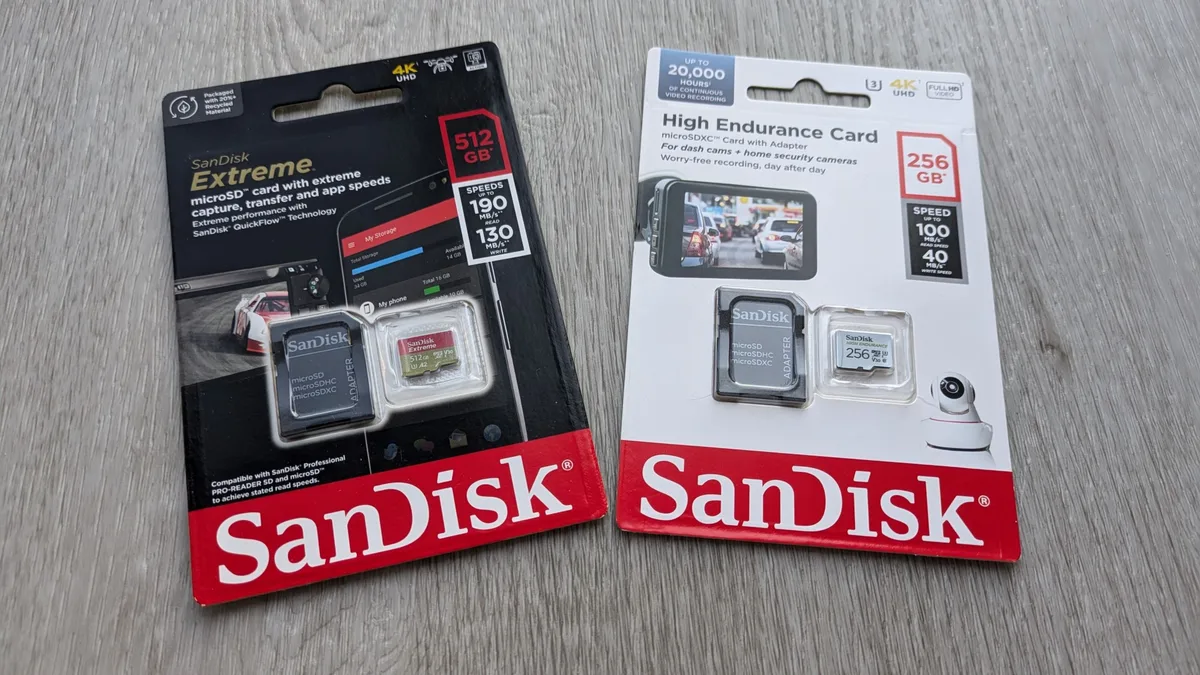
Image source: Web (Bing) / impulsegamer.com (Web image (fair-use with source credit))
Format the card in the camera, not the computer. This is the single most effective prevention habit. Your action camera writes files in a specific structure. When you format in the computer, that structure may not match exactly.
Formatting in the camera resets the file table to exactly what the camera expects. Do this every three to five uses.
Use the recommended speed class. Per official SD Association standards, a V30 card is the minimum for 4K60 recording. For 5.3K or 4K120, you need a V60 or V90 card. Using a slower card forces the camera to buffer writes.
When the buffer fills, the camera either stops recording or corrupts the file. Buying a card from the manufacturer compatibility list removes this variable.
Never remove the battery while the camera is on. This is the leading cause of file header corruption. Wait for the camera to power down fully before you swap batteries. If the camera is recording a long clip, stop the recording first.
Let the file save completely before touching the power.
Keep the card cool. Action cameras get hot during 4K recording especially in direct sun. The heat transfers to the SD card. NAND flash memory slows down as temperature rises.
That slowdown can cause write errors. Our research shows that overheating during recording is a common trigger for file corruption in compact bodies.
Swap cards rather than deleting clips. When your card fills up, swap to a fresh card instead of deleting individual clips. Deleting files creates fragmented space. Fragmentation forces the camera to write across scattered sectors.
That increases the chance of a partial write if the battery dies.
Test your cards annually. SD cards wear out. The NAND cells degrade after repeated write cycles. A card that works fine today may fail silently in six months.
Run a speed test once per year. If the write speed drops below the rated class, replace the card.
Frequently Asked Questions
Can I recover a corrupted file without special software?
Yes, if the corruption is in the file system and not the file itself. Running chkdsk or fsck can repair the folder structure and make the file visible again. If the file shows up but still will not play, you need a tool that rebuilds the MP4 header.
No free built-in utility does that.
What should I do if my GoPro battery dies mid-record?
Stop using the card immediately. Remove it from the camera. Insert it into a card reader connected to your computer.
Copy the file to your hard drive. Do not try to play it from the card. Use a video repair tool with a reference clip from the same camera.
This workflow recovers most files.
How do I know if my SD card is failing?
Run a full write speed test using a free benchmarking tool. Compare the result to the card rated speed class. If the card consistently writes below V30 for a 4K workflow, replace it.
Physical signs like a bent corner or cracked casing also mean replacement. Do not use damaged cards.
Is file corruption more common with certain camera brands?
Aggregate user reports suggest that cameras writing higher bitrates see more corruption events. The cause is thermal, not brand specific. A camera recording at 100 Mbps has more data in motion at any moment.
If power cuts during 100 Mbps writing, more data is lost compared to 50 Mbps.
Can I prevent corruption by using a smaller memory card?
Not directly. Corruption is caused by write interruption, not card capacity. However, a 64 GB card fills faster than a 256 GB card.
You swap cards more often with smaller capacity. Each swap is a moment where careful shutdown matters. More swaps mean more opportunities for mistakes.
Should I use the camera USB port or a separate card reader?
Use a separate card reader. The camera USB port often operates in mass storage mode with lower transfer speeds. A dedicated reader connects directly to the PCIe bus and transfers data faster.
Fast transfers reduce the window where a power glitch can corrupt the file during the copy process.

Similar Posts
















[…] If you're dealing with corrupted files from a failing card, the troubleshooting steps in our action camera file corruption guide can help identify other data […]