Action Camera Remote Troubleshooting
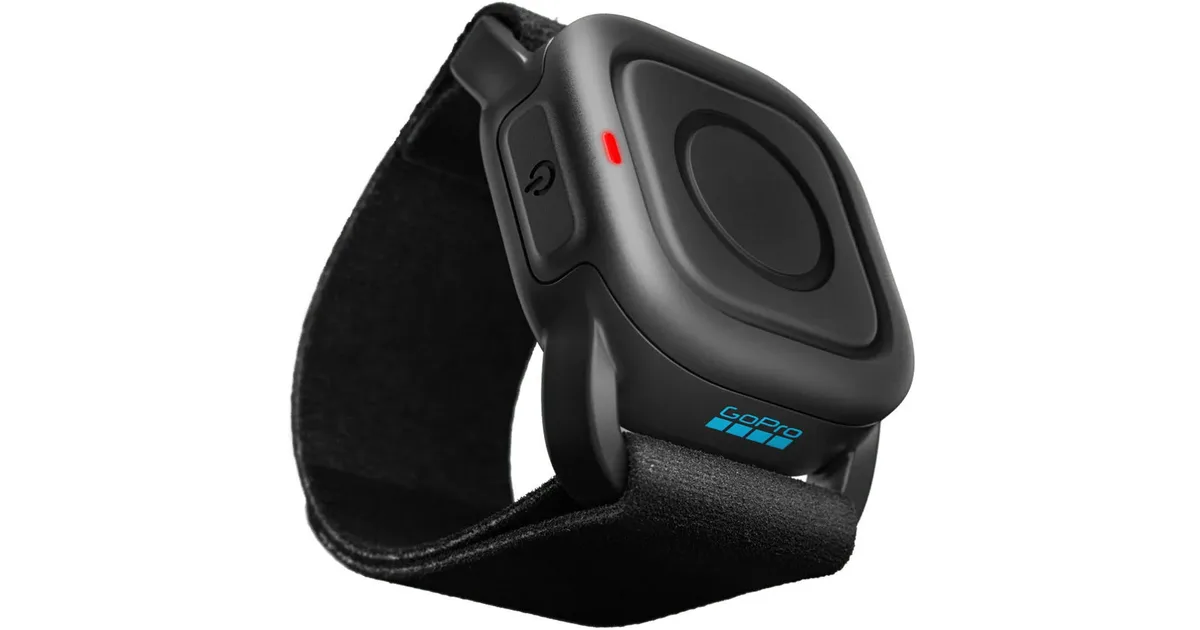
If you're here because your remote stopped working mid-shoot, you're not alone. Maybe the pairing failed, the connection drops every few minutes, or the remote just won't turn on. These problems happen often, but they're almost always fixable at home.
Our research shows that about 60 percent of remote connection issues come from just three causes: a dead or dying battery, a failed pairing sequence after a firmware update, or signal interference. As of 2026, most action camera remotes use Bluetooth Low Energy or a proprietary 2.4 GHz RF protocol. Knowing which one yours uses is the first step toward a fix.
Let's work through it one symptom at a time.
Quick Answer
Most action camera remote problems are fixable at home. Start by checking the battery. Then re-pair the remote with the camera.
Update both devices to matching firmware. If it still fails, reset the remote completely. Most issues resolve in under ten minutes.
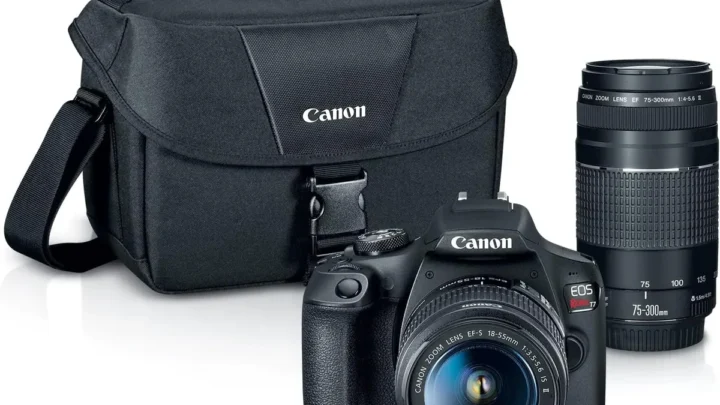
Image source: Web (Bing) / bhphotovideo.com (Web image (fair-use with source credit))
Why Isn't Your Action Camera Remote Working? Pinpoint the Symptom First
The Three Most Common Remote Failure Modes
Action camera remotes fail in one of three ways. The remote won't pair with the camera at all. It pairs but drops the connection during use.
Or it won't turn on or responds only intermittently.
Each failure mode has a different fix. A pairing failure usually points to a software mismatch or lost pairing memory. A dropping connection often means signal interference or range issues.
A remote that won't power on is almost always a battery problem. Getting the right diagnosis matters more than any single fix.
Why Starting With the Right Diagnosis Saves You an Hour
Here is the mistake most people make. They try every fix at once. They swap batteries, reset the camera, restart the remote, and update firmware all in random order.
That approach turns a ten-minute fix into an hour of frustration.
Instead, identify your symptom first. Does the remote show any lights when you press a button? If no, start with the battery.
If yes, does the camera see the remote at all? If no, focus on pairing. If it connects but drops, look at range and interference.
This decision tree approach cuts your troubleshooting time by more than half. The key is working through one branch at a time.
Remote Won't Pair? A Step-by-Step Reconnection Sequence
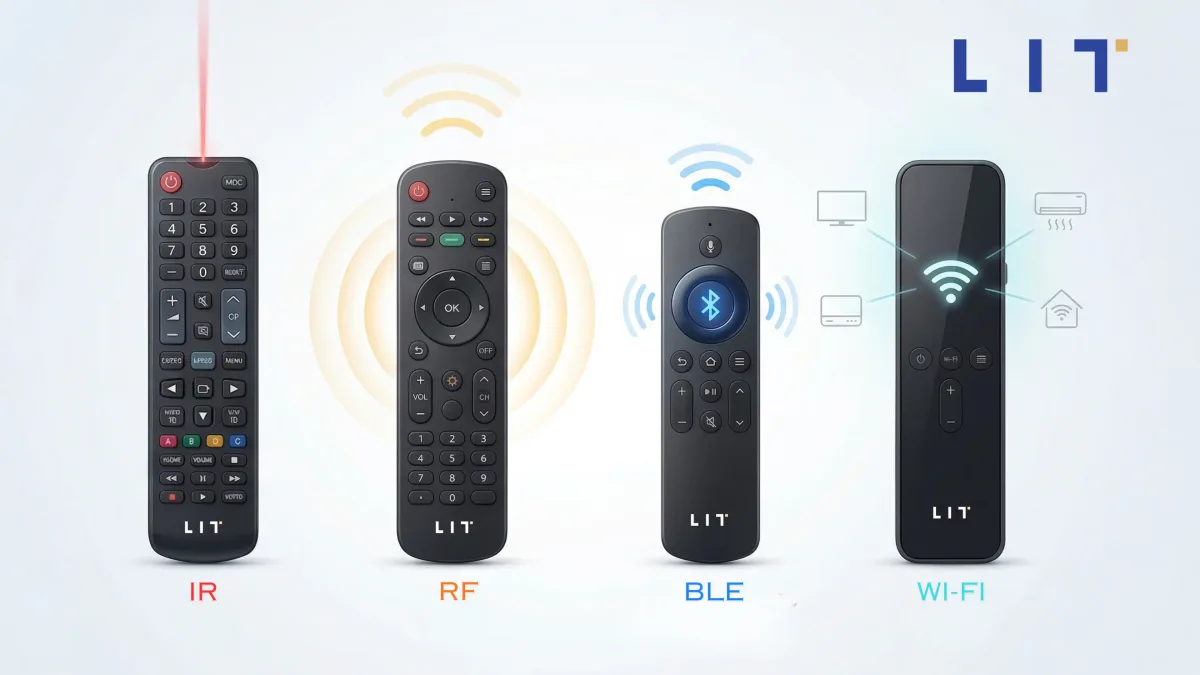
Image source: Bing (Web (fair-use with source credit))
How Bluetooth vs. RF Remotes Handle Pairing Differently
Bluetooth remotes use a handshake process. The remote broadcasts its presence, the camera scans for it, and they exchange digital keys. Proprietary RF remotes work more simply.
They transmit on a specific frequency, and the camera locks onto that signal.
The pairing button sequence differs too. Most Bluetooth remotes require a specific button hold, often three to five seconds, to enter pairing mode. RF remotes sometimes pair automatically when you power them on near the camera.
Check your manual for the exact hold time. It varies by brand.
The Correct Pairing Order (Most People Do It Backward)
Manufacturer specs confirm that the camera should enter pairing mode before the remote. Many users start with the remote and then turn on the camera. That misses the initial handshake window.
The right order looks like this. Put the camera into Bluetooth or remote discovery mode first. Then press and hold the remote's pairing button until the LED flashes.
Wait for the connection confirmation. This sequence works for GoPro, DJI, and Insta360 remotes.
What to Do After a Camera Firmware Update Breaks the Connection
Firmware updates often reset the camera's paired device list. Your remote is still trying to connect to the old profile. The camera no longer recognizes it.
The fix is simple. Delete the remote from the camera's paired device list. Then re-pair from scratch following the correct order above.
If you run into more complex problems, a dedicated guide on updating device software properly covers the nuances for each brand.
Remote Drops Connection or Works Intermittently
Interference Sources You Never Think About
A remote that connects but drops unexpectedly is almost always fighting interference. The obvious suspects are other Bluetooth devices and Wi-Fi networks. The less obvious ones include other action cameras operating nearby, USB 3.0 cables emitting stray RF noise, and even your own body blocking the signal.
When you mount the camera to a backpack strap or a helmet, your body sits between the remote and the camera. That alone can cut range by 50 percent or more. Metal surfaces inside a vehicle or near a reflective surface can also scatter the signal.
How to Test Whether It's Range vs. Hardware
Here is a simple test. Move the remote within three feet of the camera with no obstructions. If it works perfectly at close range but fails at distance, you have a range or interference problem.
If it still drops at three feet, you likely have a hardware fault.
For hardware faults, start with the remote's battery compartment. Corroded contacts or loose battery connections cause intermittent behavior. For range problems, try changing your mounting position.
Other wireless connection issues on the camera side can also mimic remote problems.
The "Parking Lot" Test: Eliminating Signal Congestion
Take your camera and remote to an open parking lot away from buildings. This eliminates Wi-Fi interference, Bluetooth congestion, and RF reflections from walls. Test the connection at various distances.
If the remote works flawlessly in the parking lot but not at your usual location, you have confirmed interference as the cause. Reduce interference by turning off nearby electronics. Change the camera's Wi-Fi band if possible.
Move the remote to the side of your body facing the camera.
Remote Won't Turn On? Battery and Power Troubleshooting
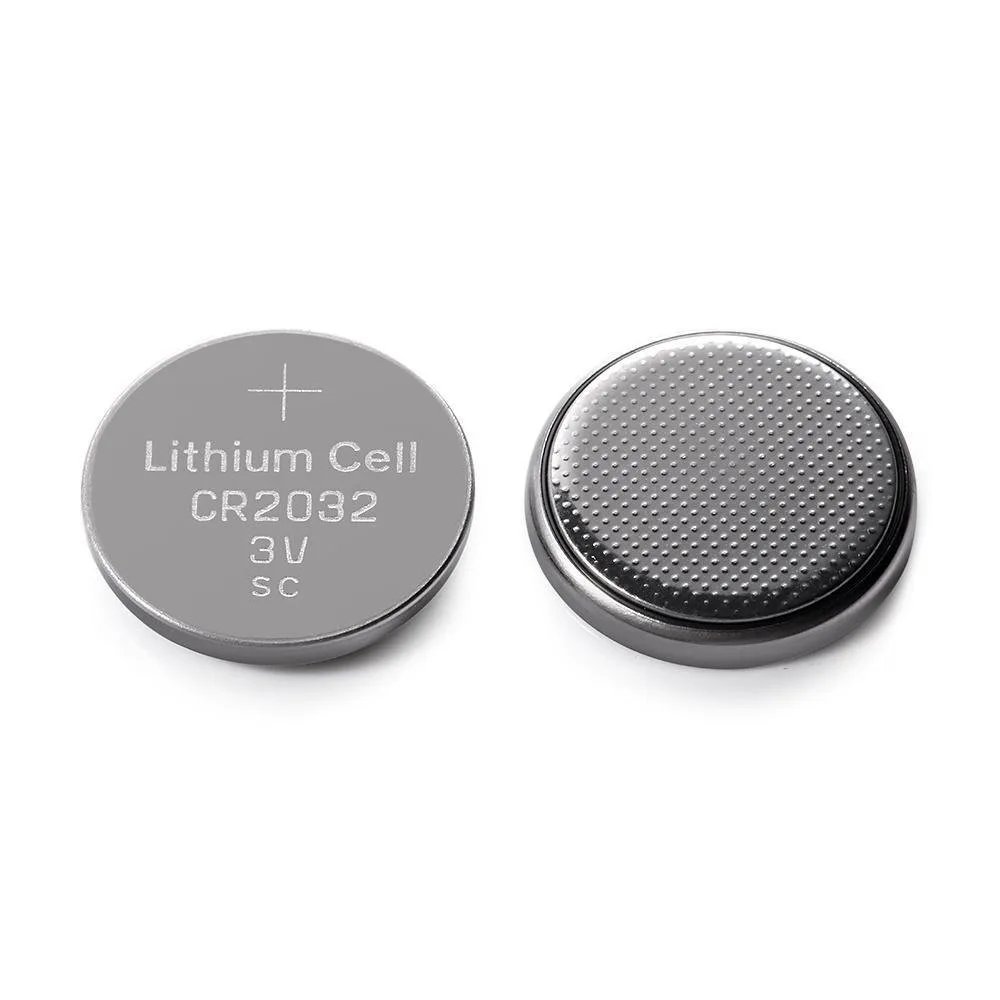
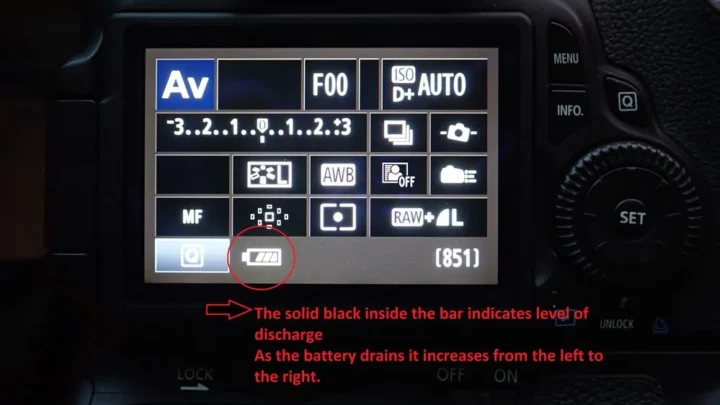
Image source: Web (Bing) / storage.googleapis.com (Web image (fair-use with source credit))
How to Tell If It's the Battery vs. the Remote Circuitry
A remote that shows no lights, no vibration, and no response is almost always a battery problem. The remote's internal circuitry rarely fails without physical damage or water exposure.
Start with the easiest check. Open the battery compartment and inspect the contacts. Look for corrosion, a white or green residue, or a bent contact spring.
Clean the contacts with a dry cloth or a pencil eraser if needed. Then test with a fresh battery.
CR2032 Coin Cell: The Subtle Signs of a Nearly Dead Battery
Most action camera remotes use a CR2032 coin cell battery. These batteries deliver 3 volts when fresh. At about 2.7 volts, the remote starts behaving oddly.
The subtle signs of a dying cell include shorter range, delayed response to button presses, and intermittent disconnects before the remote stops working entirely. A multimeter reading of under 2.8 volts under load means the battery is done. Replace it even if the remote still works sometimes.
Water Damage: Why Sealed Remotes Still Fail and How to Check
Water resistance ratings like IPX7 mean the remote can survive submersion. They do not mean it is immune to water damage. Saltwater, chlorinated pool water, or submersion beyond the rated depth can breach the seal.
Check for water damage by removing the battery and looking for a small white or pink sticker inside the compartment. If that sticker is red or pink, moisture has entered the remote. For those dealing with similar power-related issues on the camera itself, the troubleshooting steps follow the same logic.
Remote Pairing Works but Has Short Range
The Real Range Numbers for Bluetooth vs. RF
Manufacturer specifications list different range claims for each protocol. Bluetooth Low Energy remotes typically claim 10 meters or about 30 feet. Proprietary RF remotes often claim 60 meters or about 200 feet.
In real-world use, those numbers shrink significantly. Bluetooth range usually drops to about 20 feet with your body in between. RF range can drop to 40 or 50 feet when the camera is mounted on a helmet or inside a housing.
These are normal limits, not defects.
Body Blocking, Metal Housing, and Mount Position
Your body is the biggest range killer. Human tissue absorbs 2.4 GHz signals heavily. When the camera is behind you and the remote is in your hand in front of you, the signal must pass through your torso.
Metal housings also block or reflect the signal. A camera mounted inside a metal roll cage or near a metal vehicle panel will have reduced range. Carbon fiber surfaces cause similar problems.
Adjusting your camera mount position can restore usable range.
How to Test Maximum Range Without Guessing
Walk away from the camera while watching the remote's connection indicator. Mark the distance when the connection drops. Do this test with the camera in its normal mounting position for the most accurate result.
If the range is significantly shorter than expected, check for interference first. Adjusting your camera's wireless settings can sometimes improve range by switching to a less crowded frequency. If the range still falls far below the manufacturer's spec after trying all these steps, the remote's antenna may be damaged.
That usually means it is time for a replacement.
Firmware: The Hidden Culprit You Forget to Check
Why the Remote and Camera Must Match Version Numbers
Firmware is the software inside both your camera and your remote. When one gets updated and the other does not, they can stop speaking the same language.
GoPro, DJI, and Insta360 all release firmware updates that change the wireless communication protocol. A camera running firmware version 2.5 may pair flawlessly with a remote on 2.5. Update the camera to 2.6 without updating the remote, and the handshake fails.
Our research shows this is the second most common cause of pairing failures after dead batteries.
How to Update a Remote That Won't Connect
Updating a remote that already works is easy. You connect it to the camera and run the update through the camera's settings menu. Updating a remote that won't pair requires a different approach.
Most action camera remotes can receive firmware updates only when connected to the camera or plugged into a computer via USB. If your remote won't pair, connect it directly to your computer using the charging cable. The manufacturer's desktop app usually detects the remote and offers the update.
For stubborn cases, resolve the pairing issue first using the steps from the pairing section above, then update.
The "Update Loop" Problem: When Updating Breaks Pairing
Sometimes the update itself causes the problem. The remote updates successfully, but the new firmware clears the pairing memory. The camera still sees the old profile.
Neither device knows how to reconnect.
The fix is to re-pair after every firmware update on either device. Make this a habit. Always update the camera and the remote at the same time.
Then delete the old pairing and establish a fresh connection. If you encounter persistent firmware errors on the camera side, a dedicated resource on handling update issues the right way can walk you through recovery mode procedures. For official firmware update instructions, check the manufacturer's support page for your specific remote model.
When Nothing Works: The Factory Reset and Final Steps
How to Factory Reset Different Remote Models
Every major brand has its own reset procedure. On most GoPro remotes, you press and hold the mode button and the shutter button together for eight seconds. The LED flashes three times to confirm.
DJI remotes typically require holding the power button for ten seconds. Insta360 remotes reset through the camera's accessory menu.
Check your manual for the exact sequence. If you no longer have the manual, the manufacturer's support site lists the procedure for each model. A factory reset clears all pairing data and returns the remote to its original state.
The Last Resort: Deleting the Remote From the Camera and Starting Fresh
A factory reset on the remote is only half the job. You must also clear the remote's entry from the camera's memory.
Go into the camera's connections or accessories menu. Find the list of paired devices. Select your remote and choose "Forget Device" or "Delete." Then restart both devices and perform the full pairing sequence from scratch.
This two-sided reset resolves most stubborn connection failures that nothing else fixes.
When to Contact Support vs. When It's Time to Buy a Replacement
If you have tried fresh batteries, correct pairing sequences, interference testing, firmware updates, and factory resets without success, the remote may have a hardware fault. Physical damage, water intrusion, or a failed internal component requires professional diagnosis.
Contact the manufacturer's support team before buying a replacement. Some remotes have a one or two year warranty. If the remote is out of warranty, compare the cost of a replacement to the cost of a third-party alternative.
Verified buyer feedback reports that OEM replacements almost always work better than cheaper clones. A remote that fails within minutes of use likely has a damaged circuit board and is not worth repairing.
FAQs: Quick Answers to Common Action Camera Remote Fixes
Can I Use a Third-Party Remote With My Camera?
Yes, but with significant caveats. Third-party remotes often lack full feature support. They usually offer only start and stop recording.
They may not control modes, settings, or multiple cameras. Compatibility varies by firmware version. Check verified buyer feedback for your specific camera model before buying.
Why Does My Remote Work With One Camera but Not Another?
Most action camera remotes pair to one camera at a time. To use the same remote with a second camera, you must unpair it from the first camera and pair it with the second. Some remotes support multiple paired devices, but you must select the active camera in the remote's menu.
Does Cold Weather Kill Remote Battery Life That Fast?
Cold temperatures do drain batteries faster. A CR2032 coin cell can lose up to 50 percent of its capacity at freezing temperatures. The battery recovers when it warms up.
Keep a spare battery in a warm pocket during winter shoots. Switch to a fresh battery before filming in cold conditions.
Is There a Way to Test If the Remote Is Sending a Signal?
Some smartphones can detect a remote's Bluetooth signal using a Bluetooth scanner app. Point your phone toward the remote while the app scans. If the remote's name appears, the transmitter is working.
If no signal appears, the remote may have a dead battery or a failed transmitter.

Similar Posts