Armstrong Cable Troubleshooting
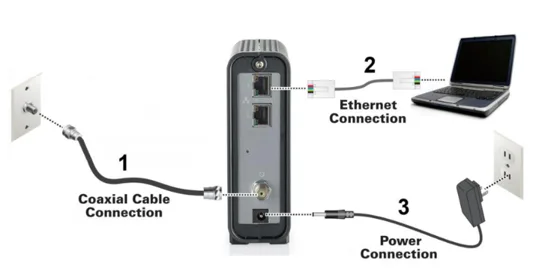
Image source: Bing (Web (fair-use with source credit))
It happens to all of us. You're settling in to watch the game, or you're on a video call that actually matters, and suddenly your Armstrong cable internet drops dead or your TV starts pixelating. Your first instinct is probably to call support and wait on hold.
Sometimes you do have to call. But a surprising number of the most frustrating issues are things you can fix yourself in under ten minutes, no tools required.
Armstrong Cable troubleshooting isn't about being a tech wizard. It's about knowing which problems belong to you, which belong to Armstrong's network, and what to do before you ever pick up the phone. The process is systematic elimination.
Most connection issues stem from just a few common culprits: power cycling errors, poor coax connections, and router placement. Let's walk through it step by step.
Step 1: Power Cycle Your Equipment the Right Way
Don't just hit the reset button. That clears your settings and causes more problems. The correct method is a "full power cycle" that drains the internal capacitors in your equipment.
- Unplug the modem from the wall outlet.
- Unplug the router from the wall outlet.
- Wait a full 60 seconds. Set a timer if you need to.
- Plug the modem back in first.
- Wait for the modem's "Online" or "Internet" light to stop blinking and turn solid. This can take 2 to 5 minutes.
- Plug the router back in.
- Wait for the router to boot up and connect to the modem.
This order matters because the router needs to "lease" an IP address from the modem. If the router comes on before the modem is ready, it can grab a bad address or fail to negotiate the connection. You'll end up with a router that says "connected" but has no internet access.
Also, keep in mind that the "reset" pinhole button on the back of the router restores factory defaults. It wipes your Wi-Fi name and password settings. Unless you're trying to clear a deeply corrupted configuration, skip the pinhole entirely and stick to unplugging the power.
Branch 1: Complete Outage — No Internet, No TV, No Lights
If everything is dead, you're dealing with total signal loss. First, determine whether the problem is inside your house or outside it.
Check the Demarcation Point
Every home has a demarcation point, or "demarc," where Armstrong's cable line enters your property. It's usually a gray or white box on the exterior wall, often near the electric meter or where the utility lines come in. Inside that box is the ground block and, sometimes, a main splitter.
Open that box. Are there any obvious cuts in the cable? Is the cable pulled out of the connector?
Is there water pooling inside? Rainwater corrodes the connectors and causes a complete short, killing the signal for everything.
Use Your Cell Phone as a Diagnostic Tool
Use your phone's mobile data to check Armstrong's service status page. If the site loads and says there's no known outage, the problem is likely on your end, specifically between the demarc and your modem.
Bypass the Splitter
If you have cable running from the demarc box to a splitter (a small metal box with one input and multiple outputs), bypass it for testing. Disconnect the main line from the input and connect it directly to your modem with a single coax cable.
This is the single most effective diagnostic step in Armstrong cable troubleshooting. If the internet comes back when you bypass the splitter, the splitter is either bad or degrading the signal. Every splitter cuts the signal strength by at least 3.5 dB on each output, and a faulty one can drop it far more.
That's enough to kill your connection entirely.
Check the Modem's LED Indicators
Look at the lights on the front of your modem. You're looking for the "US" (Upstream) and "DS" (Downstream) lights.
- If the DS light is blinking or off, the modem isn't locking onto the downstream channel. This is usually a signal problem.
- If the US light is off, the modem can't send data back upstream. This can be caused by a faulty modem or issues with the return path on the network.
- If both lights are solid but you still have no internet, the modem might have lost its configuration. A power cycle triggers a fresh handshake with Armstrong's network and often solves this.
Branch 2: Internet Down But TV Works (Or Vice Versa)
This is a fascinating clue. When your TV works but the internet doesn't, you know the physical cable is delivering some signal. The problem is either your modem or the specific frequency range used for data.
Your TV tuner processes frequencies in the 54 MHz to 1000 MHz range. Internet data over DOCSIS 3.1 runs on higher frequencies, commonly between 108 MHz and 1002 MHz, but the modulation scheme is different. In simple terms, your TV needs a decent signal, but your modem needs a clean signal.
These are not the same thing.
If the TV is fine but the modem is dead, your modem might be defective. It might also be overheating. Modems get warm, but if yours is stacked under a pile of books or sitting in a closed cabinet, it can overheat and shut down its network radio.
Check the temperature of the modem. If it's hot to the touch, move it out into the open air and let it cool down before power cycling.
If your TV is pixelating or freezing but the internet is flawless, you've got a signal quality issue on the video frequencies. This is often caused by a loose F-type connector (the little metal screw cap on the coax cable). Over time, temperature changes cause these connectors to expand and contract, and they work themselves loose.
Walk around your house and tighten every coax connection you can find. Finger-tight is sufficient. Adding a quarter turn with a wrench is the maximum you should ever go.
Branch 3: Slow Speeds or Wi-Fi Drops on Certain Devices
This branch is where most people get stuck. Your internet works. It's just slow, or it cuts out on your laptop in the bedroom but works fine in the living room.
This points to a Wi-Fi problem, not an internet problem.
Access Your Modem's Diagnostic Page
To figure out if your connection is healthy, you need to look at the raw data. Most Armstrong-issued modems have a built-in diagnostic page you can access through a web browser.
- Connect a computer directly to the modem using an Ethernet cable.
- Open a web browser.
- Type in the modem's default IP address. This is usually
http://192.168.100.1orhttp://10.0.0.1. You can find the exact address printed on a sticker on the bottom of the modem. - Look for a menu or status tab labeled "Cable Signal," "DOCSIS WAN," or "Connection."
Here's what the numbers mean, based on DOCSIS 3.1 specifications:
| Signal Metric | Ideal Range | What It Tells You |
|---|---|---|
| Downstream Power (dBmV) | -7 to +7 | The strength of the signal coming into your modem. |
| Upstream Power (dBmV) | 45 to 51 | How hard your modem has to push data back out. |
| Signal-to-Noise Ratio (SNR) | 33 dB or higher | The clarity of the signal versus background noise. |
| Modulation Order | 4096 QAM or higher | How dense the data packets are on the channel. |
If your Downstream Power is below -10 dBmV, the signal is too weak. If it's above +10 dBmV, it's too strong. Both extremes cause packet loss and slow speeds.
If the Upstream Power is above 52 dBmV, your modem is "shouting" to reach the network, which is a sign of a bad cable or splitter in your home.
Run a Clean Speed Test That Tells the Truth
Don't run a speed test on Wi-Fi. It's meaningless because Wi-Fi introduces its own variables. You need to test the internet connection itself.
Connect your laptop directly to the modem with an Ethernet cable. Do this without the router in the middle. Then run a speed test.
If you're paying for 300 Mbps and you're getting 280-300 Mbps over the wire, your internet connection is perfect. The problem is your Wi-Fi.
If you get slow speeds over the Ethernet cable directly from the modem, you have a signal problem or a plan limitation. If the wired speed is fast but the Wi-Fi is slow, you're dealing with wireless interference, distance, or an outdated router.
Wi-Fi Dead Zones and Interference — Fixes You Can Do Today
Wi-Fi operates on radio frequencies, specifically 2.4 GHz and 5 GHz bands. The 2.4 GHz band travels further but has less capacity. The 5 GHz band is faster but has a shorter range and struggles to penetrate walls.
If your devices are connecting to the 2.4 GHz band, they'll cap out at slower speeds. Log into your router settings and check whether your devices are using 5 GHz. Having a separate network name (SSID) for each band, like "HomeNet_2G" and "HomeNet_5G," makes this easier to manage.
Physical interference is also huge. Your router shouldn't be placed next to a microwave, a baby monitor, or a cordless phone base station. These all operate on the 2.4 GHz frequency and will cause dropouts.
When a Mesh System or MoCA Adapter Beats an Extender
If you've got a big house and the router is at one end, a traditional Wi-Fi extender can help, but it often halves your speed. Extenders repeat the signal, which effectively cuts the bandwidth in half because they have to receive and transmit simultaneously on the same channel.
A better solution many people overlook is using your existing coax cable infrastructure. A MoCA (Multimedia over Coax Alliance) adapter uses your home's coax TV cables to create a wired backbone for your network. You plug one adapter near your router, connect it to the wall coax jack, then plug a second adapter in the room where you need a signal.
It turns your coax wiring into a high-speed Ethernet network.
Manufacturer documentation for MoCA 2.5 adapters indicates they support speeds up to 2.5 Gbps, which is plenty for streaming and gaming. This is one of the best-kept secrets in Armstrong cable troubleshooting because it uses your existing wiring to eliminate dead zones permanently.
The Splitter Problem: Why "Extra" Coax Connections Kill Your Signal
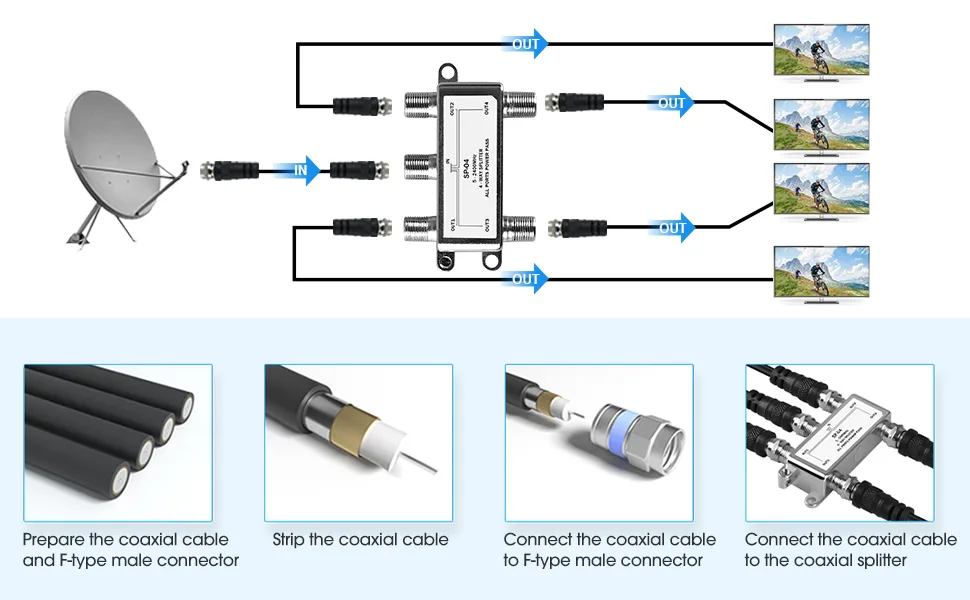
Image source: Bing (Web (fair-use with source credit))
Here's the thing nobody tells you. Those barrel connectors and splitters you used to hook up extra TVs? They're the enemy.
Every time you split a coax signal, you lose strength. A simple two-way splitter reduces the signal by roughly 3.5 dB. An older, cheap splitter might reduce it by 7 dB or more.
If you have a signal that starts at 0 dBmV at the street, a single splitter drops it to -3.5 dBmV, which is still okay. Add the second splitter for another TV, and you're down to -7 dBmV, which is borderline. Add a third, and you're below the acceptable threshold for clear video.
Technicians see homes with five hidden splitters in the attic and the customer wondering why the picture breaks up. Look for splitters in your basement, behind your TV stand, and inside the demarc box on the side of your house. If you see one that's rusty, replace it.
Corrosion on the connectors is a major source of signal ingress, which means outside interference getting into your cable.
Look for Barrel Connectors
Check for "F-81" barrel connectors. These are small metal cylinders used to join two coax cables together. They are a necessary evil when you're joining short cables, but every barrel connector is a potential failure point.
They corrode, and they're often just a short piece of metal that adds impedance mismatch.
If you have a barrel connector joining the cable from the wall to your TV setup, remove it and use a single, continuous length of cable instead. It's a cleaner path and eliminates a variable.
Check for Water or Moisture Intrusion
Have you ever noticed water dripping from the coax cable where it enters the wall? This is a common issue when the weatherproofing on the outside connector fails. Water ingression causes corrosion.
That corrosion usually causes the signal to be "ingress heavy," which means the upstream noise floor is too high.
If moisture gets into a connector, your TV might work, but your modem's upload speed will crawl. The fix is replacing the connector or the end of the coaxial cable itself. This often requires a compression tool and connector, but it's a cheap repair.
If you're not comfortable doing it, an Armstrong technician can replace the connector in under five minutes during a service call. That service call might cost you if it's not related to their equipment, so it's worth learning to do it yourself.
When to Call Armstrong Support (And What to Say)
You've done all the steps above. You've power cycled, checked the coax connections, bypassed the splitter, and tested the signal levels. Still nothing.
Now it's time to call.
What to Say to Get Faster Resolution
When you call Armstrong support, skip the story about how your internet is slow. Give them the relevant facts:
- "I bypassed the splitter and connected the modem directly to the demarc box."
- "My downstream power is reading -12 dBmV and my upstream is at 49 dBmV."
- "I ran a wired speed test directly from the modem and got 50 Mbps when I pay for 300."
Providing this information immediately tells the representative you're a knowledgeable customer, not someone who needs the "have you tried turning it off and on again" script. They'll likely check your signal levels remotely and either send a technician or push a config file to your modem.
Before the Technician Arrives
If Armstrong sends a technician, you can save yourself the service call fee by doing a quick prep. Move anything that's blocking access to the modem, the demarc box, and the main interior cable junctions. If the issue is a wiring problem inside your walls, you might be charged for the visit.
If the issue is in Armstrong's network or the cable leading to your house, they won't charge you. To tip the odds in your favor, make sure your modem connects directly to the demarc box during the test, so the technician can isolate the problem immediately.
Common Armstrong Cable Error Codes and What They Mean
Armstrong modems occasionally show error messages or status codes. Some of these are benign, but others indicate a real problem.
| Error/Status | What It Means | What to Do |
|---|---|---|
| "T3 Timeout" | The modem sent an upstream packet and didn't get a response in time. | Check upstream power levels. High upstream power (above 52 dBmV) causes T3 timeouts. |
| "T4 Timeout" | The modem missed a scheduled transmission window. | Try a power cycle. If it persists, the modem's clock sync might be corrupt. |
| "DOCSIS 3.0" (instead of 3.1) | The modem is negotiating on an older standard. | Check if your modem supports 3.1. If it does, ask Armstrong to re-provision it. |
| "SNMP: 9" | The modem can't reach the network's management servers. | Usually means the modem is offline. Reboot the modem. |
| "BPI+" errors | Encryption protocol issues. | Power cycle. If it persists, the MAC address might need to be re-registered. |
Why Your Outdated Router is Slowing Everything Down
If you're using the same router you bought six years ago, that's likely your speed bottleneck. Older routers often support only 802.11n or 802.11ac, which means slower maximum data rates and weaker security protocols.
A router that supports Wi-Fi 6 (802.11ax) handles multiple devices far more efficiently. It uses OFDMA (Orthogonal Frequency Division Multiple Access) to split a channel into smaller sub-channels, allowing multiple devices to transmit simultaneously without waiting in a line. If your family has phones, tablets, laptops, smart TVs, and gaming consoles all connected at once, a Wi-Fi 6 router keeps everything moving without the "buffer of death."
Wi-Fi 6 also supports WPA3 security, which is the current standard recommended by the Wi-Fi Alliance. Upgrading is a small investment compared to the frustration of constant buffering.
A Simple Maintenance Checklist to Prevent Future Armstrong Cable Issues
Prevention is cheaper than troubleshooting. Here's a quick routine to keep your Armstrong connection stable.
- Reboot your modem and router once a month. This clears memory leaks and refreshes the connection to Armstrong's network.
- Tighten all coax connectors twice a year. Do this during daylight saving time changes when you're already touching the clocks.
- Replace your coax cables every 3-5 years. Cables degrade over time, especially if they're exposed to sunlight or temperature swings.
- Upgrade your router every 3-4 years. Technology moves fast, and the cost of staying current is low compared to lost productivity.
- Test your wired speed monthly. If it drops consistently below 80% of your plan speed, call Armstrong to investigate.
- Avoid daisy-chaining power strips for your modem and router. They need clean, stable power. A surge protector with voltage regulation is ideal.
Final Thoughts
Armstrong Cable troubleshooting is rarely about one big, complicated problem. It's usually a collection of small, fixable issues that stack on top of each other until the connection breaks. A loose connector here, an old splitter there, and a router in a bad spot.
Now you know exactly what to look for and in what order.
Start with the power cycle. Then move to the signal levels. Then check the physical cables.
By the time you've worked through this guide, you'll have either fixed the issue yourself or armed with enough information to make your next call to Armstrong quick and productive.

Similar Posts