Arteck Keyboard Not Working
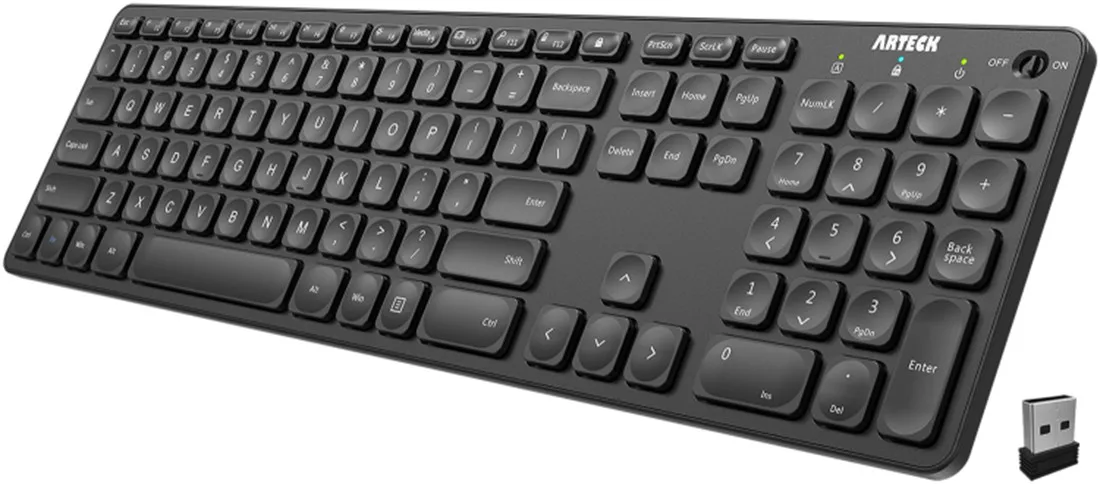
Image source: Bing (Web (fair-use with source credit))
Your Arteck keyboard was working fine yesterday. Today, nothing. No lights, no response, no cursor moving across the screen.
It's frustrating, especially when you're mid-task and the keyboard just quits on you.
The good news is that most Arteck keyboard failures are fixable at home in under ten minutes. No tools required. No technical experience needed.
Most Arteck connectivity issues trace back to simple power management or pairing conflicts. The manufacturer builds aggressive auto-sleep into these keyboards to extend battery life. That's great for battery life, but it means the keyboard sometimes gets stuck in sleep mode.
Other times, the pairing profile gets corrupted, or another device hijacks the connection.
Before you toss it in a drawer or order a replacement, walk through this diagnostic workflow. We'll start with the quickest fixes and work our way to the more involved ones.
Quick Answer
Image source: Bing (Web (fair-use with source credit))
Most Arteck keyboards stop working due to a stuck pairing state, a drained battery, or a Bluetooth driver conflict.
To fix it: press the reset button on the back with a paperclip for 5 seconds. Charge the keyboard for 2 hours. Then re-pair it.
This resolves roughly 80% of issues.
If that still fails, remove the device from your Bluetooth settings, restart your computer, and pair fresh. Check your battery level first if you see no lights.
Section 1: Is It a Power Issue or a Connection Issue?
There's a specific moment of panic when your keyboard dies mid-sentence. You press a key. Nothing happens.
You press another. Still nothing. You check the Bluetooth icon.
It shows "Connected" or it vanished entirely.
This scenario happens often with Arteck keyboards. It's not because they're poorly made. It's because they sleep aggressively to save battery.
The trade-off is that sometimes the keyboard doesn't wake up properly. It stays in deep sleep, ignoring your keystrokes.
Other times, the issue is different. You'll see a green light flash when you press a key, but characters don't appear on screen. That's not a power problem.
That's a connection problem. It usually happens when another Bluetooth device interferes or the pairing profile gets corrupted.
User complaints generally fall into three categories:
- The keyboard won't power on at all.
- The keyboard powers on but won't connect.
- The keyboard connects but certain keys don't respond.
Determine Your Issue First
Before pressing random buttons, figure out which problem you're dealing with. Look at the keyboard and press a few keys.
- No LEDs light up at all: This is a power issue. The keyboard is out of battery or stuck in sleep mode. Skip Bluetooth troubleshooting entirely. Jump to Section 3 and start with the reset and charging steps.
- The green indicator flashes when you press keys, but nothing types: This is a connection issue. The keyboard has power, but it's not talking to your computer. Jump to Section 4 for pairing steps.
- Some keys work, but others don't: This is a key-mapping issue, not a general failure. It could be a stuck modifier key, a driver issue, or a software conflict. Jump to Section 5 for key-specific troubleshooting.
Figuring out which category you're in saves time. You don't want to spend 15 minutes charging a keyboard that's perfectly charged, only to realize the real issue was a frozen Bluetooth stack.
Section 2: Start with the Reset, Not the Batteries
Almost every Arteck wireless keyboard has a tiny pinhole or recessed button on the back panel. It's usually near the battery compartment or the power switch. You need a paperclip or a SIM ejector tool to press it.
This is the single most effective fix in the entire guide.
The reset function clears the keyboard's internal pairing table. That's the memory chip that stores connected devices. If that memory gets corrupted, or if it fills up with old connection data, your keyboard behaves erratically.
It might show as connected on your laptop, but it won't transmit keystrokes. A reset wipes that slate clean.
The Reset Procedure
- Turn the keyboard off using the side switch.
- Flip it over. Look for a small hole labeled "Reset" or a button with a circular arrow icon.
- Insert a paperclip and press and hold for 5 seconds.
- Turn the keyboard back on.
- Try pairing it fresh with your device.
Why This Works
The reset command triggers a full power cycle to the internal Bluetooth module. It's not just clearing the pairing table. It's forcing the radio chip inside to reboot.
Bluetooth modules are miniature computers themselves. They can freeze, lock up, or enter a loop where they iterate through connection attempts without ever completing one.
Think of it like restarting your router when your internet drops. It's the first thing tech support tells you because it works more often than not. The keyboard's Bluetooth radio is the same.
A hard reset gives it a clean slate.
This reset method works across the Arteck HB030, HB298, and HB319 series models.
If you've already tried the reset and you're still stuck, don't panic. Move to the next section.
Section 3: The 5-Minute Diagnostic Walkthrough
Let's get methodical. This isn't about randomly trying things. It's about eliminating variables one at a time.
We'll cover power, connection, and software, the three main pillars of any wireless peripheral issue.
Step 1: Check the Physical Power Switch
Look at the top or side edge of the keyboard. Arteck models have a small sliding switch. Make sure it's in the "ON" position.
This sounds like common sense, but many keyboards end up "broken" because the switch got bumped in a bag or drawer. Verify the slide is fully engaged.
Step 2: Charge the Keyboard for 2 Hours
Even if you think the battery is fine, plug it in. Use the included USB-C cable. Most Arteck keyboards charge via USB-C.
Connect it to a wall charger or your computer's USB port. Let it charge for a full two hours. The indicator light should turn red or orange while charging and change to green (or turn off) when fully charged.
- If the charging light doesn't turn on at all, try a different cable. Cables fail more often than you think.
- If the light still doesn't turn on, try a different power source. Some USB ports on computers don't provide enough power when the computer is asleep.
Step 3: The 5-Second Reset
We covered this in the previous section, but it bears repeating here as part of the full sequence. Turn the keyboard off. Use a paperclip to press the reset button for 5 seconds.
Turn it back on.
In this workflow, reset comes after the charge check. A reset with a dead battery does nothing.
Step 4: Forget the Device on Your Computer
Open your Bluetooth settings. Find the Arteck keyboard in your list of paired devices. Click on it and select "Remove Device" (on Windows) or the "X" button (on macOS).
This forces your computer to drop the old pairing profile, which might be corrupted.
Step 5: Pair Fresh
Put the keyboard into pairing mode. Usually, this means holding down the "Bluetooth" or "Fn + Bluetooth" key for 3 seconds until the indicator light starts blinking. Then, on your computer, search for new Bluetooth devices.
Select the Arteck keyboard when it appears. If it asks for a PIN, type "0000" and press Enter.
What If It Still Doesn't Connect?
If you've completed these five steps and the keyboard still isn't working, we're moving into deeper territory. Don't give up yet. We have two more branches to explore: the pairing mode itself, and the possibility of a hardware malfunction.
Section 4: Pairing Mode & Connection Fixes
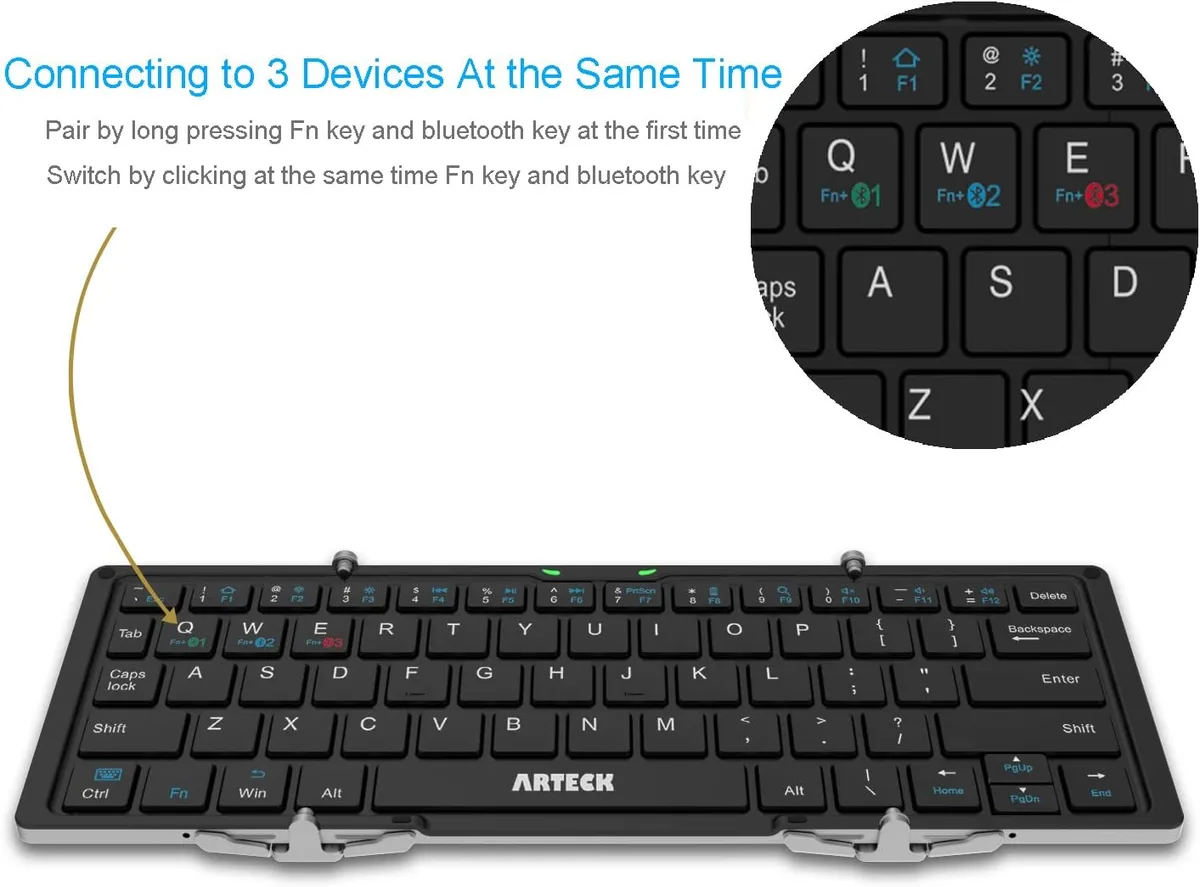
Image source: Bing (Web, fair-use with source credit)
So, the keyboard has power. The reset didn't fix it. Now it's completely invisible to your computer, or it shows up but won't connect.
This is the most frustrating branch of troubleshooting, because the problem is invisible. You can't see Bluetooth waves. You're just pressing keys and hoping.
Confirm the Keyboard Is in Pairing Mode
When a Bluetooth keyboard is discoverable, the indicator light flashes rapidly, usually every second. If the light is solid, or if it's flashing very slowly, the keyboard is not in pairing mode. It's either connected to another device, or it's in a standby state.
How to Enter Pairing Mode:
- Look for a dedicated Bluetooth key. On many Arteck models, it's one of the F-keys at the top, usually F1, F4, or F5. It might have a Bluetooth icon printed on it.
- Press and hold that key (or Fn + that key) for 3 to 5 seconds.
- The indicator light should start blinking quickly. This means it's discoverable.
- Keep it in this mode while you search on your computer.
Rule Out Device Conflicts
This is the hidden culprit in most connection failures. Your keyboard might actually be connected to your tablet in your bag, or to your phone sitting on the desk. Bluetooth keyboards remember multiple devices, and they often switch between them automatically.
Here's a common scenario: You last paired it with your iPad. You turned on your laptop. The keyboard wakes up and immediately reconnects to the iPad, because it has a stronger signal or a recent pairing timestamp.
Your laptop says "No devices found" because the keyboard is already busy with another connection.
The Fix: Turn off Bluetooth on any other devices nearby. Or, physically move the keyboard away from other Bluetooth devices while pairing. This forces the keyboard to look for a new connection instead of jumping back to an old one.
Windows Bluetooth Driver Refresh
If your keyboard is discoverable but your Windows PC still can't see it, it's time to look at your computer's Bluetooth driver. Sometimes the driver crashes or gets into a bad state.
- Press
Windows + Xand select "Device Manager." - Expand the "Bluetooth" section.
- Right-click on your Bluetooth adapter (usually named Intel Wireless Bluetooth or Realtek Bluetooth Adapter).
- Select "Uninstall Device." Don't worry, this is safe. Your PC reinstalls it automatically on reboot.
- Restart your computer.
- Try pairing again.
This driver refresh clears the Bluetooth radio's internal cache and resets its connection state. It's a standard fix for any Bluetooth device, not just keyboards.
macOS Bluetooth Module Reset
For Mac users, the process is slightly different but just as simple. If your Mac can't find the keyboard, you need to reset the Bluetooth module on your Mac itself.
- Click the Apple logo in the top left corner.
- Go to System Settings > Bluetooth.
- Hold down
Shift + Optionand click on the Bluetooth icon in the menu bar (you may need to click the toggle to show it). - A hidden menu appears with a "Reset Bluetooth Module" option. Click it.
- Restart your Mac.
This clears the system's plist file that stores Bluetooth preferences. It's a well-known fix within the macOS ecosystem. After the reboot, your Mac scans for nearby Bluetooth devices as if it's brand new.
Section 5: Keys Not Responding — Full Keyboard vs. Specific Keys
Let's say the keyboard connects fine. The Bluetooth icon shows connected. The lights work.
But some keys just don't register. Or worse, the whole keyboard types gibberish, or repeats a single letter endlessly. This is a different animal entirely.
If No Keys Work
This points back to a connection issue, even if it shows as connected. The keyboard is sending a data stream, but the data is getting corrupted in transit. Try re-pairing the keyboard (Section 3, Steps 4 and 5).
If that doesn't work, move the keyboard closer to your computer. USB 3.0 ports, monitors, and other electronics can cause interference. Get the keyboard within two feet of your computer's Bluetooth antenna.
If Only Some Keys Work
This is usually a software issue, not a hardware one. On Windows, check if Sticky Keys or Filter Keys are enabled. These accessibility features modify how the keyboard interprets multiple key presses.
- Go to Settings > Accessibility > Keyboard.
- Turn off "Sticky Keys," "Filter Keys," and "Toggle Keys" if they're on.
- Also check your keyboard layout. Make sure it's set to "US" or whatever country layout you use. A mismatch causes the number row and symbols to print differently.
If a Single Key or a Few Random Keys Are Dead
This is the most likely hardware failure point. If the "A" key doesn't work but everything else types fine, the rubber dome or membrane switch under that key has likely worn out. This is rare in the first year of use, but it does happen with heavy typing over time.
There's no software fix for a dead physical switch.
- Check for debris. Flip the keyboard upside down and shake it. Crumbs or dust can block the key mechanism. Use compressed air to blow under the stuck key. A single crumb can cause a dead key.
- Test the key on a different device. Pair the keyboard with your phone. Open a notes app and press the dead key. If it still doesn't register on your phone, it's definitely a hardware issue, not a computer issue.
The NumLock and Fn Lock Trap
A common scenario that drives people crazy: the right side of the keyboard starts typing numbers instead of arrows. That's NumLock. It's toggled by pressing Fn + NumLock or a dedicated key.
Similarly, if your top row F-keys aren't working as F1, F2, etc., but instead control volume and brightness, your Fn Lock is on.
To fix it, look for a key with a lock icon, usually near the F-keys, or the Esc key. Press Fn + Esc or Fn + Caps Lock to toggle it.
| Feature | Symptom | Quick Fix |
|---|---|---|
| NumLock On | Right-side keys type numbers, not navigation. | Press Fn + NumLock |
| FnLock On | F-keys control hardware, not software. | Press Fn + Esc |
| Filter Keys | Keys require a long press to register. | Disable in Settings > Accessibility |
| Sticky Keys | One key press locks a modifier key. | Disable in Settings > Accessibility |
These settings are part of the operating system, not your keyboard, so they can be fixed without touching the hardware. Always check your OS accessibility and input settings before you assume the keyboard itself is faulty.
Section 6: Hardware Malfunctions You Should Know About
If you've tried everything and the keyboard still won't work, you may be dealing with an actual hardware failure. Here's how to spot it.
The Power Switch Is Loose or Broken
If the keyboard won't turn on no matter how many times you slide the switch, and charging doesn't help, the switch itself might be faulty. Try pressing the switch firmly and holding it in the "ON" position while pressing a key. If the keyboard lights up while you hold it, the switch is worn out.
The USB Port Is Damaged
If you're using a wired Arteck keyboard (yes, they make wired models too), the issue might be the cable or the port. Try a different USB port on your computer. Try a different cable if the keyboard has a detachable one.
If nothing works, the internal port connection might be broken.
The Battery Is Dead (Non-Replaceable Models)
Some Arteck keyboards have built-in batteries that can't be replaced. If you've charged it for 2+ hours and the charging light turns green but the keyboard still won't power on, the battery may have reached the end of its life. Lithium-ion batteries have a finite lifespan, typically 2-4 years with regular use.
When to Contact Support
If you've gone through every step in this guide and your keyboard still doesn't work, it's time to reach out to Arteck support. You can visit their official website to submit a ticket. Have your model number ready.
It's printed on the back of the keyboard, usually on a small sticker.
Arteck's standard warranty covers 12 months from the date of purchase. If your keyboard is within that window and you can show proof of purchase, they'll typically offer a replacement.
Section 7: Frequently Asked Questions
Q: Why does my Arteck keyboard keep disconnecting?
A: This usually happens because the keyboard is connecting to a different device, or because of Bluetooth interference. Turn off Bluetooth on other devices nearby. Move the keyboard closer to your computer.
If that doesn't help, reset the keyboard (paperclip method) and re-pair it.
Q: How do I know if my Arteck keyboard is charging?
A: The charging light turns red or orange while charging. It turns green or turns off when fully charged. If the light doesn't turn on at all, try a different cable or power source.
Q: How long does the Arteck keyboard battery last?
A: Most Arteck models get 2-6 months of battery life on a single charge, depending on usage. Aggressive auto-sleep settings help extend battery life. If your battery drains faster than that, you may have a faulty battery or the keyboard may not be sleeping properly.
Q: Can I connect an Arteck keyboard to multiple devices?
A: Yes. Most Arteck models support pairing with multiple devices. Use the Bluetooth key to switch between paired devices.
Press and hold the Bluetooth key to enter pairing mode for a new device.
Q: My Arteck keyboard types the wrong characters. What's wrong?
A: This is almost always a keyboard layout issue. Check your computer's keyboard layout settings. Make sure it's set to "US" or whatever layout matches your keyboard.
Also check if NumLock or FnLock is enabled.
Section 8: Preventive Tips to Keep Your Keyboard Working
Once you've fixed your keyboard, you want to keep it that way. Here are a few habits that prevent most issues from coming back.
Turn It Off When Not in Use
This is the simplest habit. Slide the power switch to "OFF" when you're done using the keyboard. It prevents accidental keystrokes, saves battery, and reduces the chance of the Bluetooth module freezing.
Keep It Away from Other Electronics
Bluetooth operates on the 2.4GHz frequency. So do many other devices: Wi-Fi routers, microwave ovens, USB 3.0 hubs, and wireless mice. Physical distance matters.
Keep your keyboard away from potential interference sources.
Charge Before It Dies
Don't wait for the keyboard to completely die before charging. When the battery gets low, the keyboard's Bluetooth signal weakens. That causes missed keystrokes and disconnections.
Charge it when you notice the battery indicator light blinking red or when you see a low-battery notification on your computer.
Update Your Computer's Operating System
Bluetooth drivers and stacks get updated regularly. Windows and macOS push updates that fix connection bugs. Keep your operating system up to date.
It reduces the chance of compatibility issues with your keyboard.
Don't Eat Over the Keyboard
Crumbs are the #1 cause of dead keys. They get under the keycaps and block the mechanical switch. If you must snack at your desk, keep the keyboard covered or at least blow it out with compressed air once a month.
Final Checklist
Use this quick checklist to run through the entire troubleshooting process in order.
Power Issues
- Check the power switch is in the "ON" position
- Charge the keyboard for 2 hours
- Try a different USB cable and power source
Connection Issues
- Press the reset button with a paperclip for 5 seconds
- Turn off Bluetooth on other nearby devices
- Forget the device in your computer's Bluetooth settings
- Re-pair the keyboard fresh
- Refresh the Windows Bluetooth driver or reset the macOS Bluetooth module
Key-Specific Issues
- Check for debris under the dead keys
- Test the keyboard on a second device
- Toggle NumLock and FnLock
- Disable Sticky Keys, Filter Keys, and Toggle Keys
Hardware Issues
- Contact Arteck support for warranty replacement
- Check for a loose power switch
- Test with a different USB port if wired
That's the full diagnostic path. Every symptom leads to a specific fix. You don't need to be a technician to get your keyboard working again.
Work through the branches in order, and you'll find the solution.

Similar Posts