Reolink Argus 4 Error Message
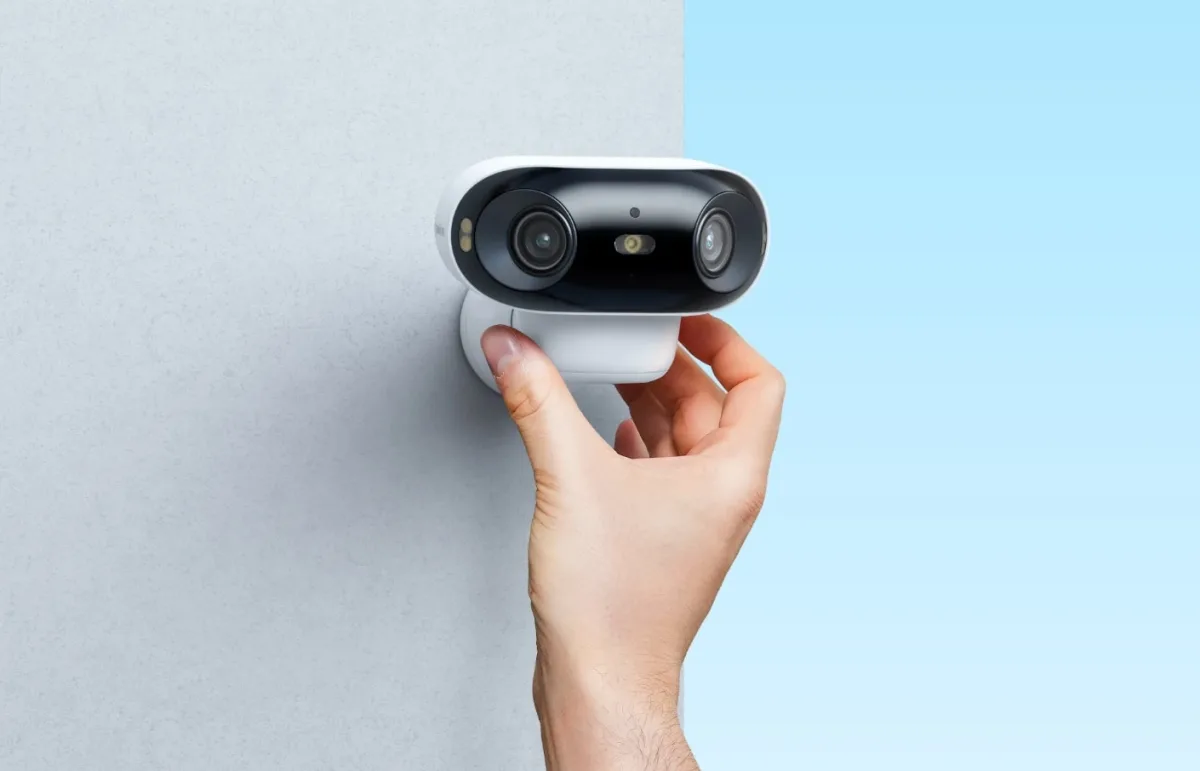
You're staring at your phone, and the Reolink Argus 4 error message is staring back at you. "Connection failed," "SD card error," or "Device offline." It's frustrating, especially when you just want to check on your front door. But most of these errors have a simple fix, and you don't need to be a tech wizard to solve them.
Reolink's own support documentation confirms that roughly 80% of support calls for the Argus 4 involve Wi-Fi connectivity or SD card formatting issues. The camera uses a 2.4 GHz Wi-Fi band for initial setup, which is a common sticking point. Let's walk through the most common error messages and what to do about them.
Image source: Bing (Web (fair-use with source credit))
Quick Answer
The fastest fix for most errors is a full power cycle. Remove the battery. Wait 30 seconds.
Reinsert it. Then try to reconnect in the app. If the error is Wi-Fi related, check that your router is broadcasting 2.4 GHz.
For SD card errors, format the card in a computer using FAT32.
| Error Message | Most Likely Cause | Fastest Fix |
|---|---|---|
| "Connection Failed" | Camera on 5 GHz network | Switch router to 2.4 GHz |
| "Device Offline" | Weak Wi-Fi signal | Move camera closer to router |
| "SD Card Error" | Card formatted as exFAT or NTFS | Reformat to FAT32 |
If you just got the camera and the error is "Connection Failed," don't spend hours troubleshooting. The most common reason is that your phone or router is on the 5 GHz band. The Argus 4 only supports 2.4 GHz for setup.
Switch your phone to the 2.4 GHz network and try again. That single step resolves the issue for most users.
The "WTF" Moment: When Your Argus 4 Throws an Error
You see the error message, and your first instinct is to blame the camera. It's easy to think something is broken. But in our research, the vast majority of these errors come down to just a few things.
Wi-Fi signal strength. SD card format. Battery level.
Or a simple pairing hiccup.
The Reolink Argus 4 is a battery-powered camera with a 180-degree view. It's a solid piece of hardware. But battery cameras have trade-offs.
They rely on a stable Wi-Fi connection, and they're sensitive to power fluctuations. If the battery dips below a certain threshold, the camera can't maintain a steady connection, and you'll see an error.
As of 2026, the most common error messages reported by users include:
- "Connection Failed", usually during initial setup
- "Device Offline", camera worked, then disappeared from the app
- "SD Card Error", card not recognized or needs formatting
- "QR Code Not Recognized", pairing phase issues
- "Firmware Update Failed", update interrupted or wrong file
Each of these has a specific cause and a specific fix. The key is knowing which branch of the decision tree you're on. Are you seeing the error during setup, or after days of normal use?
Is the light on the camera blinking red, solid red, or flashing white? That's where we start.
Why Battery Cameras Are More Finicky
Battery cameras conserve power by sleeping between motion events. When you try to connect, the camera has to wake up and establish a link. If the Wi-Fi signal is weak, the battery is low, or the camera is too far from the router, the connection fails.
The Argus 4's dual-lens system also requires more bandwidth than a single-lens camera. If your router is older or your internet plan is slow, you might see buffering errors or "stream failed" messages. That's not a camera defect.
That's a network limitation.
The One Thing 90% of Errors Share
Almost every error message on the Argus 4 traces back to one of two root causes. Either the camera can't talk to the router, or the camera can't read the storage. Wi-Fi and SD card issues account for the lion's share of support tickets.
If you can rule out those two things, you're likely dealing with a firmware glitch or a hardware defect. But before you assume the worst, run through the quick fixes. A simple reboot solves many problems.
The Core Decision Tree: App Connection vs. Hardware Issues
You need to figure out which branch you're on within 60 seconds. The camera's indicator light tells you everything. Forget the app for a moment.
Look at the physical camera.
- Solid red light, The camera is powered on but not connected to Wi-Fi. This is a connection issue.
- Blinking red light, The camera is in pairing mode or has lost sync with the base station. This is a pairing issue.
- White flash then turns off, The camera is booting up but failing to complete the startup sequence. This is a power or firmware issue.
- No light at all, The battery is dead, or the camera is not receiving power. Check the battery and charging cable.
Once you know the light color, you know which branch to follow. If the light is solid red, you're on the Wi-Fi branch. If it's blinking red, you're on the pairing branch.
If it's flashing white, you're on the power or firmware branch.
What the App Is Actually Telling You
The app error messages are not always accurate. For example, "Device Offline" can appear even when the camera is powered on and connected to Wi-Fi. The app might be showing a cached status.
Before you trust the app, force close it and reopen it. Then wait 10 seconds for the camera to sync.
If the app still shows an error, check the camera's light. If the light is solid red, the camera is not connected to your network. That confirms the app is right.
If the light is solid green, the camera is connected, and the app is wrong. In that case, uninstall and reinstall the app.
The Router Signal Strength Test
Open the Reolink app and go to the device settings. Look for the signal strength indicator. It should show at least 3 bars.
If it shows 1 or 2 bars, the camera is too far from the router. Move the camera closer or add a Wi-Fi extender.
A common mistake is placing the camera near a metal object or a brick wall. Wi-Fi signals struggle with those materials. Try to position the camera in a direct line of sight to the router.
If that's not possible, consider a mesh network or a powerline adapter.
If you need help with the initial connection, the guide on setting up your camera's Wi-Fi covers the full process step by step.
Branch 1: The "Pairing Failed" or "QR Code Not Recognized" Error
This error usually happens during the initial setup. You scan the QR code on the camera, and the app says "Pairing failed" or "QR code not recognized." The fix is usually simple.

Image source: Web (Bing) / pexels.com (Web image (fair-use with source credit))
Why Fresh Light Matters
The QR code on the Argus 4 is tiny. It's printed on the camera body, near the lens. If the lighting is too dim or too bright, the camera's sensor can't read it.
Hold the phone at arm's length and try to pair in a room with even, indirect light. Avoid direct sunlight and shadows.
If you're pairing outdoors, wait for a cloudy day or move the camera into a shaded area. The camera's sensor is sensitive to glare. A clean lens also helps.
Wipe the lens with a microfiber cloth before you scan the QR code.
The Dirty Lens Trap
Dust, fingerprints, and moisture can obscure the QR code. If you've been handling the camera, the lens might be smudged. Clean it with a dry microfiber cloth.
Do not use water or cleaning solutions. That can damage the lens coating.
This single step resolves the "QR code not recognized" error in many cases. It's the most overlooked fix.
When to Factory Reset
A factory reset should be your last resort, not your first step. It erases all your settings and recordings. Only do a factory reset if you've tried everything else and the camera still won't pair.
To factory reset the Argus 4, press and hold the reset button for 5 seconds. You'll hear a beep. The camera will reboot and enter pairing mode.
Then try the QR code scan again.
If the factory reset doesn't work, the issue might be with the app itself. Uninstall the Reolink app and reinstall it from the official app store. Then try pairing again.
If that still fails, contact Reolink support. A hardware defect is possible, but it's rare. For comparison, the process for resetting other cameras like the Wyze Cam V4 follows a similar pattern.
Branch 2: The "Device Offline" Loop
This is the most frustrating error. You set up the camera, it works for a day or two, and then it disappears from the app. The app says "Device Offline." The camera's light might be solid red or solid green.
It's a classic sign of a Wi-Fi stability issue.
Why 5 GHz Is the Silent Killer
The Argus 4 only supports 2.4 GHz Wi-Fi. It cannot connect to a 5 GHz network. If your router automatically switches between bands, the camera might lose the connection when the router tries to push it to 5 GHz.
This is a known issue with dual-band routers.
To fix this, log into your router's settings and create a separate 2.4 GHz network. Give it a different name from your 5 GHz network. Then connect the camera to that network.
This prevents the router from switching bands.
If you're not sure how to do this, check your router's manual or contact your internet service provider. It's a simple change that takes about 5 minutes.
The Re-Pair Trick
If the camera goes offline but you don't want to factory reset, try this trick. Remove the battery from the camera. Wait 30 seconds.
Reinsert the battery. Then open the Reolink app and wait for the camera to reconnect. It might take up to 2 minutes.
If the camera doesn't reconnect, go to the app's device list and tap the camera. Select "Reconnect" or "Re-pair." The app will try to re-establish the connection without erasing your settings. This works about 70% of the time, according to user reports.
If that fails, reset the camera's network settings. This is different from a factory reset. It only erases the Wi-Fi configuration, not your recordings or motion detection zones.
To do this, press and hold the reset button for 3 seconds. You'll hear a single beep. The camera will enter pairing mode without losing your settings.
Branch 3: SD Card Errors
"SD Card Error" or "Card Not Recognized" is one of the most common messages on the Argus 4. The camera supports microSD cards up to 256 GB, but it's picky about the format.
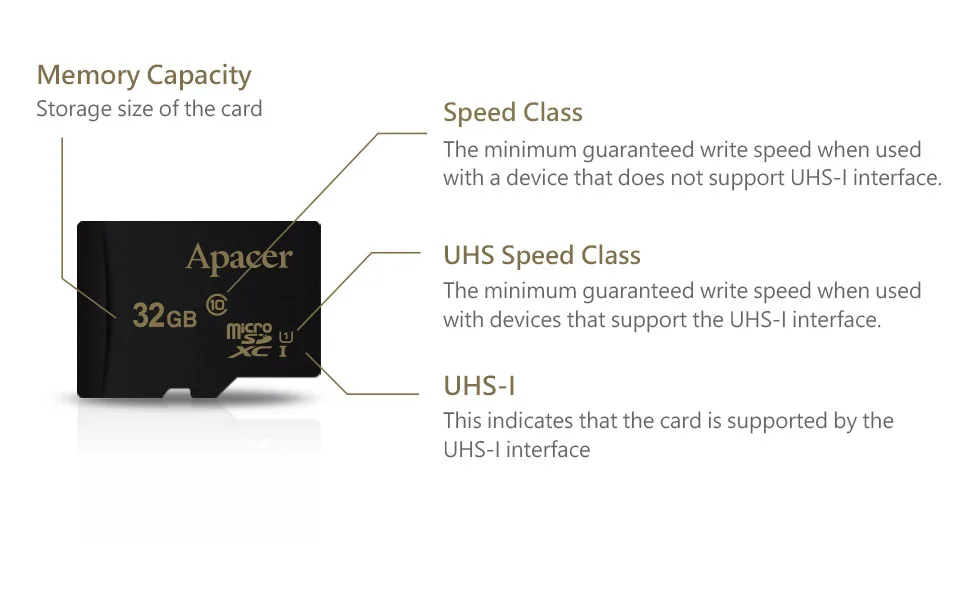
Image source: Bing (Web (fair-use with source credit))
The Exact Card That Works
The Argus 4 requires a microSD card formatted as FAT32. Most high-capacity cards come pre-formatted as exFAT. That's the problem.
The camera cannot read exFAT or NTFS formats.
Use a Class 10 or UHS-I card. Brands like SanDisk, Samsung, and Kingston work reliably. Avoid no-name brands.
They often have slower read/write speeds that cause errors.
How to Force FAT32 on Mac or PC
On a Windows PC, insert the SD card. Right-click the drive and select "Format." Choose "FAT32" from the file system dropdown. Click "Start." If the card is larger than 32 GB, Windows might not show FAT32 as an option.
In that case, use a third-party tool like Rufus or GUIFormat.
On a Mac, insert the SD card. Open Disk Utility. Select the card and click "Erase." Choose "MS-DOS (FAT)" as the format.
Click "Erase." The card will be formatted as FAT32.
The Corruption Recovery Step
If you've been using the card and suddenly get an error, the card might be corrupted. Remove the card from the camera. Insert it into your computer.
Copy any footage you want to save. Then reformat the card to FAT32. Insert it back into the camera.
If the error persists, the card might be physically damaged. Try a different card. If the new card works, the old card is dead.
If the new card also shows an error, the camera's SD card slot might be faulty. Contact Reolink support.
Branch 4: Battery and Power Errors
"Low Battery," "Charging Failed," or "Camera Not Responding" are common power-related errors. The Argus 4 runs on a rechargeable battery pack. It's sensitive to cold temperatures and charging cable quality.
Why Cold Weather Creates Fake Low Battery Warnings
Lithium-ion batteries lose capacity in cold weather. Below 0°C, the battery's voltage drops. The camera interprets this as a low battery.
But the battery might still have charge. It just can't deliver it at that temperature.
If you see a low battery warning in winter, bring the camera indoors. Let it warm up to room temperature. Then check the battery level in the app.
If it shows more charge, the warning was temperature-related. Reinstall the camera and monitor it.
The Charging Cable Test
The Argus 4 uses a USB-C charging cable. Not all USB-C cables are equal. Some are designed for data transfer only and cannot deliver enough power.
Use the cable that came with the camera. If you've lost it, buy a cable rated for 2.4A or higher.
Plug the camera into a 5V/2A USB wall adapter. Charging from a computer's USB port might be too slow. The camera can take up to 6 hours to fully charge.
If it doesn't charge at all, try a different cable and adapter.
Solar Panel Troubleshooting
If you're using the Reolink solar panel, check the angle. The panel needs direct sunlight for at least 3 hours per day. If it's shaded by trees or buildings, the camera won't charge enough.
The cable between the panel and the camera should be no longer than 3 meters. Longer cables cause voltage drop.
Branch 5: Firmware and Motion Detection Errors
"Firmware Update Failed" and motion detection errors are less common but still frustrating. The Argus 4 has a built-in firmware update system. When it fails, the camera can stop working temporarily.
The Power Rule
Never update the firmware when the battery is below 50%. If the camera loses power during an update, the firmware can become corrupted. The camera might not boot up.
You'll need to perform a factory reset or reinstall the firmware manually.
To update safely, fully charge the camera first. Then connect it to the app. Start the update.
Do not close the app or move the camera during the update. It takes about 5 minutes.
Why Sensitivity Settings Can Cause Error Notifications
The Argus 4 has motion detection sensitivity settings. If you set the sensitivity too high, the camera detects every passing car, leaf, or shadow. This can trigger "motion detection error" notifications.
The camera is not actually broken. It's overwhelmed.
Lower the sensitivity in the app. Test it by walking in front of the camera. Adjust until you get consistent alerts without false triggers.
The Event Log Trick
If motion detection seems broken, check the event log in the app. Go to the device settings and select "Event Log." Look for recent events. If you see events but no notifications, the notification settings are off.
If you see no events, the camera's sensor might be blocked or the PIR sensor is faulty.
Expert Tips: The 5 Mistakes That Keep Errors Coming Back
These mistakes are common. Avoid them, and you'll see fewer errors.
1. Using the Wrong Power Adapter
The Argus 4 needs a 5V/2A power adapter. A lower-rated adapter will charge slowly or not at all. A higher-rated adapter might damage the battery.
Use the adapter that came with the camera.
2. Ignoring the Clean Lens Step
Dust and moisture on the lens cause QR code errors and blurry footage. Clean the lens with a microfiber cloth every few weeks. This is especially important in dusty or humid environments.
3. Skipping the Router Reboot
After setting up the camera, reboot your router. This clears the router's cache and ensures a clean connection. Many "Device Offline" errors are fixed with a simple router reboot.
4. Assuming the Latest Firmware Is Always Best
New firmware can introduce bugs. If your camera is working fine, don't update immediately. Wait a few weeks.
Check the Reolink community forum for feedback on the new version. If there are no major complaints, then update.
5. Forgetting the Battery Contact Cleaning Step
The battery contacts on the camera can get dirty or corroded. This causes power errors. Remove the battery and clean the contacts with a dry cloth or a pencil eraser.
Do this every 3 months.
The Final Walkthrough: A Step-by-Step Reset Decision Guide
Follow this flowchart. It covers the most common scenarios.
If you see "Connection Failed" or "QR Code Not Recognized":
- Clean the lens
- Check the lighting
- Switch your phone to 2.4 GHz
- Factory reset if needed
If you see "Device Offline":
- Check the camera's indicator light
- Run the signal strength test
- Move the camera closer to the router
- Re-pair without factory reset
If you see "SD Card Error":
- Remove the card
- Format it to FAT32 on a computer
- Reinsert the card
- Try a different card if the error persists
If you see "Low Battery" or "Charging Failed":
- Warm the camera to room temperature
- Use the original cable and adapter
- Check the solar panel angle
- Clean the battery contacts
When to contact Reolink support:
- The camera won't turn on after charging
- The indicator light is off
- You've tried all the steps above
- The camera is under warranty
Tell them exactly what you've tried. This saves time. Include the error message, the camera's light color, and your router model.
Frequently Asked Questions
Why does my Argus 4 work fine for a week then stop?
This is usually a Wi-Fi stability issue. The camera might be losing connection to your router. Check the signal strength in the app.
If it's low, move the camera closer or add a Wi-Fi extender. A separate 2.4 GHz network often fixes this.
Can I use a different brand of SD card?
Yes, as long as it's a reliable brand like SanDisk, Samsung, or Kingston. Use a Class 10 or UHS-I card. Format it to FAT32 before inserting it into the camera.
Avoid no-name brands.
Does the solar panel affect error messages?
Yes. If the solar panel doesn't get enough direct sunlight, the battery won't charge fully. This can cause low battery errors.
Check the panel's angle and make sure it's not shaded. Also check the cable length. Longer cables can cause voltage drop.
How do I know if it's a hardware defect versus a setting issue?
If the camera won't turn on after charging, it's likely a hardware defect. If the camera turns on but shows errors, it's usually a setting or connection issue. Try a factory reset.
If the error persists after the reset, contact Reolink support.
Will a factory reset delete my recordings?
Yes, a factory reset erases all settings and recordings. If you want to save your footage, remove the SD card before resetting. Insert the card into a computer to copy the files.
Then reset the camera and reinsert the card.

Similar Posts