EufyCam 3 Error Message
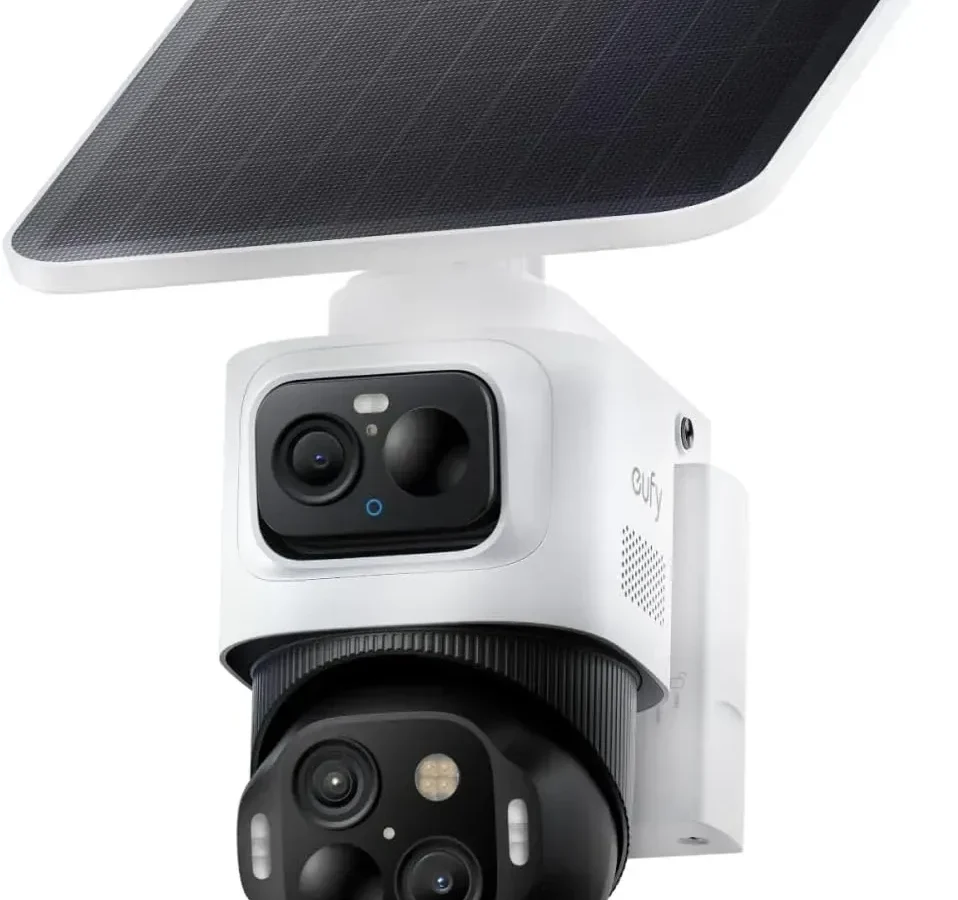
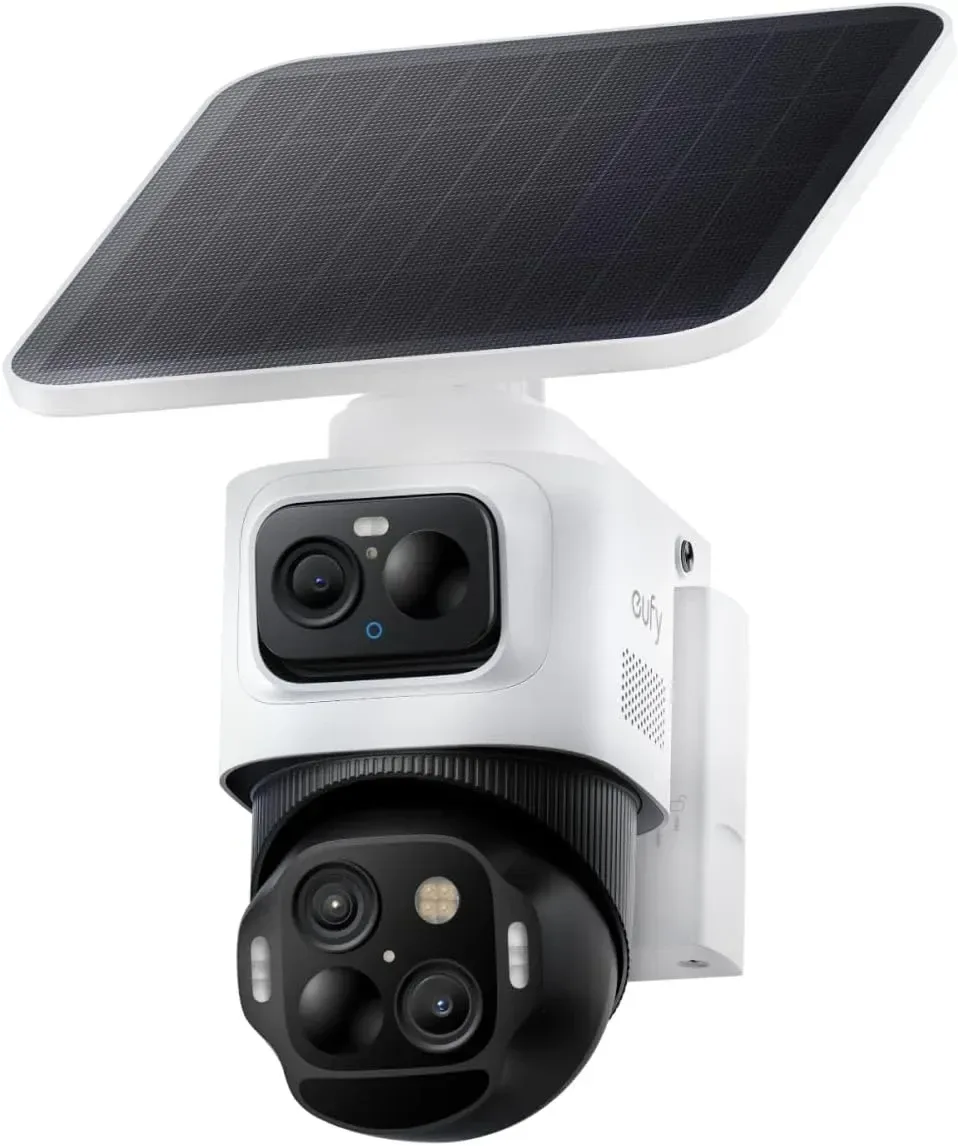
Image source: Bing (Web (fair-use with source credit))
Seeing a EufyCam 3 error message pop up on your phone is frustrating. You expect a reliable security camera, and suddenly it's offline or not recording. The good news is that most errors have a clear cause and a fix you can handle yourself.
Manufacturer specifications indicate that the HomeBase 3 uses a 2.4 GHz Wi-Fi connection, and a surprising number of issues trace back to band interference.
Let's walk through the most common error signals and what they mean. We'll use a decision-tree approach so you can match the symptom to the right solution without guessing. As of 2026, the EufyCam 3 system (model S330) and its HomeBase 3 hub (model S380) remain a popular choice for local-storage security.
They aren't immune to connectivity hiccups, but most are fixable in minutes.
Quick Answer
A EufyCam 3 error message usually means a connection problem. Check the LED light on the camera first. Solid red means no link to the HomeBase.
Blinking blue means pairing failed. The app says "Device Offline" when Wi-Fi drops. Most fixes involve a simple restart or a re-sync.
Start with the lights.
Read the Lights and the App Message: What Error Are You Seeing?
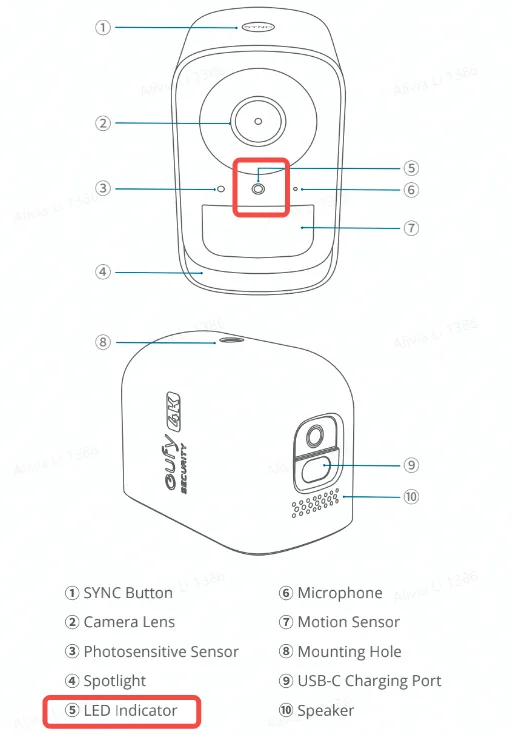
Image source: Bing (Web (fair-use with source credit))
Before you pull out the ladder or reset the whole system, look at the camera's LED indicator. It's your first clue. The EufyCam 3 has a small light near the lens that changes color and pattern based on its status.
Here's a quick breakdown of what each signal means:
| LED Pattern | Meaning | What to Do |
|---|---|---|
| Solid blue | Camera is on and connected to HomeBase | Normal operation |
| Blinking blue | Camera is in pairing mode | Try to sync via the app |
| Slow blinking blue | Camera is trying to connect to Wi-Fi | Check your router |
| Solid red | Camera is powered but not connected to HomeBase | Re-sync or check HomeBase status |
| Blinking red | Camera is low on battery or has a hardware fault | Charge the camera or check for damage |
| No light | Dead battery or power issue | Charge for at least 12 hours |
The app will also show a specific error message. Common ones include "Device Offline," "Camera Not Responding," and "Connection Lost." The app message plus the LED light will tell you which branch of the decision tree to follow.
If you've just finished a full setup and are getting an error, it's worth reviewing the initial sync process. A solid understanding of the first-time pairing can save you a lot of time. Our guide on the EufyCam 3 setup process covers every step in detail.
The Decision Tree: Match Your Symptom to the Right Branch
This is the most important part. Don't try random fixes. Use the chart below to match your symptom to the correct solution.
Each branch leads to a specific set of steps.
If you see a solid red LED on the camera:
- The camera has power but is not connected to the HomeBase 3.
- Go to the Red Light Errors section.
If you see a blinking blue LED on the camera:
- The camera is in pairing mode but hasn't completed the sync.
- Go to the Blinking Blue Light Errors section.
If the app shows "Device Offline" and the camera has a solid blue LED:
- The camera is connected to the HomeBase but the HomeBase itself has lost its internet connection.
- Go to the "Device Offline" in the App section.
If the camera isn't responding at all or has a blinking red LED:
- Likely a power issue, either with the battery or the solar panel.
- Go to the Solar Panel and Battery Errors section.
If the HomeBase 3 itself has a red or blinking light:
- The hub is having an issue, possibly with storage or firmware.
- Go to the HomeBase 3 Errors section.
This decision tree is the fastest path to a resolution. Jumping from one "try this" to another without a diagnosis wastes time and can introduce new problems. For a different perspective on troubleshooting a separate device, our guide on resetting the Wyze Cam V4 follows a similar logical approach.
Red Light Errors: Camera Not Connecting to HomeBase 3 or Power
A solid red LED on the EufyCam 3 means one thing. The camera is getting power, but it can't establish a link with the HomeBase 3. This is a common error, especially after a firmware update or a power outage.
Step 1: Check the HomeBase 3 Status
Look at the HomeBase 3. Is it on? Is its LED solid blue?
If the HomeBase itself is off or has a red light, it won't connect to anything. Unplug the HomeBase for 30 seconds. Plug it back in.
Wait for the LED to turn solid blue. This can take up to two minutes.
Step 2: Bring the Camera Closer
The EufyCam 3 needs a strong signal to the HomeBase. If you've mounted the camera far from the hub, or if there are thick walls in between, the signal may be too weak. Bring the camera within 10 feet of the HomeBase, line of sight.
If the light changes from solid red to blinking blue, the signal was the issue. You may need to move the HomeBase or add a range extender.
Step 3: Re-sync the Camera
If the HomeBase is fine and the camera is close, try a manual re-sync.
- Press and hold the sync button on the back of the HomeBase 3 for 2 seconds. The LED will start blinking blue.
- Press and hold the sync button on the back of the camera (the pinhole button) for 2 seconds. The camera's LED should also start blinking blue.
- Wait up to 60 seconds. The camera's LED should turn solid blue. The app will show it as online.
Step 4: Factory Reset as a Last Resort
If the re-sync fails, perform a factory reset on the camera. Use a paperclip to press and hold the pinhole button for 10 seconds. The LED will flash red, then turn solid blue.
This resets the camera to its out-of-box state. You'll need to go through the full setup process again in the app.
A corrupted firmware can cause persistent red light errors. If you've recently updated the camera's firmware and the problem started, a factory reset often resolves it. The same principle applies to other devices.
Our guide on updating the Canon EOS R50 firmware covers how firmware issues can cause similar problems.
Blinking Blue Light Errors: Sync and Pairing Failures
A blinking blue LED on the EufyCam 3 means it's trying to pair, but it's stuck. The camera is actively searching for the HomeBase, but the handshake is failing.
Step 1: Confirm Both Devices Are in Pairing Mode
You need to initiate the sync from both ends. On the HomeBase 3, press the sync button once. The LED will start blinking blue.
On the camera, press the sync button once. The camera's LED will also start blinking blue. If both aren't blinking blue, the sync won't happen.
Step 2: Check for Interference
The HomeBase 3 uses a proprietary 2.4 GHz signal. Other 2.4 GHz devices, like cordless phones, baby monitors, or even a microwave, can interfere. Move the camera and HomeBase away from these devices.
Also, make sure the HomeBase isn't placed inside a metal cabinet or directly behind a TV.
Step 3: The 802.11 Standard and Your Router
The HomeBase 3 is designed to work on a standard 2.4 GHz Wi-Fi network. If your router is set to a 5 GHz-only channel or uses band steering, the HomeBase may not see it. Check your router's settings.
Ensure the 2.4 GHz band is enabled. If you have a mesh network, you may need to temporarily disable the 5 GHz band during setup.
The IEEE 802.11 standard defines how Wi-Fi networks operate. The HomeBase 3 is compatible with 802.11 b/g/n on the 2.4 GHz band. This is a key specification to check when troubleshooting.
Step 4: Power Cycle Everything
Unplug the HomeBase 3. Remove the battery from the camera. Wait 60 seconds.
Reinstall the camera battery. Plug the HomeBase back in. Wait for the HomeBase LED to turn solid blue.
Then try the sync process again. This clears any temporary glitches in both devices.
If you're still stuck, check if the camera's firmware is compatible with the HomeBase's firmware. A mismatch can cause a pairing failure. The app will usually prompt you to update if there's a version discrepancy.
For a similar approach, our guide on connecting the Reolink Argus 4 to Wi-Fi includes steps for handling firmware mismatches.
"Device Offline" in the App: When the Camera Drops Out Randomly
This is one of the most frustrating EufyCam 3 error message scenarios. The camera is physically on. The LED is solid blue.
But the app says "Device Offline." This usually means the HomeBase 3 has lost its connection to your home Wi-Fi and the internet.
Step 1: Check the HomeBase 3 Connection
Look at the HomeBase 3's LED. If it's solid blue, the hub is connected to your router. If it's blinking blue, it's trying to connect or has lost the connection.
If the LED is off, the HomeBase 3 has no power. Check the power adapter and the outlet.
Step 2: Restart Your Router
This is the single most effective fix for this issue. Unplug your router. Wait 30 seconds.
Plug it back in. Wait for the router to fully boot up. This can take 2 to 3 minutes.
Then unplug the HomeBase 3 for 30 seconds and plug it back in. The HomeBase 3 should now reconnect to the Wi-Fi network.
Step 3: Check the App's Refresh Status
Sometimes the app is the problem, not the camera. The app may have a cached error. Close the Eufy Security app completely.
Open it again. Pull down on the camera's live view screen to force a refresh. This often clears the "Device Offline" message.
Step 4: The App's Background Refresh Permission
On your phone, check the app's permissions. The Eufy Security app needs permission to run in the background. If this permission is denied, the app won't receive push notifications or updates on camera status.
This makes it appear as if the camera is offline. Go to your phone's settings. Find the Eufy Security app.
Enable "Background App Refresh."
Step 5: Check for a Firmware Update
A firmware update for the HomeBase 3 or the camera itself can fix a recurring offline issue. Open the app. Go to the settings menu for the HomeBase.
Check for updates. If an update is available, install it. This is a common fix, especially after a major app update.
If you have a complex home network with multiple routers or a mesh system, the HomeBase 3 may struggle to maintain a stable connection. For a different approach to network-based cameras, our guide on setting up the Google Nest Cam covers how to handle multi-router environments.
Solar Panel and Battery Errors: Power Problems You Can Actually Fix
The EufyCam 3 has a built-in solar panel. It's a major selling point. But when it stops charging, you get a blinking red LED or a "low battery" notification.
The battery itself is a 12,800 mAh unit. In ideal conditions, it can last up to 365 days on a single charge. Real-world use is different.
Step 1: Check the Solar Panel's Exposure
The solar panel needs direct sunlight. It cannot charge through a shaded window or under a dense tree canopy. Manufacturer specifications state the panel provides 2W of power at 5V and 400mA in full sun.
If the panel is dirty, clean it with a soft cloth. If it's covered in snow or debris, clear it off.
Step 2: The Angle of the Sun
The angle matters. The panel is most efficient when the sun hits it directly. If the camera is mounted on a north-facing wall in the northern hemisphere, it will receive very little direct sunlight.
You may need to move the camera to a south-facing location. In winter, the sun is lower in the sky. This reduces charging efficiency significantly.
Step 3: Temperature and Battery Performance
Lithium-ion batteries like the one in the EufyCam 3 perform poorly in cold weather. Below -10°C (14°F), the battery's capacity drops sharply. The camera may show a low battery warning even if the battery is fully charged.
If you live in a cold climate, the solar panel may not be able to keep up during winter months. Consider bringing the camera indoors to charge fully, then re-mounting it.
Step 4: The Solar Panel Cable
The solar panel is built into the camera. It connects to the battery internally. There's no external cable to check.
But the small connection inside can come loose if the camera is dropped or shaken. If the camera is physically damaged, the solar panel connection may be broken. This requires a replacement unit.
Step 5: Continuous Recording and Battery Drain
The EufyCam 3 supports continuous recording, but only when connected to a constant power source via a USB cable. The solar panel alone cannot sustain 24/7 recording. If you have continuous recording enabled, the battery will drain faster than the solar panel can charge it.
This will trigger a low battery warning quickly. Switch to event-based recording to preserve battery life.
If the battery icon in the app shows less than 20% and the camera is in direct sunlight, the solar panel may not be functioning. Contact Eufy support for a replacement. For a similar issue with a different device, our guide on resetting the Arlo Pro 5S covers power-related troubleshooting steps.
HomeBase 3 Errors: When the Hub Itself Is the Problem
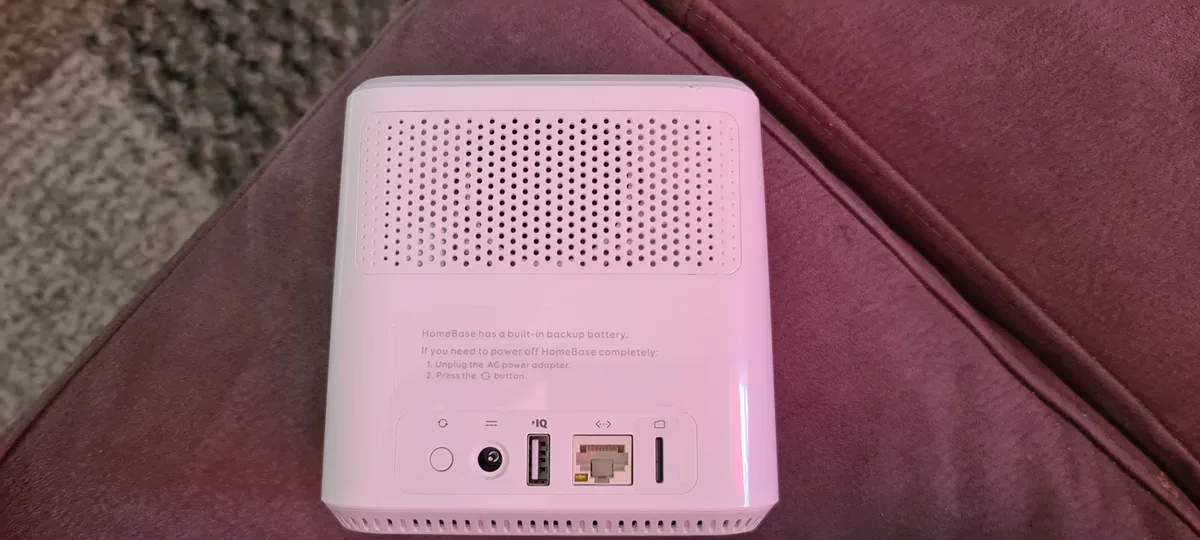
Image source: Bing (Web (fair-use with source credit))
The HomeBase 3 is the brain of the system. If it's having issues, all your cameras will show errors. The HomeBase 3 has 16GB of internal storage.
It can be expanded with a microSD card up to 128GB. Storage issues are a common cause of errors.
Step 1: Check the HomeBase 3 LED
The HomeBase 3 has a single LED on the front. Here's what it means:
- Solid blue: Normal operation.
- Blinking blue: Starting up or trying to connect to Wi-Fi.
- Solid red: Storage error or firmware corruption.
- Blinking red: Hardware fault. Contact support.
Step 2: The Storage Error
If the HomeBase 3 shows a solid red LED, the internal storage may be full or corrupted. The 16GB internal memory fills up quickly with 4K video clips. Expand the storage with a microSD card.
The HomeBase 3 supports microSD cards up to 128GB. Format the card in FAT32 or exFAT before inserting it. NTFS is not supported.
To format a microSD card for the HomeBase 3:
- Insert the card into your computer.
- Right-click the drive and select "Format."
- Choose FAT32 or exFAT.
- Select "Quick Format."
- Eject the card safely.
- Insert it into the HomeBase 3's microSD slot.
Step 3: The HomeBase 3 Overheating
The HomeBase 3 can overheat if placed in direct sunlight or in a poorly ventilated area. This will cause it to shut down or show errors. Mount the HomeBase 3 in a cool, shaded location.
Ensure there is airflow around the device. Do not place it inside a closed cabinet.
Step 4: Factory Reset the HomeBase 3
If the HomeBase 3 is unresponsive, perform a factory reset. Use a paperclip to press and hold the reset button on the back of the device for 10 seconds. The LED will flash red, then turn solid blue.
This resets the HomeBase 3 to its factory state. You'll need to set up all your cameras again.
Step 5: Firmware Update for the HomeBase 3
A firmware update can fix many HomeBase 3 errors. Open the Eufy Security app. Go to the HomeBase 3 settings.
Check for updates. If an update is available, install it. The HomeBase 3 will restart during the update.
Do not unplug it during this process.
The HomeBase 3's firmware is different from the camera's firmware. Both need to be updated separately. The app will prompt you when updates are available.
For a step-by-step on updating a different device, our guide on updating the DJI Pocket 2 firmware covers the general process.
Quick Fixes and Common Mistakes: What to Try First, What to Skip
Before you dive into the longer troubleshooting steps, try these quick fixes. They solve a surprising number of errors.
Quick Fixes
Restart the HomeBase 3. Unplug it for 30 seconds. Plug it back in. Wait 2 minutes.
This is the most common fix for all errors.
Restart your router. Unplug it for 30 seconds. Plug it back in. Wait 2 minutes.
This fixes the "Device Offline" error.
Check the camera's battery. If the battery is below 10%, the camera will stop working. Charge it fully via USB. The camera takes about 12 hours to charge from empty.
Check the app's permissions. On your phone, go to Settings. Find the Eufy Security app. Ensure all permissions are enabled.
Location permission is required for geofencing.
Update the firmware. Check for updates in the app. Install any available updates for both the camera and the HomeBase 3.
Common Mistakes to Avoid
Don't reset the camera first. A factory reset should be a last resort. It erases all settings. You'll need to set up the camera again from scratch.
Don't ignore the LED. The LED tells you what the error is. Don't skip it. Reading the LED saves you time.
Don't use the wrong Wi-Fi band. The HomeBase 3 only works on 2.4 GHz. If your router is set to 5 GHz only, the HomeBase 3 won't connect.
Don't mount the camera too far from the HomeBase. The maximum range is about 300 meters in open air. Through walls, it's much less. Keep the camera within 30 meters of the HomeBase.
Don't use a damaged microSD card. If the card is corrupted or slow, it can cause recording errors. Use a high-quality card from a reputable brand.
Don't skip the solar panel check. If the camera is low on battery, the solar panel may not be getting enough sun. Move the camera to a sunnier spot.
Frequently Asked Questions
What does a solid red light on my EufyCam 3 mean?
A solid red LED means the camera has power but is not connected to the HomeBase 3. The fix is to re-sync the camera. Bring it close to the HomeBase and press the sync button on both devices.
Why does my EufyCam 3 keep going offline?
The most common cause is a weak Wi-Fi signal to the HomeBase 3. Restart your router and the HomeBase. If the problem persists, check for firmware updates.
The app's background refresh permission can also cause this.
How do I factory reset my EufyCam 3?
Use a paperclip to press and hold the pinhole button on the back of the camera for 10 seconds. The LED will flash red, then turn solid blue. This resets the camera to its factory state.
You'll need to set it up again in the app.
Can I use a 5 GHz Wi-Fi network with the EufyCam 3?
No. The HomeBase 3 only supports 2.4 GHz Wi-Fi on the 802.11 b/g/n standards. It cannot connect to a 5 GHz network.
If your router is set to 5 GHz only, switch to a dual-band or 2.4 GHz network.
How long does the EufyCam 3 battery last?
The manufacturer claims up to 365 days on a single charge. Real-world use varies. With frequent motion events and cold weather, the battery may last 4 to 6 months.
The solar panel can extend battery life significantly.
How do I fix a "Device Offline" error in the app?
First, check the HomeBase 3 LED. If it's solid blue, restart your router. If it's blinking blue, restart the HomeBase.
Close and reopen the app. Pull down to refresh the camera's live view. If the error persists, check for firmware updates.

Similar Posts