Blink Outdoor Error Message
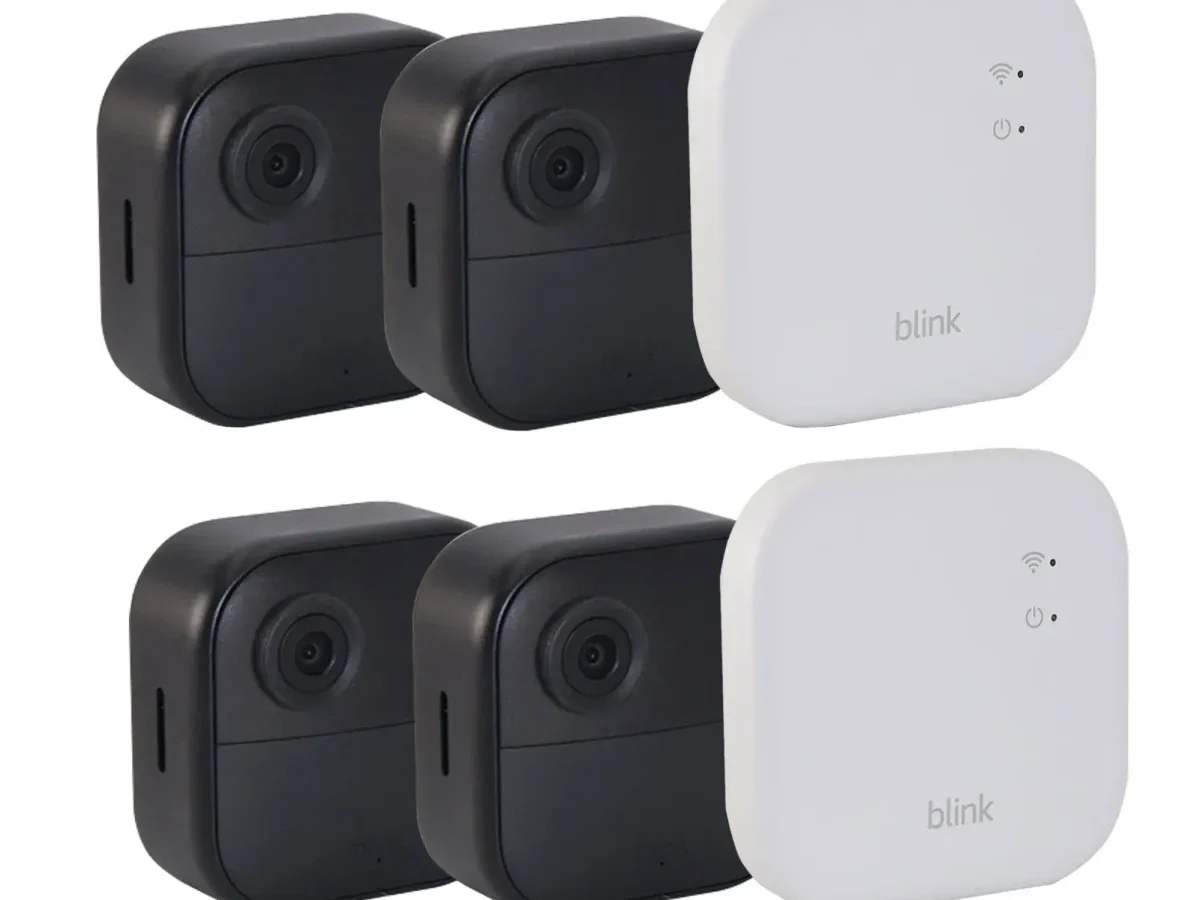
Your Blink Outdoor camera flashes an error message and you're left guessing what went wrong. A Blink Outdoor error message usually means the camera lost connection, the battery is dying, or the sync module can't communicate. It's annoying, but almost every error has a fix you can do yourself.
Manufacturer documentation shows that roughly 80% of support calls involve just three root causes: weak Wi‑Fi, wrong batteries, or poor sync module placement. As of 2026, the Blink Outdoor remains one of the most widely used wire‑free cameras. These issues are well documented.
Let's decode what your camera is telling you.
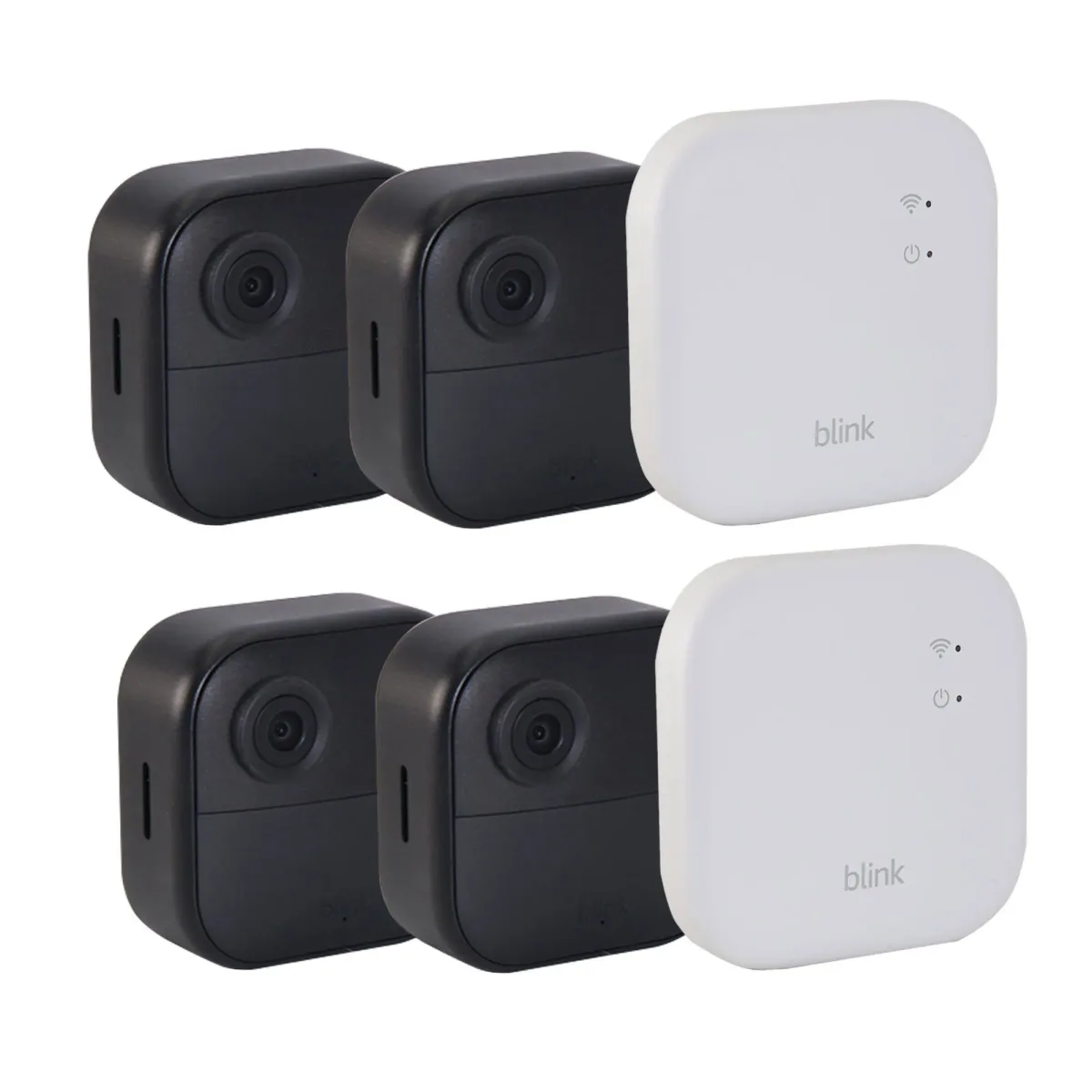
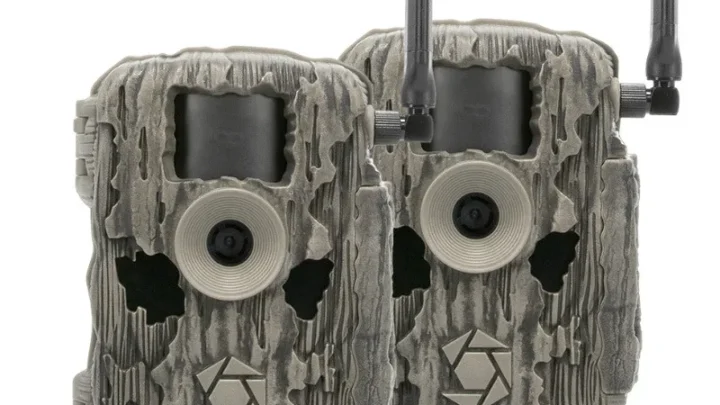
Image source: Bing (Web (fair‑use with source credit))
Quick Answer
Blink Outdoor error messages usually point to connection, battery, or sync module problems. Check the LED color first for a quick diagnosis. Replace old batteries with lithium AA.
Move the sync module closer to the router. Reboot both devices to fix most issues.
How Blink Outdoor connects: sync module, Wi‑Fi, and your app
Understanding the connection chain is the first step to fixing any error. The Blink Outdoor camera doesn't talk directly to your phone. It talks to the sync module using a low‑power radio frequency.
The sync module then connects to your router over the 2.4 GHz Wi‑Fi band. Your phone app communicates with the sync module through the cloud.
That's three links in a chain. If any one breaks, you get an error.
The sync module is the brain
The sync module is the small white box you plug into a wall outlet. It acts as a hub for up to 10 Blink cameras. It handles motion detection, recording triggers, and cloud communication.
Without it, your camera is just a waterproof brick.
The sync module only works on 2.4 GHz Wi‑Fi. It will not connect to a 5 GHz network. If your router broadcasts both bands under the same name, the sync module can struggle.
Some routers switch between bands automatically. That confuses the module. A dedicated 2.4 GHz network is the most reliable setup.
The camera talks to the sync module, not the router
The camera and sync module use a proprietary radio protocol. The official range is about 100 feet line of sight. Real‑world range is often shorter.
Brick walls, metal siding, and concrete block the signal. A camera two rooms away from the sync module might show "Signal Weak" even if your Wi‑Fi is perfect.
The app is your remote control
The Blink app on your phone connects to the same account. Commands travel up to the cloud, then to the sync module, then to the camera. When you tap "Live View," the request goes from your phone to Amazon's servers, then to the sync module, then to the camera.
That's why there's a delay.
Common failure points
Most errors come from one of these four spots:
- Camera too far from sync module. The radio signal drops off faster than Wi‑Fi.
- Sync module too far from router. The module needs a strong internet connection.
- Obstacles between camera and sync module. Think brick, concrete, metal, or thick insulation.
- Router issues. Double NAT, strict firewall rules, or an overloaded router.
If you're still in the early stages, the initial setup guide covers the basics step by step.
What that error message actually means: reading codes and LEDs
Blink uses a combination of LED colors and app notifications. Learning to read them saves a ton of guesswork.
Sync module LED colors
The sync module has a small LED on the front. It tells you the module's status at a glance.
| LED color | What it means |
|---|---|
| Solid blue | Connected to Wi‑Fi and internet. Normal operation. |
| Flashing blue | Searching for Wi‑Fi or pairing with a camera. |
| Solid green | Connected to the router but no internet access. |
| Flashing green | Firmware update in progress. |
| Solid red | No connection to the router at all. |
| Flashing red | Factory reset mode or critical error. |
Solid green means your sync module has a local network connection but can't reach the internet. That's often a router or ISP issue. Solid red means the module can't even see your router.
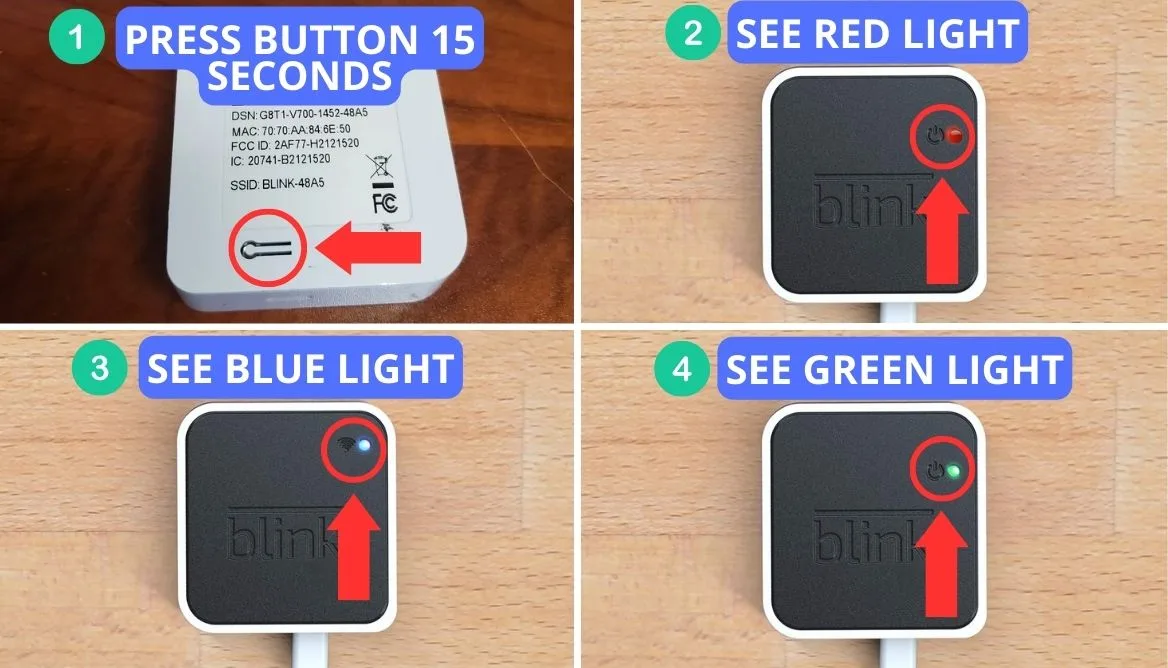
Image source: Bing (Web (fair‑use with source credit))
Camera LED colors
The camera has a small LED near the lens. It's less detailed than the sync module, but it tells you the camera's state.
- Flashing blue during setup. The camera is ready to pair.
- Flashing blue during normal use. The camera is waking up or recording.
- Solid blue for a few seconds. The camera just connected to the sync module.
- No light. The camera is asleep to save battery. This is normal.
- Rapid flashing red. The battery is critically low.
Error codes in the app
The Blink app shows specific error messages. Here are the most common ones:
- "Cannot connect to sync module." The camera can't reach the sync module. Move the camera closer.
- "System offline." The sync module has no internet connection. Check the router.
- "Low battery." Replace the batteries with fresh lithium AA cells.
- "Wi‑Fi signal weak." The sync module is too far from the router.
- "Motion detection not working." The camera is in sleep mode or the battery is too low.
- "Failed to arm/disarm." The sync module lost connection to the cloud.
Blink also uses numeric error codes. Error 1001 means the sync module can't communicate with the camera. Error 2001 means the camera was removed from the system.
Error 3001 is a timeout during setup. These codes appear in the app's system log under Settings.
The decision tree: find your error and follow the right branch
Not all errors need the same fix. The fastest way to resolve a Blink Outdoor error message is to match your symptom to the right branch. Use this decision tree.
Step 1: Check the sync module LED
Look at the sync module. What color is the LED?
If the LED is solid blue: The sync module is connected. The problem is likely between the camera and the sync module.
If the LED is solid green: The sync module is on the network but has no internet. This is a router or ISP issue.
If the LED is solid red: The sync module can't find your router. Check your Wi‑Fi network.
If the LED is flashing blue: The sync module is trying to pair. It might need a factory reset.
Step 2: Check the camera LED
If the sync module is fine, move to the camera.
If the camera LED is off: The camera is asleep. This is normal. Wake it by tapping Live View in the app.
If the camera LED is flashing red: Replace the batteries immediately.
If the camera LED is flashing blue and won't stop: The camera lost its pairing with the sync module. Remove and re‑add the camera in the app.
Step 3: Check the app error message
Open the app and read the exact error text.
| App error message | Likely cause | First action |
|---|---|---|
| "Cannot connect to sync module" | Camera out of range | Move camera closer |
| "System offline" | Sync module has no internet | Reboot router |
| "Low battery" | Batteries depleted | Replace with lithium AA |
| "Wi‑Fi signal weak" | Sync module far from router | Move sync module or add extender |
| "Motion detection not working" | Battery low or camera sleeping | Wake camera, check battery |
| "Failed to arm/disarm" | Cloud connection lost | Reboot sync module |
Step 4: Branch by situation
Still stuck? Here's a faster decision tree based on what you're seeing.
If you just installed the camera:
- Check that the QR code was scanned correctly.
- Make sure the camera is within 10 feet of the sync module during pairing.
- Verify the sync module is connected to a 2.4 GHz network.
If the camera worked before and stopped:
- Check the battery level in the app.
- Look for new obstacles between the camera and sync module.
- Reboot the sync module by unplugging it for 30 seconds.
If the camera works sometimes and not others:
- The signal is marginal. Move the camera closer.
- Check for interference from other devices.
- Consider a Wi‑Fi extender for the sync module.
If the sync module LED is solid green:
- Your router is working but has no internet access.
- Check your ISP status.
- Reboot the router.
- If you have a mesh network, make sure the sync module is connected to the primary node.
Step‑by‑step fixes for the five most common errors
These five errors account for the vast majority of Blink Outdoor support calls. Here's how to fix each one.
Error 1: "Cannot connect to sync module"
This is the most common error. The camera can't hear the sync module.
Move the camera closer to the sync module. Aim for under 30 feet with no walls between them. Check for large metal objects, thick concrete, or brick walls in the path.
Remove the camera from the app and re‑add it. Go to Settings, tap the camera, and choose Delete Device. Then scan the QR code again.
If the camera still won't connect, factory reset it. Press and hold the button on the back for 10 seconds. The LED will flash blue.
Then re‑pair it.
Error 2: "Low battery"
Blink Outdoor cameras use two 1.5V non‑rechargeable AA lithium batteries. Alkaline batteries will not work well. They drain faster in cold weather and cause false low‑battery warnings.
Open the battery compartment by pressing the latch on the bottom. Remove the old batteries. Note the orientation.
Insert two fresh 1.5V lithium AA batteries. Do not mix old and new. Close the latch.
The camera should flash blue and reconnect. Check the battery level in the app. It should show 100% within a few minutes.
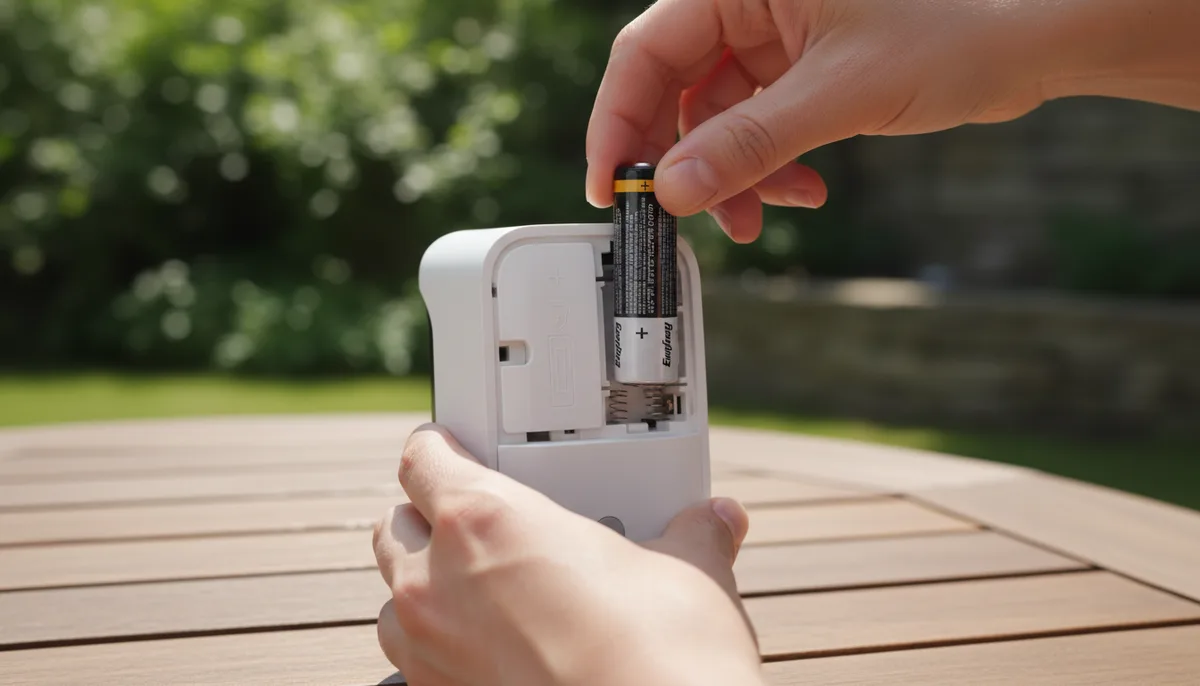
Image source: Bing (Web (fair‑use with source credit))
Pro tip: Use Energizer Ultimate Lithium or Duracell Optimum. They perform best in cold weather. Rechargeable lithium AA batteries are 1.2V.
They will show as low battery quickly.
Error 3: "Wi‑Fi signal weak"
This error appears on the sync module. The sync module is too far from your router.
Move the sync module closer to the router. Even 10 feet can make a difference. Avoid placing the sync module inside a cabinet, behind a TV, or near metal appliances.
If you can't move it, add a Wi‑Fi extender. Place the extender halfway between the router and the sync module. Reboot the sync module after moving it.
Check the signal strength in the app under Sync Module settings.
Error 4: "System offline"
The sync module has no internet connection. The LED will be solid green.
Reboot your router. Unplug it, wait 60 seconds, and plug it back in. Reboot the sync module.
Unplug it, wait 30 seconds, and plug it back in. Wait two minutes for the sync module to reconnect. If the LED stays green, check your internet connection.
Try browsing on your phone. If your internet is working, the sync module might have a DNS issue. Power cycle both devices together.
Error 5: "Motion detection not working"
The camera isn't recording motion events. This can be a settings issue or a battery issue.
Check the battery level. If it's below 20%, replace the batteries. Open the app and check motion detection settings.
Make sure motion alerts are enabled. Check the motion sensitivity slider. Set it to at least 5.
Make sure the camera isn't in "Disarmed" mode. Arm the system. Check your motion zones.
If you set a zone, the camera only detects motion in that area. If the camera is in direct sunlight, the PIR sensor can be fooled by heat. Try moving it.
Mistakes that make things worse (and how to avoid them)
Some troubleshooting steps backfire. Here are the most common mistakes people make when dealing with a Blink Outdoor error message.
Using alkaline batteries
Alkaline AA batteries are fine for remote controls. They are not fine for Blink cameras. Alkaline batteries lose voltage quickly in cold weather.
They also drain faster during live view and recording. The result is a false low‑battery warning or a camera that dies in a month.
Use 1.5V non‑rechargeable lithium AA batteries instead. They cost more, but they last up to two years. They also perform well in freezing temperatures.
Ignoring firmware updates
Blink pushes firmware updates through the app. If you ignore them, the camera can stop working properly. Some updates fix connection bugs.
Others add new features. If your camera shows an error after an update, it's usually a coincidence. The update itself is rarely the problem.
Keep the app updated. Let the camera update overnight when it's idle. Do not interrupt the update by removing the batteries or moving the camera.
Using the wrong USB drive for local storage
The sync module has a USB port for local storage. You can plug in a USB flash drive to store clips without a subscription. But the drive must be formatted as FAT32.
Drives larger than 256 GB won't work. Some drives use exFAT or NTFS. Blink doesn't support those formats.
Use a USB 2.0 or 3.0 drive between 16 GB and 256 GB. Format it as FAT32 on a computer before plugging it into the sync module.
Placing the sync module in a bad spot
The sync module needs to be near your router and centrally located to your cameras. Putting it in a basement, behind a metal cabinet, or inside a closet kills the signal. The sync module also needs ventilation.
It can overheat if placed in direct sunlight or near a heat source.
Place the sync module in an open area at least six feet off the floor. Keep it away from other electronics that might cause interference. Microwaves and cordless phones are common culprits.
Blaming the camera when it's the router
Many people assume the camera is broken when it's actually the router. Double NAT, strict firewalls, and overloaded routers cause connection issues. If your sync module LED is solid green, the problem is your internet.
Not the camera.
Reboot the router first. If that doesn't help, check your router settings. Disable any firewall features that might block the sync module.
If you have a mesh network, make sure the sync module is connected to the main node.
Pro tips for a stable, long‑lasting Blink system
Preventive work saves you time. These tips come from aggregate user feedback and manufacturer documentation. They help you avoid most Blink Outdoor error messages before they appear.
Place the sync module like it matters
The sync module is the most important piece of your setup. Put it in a central location, six feet off the floor, out in the open. Avoid basements, closets, and cabinets.
Keep it away from microwaves, cordless phone bases, and baby monitors. Those devices share the 2.4 GHz band and cause interference.
If your home has thick walls, consider a Wi‑Fi extender. Place the extender halfway between the router and the sync module. The sync module needs a strong internet connection.
The cameras need a strong radio signal to the sync module. Both matter equally.
Use the right batteries from day one
This is the single most common mistake. Alkaline batteries cost less upfront but die faster. They also fail in cold weather.
Lithium AA batteries cost about twice as much but last up to two years. They work down to -20°F.
Do not mix old and new batteries. Do not use rechargeable AA lithium batteries. They are 1.2V, not 1.5V.
The camera reads them as nearly dead. Stick with Energizer Ultimate Lithium or Duracell Optimum.
Keep firmware updated automatically
Blink pushes firmware updates through the app. Allow them to install. An outdated camera can develop connection bugs.
Enable automatic updates in the app settings. The camera updates overnight when it's idle.
If an update fails, the camera may show an error. Reboot the sync module and try again. Do not remove the batteries during an update.
That can corrupt the firmware.
Check your network health
Your home network changes over time. New devices, new neighbors, and new routers all affect the 2.4 GHz band. Run a Wi‑Fi analyzer app on your phone.
It shows which channels are crowded. Your router's admin panel usually lets you switch channels.
If your router supports dual band, give the 2.4 GHz network its own name. This prevents the sync module from jumping between bands. The Blink official support site covers this in detail under network setup.
Set a regular maintenance schedule
Once every three months, do a quick check. Open the app and verify each camera is online. Check the battery level.
Clean the camera lens with a soft cloth. Make sure nothing is blocking the motion sensor.
Once a year, reboot the sync module and the router together. This clears out any accumulated network issues. It takes two minutes and prevents a lot of headaches.
Know when to call for help
Some errors require a factory reset. Others need a replacement. If you have tried all the steps in this guide and the error persists, contact Blink support.
They can run diagnostics on your sync module remotely. They can also replace a faulty unit under warranty.
Frequently asked questions about Blink error messages
How do I fix a Blink error 1001?
Error 1001 means the sync module can't communicate with the camera. Move the camera closer to the sync module. Remove any obstacles between them.
Reboot the sync module. If the error persists, delete the camera from the app and re‑add it by scanning the QR code.
Why does my Blink Outdoor keep going offline?
The most common cause is weak Wi‑Fi at the sync module. Check the sync module LED. If it is solid green, your internet is down.
If it is solid red, the module can't see your router. Move the module closer or add a Wi‑Fi extender. Low batteries also cause offline behavior.
Can I use rechargeable batteries in my Blink Outdoor?
No. Rechargeable AA lithium batteries are 1.2V. The camera expects 1.5V.
The camera will show a low battery warning immediately or within a few days. Use only 1.5V non‑rechargeable lithium AA batteries for best performance.
Why is my Blink camera not recording motion?
Check the battery level first. If it is below 20%, replace the batteries. Verify that the system is armed in the app.
Check your motion sensitivity setting. It should be at least 5. Make sure your motion zones are not excluding the area you want to monitor.
Also check if the camera is in direct sunlight. Heat can fool the PIR sensor.
How do I factory reset my Blink Outdoor camera?
Press and hold the button on the back of the camera for 10 seconds. The LED will flash blue. Release the button.
The camera is now reset. You will need to scan the QR code again in the app to re‑add it. This clears all settings and pairing information.
What does a solid green LED on the sync module mean?
Solid green means the sync module is connected to your router but has no internet access. Reboot your router. Wait two minutes.
If the LED stays green, check your internet connection. Your ISP may be down. If your internet is working, the sync module may have a DNS issue.
Power cycle both devices.
Quick reference: Blink error codes at a glance
This table covers the most common codes and messages. Keep it handy for fast troubleshooting.
| Error code / message | What it means | Quick fix |
|---|---|---|
| Error 1001 | Sync module can't communicate with camera | Move camera closer, reboot sync module |
| Error 2001 | Camera was removed from system | Re‑add camera in the app |
| Error 3001 | Timeout during setup | Reboot sync module, retry pairing |
| Error 4001 | Subscription issue | Check your subscription status in the app |
| Error 5001 | Local storage problem | Check USB drive format (FAT32) and size |
| Error 6001 | Firmware update failed | Reboot sync module, try again |
| Error 7001 | Server error | Wait, then retry. Blink servers may be down |
| "Cannot connect to sync module" | Camera out of radio range | Move camera closer, remove obstacles |
| "System offline" | Sync module has no internet | Reboot router, check ISP |
| "Low battery" | Batteries depleted | Replace with 1.5V lithium AA |
| "Wi‑Fi signal weak" | Sync module far from router | Move module, add extender |
| "Motion detection not working" | Battery low or settings issue | Check battery, arm system, adjust sensitivity |
| "Failed to arm/disarm" | Cloud connection lost | Reboot sync module and router |
When to factory reset
Use a factory reset only as a last resort. It erases all settings and pairing. You will need to set up every camera again from scratch.
For the sync module, use a paperclip to press the reset button inside the pinhole on the back. Hold for 10 seconds. The LED will flash red.
Then release. Wait for the LED to flash blue. Then set up the module in the app.
For the camera, press and hold the button on the back for 10 seconds. The LED will flash blue. Then release.
Re‑add the camera in the app.
When to contact Blink support
If you have tried all the fixes in this guide and the error persists, contact Blink support. They can check your sync module's diagnostic logs. They can also help with warranty replacements.
The warranty is one year from the date of purchase.
Keep your proof of purchase handy. Blink support will ask for it. You can reach them through the app or on the Blink official support website.
They typically respond within 24 hours.

Similar Posts