Vantrue N4 Pro Error Message
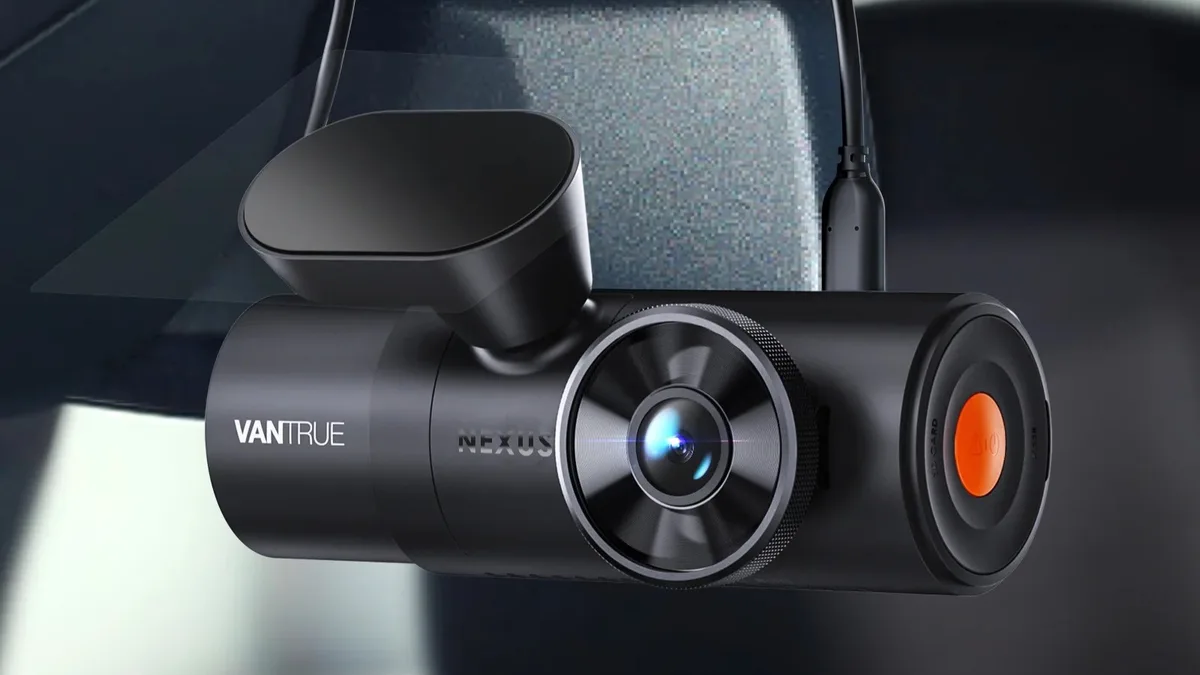
Seeing a Vantrue N4 Pro error message flash on your screen is frustrating. You bought this dash cam for peace of mind, not a puzzle. The good news is that most of these errors are easy to diagnose and fix.
You just need to know what they mean and what to check first.
Per manufacturer specifications, the N4 Pro supports microSD cards up to 512GB with a U3 speed class minimum. The single most common cause of error messages is a card that does not meet that standard. As of 2026, that remains the number one issue reported by users.
Let us walk through the errors one by one so you can get back on the road quickly.
Image source: Bing (Web (fair-use with source credit))
Quick Answer
Most Vantrue N4 Pro error messages point to the SD card. Check the card's speed class first. It must be U3 or V30 minimum.
Format the card inside the camera using the menu. If the error persists, replace the card.
What Those Vantrue N4 Pro Error Messages Actually Mean
The N4 Pro uses a series of short error codes. They appear on the screen or in the app. Each code tells you something specific.
Understanding the code saves you time.
Here is a quick reference table of the most common errors you will see.
| Error Code / Message | What It Usually Means |
|---|---|
| Card Error | Generic card problem. Often a speed or formatting issue. |
| Card Error 02 | The card is not fast enough for 4K recording. |
| Card Error 03 | A file system error. The card needs reformatting. |
| Card Error 04 | Card is full or nearly full. Loop recording may be off. |
| No GPS Signal | GPS module has no satellite lock. |
| Battery Low | Internal supercapacitor is depleted. |
| SD Card Not Detected | The camera cannot read the card at all. |
| Firmware Update Failed | The update file is missing or corrupt. |
The camera does not explain why the error happened. It just shows the code. That is why you need a decision tree.
You check one thing at a time until the error goes away.
Most of these errors are not hardware failures. They are configuration problems. The N4 Pro is picky about its SD card.
It is also sensitive to power supply quality. We will cover both of those in detail.
The Universal Fix: What to Try Before Anything Else
Before you dive into a specific branch, try this first. It fixes about half of all error messages. It takes less than two minutes.
Step 1: Power cycle the camera. Unplug the power cable from the camera. Wait 30 seconds. Plug it back in.
Many errors are temporary glitches. A power cycle clears them.
Step 2: Check all physical connections. Make sure the power cable is fully seated in the Type-C port. Make sure the mount clicks into place. Check the GPS contact pins on the mount.
If those pins are dirty or not making contact, you will get a GPS error. A quick wipe with a dry cloth often helps.
Step 3: Format the SD card inside the camera. Go to the settings menu. Find the format option. Choose it.
This erases everything on the card. It also sets the correct file system. The N4 Pro prefers FAT32 for cards up to 32GB and exFAT for larger cards.
Formatting in the camera ensures the correct settings.
Step 4: Check the SD card's physical lock switch. Some microSD cards have a tiny switch on the side. If it is slid down to the "Lock" position, the camera cannot write to the card. Slide it back up.
This is a surprisingly common issue.
If none of those steps work, move to the specific branch for your error. The same logic applies to other cameras. For example, the steps for resetting a Wyze Cam V4 follow a similar approach.
Power cycle, check connections, then format.
SD Card Error Branch: Card Error, Card Error 02/03/04, Card Not Detected
This is the most common error family. Let us break it down by the specific code.
Card Error (Generic)
This is a catch-all. The camera cannot read or write to the card. Start with the universal fix above.
If that does not work, try a different card. Use a known good card that is U3 or V30 speed class. If the new card works, the old card is bad.
Replace it.
Card Error 02
This code means the card is too slow. The N4 Pro needs a minimum write speed of about 30 MB/s for 4K recording. A U3 card is rated for at least 30 MB/s.
A V30 card is also rated for that. Cards rated U1 or lower will trigger Error 02.
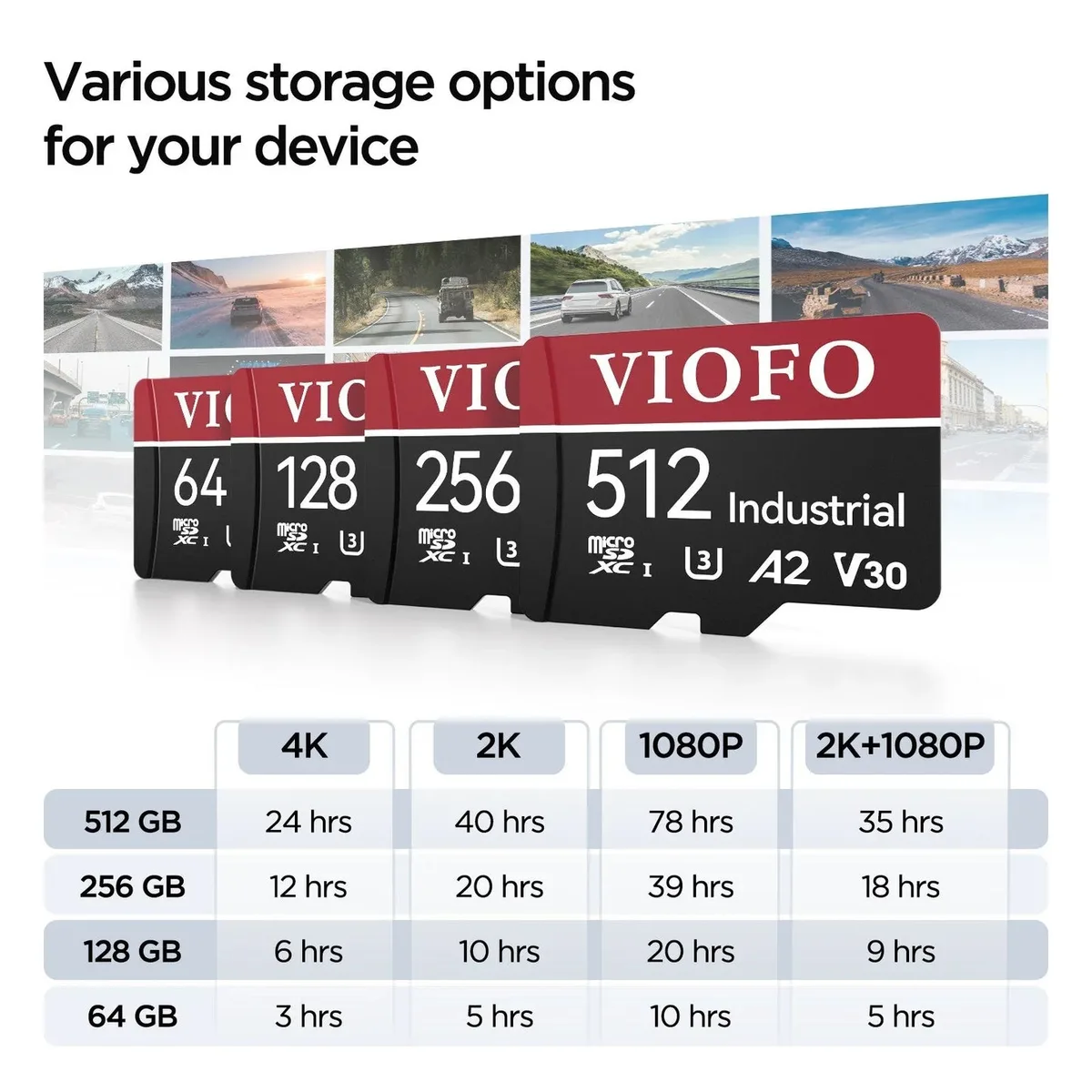
Image source: Bing (Web (fair-use with source credit))
Check the card's label. Look for the "U" symbol with a "3" inside. Or look for "V30" on the card.
If you see "U1" or no speed class, the card is not fast enough. Get a new card. Do not use a card that is slower than U3 for 4K recording.
Card Error 03
This code means a file system problem. The card's file structure is corrupted. Format the card in the camera.
If that fails, format it on a computer using FAT32 for cards 32GB and under, or exFAT for cards 64GB and larger. A corrupted file system can also cause issues during a firmware update. The process for updating firmware on a Canon EOS R50 requires a freshly formatted card too.
The same principle applies here.
After formatting, reinsert the card into the N4 Pro. If the error returns, the card is failing. Replace it.
Card Error 04
This code means the card is full. The N4 Pro uses loop recording by default. It overwrites the oldest footage when the card is full.
If loop recording is turned off, the card fills up and stops recording. Go to the settings and enable loop recording. Set it to 3 minutes or 5 minutes.
The camera will then delete old footage automatically.
SD Card Not Detected
This is often a physical issue. The card may not be seated correctly. Remove it and reinsert it.
Push it in until it clicks. If it still is not detected, try a different card. If the camera does not detect any card, the card slot may be damaged.
Contact support in that case.
GPS Signal Loss Branch: No GPS, Weak Signal, "GPS" Icon Flashing
The N4 Pro gets its GPS signal through the mount. The mount has contact pins. The camera body connects to those pins.
If the connection is poor, the GPS signal is lost.
The Contact Pins Check
The first thing to check is the three gold pins on the back of the mount. These pins touch the camera body. Over time, they can get dirty or corroded.
Clean them with a dry cloth or a soft brush. Do not use liquids. Make sure the camera is seated firmly on the mount.
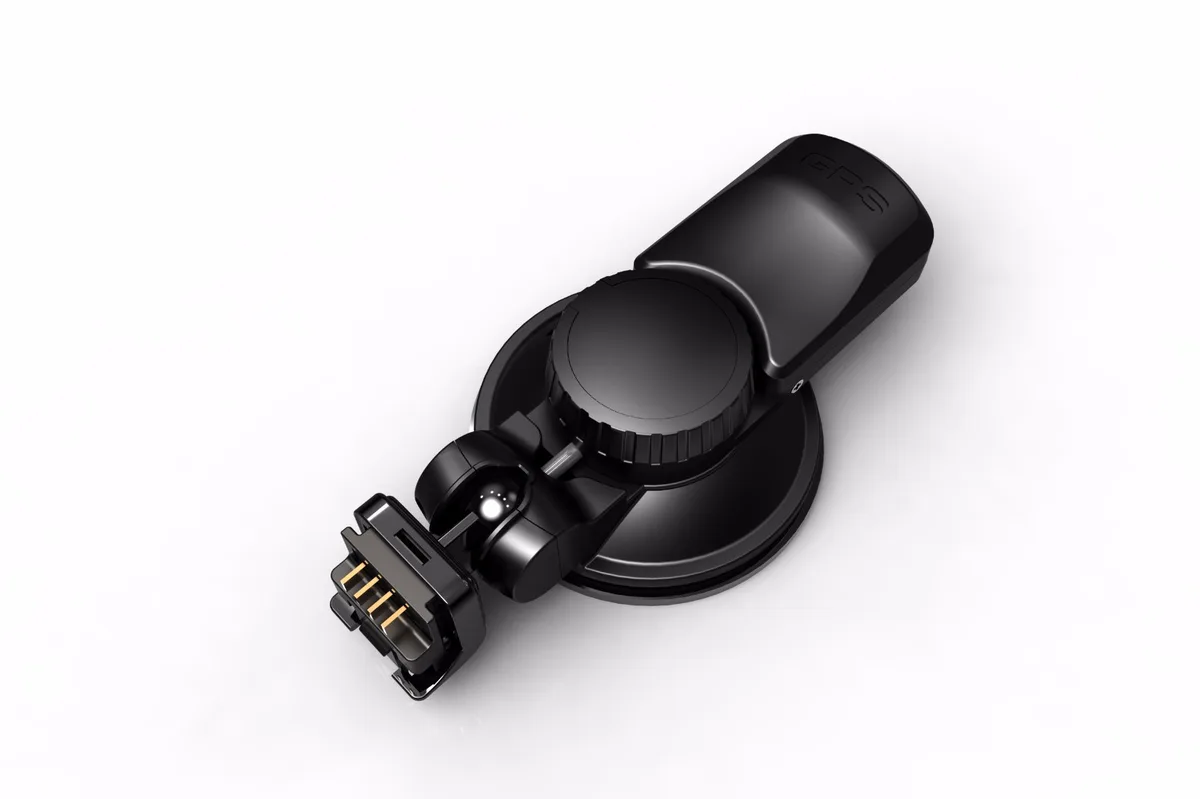
Image source: Bing (Web (fair-use with source credit))
The Satellite Lock Check
GPS needs a clear view of the sky. If you are in a parking garage, under a tree, or in a tunnel, the signal will be weak. Drive to an open area with a clear sky.
The camera should lock onto satellites within 30 to 60 seconds.
If the signal does not lock after a few minutes of open sky, try a firmware update. The GPS module may need a software refresh. The installation steps for a VIOFO A229 Pro also involve checking the GPS mount connection.
That principle applies here too.
The Mount Replacement
If cleaning the pins and driving to open sky do not work, the mount may be faulty. The GPS receiver is inside the mount. If it fails, you need a new mount.
Vantrue sells replacement mounts. Contact support for a warranty replacement if the camera is still covered.
Power Problems Branch: Won't Turn On, Random Reboots, Battery Low, Parking Mode Failures
Power issues can be tricky. The N4 Pro uses a supercapacitor, not a battery. The supercapacitor stores just enough power to save the last file when power is cut.
It does not run the camera for long without external power.
Won't Turn On
First, check the power cable. Make sure it is plugged into the car's 12V port or the hardwire kit. Check the car's fuse box if you are using a hardwire kit.
A blown fuse will cut power.
Try a different cable if you have one. The N4 Pro uses a standard USB-C cable. Many phone chargers work.
If the camera turns on with a different cable, the original cable is bad. Replace it. The setup process for a Google Nest Cam relies on a similar power check.
Always verify the cable first.
Random Reboots
Random reboots are usually a power supply issue. The N4 Pro needs a steady 5V/2A power source. If the car's 12V port provides less than 2A, the camera may reboot.
This is common in older cars or when using a cheap USB charger.
Try a different car charger. Use the one that came with the camera. If you are using a hardwire kit, check the voltage cutoff setting.
The N4 Pro has three voltage cutoff options: 11.6V, 12.0V, and 12.4V. If the cutoff is set too high, the camera will shut off when the car battery voltage drops slightly. Lower the cutoff to 11.6V for most cars.
Battery Low / Supercapacitor Warning
The N4 Pro shows "Battery Low" when the supercapacitor is drained. This is normal. The supercapacitor only holds a charge for a few seconds.
It is not a battery. The warning appears when the camera has been unplugged for a while. Plug the camera in.
The warning should disappear within a few seconds.
If the warning stays on while the camera is plugged in, the power supply is weak. Check the cable and charger. If those are fine, the supercapacitor may be faulty.
Contact support.
Parking Mode Failures
Parking mode requires a hardwire kit. The camera needs constant power to detect motion or impact. If parking mode is not activating, check the hardwire kit installation.
Make sure the yellow wire is connected to a constant 12V source. The red wire should go to a switched source that turns off with the ignition.
The voltage cutoff setting also affects parking mode. If the cutoff is set too high, the camera will shut off before the car battery drains. Set it to 11.6V for most cars.
If you have a smaller battery, use 12.0V.
A common reset procedure used for many cameras can help if the settings are stuck. The reset steps for an Arlo Pro 5S use a similar approach. Try a factory reset after adjusting the voltage cutoff.
Firmware and App Glitches Branch: Update Failed, Won't Connect, Settings Not Saving
Firmware issues are less common than SD card problems. But they do happen. They usually show up as "Firmware Update Failed" or app connection errors.
Firmware Update Failed
This error appears when the update process is interrupted. The file may be corrupt. The card may not be formatted correctly.
Or the file might be in the wrong folder.
First, reformat the SD card on your computer. Use FAT32. Download the firmware file again from Vantrue's official site.
Copy the file to the root of the card. Do not put it in a folder. The file name must match exactly what the camera expects.
Vantrue provides the file name in the update instructions.
Insert the card into the camera. Power on the camera. The update should start automatically.
If it does not, the file is likely corrupt or the wrong version. Download it again.
App Won't Connect
The N4 Pro connects to the Vantrue app via Wi-Fi. If the app does not connect, try these steps.
First, make sure the camera's Wi-Fi is turned on. Go to the settings menu. Look for the Wi-Fi option.
Enable it.
Second, check your phone's Wi-Fi settings. Look for the camera's network. It usually starts with "Vantrue_".
Connect to it. The password is on the camera's screen or in the manual.
Third, close the app completely. Reopen it. Try again.
If the connection still fails, restart the camera. Unplug it and plug it back in. Then try again.
Settings Not Saving
This is usually a power issue. The N4 Pro saves settings using the supercapacitor. If the capacitor is drained, settings may not save.
This happens when the camera has been unplugged for a long time.
Plug the camera in for a few minutes. The supercapacitor will charge. Then change the settings.
They should save normally.
If settings still do not save, try a factory reset. Go to the settings menu. Look for the reset option.
Choose it. This erases all settings and returns the camera to its default state. You will need to set everything up again.
Common Mistakes That Create Phantom Errors
Some errors are not real. They are caused by user habits or small oversights. Here are the most common ones.
Using a Cheap SD Card
The N4 Pro is a 4K camera. It writes a lot of data. Cheap cards often have slower write speeds than advertised.
They may work for a week. Then they fail. Spend the extra money on a reputable U3 or V30 card.
It is worth it.
Not Formatting the Card in the Camera
You can format the card on your computer. That works. But formatting in the camera is better.
The camera sets the correct cluster size and file system. This prevents many errors. Format the card in the camera every few weeks as maintenance.
Ignoring the Loop Recording Setting
If loop recording is off, the card fills up quickly. The camera then stops recording. You get a "Card Full" error.
Enable loop recording. Set it to 3 minutes. This ensures the camera always has space.
Mounting the Camera Too Close to the Windshield Edge
The GPS mount needs a clear view of the sky. If the camera is mounted near the edge of the windshield, the GPS signal may be blocked. Mount it in the center of the windshield, behind the rearview mirror.
This gives the best GPS reception.
Using a Damaged Power Cable
The USB-C cable that comes with the camera is specific. It is rated for 5V/2A. If the cable is damaged, the camera may not get enough power.
Random reboots and "Battery Low" warnings are common signs. Replace the cable if you suspect damage.
The Final Decision: When to Fix It Yourself vs. When to Contact Support
Most errors are fixable at home. You do not need to send the camera in. But some issues require professional help.
Fix It Yourself If
You can fix the error yourself if it is an SD card issue. This covers most errors. Replace the card.
Format it. Check the speed class. That is usually it.
You can also fix GPS issues. Clean the mount pins. Drive to an open area.
Update the firmware.
Power issues are also fixable. Check the cable. Check the charger.
Check the fuse box. Try a different power source.
Contact Support If
Contact support if the camera does not turn on with a known good cable and charger. The camera may have a hardware fault.
Contact support if the SD card slot is damaged. The camera cannot detect any card. This is a hardware issue.
Contact support if the GPS mount is faulty. Cleaning the pins and updating firmware do not work. The mount may need replacement.
Contact support if the camera is under warranty. Vantrue offers an 18-month warranty in most regions. Check their official site for the exact terms.
Frequently Asked Questions
What SD card should I use for the Vantrue N4 Pro?
Use a microSD card with a U3 or V30 speed class. The maximum supported capacity is 512GB. Cards from reputable brands with high write speeds work best.
Avoid generic or no-name cards.
How do I format the SD card in the camera?
Go to the settings menu on the camera. Scroll to the format option. Select it and confirm.
The camera will erase all data on the card and set the correct file system. Do this every few weeks.
Why does my Vantrue N4 Pro keep saying Card Error 02?
Card Error 02 means the card is too slow for 4K recording. The card likely has a U1 speed class or lower. Replace it with a U3 or V30 card.
This will resolve the error.
How do I update the firmware on the Vantrue N4 Pro?
Download the latest firmware from Vantrue's official site. Format your SD card to FAT32 on a computer. Copy the firmware file to the root of the card.
Insert the card into the camera. Power on the camera. The update starts automatically.
Why is my Vantrue N4 Pro not connecting to the app?
Make sure the camera's Wi-Fi is turned on. Check your phone's Wi-Fi settings. Look for the camera's network.
Connect to it. Close and reopen the app. If it still does not work, restart the camera and try again.
How do I reset my Vantrue N4 Pro to factory settings?
Go to the settings menu on the camera. Look for the reset option. Select it and confirm.
The camera will erase all settings and return to its default state. You will need to set up the camera again after the reset.
Quick-Reference Decision Flowchart
If you see an error on your Vantrue N4 Pro, follow this flowchart.
Step 1: Identify the error code. Look at the screen. Write down the exact code.
Step 2: Try the universal fix. Power cycle the camera. Check connections. Format the card.
Check the lock switch.
Step 3: If the error persists, check the branch.
- If the error is an SD card error (Card Error, Card Error 02/03/04, Card Not Detected), go to the SD Card Error Branch.
- If the error is a GPS error (No GPS Signal, Weak Signal, GPS Icon Flashing), go to the GPS Signal Loss Branch.
- If the error is a power error (Won't Turn On, Random Reboots, Battery Low, Parking Mode Failure), go to the Power Problems Branch.
- If the error is a firmware or app error (Firmware Update Failed, Won't Connect, Settings Not Saving), go to the Firmware and App Glitches Branch.
Step 4: Follow the specific steps for your error branch. Each branch has clear steps to resolve the issue.
Step 5: If the error persists after all steps, contact Vantrue support. The camera may have a hardware fault.

Similar Posts