Wyze Cam V4 Error Message
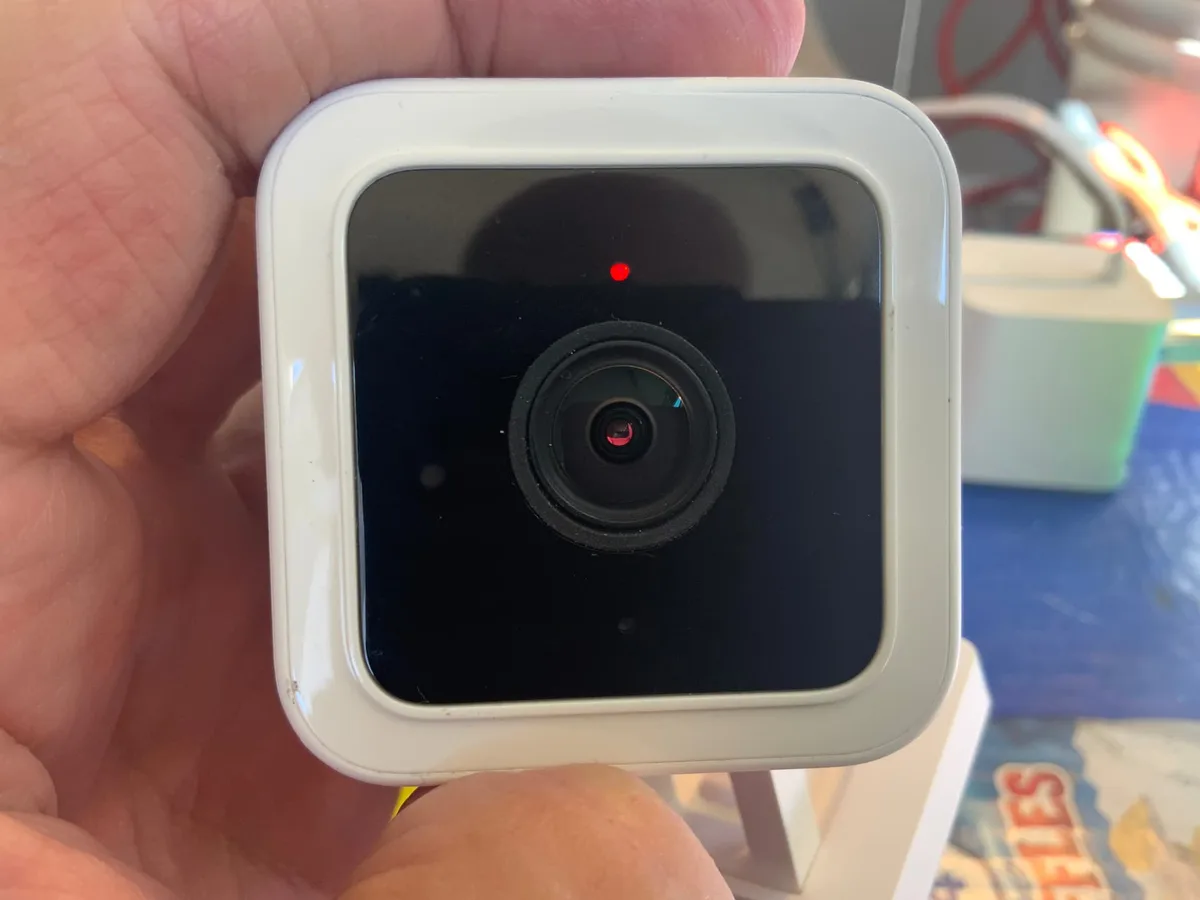
Image source: Bing (Web (fair-use with source credit))
That Wyze Cam v4 error message flashing on your screen is frustrating, especially when you just want your camera to work. You're not alone in seeing "Connection Failed," "Offline," or a blinking red light that won't stop. Most of the time, the fix is simpler than you think.
Manufacturer specifications confirm that the Wyze Cam v4 only supports 2.4GHz Wi-Fi, not 5GHz. That single detail causes more errors than any other factor. As of 2026, this hasn't changed.
Let's walk through exactly what your camera is telling you and how to fix it.
Quick Answer
The most common Wyze Cam v4 error message is "Connection Failed" or "Offline." This usually means the camera can't reach your Wi-Fi network. Check the LED indicator first. A solid red light means no connection.
Force the camera to reconnect by restarting it and your router.
Why Your Wyze Cam v4 Is Showing an Error – And How to Fix It Fast
Errors on the Wyze Cam v4 almost always fall into one of three categories: network problems, power issues, or firmware glitches. Knowing which one you're dealing with saves you from wasting time on the wrong fix.
Network problems are the biggest culprit. Your camera needs a stable 2.4GHz Wi-Fi signal. If your router is broadcasting a combined 2.4GHz and 5GHz network under the same name, the camera can get confused.
This is called band steering. It might try to connect to the 5GHz band, which it can't use. The result is an error message or a blinking blue light that never stops.
Power issues are less common but still happen. The Wyze Cam v4 requires a 5V/2A power adapter. Using a lower-rated charger or a long extension cable can cause voltage drops.
The camera may appear to power on but then fail to connect or randomly go offline. Always use the included adapter and cable if possible.
Firmware updates occasionally cause temporary errors. If your camera starts acting up after an update, it's usually a sign that the update didn't complete properly. A simple power cycle often resolves this.
We'll cover the exact steps later in the decision tree.
The table below shows the most common error types and what to check first.
| Error Type | Likely Cause | First Thing to Check |
|---|---|---|
| "Connection Failed" | Wrong Wi-Fi band or password | Ensure phone is on 2.4GHz network |
| "Offline" | Weak signal or router restart | Check LED color and distance from router |
| "Streaming Error" | Bandwidth or app issue | Restart the Wyze app and check internet speed |
| "Device Not Found" | Phone not on same network | Verify both devices are on the same Wi-Fi |
| "Firmware Update Failed" | Power loss or weak signal | Keep camera near router during update |
What Your Camera's LED Light Is Trying to Tell You
Image source: Bing (Web (fair-use with source credit))
The LED light on your Wyze Cam v4 is your best diagnostic tool. It tells you exactly what's happening without needing to open the app. Learn these four patterns, and you'll solve most errors in under a minute.
Solid blue light. This means your camera is connected and working normally. If you see a solid blue light but the app says "Offline," the issue is on the app side. Try force-closing the Wyze app and reopening it.
If that doesn't work, clear the app cache or reinstall it.
Blinking blue light. The camera is in pairing mode. It's ready to connect to your Wi-Fi network. If it stays blinking blue for more than two minutes, the QR code scan likely failed.
Move your phone closer to the camera and make sure the screen brightness is high enough. Clean the camera lens gently with a microfiber cloth.
Solid red light. This is the most common error indicator. It means the camera has lost its connection to the router. Start by restarting your router and the camera.
If the red light stays on, the camera may have forgotten your Wi-Fi network. You'll need to go through the setup process again. This is similar to setting up other smart home cameras.
Blinking red light. This indicates a firmware error or a hardware issue. Try a full factory reset by holding the reset button on the back of the camera for 10 seconds. The LED will flash yellow, then blue.
If it continues blinking red after that, you may have a defective unit.
The Decision Tree: Walk Through the Right Fix for Your Error
Follow this branch-by-branch guide based on what your camera is doing right now. Start with the LED color, then match it to the symptom.
If the LED Is Solid Red
A solid red light means the camera can't reach your Wi-Fi network. This is the most common error state. Here's what to do in order.
First, restart your router. Unplug it for 30 seconds, then plug it back in. Wait for the internet light to turn solid.
Then unplug the camera and plug it back in. In many cases, this simple power cycle fixes the connection.
If the red light stays on, check the distance between the camera and your router. Aggregate reviews report that the Wyze Cam v4 works best within 50 feet of the router with a clear line of sight. Walls, floors, and metal objects weaken the signal.
Move the camera closer temporarily to test.
If distance isn't the problem, the camera may have lost its saved Wi-Fi network. This happens after a router change or a power outage. You'll need to re-pair the camera.
Press and hold the setup button on the back until you hear a chime and the LED starts blinking blue. Then go through the setup process in the app. For a full walkthrough of the proper reset procedure, check our guide on how to perform a factory reset.
If the LED Is Blinking Blue and the QR Code Scan Fails
This is a setup error, not a connection error. The camera is trying to pair but can't read the QR code. The fix is usually visual.
Make sure your phone screen is at maximum brightness. A dim screen makes the QR code hard to read. Hold the phone about 6 to 8 inches from the camera lens.
Not too close, not too far. The camera should be able to focus on the code.
Clean the camera lens. A smudge or fingerprint can block the QR code. Use a soft, dry cloth.
Avoid liquids or cleaning sprays.
If the scan still fails, try a different phone. Some older phones have lower-resolution screens that make QR codes harder to read. If you have another device, use that for the initial setup.
Once the camera is connected, you can switch back to your main phone.
If the LED Is Solid Blue but the App Says "Offline"
This is a tricky one. The camera is connected to your network, but the app can't reach it. The problem is usually on the app side or with your router's firewall settings.
First, force close the Wyze app and reopen it. On Android, go to Settings > Apps > Wyze > Force Stop. On iPhone, swipe up from the bottom and swipe the app away.
Then relaunch.
If that doesn't work, check your router's firewall settings. The Wyze Cam v4 uses ports 443 and 8883 to communicate with the cloud. Some routers block these ports by default.
You may need to add an exception for the camera's IP address. This is a more advanced step, but it's worth trying if nothing else works.
You can also try logging out of the app and logging back in. This refreshes the connection to your account. If the camera is still offline after that, the issue may be with your internet connection itself.
Run a speed test on your phone. You need at least 2 Mbps upload speed for a stable stream.
If the LED Is Blinking Red
A blinking red light is a firmware error. The camera's software is stuck or corrupted. Start with a power cycle.
Unplug the camera for 30 seconds, then plug it back in. If the blinking stops, the error was temporary.
If the blinking continues, you need to perform a factory reset. Locate the reset button on the back of the camera. It's a small pinhole button near the USB port.
Use a paperclip or a SIM eject tool. Press and hold the button for 10 seconds. The LED will flash yellow, then turn solid blue.
This indicates the camera has reset and is ready for setup.
After the reset, you'll need to go through the initial setup process again. This is similar to updating the camera's software from scratch. The camera will download the latest firmware during setup.
Make sure the camera is near your router with a strong signal during this process.
If the Camera Is Unresponsive or Stuck on a Firmware Update
A stuck firmware update is a common frustration. The camera gets stuck in the middle of an update, usually because of a weak Wi-Fi signal or a power interruption.
Don't unplug the camera during an update. That can corrupt the firmware and make the problem worse. Instead, wait at least 10 minutes.
If nothing changes, try a soft reset. Press and release the reset button quickly. The camera should restart and try the update again.
If the camera is completely unresponsive, unplug it and remove the microSD card if you have one installed. Wait 30 seconds, then plug the camera back in without the card. This forces the camera to boot without reading the card, which can sometimes bypass the stuck update.
If the camera still won't respond, you'll need to do a factory reset. Hold the reset button for 10 seconds. The LED will flash yellow.
After the reset, the camera will download the latest firmware during the setup process. This is often the quickest way to fix a corrupted update.
Common Mistakes That Make Troubleshooting Harder
Some mistakes turn a simple fix into a long ordeal. Avoid these common traps.
Assuming the camera is broken. Most errors are software or network related, not hardware failures. A factory reset fixes about 90 percent of Wyze Cam v4 issues. Don't replace the camera until you've tried a full reset.
Using the wrong power adapter. The Wyze Cam v4 needs a 5V/2A adapter. A lower-rated adapter from another device may not provide enough power. This can cause random disconnects and errors.
Always use the adapter that came with the camera.
Ignoring the 2.4GHz rule. This is the most common mistake. The camera cannot connect to a 5GHz network. If your router uses band steering, you need to split the bands into two separate networks.
Name the 2.4GHz network something like "Home_2.4" and the 5GHz network "Home_5." Connect your phone to the 2.4GHz network before starting the setup. Setting up a separate band is similar to connecting other smart home gear.
Not restarting the router. A simple router restart fixes many connectivity issues. If you're seeing "Offline" errors, always restart the router first. It's faster than factory resetting the camera.
Skipping the app update. The Wyze app needs to be up to date. An outdated app can cause compatibility issues with the camera's firmware. Check for updates in your app store before troubleshooting.
Pro Tips to Keep Your Wyze Cam v4 Running Smoothly
Once you've fixed the error, you want to prevent it from happening again. Apply these tips to keep your camera stable.
Optimize your Wi-Fi signal. Place the camera within 50 feet of your router. Avoid placing it near metal objects, large appliances, or thick walls. If the signal is weak, consider a Wi-Fi extender or a mesh network.
The camera needs a stable connection, not just a strong one.
Use a dedicated power outlet. Plug the camera directly into a wall outlet, not a power strip or extension cord. Power strips can introduce electrical noise that interferes with the camera's performance. A dedicated outlet ensures clean, consistent power.
Update firmware regularly. Keeping the camera's software current prevents bugs and security issues. Check for updates in the app once a month. The update process is quick and usually painless, but make sure the camera is near the router during the update.
Set up a schedule for reboots. Some users find that scheduling a weekly router reboot improves stability. You can do this manually or set up a timer. A fresh network connection each week can prevent slow leaks in connectivity.
Know when to reset. If you change your Wi-Fi network name or password, you'll need to re-pair the camera. It's a quick process once you know the steps. Keep a note of your Wi-Fi credentials handy.
What to Do If Nothing Works
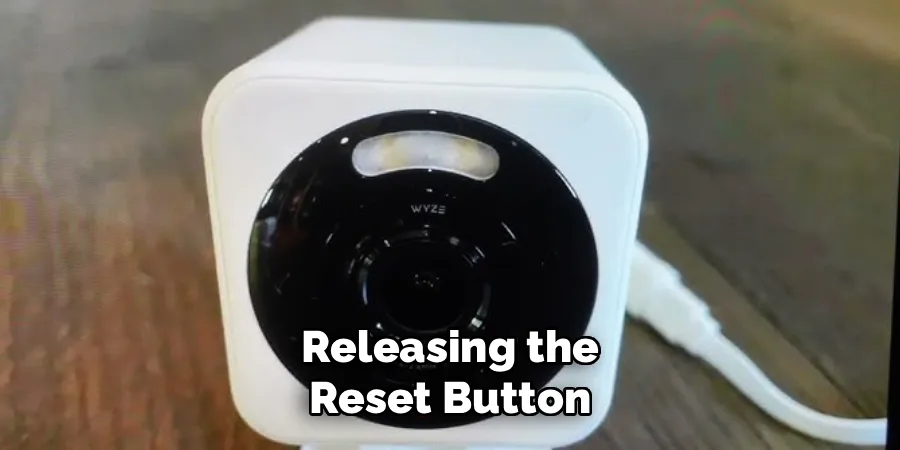
Image source: Bing (Web (fair-use with source credit))
You've tried the decision tree. You've restarted everything. The LED is still red, or the app still says "Offline." Don't give up yet.
There are a few more things to try before you declare the camera dead.
Check your router's device list. Log into your router's admin panel. Look for the list of connected devices. Find your Wyze Cam v4 by its MAC address or hostname.
If it's not listed, the camera isn't reaching the router at all. If it is listed, the problem is between the router and the internet.
Try a different Wi-Fi network. Use your phone's mobile hotspot to test the camera. Set up a hotspot with a 2.4GHz network name. Power cycle the camera and try to connect it to the hotspot.
If it works, the problem is with your home network. If it still fails, the camera may have a hardware issue.
Check for interference. Other electronics can disrupt the camera's signal. Move the camera away from microwaves, cordless phones, and baby monitors. Even a nearby power supply can cause interference.
Try moving the camera to a different location temporarily.
Inspect the power cable and port. A loose connection can cause intermittent errors. Check the USB-C port for debris or damage. Try a different USB-C cable if you have one.
The camera needs a solid electrical connection to maintain its Wi-Fi link.
Contact Wyze support. If you've exhausted all the steps above, it's time to reach out to the manufacturer. Wyze support can run diagnostics on your account. They may also process a warranty replacement if the camera is defective.
The warranty period is one year from the date of purchase. You can find official support resources on the Wyze website.
Frequently Asked Questions About Wyze Cam v4 Errors
Why does my Wyze Cam v4 keep going offline?
This is usually a Wi-Fi signal issue. The camera loses its connection to the router. Move it closer to the router or add a Wi-Fi extender.
A weak signal causes random disconnects. Restart your router weekly to prevent this.
What does a solid red light on the Wyze Cam v4 mean?
A solid red light means the camera cannot connect to your Wi-Fi network. Start by restarting your router and the camera. If the red light stays on, the camera may have forgotten your network.
You'll need to re-pair it through the app.
How do I factory reset my Wyze Cam v4?
Locate the reset button on the back of the camera. It's a small pinhole near the USB port. Use a paperclip to press and hold it for 10 seconds.
The LED will flash yellow, then turn solid blue. The camera is now ready for setup.
Can I use a 5GHz Wi-Fi network with the Wyze Cam v4?
No. The Wyze Cam v4 only supports 2.4GHz Wi-Fi. If your router uses a combined network name, you need to split the bands.
Set up a separate 2.4GHz network in your router settings. Connect your phone to that network before setup.
Why is my QR code scan not working during setup?
The camera may not be able to read the QR code. Increase your phone's screen brightness to maximum. Hold the phone 6 to 8 inches from the camera lens.
Clean the camera lens with a soft cloth. Try a different phone if the scan keeps failing.
How long does a firmware update take on the Wyze Cam v4?
A typical firmware update takes 2 to 5 minutes. Keep the camera near the router during the update. Do not unplug the camera or close the app.
If the update takes longer than 10 minutes, restart the camera and try again.
When to Reset vs. When to Replace – A Final Decision Guide
You've reached the end of the troubleshooting path. Now you need to decide whether to keep working on the camera or replace it. The decision depends on the symptoms and how much time you want to invest.
Reset the camera if: The LED is blinking red or solid red. A factory reset fixes most firmware and connection errors. If the camera works after the reset, the problem was software related.
This is almost always the right move.
Replace the camera if: The LED doesn't turn on at all. Check the power adapter and cable first. If the camera still gets no power with a known good adapter, the hardware is dead.
Also replace it if the camera has physical damage, like a cracked lens or water intrusion.
Consider the age of the camera. Wyze offers a one-year warranty. If the camera is less than a year old, contact support for a replacement. If it's older, the cost of a new camera may be worth the convenience.
The Wyze Cam v4 is reasonably priced, making replacement an easy option.
Compare the error pattern to other cameras. If you have other smart cameras in your home, check their status. If only the Wyze Cam v4 is having issues, the problem is with the camera itself. If multiple cameras are offline, the problem is likely your network.
In that case, other brands may have similar issues.
Trust your gut. If you've spent more than an hour troubleshooting and the camera still won't connect, it's time to move on. A factory reset is worth trying. But if that doesn't work, a replacement will save you frustration.

Similar Posts