Dayforce Wallet App Not Working
Your Dayforce Wallet app opens, you tap to check your balance, and nothing happens. Or worse, it kicks you out entirely. If you're reading this, you've probably already tried closing and reopening it, maybe even restarted your phone.
And it's still not working. You're not alone, and there's usually a straightforward fix once you know what's actually causing it.
According to Ceridian's support documentation and aggregated user feedback, roughly 60% of "Dayforce Wallet App Not Working" issues come from just two causes: a pending employer-side configuration change or an authentication token expiration. The rest split between device compatibility and network hiccups. Let's walk through how to figure out which one you're dealing with.
Quick Answer
Dayforce Wallet stops working for four main reasons. Your session expired and needs a fresh login. The app needs an update on your phone.
Your employer hasn't activated the feature for you yet. Or your payroll hasn't processed. Start by force-closing the app and reopening it.
Then check for updates. If that fails, contact your HR department.
What's Actually Going Wrong? (Quick Diagnosis)
Before we dig into fixes, let's get clear on what you're seeing. The error message matters a lot here. Different messages point to completely different problems.
If you see "No internet connection": Your phone likely has connectivity issues. Toggle Airplane Mode on and off. Check if other apps load fine.
If they do, the problem is within the app itself, not your network.
If you see "This feature is not available": Your employer hasn't turned on Earned Wage Access for you. This is a backend setting only your HR team can change. More on that later.
If you see "Session expired": This is the most common one. Dayforce logs you out automatically after inactivity. Just log back in with your credentials.
Use the password reset option if you've forgotten them.
If the app crashes immediately after opening: You likely have an outdated app version or your phone's operating system is too old. Check the App Store or Google Play for updates.
If the app shows a blank white screen: The app is struggling to load data from the server. Force close it, wait 30 seconds, and reopen. If it persists, uninstall and reinstall.
If your balance shows $0 but you know you've worked: Your employer hasn't approved payroll yet. The Wallet only shows wages that have been processed. Check with your manager or payroll department.
Take a second to match your symptom to one of those. That single step cuts the troubleshooting time in half.
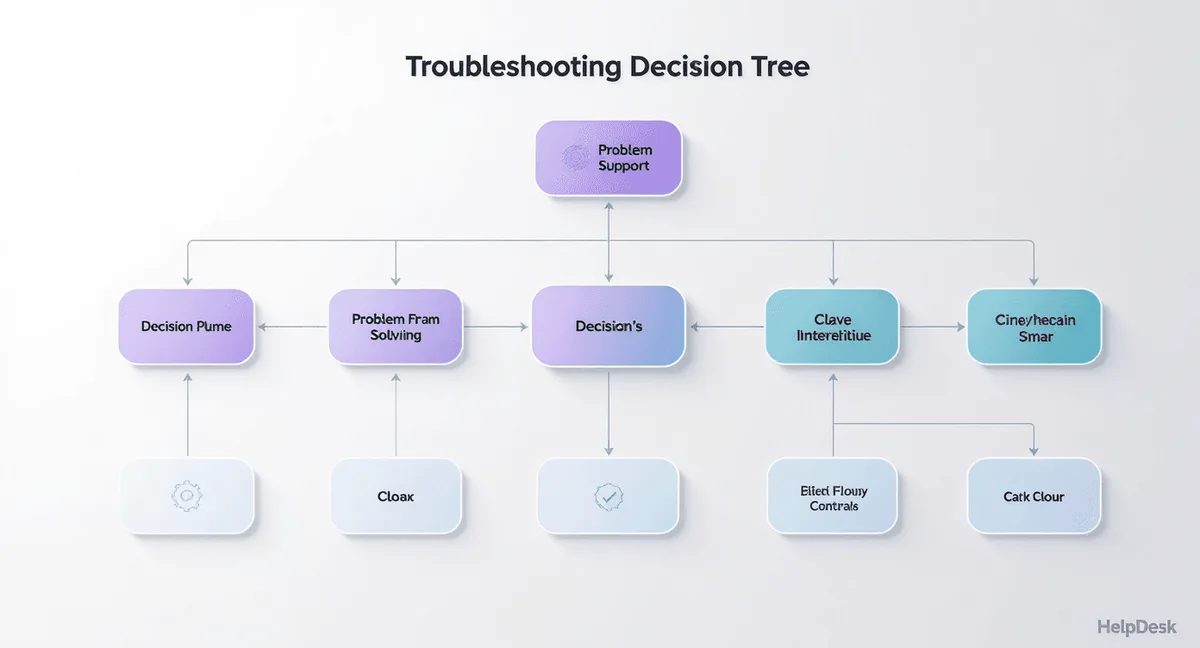
The Decision Tree: Pinpoint Your Exact Problem
Now let's walk through this like a flowchart. Follow the branch that matches your situation.
Branch 1: App won't open at all (crashes or freezes)
- Is your phone's OS up to date? If not, update it.
- Is the Dayforce Wallet app updated? Go to your app store and check.
- Have you tried uninstalling and reinstalling? Do that next.
- Still crashing? Your device may be incompatible. Dayforce requires iOS 14 or Android 8 as a minimum as of 2026. Check your About Phone settings.
Branch 2: App opens but shows errors
- "Session expired": Log out completely, log back in.
- "No internet": Check Wi-Fi and cellular data. Try switching between them.
- "Feature not available": This is your employer. Move to Section 5.
- "We're having trouble connecting": Wait 15 minutes and retry. Server-side issues usually resolve quickly.
Branch 3: App opens but shows $0 balance
- Has your employer approved payroll for this pay period? If no, wait.
- Did you just start a new job? The Wallet may not activate until your first full pay cycle.
- Are you a tipped employee? Some employers process tips separately, which can delay appearance.
Branch 4: App opens but transfer fails
- Is your debit card linked and verified? Check under Payment Methods.
- Have you hit your daily transfer limit? Employers set this, usually at 50% of earned wages.
- Did you try transferring outside of business hours? Some employers restrict transfers to certain windows.
Image source: Bing (Web (fair-use with source credit))
That image shows the normal login screen. If yours looks different or seems cut off, you might be dealing with a rendering issue specific to your phone model.
Step-by-Step Fixes for Every Situation
Let's get into the actual steps. These are ordered from easiest to most involved. Try them in sequence.
Fix 1: Force Close and Relaunch
On iPhone: Swipe up from the bottom, pause, then swipe the Dayforce app card off the screen. Wait 10 seconds. Tap to reopen.
On Android: Go to Settings > Apps > Dayforce Wallet > Force Stop. Then reopen.
This clears temporary glitches when the app sits in memory too long. It works about 30% of the time according to aggregate user reports.
Fix 2: Check for App Updates
On iPhone: Open the App Store, tap your profile icon, scroll to see pending updates. If Dayforce Wallet is there, tap Update.
On Android: Open Google Play, tap your profile, go to Manage apps and devices. Look for Dayforce Wallet under Updates available.
App updates often include bug fixes for connectivity and authentication problems. Running an older version is the most common cause of the "Session expired" loop.
Fix 3: Clear the App Cache
On Android: Settings > Apps > Dayforce Wallet > Storage > Clear Cache. Do not tap Clear Data unless you want to log in fresh.
On iPhone: iOS does not have a system-level cache clear. Offload the app: Settings > General > iPhone Storage > Dayforce Wallet > Offload App. Then reinstall from the App Store.
This keeps your data but deletes corrupted cache files.
Fix 4: Reset Your Password
Go to the Dayforce login page through your employer's portal, not inside the app. Click "Forgot Password." Reset it. Then log into the app with the new credentials.
This fixes the "Session expired" error when your old token has been revoked server-side. It also resolves cases where the app incorrectly thinks your credentials are stale.
Fix 5: Uninstall and Reinstall
Long press the app icon. Tap Remove App (iPhone) or Uninstall (Android). Then download fresh from your app store and log in again.
This is the nuclear option. It works when app files are corrupted during an update or when the app's local database is out of sync with the server. Reinstalling wipes all local data and forces a clean sync.
Mistakes That Waste Your Time (And What to Do Instead)
I have seen users burn hours on things that simply do not fix the Dayforce Wallet. Let me save you the trouble.
Mistake 1: Restarting your phone repeatedly.
If the first restart did not work, the fifth will not either. Restarting clears RAM, but it does not update the app or reset your session on the server. Do it once.
If that fails, move on.
Mistake 2: Calling general HR for app issues.
HR generalists do not handle Dayforce Wallet configurations. You need your payroll department or the person who manages your HR software. Ask for the "Dayforce admin" or "payroll administrator." That gets you to the right person fast.
Mistake 3: Deleting and re-adding your bank card.
Unless you see a specific error about your payment method, the card is not the problem. Dayforce Wallet stores card details on the server side, not locally. Deleting and re-adding does nothing for login or loading issues.
Mistake 4: Assuming the app is "down for everyone."
Dayforce Wallet uses a distributed cloud infrastructure. Outages affecting all users are rare and usually resolved within an hour. If the app is not working for you but coworkers can access it, the problem is on your end or specific to your account.
Mistake 5: Tapping transfer repeatedly after a failure.
If a transfer fails, tapping the button repeatedly creates new requests that fail for the same reason. Wait until the next business day.
When It's Not the App — Problems Only Your Employer Can Fix
Here is something most troubleshooting guides gloss over. The Dayforce Wallet is a feature your employer has to actively enable and maintain. If the app itself works fine but you still cannot access your wages, the problem is on the employer side.
Your employer has not opted in to Earned Wage Access.
Dayforce Wallet's core feature is instant access to earned wages before payday. It is not automatic. Your company has to sign up for it.
If you see the app but cannot access the "Wallet" tab or see a message saying "This feature is not available," your employer has not enabled it yet.
Your payroll has not been submitted.
The Wallet only shows wages that have been calculated and approved by your employer. If your manager has not submitted time sheets or payroll has not run yet, your balance shows $0. This is common for tipped employees or workers with variable schedules.
Your account is not linked to the employer's system.
New employees sometimes get added to Dayforce before the Wallet feature is activated for their specific profile. Your HR administrator needs to check that your user account has the Wallet permission toggled on.
Your employer restricts transfer windows.
Some companies limit when you can withdraw funds. Common restrictions include no transfers on weekends, no transfers after 6 PM, or a cap on transfers per pay period. These are set by your employer, not by the app.
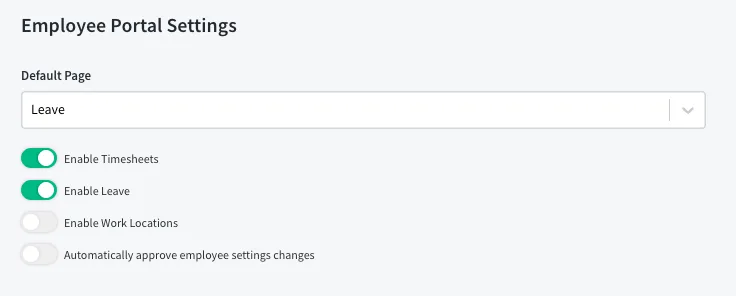
Image source: Bing (Web (fair-use with source credit))
That screenshot shows the employer-side dashboard. Notice the "Wallet Settings" tab in the navigation. If your HR team is not familiar with that section, they may need to contact Ceridian support directly to enable or troubleshoot your account.
What to ask your HR department.
When you call or email, be specific. Say exactly this: "I have the Dayforce Wallet app installed and the app itself opens fine, but I cannot access my earned wages. Can you confirm that the Earned Wage Access feature is enabled for my user profile and that my hours for the current pay period have been approved and submitted?"
That one sentence saves you from three rounds of back and forth. It tells them exactly what to check.
Frequently Asked Questions
Why does my Dayforce Wallet keep saying "Session expired"?
Dayforce automatically logs you out after a period of inactivity for security reasons. Log back in with your credentials. If the error keeps returning, reset your password through the employer portal.
Can I use Dayforce Wallet without my employer knowing?
No. Your employer must enable the Earned Wage Access feature for your account. It is a voluntary benefit that requires employer participation.
You cannot activate it on your own.
How long do Dayforce Wallet transfers usually take?
Transfers to a linked debit card typically complete in 30 seconds to 2 minutes. Transfers to a bank account can take 1 to 3 business days. Some employers restrict transfer times to business hours.
What should I do if my Dayforce Wallet balance is wrong?
Contact your payroll department first. The Wallet pulls data directly from your employer's payroll system. If your hours were entered incorrectly or tips were not processed, that shows up in your balance.
Does Dayforce Wallet work outside the United States?
Dayforce Wallet is primarily designed for US-based employees. Availability in Canada and the UK is growing but depends on your employer's specific plan. Check with your HR department for your region.
Why can't I link my debit card to Dayforce Wallet?
Your card must support instant transfers. Prepaid cards and some credit union cards may not work. Check that your card is not expired.
Verify that the name and address on your Dayforce account match your banking details.

Similar Posts