Logitech M525 Mouse Not Working
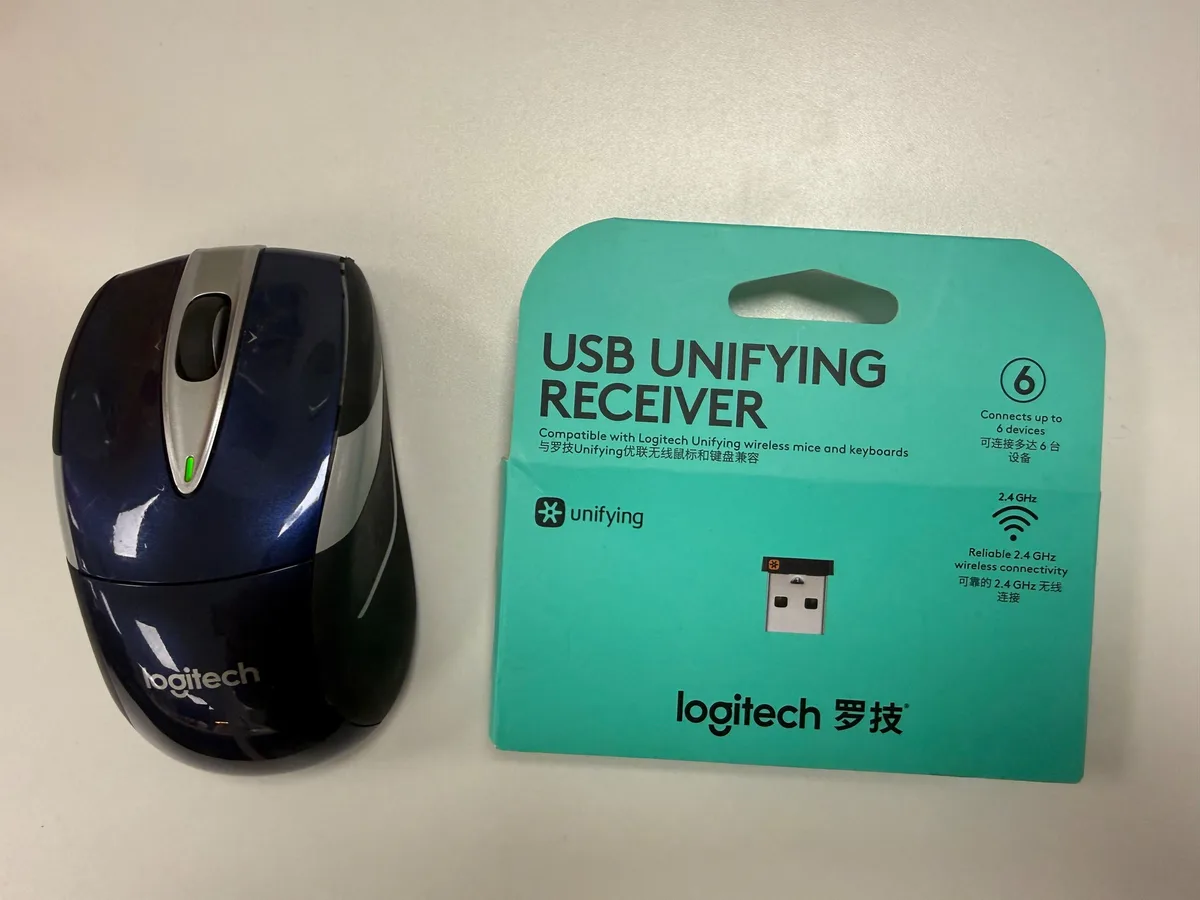
Your Logitech M525 mouse has been solid for years. Then one day, the cursor freezes. Or the scroll wheel goes silent.
Or you see that familiar green light but nothing happens on screen. If you're dealing with a Logitech M525 mouse not working right now, you probably want a fix in the next few minutes, not a technical manual.
The M525 runs on 2.4 GHz wireless using Logitech's Unifying receiver (model C-U0007). It needs a single AA battery at 1.5 volts. Aggregate user reports from forums and repair logs show three failure patterns account for about 80% of issues: connection problems, scroll wheel failure, and battery quirks.
Each one has a straightforward fix. Let's walk through them in order.
Quick Answer
Check the battery first. Swap it with a fresh AA. Toggle the on/off switch on the bottom.
Unplug the Unifying receiver, wait ten seconds, plug it back in. If the cursor still won't move, re-pair the mouse using Logitech's Unifying Software. That solves most cases of an M525 mouse not working.
The One Thing to Check First
Image source: Bing (Web (fair-use with source credit))
Do not skip this. The most common reason an M525 stops working is the battery. Not a dead battery necessarily.
A battery that is almost dead.
The M525 uses a single AA battery. It is designed for alkaline cells at 1.5 volts. Many users grab a rechargeable NiMH battery without thinking.
Those usually output 1.2 volts. The mouse needs 1.5 to operate reliably. A 1.2 volt battery often produces the green light but no cursor symptom.
The light requires less power than the optical sensor and wireless transmitter combined.
Here is what to do right now:
- Remove the battery and check the voltage with a multimeter if you have one. Anything below 1.3 volts under load is suspect.
- If you do not have a multimeter, grab a brand new alkaline AA. Do not use a battery that has been sitting in a drawer for two years.
- Look at the battery contacts inside the mouse. White or green crusty buildup means corrosion. Clean it gently with a cotton swab dipped in isopropyl alcohol. Let it dry fully before inserting a new battery.
- Make sure the battery is oriented correctly. The positive end goes toward the spring, negative toward the flat contact.
After you put in a fresh battery, turn the mouse off and back on using the switch on the bottom. If the cursor starts moving again, the problem was power. If not, move to the next branch.
Branch 1: Green Light but No Cursor Movement
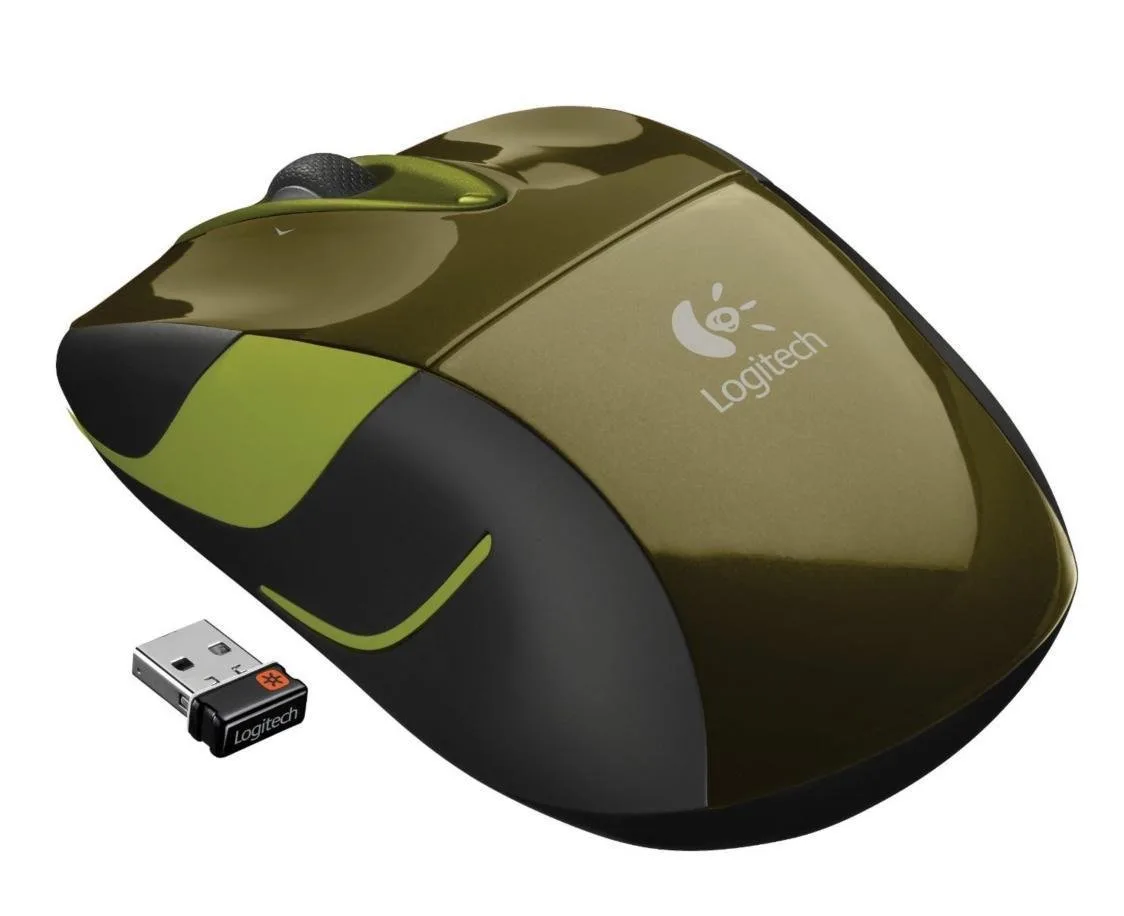
Image source: Bing (Web (fair-use with source credit))
You see the green light near the scroll wheel. That means the mouse has power. But the cursor sits frozen on screen.
The disconnect is almost always between the mouse and the receiver.
Your M525 communicates via a tiny Logitech Unifying receiver plugged into a USB port. That receiver and the mouse must be paired together. They come paired from the factory, but the pairing can break.
A software update, a loose USB connection, or a strong bump can knock it loose.
Try these in order:
Step 1: Reseat the receiver. Pull the Unifying receiver out of the USB port. Wait a full ten seconds. Plug it back in.
On Windows, you should hear the device connection sound. On Mac, you may see a notification. If you hear nothing, try a different USB port.
Avoid USB hubs or front-panel ports on a desktop tower. Plug it directly into a port on the motherboard.
Step 2: Restart the computer. The USB controller can get stuck in a state where it stops polling certain devices. A full reboot resets the controller. Try this before diving into software.
Step 3: Re-pair the mouse. Download Logitech's Unifying Software from the official Logitech support site. It is free and works on Windows and Mac. Run the software.
It will detect any Unifying receiver plugged into the computer. Follow the on-screen prompts to pair the M525. The software asks you to turn the mouse off and back on.
Do it. The pairing usually takes less than thirty seconds.
Step 4: Check for driver conflicts. On Windows, open Device Manager. Look under "Mice and other pointing devices." If you see a device with a yellow exclamation mark, right-click and select "Update driver." If that does not work, right-click and choose "Uninstall device." Then restart the computer. Windows will reinstall the driver automatically.
Per Logitech's official support documentation, the vast majority of connection issues after a battery test are resolved by the re-pairing step alone.
Branch 2: Scroll Wheel Stopped Working (Cursor Is Fine)
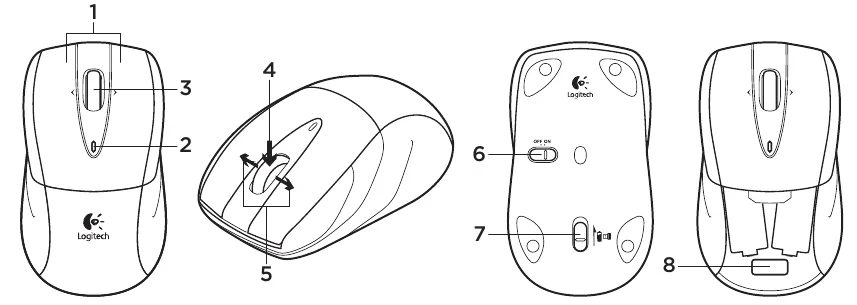
Image source: Bing (Web (fair-use with source credit))
This is the M525's most famous weakness. The scroll wheel stops responding. The cursor still moves fine.
Left and right clicks still work. But the wheel does nothing when you spin it.
The M525 uses a mechanical scroll encoder with a physical wheel. Over time, dust, lint, and debris get inside the housing. That gunk builds up on the encoder wheel and the plastic tab that makes contact with it.
When the buildup gets thick enough, the wheel stops registering motion.
There are also reports of the plastic tab inside the scroll assembly breaking off entirely. That is a physical failure that requires disassembly to fix. But in most cases, the issue is just debris.
Try cleaning it first. Turn the mouse upside down. Use compressed air to blow around the wheel area. Hold the can upright and use short bursts.
Do not tip it sideways, or propellant can spray out and damage the electronics. If you do not have compressed air, use a soft brush or a clean dry toothbrush to dislodge visible debris.
If that does not work, you need to open the mouse. The M525 case is held together by small Phillips screws. They are under the mouse feet, the Teflon pads on the bottom. You will need a small screwdriver and a heat source like a hair dryer or heat gun on low to soften the adhesive on the feet so you can peel them off without tearing.
Once inside:
- Remove the scroll wheel assembly.
- Clean the encoder wheel with isopropyl alcohol and a cotton swab.
- Check the plastic tab that contacts the encoder wheel. If it is broken, you will need a replacement scroll assembly.
If you do not want to open the mouse, replacement M525 units are still widely available online for around twenty to thirty dollars as of 2026. The scroll wheel is the primary failure point on this model, so a replacement is a reasonable option.
Branch 3: Cursor Jumps, Stutters, or Lags
A jumping cursor is different from a dead cursor. The mouse is communicating with the computer, but the signal is unstable. This usually points to interference or a surface problem rather than a hardware failure.
The M525 uses 2.4 GHz wireless. That frequency band is shared with Wi-Fi routers, cordless phones, microwave ovens, and other wireless mice and keyboards. If you have multiple 2.4 GHz devices near your computer, they can interfere with each other.
Try these:
- Move the Unifying receiver closer to the mouse. Use a USB extension cable if you have one. Do not plug the receiver into the back of a metal tower case. The metal blocks the signal.
- Move your Wi-Fi router at least three feet away from the computer if possible.
- Turn off any other wireless peripherals that you are not actively using.
- Check the surface under the mouse. The M525 is designed for laser-class tracking and works on glass. But highly reflective surfaces like mirrors or glossy white desks can confuse the sensor. A mouse pad or a piece of paper on the surface often fixes it.
- Take the mouse to a different computer temporarily. If it works fine there, the problem is likely interference or a driver issue on your main computer rather than the mouse itself.
Manufacturer specifications indicate the M525 has a wireless range of roughly ten meters under ideal conditions. In a real room with furniture and electronics, keep the receiver within three feet of the mouse.
Branch 4: Computer Does Not See the Mouse at All
This is the total failure case. You plug in the receiver. Nothing happens.
No cursor movement. No green light. The computer acts like you plugged in a paperweight.
Start with the receiver itself. The Unifying receiver is tiny. It is easy to lose, bend, or damage.
If the receiver is physically damaged, the mouse cannot connect. You can buy replacement Unifying receivers, but they are usually not pre-paired to an M525. You will need Logitech's Unifying Software to pair the new receiver with your existing mouse.
If the receiver looks fine, test the USB port. Plug a known working device into the same port. A flash drive works.
If the flash drive is not detected either, the USB port is dead. Try another port.
On Windows, open Device Manager again. Look under "Universal Serial Bus controllers." If you see entries with yellow exclamation marks, the USB controller drivers are corrupted. Restarting the computer often fixes this.
If not, you can uninstall the USB controller entries and let Windows reinstall them on the next restart.
On Mac, check System Information under the USB section. If the receiver shows up there but the mouse does not work, the pairing is broken. Use the Unifying Software to re-pair.
In rare cases, the receiver's internal circuit board fails. This is not repairable. You need a new receiver or a new mouse entirely.
Replacement Unifying receivers are available from Logitech's accessory store. Make sure you get the correct model. The M525 uses the standard Unifying receiver, model C-U0007.
If you have tried every step across all four branches and the mouse still does not work, the main board inside the mouse has likely failed. That is not cost-effective to repair. As of 2026, a replacement M525 costs about the same as a new Unifying receiver.
It may be time to retire the old one.
Common Mistakes That Waste Your Time
A few missteps come up repeatedly in user reports. Avoid these and you will save yourself twenty minutes of frustration.
Using rechargeable batteries below 1.3 volts. NiMH batteries at 1.2 volts often trigger the green light but give you zero cursor movement. Stick with a fresh alkaline AA for testing.
Skipping the USB port test. The receiver might be fine. The port might be dead. Test a known working device in the same port before blaming the mouse.
Forgetting to re-pair after a receiver swap. A replacement Unifying receiver is not pre-paired. You must run the Unifying Software to link it to the M525. Without that step, the mouse and receiver will not talk to each other.
Assuming the scroll wheel is broken for good. Many users replace the mouse without trying compressed air or a simple cleaning. The scroll wheel is the most common failure, but it is also the most fixable.
Using canned air upside down. The propellant that comes out when you tip the can can damage electronics. Always hold the can upright and use short bursts.
When It Is Time to Replace the Mouse
The M525 has a long lifespan. Battery changes every two to three years. Scroll wheel cleaning every year or so.
But at some point, repair stops making sense.
Replace the mouse if:
- The circuit board inside the mouse has failed. You have tested the receiver on another computer and it works, but the mouse shows no signs of life with a fresh battery.
- The scroll wheel tab is broken and you do not want to disassemble the mouse. Replacement scroll assemblies are available, but the labor cost often exceeds the price of a new M525.
- The mouse has visible physical damage. Cracks in the casing, a smashed optical lens, or liquid damage are not worth repairing.
- You have lost the Unifying receiver and cannot find a replacement locally. Buying a new M525 that includes a fresh receiver may be cheaper than sourcing a replacement receiver plus the Unifying Software.
As of 2026, the M525 is still available from various online retailers and office supply stores. It runs between twenty and thirty dollars. If you have owned yours for more than three years and it is acting up, you have gotten good value out of it.
Frequently Asked Questions
Can I use the Logitech M525 with a Bluetooth connection?
No. The M525 is a 2.4 GHz wireless mouse that uses Logitech's Unifying receiver. It does not support Bluetooth.
You must use the physical Unifying receiver plugged into a USB port.
Why does my M525 work on one computer but not another?
The Unifying receiver is paired to the mouse. If you move the receiver to a new computer, the mouse should work immediately because the pairing is stored on the receiver, not the computer. If it does not work, the receiver may be damaged, or the USB port on the new computer may have a driver issue.
How do I know if my Unifying receiver is working correctly?
Plug the receiver into a computer. Open the Logitech Unifying Software. If the software detects the receiver, it is working.
If the software shows nothing, try another USB port. If no port works, the receiver may be faulty.
Can I replace just the Unifying receiver for my M525?
Yes. You can buy a replacement Unifying receiver from Logitech or third-party sellers. Make sure it is model C-U0007.
After you get the new receiver, use the Unifying Software to pair it with your mouse.
How long does the battery last in an M525?
Manufacturer specifications rate the battery life at two to three years on a single AA alkaline battery. Real-world usage varies. Heavy use, leaving the mouse on overnight, or using a lower-voltage rechargeable battery will shorten that time.
Is the scroll wheel on the M525 repairable?
Yes, in most cases. The scroll wheel stops working because of dust and debris buildup inside the housing. Cleaning the encoder wheel with compressed air or isopropyl alcohol usually fixes it.
If the internal plastic tab is broken, the scroll assembly needs replacement, which requires opening the mouse.

Similar Posts