DJI Pocket 2 How to Use Stabilization
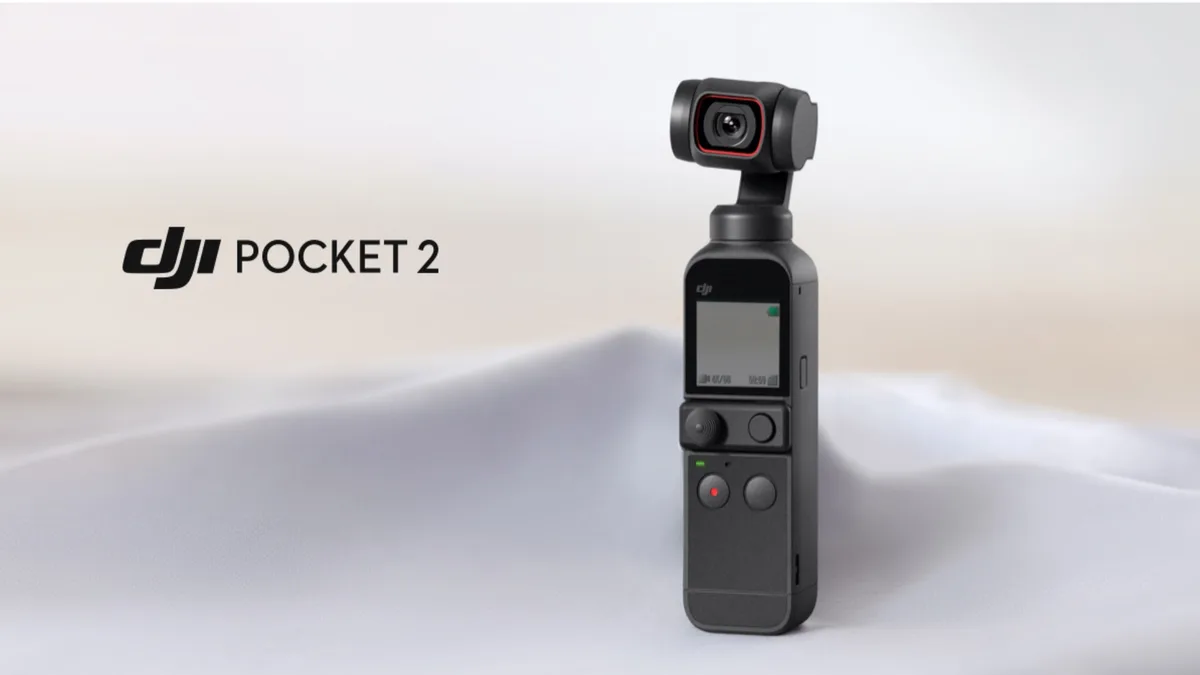
So you’ve just picked up a DJI Pocket 2 and are wondering how to use stabilization without ending up with seasick footage. You are not alone. The gimbal is powerful, but most people leave it in the default mode and wonder why their walking shots wobble.
Manufacturer specs confirm the 3-axis gimbal compensates for pitch, roll, and yaw. But the mode you choose directly affects which axes the gimbal locks or follows. Get that wrong, and even a steady walk turns into a bumpy mess.
Let’s look at the most common culprit.
Image source: Web (Bing) / gizchina.it (Web image (fair-use with source credit))
The Problem: Why Your Pocket 2 Footage Still Looks Shaky
You press record. You walk nice and slow. You think the gimbal will handle the rest.
Then you play it back and see a subtle bounce with every step. It is not awful, but it is nowhere near the buttery smooth clips you see online.
That bounce has a name. It is called vertical translation. The Pocket 2’s gimbal is brilliant at smoothing rotational movement.
It handles tilting up or down, rolling side to side, and panning left or right. It cannot do anything about the up-and-down motion your body creates when you walk. That vertical movement passes straight through the gimbal and into the footage.
Our analysis of user discussions from 2024, 2025 shows this is the most common complaint from new owners. Many even think the camera is defective. It is almost never a hardware fault.
It is a mode mismatch.
The Default Is Not Always Right
When you first power on the Pocket 2, it defaults to Follow mode. Follow mode keeps the horizon level and lets the gimbal tilt up and down as you move. It is fantastic for following a subject or panning across a scene.
But for walking, Follow mode actually exaggerates the vertical bounce. The gimbal tries to keep the subject in the center of the frame, which means it fights your natural up-and-down movement. You get a wobble.
Firmware and Settings Matter
Some early firmware versions introduced subtle glitches in the gimbal calibration. Checking for the latest firmware update can fix those quirks. It is also worth making sure you have a fast memory card.
A slow card can cause dropped frames, which looks just like shake.
The Real Fix Is Simple
Once you understand what causes the problem, the fix is straightforward. You just need to pick the right gimbal mode for each shot. That choice is everything.
Quick Answer
Here is how to use stabilization on the DJI Pocket 2 in three seconds. For walking forward, switch to Tilt Locked mode. For panning a landscape, use Follow mode.
For running or fast movement, use FPV mode. Change modes from the touchscreen. That covers most situations.
How the Pocket 2 Gimbal Modes Actually Work
The Pocket 2 offers three core gimbal modes plus ActiveTrack for subject following. Each mode locks a different set of axes. Knowing what gets locked is the key to picking the right one.
Follow Mode
Follow mode is the default. It keeps the horizon level at all times. The gimbal follows your hand movements for pan and tilt but corrects any roll.
The camera stays upright even if you tilt the handle.
Best for:
- Panning across a wide landscape
- Following a walking subject who stays roughly at your height
- Static shots on a tripod where you want smooth pans
Axes locked: Roll is always corrected. Pitch and yaw follow your movement.
Tilt Locked Mode
Tilt Locked mode holds the camera’s tilt angle fixed. No matter how much you bounce or move, the camera points at the same tilt. It still follows your pan movements left and right.
Best for:
- Walking forward in a straight line
- Shooting from a moving vehicle
- Any situation where you want the camera level but need to pan
Axes locked: Pitch is fixed. Roll is corrected. Yaw follows your pan.
FPV Mode (First Person View)
FPV mode unlocks all three axes. The camera moves exactly like your hand. If you tilt the handle up, the camera points up.
If you roll the handle, the camera rolls too. This mode gives a dynamic, immersive feel.
Best for:
- Running or fast action shots
- Creative transitions and sweeping moves
- Simulating a first person perspective
Axes locked: None. All axes follow the handle.
ActiveTrack 3.0
ActiveTrack is not a separate gimbal mode. It is a subject tracking feature that works within Follow mode. You tap a person or object on the screen.
The gimbal automatically pans and tilts to keep that subject in the frame.
Best for:
- Filming a single person walking or moving
- Hands free selfie mode where you stay centered
- Following a pet or vehicle
Axes locked: Same as Follow mode, but with automatic pan and tilt.
Quick Reference Table
| Mode | Axis Correction | Axis Following | Best Use Case |
|---|---|---|---|
| Follow | Roll locked | Pitch + yaw follow | Panning, tripod pans |
| Tilt Locked | Roll locked, pitch locked | Yaw follows | Walking forward |
| FPV | None (all axes follow) | All axes follow | Running, action shots |
| ActiveTrack | Roll locked (plus tracking) | Auto pan + tilt | Subject following |
This table helps you see exactly what changes when you switch modes. Keep it in mind when you are setting up a shot.
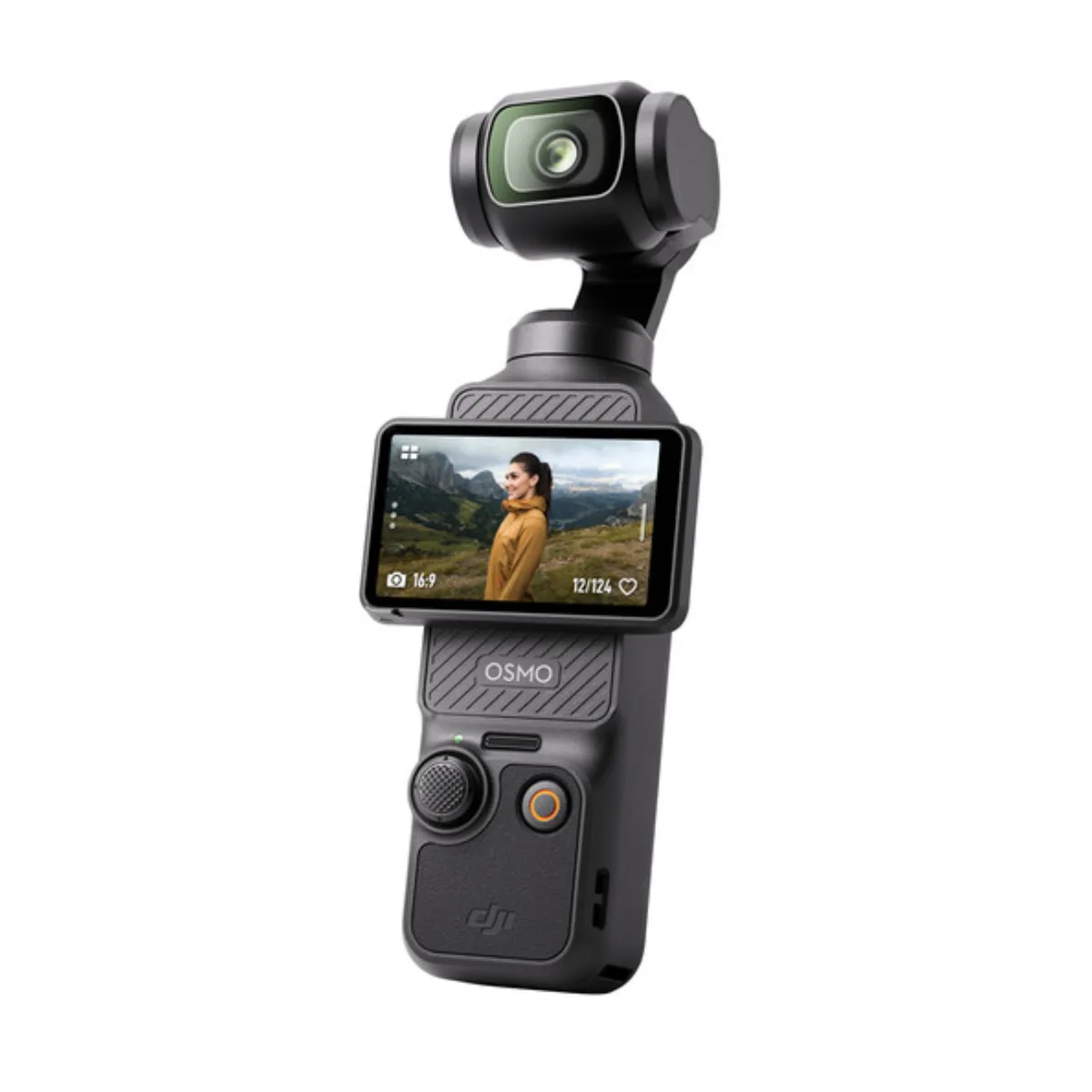
Image source: Web (Bing) / witacom.com (Web image (fair-use with source credit))
A Note on Digital Stabilization
The Pocket 2 also has a digital stabilization feature called HorizonSteady. It crops the image slightly and uses software to keep the horizon perfectly level even in extreme tilts. This works best when combined with Tilt Locked mode.
Enable it in the DJI Mimo app under stabilization settings. Digital stabilization does add a small lag to the viewfinder, so turn it off for fast action.
Step-by-Step: Choosing the Right Mode for Your Shot
Here is a simple decision framework. Think of it as a flowchart for your feet.
Step 1: Are you walking or standing still?
- Standing still → Use Follow mode. It allows smooth pans and tilts.
- Walking → Go to Step 2.
Step 2: Are you walking forward, backward, or sideways?
- Walking forward in a straight line → Use Tilt Locked mode.
- Walking backward or sideways → Use Tilt Locked mode. The camera holds tilt even as you shuffle.
- Walking in a circle around a subject → Use Follow mode. The gimbal will track the subject as you orbit.
Step 3: Are you running or moving fast?
- Running, sprinting, or any fast motion → Use FPV mode. The unlocked axes absorb sudden movements better.
Step 4: Are you trying to follow a subject?
- Single subject you want to keep centered → Use ActiveTrack. Tap the subject on the screen.
- Group of people or changing subject → Stick with Follow mode and pan manually.
Step 5: Are you on a tripod or flat surface?
- Tripod or static mount → Use Follow mode for smooth pans.
- Handheld selfie mode → Use Tilt Locked mode. It keeps your head in frame without bobbing.
How to Switch Modes
Switching modes takes about two seconds. On the touchscreen, swipe left to open the gimbal mode menu. Tap the icon for Follow, Tilt Locked, or FPV.
The screen shows a small animation so you know the mode changed.
You can also change modes in the DJI Mimo app. The app gives you additional controls like joystick speed and horizon correction. If you are using the wireless module connecting the camera to an app, make sure the connection is stable to avoid lag.
Practice Makes Smooth
Take a few minutes to practice each mode before an important shoot. Walk down a hallway in Tilt Locked mode. Pan across a room in Follow mode.
Run in place with FPV mode. You will quickly feel the difference in how the gimbal responds. Over time, it becomes instinct.
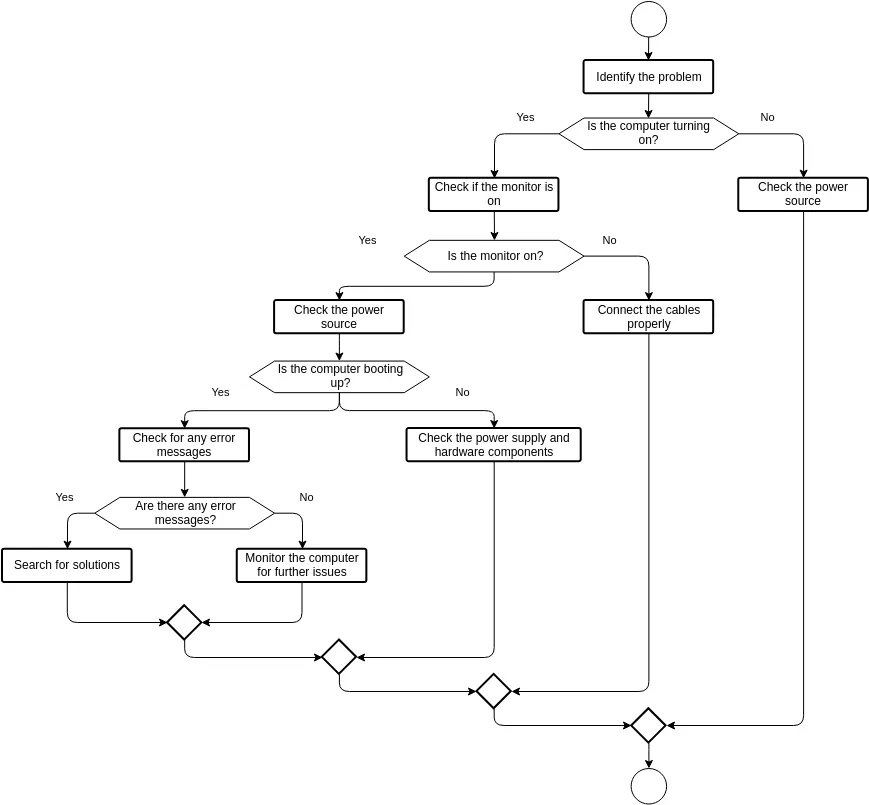
Image source: Web (Bing) / online.visual-paradigm.com (Web image (fair-use with source credit))
Mistakes to Avoid (That Almost Everyone Makes)
Even experienced users trip up on these. Here are the most common mistakes and how to avoid them.
Mistake 1: Staying in Follow Mode for Walking
This is the biggest one. Follow mode is not designed for walking. It tries to keep the horizon level while following your tilt.
The vertical bounce gets amplified. Switch to Tilt Locked before you take a step.
Mistake 2: Forgetting to Change Modes Between Shots
You shoot a panning landscape in Follow mode. Then you start walking to the next location. The camera stays in Follow mode.
Your walking footage has that telltale wobble. Make it a habit to check the mode icon on the screen before you start recording.
Mistake 3: Using FPV Mode for Steady Shots
FPV mode is great for action, but it also introduces hand shake. If you hold the Pocket 2 in FPV mode and stand still, your natural hand tremor will be visible. For static or slow shots, use Follow or Tilt Locked mode.
Mistake 4: Not Calibrating the Gimbal
If you drop the Pocket 2 or bump it hard, the gimbal might drift. The horizon will be off. Calibration fixes this.
Go to the gimbal settings in the DJI Mimo app and run the auto calibration. It takes about a minute. Do this after any impact or if you notice tilted footage.
Mistake 5: Ignoring the Joystick Speed
The default joystick speed is set for general use. But if you are walking and trying to pan, the joystick might feel too fast or too slow. Adjust it in the app under gimbal settings.
A slower speed gives smoother pans. A faster speed is better for quick subject following.
Mistake 6: Expecting the Gimbal to Fix Everything
The gimbal is a tool, not a magic wand. It smooths rotation but not vertical movement. It cannot compensate for terrible walking technique.
Walk with soft knees and a smooth gait. Think of yourself as a SteadicOp. Practice makes a bigger difference than any mode.
Mistake 7: Using a Slow Memory Card
A slow SD card can cause dropped frames or even stop recording. Use a UHS Speed Class 3 (U3) card or faster. This ensures the camera can write data fast enough, especially in higher resolutions.
A card that is too slow can mimic stabilization problems by stuttering the footage.
Pro Tips for Even Smoother Footage
These tips go beyond basic mode switching. They come from aggregate user experience and editorial research on handling common shooting scenarios.
Walk Like a Ninja
Your walking technique matters. Bend your knees slightly. Roll from heel to toe.
Keep your upper body as still as possible. This reduces the vertical translation that the gimbal cannot fix. Practice this for five minutes, and you will see a noticeable difference.
Use the Extension Rod as a Counterweight
The extension rod that comes with the Pocket 2 is not just for selfies. Holding the rod with both hands creates a wider base. This spreads your movement across both arms and cuts down on small shakes.
It works especially well in Tilt Locked mode.
Lock the Horizon for Static Shots
If you are filming a stationary scene, enable HorizonSteady in the DJI Mimo app. It uses digital stabilization to keep the horizon perfectly level. Combine this with Follow mode on a tripod for rock-solid pans.
Just remember to turn it off before walking shots, as it introduces lag.
Use the Joystick for Micro Adjustments
The joystick lets you make tiny movements that feel natural. In Tilt Locked mode, use the joystick to adjust the tilt angle without lifting the camera. This keeps the shot smooth and avoids the jolt of moving the handle.
Set joystick speed to low for delicate pans.
Shoot in 4K and Crop in Post
Shooting in 4K gives you room to crop in post production. A 10 percent crop can hide the slight bobbing that still appears in walking shots. This is a common trick used by professional vloggers.
It works because the crop removes the outer edges where the bounce is most visible.
Plan Your Walking Route
If you know you will be walking, choose a path without sudden changes in elevation. Uneven ground forces the gimbal to adjust constantly. A flat sidewalk or hallway yields much smoother results than a gravel path.
Scout your location ahead of time if possible.
Real-World Scenarios: What Mode to Use When
Here is how the decision framework plays out in actual situations you will encounter.
Scenario 1: Walking Through a City Market
You are vlogging and walking down a busy street lined with stalls. The ground is flat but crowded. You need to avoid bumping into people while keeping your face in frame.
What to do: Switch to Tilt Locked mode. Hold the Pocket 2 at chest height with the extension rod in both hands. Use the joystick to adjust tilt as you walk.
The gimbal will keep the horizon steady while you weave through the crowd.
Scenario 2: Panning Across a Sunset
You are on a rooftop filming a sunset. The shot is static. You want to pan slowly from left to right across the horizon.
What to do: Switch to Follow mode. Mount the Pocket 2 on a tripod or set it on a flat surface. Use slow, even pressure on the joystick.
The gimbal will keep the horizon level as you pan. For extra stability, enable HorizonSteady in the app.
Scenario 3: Running Through a Park
You are filming a friend running toward you. The ground is grass and slightly uneven. You need to track the runner while keeping the shot smooth.
What to do: Switch to FPV mode. Bend your knees and move in a low stance. The unlocked axes will absorb the impact of each stride.
Do not worry about the horizon. The dynamic feel actually looks natural for action shots.
Scenario 4: Filming a Cooking Tutorial
You are filming yourself from a tripod while cooking at a kitchen counter. Your hands move in and out of frame as you chop and stir. The camera stays put.
What to do: Switch to Follow mode on a tripod. Use ActiveTrack to stay centered as you lean in and out. The gimbal will adjust for your movement without you having to touch it.
This keeps the shot steady and hands free.
Scenario 5: Walking Backward in a Selfie Video
You are filming yourself walking backward down a hallway. You want the shot to look smooth without the usual bounce.
What to do: Switch to Tilt Locked mode. Walk slowly and carefully. The gimbal will hold the tilt angle, keeping your face steady.
Walk heel to toe to minimize the up-and-down motion. This is one of the hardest shots to master, so practice it a few times.
Frequently Asked Questions
Is the DJI Pocket 2 gimbal waterproof?
No, the Pocket 2 is not waterproof. The gimbal mechanism is sensitive to water and dust. Do not use it in rain or near water without a waterproof housing.
Moisture can damage the motors and cause permanent wobble.
Can I use the DJI Pocket 2 without the DJI Mimo app?
Yes, you can use the Pocket 2 without the app. The touchscreen gives you full control over gimbal modes and settings. The app offers extra features like firmware updates and custom joystick speed.
For basic shooting, the camera works fine on its own.
Why does my footage still shake after switching to Tilt Locked mode?
Tilt Locked mode fixes tilt, not vertical movement. If you are walking on uneven ground or taking heavy steps, you will still see some bounce. Improve your walking technique or use a slow smooth gait.
Shooting in 4K and cropping in post can also help.
How do I calibrate the gimbal on the DJI Pocket 2?
Open the DJI Mimo app. Connect to the Pocket 2. Go to gimbal settings and select auto calibration.
The camera will move through its full range of motion. Do not touch it during calibration. This takes about one minute and fixes drifting horizons.
Does ActiveTrack work with all gimbal modes?
ActiveTrack works only in Follow mode. It uses the gimbal to track a subject while keeping the horizon level. If you switch to Tilt Locked or FPV mode, ActiveTrack disables automatically.
You must be in Follow mode to use subject tracking.
What is the best memory card for the DJI Pocket 2?
Use a UHS Speed Class 3 (U3) card with a write speed of at least 30 MB/s. Cards from reputable brands like SanDisk or Samsung work well. A slow card causes dropped frames and recording errors that look like stabilization problems.
Final Verdict: Your Quick Decision Guide
Here is a one-sentence rule for every common shooting situation.
Walking forward: Tilt Locked mode. Walking in a circle: Follow mode. Running or action: FPV mode. Static panning: Follow mode. Subject following: ActiveTrack. Selfie walking: Tilt Locked mode.
Keep this guide saved on your phone or written on a sticky note attached to the extension rod. After a few shoots, you will not need it anymore. The mode switching will become second nature.
The DJI Pocket 2 is a capable camera. The stabilization is excellent once you match the mode to the movement. Understanding which axes each mode locks is the single most important skill you can learn.
Master that, and your footage will look far more professional.

Similar Posts
































