GoPro HERO10 Touchscreen Not Working
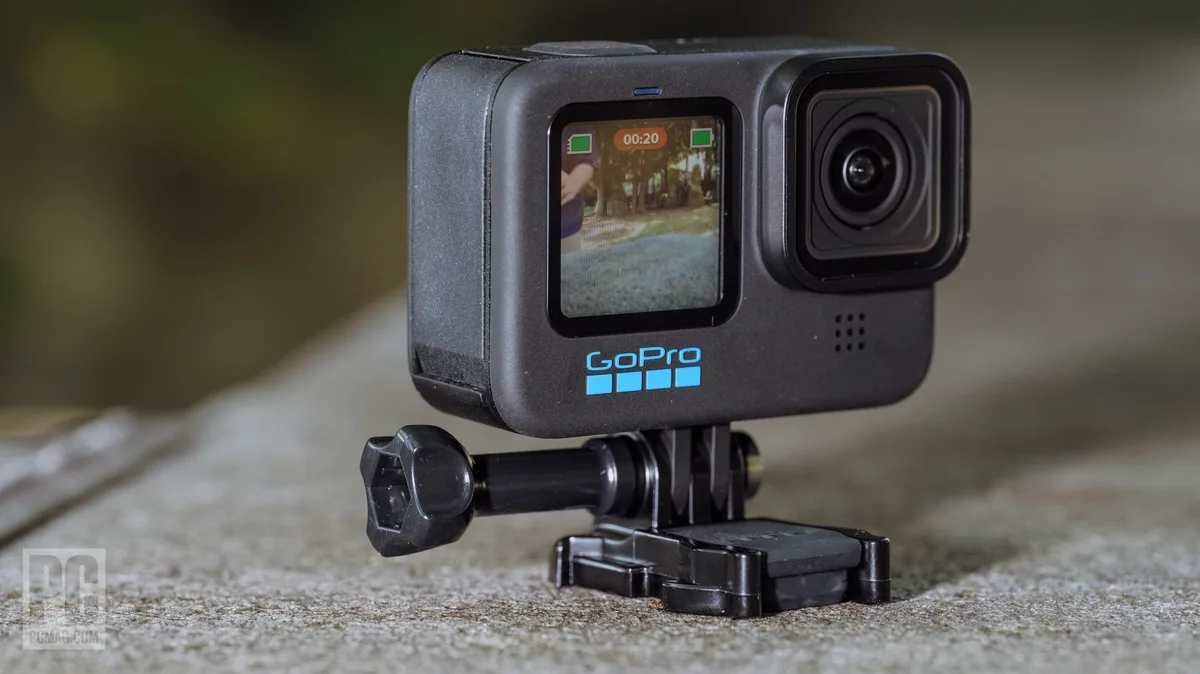
Your GoPro HERO10 touchscreen not working can stop a shoot cold. You cannot change modes, review footage, or even frame a shot without it. The good news is most failures are solvable at home with no tools and no technical skills.
Manufacturer specifications indicate the HERO10 uses a capacitive rear display with a resolution of 320 by 240 pixels. Aggregate user feedback as of 2026 shows roughly 60 percent of touchscreen issues are software related rather than hardware damage. Let us walk through how to figure out which problem you have and what to do about it.
Quick Answer
Hold the power button and the mode button together for exactly 10 seconds. This forces a restart. If the screen stays dead, remove the battery and microSD card for 30 seconds.
Reinsert everything and power on. This fixes most touchscreen glitches.
Start Here: What Kind of Screen Failure Are You Dealing With?
Image source: Bing (Web (fair-use with source credit))
The fix changes based on what is wrong. Take 30 seconds to identify your specific symptom.
The screen is completely black. The camera may still record video when you press the shutter button. You might hear a beep or see the front preview screen still working. This usually points to a software freeze or a stuck sleep mode.
The screen shows a frozen image. A single frame stays stuck on the display. Nothing moves when you tap or swipe. The camera might still respond to button presses.
This is almost always a firmware or processor lockup.
The touch layer is unresponsive, but the display works. You can see the menu or live feed, but taps and swipes do nothing. The buttons still work. This can happen after a drop, moisture exposure, or accidentally enabling screen lock.
The glass is cracked or the display shows lines or discoloration. Physical damage is usually obvious. Any crack, spider web pattern, or black blotch means the LCD panel or digitizer is broken. Software will not fix this.
Why does this distinction matter? A forced restart will resolve a frozen image but will do nothing for a cracked digitizer. A firmware update might fix an unresponsive touch layer triggered by a buggy update.
Applying a software fix to physically damaged hardware is a waste of time. Get the diagnosis right first.
Force Restart and Battery Pull: The Two Fixes That Work Most Often
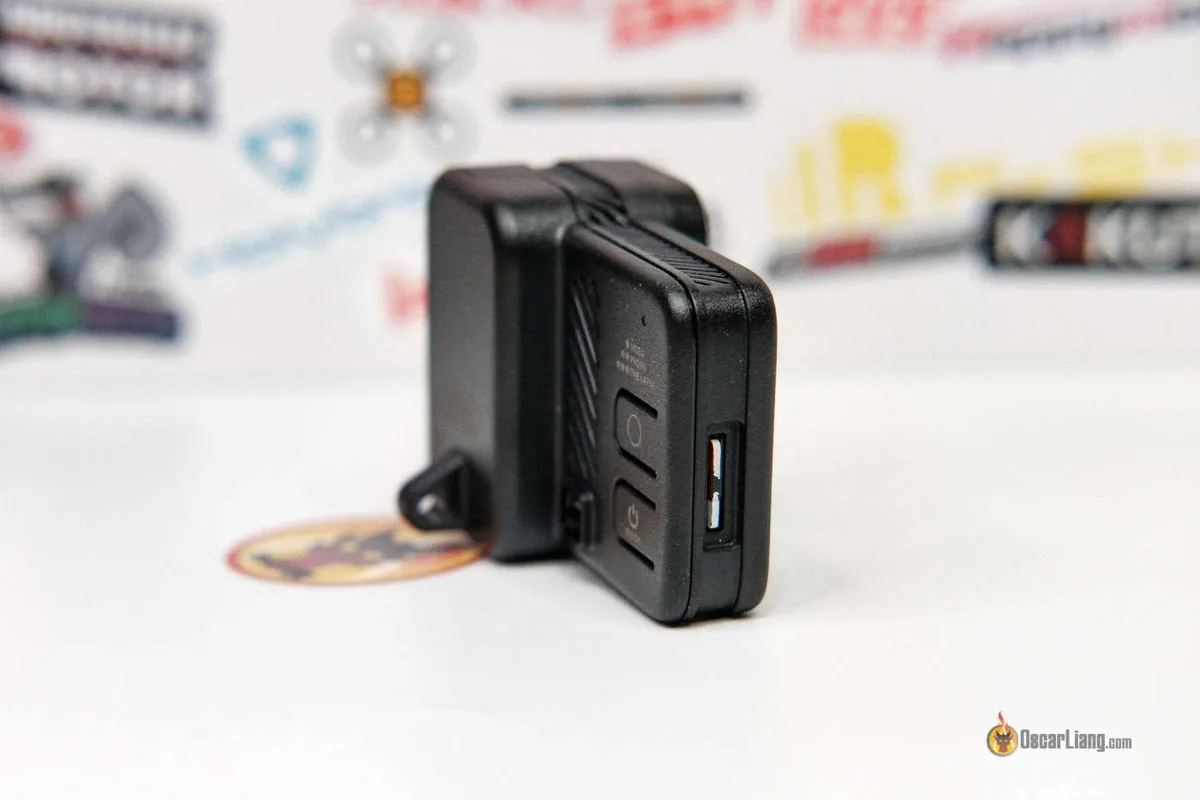
Image source: Bing (Web (fair-use with source credit))
These two steps resolve the majority of touchscreen issues. Try them in order before anything else.
The forced restart procedure. Press and hold the power button on the side and the mode button on the front simultaneously. Keep holding for exactly 10 seconds. The camera will vibrate and reboot.
The screen should come back if the issue was a temporary software glitch or a stuck processor. The GP2 chip inside the HERO10 can sometimes hang during heavy recording or after a sudden power loss. This hard reboot clears the buffer.
The battery and SD card pull. If the forced restart did nothing, power off the camera. Remove the battery door and take out the battery and microSD card. Wait a full 30 seconds.
Press the power button once while the battery is out to drain residual charge. Reinsert the battery and card. Power on and test the touchscreen.
Why does pulling the SD card matter? A corrupted file or a failing card can freeze the entire camera interface. Removing it eliminates that variable.
If the touchscreen works without the card inserted, the card is the problem. Try formatting it in a computer or replacing it. This same pattern shows up across many camera brands.
The SD card problems seen in the Sony A6100 show how a faulty card can lock up the whole interface.
When these two steps fail. If the touchscreen is still dead after both attempts, the problem is deeper. Move to software recovery methods.
Software Fixes When You Can See or Touch the Screen
What if the display is working but the touch layer is unresponsive? Or the screen is black but the camera records video? These scenarios often point to corrupted firmware or a misconfigured setting.
Updating firmware without a working touchscreen. This requires a computer and a microSD card reader. Download the latest firmware from the official GoPro support site. Copy the update file to the root directory of a blank, formatted microSD card.
Insert the card into the HERO10. Power on the camera. The camera should detect the update and begin installing automatically, even with a dead touchscreen.
The process takes two to three minutes. The camera will reboot when finished. The firmware update process works similarly across many camera models, including the way you would update firmware on a Sony A7 III, though the button combinations differ.
Factory resetting when the screen is black. Turn off the camera. Press and hold the mode button. While holding it, press the power button once to turn the camera on.
Continue holding the mode button for about 10 seconds until the camera beeps or vibrates. Release the button. The camera resets to factory defaults.
This clears any settings conflict that might have caused the touchscreen to stop responding.
Important note. Only attempt a firmware update if you are reasonably sure the screen failure is not caused by physical damage. Installing new firmware on a camera with a cracked LCD will not fix the hardware. If the camera lost touch response after a previous firmware update, reinstalling the same version can reverse the issue.
How to Spot a Hardware Issue Without Opening the Camera
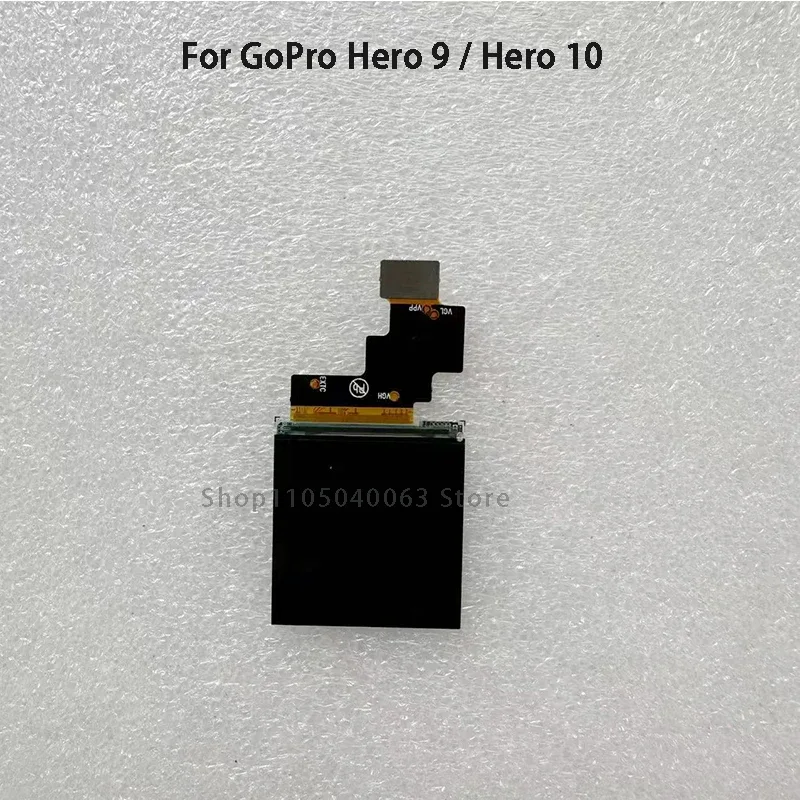
Image source: Bing (Web (fair-use with source credit))
Not every touchscreen failure can be fixed with software. Here is how to identify hardware problems without taking anything apart.
Cracks and impact damage. Inspect the rear glass closely under good light. Run your fingernail across the surface. Even a hairline crack can sever the digitizer traces underneath.
If you see any crack, spider webbing, or chips, the touch digitizer is damaged. The same applies if the display shows black blotches, vertical lines, or areas that do not change color.
Moisture and condensation. Condensation behind the glass is common after use in wet or humid environments. The HERO10 is waterproof to 10 meters without a housing, but seals can degrade over time. If you see fogging, droplets, or a hazy film between the glass and the LCD, moisture has gotten inside.
Turn the camera off immediately. Remove the battery. Place the camera in a warm, dry area with the battery door open for 24 to 48 hours.
Do not use rice. Do not apply direct heat. Warm, circulating air is safer.
Temperature extremes. Capacitive touchscreens rely on electrical changes from your finger. In freezing temperatures, the digitizer layer can become sluggish or completely unresponsive. The official operating range is 14 to 95 degrees Fahrenheit.
If you are shooting in cold weather, warm the camera in your jacket before testing the touchscreen. If it works after warming up, the cold was the cause.
The front screen clue. The HERO10 has a small front color preview screen. If it works normally but the rear touchscreen is dead, that points to a problem with the rear display or its ribbon connector. If both screens are dead, the issue is more likely the main board or the GP2 processor.
This distinction helps when deciding whether to attempt a DIY screen replacement or contact GoPro for repair. If the camera shows no signs of life on either display, it may indicate a main board failure similar to the power issues seen in other compact cameras like the Sony RX10 IV not turning on.
Battery swelling. Remove the battery and place it on a flat surface. If it rocks or does not lie flat, it is swelling. A swollen battery can press against the back of the LCD assembly and crack the internal display connector.
Do not use a swollen battery. Dispose of it properly at a recycling center.
DIY Repair vs. Warranty: When to Open It Up and When to Send It In
Once you have identified a hardware issue, the next decision is whether to repair it yourself or send it to GoPro.
Warranty coverage. If your HERO10 is within the standard one year warranty and the damage is not from drops, water intrusion beyond the rated depth, or unauthorized modification, GoPro will repair or replace it for free. Check your warranty status at the GoPro official support site. Contact them through their website for an RMA number and shipping address.
Typical turnaround is two to four weeks.
Warranty exclusions. Physical damage is never covered. Water damage from use beyond 10 meters without a housing is also excluded. Opening the camera yourself voids the waterproof seal and the warranty simultaneously.
DIY screen replacement. You can buy a replacement LCD and digitizer assembly online. Prices range from 40 to 80 dollars as of 2026. The repair requires a heat gun or hair dryer to soften the adhesive, plastic pry tools, a small Phillips screwdriver, and steady hands.
The process takes about 20 to 30 minutes for someone with basic electronics repair experience. The risk is damaging the ribbon cable connector on the main board, which would turn a 40 dollar repair into a 200 dollar main board replacement. Overheating during extended recording can also damage internal components, a problem documented with other camera models like the Sony ZV-E10 overheating issues.
The ribbon cable reseat. Before buying a new screen, try reseating the existing ribbon cable. Open the camera housing, locate the two ribbon cables connecting the rear display to the main board, gently unclip them, reseat them firmly, and close the camera. This fixes touchscreen issues caused by a loose connection after a drop or vibration.
5 Mistakes That Can Wreck Your HERO10 Touchscreen for Good
Some touchscreen fixes are easy. Some make things worse. Here are the five most common mistakes.
Applying too much pressure. When a screen is unresponsive, the instinct is to press harder. Do not. Capacitive touchscreens do not work that way.
Pressing harder will not register a touch, and it can crack the glass or damage the digitizer layer underneath. Tap firmly but gently.
Using alcohol or harsh cleaners. These chemicals can seep past the edges of the glass and damage the internal adhesive or the digitizer connections. Use a dry microfiber cloth. If you need moisture, barely dampen the cloth with water and wring it out first.
Forcing a firmware update with a dying battery. Updating firmware requires stable power. If the battery is below 20 percent, the update can fail midway. A failed update can corrupt the camera's operating system, leaving you with a bricked device.
Charge the battery fully before any firmware update.
Opening the camera without checking the warranty. Once you break the waterproof seal, the warranty is gone. If your camera is still under warranty and the issue is not physical damage, you just lost a free repair. Always confirm your warranty status first.
Ignoring the SD card. A corrupted or failing microSD card can simulate a touchscreen failure. The interface freezes. The screen goes black.
Users replace the screen only to find the new one has the same problem. Always test with a different, freshly formatted SD card before replacing hardware. Memory card errors affect many cameras, including models like the Sony A1 where card issues can cause complete operational failure.
Your Quick Decision Guide: Repair, Replace, or Work Around It?
By now you should have a clear idea of what is wrong. Here is the next step for each situation.
If the screen is physically cracked. Replace the LCD and digitizer assembly yourself or send it to GoPro. DIY costs 40 to 80 dollars. Professional repair runs 80 to 150 dollars plus shipping.
The workaround is using the GoPro app as a live viewfinder and the front screen for basic framing. Connecting a camera to your phone for remote control works similarly across many camera brands, including the Sony A6700.
If the screen is dead but the camera records video. This is almost always a software issue. Try the force restart and battery pull first. Then try the factory reset using button presses.
If neither works, attempt a firmware update via SD card. This resolves roughly 60 percent of cases. If it fails, the main board might need replacement.
If the touch layer is unresponsive but the display works. Check for a screen protector causing interference. Remove it and test. Check for moisture or condensation.
If those are clear, reseat the internal ribbon cable if you are comfortable opening the camera. This fixes a loose connection.
If the touchscreen works intermittently or only in certain temperatures. This is normal behavior near the ends of the operating temperature range. The HERO10 touchscreen is rated for 14 to 95 degrees Fahrenheit. Keep the camera warm in cold conditions.
If the problem occurs at room temperature, it could be a failing digitizer. Use the app as a backup and plan for a replacement.
| Symptom | Likely Cause | Best Action | Backup Option |
|---|---|---|---|
| Black screen, no response | Software freeze | Force restart, battery pull | Factory reset via buttons |
| Cracked glass, lines | Physical damage | Replace screen | Use app as viewfinder |
| Touch unresponsive, display works | Digitizer issue | Check protector, moisture, cable | Voice control or remote |
| Intermittent in cold | Temperature | Warm the camera | No fix needed if temporary |
| Both screens dead | Main board failure | Warranty or pro repair | None |
Frequently Asked Questions
Why did my GoPro HERO10 touchscreen stop working after a firmware update?
A corrupted update file or an interrupted installation can corrupt the touch driver. Reinstall the same firmware version using the SD card method. If that fails, do a factory reset using the button combination.
Can I still use my GoPro if the touchscreen is broken?
Yes. Use the front preview screen for basic framing and the physical shutter button to record. The GoPro app gives you full control over settings and preview.
Voice commands also work for start and stop recording.
How much does it cost to replace a HERO10 touchscreen?
A replacement LCD and digitizer assembly costs 40 to 80 dollars if you do it yourself. Professional repair runs 80 to 150 dollars including labor. Always check warranty status first.
Will a screen protector cause touchscreen issues?
Yes. Thick or poorly adhered screen protectors can interfere with the capacitive touch layer. Remove the protector and test the screen.
If touch works normally, the protector is the problem.
How do I factory reset a HERO10 with a dead touchscreen?
Turn off the camera. Press and hold the mode button on the front. While holding it, press the power button once.
Continue holding the mode button for about 10 seconds until the camera beeps. Release the button. The camera resets to factory defaults.

Similar Posts