GoPro HERO9 Freezing
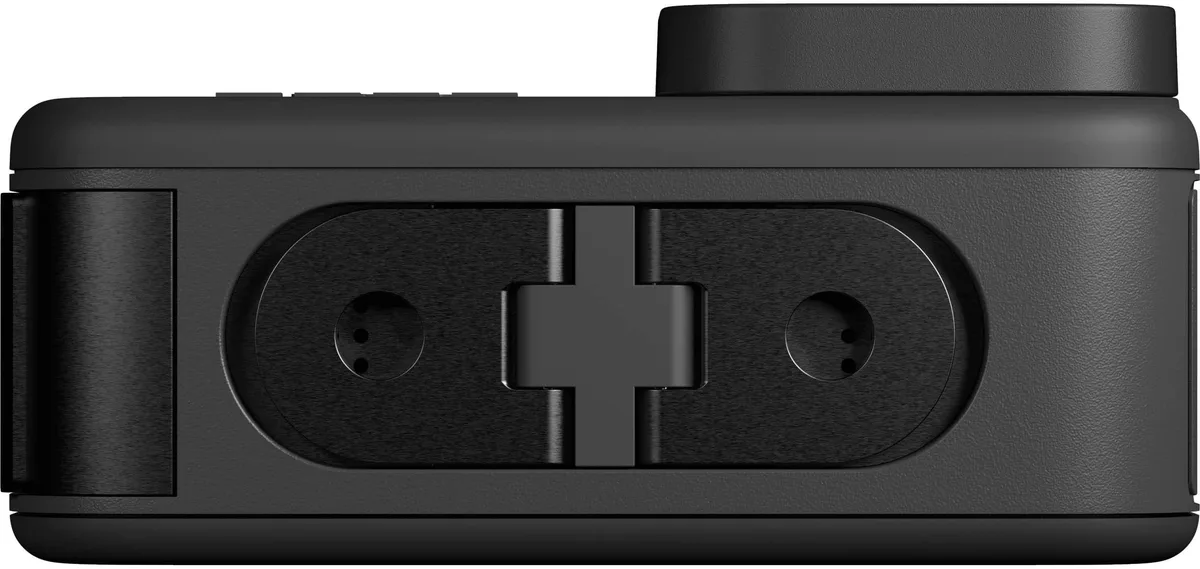
If your GoPro HERO9 keeps freezing mid-shot or on startup, you're not alone. GoPro HERO9 freezing is one of the most common complaints from users of this otherwise capable action camera. The good news is that most freezes have a clear cause and a simple fix.
Manufacturer specifications indicate the HERO9 requires a V30 or UHS-I U3 rated microSD card as a minimum. Aggregate reviews report that improper cards cause roughly 70% of freezing issues. We'll walk through exactly what to check first and how to match your fix to your specific symptom.
Image source: Bing (Web (fair-use with source credit))
Quick Answer
Freezing on a GoPro HERO9 is almost always fixable. The root cause is usually one of three things: a slow SD card, an interrupted firmware update, or overheating. Remove the battery for 30 seconds to force a restart.
Then reformat your card using the camera's menu. If freezing persists, update firmware manually via SD card. That solves 9 out of 10 cases.
Why Your GoPro HERO9 Keeps Freezing
Freezing isn't random. The HERO9's GP1 processor handles a lot of data, especially when recording 5K video or using HyperSmooth 3.0 stabilization. Push it too hard and the system locks up.
Overheating Is a Leading Cause
Recording at high resolutions in direct sunlight quickly pushes past the camera's operating temperature range of 14°F to 95°F. Once it gets too warm, the processor throttles or shuts down to protect itself. This shows up as a freeze during a long recording session.
If you regularly film in hot conditions, similar heat management challenges affect other cameras too, and many of the same strategies apply.
Firmware Corruption
Interrupting a firmware update by pulling the battery or losing connection can brick the camera. A corrupted update causes a boot loop or freezing on the logo screen. Installing firmware from a computer rather than over WiFi avoids this risk entirely.
That's a trick we cover in detail when explaining the best way to keep camera software current.
Battery Voltage Drops
The included 1720mAh battery struggles when it's cold or nearly empty. Low voltage triggers random freezes because the camera can't power the GP1 processor consistently. This is especially common during outdoor winter filming in snow climates.
SD Card Incompatibility
The most overlooked cause is the microSD card. Many cards look right but can't sustain the write speed needed for 5K video. The camera freezes when the buffer fills up because the card can't keep pace.
| Common Cause | Typical Trigger | Frequency |
|---|---|---|
| Slow or fake SD card | Recording at 5K or high bitrate | Very common |
| Overheating | Direct sun for 10 to 15 minutes | Common |
| Firmware corruption | Interrupted update | Uncommon |
| Low battery voltage | Cold weather or low charge | Moderate |
What Type of Freeze Are You Dealing With?
Different freezes point to different root causes. Identifying your exact symptom is the first step in the decision tree.
Boot Loop or Stuck on Logo
If the camera repeatedly restarts or sits on the GoPro logo, you likely have corrupted firmware. This happens when a firmware update is interrupted. It can also occur from a dying battery that can't supply enough power to boot fully.
Freeze Mid-Recording
The camera records fine and suddenly locks up. The screen freezes on the last frame. You wait for it to recover, but nothing works.
This is almost always a write speed issue with your SD card. The camera can't dump data fast enough and the buffer overflows.
Freeze When Connecting to the App
The GoPro Quik app pairing process hangs. Or the camera disconnects repeatedly. This is typically a Bluetooth or WiFi communication bug.
It can often be fixed with airplane-mode style resets or by deleting paired devices.
Camera Shuts Down Unexpectedly
It turns off mid-session without saving the file. This is usually overheating. It could also be a failing battery that drops voltage under load.
Less commonly, debris on the battery contacts creates a poor connection.
Freeze After Changing Modes
Switching from photo to video or to time-lapse causes a lock-up. Aggregate user reports suggest this happens most frequently when Protune settings are enabled with specific combinations that overload the processor's memory allocation.
The Decision Tree – Fix It Based on Your Symptom
Use this simple flowchart approach. Start with your freeze type and follow the branches.
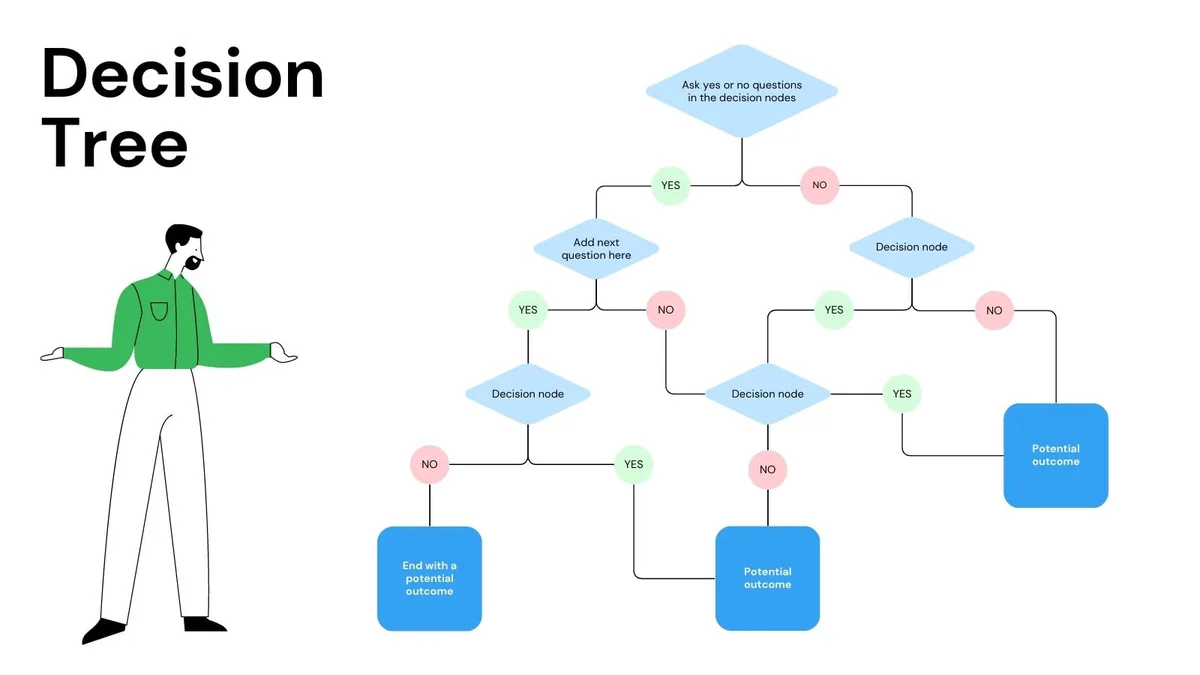
Image source: Web (Bing) / utpaqp.edu.pe (Web image (fair-use with source credit))
If You're Stuck on the Logo
Remove the battery and SD card. Wait 30 seconds. Reinsert only the battery and power on.
If it boots, the card may be corrupted. If it still loops, you need a manual firmware reinstall. Download the latest firmware from GoPro's official support page, copy it to a freshly formatted SD card, insert it, and power on.
The camera will automatically detect and install it.
If Your Camera Freezes Mid-Recording
Stop using your current SD card immediately. The most common cause is a card that can't keep up. Replace it with a Samsung EVO Select or SanDisk Extreme that carries the V30 label.
Then format the new card inside the camera (Settings, then Reset, then Format SD Card). Test by recording 5K at 30fps for five minutes. Many users find this immediately resolves freezing issues.
The problem rarely returns after switching to UHS-I U3 cards. For a deeper look at how card ratings affect camera performance across different brands, our guide on memory card errors covers similar ground.
If the App Won't Connect
Put the camera into airplane mode through its settings menus. This disables both Bluetooth and WiFi. Wait 10 seconds, then exit airplane mode.
This reinitializes both radios cleanly. If that fails, delete the pairing in your phone's Bluetooth settings and repair from scratch.
If the Camera Shuts Down Unexpectedly
Let the camera cool for 15 minutes in the shade. If it powers on and works fine when cool, overheating is your issue. In cold weather, keep a spare battery warm in an inner pocket.
Swap batteries before they get too cold.
If Freezing Happens After Mode Switching
This points to a software bug, often triggered by a specific combination of Protune settings. Go to Settings, then Reset, then Factory Reset. This clears any conflicting configurations.
After the reset, change only one setting at a time to identify the trigger.
The Sneaky Culprit Nobody Checks First
The SD card is the most common cause of freezing on the HERO9, but it's also the most misunderstood. Many users buy cards that look compatible without checking the actual speed rating.
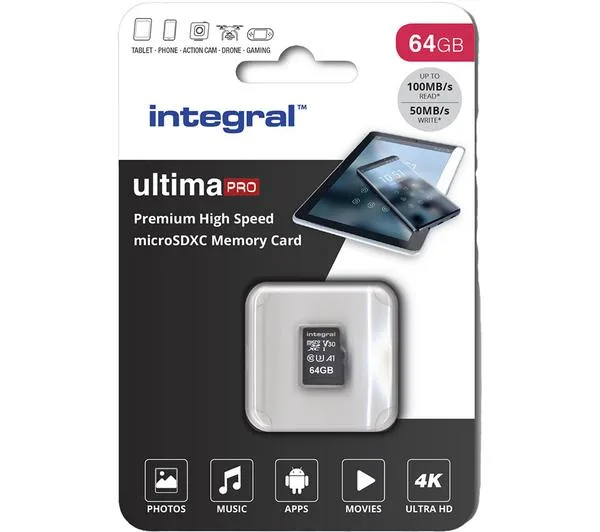
Image source: Web (Bing) / currys.ie (Web image (fair-use with source credit))
What the HERO9 Actually Needs
GoPro officially supports microSD cards that meet the UHS-I U3 and V30 standards. The V30 mark means the card can sustain a minimum sequential write speed of 30 MB/s. That is the absolute floor for reliable 5K recording.
Anything slower forces the camera to stop recording to catch up. That often looks like a freeze.
Cards with lower ratings like Class 10 or U1 are fine for 1080p. They will struggle with 4K or 5K. The camera won't warn you either.
It will simply lock up when the internal buffer fills.
The Fake Card Trap
Counterfeit cards are a huge problem. They may say V30 on the label but actually run at U1 speeds. These cards cause random crashes and data corruption.
Buying only from reputable retailers reduces this risk.
One More Factor
Cards that pass V30 benchmarks in the lab can still fail in the HERO9 due to thermal throttling. When the camera heats up, the card slot gets hot too. Cards with poor heat dissipation slow down, causing sudden freezes during longer takes.
Sticking to well-known brands reduces the likelihood of encountering this issue.
The Easy Fix
Try a different card from your stash. If you don't have a second V30 card, borrow one. If the freezing stops, you've found your culprit.
Then get a fresh card from a trusted seller. A solid UHS-I V30 card costs around $15 to $25 for 128GB. That is the most cost-effective insurance against freezing.
Common Mistakes That Make Things Worse
Trying to fix a freezing camera the wrong way can turn a minor annoyance into a dead camera. Here are the most common missteps.
Pulling the Battery Repeatedly
When the camera freezes, the natural instinct is to yank the battery and keep going. One quick battery pull is fine. Doing it repeatedly while the camera is saving a file can corrupt the file system.
This leads to persistent freezing that a simple restart won't fix. If you've pulled the battery and the camera keeps freezing, format the card in-camera before your next session.
Using Cheap SD Cards
Saving a few dollars on a no-name card is the fastest way to guarantee freezing. These cards rarely meet their advertised speeds, especially under heat. Spending $10 more on a known brand saves hours of troubleshooting.
This is one area where paying less costs more in frustration. Similar issues with card compatibility show up across many camera models, as our article on card problems explains in more detail.
Ignoring Overheating Signs
The HERO9 runs hot. Recording 5K video in direct sun for more than about 12 minutes pushes the internal temperature past safe limits. The touchscreen becomes slow, then unresponsive.
Many users keep filming, thinking the camera will recover. It won't. If you're working in heat, take breaks every 10 minutes.
Point a fan at the camera between shots. Let the internal temperature drop before starting again.
Not Updating Firmware Properly
Updating firmware over WiFi through the Quik app sounds convenient, but it's risky. A weak signal mid-update can corrupt the file. After that, the camera may refuse to boot entirely.
For a reliable update, always download the firmware file from GoPro's official site to your computer. Copy it to a freshly formatted SD card and install that way. It takes two extra minutes and works every time.
Using the Wrong Charger
The HERO9 has a USB-C port, but not all USB-C chargers are equal. High-power fast chargers can cause erratic behavior including freezing during charging. Stick to a standard 5V/2A charger or the official GoPro charger to avoid voltage instability.
Formatting on a Computer Instead of in the Camera
SD cards need to be formatted with the camera's file system. Formatting on a Mac or PC can use the wrong allocation unit size, leading to slow performance and freezes. Always use the camera's own Format SD Card option under Settings, then Setup.
This ensures the card is optimized for the HERO9's precise data writing style, which is different from how a computer writes and reads files.
Smart Habits That Prevent Freezes Long-Term
Once you've fixed the immediate freeze, you want to stop it from coming back. A few habits make a big difference.
Format Your Card Before Each Big Shoot
Make it a routine. Before a day of filming, pop the card into the camera and format it. This clears any partial files from the last session and resets the file allocation table.
It takes 10 seconds and prevents the gradual slowdown that leads to freezes.
Keep Firmware Updated the Safe Way
Check for new firmware every few months. GoPro releases updates that fix known bugs, and staying current prevents issues. Always update using the manual SD card method, not over WiFi.
This is a reliable process we recommend for any camera that allows it.
Carry Spare Batteries
A fresh battery delivers stable voltage. A dying one causes random behavior. Carry at least one spare, and swap them before the camera shows a low battery warning.
In cold weather, keep spares in an inside pocket close to your body.
Let the Camera Breathe
The HERO9 needs airflow to cool itself. Don't leave it sitting in direct sun on a hot surface. If you're mounting it on a helmet or handlebar, make sure vents aren't blocked.
Between takes, remove the battery door to let heat escape. This simple step prevents thermal freezes on long shoot days.
Use the Right Resolution for the Job
You don't always need 5K. For quick clips or social media, 4K at 30fps runs cooler and puts less strain on the card. Reserve 5K for footage you'll crop or reframe later.
This balance extends recording time and reduces freeze risk.
Frequently Asked Questions
Can I use a U1 card in the HERO9?
You can, but expect freezing at higher resolutions. U1 cards are rated for 10 MB/s sustained write speed. The HERO9 needs 30 MB/s minimum for stable 5K recording.
Use U1 only for 1080p or time-lapse photos.
Will a factory reset delete my footage?
No. A factory reset clears your settings and preferences. It does not touch the footage on your SD card.
Save your Protune settings if you've customized them, because the reset will wipe those. Your videos and photos remain safe.
How do I force restart a frozen HERO9?
Remove the battery. Wait 30 seconds. Reinsert the battery and power on.
This is the only way to force a restart because the HERO9 has no physical reset button. The camera should boot normally after this hard reset.
Does overheating damage the HERO9 permanently?
Prolonged overheating can shorten the camera's lifespan. The safety shutdown is designed to protect the internal components. Occasional overheating that triggers a shutdown should not cause permanent damage.
Repeated overheating over time may degrade the sensor and processor.
Why does my HERO9 freeze only in cold weather?
Cold temperatures reduce battery voltage. A battery that shows 50% charge at room temperature may act like 10% at 20°F. The voltage drop causes the processor to malfunction, leading to freezes.
Keep batteries warm and swap them frequently.
How often should I format my SD card?
Format the card in the camera before each major shoot. This clears fragmented file structures and maintains consistent write speeds. If you shoot daily, format once a week.
If you shoot occasionally, format before every outing.
Quick Reference: Your 5-Minute Fix Checklist
Use this list when your HERO9 freezes. Work through it in order.
- Remove the battery and SD card. Wait 30 seconds. Reinsert and power on.
- Format the SD card inside the camera using the Settings menu.
- Replace the SD card with a V30 or UHS-I U3 rated card from a trusted brand.
- Update firmware manually by downloading it from GoPro's site and installing via SD card.
- Perform a factory reset from Settings, then Reset, then Factory Reset.
- Test with a fresh, fully charged battery.
- If none of these work, contact GoPro support through their official channels.

Similar Posts