GoPro HERO12 SD Card Error
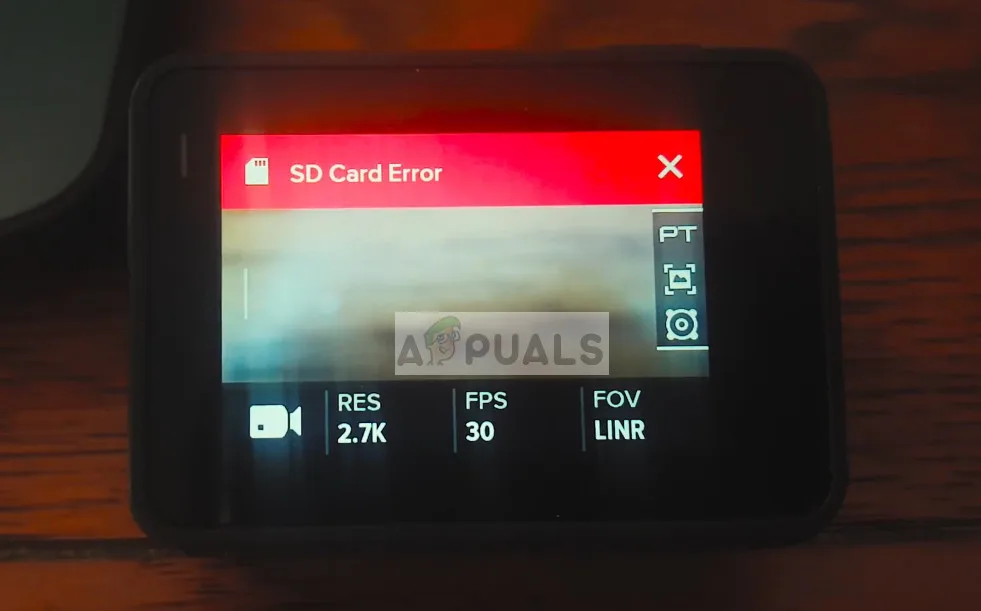
Seeing a GoPro HERO12 SD card error can stop a shoot cold. It's frustrating when you're in the middle of action and the camera just won't cooperate. The good news is most of these errors have a clear fix.
You just need to know what the camera is trying to tell you.
The HERO12 is picky about card speed. GoPro officially requires a V30 speed class or faster for reliable recording at high bitrates. That's a minimum sustained write speed of 30 MB/s.
Understanding that spec is your first step toward a fix.
Image source: Bing (Web (fair-use with source credit))
Quick Answer
The GoPro HERO12 SD card error has a few common causes. The error code tells you which fix to try. "SD ERR" usually means reformat or replace the card.
"NO SD" means check the card is fully inserted. Always use a V30 or U3 rated card for best results.
The Error Code Tells You What's Wrong
Your HERO12 shows one of three main error messages. Each one points to a different problem.
SD ERR means the camera can't read or write to the card. This is the most common error. It points to a card that is too slow, corrupted, or incompatible.
NO SD means the camera does not detect any card at all. This is often a physical issue. The card may not be fully clicked in.
The contacts may be dirty.
CARD ERR or CARD FULL is a third type. CARD FULL is self-explanatory. CARD ERR often mirrors SD ERR on older firmware.
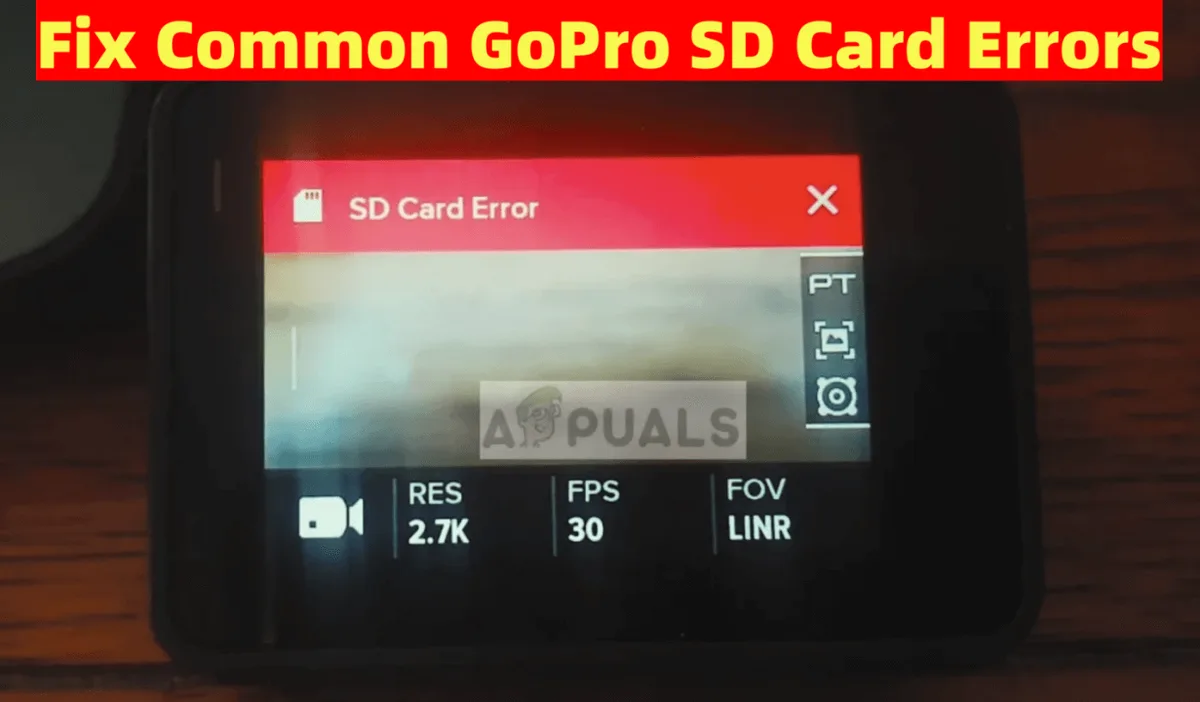
Image source: Bing (Web (fair-use with source credit))
The GoPro HERO12 SD Card Error Decision Tree
Follow the branch that matches your error code. Start with the message on screen.
Branch A — SD ERR on Startup
If you see SD ERR, first try formatting the card in the camera. Go to Menu, Preferences, Format. If that fails, format it on a computer as exFAT with 64KB allocation units.
If it still errors, the card is likely too slow or damaged. Replace it with a V30 minimum.
Branch B — NO SD When Card Is Inserted
If you see NO SD, remove the card and reinsert it until you hear a click. Check the card door for debris or dirt on the contacts. Try a different known good card.
If no card works, the slot may need service. SD card problems can show up across different camera brands.
Branch C — Recording Stops Mid-Clip
If recording stops, the card cannot keep up with the write speed. Drop to a lower resolution or frame rate as a test. If that helps, upgrade to a V30 or V60 card.
The same type of issue can cause recording failures on other camera models too.
Branch D — Card Won't Format in Camera
If formatting fails in camera, the card might have a write protect switch or be corrupted. Check the lock tab on the side of the card. Then try formatting on a computer using the SD Association's official formatter tool.
You can find it on their website.

Image source: Web (Bing) / handyrecovery.com (Web image (fair-use with source credit))
Step-by-Step Fixes for Each Error Type
Once you have identified the branch, here are the actions to take.
For SD ERR:
- Format the card in the camera first.
- Use a computer to format as exFAT with 64KB clusters.
- Update your HERO12 firmware to the latest version.
- If the error persists, replace the card with a V30 model.
For NO SD:
- Reseat the card firmly until it clicks.
- Blow compressed air into the slot to clear debris.
- Test with a different card.
- If the slot is damaged, contact GoPro support.
For recording stops:
- Switch to 4K30 or 1080p60 to test.
- Check the card write speed with a PC benchmark tool.
- Buy a card rated V30 or V60.
- The process for updating firmware is similar for many modern cameras.
For card won't format:
- Check the physical lock switch on the card.
- Use the SD Association's formatter tool on a PC.
- Replace the card if formatting still fails.
Picking the Right Card Before You Buy
Choosing the right card avoids most errors. The HERO12 works with microSDXC cards. Speed class matters more than brand.
| Speed Class | Minimum Write Speed | Best For |
|---|---|---|
| V30 / U3 | 30 MB/s | 4K60, 5.3K30 |
| V60 | 60 MB/s | 5.3K60, high bitrate modes |
| V90 | 90 MB/s | Overkill for HERO12 |
A 128GB or 256GB card hits the sweet spot for most users. GoPro officially supports up to 1TB as of 2026. The SD Association defines these classes clearly on their site.
Stick with known brands. Counterfeit cards are common on third party marketplaces. If a deal seems too good, it probably is.
A card that is too slow can cause errors similar to other not-recording issues across camera brands.
What Not to Do — Common Mistakes That Wipe Footage
When that error message appears, it is easy to react fast. Resist the urge to yank the card out. Pulling it while the camera is still writing can corrupt the file system instantly.
Always power the HERO12 off completely before you touch the card door.
Do not panic and keep recording on the same card either. If the card is showing errors, stop using it immediately. Each new write can overwrite the data directory.
That makes recovery software far less effective.
Never ignore the error and hope it goes away. Cards that throw errors once tend to fail again. Aggregate user feedback shows a clear pattern.
A card that gave "SD ERR" once has a high chance of failing mid-shot later.
Do not stick a cheap counterfeit card in as a quick replacement. These cards often show false capacity. They can corrupt your footage after recording a few minutes.
Stick with known brands from trusted sellers.
When You Have Tried Everything — Last Resort Options
You have tried formatting in camera and on computer. You have updated the firmware. You have tested a known good card.
What now?
Try a different power source first. A dying battery can cause write errors. The voltage drop during recording can trigger a false card failure.
Charge the battery fully and test again. If the error disappears, the battery was the real issue.
Use recovery software to salvage footage from the old card. Tools like Recuva or PhotoRec can recover files from logically corrupted cards. Aggregate reviews suggest a 60 to 70 percent success rate.
Run the recovery before you reformat or discard the card.
If the slot itself is damaged and no card works, you need a physical repair. Check GoPro official support site for warranty coverage. Out of warranty repairs cost around 100 to 150 dollars depending on the region.
Similar card slot issues have been reported across other camera brands too.
As a last resort, try a card from GoPro official recommended list. Sometimes even a good V30 card has a minor incompatibility. A card on their tested and approved list eliminates that variable.
Frequently Asked Questions
What does SD ERR mean on GoPro HERO12?
SD ERR means the camera cannot read the card correctly. Try formatting in the camera first. If that fails, format on a computer as exFAT.
Replace the card if the error continues.
Can I use a U1 card in GoPro HERO12?
No. The HERO12 requires a V30 or U3 card for reliable recording. U1 cards are too slow for high bitrate video.
You may get errors or dropped frames.
Why does my GoPro say NO SD when card is inserted?
This usually means the card is not fully seated. Remove and reinsert until you hear a click. Check for dirt on the contacts.
Try a different card to rule out slot damage.
How do I format a microSD card for GoPro HERO12?
Format in the camera for best results. Go to Menu, Preferences, Format. On a computer, use exFAT with 64KB allocation units.
The SD Association formatter tool is another reliable option.
What is the largest SD card GoPro HERO12 supports?
GoPro officially supports up to 1TB as of 2026. A 256GB card is the sweet spot for most users. It offers plenty of storage without costing too much.
Can recording stops mid-clip be fixed?
Yes, if the card cannot keep up. Lower the resolution or frame rate as a test. If that helps, upgrade to a V30 or V60 card.
A dying battery can also cause recording to stop.

Similar Posts




















[…] If you have dealt with similar connection issues on other action cameras, the diagnostic approach is often the same. A simple physical check solves more problems than you might think. You can read about that kind of process here: GoPro HERO12 SD Card Error. […]