GoPro HERO9 Black How to Format SD Card
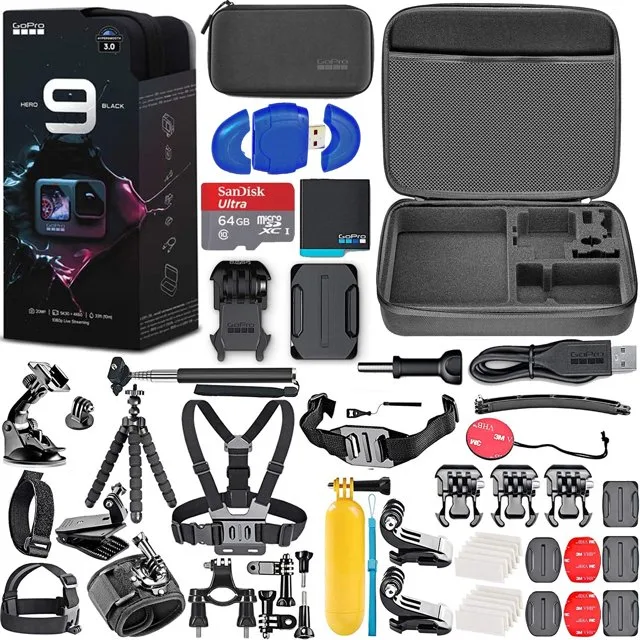
You've got a shiny new GoPro HERO9 Black, or maybe you've had one for a while, and suddenly you're staring at a dreaded "SD Card Error" message on the screen. It's a frustrating moment, but the fix is usually simple: you need to know the correct way to approach the GoPro HERO9 Black how to format SD card process. This isn't just about deleting files.
It's about setting up the card's file system so the camera can write data without errors.
Most people grab their card, plug it into a computer, and hit "format" without thinking. That's often where the trouble starts. According to the SD Association's speed class standards, the HERO9 Black requires a UHS Speed Class U3 or Video Speed Class V30 card for reliable 5K recording.
The camera's internal formatting routine sets up the correct partition structure and cluster size that the camera's processor expects. Let's walk through the exact steps so you never lose a clip again.
Quick Answer
Format your SD card inside the GoPro HERO9 Black by going to Preferences and selecting Format. Confirm the action. This sets the correct file system and cluster size.
The whole process takes about ten seconds. Always format in the camera for best performance.
Image source: Bing (Web (fair-use with source credit))
Why Your GoPro HERO9 Needs a Properly Formatted SD Card
Your camera writes data differently than a computer. When you format a card in the HERO9, it creates a fresh DCIM directory structure and a specific exFAT partition aligned to the camera's write buffer. This alignment prevents stuttering during high-bitrate 4K and 5K recording.
A card formatted in a computer often has leftover partitions from a previous device or a different allocation unit size. The camera can still read it, but it may struggle to maintain a steady write speed. Over time, this leads to corrupted files, dropped frames, or the dreaded "SD Card Error" message mid-shot.
Another factor is file fragmentation. As you record and delete clips, the card's file table becomes messy. A proper format clears that table completely, restoring peak write performance.
This is especially important if you've been using the same card for months without wiping it, or if you've been experiencing SD card issues on newer models from other cameras.
The Decision Tree: Which Formatting Method Is Right for Your Situation?
Not every situation calls for the same approach. The best method depends on your current card's state and the tools you have available. Let's break it down with a simple decision tree.
| Condition | Then Do This | Why It Matters |
|---|---|---|
| Card is brand new, never used in any camera | Format in the camera | Ensures correct file system and partition alignment out of the box |
| Card shows "SD Card Error" or "Card Not Recognized" | Try in-camera format first. If it fails, format on a computer using exFAT, then retry in camera | In-camera is best; computer format is a fallback for stubborn errors |
| Card is over 32GB in capacity | Must use exFAT file system | The camera cannot read FAT32 cards larger than 32GB |
| Card is under 32GB and you want maximum compatibility | FAT32 is fine, but exFAT also works | Both work, but exFAT handles larger individual files without splitting |
| You're switching cards between a GoPro and a drone or another camera | Format in the GoPro for GoPro use, format in the other device for that device | Each camera optimizes the file structure differently |
| Card is full and you want to erase everything quickly | Format in camera | Much faster than deleting files one by one and ensures no leftover metadata |
The key takeaway is this: if you can format the card inside the camera, do it. That's the gold standard. The only time you should reach for a computer is when the camera itself refuses to format the card, or when you're trying to revive a card that's behaving strangely.

Image source: Web (Bing) / ai.kleidkunst.de (Web image (fair-use with source credit))
How to Format in the Camera (Step by Step)
This is the method you'll use nine times out of ten. It's fast, simple, and guarantees the card is set up exactly how the HERO9 expects it. Follow these steps exactly.
| Step | Action | Screen / Tip |
|---|---|---|
| 1 | Insert the microSD card into the slot under the battery door | Ensure the card clicks into place. The slot is spring-loaded |
| 2 | Power on the camera | Press the Mode button on the side |
| 3 | Swipe down from the top of the touchscreen | This opens the quick settings menu |
| 4 | Tap the "Preferences" icon (gear icon) | It's usually in the top-right corner |
| 5 | Scroll down to find "Format" | It's near the bottom of the list, below "Reset Defaults" |
| 6 | Tap "Format" | A warning will appear: "Formatting will erase all data." |
| 7 | Confirm by tapping "Format" again | The camera will process for about 5-10 seconds |
| 8 | Wait for the confirmation message | It will say "Format Complete" or similar |
That's it. Your card is now ready for recording. The camera automatically selects the correct file system (exFAT for cards over 32GB, FAT32 for smaller cards).
You don't need to choose anything. The whole process takes less than time than it takes to read this section.
One important note: never remove the battery or the card during the formatting process. Interrupting the format can corrupt the card's file system, making it unusable until you reformat it on a computer. If you've been dealing with freezing that won't clear on your GoPro, a fresh in-camera format often resolves those problems too.
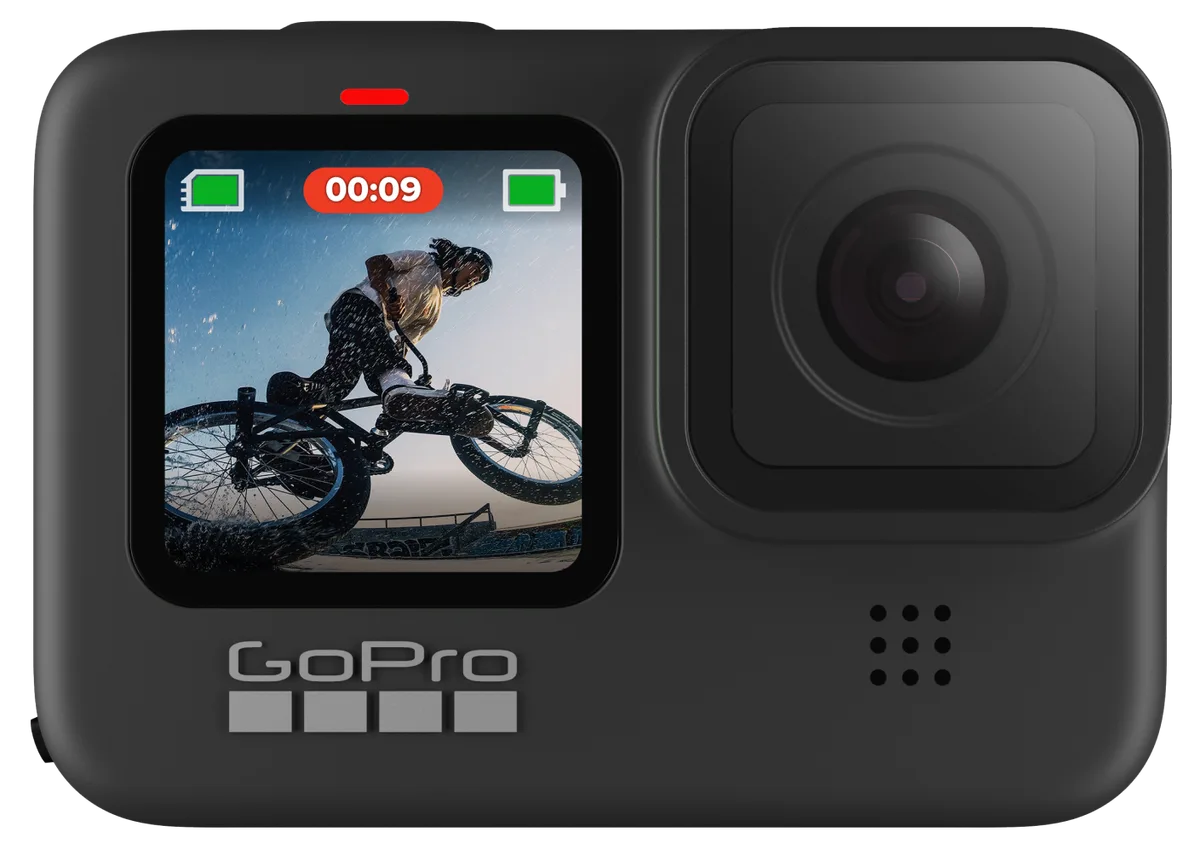
Image source: Web (Bing) / gopro.com (Web image (fair-use with source credit))
How to Format on a Computer (When In-Camera Won't Work)
Sometimes the camera just won't cooperate. Maybe it's stuck in a boot loop, or the card is from another device and the camera keeps rejecting it. In that case, you need to format the card on a computer first, then reinsert it into the HERO9.
The most important rule here is the file system. The GoPro HERO9 Black only supports two file systems: FAT32 and exFAT. It does not support NTFS or any other format.
If you format the card as NTFS, the camera will not recognize it at all.
Here's how to do it on Windows and macOS.
| Operating System | Steps | File System Choice |
|---|---|---|
| Windows 10 / 11 | Insert card via reader. Open File Explorer. Right-click the card drive. Select "Format". Choose "exFAT" from the File System dropdown. Leave Allocation Unit Size as Default. Uncheck "Quick Format" for a thorough wipe. Click Start | exFAT for cards 64GB and larger. FAT32 for 32GB cards and smaller |
| macOS | Insert card via reader. Open Disk Utility (Applications > Utilities). Select the card from the left sidebar. Click "Erase" at the top. Choose "exFAT" from the Format dropdown. Name the card something simple like "GOPRO" (no spaces). Click Erase | Same rule: exFAT for larger cards, FAT32 for smaller ones |
On Windows, if you're formatting a card larger than 32GB, you won't see FAT32 as an option. That's normal. Windows restricts FAT32 to 32GB and under.
Use exFAT instead. The camera handles exFAT just fine.
On macOS, the default format is APFS or Mac OS Extended. Do not use those. The camera cannot read Apple's file systems.
Always select exFAT or MS-DOS (FAT) for compatibility.
After the computer format is complete, eject the card safely, insert it into the HERO9, and then perform an in-camera format as a final step. This double-formatting ensures the partition is perfectly aligned. It's an extra step, but it saves you from potential card errors later.
If you're still having trouble, check for card errors on other camera brands, as the underlying issue might be with the card itself rather than the format process.
5 Mistakes That Ruin SD Cards and Kill Footage
Even with the right formatting process, a few common habits can shorten your card's lifespan or corrupt your files. Watch out for these.
Mistake 1: Ejecting the card while the camera is still writing. The camera's red LED indicates recording or file saving. Yanking the card during that window can corrupt the file table. Always power off the camera completely before removing the card.
Mistake 2: Using a card reader that's falling apart. A cheap or damaged reader can create intermittent electrical contact. This leads to "Card Error" messages that seem random. If you see errors on one reader but not another, the reader is the problem.
Mistake 3: Formatting as NTFS. The GoPro HERO9 Black cannot read NTFS at all. Neither can most other action cameras. Always use exFAT for cards over 32GB.
If you format as NTFS on a Windows PC, the camera will simply say "No SD Card" when you insert it.
Mistake 4: Ignoring the write speed rating. The card's speed class matters as much as its capacity. The HERO9 records up to 100 Mbps in 5K mode. A card that is U1 or V10 rated may not sustain that bitrate.
You'll get a recording that stops after a few seconds. Stick with U3 or V30 rated cards per the SD Association's speed class specifications.
Mistake 5: Never formatting the card at all. Some users just delete files from the camera or computer. Over time, the file structure becomes fragmented. A fresh format every few weeks keeps the card performing like new.
Make it a habit before any important shoot. If you've seen corrupted footage from other cameras, poor formatting habits are often the root cause.
FAQs: Formatting, File Systems, and Card Compatibility
Should I format a brand new SD card before using it in my GoPro HERO9?
Yes. Even though the card is empty, it may have a file system or partition layout that the camera does not expect. A quick in-camera format aligns everything correctly.
This takes less than ten seconds and prevents the first "Card Error" before you even start recording.
How often should I format my SD card?
Format the card after every few shoots or whenever you transfer footage to your computer. If you shoot frequently, once a week is a good rhythm. If you only use the camera occasionally, format it before each new trip.
This clears the file table and prevents fragmentation from building up.
What happens if I interrupt the formatting process?
An interrupted format can leave the card's file system in an incomplete state. The camera may not recognize it at all. In that case, reconnect the card to a computer and perform a full format using exFAT.
Then insert it back into the HERO9 and format again in the camera to restore proper alignment.
Can I use the same SD card in a GoPro and a drone or another camera?
You can, but it's not ideal. Each camera optimizes the file structure differently. If you swap a card between devices, format it in the new device before recording.
Skipping this step can cause card errors or corrupted files. The safest approach is to dedicate a card to each device. If you run into persistent error messages, try a fresh format in the target device.
Does formatting a card delete the files permanently?
A standard quick format removes the file references but does not overwrite the actual data. Recovery software can sometimes retrieve files after a quick format. A full format overwrites the entire card, making recovery much harder.
If you need to securely erase sensitive footage, use a full format on a computer.
Final Decision Guide: When to Use Each Method
| Method | Best For | Not Ideal For |
|---|---|---|
| In-camera format (HERO9 menu) | Everyday use, new cards, after transferring files | Cards that are corrupted or stuck in a boot loop |
| Computer format (exFAT) | Reviving a card that won't format in camera | Routine weekly formatting (adds unnecessary steps) |
| Full format (computer) | Deep cleaning, erasing sensitive data, retiring a card | Quick daily use (wastes time) |
The rule is simple. Format in the camera whenever possible. Only use the computer as a rescue tool.
If you follow that approach, your card will stay healthy and your footage will be safe. For ongoing issues, check if your card is compatible with the camera's firmware. If you're still having trouble after formatting, the card itself may be failing.
Replace it with a fresh one from a reputable brand.

Similar Posts
































