Insta360 X4 How to Reset

Your Insta360 X4 screen goes black mid-recording. You search for how to reset your Insta360 X4 before you miss the shot. The touchscreen ignores every swipe.
That panic is real, and the fix is straightforward.
The X4 uses a 1/2-inch sensor and shoots 8K 360 video at 30fps. As of 2026, it is one of the most capable action cameras on the market. But even the best hardware can freeze.
The key is knowing which reset method matches your specific problem.
Quick Answer
Press and hold the power button for 8 to 10 seconds for a soft reset. This does not delete your footage. For a factory reset, go to Settings and select Restore Factory Defaults.
Backup your SD card first to avoid data loss.

Image source: Web (Bing) / store.openspace.ai (Web image (fair-use with source credit))
When You Actually Need a Reset (and When You Don't)
Every freeze does not need a factory reset. Most do not. Here is how to decide.
If the screen is frozen but the camera still records, do a soft reset. The footage is safe. The display is just stuck.
This is the most common issue users report.
If the camera shuts off randomly, check the battery first. The X4 uses a 2290mAh removable battery. Low charge can mimic a hardware failure.
Charge it fully before any reset.
If the lens stitching looks warped, a factory reset can fix it. Settings corruption often causes misalignment between the dual lenses. A soft reset will not help.
You need to wipe the configuration data.
If the camera will not connect to the app, try your phone's Bluetooth settings first. Then do a soft reset. If that fails, a factory reset clears the Wi-Fi credentials.
This is the only way to reset the network name and password.
If the camera is stuck on the boot logo, force a soft reset. This is a classic boot loop. It often happens after a failed firmware update.
The camera is stuck mid-process.
Soft resets solve about 80 percent of common glitches. Factory resets are rarely needed. Use one only when the soft reset fails or you are preparing to sell the camera.
If you are dealing with freezing issues that affect other action cameras too, the same logic often applies. The troubleshooting steps are similar across brands.
Soft Reset vs. Factory Reset: Which One Do You Need?
These two resets do completely different things. Picking the wrong one can cost you hours of footage.
Soft reset is a force restart. It is like rebooting your computer. The camera powers down and starts up again.
All settings remain intact. All footage stays on the SD card. Use this when the camera is frozen, unresponsive, or stuck on a screen.
Factory reset wipes everything. It restores the X4 to its out-of-the-box state. All settings are erased.
The Wi-Fi name and password reset to default. The lens calibration data is cleared. Use this when settings are corrupted, the camera behaves oddly, or you are selling it.
| Soft Reset | Factory Reset | |
|---|---|---|
| Data loss | None | Footage untouched, settings erased |
| Time | 10 seconds | 2 minutes |
| When to use | Frozen screen, boot loop, app issues | Corrupted settings, selling camera, lens misalignment |
| Button combo | Hold power button 8 to 10 seconds | Settings menu > General > Restore Factory Defaults |
The choice is simple. If the camera is unresponsive, start with a soft reset. If settings are acting weird, go straight to a factory reset.
Never use a factory reset as a first step. It is overkill for most problems.
If you run into SD card troubleshooting for similar cameras, the process is often the same. Eject the card. Back it up.
Then format it in the camera.
How to Soft Reset a Frozen or Unresponsive Insta360 X4
This is the fastest fix in your toolkit. It takes ten seconds. Here is how to do it.
Step 1: Locate the power button. It is on the left side of the camera. The button is small and flush with the body.
Step 2: Press and hold the power button. Keep holding it for 8 to 10 seconds. Do not release it early. The camera will vibrate or the screen will go black.
Step 3: Wait for the reboot. The Insta360 logo appears. The camera starts up normally. Your footage is still there.
Your settings are unchanged.
Step 4: Test the camera. Swipe the touchscreen. Try recording a test clip. Connect to the app.
If everything works, you are done.
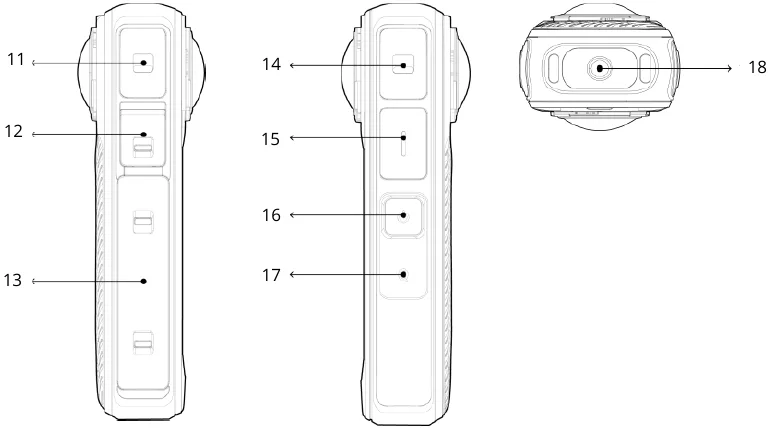
Image source: Bing (Web (fair-use with source credit))
When the soft reset does not work, try a second attempt. Sometimes the first hold is not long enough. If it still fails, the issue may be deeper.
Check for overheating as a common cause of freezes before you move to a factory reset.
A soft reset is safe to repeat. You can do it multiple times. It will not damage the camera or corrupt your SD card.
How to Factory Reset Your Insta360 X4 (With the Critical Backup Step)
This reset wipes your settings. It does not delete your footage. But there is a risk if you skip the backup step.
Step 1: Backup your SD card. Remove the SD card from the camera. Insert it into a computer. Copy all files to a safe folder.
This protects your footage in case something goes wrong.
Step 2: Insert the SD card back into the camera. Make sure it is seated properly. A loose card can cause errors during the reset.
Step 3: Navigate to the Settings menu. Swipe left on the touchscreen. Tap the gear icon. Scroll down to General.
Step 4: Select Restore Factory Defaults. The camera will ask for confirmation. Confirm the choice. The reset takes about two minutes.
Step 5: Reboot the camera. Once the reset is complete, the camera restarts. You will see the initial setup screen. Reconnect to the app and set your preferences.
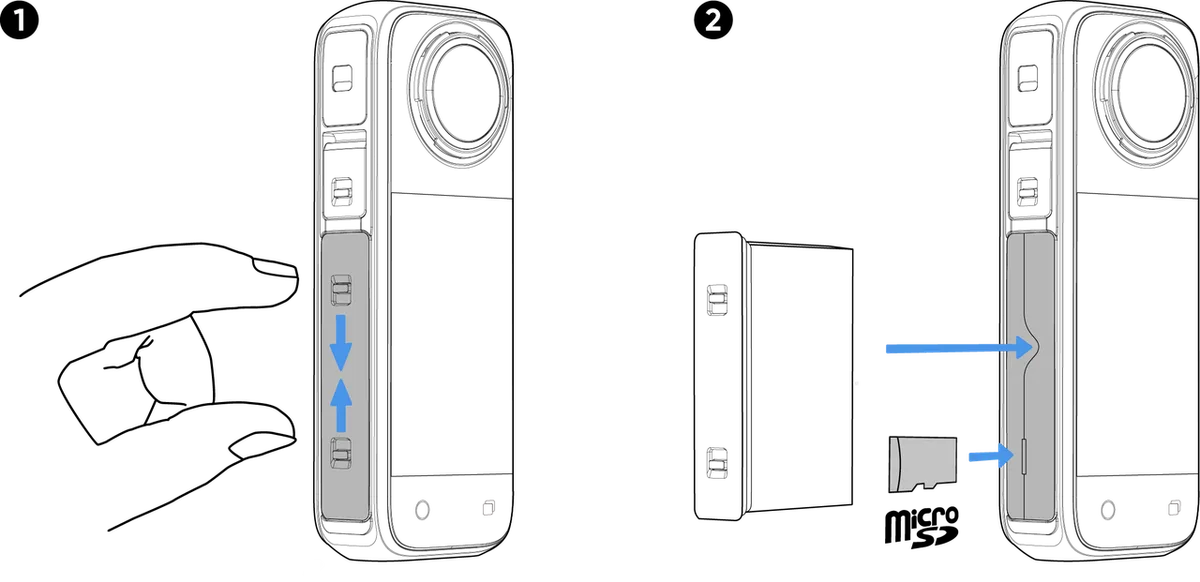
Image source: Web (Bing) / onlinemanual.insta360.com (Web image (fair-use with source credit))
Why backup matters. A factory reset can corrupt the SD card file system if the camera loses power mid-process. This is rare but possible. A full card backup ensures you never lose footage.
If you have dealt with lens calibration problems on other Insta360 models, the factory reset process is similar. The menu path may differ slightly, but the logic is the same.
What to Do If the Reset Doesn't Work: Firmware and Recovery Mode
Both resets failed. The camera is still unresponsive. Do not panic.
There is a third option.
Reinstall the firmware. This is different from a reset. It rewrites the core operating system. It can fix issues that resets cannot.
Step 1: Download the latest firmware. Go to the official Insta360 support site. Find the X4 firmware file. Download it to your computer.
Step 2: Transfer the firmware file to an SD card. The file must be in the root directory. Do not put it in a folder. The camera looks for it in the main folder.
Step 3: Insert the SD card into the X4. Turn on the camera. It should detect the firmware file automatically. The update process starts.
It takes 5 to 10 minutes.
Step 4: Do not interrupt the update. Keep the camera powered on. Do not remove the battery. Do not press any buttons.
An interrupted update can brick the camera.
If the firmware update fails, try a different SD card. Use a card that is 32GB or less. Larger cards can cause compatibility issues.
Format the card as FAT32 before copying the firmware file.
If the camera still does not work, contact Insta360 support. The battery or main board may need replacement. Some issues are hardware related.
Charging issues that can mimic a bricked camera are worth checking first.
Firmware reinstallation fixes most persistent issues. It is a last resort before sending the camera in for repair.
Common Reset Mistakes That Cost You Footage (and How to Avoid Them)
Most reset problems are user errors. Here are the ones that hurt the most.
Skipping the SD card backup. This is the number one mistake. Power loss mid-reset can corrupt the file system. Your footage becomes unrecoverable.
Always copy your files to a computer first.
Using a factory reset for a frozen screen. This is overkill. It erases your settings for no reason. A soft reset takes ten seconds and fixes the same issue.
Only escalate to a factory reset when the soft reset fails.
Interrupting a firmware update. This is the most dangerous error. Power loss during a firmware flash can render the camera unresponsive. The screen goes black.
The buttons do nothing. Never remove the battery or turn off the camera during an update.
Resetting without checking the battery first. A low battery can cause the camera to shut down mid-reset. This corrupts the process. Charge the X4 to at least 50 percent before any reset.
The 2290mAh battery takes about 90 minutes to charge fully.
Aggregate user reports show that a faulty battery is often mistaken for a corrupted system. Check that first. It saves you the trouble of a full reset.
Not formatting the SD card after a firmware failure. A partially written firmware file stays on the card. The camera keeps trying to install it. This can cause a boot loop.
Format the card as FAT32 on a computer. Then copy the firmware file fresh.
Frequently Asked Questions
Will a factory reset delete my footage?
No. A factory reset only erases your settings. Your videos and photos stay on the SD card.
However, always back up the card before a reset. Power loss during the process can corrupt the file system and make your footage unreadable.
How do I reset the Wi-Fi password on my Insta360 X4?
Perform a factory reset. This clears all network credentials. The default Wi-Fi name and password are restored.
You can find them on the camera screen or in the quick start guide. Then reconnect the camera to the Insta360 app.
What if the touchscreen is broken and I cannot navigate the menu?
Use the soft reset method. Press and hold the power button for 8 to 10 seconds. This does not require the touchscreen.
If you need a factory reset, connect the camera to a computer. Use the Insta360 desktop app to trigger a full reset from the software.
Can a reset fix lens alignment issues on the X4?
A factory reset can fix minor calibration errors. It clears corrupted lens data. If the stitching is still misaligned after a reset, the issue is likely hardware.
Contact Insta360 support. The dual lenses may need physical recalibration.
How often should I reset my Insta360 X4?
Only when you have a problem. Routine resets are unnecessary. If the camera is running normally, leave it alone.
A soft reset is safe to do occasionally. A factory reset should be rare. Use it once every few months at most, or when you sell the camera.

Similar Posts
































