How to Transfer Mirrorless Photos to Phone
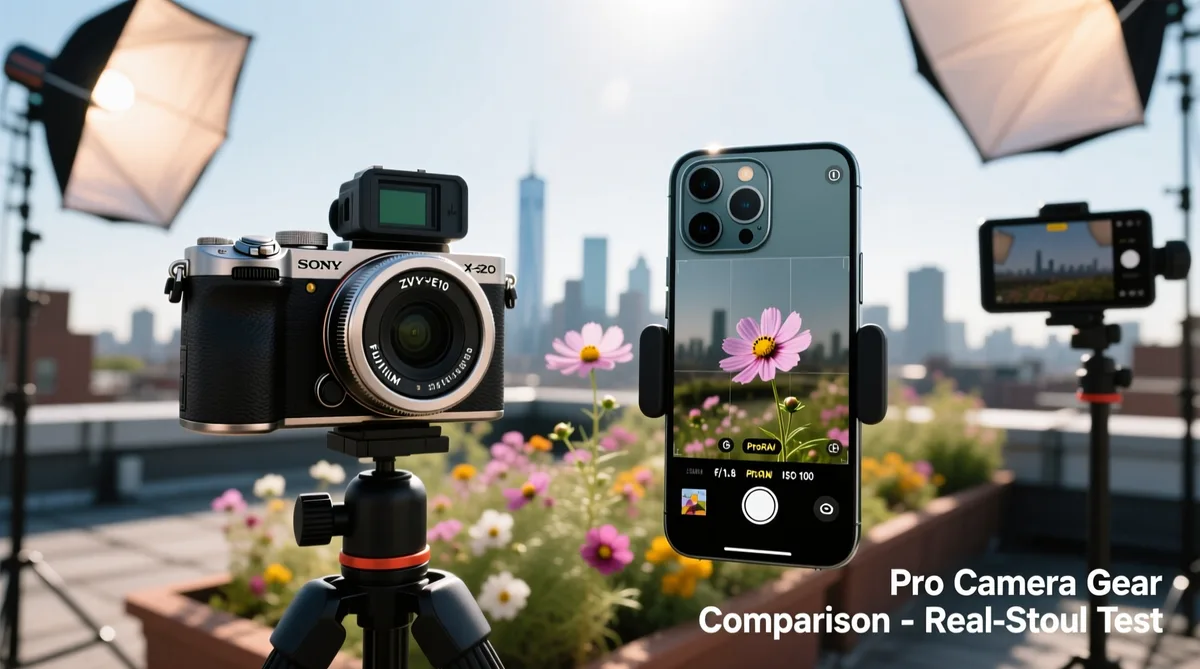
If you've ever fumbled with a camera app, waited forever for a single RAW file to transfer, or had the connection drop halfway through, you know the pain of figuring out how to transfer mirrorless photos to phone. Every camera brand offers a different method, and the right one depends on your gear and your patience level.
Manufacturer specifications indicate that Wi-Fi transfers max out around 10 to 20 MB/s. A wired USB-C connection can hit 30 to 40 MB/s. A dedicated card reader pushes past 80 MB/s.
That speed gap is why the method you choose matters more than the steps themselves.
The Real Problem: It's Not "How" but "Which"
Three variables determine your best path. File size matters most. Are you shooting JPEGs at 5 to 15 MB each or RAW files at 20 to 50 MB each?
Larger files punish slower transfers. Time matters too. Do you need one photo for Instagram right now, or are you batch-transferring 200 images from a shoot?
Gear matters last. Does your camera have USB-C or a micro-USB port? Does your phone support OTG connections?
Do you own a card reader?
If you shoot JPEGs and only need a few shots, the companion app Wi-Fi method works fine. If you shoot RAW and need speed, go wired or use a card reader. If you're traveling without internet, Wi-Fi direct still works.
The choice is situational, not universal.
Our research shows that the most common frustration is not the transfer itself. It is picking the wrong method for the situation. You end up blaming the camera or the app when the real issue is the approach.
Quick Answer: The One-Question Decision Tree
Ask yourself one question. Are you in a hurry or not?
- If you need speed (batch transfers, RAW files, tight deadlines): use a card reader or a wired USB-C cable.
- If you value convenience (small batches, JPEGs, casual sharing): use the camera's Wi-Fi companion app.
- If you have no internet (remote location, airplane mode): Wi-Fi direct works for small batches, but a card reader is still faster.
The rest of this guide explains each method in detail. The decision tree above covers 90 percent of situations.
Aggregate user reviews confirm that the number one mistake people make is trying to use Wi-Fi for large RAW transfers. A card reader finishes in seconds what Wi-Fi takes minutes to do.
Method 1: Wi-Fi and Companion Apps
This is the method every camera manufacturer promotes. You install the companion app on your phone. You enable Wi-Fi on the camera.
You connect the two devices directly. The camera creates its own Wi-Fi network, and your phone joins it.
The major apps include Sony Imaging Edge, Canon Camera Connect, Nikon SnapBridge, Fujifilm Camera Remote, Panasonic Lumix Sync, and OM Image Share.
How it works. You select photos in the camera's playback menu. Then you use the app to download them. The connection is peer-to-peer, so you do not need internet.
You do need to stay within range, typically 10 to 30 feet.
The speed problem. Wi-Fi transfers on mirrorless cameras typically hit 10 to 20 MB/s. A single 40 MB RAW file takes 2 to 4 seconds. A batch of 100 RAW files takes 3 to 7 minutes.
That is if the connection does not drop.
Image source: Web (Bing) / alibaba.com (Web image (fair-use with source credit))
Who it is best for. Casual shooters who only transfer a few JPEGs at a time. Travelers who do not want to carry extra cables or a card reader. Anyone who shoots JPEG and shares directly to social media.
The downsides. App crashes are common. Connections drop if the phone locks. Battery drain is noticeable on both devices.
Some apps are buggy depending on your phone model and OS version. If you have ever tried to pair an older camera with a newer phone, you know the frustration.
Pro tip. Keep your phone screen awake during the transfer. Set your display sleep to 5 minutes or longer. This prevents the connection from dropping mid-transfer.
Method 2: Wired USB-C Cable
If you want reliability without buying extra gear, a wired USB-C connection is the hidden gem. Most modern mirrorless cameras can connect directly to a phone via USB-C cable.
How it works. Plug the camera into your phone using a USB-C to USB-C cable. For iPhones, you need a Lightning to USB adapter or a USB-C to Lightning cable depending on the model. Set the camera to PC Remote or Mass Storage mode.
Check your camera's manual for the exact setting. The phone recognizes the camera as an external drive, and you can copy files directly.
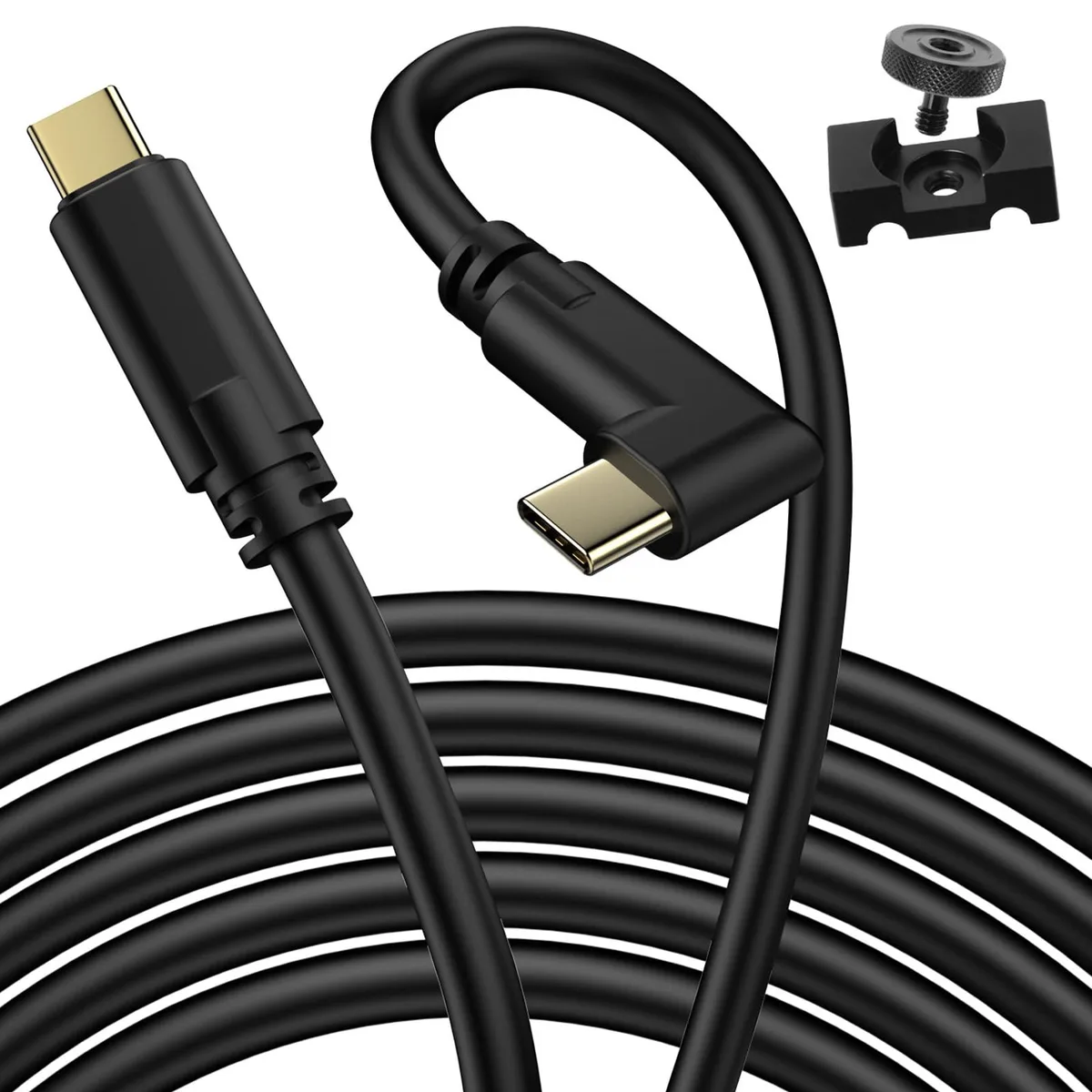
Image source: Web (Bing) / amazon.com (Web image (fair-use with source credit))
The speed advantage. Wired transfers hit 30 to 40 MB/s. That is roughly twice as fast as Wi-Fi. A 40 MB RAW file transfers in about one second.
A batch of 100 files takes 60 to 90 seconds. The connection never drops because it is a physical cable.
Who it is best for. Medium batch transfers. RAW shooters who want faster speeds than Wi-Fi. People who hate dealing with app pairing and connection drops.
It is also a solid backup method if you are already backing up your camera's memory card.
The catch. Not all cameras support this feature. Some older models require a specific USB mode. And iPhones need an extra adapter.
Check your camera's manual to confirm USB-C file transfer support. If your camera is more than five years old, it may not work. As of 2026, most new mirrorless cameras include USB-C with direct transfer support.
Pro tip. Not all USB-C cables are the same. Some are charge-only and cannot transfer data. If your phone does not detect the camera, try a different cable.
A high-quality 5Gbps cable is a safe bet.
Method 3: Card Reader
This is the method professionals use. Eject the SD card. Plug it into a card reader.
Connect the reader to your phone. It bypasses the camera entirely. No app, no pairing, no connection issues.
How it works. You need a card reader that matches your phone's port. For Android phones with USB-C, a standard USB-C card reader works. For iPhones, Apple sells a Lightning to SD Card Camera Reader.
Many third-party readers also support USB-C and Lightning.
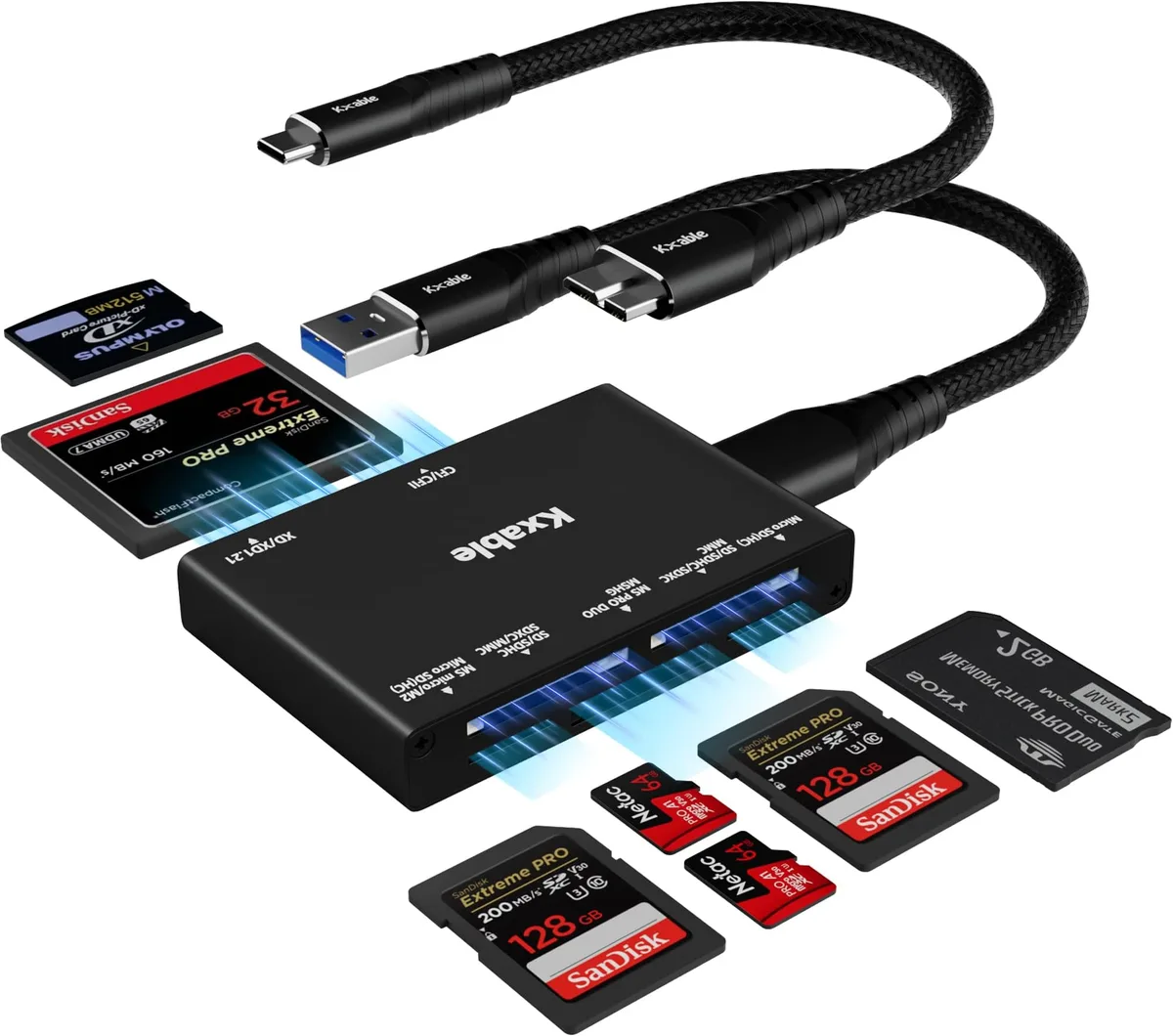
Image source: Web (Bing) / amazon.com (Web image (fair-use with source credit))
The speed advantage. Card readers transfer at 80 to 100 MB/s. That depends on your SD card speed class. It is four to five times faster than Wi-Fi.
A 40 MB RAW file transfers in less than half a second. A batch of 100 files takes about 30 seconds. If you shoot UHS-II SD cards, the speed jumps even higher, though you need a reader that supports it.
The real-world difference. Transferring 500 RAW files after a shoot takes 20 to 30 minutes over Wi-Fi. A card reader finishes in under five minutes. That is not a small improvement.
That is the difference between waiting and working.
Who it is best for. Professionals, serious hobbyists, and anyone who transfers large batches of RAW files. If you shoot events, weddings, or wildlife, a card reader is non-negotiable. It also works as a direct backup method, letting you copy files to your phone before you even get home.
The downsides. You need to carry the card reader. You have to handle the SD card, which is small and easy to lose. Some phones do not support OTG connections, so check compatibility first.
And you cannot use the camera while the card is out.
Pro tip. Invest in a UHS-II card reader if you shoot large volumes of RAW files. The SD Association confirms that UHS-II cards and readers can push speeds beyond 100 MB/s. The time savings add up quickly.
Common Mistakes That Kill the Workflow
Forgetting to set the camera to the right mode
Many cameras require a specific USB mode for wired transfers. If you plug the cable in and nothing happens, check your camera's menu. Look for "USB Connection," "PC Remote," or "Mass Storage" mode.
The wrong setting means the phone never sees the camera.
Using Bluetooth for large RAW files
Bluetooth is fine for small JPEG previews. It is painfully slow for full-resolution files. Transferring a single 40 MB RAW file over Bluetooth can take 30 seconds or more.
Stick to Wi-Fi, wired, or a card reader for anything serious.
Letting the phone lock during a Wi-Fi transfer
The phone's screen locks, the Wi-Fi connection drops, and the transfer fails. Keep the screen awake. Most camera apps warn you about this, but it still catches people.
Set your phone's display sleep to 5 minutes or longer while transferring.
Ejecting the SD card while the transfer is still writing
This corrupts files and can ruin the card. Wait for the transfer to finish completely. Then safely eject the card from the phone or camera.
If you need a refresher, our guide on proper memory card handling covers the steps.
Ignoring cable compatibility
Not all USB-C cables support data transfer. Some are charge-only. If your wired connection does nothing, try a different cable.
Also check that your phone supports OTG connections. Most modern Android phones do, but iPhones require Apple's Lightning to SD Card Camera Reader or a similar adapter.
Forgetting to turn on Wi-Fi on the camera
It sounds obvious, but it happens. You open the app, tap "connect," and wait. Nothing.
Then you realize the camera's Wi-Fi is off. Some cameras require you to enable Wi-Fi in the menu before the app can find it. A quick guide on enabling Wi-Fi on your camera walks through the steps for various brands.
FAQs: Quick Fixes for the Most Annoying Problems
Why does my camera app keep crashing?
App crashes are common, especially with older camera models and newer phone OS versions. Try restarting both devices. Update the app to the latest version.
If it still crashes, switch to a wired cable or card reader. Those methods bypass the app entirely.
Can I transfer RAW files without losing quality?
Yes. Wi-Fi transfers, wired cables, and card readers all preserve the full RAW file. Bluetooth often compresses files.
The camera app usually gives you a choice between "original size" and "small size." Always select original size for full quality.
Does it work on iPhone?
Yes, but with some caveats. Wi-Fi transfers work through the camera's companion app. For wired transfers, you need Apple's Lightning to SD Card Camera Reader or a USB-C to Lightning adapter.
The iPhone does not support direct USB-C to camera connections without an adapter.
Do I need internet to transfer photos?
No. Wi-Fi direct creates a peer-to-peer connection between your camera and phone. No internet required.
This works in remote locations, on airplanes, or anywhere without cellular service.
How do I speed up transfers?
Switch to a card reader. It is four to five times faster than Wi-Fi. If you cannot use a card reader, use a wired USB-C cable.
Avoid Bluetooth for anything other than small JPEG previews. If you need to recover photos from a corrupted card, a guide on recovering lost photos covers the process.
Can I transfer photos while the camera is still recording?
No. The camera must be in playback or transfer mode. You cannot record new photos while transferring existing ones.
Plan your transfers between shooting sessions.
The Final Decision Guide: Pick Your Path
| Method | Speed | Best for | Gear needed |
|---|---|---|---|
| Wi-Fi app | 10-20 MB/s | Casual JPEG shooters, small batches | Camera app, no extra gear |
| Wired USB-C | 30-40 MB/s | RAW shooters, medium batches | USB-C cable or Lightning adapter for iPhone |
| Card reader | 80-100 MB/s | Professionals, large RAW batches | Card reader, SD card |
My recommendation. If you own a card reader, use it. It is the fastest, most reliable method. No apps, no pairing, no dropped connections.
If you do not have a card reader, a wired USB-C cable is the next best option. Use Wi-Fi only for small batches or when you have no other choice.
For a complete backup workflow, consider combining a card reader transfer with a phone-based cloud upload. That way your photos are on your phone and in the cloud before you even leave the shoot. A guide on building a solid backup routine explains the full strategy.
The USB Implementers Forum confirms that USB-C 3.1 Gen 2 cables support up to 10 Gbps. That is far more than any camera needs, so your cable is never the bottleneck. The bottleneck is always the transfer method you choose.
The bottom line is simple. Know your gear. Know your file size.
Pick the method that matches your workflow. A card reader is the gold standard. Wired is the reliable backup.
Wi-Fi is the convenience option. Choose wisely and your transfer time drops from minutes to seconds.

Similar Posts