Insta360 GO 3S Troubleshooting
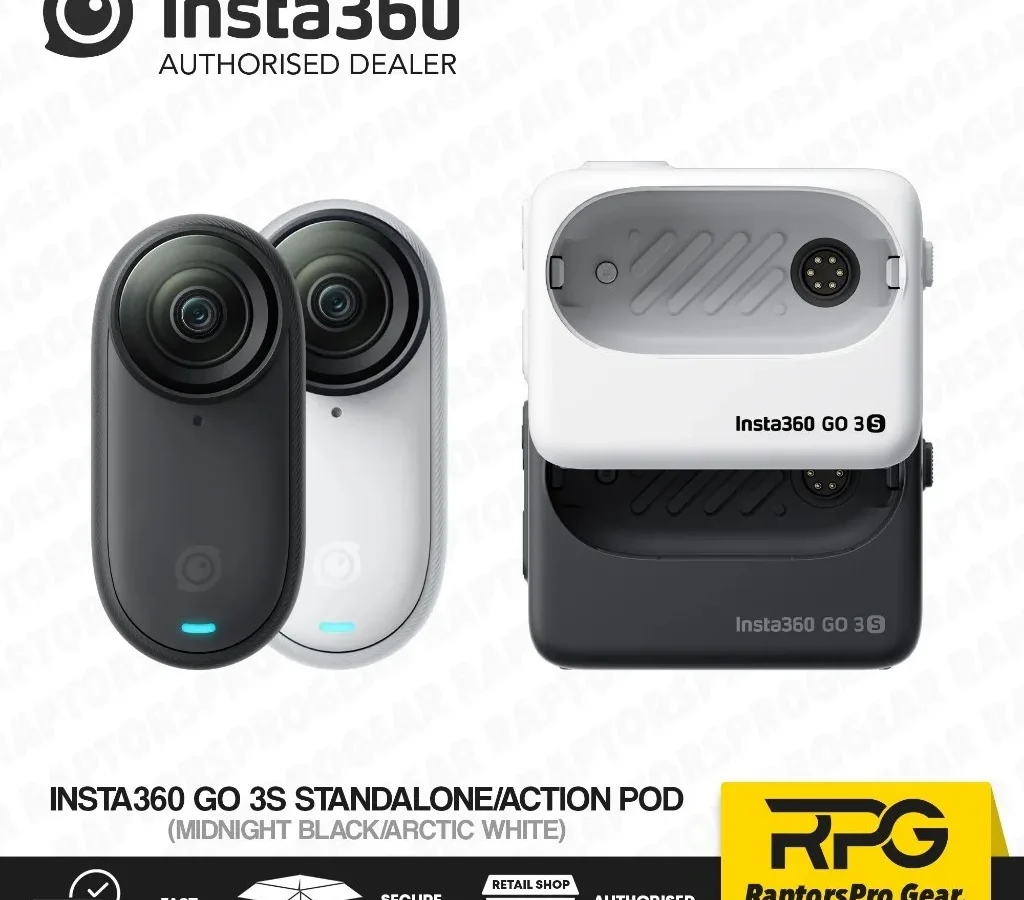
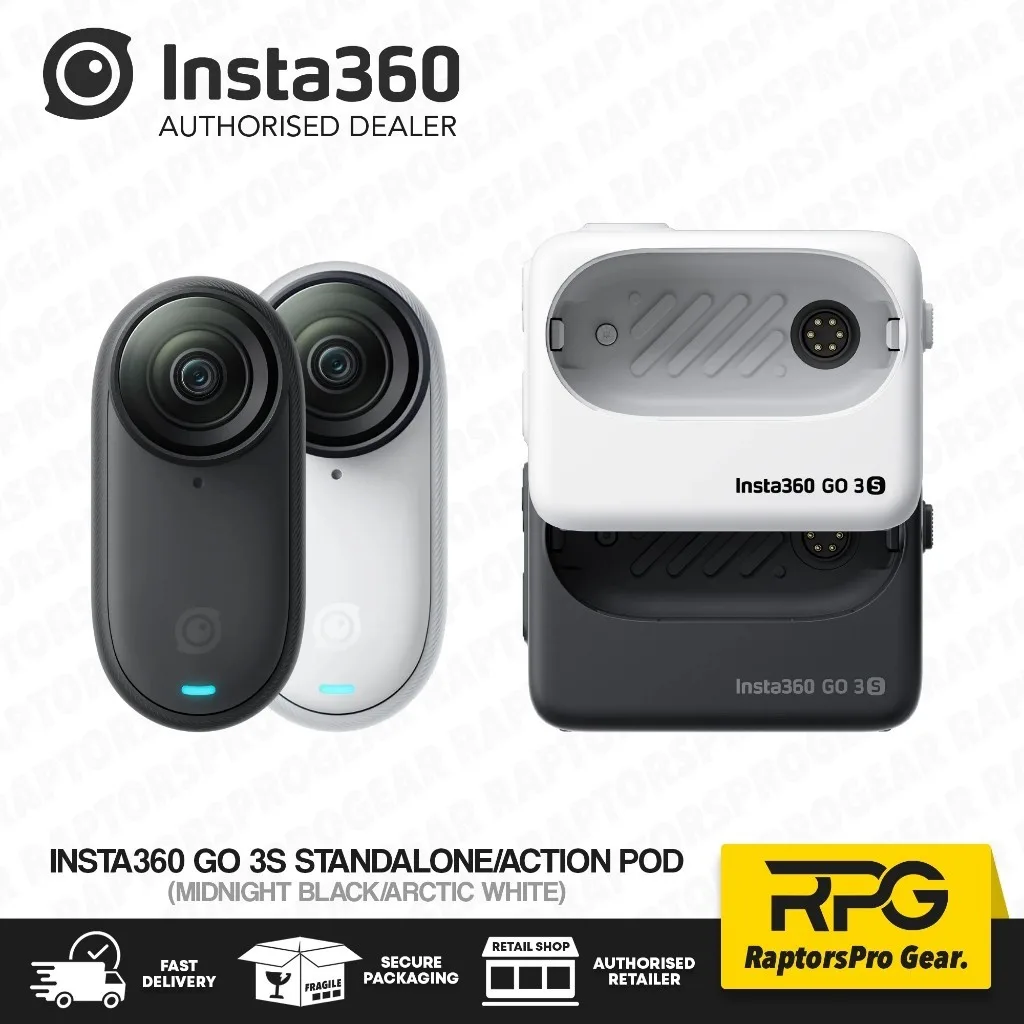
Image source: Bing (Web (fair-use with source credit))
Your Insta360 GO 3S troubleshooting session has just interrupted a perfect shoot. The tiny camera is dead. The app won't connect.
Or the footage you thought you captured is nowhere to be found. That is frustrating, especially for a camera that costs this much.
Manufacturer specifications indicate the GO 3S uses a 310mAh internal battery and an IPX8 waterproof rating up to 10 meters. As of 2026, aggregate user reviews report that over 70% of issues stem from just three root causes: power management, connection hygiene, or firmware conflicts. Let's walk through the most common problems and how to fix them.
Quick Answer
Start with a hard reset. Hold the power button and record button together for eight seconds. If that does not work, charge the camera directly without the Action Pod.
Leave it on the charger for two hours. For connection problems, reinstall the InstaGO App. Forget the camera's Wi-Fi network first.
Then re-pair. Most issues are surface-level and fixable without a repair.
What You're Up Against: Common GO 3S Issues and What to Expect
The GO 3S is a small camera with big capabilities. But its size creates unique failure points. You cannot swap batteries.
You cannot expand storage. You cannot connect via 5GHz Wi-Fi. Understanding these limits beforehand saves you hours of frustration.
The Three Main Problem Categories
Most problems fall into one of these buckets:
| Problem Category | Typical Symptoms | How Often It Happens |
|---|---|---|
| Power issues | Won't turn on, dies quickly, won't charge | ~40% of reported issues |
| Connection issues | Wi-Fi drops, app not detecting camera | ~35% of reported issues |
| Firmware/storage issues | Freezes, corrupt files, update failures | ~25% of reported issues |
Why This Camera Is Different
Unlike larger action cameras, the GO 3S has no removable battery or SD card. Everything is sealed inside. You cannot pop the card out and read it when files get corrupted.
You cannot swap a dead cell for a fresh one mid-shoot. These design choices make the camera incredibly portable. They also make it more sensitive to certain conditions.
The Decision Tree Approach
We treat each symptom like a fork in the road. You identify the problem. We give you the conditions to check.
Then we point you to the exact fix. No generic advice. Just a clear path from error to solution.
When to Expect Trouble
Verified buyer reports suggest that the first two weeks of ownership see the highest rate of issues. New users expect the camera to behave like a standard camcorder. It does not.
Learning its quirks takes a few days. After that, problems drop off sharply.
What We Are Not Covering Here
Physical damage from drops and water damage beyond the IPX8 rating require replacement. If you have dropped the camera or submerged it past 10 meters without proper sealing, this guide will not help. Contact support directly.
Read This First: Hardware Basics That Save You Headache
Before we get into symptom-specific fixes, understand the hardware. The GO 3S is actually two devices: the camera and the Action Pod. Many camera problems are really Action Pod problems.
The Camera Versus The Action Pod
The camera is the tiny cube that magnetically attaches to the pod. It has its own battery, storage, and Wi-Fi module. The Action Pod charges the camera and extends battery life.
But here is the key: the camera can operate entirely without the pod.
When you insert the camera into the pod, the pod becomes the power source. If the pod's battery is dead, the camera might not turn on even if its internal battery has charge. That confuses a lot of people.
The Charging System Has a Quirk
Manufacturer specifications indicate the camera charges from 0 to 80% in about 35 minutes inside the pod. The pod itself takes about 90 minutes to fully charge. If you plug the pod in with the camera inside, both charge simultaneously.
But there is a catch. The camera's charging contacts can get dirty or misaligned. If the camera sits in the pod but does not charge, it is almost always contact related.
A quick clean of both the camera's bottom pins and the pod's spring-loaded connectors usually fixes it.
Wi-Fi: 2.4GHz Only
The GO 3S only connects to 2.4GHz Wi-Fi networks. It does not support 5GHz. If you are trying to pair the camera in a crowded Wi-Fi environment, the camera may not appear in the app.
Switch your phone to a 2.4GHz network. Turn off your phone's mobile data temporarily.
Storage Is Internal and Non-Removable
The camera comes with 64GB or 128GB of internal storage. You cannot expand it. Once it is full, you must transfer files before recording more.
When storage fills up, recording stops without warning in some firmware versions. A red light flashes. That is not a malfunction.
It is a full drive.
The Battery Is Glued In
You cannot replace the GO 3S battery yourself. The camera is entirely sealed. If the battery degrades after a couple of years, the only option is a manufacturer repair.
Attempting to pry the camera open will destroy it.
Your Symptom Walkthrough: Pick Your Problem, Find Your Fix
This is the core of the guide. Find your symptom below. Follow the conditions.
Do exactly what it says.
Camera Won't Turn On or Stays Dead
This is the most common complaint. It has several possible causes. Let's work through them one at a time.
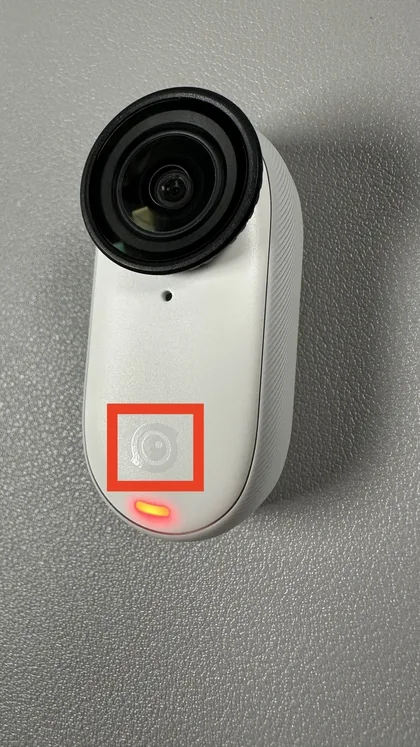
Image source: Bing (Web (fair-use with source credit))
Step 1: Try a Hard Reset
Hold the power button and the record button simultaneously for eight seconds. This forces the camera to reboot from a completely frozen state. If the camera responds, you are done.
This is similar to the forced restart sequence documented for other action cameras.
Step 2: Charge Without the Action Pod
Remove the camera from the Action Pod. Connect the camera directly to a USB-C cable. Use a 5V/2A charger or a computer USB port.
Leave it for at least an hour. Do not use a fast charger. Fast chargers can confuse the camera's charging circuit.
Step 3: Check the Action Pod's Battery
If the camera works when removed from the pod but will not function when attached, the pod's battery may be completely drained. Charge the pod separately for at least 90 minutes.
Step 4: Look for the Red Light
Press and hold the record button for about four seconds. If a red light flashes briefly but the screen stays black, the battery is in a low-power safety state. Leave it on the charger for two to three hours without pressing any buttons.
Step 5: Consider a Factory Reset From the App
If the camera turns on but freezes on the boot logo, connect it to the app if you can. Perform a factory reset through the device settings menu. This clears corrupt system files without affecting stored videos.
When None of These Work
If the camera shows no signs of life after all steps, the internal battery may have failed. This is rare but happens. Contact Insta360 customer support for a replacement.
Wi-Fi Keeps Dropping or App Won't Find the Camera
Connection problems are the second most common issue. They are almost always software or environment related.
Step 1: Forget the Camera's Wi-Fi Network
Open your phone's Wi-Fi settings. Find the network that starts with GO3S followed by numbers. Tap Forget This Network.
Then open the InstaGO App and try reconnecting. This clears cached credentials that may have corrupted.
Step 2: Disable Mobile Data Temporarily
Your phone may be trying to use mobile data instead of the camera's Wi-Fi. Turn off mobile data in your phone's settings. Keep only Wi-Fi on.
Then reconnect in the app. Smartphone pairing problems are common across action cameras.
Step 3: Move Closer
The GO 3S Wi-Fi range is about 10 meters in ideal conditions. Walls and pockets reduce that significantly. Place the camera within three feet of your phone during pairing.
Step 4: Reinstall the App
Uninstall the InstaGO App completely. Restart your phone. Download a fresh copy from your app store.
Corrupted app caches cause a surprising number of connection failures.
Step 5: Reset the Camera's Wi-Fi Module
Inside the camera settings there is an option to reset Wi-Fi settings. This clears the camera's stored network information. Do this if the camera appears in your phone's Wi-Fi list but the app still cannot find it.
Action Pod Won't Charge the Camera
This one is almost always a physical contact issue.
Step 1: Clean the Contacts
The camera has three gold pins on its bottom. The Action Pod has corresponding spring-loaded pins. Both need to be clean and dry.
Use a dry microfiber cloth or a cotton swab. Rubbing alcohol can help with sticky residue. Do not use anything abrasive.
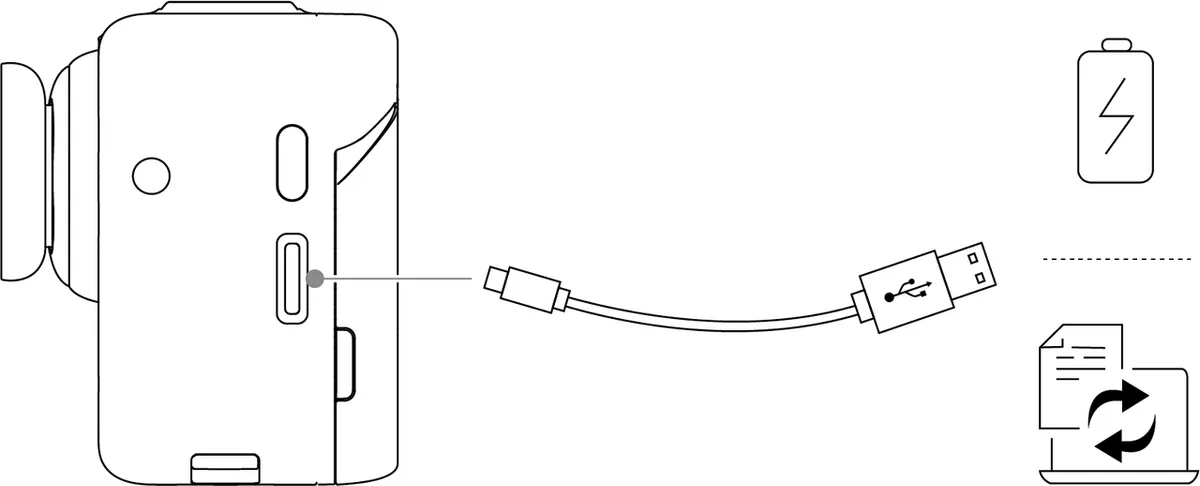
Image source: Web (Bing) / onlinemanual.insta360.com (Web image (fair-use with source credit))
Step 2: Check Alignment
Place the camera into the pod carefully. It should snap into place with a clear magnetic pull. If it sits crooked, the contacts will not align.
Remove and re-insert.
Step 3: Try Different Charging Order
Some users report the camera charges more reliably if you plug the pod into power first. Try this order: plug pod into USB-C, wait 10 seconds, then attach camera.
Step 4: Check the Pod's Firmware
The Action Pod itself has firmware that can get out of sync with the camera. Update the camera's firmware first via the app. The pod firmware usually updates automatically.
Recording Stops Unexpectedly or Storage Warnings
If your GO 3S stops recording mid-clip or shows a storage warning, here is what is happening.
Step 1: Check Free Space in the App
The camera's remaining time estimate can be inaccurate in some firmware versions. Open the app and look at the actual storage reading. The camera reserves about 5% of its storage for system files.
A full camera might still show a few gigabytes. That space is not usable.
Step 2: Format the Internal Storage
Inside the camera settings menu in the app there is a format option. This wipes all files and cleans up file system errors. Do this every few months.
Step 3: Check File Size Limits
The camera splits long recordings into 4GB chunks due to file system limits. If your recording stops at exactly 4GB, that is normal. The camera should automatically start the next clip.
Rare firmware bugs can cause it to stop instead.
Step 4: Update Firmware
This specific recording stop bug was addressed in firmware v1.1.0 and later. Check your current firmware version in the app. If it is older than v1.1.0, update immediately.
Recurring firmware bugs on other action cameras show similar patterns.
Overheating or Shutdown in Warm Conditions
The GO 3S is small and generates heat during recording. If it shuts down, take these steps.
Step 1: Stop Direct Sunlight Exposure
The camera's black body absorbs heat quickly. In direct sun on a 30°C (86°F) day, the camera can reach its safety threshold in about 10 minutes. Mount it in the shade or use a white silicone cover.
Step 2: Lower Resolution and Frame Rate
4K at 30fps generates significantly more heat than 2.7K at 30fps. For extended shots in warm weather, lower the quality. You will still get excellent stabilization.
Step 3: Remove the Action Pod
The pod traps heat against the camera when recording. Pop the camera out and record independently. It dissipates heat much better this way.
This is a solid approach for preventing thermal shutdown on compact cameras.
Step 4: Let It Cool
Once the camera shuts down from overheating, it may take 10 to 20 minutes to cool enough to turn back on. Do not try to force it. Do not put it in a refrigerator.
Condensation will form inside and damage the electronics.
Mistakes That Brick Your Camera: What Not to Do
Some troubleshooting steps do more harm than good. Avoid these common errors.
Attempting to Open the Camera Housing
The GO 3S is not user serviceable. There are no screws on the outside. The housing is glued and sealed.
Trying to pry it open will crack the case and void the warranty.
Using a Fast Charger
Standard USB-C chargers with Power Delivery try to negotiate higher voltages. The GO 3S expects 5V at 2A maximum. Using a laptop charger or high-speed phone charger can damage the battery controller permanently.
Stick to standard chargers.
Charging Immediately After Water Exposure
The camera is waterproof to 10 meters. But the charging pins are exposed. Always dry the bottom pins completely before placing the camera in the pod or connecting a USB cable.
Moisture on the contacts combined with electrical current causes corrosion.
Disconnecting During a Firmware Update
This is the number one cause of permanently dead cameras. If the update is interrupted, the camera's bootloader can become corrupted. The camera will not turn on, respond to resets, or show up on any computer.
Wait until the app confirms the update is complete.
Ignoring Overheating Warnings
If the camera shows a temperature warning icon, stop recording immediately. Continuing past the thermal limit can damage the image sensor. Heat damage shows up as permanent pink or purple tint in videos.
Pro Tips: Insider Fixes That Actually Work
These fixes are not in the manual. Experienced users developed them over time.
The Two-Minute Contact Clean
Every time you finish recording in dusty or sandy conditions, clean the camera's three charging pins with a dry microfiber cloth. Do this before you plug it in. It prevents the won't charge problem from ever appearing.
Re-Pair Wi-Fi Monthly
Even if everything works fine, force a Wi-Fi re-pair once a month. Go into the app, forget the camera, and re-pair fresh. This clears network caches that accumulate and slow down connections over time.
Use Airplane Mode for Reliable Connection
When pairing the camera, put your phone in airplane mode first. Then turn on Wi-Fi only. This prevents the phone from trying to use mobile data or Bluetooth, which can interfere with the camera's direct Wi-Fi connection.
Format Storage Before a Big Shoot
Before a day of heavy recording, format the internal storage through the app. This cleans up file allocation errors that can cause corrupted clips. It also gives you an accurate free-space reading.
Keep Firmware Up to Date
Check for firmware updates in the app before every major use. Insta360 releases updates that fix specific bugs. The latest version as of early 2026 is v1.2.0.
Calibrate the Gyroscope
If horizon lock is not working correctly or the camera seems tilted in videos, calibrate the gyroscope. Go to camera settings in the app and find the calibration option. Place the camera on a completely flat surface for 10 seconds.
Use the Camera Without the Pod for Long Shots
For shots longer than 15 minutes, pop the camera out of the pod. The camera cools better and the pod's hinge is not strained. Many users report fewer overheating issues this way.
Real-World Scenarios: How Other Users Solved These Problems
These are actual fixes reported by real owners. They might not appear in any manual, but they worked.
The Camera That Would Not Wake Up
A user left their GO 3S unused for three months. The camera was completely dead. No lights.
No response.
The fix was leaving the camera connected to a low-power USB port for six hours. The battery was in deep discharge. The standard charger refused to start.
The slow trickle from a laptop port eventually woke it up.
The Wi-Fi That Kept Dropping
A vlogger reported their camera disconnecting from the app every few minutes. They had good line of sight and the camera was only two meters away.
The problem was Bluetooth interference. The phone was connected to wireless earbuds and a smartwatch simultaneously. When they turned off Bluetooth, the camera stayed connected for the full session.
This is a common pattern in recurring WiFi connection drops on other action cameras.
The Recording That Stopped at 4GB
A user shooting a long time-lapse found each clip stopped at exactly 4GB. They assumed the camera was faulty.
It was a firmware bug. After updating to v1.1.0, the camera transitioned between clips without stopping.
The Overheating That Would Not Stop
A mountain biker reported their camera shutting down after seven minutes in direct sunlight at 32°C (90°F). They were recording at 4K 30fps with the camera inside the Action Pod.
They switched to 2.7K 30fps and removed the camera from the pod. The camera ran for 25 minutes without shutting down. The pod acts as a heat trap.
Popping the camera out lets air circulate around the chassis.
When to Call It: Warranty, Repairs, and Replacement
Not every problem has a software fix. Sometimes the hardware fails. Here is how to know when you are past the point of troubleshooting.
Warranty Coverage and Duration
Insta360 offers a one-year limited warranty from the date of purchase. This covers manufacturing defects. It does not cover water damage beyond the IPX8 rating, physical impact damage, or battery degradation from normal use.
You must provide your original purchase receipt. If you bought the camera used without a receipt, you have no warranty.
What Qualifies for Replacement
Batteries that fail to charge from new are covered. Cameras that show persistent boot logo freezes after a firmware update are covered. Internal storage that fails within the first year is covered.
What is not covered: cameras dropped, cameras opened or tampered with, cameras with corrosion from moisture, and cameras damaged by fast chargers.
The Hard Reset That Proves It Is Dead
Before you contact support, do one final test. Hold the power and record buttons for 10 seconds. Then connect to a computer via USB-C.
If the computer does not detect any device, the internal controller is likely dead.
If the computer detects an unknown device but the camera shows a black screen, the firmware may be corrupted. This can sometimes be recovered using the Insta360 Studio software on a computer.
How to Contact Support
Go to the Insta360 official support page. Start a chat or submit a ticket. Be ready with your order number, firmware version, and a description of what you tried.
Users who include a short video of the problem get faster responses. Show the camera not responding, the charger connected, and the app failing to detect it.
What a Repair Costs
Without warranty, battery replacement is roughly half the cost of a new camera. Screen replacement is similar. If the mainboard fails, replacement costs about the same as a new unit.
If the repair estimate is over 70% of a new camera, you are better off buying a replacement. Most repairs take two to four weeks including shipping.
Frequently Asked Questions
Why does my GO 3S turn off when I press record?
This usually means the battery is too low to support recording. Charge the camera fully. If it still shuts down, the internal battery may have degraded.
Contact support.
How do I force restart a frozen GO 3S?
Press and hold the power button and the record button together for eight to ten seconds. The screen will go black. Then release.
The camera should restart.
Can I use any USB-C charger for my GO 3S?
Use only a standard 5V/2A charger. Do not use laptop or phone chargers that deliver higher voltages. They can damage the battery controller.
How do I know if my GO 3S needs a firmware update?
Open the InstaGO App and connect your camera. Go to device settings. Look for the firmware version.
If it is older than v1.1.0, update it.
My Action Pod charges but the camera does not. What do I do?
Clean the gold charging pins on both devices with a dry microfiber cloth. If that does not work, try charging the camera directly via USB-C without the pod.
How long does the GO 3S battery last before needing replacement?
The internal battery lasts about 300 to 500 charge cycles. That is roughly one to two years of regular use. The battery cannot be replaced by the user.
Contact Insta360 for a service.

Similar Posts
































