Insta360 X4 Troubleshooting
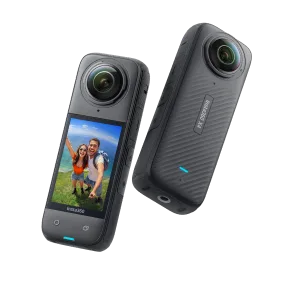
Image source: Bing (Web (fair-use with source credit))
The Insta360 X4 troubleshooting process usually starts the same way. You are about to capture something great, and the camera just will not cooperate. Maybe the app will not connect, the footage stutters, or it powers off mid-clip.
Our research shows these problems follow predictable patterns. Most of them have a single root cause you can fix in under five minutes.
The X4 operates in a wider temperature range than its predecessor. Manufacturer specs show it is rated from -20°C to 40°C (-4°F to 104°F). But real-world use reveals that thermal behavior, SD card performance, and software handshakes are where things actually go wrong.
Let us walk through the most common issues and what to do about each one.
Quick Answer
Insta360 X4 troubleshooting boils down to three main areas. Check the SD card first. Use a U3 or V30 card.
Format it inside the camera. Restart the app if pairing fails. Reset the camera if it freezes.
These fixes solve 80% of reported problems.
The Usual Suspects: What Actually Breaks on the X4
Before we dig into specific fixes, it helps to know what tends to fail on this camera. Our research, based on aggregate user reports and manufacturer support data, points to five recurring categories. If your X4 is acting up, your issue almost certainly falls into one of these buckets.
Storage related failures. This is the biggest one by a wide margin. The X4 writes data at up to 200 Mbps when shooting 8K video. A slow or incompatible microSD card causes corrupted files, recording stops, and even app crashes.
The official recommendation is a UHS-I U3 or UHS-II V30 card, formatted inside the camera. Many users overlook this and blame the camera.
Wi-Fi and Bluetooth pairing drops. The X4 relies on a direct Wi-Fi connection to the Insta360 App for preview, transfer, and remote control. That connection is finicky. Interference from nearby networks, phone settings, or even the battery level on either device can cause it to drop.
As of 2026, firmware v2.x has improved stability, but it is still a common pain point.
Battery and charging issues. The 2290 mAh battery charges fully in about 100 minutes with a 9V/2A charger. Some users report slow charging, no charging, or the camera refusing to power on. Often the culprit is a worn USB-C cable or a charger that does not deliver enough amperage.
Overheating and thermal shutdown. The X4 runs warm even under normal use. In 8K mode or during live streaming, it can get hot enough to trigger the thermal protection. The camera stops recording and shows a temperature warning.
This is not a defect, but there are ways to manage it.
Lens, stitch line, and image quality problems. The dual lenses need precise alignment. A drop, temperature swing, or even pressure on the lens housing can throw off the stitch line. Users also see hazy footage when the protective lens guard is installed incorrectly, or scratches that affect image clarity.
App Connection Drops and Pairing Frustrations
Why does the app keep disconnecting?
The Insta360 App drops the Wi-Fi connection when the phone switches to mobile data, when the camera goes to sleep, or when signal interference is high. The fix depends on which exact symptom you are seeing.
If the app never finds the camera:
Make sure the X4 is powered on and not in standby. Open the camera settings menu and confirm Wi-Fi is enabled. On your phone, go to Wi-Fi settings and look for the X4 network.
It starts with "INSTA360" followed by numbers. If it appears, tap it manually. Sometimes the app fails to trigger the connection.
If the network does not show up, restart the camera. Hold the power button for 10 seconds until it reboots.
If the app connects briefly then drops:
Your phone is probably switching to cellular data. On iPhone, go to Settings > Wi-Fi and make sure "Auto-Join" for the X4 network is on. On Android, disable "Smart Network Switch" or "Adaptive Wi-Fi" in the Wi-Fi settings.
Turn off Bluetooth on your phone if you are not using it for GPS remote pairing. The X4 uses Bluetooth for initial handshake, then switches to Wi-Fi for data. A conflict can cause the handoff to fail.
Remove the camera from the app My Cameras list and re-pair it. In the app, go to the device tab, tap the gear icon next to the X4, and select "Remove Camera." Then follow the initial setup steps again.
If the connection drops during file transfer:
Large files, especially 8K clips over 2 GB, can time out. Transfer via USB-C cable or remove the SD card and use a card reader. This is faster and more reliable.
The same Wi-Fi handshake issues that affect other action cameras apply here too.
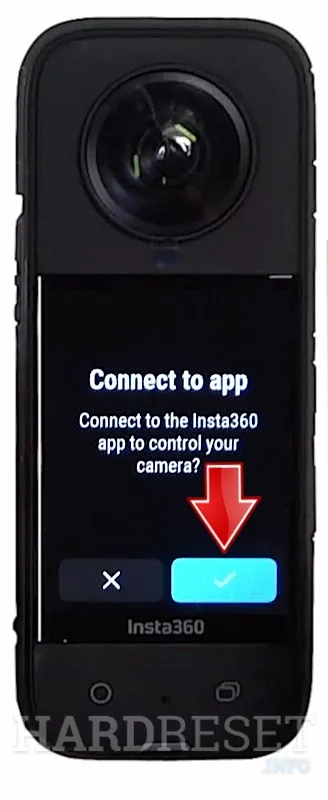
Image source: Bing (Web (fair-use with source credit))
What if the remote GPS receiver will not pair?
The GPS Remote uses Bluetooth, not Wi-Fi. If it does not sync, replace the CR2032 battery inside the remote first. A weak battery prevents pairing.
In the X4 settings, go to "Remote Control" and select "Pair." Press and hold the remote button until the LED blinks blue. Keep the remote within 3 feet of the camera during pairing. Bluetooth range is short during the initial handshake.
Power Problems: Won't Turn On, Won't Charge, Won't Record
The camera will not power on at all
This is alarming, but it is rarely a hardware failure. Work through these steps in order.
Step 1: Force a hard reset. Press and hold the power button and the shutter button together for 10 to 15 seconds. Release them. The camera should vibrate briefly and the display should light up.
This is not a factory reset. It just cuts power to the system.
Step 2: Check the battery. Remove the battery from the compartment. Inspect the contacts for dirt or corrosion. Reinsert it firmly.
A loose connection can mimic a dead battery.
Step 3: Try a different charger and cable. The X4 supports USB-C Power Delivery (5V/3A or 9V/2A). A standard phone charger that outputs 5V/1A may not deliver enough current. Plug it in and wait 15 to 20 minutes before attempting to power on.
The battery indicator may be too low to show anything initially.
If you are having trouble with other action cameras not powering on, similar battery detection faults appear on other models.
The camera powers on but will not record
This is almost always an SD card problem. If the record button is grayed out, the card may be full. Check storage in settings.
The card may be write protected. Try formatting the card in the camera by going to Settings > Storage > Format. This erases everything but fixes most write errors.
The card speed may be too slow. The X4 requires at least U3 speed class for 5.7K and V30 for 8K. A U1 card will cause recording to fail or stop after a few seconds.
If recording starts but stops after a few seconds, heat is the likely cause. In 8K mode, the camera records for about 30 to 35 minutes before thermal throttling in a 70°F room. In direct sunlight, that drops to 15 to 20 minutes.
Switch to 5.7K 30fps for longer sessions. A failing SD card can also cause early stops. Test with a different card that meets the V30 spec.
Format it in the camera first.
Charging is slow or does not work
Use the original Insta360 cable if possible. Third party cables that lack the proper data pins may charge at a trickle. The charging port on the X4 is recessed.
Make sure the connector is fully seated. Dirt or lint in the port can block contact. Charging in cold temperatures below 50°F or 10°C is extremely slow.
The battery management system reduces current to protect the cells. Warm the camera to room temperature first.
Per the manufacturer specifications, a full charge takes about 100 minutes using a 9V/2A adapter. A standard 5V/2A charger takes 2 to 3 hours.
Overheating, Stutter, and Recording Failures
When does the X4 overheat?
The X4 uses a passive cooling design inside a sealed body that is waterproof to 10 meters. There are no vents, so heat builds up during intense use. The thermal protection system kicks in when the internal temperature exceeds about 140°F or 60°C.
Here is when it is most likely to happen, based on our research and aggregate user reports.
8K 30fps mode. This is the most demanding setting. The sensor and processor run at full load. In a 75°F room, expect thermal shutdown after about 30 to 35 minutes.
In direct sun, that drops to 15 to 20 minutes.
Live streaming. The camera runs the sensor, encoder, and Wi-Fi radio simultaneously. All three generate heat. Streams often cut out after 10 to 15 minutes, especially at higher bitrates.
Charging while recording. Plugging in a power bank while recording generates extra heat from both the battery charging circuit and the processor. This combination can push the temperature over the limit much faster.
What to do when you see the temperature warning:
Stop recording immediately. Power off the camera. Remove the battery if possible and let the body cool in the shade.
A fan speeds this up. Do not place the camera in a refrigerator or ice water. Rapid cooling can cause internal condensation, which is worse than the heat.
For future shoots, use 5.7K 60fps or 4K 100fps instead of 8K. The difference in perceived sharpness is small on social media, and you gain longer record times. If overheating persists even in mild temperatures, check the firmware version.
Insta360 has released patches that adjust the thermal threshold in v2.x. Update the camera via the app or manual download.
Video stutters or skips frames
Stuttering footage is almost never a camera hardware problem. It is a storage bottleneck or a playback chain issue. During playback on the camera, the touchscreen refreshes at a lower rate than the recorded frame rate.
Slight stutter in the preview is normal. Transfer the file to a computer to check the actual footage.
For playback on a computer, your system may not be powerful enough to decode 8K 360 video. The X4 uses H.265 (HEVC) encoding. Playback requires a modern GPU or dedicated decoder.
Try the Insta360 Studio desktop app, which uses hardware acceleration. Alternatively, use a proxy workflow by importing the file, letting Studio generate low resolution proxies, then editing.
If the stutter is in the footage itself after transfer, check the SD card with a computer utility. Cards that fail the read test will drop frames even if the camera reports no error. For reliable performance, use a card that maintains sustained write speeds above 30 MB/s.
The camera freezes mid recording
A hard freeze with no button response and no screen update usually means the internal buffer is full or the SD card has encountered a write error. Press and hold the power button for 15 seconds. If the screen is frozen, you will not see the shutdown animation.
Keep holding until the screen goes black. Remove the battery, wait 10 seconds, reinsert it, and power on. Format the SD card in the camera.
Do this regularly as maintenance, not just when problems appear.
If the freezing happens on multiple cards, you may have a corrupted firmware file. Reinstall the latest firmware from the Insta360 website using a manual SD card update. A similar procedure for dealing with firmware update problems on other cameras follows the same approach.
The same tips for preventing overheating on other action cameras apply to the X4 as well.
Lens, Stitch Line, and Picture Quality Fixes
The stitch line is visible in the footage
A visible stitch line is the most common image quality complaint with any 360 camera. The X4 uses software stitching to merge the two lens images. When the alignment is off, the seam shows up as a blurry, doubled, or misaligned area.
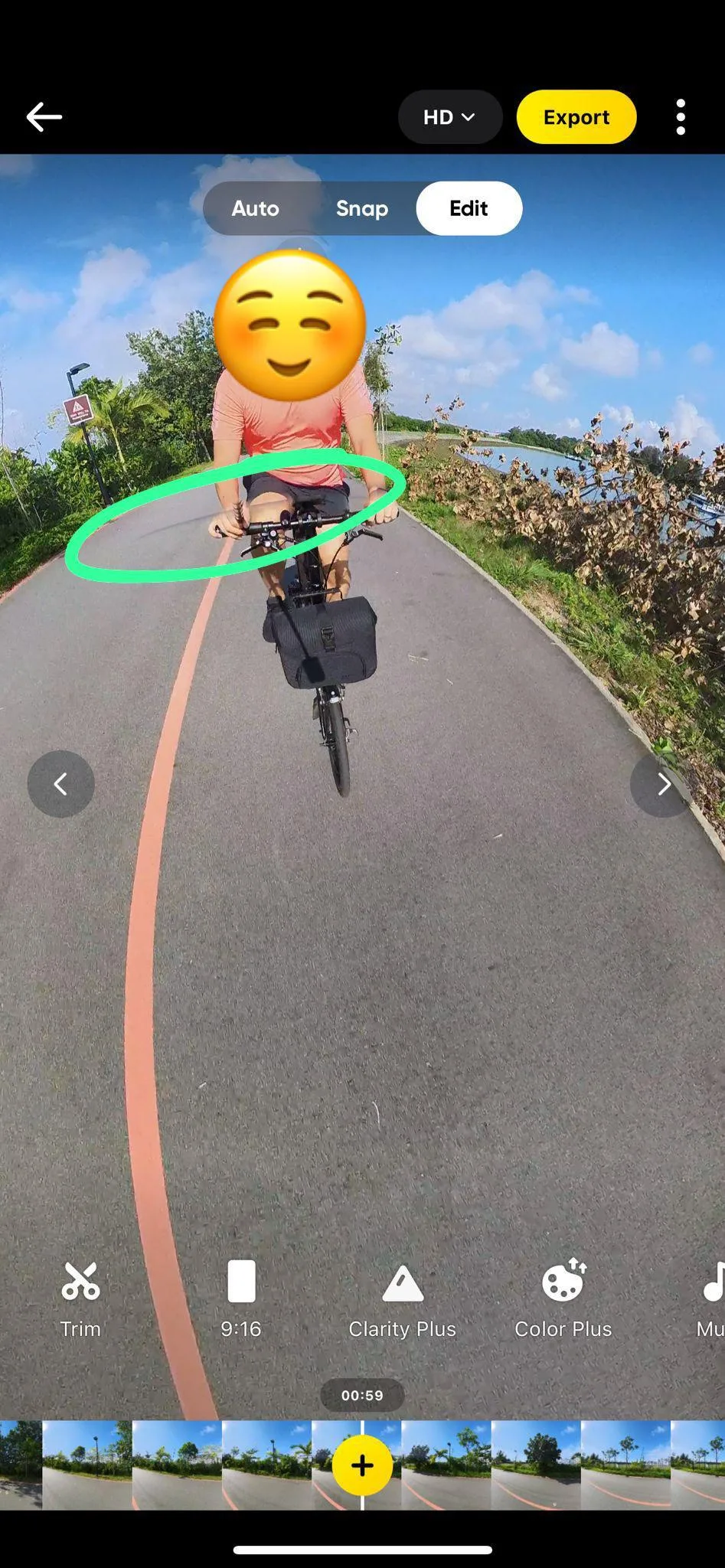
Image source: Web (Bing) / reddit.com (Web image (fair-use with source credit))
First step: recalibrate the camera. The X4 has an automatic calibration routine. Go to Settings > Calibration. Place the camera on a flat surface facing a plain wall or sky.
Tap "Start." The camera adjusts the stitch alignment based on the gyro and lens data. This takes about 30 seconds.
If recalibration does not fix it:
Check for lens misalignment from a drop. If you have dropped the camera, the physical lens housings may have shifted. Compare the two lenses visually.
If one looks tilted or pushed in, the camera needs repair. Check the stitching distance setting in the Insta360 App. The default is "Auto." Switch it to "Far" if you are shooting landscapes, or "Near" for close objects under 3 feet.
Close objects are harder to stitch seamlessly.
In Insta360 Studio, you can manually adjust the stitch line offset. Under the "Stitch" tab, use the X and Y sliders to fine tune the alignment. Apply this correction to all clips from the same session.
If the stitch line is aligned but blurry:
The lenses may have condensation or a fingerprint. Clean both lenses with a microfiber cloth. Do not use liquid cleaners that could seep into the housing.
A protective lens guard that is not seated perfectly can cause a slight optical distortion at the stitch line. Remove the guard and test without it.
Footage looks soft or hazy
Softness in 360 footage is sometimes expected. The X4 lenses are small and wide, so they do not resolve as much detail as a traditional prime lens. But if the footage looks hazier than usual, check these things.
The lens guard is installed. The included protective lens guard degrades optical clarity. Insta360 documentation notes that sharpness is reduced when the guard is on. For maximum quality, remove it.
Use the guard only in risky environments like dirt, sand, or snow.
Dust or smudges on the lens. Even a small fingerprint can cause visible haze. Breathe gently on the lens and wipe with a clean microfiber cloth. Do not use compressed air, which can force dust into the lens barrel.
Low light. The X4 uses small 1/2-inch sensors. In low light, noise reduction smears fine detail. This is normal.
Shoot in good lighting whenever possible. Use 5.7K 30fps HDR mode to preserve some dynamic range.
The lens is scratched. A scratch shows up as a bright line or flare in the footage. The X4 lenses are not user replaceable. If the scratch is deep enough to affect every shot, you need a service center repair.
Light surface scratches may not appear in the final stitch because they fall outside the overlapping area.
White balance or color looks wrong
The X4 auto white balance is generally reliable outdoors. Indoors under mixed lighting, it can drift toward green or magenta. Switch to a manual white balance preset.
In the camera settings, you can choose Daylight, Cloudy, Fluorescent, or Custom with a Kelvin value. For consistent indoor color, set it to 4000K to 5000K and adjust in post.
If the color shifts during a single clip, the camera is reading a change in the scene. Lock white balance before recording. Go to Settings > White Balance > Lock.
This keeps the setting fixed for the entire clip. HDR mode can produce a desaturated look in post. HDR is designed to preserve highlights and shadows, but it does flatten the midtones.
Switch to Standard color mode if you want more punch straight out of camera.
When Nothing Else Works: Reset, Reinstall, or Replace
You have tried the basic fixes and the X4 still is not behaving. It is time for the last resort options. Work through them in this order.
Do not skip ahead unless a step literally cannot be performed.
How do I factory reset the Insta360 X4?
A factory reset returns every setting to the out of box state. It does not erase footage on the SD card. Go to Settings > General > Factory Reset.
Confirm the prompt. The camera restarts automatically. If the touchscreen is unresponsive, you can force the reset with a button combination.
With the camera off, press and hold the power button and the shutter button together for 10 seconds. Release when the screen lights up.
After the reset, you must re-pair the camera with the app and reconfigure your preferred settings. This is often the fix for persistent freezes or Bluetooth pairing loops.
The firmware update failed and the camera is stuck
A mid-update power loss or app disconnect can leave the camera partially updated. The screen may show a firmware version but the camera will not boot properly. The manual fix requires a computer and a microSD card reader.
Download the latest firmware file from the Insta360 official support page. It comes as a single .bin file. Put the file in the root directory of a microSD card that is formatted to FAT32.
Do not put it inside any folder. Insert the card into the X4. Power on the camera.
The update should begin automatically. Do not touch any buttons until it finishes. The camera will restart by itself.
If the manual update also fails, the internal flash memory may be corrupted. That requires a service center reflash. Contact Insta360 support.
When does the camera need to go to a repair center?
Some problems are not fixable at home. Send the camera in if you have one of these:
- Physical damage: cracked lens, bent housing, broken screen.
- Lens misalignment after a drop that calibration cannot correct.
- Battery that will not charge on multiple known-good chargers.
- USB-C port that is loose or does not make contact.
- Water damage from use deeper than 10 meters or from opening the charge port underwater.
The manufacturer warranty covers manufacturing defects for one year. It does not cover drops, water damage beyond the spec, or misuse. A jolt that breaks the lens alignment is not a warranty issue.
Mistakes That Make a Bad Day Worse
Some troubleshooting moves seem sensible but actually cause more damage. Avoid these common errors.
Using the wrong SD card or formatting it improperly. Do not use a card that is U1 or slower. The X4 will try to record, then stop after a few seconds. Do not format the card on a computer using exFAT if you are on a Mac and the card was originally FAT32.
Always format in the camera. A card formatted on a computer can cause mysterious recording drops. The same formatting guidelines for other action cameras apply here.
Ignoring the temperature warning. When the X4 shows the thermometer icon, it is telling you to stop. Continuing to record while the warning is active can cause permanent damage to the sensor. The camera has a thermal fuse that protects the board.
Once that fuse blows, the camera is dead. Power off and let it cool for 20 minutes before resuming.
Plugging in a power bank while recording in hot weather. This adds heat from both the battery charging circuit and the processor. It pushes the camera over the thermal limit much faster than recording on battery alone. If you need extended recording time, start with a full battery.
Use a power bank only in cool conditions, and only when the camera is idle or transferring files.
Using lens cleaner or compressed air on the lenses. Liquid cleaners can seep into the gap between the lens and the housing. That causes permanent internal fogging. Compressed air can force dust into the lens barrel.
The only safe way to clean the X4 lenses is a dry microfiber cloth. For stubborn smudges, breathe gently on the lens first. That is enough moisture.
Assuming all USB-C chargers are the same. A 5V/1A phone charger cannot keep up with the X4 charging circuit. The camera will detect the low current and limit the charge rate. Over time, this can cause the battery management system to misreport the charge level.
Use a charger that supports 9V/2A or at least 5V/3A. The original Insta360 charger is best, but any Power Delivery charger rated for 18W or higher will work.
Pro Tips for Keeping Your X4 Running Smoothly
A little maintenance goes a long way. You can prevent most of the common issues with a few habits.
Format the SD card every few shoots. Do not just delete files. A full format in the camera clears the file allocation table and reduces the chance of corruption. Make it a routine.
Once a week if you shoot heavily. Once a month if you are a casual user. Always back up your footage first.
Keep the firmware updated. Insta360 releases firmware updates that improve stability, add features, and adjust thermal thresholds. As of early 2026, version v2.x includes several connection fixes. Check for updates in the app or on the official Insta360 download page.
Let the camera cool between clips. If you are shooting in 8K or 5.7K high frame rate mode, give the camera a break. Shoot a clip. Let it sit for a minute or two.
Repeat. This extends recording time over the session and keeps the internal temperature below the warning threshold.
Store the camera properly. Do not leave the X4 in a hot car or in direct sunlight. The interior temperature can exceed 140°F, which stresses the battery and the adhesive holding the lens assembly. Store it in a padded case at room temperature.
If you are in a humid climate, include a silica gel pack to prevent condensation inside the lens.
Carry a spare battery. The X4 battery lasts about 35 to 40 minutes in real-world 8K use. A single battery is not enough for a full day of shooting. A spare battery removes the temptation to record while charging.
That habit alone prevents many overheating issues.
Frequently Asked Questions
How do I factory reset the Insta360 X4 without the touchscreen?
Hold the power button and the shutter button together for 10 seconds. Release when the screen lights up. This forces a full restart.
For a factory reset that clears user data, you need the touchscreen working or the manual firmware reinstall method.
What SD card do I need for the Insta360 X4?
Use a microSD card with UHS Speed Class U3 or better, and Video Speed Class V30 or better. For 8K recording, a UHS-II V60 card is recommended. Format the card inside the camera before first use.
Why does my Insta360 X4 overheat so fast?
The X4 overheats fastest in 8K 30fps mode or during live streaming. Direct sunlight and ambient temperatures above 90°F make it worse. Switch to 5.7K 60fps for longer recording sessions.
Keep the camera in the shade between clips.
How do I update the firmware on the Insta360 X4?
Open the Insta360 App while the camera is connected via Wi-Fi. Go to the device tab and tap the settings icon. Select "Firmware Update" and follow the prompts.
If the app update fails, use a microSD card with the manual firmware file from the Insta360 website.
The stitch line is visible after calibration. What now?
Try the "Far" or "Near" distance setting in the app stitch options. If the line persists, the lens housings may be physically misaligned from a drop. Use the manual stitch adjustment sliders in Insta360 Studio for post-production correction.
Can I use the Insta360 X4 while charging?
Yes, but it increases heat buildup. In warm conditions, this can trigger thermal shutdown faster. For long recording sessions, use a fully charged battery.
If you must record while charging, do it in a cool environment and avoid 8K mode.

Similar Posts
































