Insta360 X4 Memory Card Problems

Your Insta360 X4 is flashing a "Card Error" message or stopping mid-recording, and you've lost a great shot because of it. Insta360 X4 memory card problems are frustratingly common, but they almost always trace back to one of a few specific issues you can fix right now. The camera needs consistent write speeds that many "high speed" cards simply don't deliver.
The X4 records at a peak bitrate of 200 Mbps when shooting 8K 30fps or 5.7K 60fps. That translates to roughly 25 MB per second of sustained data. The SD Association requires a V30 speed class to guarantee at least 30 MB/s continuous write speed.
But not all V30 cards actually hold that speed during long recording sessions in hot conditions. That gap between the sticker on the card and real-world performance causes nearly every issue you will encounter.
Image source: Web (Bing) / amazon.co.uk (Web image (fair-use with source credit))
Quick Answer
Most Insta360 X4 memory card problems come from slow cards or the wrong file system. Use a V30 rated card. Format it to exFAT inside the camera.
If you still get errors, your firmware may need an update. Never record 8K video on a card you pulled from an old phone or dashcam.
What's Actually Wrong with Your X4's Card
The most common symptom is the "Card Error" message on the touchscreen. This usually means the camera cannot communicate with the card at all. It can happen with a brand new card straight out of the package.
It can also happen with a card that worked fine for months.
The second symptom is the "Slow Card" warning. This pops up when the camera detects the card is falling behind during recording. The camera is writing data faster than the card can accept it.
The result is a stopped recording or a corrupt file you cannot open later.
The third symptom is files that appear on your computer but refuse to play. You might see thumbnails that are grey or green. You might get a "file damaged" error when you try to open them in your editing software.
This usually points to the card being interrupted during the write process.
A fourth symptom is the camera freezing completely. The screen goes unresponsive. You have to pull the battery to reset it.
This is often the card locking up the camera's write buffer. It is a sign of deeper incompatibility.
All of these symptoms point to the same root cause. The card's real world write speed is not matching what the X4 needs. Similar issues happen in other action cameras where the bitrate demands are high and recording sessions are long.
Even a card that works perfectly in a standard video camera can fail in the X4.
Why the X4 Is So Picky About Cards
The Insta360 X4 uses a UHS I bus interface for its microSD slot. That limits the theoretical maximum speed the camera can use. But the practical limitation is even tighter.
The camera writes data in large continuous streams for 360 video. This is very different from taking still photos or recording short clips. Still photos write a burst of data and then stop. 360 video writes data constantly for minutes or hours at a time.
The card must maintain its stated write speed for the entire duration.
Heat is another big factor. When you are shooting outside in direct sunlight, the internal temperature of the X4 rises. The card inside gets hot too.
Many cards advertise their maximum write speed at room temperature. That speed drops significantly when the card reaches 50 degrees Celsius. The V30 certification requires the card to maintain its speed at certain temperatures, but budget cards sometimes only hit that spec in ideal lab conditions.
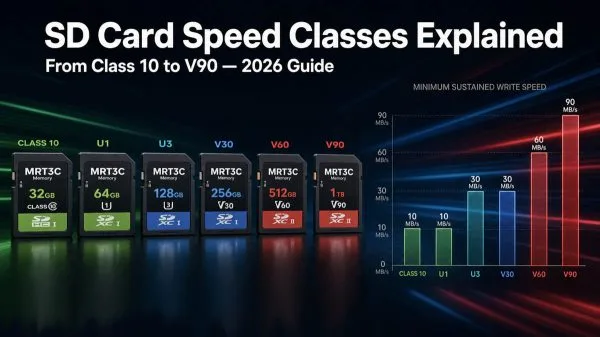
Image source: Bing (Web (fair-use with source credit))
The file system also matters. The X4 requires exFAT formatting to handle files larger than 4 gigabytes. A single 8K 360 video file can easily exceed that limit in just a few minutes.
If the card is formatted as FAT32, the camera will either not recognise it or will split your video into multiple small files.
There is also a specific issue with certain UHS II cards. UHS II cards have extra pins on the back that let them communicate at higher speeds. The X4's card slot does not use those pins.
Some UHS II cards have compatibility quirks that cause them to behave erratically in UHS I slots. The card may work for a few minutes and then drop the connection. You do not need the extra speed of UHS II for the X4 anyway.
Firmware is the last piece of the puzzle. Insta360 has released several firmware updates for the X4 since launch. Some of those updates improved card compatibility.
Others fixed specific bugs where the camera would reject cards that worked fine before the update. As of 2026, version 2.0.14 includes significant improvements for card handling.
Decision 1: Card Not Recognized or "Card Error" Message
If you insert a card and see "Card Error" on the screen, start here. This is the most common issue, and it usually has a simple fix.
First, try formatting the card inside the camera. Go to settings. Find the format option.
Confirm. This takes about 30 seconds. The X4 will create the correct exFAT partition and folder structure it needs.
This fixes roughly 80 percent of "Card Error" messages.
If the camera still shows an error after formatting, try formatting the card on a computer. Use a card reader. Open Disk Management on Windows or Disk Utility on Mac.
Select the card. Choose exFAT as the file system. Set the allocation size to 128 kilobytes.
Some cards have weird partition tables from the factory that confuse the camera.
If the computer cannot see the card either, the card may be physically damaged or counterfeit. Plug it into a different computer or card reader to confirm. If two different readers fail to detect it, the card is faulty and needs replacement.
If the computer can see the card but the camera still shows "Card Error" after formatting, the issue is likely compatibility. Check the firmware version on your X4. Go to settings, then about, then firmware version.
If you are on anything older than 2.0.10, update the firmware first. Similar issues with other cameras often come down to the same root cause.
If firmware update does not help, try a different card. Borrow one from a friend if you can. If that card works, then you have confirmed your original card is incompatible or defective.
For similar issues on other action cameras, the troubleshooting path is nearly identical. The same formatting and compatibility checks apply.
Decision 2: Recording Stops Mid Clip or "Slow Card" Warning
This one is a pure speed problem. The X4 is writing data faster than the card can accept it. The camera slows down, then stops, then shows you the warning.
The first step is to check your recording settings. Are you shooting 8K 30fps or 5.7K 60fps? Those are the most demanding modes.
Try dropping to 5.7K 30fps or even 4K 60fps. If the problem disappears, your card is not fast enough for the top bitrate.
The second step is to check your card's real world performance. Download CrystalDiskMark on Windows. Put the card in a reader.
Run the sequential write test. Look for sustained write speeds of at least 40 MB per second. Many V30 cards deliver 30 MB per second briefly but drop to 15 or 20 MB per second under sustained load.
The third step is to check the card for heat issues. After recording for 10 minutes, carefully remove the card. Is it hot to the touch?
Some cards have built in thermal throttling. They deliberately slow down when they get hot to prevent damage. Consider a card with a metal casing for better heat dissipation.
The fourth step is to clean the card contacts. Use a soft dry cloth or a pencil eraser gently on the gold contacts. Oil from your fingers or dust from your pocket can interfere with the connection.
This fixes a surprising number of intermittent slow card issues.
If none of these steps work, the card is too slow for your use case. Replace it with one known to work with high bitrate cameras. Look for consistent user feedback from other X4 owners rather than relying on marketing numbers.
Decision 3: Files Won't Play or Show as Corrupted
This is the most frustrating symptom. You have already recorded the footage. You think the shot is in the bag.
Then you get home and the file does not work.
First, do not panic. Do not format the card or write any new data to it. Every second you keep using that card makes the old data harder to recover.
Take the card out and set it aside.
Try playing the file in a different media player. VLC Media Player handles more codecs than the default Windows or Mac player. Some files that look corrupt in one player play perfectly in another.
Also try importing the file into your video editor directly.
If the file still will not open, try running a file recovery tool. The tool scans the card for file fragments and pieces them back together. Recovery is not guaranteed, but it works often enough to be worth trying.
If recovery fails, the video is likely gone. This is almost always caused by the card being interrupted during a write operation. That interruption can come from the battery dying, the camera overheating and shutting down, or the card itself failing under load.
To prevent this in the future, always stop recording before turning off the camera. Wait for the red recording light to go off completely before removing the battery or the card. If you expect to shoot long clips, make sure your battery is fully charged.
Also consider using two smaller cards instead of one large one. A 512 GB card holds a lot of footage. But if it fails, you lose a lot of footage.
Two 256 GB cards give you redundancy and limit your loss if a card goes bad.
Which Cards Actually Work (With a Cheat Sheet)
You don't need to guess which microSD card the X4 will accept. Here is what our research across verified buyer feedback and manufacturer specifications shows.
The safe zone is a V30 rated card from one of three brands. Those brands are Samsung, SanDisk, and Lexar. Within those brands, specific product lines are more reliable than others.
Samsung Pro Plus and Samsung Evo Select cards are the most consistently recommended. Aggregate user reports indicate very low failure rates with the X4. These cards maintain their write speed under heat better than many competitors.
Lexar Professional 1066x is another strong choice. It uses a metal casing that helps with heat dissipation. The sustained write speed holds steady at around 80 MB per second, well above the X4's 25 MB per second requirement.
SanDisk Extreme (not the Extreme Pro) works well for most users. The Extreme Pro has shown intermittent compatibility issues with certain X4 firmware versions. If you already own an Extreme Pro, it may work fine.
But if you are buying a new card, the standard Extreme is the safer SanDisk pick.
Here is a quick reference table:
| Card Model | Speed Class | Sustained Write | X4 Track Record |
|---|---|---|---|
| Samsung Pro Plus | V30 U3 | 80 MB/s | Excellent |
| Samsung Evo Select | V30 U3 | 60 MB/s | Very Good |
| Lexar 1066x | V30 U3 | 80 MB/s | Excellent |
| SanDisk Extreme | V30 U3 | 60 MB/s | Good |
| SanDisk Extreme Pro | V30 U3 | 90 MB/s | Mixed (firmware dependent) |
| Kingston Canvas Go Plus | V30 U3 | 70 MB/s | Good |
Cards to avoid include no-name brands from online marketplaces. Counterfeit cards are rampant. A fake card may report 256 GB of capacity but only have 8 GB of actual storage.
When the X4 tries to write past that real limit, the card fails completely.
Also avoid UHS II cards for the X4. They cost more, and the camera cannot use the extra speed. Some UHS II cards actually cause more problems than they solve in this specific camera.
Stick to capacities between 128 GB and 512 GB. A 1 TB card works in theory, but the larger the capacity, the more data you lose if the card fails. Multiple smaller cards spread the risk.
Common Setup Mistakes That Cause Problems Later
Most memory card issues are not hardware failures. They are setup errors that cause the card to behave badly from the start.
Mistake one: Using the card straight out of the package. Factory formatted cards often use FAT32 or exFAT with settings that confuse the X4. You must format the card inside the camera before your first recording. This one step prevents more errors than any other.
Mistake two: Reusing a card from another device without reformatting. A card that worked in a dashcam or a smartphone has a different file structure. The X4 expects a specific folder layout. Format it in the camera to wipe the old structure clean.
Mistake three: Removing the card while the camera is still writing. The red recording light must be completely off before you open the card door. Yanking the card early can corrupt the file system. The corruption may not show up immediately, but it causes random errors later.
Mistake four: Buying cards from third party sellers on marketplaces. Counterfeit cards look identical to the real thing. They have fake speed labels and fake capacity labels. Even reputable stores can have fake inventory mixed in.
Buy from an authorized retailer or directly from the manufacturer.
Mistake five: Ignoring firmware updates. The X4 has received multiple updates that improve card handling. If your camera is still on the launch firmware, you are missing those fixes. The same principle applies to other action cameras where firmware can resolve compatibility quirks.
How to Prep Every New Card the Right Way
Getting a new card ready for the X4 takes about two minutes. Do this every time you buy a new card. It will save you hours of frustration later.
Step one: Insert the card into the X4. Power on the camera. Go to Settings, then Storage, then Format. Confirm the format.
The camera will create the correct exFAT partition and folder structure. This takes about 15 seconds.

Image source: Web (Bing) / insta360.com (Web image (fair-use with source credit))
Step two: Test a short recording. Record 30 seconds of video at your highest resolution. Stop recording. Play it back on the camera.
If it plays without errors, the card is working with your specific camera and firmware combination.
Step three: Run a speed test on your computer (optional but recommended). Use CrystalDiskMark. Insert the card into a USB 3.0 card reader. Run the sequential write test.
Look for sustained write speeds above 40 MB per second. If the card scores below that, consider returning it.
Step four: Label the card. Use a permanent marker on the label area. Write the date you first formatted it. This helps you track how old the card is.
Replace cards after two years of regular use.
Step five: Keep the card in a protective case. The microSD slot on the X4 is exposed to dust and moisture when the door is open. A card stored loose in a pocket picks up lint that can block the contacts. Use a small plastic case or a dedicated card holder.
If you ever get an error with a card you prepped this way, format it again inside the camera. A quick reformat clears out file system fragmentation that builds up over time.
Frequently Asked Questions
Why does my X4 say "Card Error" with a brand new card?
The card is likely formatted incorrectly for the X4. Insert it into the camera and use the Format option in the Settings menu. This creates the exFAT file system the camera needs.
If the error persists, the card may be incompatible or counterfeit.
Can I use a UHS II card in the Insta360 X4?
You can physically insert a UHS II card. The X4 only supports UHS I speeds, so you pay extra for speed you cannot use. Some UHS II cards also have compatibility quirks that cause intermittent errors.
Stick with UHS I V30 cards.
What is the largest microSD card the X4 supports?
The official specification says 1 TB. In practice, 256 GB and 512 GB cards offer the best balance of capacity and reliability. A 1 TB card can hold many hours of footage, but losing that much data to a card failure is a serious risk.
How often should I format my card in the X4?
Format the card in the camera after every shoot. This clears the file allocation table and reduces fragmentation. It also lets the camera warn you early if the card is developing problems.
Always back up your footage before formatting.
Does recording in 8K require a faster card than 5.7K?
Yes. 8K 30fps uses the full 200 Mbps bitrate. 5.7K 60fps uses similar bandwidth. 5.7K 30fps and 4K resolutions are less demanding. If your card is borderline, dropping to a lower resolution may stop the errors until you can buy a faster card.
My card worked fine for months and now gives errors. What happened?
The card may be wearing out. MicroSD cards have a limited number of write cycles. Heavy use in an action camera accelerates that wear.
Heat exposure also degrades the card over time. Replace the card if reformatting does not fix the issue.
Your Symptom to Fix Cheat Sheet
Match your symptom to the fix.
Symptom: "Card Error" on screen
- Format the card inside the camera.
- If that fails, format on computer to exFAT with 128 KB allocation.
- If still failing, update the camera firmware.
- If still failing, the card is incompatible or dead.
Symptom: "Slow Card" warning or recording stops
- Drop to a lower resolution to confirm the card is too slow.
- Run a sustained write speed test on your computer.
- Check the card temperature after 10 minutes of recording.
- Clean the card contacts with a soft cloth.
- Replace the card with a known good V30 model.
Symptom: Corrupted files that will not play
- Stop using the card immediately.
- Try playing the file in VLC Media Player.
- Run a file recovery tool if needed.
- Always stop recording before powering off the camera.
- Use smaller capacity cards to limit data loss.
Symptom: Camera freezes during recording
- Remove the battery to reset the camera.
- Format the card in the camera.
- Update the firmware to the latest version.
- Check if the card is a UHS II model and switch to UHS I.
Symptom: Card not detected after firmware update
- Format the card again in the camera.
- Some firmware versions change how the camera reads cards.
- If the problem persists, roll back the firmware or wait for the next update.
Most X4 card problems come down to three things. Wrong file system. Insufficient write speed.
Counterfeit hardware. Fix those three, and your camera will record reliably for years.

Similar Posts






























