Insta360 X4 Overheating Problem
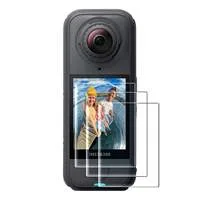
If you own an Insta360 X4, you've probably run into the overheating problem at the worst possible moment. The camera shuts down mid-clip, the screen flashes a temperature warning, and you lose the shot you were lining up. It's frustrating, and it's the most common complaint about an otherwise impressive 360 camera.
Aggregate user reports indicate that the thermal shutdown usually hits within 8 to 12 minutes of recording in 8K 30fps mode at 30°C (86°F) ambient temperature. But the fix isn't the same for everyone. Your specific settings, firmware version, and even how you hold the camera all change the answer.
Let's walk through the conditions that trigger the problem and figure out your best next move.
Quick Answer
The Insta360 X4 overheating problem is a passive cooling limitation. The camera has no internal fan. It relies on its metal chassis and heat sink to dissipate heat.
In 8K 30fps or 5.7K 60fps, the processor generates more heat than the chassis can shed in still air. The fix depends on your firmware version. If you're on v1.0.0, update immediately.
If you're on v1.1.0 or newer, adjust your recording mode or use USB-C power without the battery.
Your First Move Depends on Your Firmware Version
Before you change any settings, check your firmware. This is the single most important step. Insta360 released a significant thermal management update in firmware v1.1.0.
If you're still running the original v1.0.0, you're missing the fix.
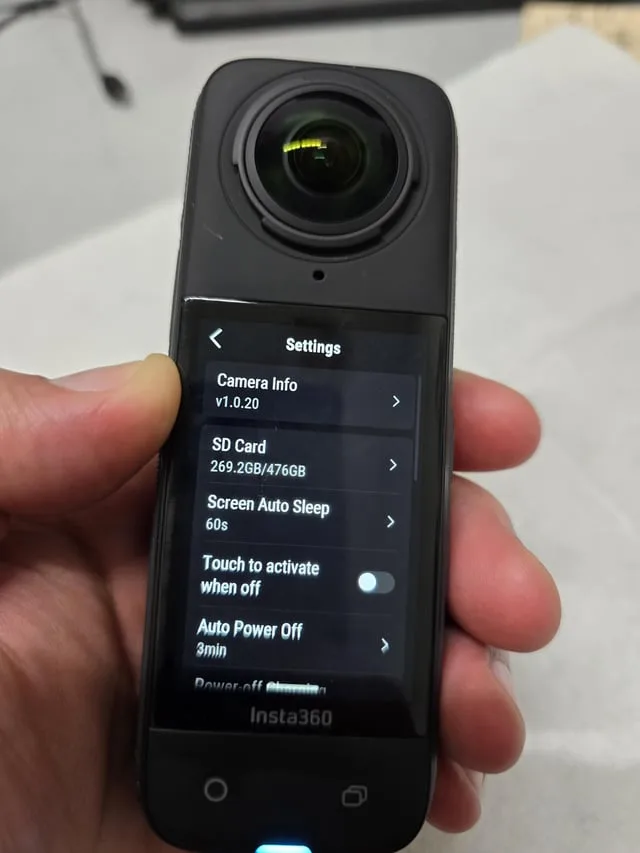
Here's how to check. Open the Insta360 app on your phone. Connect to the X4's Wi-Fi.
Go to device settings. Look for the firmware version number. If it shows v1.0.0, update immediately.
The new firmware adjusts the thermal throttle threshold. It also optimizes the bitrate in high-temperature scenarios. This alone solves many overheating issues.
If you're already on v1.1.0 or later and still overheating, the problem is elsewhere. Move to the next branch. Keep in mind that updating firmware is a simple process, but make sure the camera has at least 50% battery before you start.
Do not update in direct sunlight. For the latest firmware files and instructions, visit the Insta360 official support page.
Why the X4 Overheats: The Core Factors
The X4's processor is a powerful chip. It handles stitching two 180-degree fisheye lenses into a seamless 360-degree image in real time. That processing creates heat.
The camera has a passive cooling system, which means it uses a metal heat sink and the chassis itself to draw heat away from the chip.
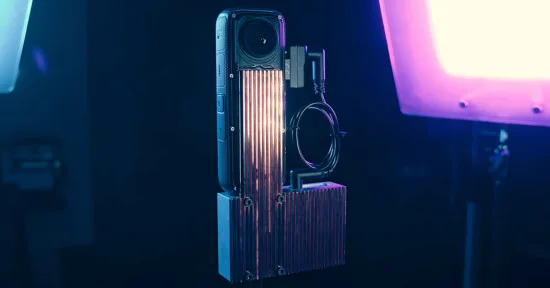
Four factors determine how fast that heat builds up:
- Recording mode and resolution. 8K 30fps demands the most processing power. 5.7K 60fps is close behind. 4K 100fps runs cooler. 4K 30fps runs the coolest.
- Ambient temperature. The hotter the air around the camera, the less effective the passive cooling. At 35°C (95°F) or above, the heat sink struggles to shed heat.
- Airflow. A camera mounted on a moving vehicle or held in a breeze runs cooler. A camera sitting on a tripod in still air traps heat.
- Power source. Running on internal battery alone generates more heat. Using USB-C power delivery with the battery removed reduces internal temperature.
All four factors interact. A camera in 8K mode on a tripod in 30°C heat will shut down faster than the same camera in 4K mode on a moving bike in 20°C weather. The decision tree below accounts for these variables.
The Decision Tree: Diagnose Your Overheating Based on Your Setup
This is where you match your specific situation to the right fix. Start with the symptom you're seeing. Then follow the branch that fits your recording conditions.
Branch 1: Overheating in 8K 30fps Mode
This is the most common scenario. The X4 can record 8K 30fps, but it cannot do so indefinitely in warm conditions. If you're getting shutdowns in 8K mode, try these steps in order:
- Update firmware to v1.1.0 or later. This is the first step for a reason. Many users report the camera runs 5 to 8 minutes longer after the update.
- Switch to 5.7K 30fps. This mode uses significantly less processor load. You lose some resolution, but you gain recording time. Most social media platforms don't support 8K anyway.
- Use USB-C power delivery. Remove the battery. Plug the camera into a USB-C power bank. The camera runs on external power without the battery's heat contribution. This is the most effective fix for long recording sessions.
- Mount the camera in moving air. If you're on a tripod, point a small fan at the camera. If you're outdoors, mount it on a bike or a car where airflow helps.
Branch 2: Overheating in 5.7K 60fps Mode
This mode is almost as demanding as 8K. The high frame rate keeps the processor working hard. The fix is similar but with one extra option.
- Reduce bitrate. In the camera settings, switch from "High Bitrate" to "Low Bitrate." This reduces the data the processor writes to the card. It lowers heat output by about 15 to 20 percent.
- Switch to 5.7K 30fps. You lose the slow-motion capability, but you gain stability.
- Use USB-C power delivery. Same as the 8K branch. Remove the battery and run on external power.
- Check your SD card. A slow or overheating SD card can cause write errors that make the processor work harder. Use a UHS-I V30 card from a reputable brand. Avoid cheap cards.
Branch 3: Overheating in Standard 4K or Lower Resolutions
If you're overheating in 4K 30fps or 4K 100fps, something else is wrong. This is unusual. The camera should handle these modes for extended periods.
- Check for firmware issues. Even on v1.1.0, there could be a bug. Try reinstalling the firmware via SD card instead of the app.
- Check the battery. A swollen or aging battery generates more heat. Remove the battery and run on USB-C power only. If the overheating stops, replace the battery.
- Check the environment. If ambient temperature is above 40°C (104°F), no camera can run indefinitely. Move to shade or wait for cooler conditions.
- Check for physical obstruction. If the camera is inside a waterproof case or a tight mount, heat cannot escape. Remove the case. Use a vented mount instead.
Branch 4: Overheating While Charging or Using USB-C Power
This is a different problem. The camera should not overheat when connected to a power source without recording. If it does, the issue is likely the power source or the battery.
- Use a 5V/3A USB-C charger. Higher voltage chargers can cause the camera to pull more current than it needs. Stick to the manufacturer's recommended spec.
- Remove the battery while charging. If the battery is in the camera, charging creates heat inside the camera body. Charging the battery externally with a separate charger is safer.
- Let the camera cool before charging. If you just finished recording in 8K mode, wait 10 minutes before plugging in the charger. The internal temperature needs to drop first.
Common Mistakes That Make Overheating Worse
Many users try to solve the overheating problem by doing the wrong things. Here are the most common mistakes and why they backfire.
Mistake 1: Covering the camera with a case or mount. The X4's chassis is its heat sink. If you wrap it in a thick silicone case or a waterproof housing, you trap the heat. The camera shuts down faster.
Use a vented mount or no case at all when recording in 8K mode.
Mistake 2: Blaming the battery first. The battery does generate heat, but it's not the primary source. The processor generates the bulk of the heat. Removing the battery helps, but only by about 10 to 15 percent.
The real fix is lowering the processing load.
Mistake 3: Recording in direct sunlight without a shade. The camera's black body absorbs solar radiation. In direct sun, the chassis temperature can rise 5 to 10 degrees above ambient. A small shade or a white reflective sticker on the top helps.
Mistake 4: Using a high-bitrate setting for no reason. The "High Bitrate" option writes more data per second. It looks slightly better, but the difference is rarely noticeable on social media. Stick to "Low Bitrate" unless you need the extra quality for professional editing.
The same principle applies to other camera issues, like similar connection problems or common camera fixes, where settings adjustments often solve the root cause.
Mistake 5: Ignoring the SD card. A slow or corrupted SD card can cause write errors. The processor retries writing data, which increases heat. Always use a UHS-I V30 card.
Format it in the camera before each shoot. This is similar to what you'd check when dealing with other overheating concerns or professional camera setups, where storage issues often mimic other problems.
Safety: When to Stop and Let It Cool
The X4 has a built-in temperature sensor. When the internal temperature reaches the safety threshold, the camera displays a warning and shuts down. This is a safety feature, not a defect.
It prevents damage to the battery and the processor.
Do not ignore the warning. If you see the temperature alert on the screen, stop recording immediately. Let the camera cool for at least 5 minutes before powering it on again.
If you try to restart immediately, the camera will shut down again within seconds.
Here are the signs that the camera is too hot:
- The screen displays a red thermometer icon.
- The camera feels hot to the touch on the metal chassis.
- The camera shuts down without warning.
- The battery stops charging.
If you experience any of these, move the camera to a shaded, ventilated area. Remove the battery if you're not using USB-C power. Point a small fan at the camera to speed up cooling.
This is also a good practice when troubleshooting tracking issues or other camera problems, where heat can cause erratic behavior.
Never leave the camera in a closed car on a hot day. Interior temperatures can reach 60°C (140°F) in minutes. This exceeds the operating temperature range of the camera and can cause permanent damage to the battery.
Frequently Asked Questions
Is the Insta360 X4 overheating normal?
Yes, it is normal in 8K 30fps and 5.7K 60fps modes in warm conditions. The camera uses passive cooling and has no internal fan. The shutdown is a safety feature to protect the processor and battery.
Lower resolution modes run much cooler.
Can I record 8K for 30 minutes without overheating?
Not in still air above 25°C (77°F). Even with the latest firmware, the camera will likely shut down between 8 and 15 minutes in 8K mode. The only way to record longer is to use USB-C power delivery with the battery removed and mount the camera in moving air.
Does updating firmware fix the overheating problem?
Firmware v1.1.0 and later improve thermal management. They adjust the throttle threshold and optimize bitrate. Many users report 5 to 8 minutes of extra recording time after the update.
But it does not eliminate the problem entirely. The hardware still has a passive cooling limit.
Does using a lower bitrate help with overheating?
Yes, significantly. Switching from "High Bitrate" to "Low Bitrate" in the camera settings reduces processor load. This lowers heat output by about 15 to 20 percent.
The visual difference is minimal on most screens. It is the easiest fix after updating firmware.
Should I remove the battery when using USB-C power?
Yes. Removing the battery eliminates its heat contribution. It also prevents the battery from charging while the camera is hot, which can reduce battery lifespan.
Run the camera on USB-C power alone for the longest recording sessions.
What SD card is best to reduce overheating?
Use a UHS-I V30 card from a reputable brand. Avoid UHS-II cards, which can run hotter in sustained write operations. Format the card in the camera before each shoot.
A slow card causes write errors, which increase processor load and heat.
Your Decision Guide: Best Settings for Your Situation
Every setup is different. The best settings for a stationary real estate shoot are not the same as for a mountain bike run. This guide matches your specific use case to the configuration that keeps the camera running.
For Long Stationary Recordings (Real Estate, Events, Timelapse)
You need the camera to run for 30 minutes or more without attention. This is the hardest scenario for the X4 because there is no airflow.
- Use 5.7K 30fps mode. Do not use 8K. The processor load is significantly lower.
- Set bitrate to Low. The visual difference is negligible for 360 video.
- Remove the battery. Use USB-C power delivery from a power bank.
- Mount the camera in a shaded spot. Direct sun adds 5 to 10 degrees to the chassis temperature.
- Point a small USB fan at the camera. Even a gentle breeze helps the passive cooling system shed heat.
For Action Sports (Biking, Skiing, Snowboarding)
You have airflow from movement. This is the best scenario for the X4. The wind cools the chassis effectively.
- Use 8K 30fps or 5.7K 60fps. You can push the camera harder because moving air keeps it cool.
- Keep the battery in the camera. You need portable power. Just make sure the battery door is fully closed.
- Mount the camera on a helmet or handlebar. Avoid putting it inside a waterproof case. The case traps heat.
- Use a V30 SD card. The write speed matters for high frame rates. A slow card creates write errors that generate extra heat.
For Hot Weather Filming (Desert, Beach, Summer Outdoors)
Ambient temperature above 35°C (95°F) changes everything. The passive cooling system struggles to shed heat when the air is already warm.
- Drop to 4K 100fps or 4K 30fps. Do not attempt 8K in extreme heat. The camera will shut down within 5 to 8 minutes.
- Use a white reflective sticker on the top of the camera. This reduces solar absorption.
- Remove the battery and use USB-C power. The battery contributes heat that you cannot afford in hot conditions.
- Mount the camera on a moving vehicle. Airflow is your best friend. A stationary camera in 40°C heat will shut down quickly.
For Underwater Recording
Water is an excellent coolant. The X4 actually performs better underwater than in air.
- Use any mode up to 5.7K 60fps. The water draws heat away from the chassis. Overheating is very rare in this scenario.
- Check the waterproof housing seal. A small leak is more dangerous than overheating. Test the seal before every dive.
- Do not use USB-C power underwater. The camera is sealed. Record on battery power only.
For Hybrid Shooting (Mixed Modes in One Session)
If you switch between 8K and 4K modes during a single shoot, the camera accumulates heat from the high-resolution segments.
- Start with the highest resolution you need. Record the 8K shots first while the camera is cool. Then drop to 4K for the rest of the session.
- Let the camera rest between mode changes. Wait 2 to 3 minutes before switching to a high-resolution mode after a long 4K segment.
- Keep the battery door open between takes. This allows heat to escape from the battery compartment. Just close it before recording.
The Cheat Sheet Table
Here is a quick reference for the most common scenarios. Use this when you are setting up the camera in the field.
| Scenario | Recommended Mode | Bitrate | Power Source | Cooling Tip |
|---|---|---|---|---|
| Stationary indoor | 5.7K 30fps | Low | USB-C only | Point a fan at the camera |
| Action sports with airflow | 8K 30fps | High | Battery | Mount on moving vehicle |
| Hot weather above 35°C | 4K 100fps | Low | USB-C only | Add reflective sticker |
| Underwater | 5.7K 60fps | High | Battery | Check housing seal |
| Mixed session | 8K first, then 4K | High then Low | Battery then USB-C | Rest between mode changes |
The X4 is a powerful camera with a genuine thermal limit. That limit is not a defect. It is a tradeoff for the compact size and 360-degree capability.
Understanding that limit and working around it lets you capture the footage you need without mid-clip shutdowns. Know your settings. Know your conditions.
And you will know exactly how to keep the camera recording.

Similar Posts

































[…] a deeper look at how other action cameras handle similar problems, you can read about the overheating fixes that firmware updates have addressed on related […]