Panasonic AW-UE100 Not Connecting
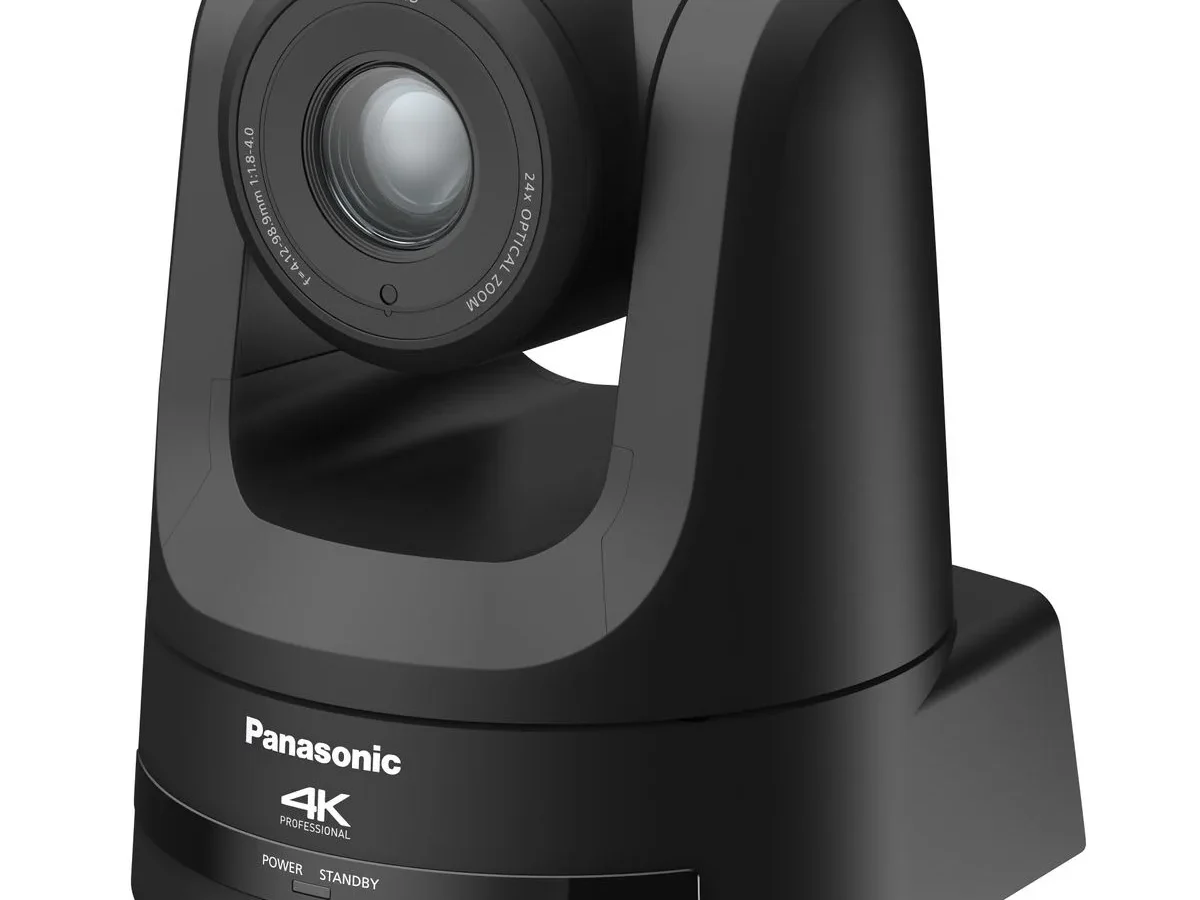
If your Panasonic AW-UE100 is not connecting, you're probably staring at a blank web browser or a control panel that says "Offline." It's a frustrating spot to be in, especially with a live event or recording coming up. The good news is that most connection issues follow a predictable pattern. You can fix the vast majority of them in under thirty minutes.
The AW-UE100 relies on PoE+ (802.3at) to deliver power and data through a single Ethernet cable. That single cable is convenient, but it's also the most common point of failure. As of 2026, the latest firmware addresses several network stack bugs, but the physical connection remains the best place to start.
Let's walk through the decision branches to find your exact problem.
Quick Answer
A Panasonic AW-UE100 not connecting is usually a power or network issue. Check the Ethernet cable and PoE switch first. Verify the camera's IP address using the on-screen menu.
Ping the camera from a laptop. Reset the network settings if needed. Most fixes take under ten minutes.
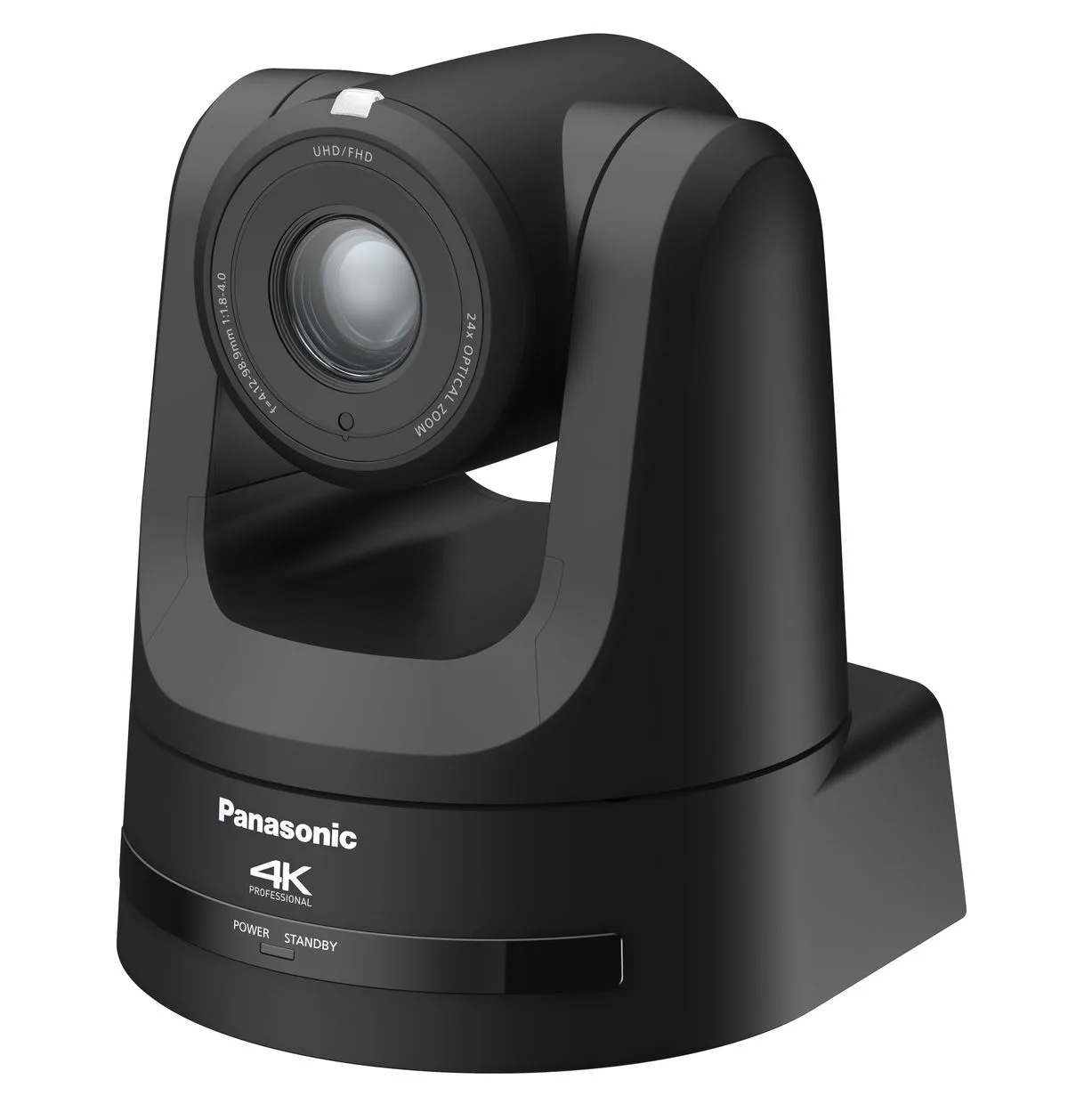
Image source: Web (Bing) / avnetwork.com (Web image (fair-use with source credit))
First, Identify Your Exact Symptom (Quick Decision Map)
Before you touch any cables, figure out what kind of "not connecting" you're dealing with. The fix for a camera that won't power on is completely different from one that powers on but refuses to show up in NDI software. Ask yourself these three questions:
- Does the camera have any power at all? Look at the Ethernet port LEDs on the back of the camera. If you see no lights, you have a power or physical connection problem.
- Can you see the camera's IP address? Use the on-screen menu (OSD) via the joystick on the back. If the camera shows an IP address, your network might be the issue.
- Can you access the web interface? If you can ping the camera but the web page won't load, a firewall or browser setting is likely blocking you.
Each branch below matches one of these symptoms. Jump to the section that fits your situation. If you're not sure, start with Branch 1.
It's the most common cause.
Branch 1: No Ethernet Link Light or No Power
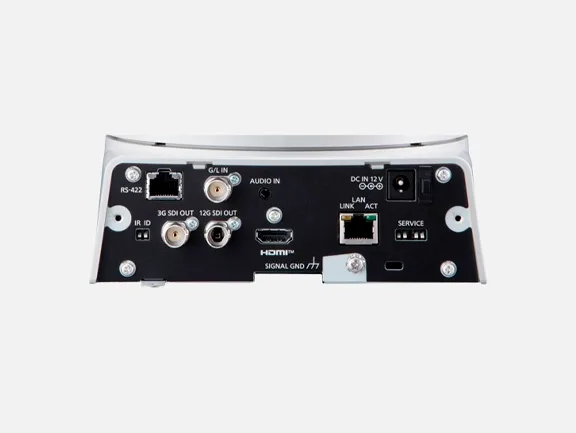
Image source: Web (Bing) / eurolink.ee (Web image (fair-use with source credit))
If the Ethernet port on the camera shows no lights at all, the camera is not receiving power. This is almost always a PoE issue. The AW-UE100 requires PoE+ (802.3at), which delivers up to 30 watts.
A standard PoE switch (802.3af) only provides 15.4 watts. That's not enough to run the camera.
Check the PoE switch or injector first. Make sure the port is enabled and not in a power-saving mode. Many managed switches can disable PoE on a port if the budget is exceeded.
Log into the switch and verify the port status. If you are using a PoE injector, confirm it is rated for 802.3at, not 802.3af. The camera's power draw is around 20 watts during normal operation, so a 15-watt injector will fail.
Also check the Ethernet cable. A faulty or loose cable can prevent the camera from negotiating power. Try a different cable, preferably a Cat5e or Cat6 patch cable under 100 meters.
If you have a cable tester, use it. No link light usually means no power negotiation. The same issue can happen with other network cameras if the switch port is misconfigured.
Branch 2: Camera Powers On but No IP Address
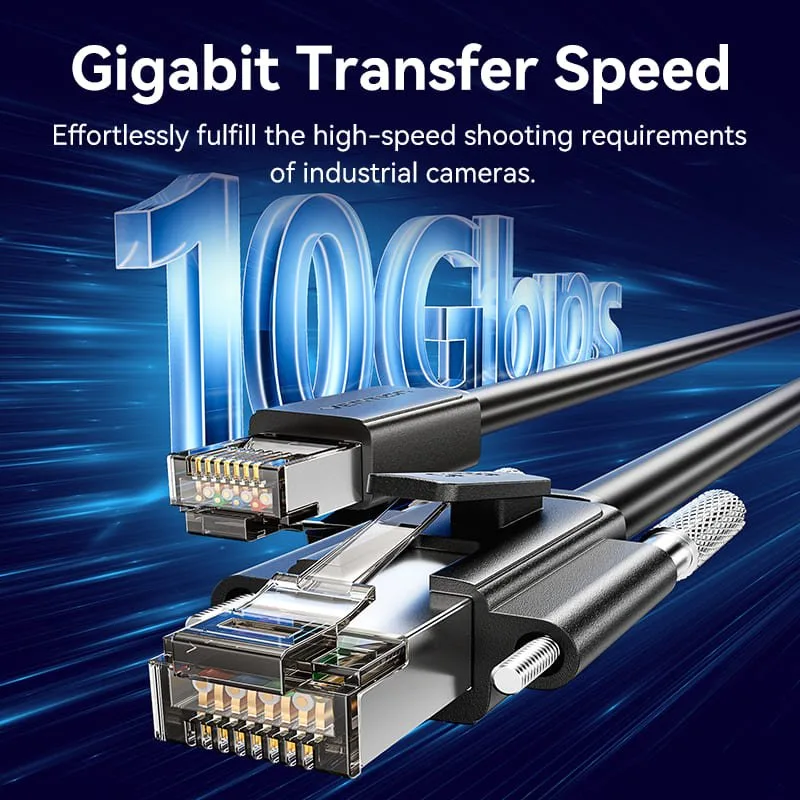
Image source: Web (Bing) / ventiontech.com (Web image (fair-use with source credit))
If the Ethernet port lights are on but the camera doesn't get an IP address, the problem is likely DHCP or subnet related. The AW-UE100 defaults to DHCP. If no DHCP server responds, it falls back to a static IP of 192.168.0.1.
That's a useful fallback, but it only works if your computer is on the same subnet.
The fastest way to check is through the camera's OSD menu. Use the joystick control on the back panel. Navigate to Network Setup and look for the IP address field.
If it shows 0.0.0.0, the camera failed to get an address. If it shows 192.168.0.1, it's in fallback mode.
Test by connecting the camera directly to a laptop with a known good Ethernet cable. Set your laptop's network adapter to a static IP of 192.168.0.2 with subnet mask 255.255.255.0. Open a browser and go to 192.168.0.1.
If the web interface loads, you know the camera hardware is fine. The issue is on your network side. This direct connection test is a reliable method for resolving offline camera issues across many PTZ models.
If the camera gets an IP but you can't reach it, check the subnet mask and default gateway. A mismatch between the camera's subnet and your computer's subnet will make the camera invisible. The OSD menu shows the full network configuration.
Write it down and compare it to your laptop's settings.
Branch 3: Web Interface Won't Load or Times Out
You can ping the camera, but the web page refuses to load. This is almost always a firewall or port issue. The AW-UE100 uses port 80 for HTTP and port 443 for HTTPS.
Some network security software or managed switches block these ports by default.
First, try both HTTP and HTTPS. Type http:// followed by the camera's IP address. If that fails, try https:// instead.
The camera supports both, but one might be disabled in the firmware. If you get a "Connection refused" error, the web server on the camera might not be running. A factory reset will re-enable it.
Next, check your computer's firewall. Windows Defender Firewall and third-party security suites often block unknown devices. Add an exception for the camera's IP address or temporarily disable the firewall to test.
If the web interface loads with the firewall off, you need to create a permanent rule.
Also clear your browser cache. An old cached page can cause a timeout even when the camera is reachable. Use a private browsing window for a clean test.
If you've been messing with the network settings recently, the camera might be on a different subnet than you think. The same approach works for accessing a camera's built-in web server on models from other brands, so this is a good general troubleshooting step.
Branch 4: NDI or Video Stream Not Appearing
The camera powers on, you can ping it, and the web interface works. But NDI isn't showing up in your production software, or the RTSP stream won't connect. This is a network protocol issue, not a hardware problem.
NDI|HX on the AW-UE100 uses a range of ports: 7000 to 7002 for video data, plus multicast traffic on port 5353 for discovery. If your network has strict multicast filtering, the camera will be invisible to NDI receivers. Check your switch settings.
IGMP snooping can block multicast if not configured properly. Disable IGMP snooping temporarily to test.
Firewalls are another common culprit. NDI broadcasts discovery packets over UDP. If your computer's firewall blocks UDP multicast, the software won't see the camera.
Add an inbound rule for UDP ports 5353 and 7000, 7002. Also allow TCP on ports 7000, 7002 for the NDI control connection.
For RTSP streams, the default port is 554. Make sure that port is open on your network. Some routers block RTSP by default.
You can test the stream using VLC Media Player by entering rtsp://[camera IP]:554/stream1. If VLC connects, the issue is in your production software, not the camera. This is a common pattern when solving stream discovery problems on PTZ cameras.
When All Else Fails: Factory Reset and Firmware Update
If you've tried all the branches above and the camera still won't connect, it's time for a factory reset. The AW-UE100 has a physical reset button on the back panel, near the Ethernet port. You'll need a small tool, like a paperclip, to press it.
Hold the reset button for at least five seconds. The camera will reboot and restore all settings to factory defaults. This includes the IP address, which will return to DHCP mode (or fallback to 192.168.0.1).
You'll lose any custom network configurations, so write those down first if you need them later.
After the reset, the camera should be reachable at its default IP. If not, the firmware might be corrupted. Check the Panasonic support site for the latest firmware version.
As of 2026, version 2.xx addresses several network stack bugs that could cause connection drops. Download the firmware file and update through the web interface.
A firmware update is straightforward. Open the web interface, go to the Maintenance tab, and upload the file. Do not power off the camera during the update.
A power loss mid-update can brick the unit. Use a UPS or make sure the PoE switch is stable. This is the same reset method we recommend for persistent issues on other PTZ cameras.
Mistakes That Waste Time When Troubleshooting the AW-UE100
The biggest mistake people make is assuming the camera is broken. Nine times out of ten, the problem is on the network side. Don't order a replacement camera until you've tested every branch above.
Another common error is ignoring the PoE budget. Managed switches have a finite power budget. If you add too many PoE devices, the switch will shut off ports to protect itself.
Log into your switch and check the PoE status. You might see a port that is "Powered Off" or "Insufficient Power."
Don't assume a new cable is good. Cables can be defective from the factory or damaged during installation. Always test with a known working cable before diving into advanced settings.
Also, don't forget to check VLAN configurations. If the camera is on a different VLAN than your computer, it will be invisible even if it has a valid IP address. If you've been dealing with random offline behavior on other cameras, the root cause is often the same network configuration issue.
Finally, don't skip the direct connection test. Connecting the camera directly to a laptop eliminates the entire network infrastructure. If the camera works there, the problem is in your switch, router, or firewall.
This step alone saves hours of guesswork.
Frequently Asked Questions
Why won't my AW-UE100 get an IP address?
The camera defaults to DHCP. If no DHCP server responds, it uses 192.168.0.1. Check the OSD menu to see what IP it shows.
If it's 0.0.0.0, the network cable or PoE switch is not supplying data properly. Test with a direct cable connection to a laptop.
Can I use a standard PoE switch with the AW-UE100?
No, the AW-UE100 requires PoE+ (802.3at), which delivers up to 30 watts. Standard PoE (802.3af) only provides 15.4 watts, which is not enough. Use a PoE+ switch or injector rated for at least 25 watts per port.
How do I factory reset the AW-UE100?
Use a paperclip to press the reset button on the back panel. Hold it for at least five seconds until the camera reboots. This restores all settings to factory defaults, including the IP address.
What ports does the AW-UE100 use for NDI?
NDI|HX uses UDP ports 5353 (discovery) and 7000, 7002 (video data). It also uses TCP on ports 7000, 7002 for control. Make sure your firewall allows these ports.
Why does the web interface time out but ping works?
A firewall or browser cache is usually the culprit. Try a private browsing window and both HTTP and HTTPS. If that fails, add an exception for the camera's IP address in your firewall.
The camera's web server could also be disabled, which a factory reset will fix.
How do I update the firmware on the AW-UE100?
Download the latest firmware from the Panasonic support site. Open the web interface, go to Maintenance, and upload the file. Do not power off the camera during the update.
Use a stable PoE connection, preferably with a UPS, to avoid bricking the unit.
How do I connect the AW-UE100 to a laptop directly?
Use a standard Ethernet cable to connect the camera's RJ45 port to your laptop's Ethernet port. Set your laptop to a static IP of 192.168.0.2 with subnet 255.255.255.0. Open a browser and go to 192.168.0.1.
This bypasses all network infrastructure and isolates the camera as the only variable.
What should I do if the camera still won't connect after all these steps?
If you've tried every branch, direct connection, factory reset, and firmware update, the camera may have a hardware defect. Check the Ethernet port for bent pins or damage. Test the power supply with a known-good PoE+ injector.
If nothing works, contact Panasonic support or your dealer.
Why does the camera lose connection randomly during use?
Random disconnects are usually a power or network stability issue. Check the PoE switch power budget. A switch running near its limit can drop ports intermittently.
Also check for loose Ethernet cables or switches that are overheating. A managed switch log will show port resets.

Similar Posts

































[…] same principle applies to other camera issues, like similar connection problems or common camera fixes, where settings adjustments often solve the root […]
[…] systematic approach to troubleshooting saves time, and it’s the same method you’d use for a camera that won’t connect properly. Work through the steps in order. Don’t skip the simple […]
[…] similar issue can affect other devices with power-hungry wireless modules. The steps for a device that isn't connecting can offer useful […]