GoPro HERO10 How to Format SD Card
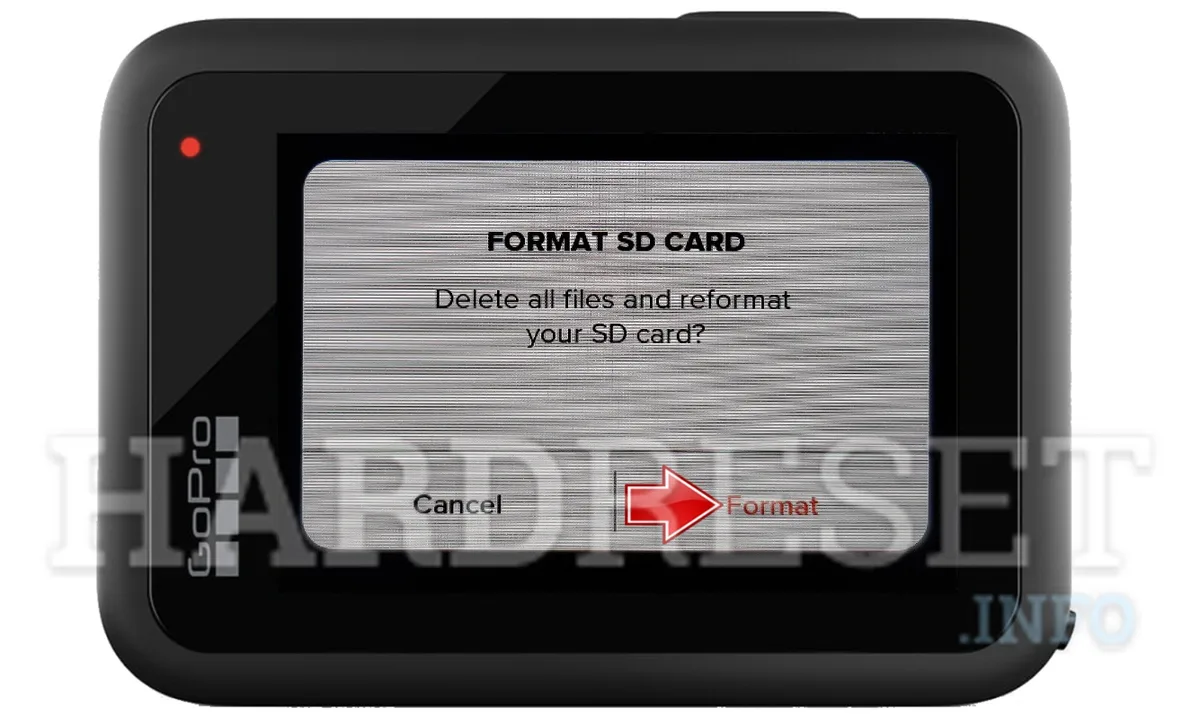
You're not the first person to stare at a GoPro HERO10 that refuses to record. The card is brand new. It should work.
But the camera keeps flashing that dreaded "SD Card Error" or just won't let you hit the record button. Nine times out of ten, the fix is something you can do in less than a minute: formatting the SD card correctly.
The GoPro HERO10 requires a UHS-I microSD card with U3 and V30 speed ratings. Use anything slower or format it in the wrong file system, and you'll run into problems. Let's walk through exactly what to do, when to do it, and what to avoid.
Image source: Web (Bing) / hardreset.info (Web image (fair-use with source credit))
Quick Answer
Go to the HERO10's Preferences menu. Select Format. Confirm the action.
The camera erases everything on the card. It sets the correct exFAT structure. This takes about three seconds.
Always use the camera for formatting, not your computer.
Why Formatting the Right Way Actually Matters
Formatting sounds simple. And it is. But there's a difference between a format that works and a format that keeps working.
The HERO10 records high-bitrate video at up to 5.3K resolution. That's a massive amount of data streaming onto a tiny card every second. If the card's file system isn't set up exactly the way the camera expects it, you get errors mid-recording or corrupted files.
The HERO10 needs the exFAT file system. Not FAT32. Not NTFS.
A single 4K video clip often exceeds the 4 GB file size limit that FAT32 can handle. When that limit hits, the camera either stops recording or creates a broken file. exFAT doesn't have that cap. The camera formats the card with exFAT automatically when you use the in-camera function.
That's the most reliable method.
Using your computer to format the card seems faster. It often is. But you might accidentally pick FAT32 or NTFS, or set the allocation unit size wrong.
The HERO10's internal formatting routine is tuned to its own hardware. It sets the cluster size and partition layout that the camera's processor expects. Similar to what can happen with a memory card error on other camera models, using the wrong format structure creates problems that aren't immediately obvious.
Different cameras need different file structures, and the HERO10 is no exception.
What You'll Need: The Only Cards That Won't Let You Down
Not every SD card works well with the HERO10. The camera is picky, and for good reason. Slow cards cause dropped frames and sudden recording stops.
If you're buying a new card or pulling one out of an old drawer, check these specs.
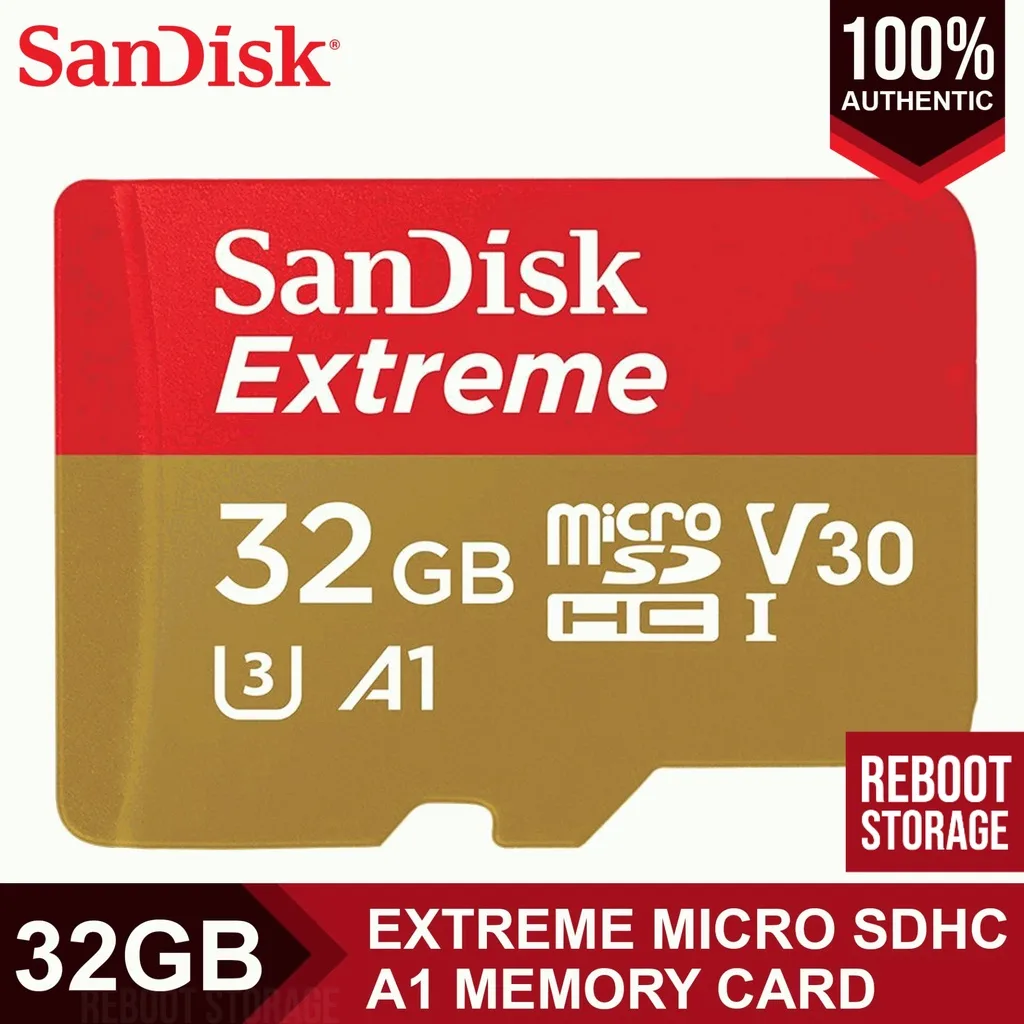
Image source: Bing (Web (fair-use with source credit))
Card Specifications You Can't Ignore
| Requirement | What It Means |
|---|---|
| Form factor | microSD (full-size SD won't fit) |
| Speed class | U3 minimum |
| Video speed class | V30 minimum |
| Interface | UHS-I |
| Capacity | 64 GB to 512 GB officially supported |
| Write speed | Sustained 30 MB/s or faster |
Most modern cards from reputable brands meet these specs. But older cards labeled "U1" or "Class 10" without U3 will almost certainly fail during 4K video recording. Aggregate reviews from verified buyers confirm that cheap cards from no-name brands often can't maintain the write speed the HERO10 demands.
Per SD Association standards, the V30 rating guarantees a minimum sustained write speed of 30 MB/s. That's the baseline you need.
Capacity Considerations
As of 2026, 128 GB and 256 GB cards offer the best balance of price and storage. A 128 GB card holds roughly two hours of 4K footage at standard bitrate. A 512 GB card is officially supported, but some users report occasional "card full" errors with certain brands at that capacity.
Stick with the 256 GB sweet spot if you want reliability without guessing.
What to Avoid
- MicroSD cards with a U1 or Class 10 label only (no U3)
- Cards you've previously used in dashcams or security cameras
- Cards that have ever shown a "card error" in any device
- Gray market cards from auction sites that are suspiciously cheap
If your card has been used in another device, format it in the HERO10 before you trust it for a shoot. Other cameras leave behind folder structures and hidden files that can confuse the GoPro.
Step-by-Step: The Decision Tree for Every Situation
Your exact situation determines the best way to format the card. Use this guide to find your path.
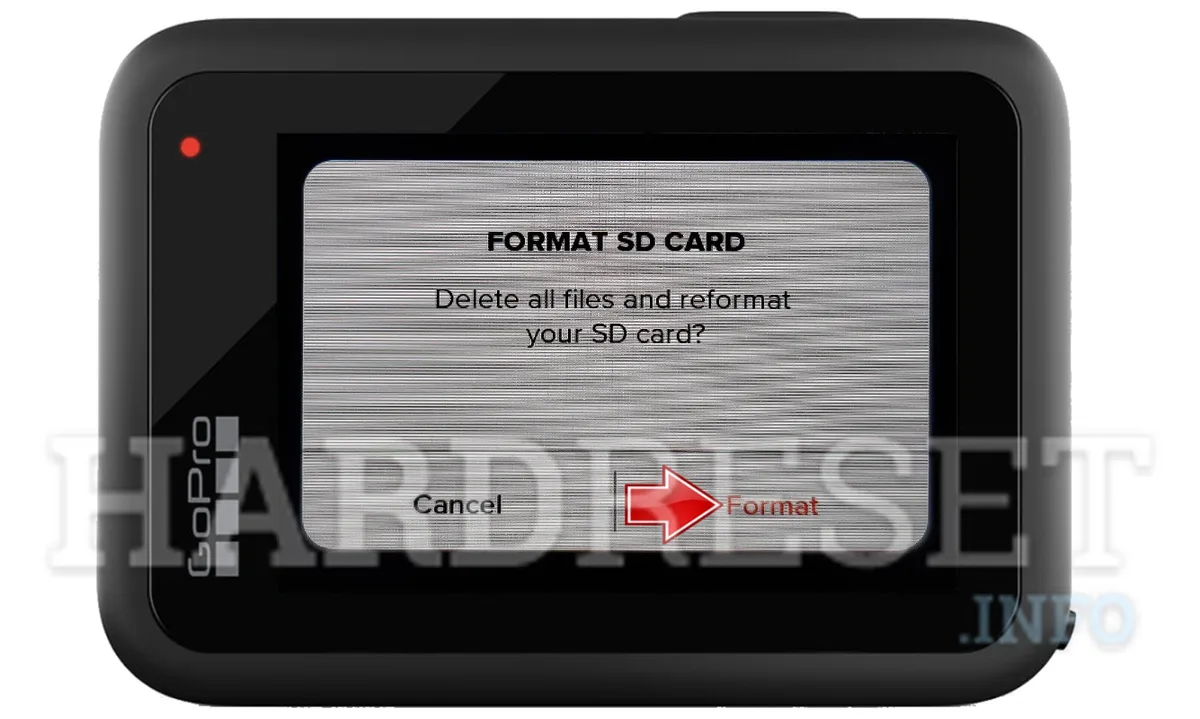
Image source: Web (Bing) / hardreset.info (Web image (fair-use with source credit))
Decision Tree: Choose Your Situation
| If This Is True | Do This First | Then |
|---|---|---|
| New card, never used | Format in the HERO10 | Use immediately |
| Card works but shows "card full" before it should | Backup footage then format in HERO10 | Use immediately |
| Card shows "SD Card Error" on HERO10 | Check compatibility first, then format in HERO10 | If error persists, try computer format as exFAT |
| Card was used in another camera or device | Format in HERO10 | Backup previous footage first |
| Camera freezes or won't power on with card inserted | Remove card, format on computer as exFAT, reinsert | If still freezes, test with a different card |
| Computer says card needs formatting | Cancel the computer prompt | Put card in HERO10 and format there instead |
Path A: Format Using the HERO10 (Recommended)
- Turn the camera on. Make sure the battery has at least 50 percent charge. A format interrupted by a dead battery can leave the card unusable.
- Swipe down from the top of the touch screen. This opens the quick menu.
- Tap the Preferences icon. It looks like a gear.
- Scroll down until you see "Format". On current firmware, it's near the bottom.
- Tap Format. A confirmation prompt appears.
- Tap Confirm. The screen shows "Formatting…" for two to three seconds.
- Power the camera off, then back on. Eject and reinsert the card.
Path B: Format Using a Computer (When the Camera Can't See the Card)
Sometimes the camera won't recognize the card. In that case, use a computer first.
On Windows:
- Insert the card into a card reader.
- Open File Explorer. Right-click the SD card drive.
- Select Format. In the File System dropdown, choose exFAT. Not FAT32. Not NTFS.
- Leave the Allocation Unit Size at Default.
- Click Start. Eject safely.
- After the computer format, put the card back in the HERO10 and do an in-camera format anyway.
On Mac:
- Insert the card. Open Disk Utility.
- Select the card from the left sidebar.
- Click Erase. In the Format dropdown, choose exFAT. MS-DOS (FAT) is FAT32 and won't work.
- Click Erase. Eject the card.
- After the computer format, do an in-camera format in the HERO10.
Path C: Card Lock Switch Problem
Check the physical lock switch on the side of the microSD card. If it's pushed down into the "Lock" position, the camera can't write to it or format it. Slide it back up.
This catches more people than you'd think. If you're used to updating firmware on other cameras and running into similar hardware issues, the same first step applies. Verify the physical switch before you troubleshoot anything else.
The Common Formatting Mistakes That Cost Footage
Most card problems aren't hardware failures. They're formatting errors or user habits.
Mistake 1: Formatting on the Computer Instead of the Camera
You format the card on your laptop because it's faster. It works for a while. Then the HERO10 stops recording mid-clip.
The computer's format got the file system right but the allocation unit size wasn't what the camera expected. Always format in the GoPro first. It's the same kind of gotcha that leads to persistent issues across different camera systems, where a matching card can behave fine until it hits the wrong structure.
Mistake 2: Using the Same Card Without Periodic Reformats
Cards get fragmented. Hidden system files accumulate. After several shoots, the file structure becomes messy.
Format the card at least once every five to ten full card downloads. This cleans out residual data and gives the file system a fresh start.
Mistake 3: Not Backing Up Before Formatting
Formatting erases everything. There's no undo button. Recovery tools exist but they're expensive and don't always work.
Backup your footage to at least two locations before hitting that format button. If you've figured out a decent transfer workflow for other gear, use the same discipline here.
Mistake 4: Ejecting the Card While the Camera Is Writing
The HERO10 writes data to the card even when it appears idle. Pulling the card out during this process can corrupt the file system. Always power the camera off fully before removing the card.
Wait for the LED to go dark.
Mistake 5: Using a Card That's Too Old
SD cards have a finite lifespan. Each cell can be written to a limited number of times. For a card used heavily with a GoPro, that lifespan might be two to three years.
Old cards show intermittent errors. If your card is older than three years and has seen regular use, replace it. A 128 GB U3 card is cheap compared to losing a day of footage.
When to Format Again: A Maintenance Cheat Sheet
Format When
- You just bought a new card. First thing, format it in the HERO10.
- You've filled the card completely and offloaded the footage. A format clears the slate.
- The card shows an error, even if it's just once. One error is a warning. Format and test.
- You're about to start an important shoot. A vacation, a wedding, a paid gig. Fresh format, no surprises.
- You've swapped the card between different devices. That card now has a mixed file system. Start fresh.
Don't Need to Format When
- You're just grabbing a few clips off the card and plan to keep recording on it. Deletion doesn't clean the file table the way a format does, but it's fine for mid-session use.
- The card is working fine and you're mid-shoot. Don't format mid-trip unless you have an error. You'll lose footage.
One More Thing
If you ever see a message that says "Card must be formatted" on your computer, do not click yes. Pull the card out. Put it back in the HERO10.
Format it there. The computer is detecting that the card's partition doesn't match Windows or macOS standards. That's exactly what you want.
The GoPro's official support documentation confirms that the camera's own format is the gold standard for reliable recording.
Frequently Asked Questions
What file system does the GoPro HERO10 use for SD cards?
The HERO10 uses the exFAT file system. FAT32 can't handle files larger than 4 GB, and your 4K clips will exceed that. NTFS isn't supported by the camera's hardware.
The in-camera format tool always sets exFAT automatically.
Should I format a new SD card before using it in the HERO10?
Yes. A brand new card straight out of the package should be formatted in the camera before its first use. Factory-formatted cards often use FAT32 or have cluster sizes that don't match the HERO10's expectations.
One quick in-camera format removes all guesswork.
How often should I format the SD card in my GoPro HERO10?
Format the card every five to ten full downloads. You don't need to format after every single offload, but doing it regularly clears out hidden file fragments. Before a big shoot, always format.
Why does my GoPro HERO10 say "SD Card Error" after formatting?
This usually means the card was formatted on a computer with the wrong settings. Try formatting again directly in the camera. If the error persists, test the card in another device.
If it fails there too, the card is likely failing and needs replacement.
Can I format the SD card using the GoPro Quik app?
No. The GoPro Quik app does not include a format function. The only way to format the card is through the camera's on-screen menu or by using a computer.
The app can manage files and transfer footage, but formatting requires direct access to the card's partition.

Similar Posts
































