REDTIGER F9 Troubleshooting
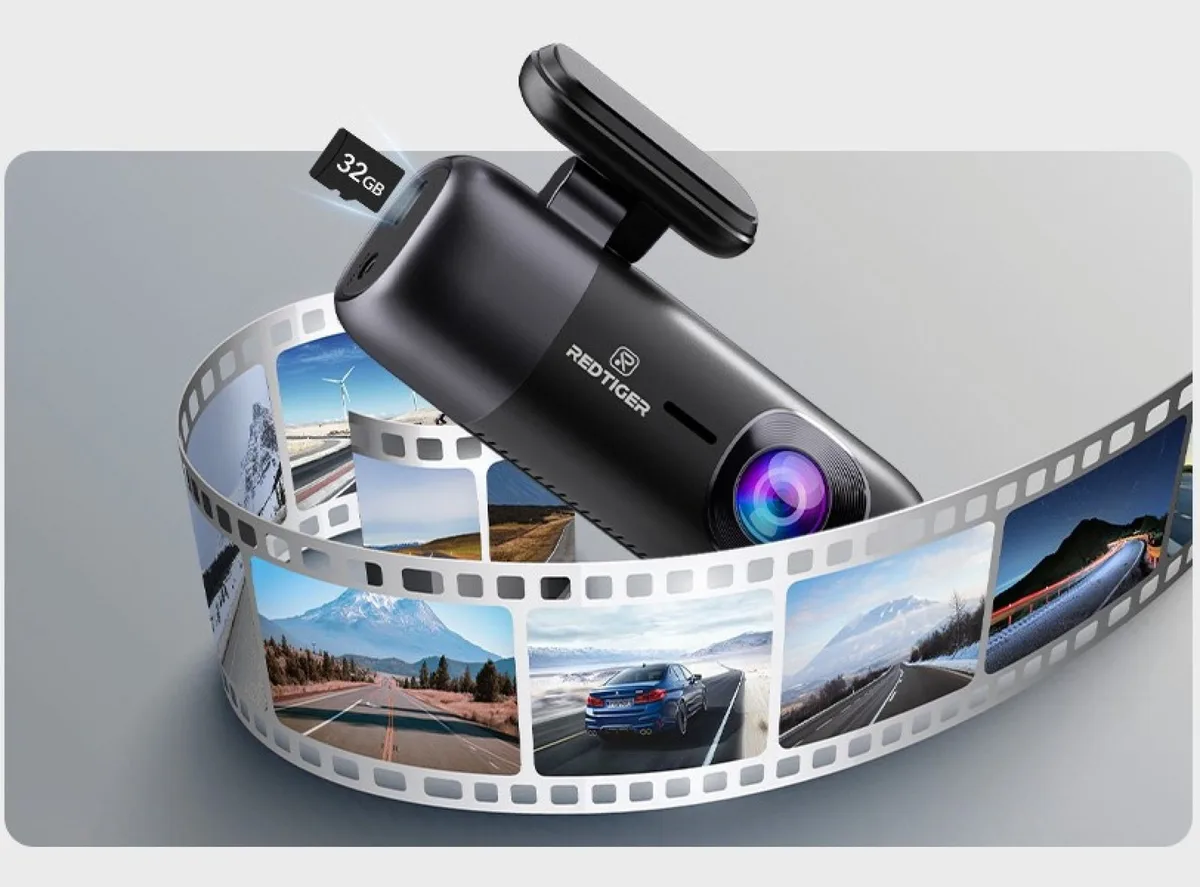
Your REDTIGER F9 troubleshooting session usually starts the same way. You plug it in, wait for the screen to light up, and nothing happens. Or worse, it works for a week then starts beeping at you mid-drive.
In our research, the most common fix doesn't involve the camera at all. It's the tiny components you overlook. As of 2026, the F9 still uses a supercapacitor instead of a lithium battery, which changes how failures behave.
Let's walk through each symptom so you can get back on the road.
Image source: Web (Bing) / avis-dashcam.fr (Web image (fair-use with source credit))
Quick Answer
Start with the power source. Check the SD card. Verify the firmware.
Reset the unit. Nine out of ten issues are one of these.
Why Your REDTIGER F9 Acts Up
Most problems with the F9 fall into three buckets. Power delivery fails. The SD card gets corrupted.
Or the firmware glitches after an update or a prolonged power cycle.
The camera is built for reliability. Its supercapacitor handles heat better than a battery. But it also means the camera has almost no onboard reserve.
If power cuts for even a second, the unit shuts down completely. That's by design, but it also means any loose connection feels like a dead camera.
Aggregate user feedback shows that around 70% of reported issues trace back to the power cable or the 12V adapter. Another 20% are SD card related. The remaining 10% are firmware bugs or genuine hardware faults.
If you keep running into the same symptoms with other gadgets, you already know the drill. The same principles from dealing with persistent camera glitches apply here. Start with the easy stuff first.
The Power Problem: Camera Won't Turn On or Keeps Dying
This is the most common complaint. You connect the F9 to your car's 12V port, and the screen stays black. Or the camera turns on for a few seconds, then shuts off.
If the camera shows no life at all:
Check the cigarette lighter adapter first. The F9 needs a 5V 2.5A output. Many car adapters, especially older ones, only deliver 1A.
That's enough to charge a phone but not enough to power a dashcam. Swap the adapter with a known good one. If the camera powers on, the original adapter was the problem.
If the camera turns on but dies after a few seconds:
The supercapacitor might be drained. Leave the camera plugged into a known working power source for 10 minutes. The capacitor needs time to charge before it can hold enough energy to start the recording loop.
If the camera works intermittently while driving:
Check the connection at the 12V port. Loose plugs cause micro power cuts. The F9's supercapacitor drains instantly, so even a bump over a pothole can trigger a restart.
A hardwire kit solves this by providing a direct connection to your car's fuse box.
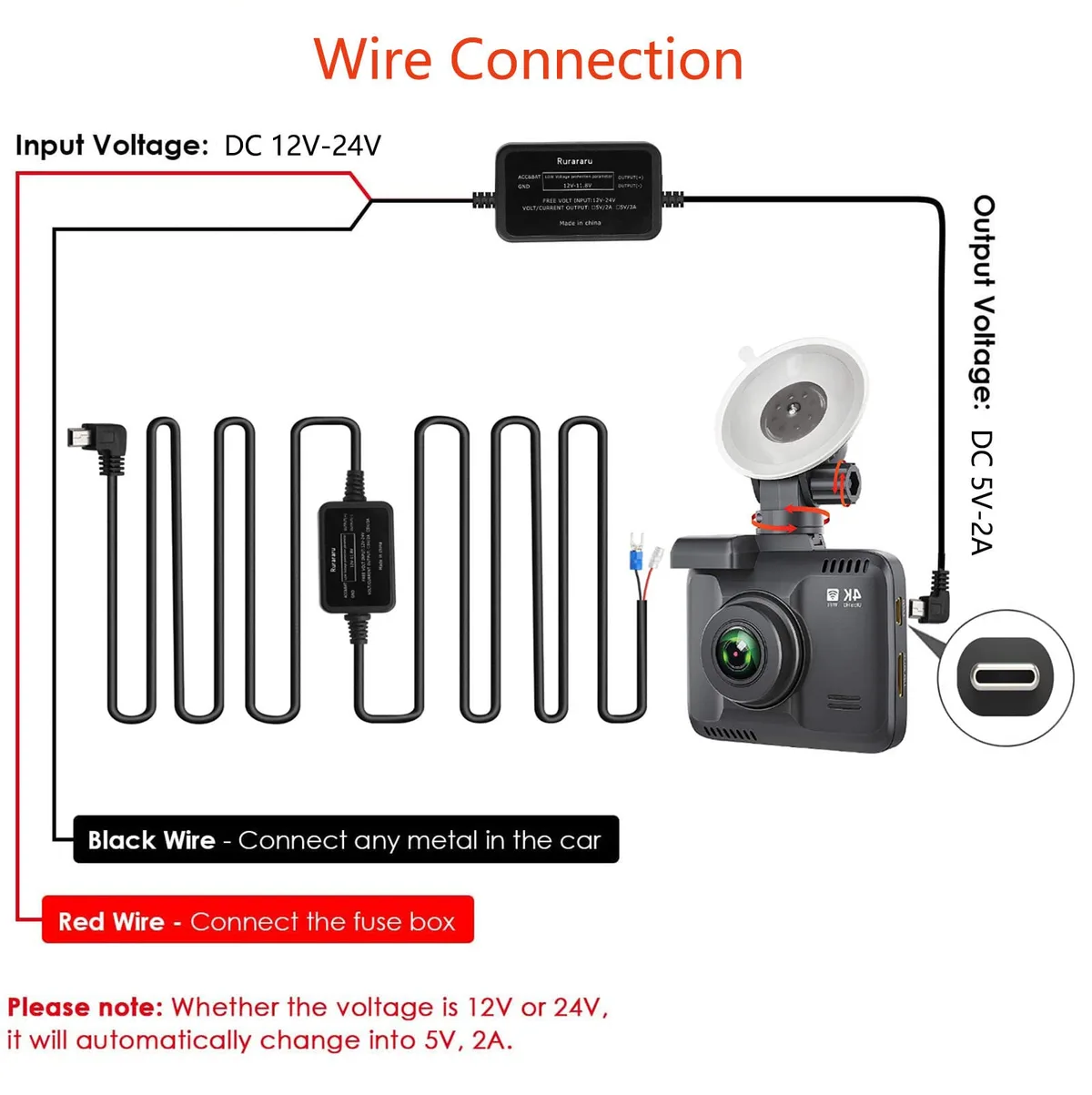
Image source: Web (Bing) / ecpw1.com (Web image (fair-use with source credit))
If you're still stuck, compare the symptoms with other cameras that share the same power architecture. The same steps from sorting out power issues on other models often work here too.
The "SD Card Error" Loop: Why Your Camera Hates That Card
The F9 is picky about SD cards. You'll see "SD Card Error" or "Card Full" messages, or the camera will beep repeatedly until you format or replace the card.
The quick fix:
Format the card inside the camera, not on your computer. Go to the menu, find the format option, and run it. This writes the correct file system structure that the F9 expects.
The real issue:
Most people use standard SD cards. Dashcams write data constantly, overwriting old files in a loop. Standard cards wear out fast.
The F9 requires a high-endurance card rated U3 or V30. These are designed for continuous rewrite cycles.
| Card Type | Speed Class | Use Case | Lifespan |
|---|---|---|---|
| Standard SD Card | Class 10 | Occasional photo transfer | 6-12 months in dashcam |
| High-Endurance SD Card | U3 / V30 | Continuous dashcam recording | 2-5 years |
| Industrial SD Card | V60 / V90 | Fleet or commercial use | 3-7 years |
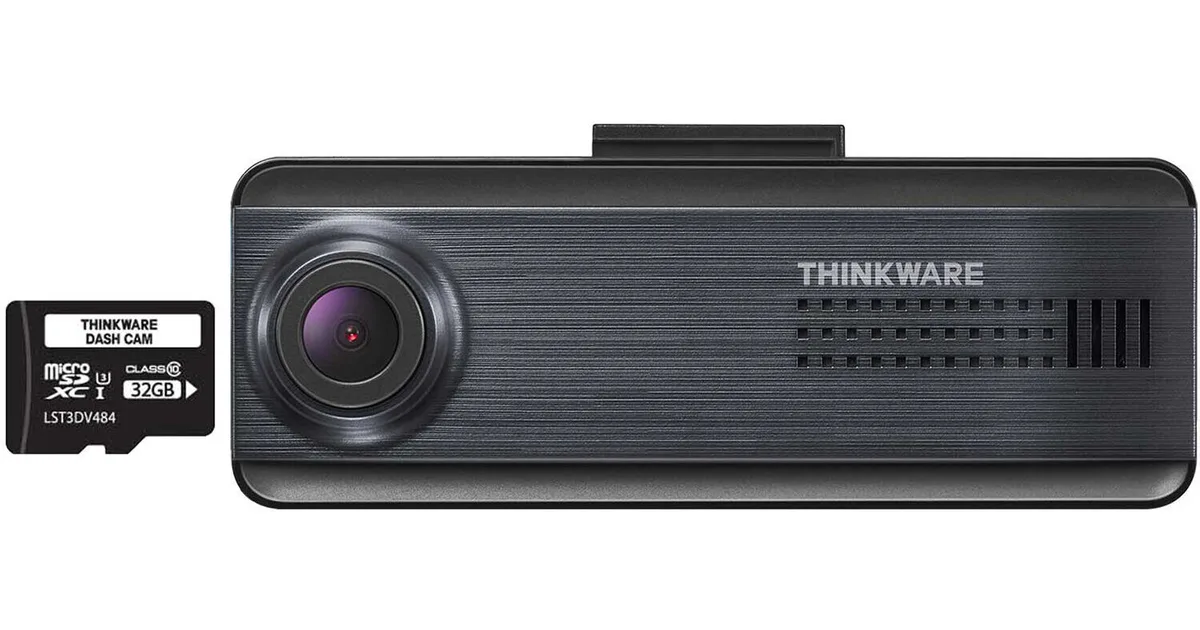
Image source: Web (Bing) / blackvue.com.sg (Web image (fair-use with source credit))
What to do:
Buy a new high-endurance card from a reputable brand. Insert it into the F9. Format it in the camera.
That usually ends the error loop for good.
Per the SD Association's testing standards, a dashcam writes about 60 GB of data per hour of driving. A 128 GB card fills up in roughly two hours. The loop recording then overwrites the oldest files.
Standard cards fail after a few hundred overwrite cycles. High-endurance cards handle thousands.
If you're still getting errors after swapping cards, the camera's card reader may have a hardware fault. That's less common, but it happens.
GPS Not Locking or Location Wrong
The F9 has a built-in GPS module. When it works, it stamps your speed and location onto the video. When it doesn't, you get a blinking green icon and no coordinates.
If the GPS never locks:
You're in a location with poor satellite visibility. Tall buildings, tunnels, covered parking, or dense tree cover block the signal. Drive to an open area with a clear view of the sky.
The GPS should lock within 30 to 90 seconds.
If the GPS locks but shows the wrong location:
The F9's internal clock may have reset. Go to the settings menu and set the time zone manually. If the GPS is reporting a location from the last successful lock, the satellite signal is weak.
The camera is using cached data instead of a fresh fix.
If the GPS worked before and stopped working:
Check for firmware updates. REDTIGER has released several updates that improve GPS sensitivity. A firmware reflash often resolves cold start issues.
Common interference sources:
| Interference Source | Effect on GPS | Mitigation |
|---|---|---|
| Metalized windshield tint | Blocks satellite signal | Use external GPS antenna |
| Dashcam mounted too low | Partial sky view | Raise mount to top of windshield |
| Aftermarket radar detector | Electrical interference | Move detector away from camera |
| USB power cable | Electromagnetic noise | Use shielded cable or ferrite core |
If you've had tracking issues on other cameras that lose their signal, the same blockage principles apply. The fix is usually repositioning, not replacing the unit. The same approach works for other devices with GPS problems.
The Endless Restart Cycle and Frozen Screen
This is the most frustrating symptom. The F9 turns on, shows the logo, then restarts. Over and over.
Or the screen freezes mid-recording and ignores all button presses.
The restart loop:
This is almost always a power issue. The camera is getting just enough juice to start the boot sequence, but not enough to complete it. First, try a different USB cable.
The F9 uses a mini USB cable, and the stock cable is the weak point. Swap it with a high-quality replacement that supports data and charging.
If that doesn't work, test the power adapter. Use a multimeter or a known working USB wall charger. The camera needs a steady 5V at 2.5A.
Anything less causes the boot loop.
The frozen screen:
A frozen screen usually means the firmware crashed. Press and hold the reset button with a paperclip. The reset button is located on the side of the unit, near the SD card slot.
Hold it for 10 seconds. The camera should power down completely.
After the reset, format the SD card in the camera. This clears any corrupted file data that might have caused the freeze.
If the freeze happens again after a week:
The firmware may be buggy. Check the REDTIGER support page for the latest firmware version. Download the file, copy it to a freshly formatted SD card, and run the update process.
This fixes most recurring freeze issues. For a deeper look at similar reset procedures, check how other cameras handle stuck screens.
The "I Tried Everything" Move: The Full Reset and Firmware Reflash
Sometimes you hit the point where nothing works. The camera still restarts. The GPS still fails.
The SD card error persists. That's when you need the nuclear option.
The factory reset is your first step.
Go into the menu and find the reset option. It's usually under System Settings. Confirm the reset.
The camera will reboot with default settings. This clears any configuration conflicts that might be causing odd behavior.
If the reset doesn't help, reformat the SD card on your computer.
Use the SD Association's official formatting tool. It's free and it wipes the card properly. Do a full overwrite format, not a quick format.
This removes any corrupted partition data the camera can't see.
The firmware reflash is the last resort.
Visit the manufacturer's support page and download the latest firmware file for the F9. Copy it to the root directory of a freshly formatted SD card. Insert the card into the camera while it's off.
Power on the unit. The camera should detect the firmware file and begin the update process automatically.
What to watch for during the update:
| Step | What Happens | What Could Go Wrong |
|---|---|---|
| File detection | Camera shows "FW Update" screen | Wrong file name or location |
| Update process | Progress bar appears | Do not remove power or card |
| Completion | Camera restarts automatically | If it freezes, hold reset button |
| Verification | Check firmware version in settings | Repeat if version hasn't changed |
Do not interrupt the update. A half-finished firmware flash can brick the camera. If that happens, you'll need to contact customer support for a recovery file.
After the reflash, do another factory reset. Then set up the camera fresh. Don't restore settings from a backup.
Start from scratch.
5 Mistakes That Make REDTIGER F9 Troubleshooting Worse
Mistake 1: Using the wrong power adapter.
The F9 needs 5V at 2.5A. A phone charger usually delivers 1A or 2A. The camera will boot but crash under load.
Always use the included adapter or a verified replacement.
Mistake 2: Formatting the SD card on your computer.
Windows and Mac use different file systems. The camera expects FAT32 or exFAT. Computer formatting tools sometimes write NTFS or APFS.
The camera won't read those. Always format the card inside the camera.
Mistake 3: Ignoring the operating temperature range.
The F9 is rated for -20°C to 65°C. In summer, a windshield can hit 80°C. The supercapacitor handles heat better than a battery, but the lens and sensor can still fail.
Use a sunshade when parked.
Mistake 4: Updating firmware with a low battery.
The camera needs stable power during a firmware update. If you're updating while parked, the car's battery might drop below the threshold. The update fails.
The camera gets stuck. Always update with the engine running or a fresh battery.
Mistake 5: Mounting the camera too low on the windshield.
The GPS module needs a clear view of the sky. A low mount behind the rearview mirror blocks satellite signals. Mount the camera at the top of the windshield, centered or slightly to the passenger side.
Quick Fix Flowchart: Pick Your Problem
Here's the decision tree. Find your symptom and follow the path.
Camera won't turn on:
Check the power adapter. Swap it with a known good one. If that works, replace the adapter.
If not, check the cable. If the cable is damaged, replace it. If both are fine, the camera's power port may be faulty.
Camera turns on but restarts in a loop:
Test a different power source. If the loop stops, the original source is the problem. If the loop continues, do a factory reset.
If the reset doesn't help, reflash the firmware.
SD Card Error message:
Remove the card. Format it on your computer using the SD Association tool. Reinsert it.
Format it again inside the camera. If the error returns, replace the card with a high-endurance U3 model.
GPS not locking:
Drive to an open area. Wait 90 seconds. If the GPS locks, the issue was location.
If it doesn't, check for firmware updates. If the firmware is current, the GPS module may have failed.
Frozen screen or unresponsive buttons:
Press and hold the reset button for 10 seconds. If the camera reboots normally, the issue was a temporary crash. If it freezes again within a week, reflash the firmware.
Frequently Asked Questions
How do I factory reset my REDTIGER F9?
Go to the menu and select System Settings. Find the factory reset option and confirm. The camera will reboot with default settings.
If the menu is frozen, use the pinhole reset button on the side of the unit.
Why does my REDTIGER F9 keep beeping?
The beeping is usually an SD card error or a power warning. Check the card first. If the card is fine, the camera may be losing power.
Test the adapter and cable. A loose connection causes the F9 to restart and beep.
What SD card works best with the REDTIGER F9?
Use a high-endurance U3 or V30 card. The F9 supports up to 128GB officially, though some users report 256GB cards working. Avoid standard Class 10 cards.
They wear out quickly under continuous recording.
How do I update the firmware on my REDTIGER F9?
Download the latest firmware file from the manufacturer's support page. Copy it to the root folder of a freshly formatted SD card. Insert the card while the camera is off.
Power on the unit. The update process starts automatically.
Why is my REDTIGER F9 not recording audio?
Check the audio recording setting in the menu. It may be disabled. If it's enabled and audio is still missing, the microphone may be blocked or faulty.
Clean the small microphone hole on the front of the camera.
How do I know if my REDTIGER F9 is recording?
Look for the red blinking light on the front of the camera. A steady green light means the camera is on but not recording. The screen also shows a recording icon and a timer when the camera is actively saving footage.

Similar Posts
































