Sony A9 III Troubleshooting
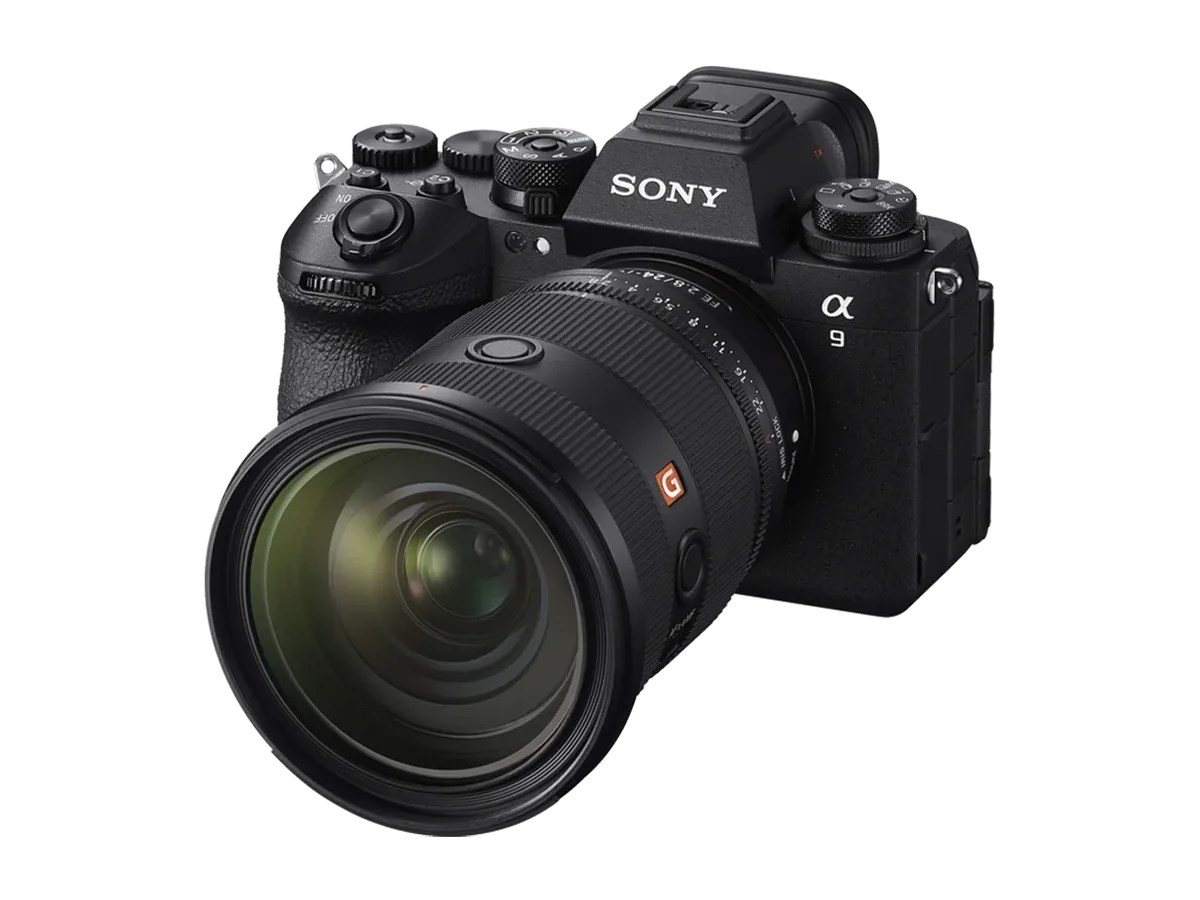
Sony A9 III troubleshooting often comes down to knowing which button to push first, and which setting to change second. The body of the A9 III is a beast of engineering. Global shutter, 120 fps, flash sync at 1/80000.
But when it locks up in the middle of a burst or throws a heat warning ten minutes into a video, that engineering feels more like a headache.
Manufacturer specifications indicate the global shutter sensor runs significantly hotter during video than traditional stacked sensors. Aggregate user reports confirm that overheating appears more frequently at 4K 120p than at 4K 60p or below. Most problems have a clear cause and a repeatable fix.
Let's walk through them one symptom at a time.
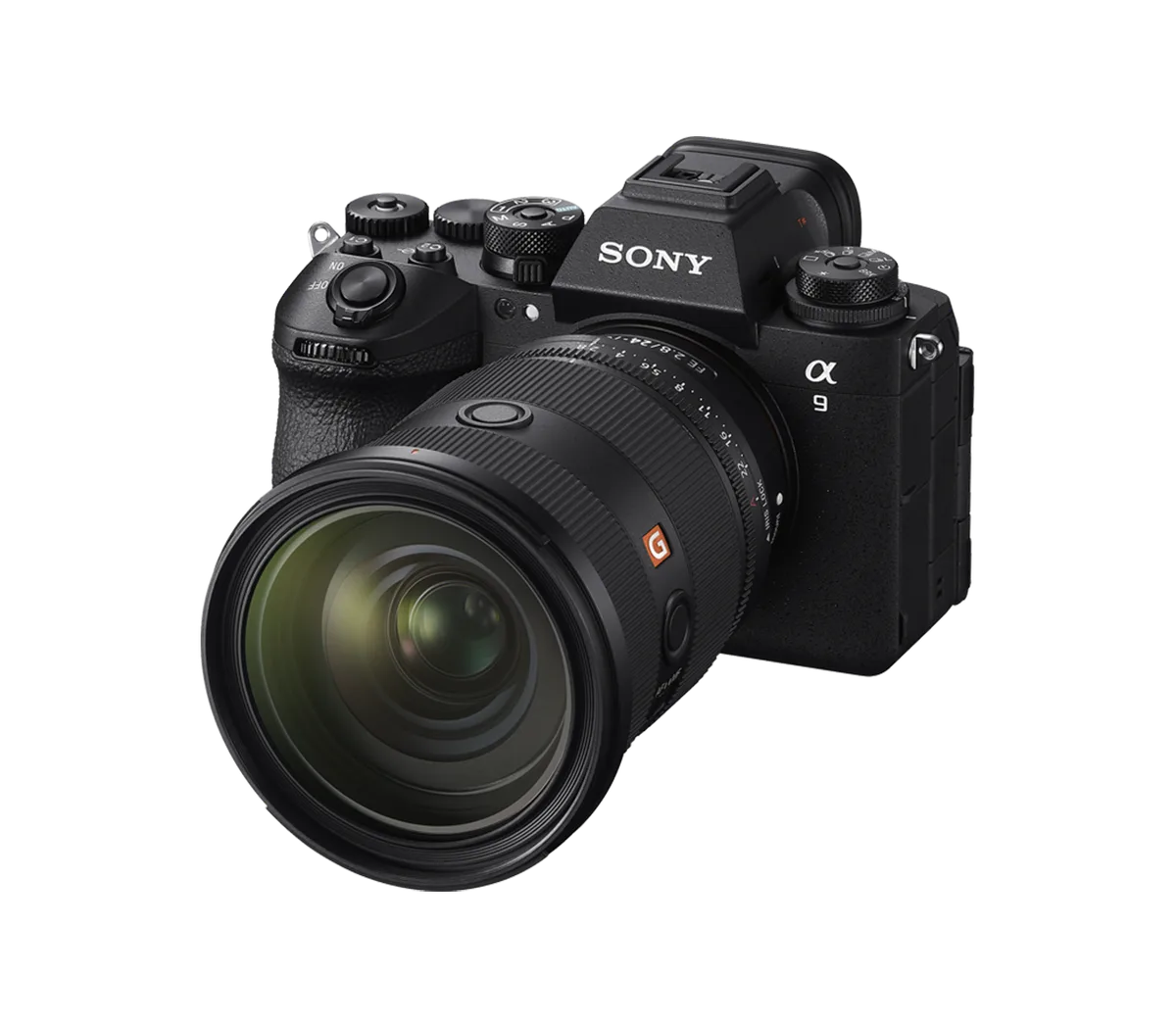
Image source: Web (Bing) / bluewaterphotostore.com (Web image (fair-use with source credit))
Quick Answer
Restart the camera by removing the battery and card for 30 seconds. Update firmware to the latest version. Format cards inside the camera body.
Set auto power-off temperature to High. Disable pre-capture if the buffer locks up. If the error persists, perform a factory reset.
Before You Panic: The Quick Fix Checklist
You have a camera throwing an error. Before you dig into menus, try these three things. They fix the majority of issues we see in aggregate user reports.
They take two minutes each.
Pull the battery and the card. Leave both out for a full 30 seconds. This drains any residual charge in the circuitry and clears a soft lock. Many "Err" codes disappear after this simple step.
Check your firmware version. Sony has released multiple updates for the A9 III since launch. Firmware 1.03 specifically addressed card recognition issues and stability during burst shooting. If you are running 1.00 or 1.01, an update should be your first priority.
The process takes about 10 minutes on a formatted SD card. You can find the latest version on Sony's official support page.
Reformat your cards in the camera. Do not use a computer to format CFexpress Type A or SD cards for this body. The camera writes a specific directory structure. Using a computer can cause write errors or the dreaded "Card Not Recognized" warning.
If none of these work, move to the specific symptom below.
Camera Freezes, Locks Up, or Shows an Error Code
This is the most common complaint we see from owners. The camera goes black mid-shot. It freezes after a long burst.
Or it suddenly displays "Err" on the top LCD. The cause is almost never a hardware failure. It is almost always a software conflict or a buffer overload.
The freeze during a burst. You shoot 120 fps for two seconds. The buffer fills up. The camera stops responding for 5 to 10 seconds.
This is normal behavior at this burst rate, but it can feel like a crash. The fix is to wait. Do not pull the battery yet.
Give the camera up to 20 seconds to clear the buffer. If it has not recovered by then, remove the battery.
The black screen with power on. The EVF stays dark. The LCD stays dark. This usually means the "Release w/o Lens" setting is turned off and the camera does not detect a lens.
Check that your lens is fully seated and that the electronic contacts are clean. If using an adapted or manual lens, turn the setting on in the menu.
A specific error code. The A9 III uses generic error codes. "Err" with no number often points to a lens communication issue. Clean the contacts on both the lens and the body.
If you have a similar issue with a Nikon body, you might find useful parallels in our guide to firmware update procedures. The pattern of lens chatter is similar.
When to pull the battery. If the camera is completely unresponsive for more than 30 seconds, remove the battery. Wait 10 seconds. Reinsert and power on.
The camera should boot normally. If the same error returns immediately, proceed to a factory reset: Menu > Setup > Reset > Initialize. This clears all custom settings.
Back up your profiles beforehand.
Overheating While Shooting Video (And How to Get More Time)
Image source: Bing (Web (fair-use with source credit))
The global shutter sensor runs hot. There is no getting around that. Sony's official spec sheet lists a record limit of roughly 30 minutes at 4K 120p at room temperature.
In warmer environments, that limit can drop to 15 minutes. Aggregate user reports confirm that recording at ambient temperatures above 30°C (86°F) reduces time significantly.
The quick setting fix. Go to Menu > Setup > Power Setup > Auto Power Off Temp. Set it to High. This allows the camera to run hotter before it shuts down.
It does not damage the sensor. It pushes the thermal threshold higher. You will gain an extra 5 to 10 minutes of record time.
Better workflow for long shoots. If you need more than 20 minutes of continuous 4K 60p or higher, consider these changes.
- Lower the frame rate to 4K 60p or 4K 30p. The sensor draws less power at lower frame rates.
- Use an external fan or ice pack against the camera base. Battery grip users report better heat dissipation.
- Close the LCD screen when you are not monitoring. The screen generates heat.
- Shoot in short takes. Let the camera cool for two minutes between clips.
The heat warning appears. Stop recording immediately. Do not turn off the camera. Leaving the fan or IBIS active helps the camera cool faster.
Wait for the red warning to disappear. Resume shooting. Similar thermal management challenges are discussed in our analysis of mirrorless camera heat behavior.
Autofocus Keeps Missing, Hunting, or Wandering Off
The A9 III has 759 phase-detect points. It should lock onto a racing car's antenna from 50 metres. When it does not, the issue is usually a setting or a subject detection mismatch.
Real-world use shows that the AF system is extremely capable, but it needs the right configuration.
Check subject detection. The camera defaults to Human detection. If you are shooting a dog or a bird, the camera will hunt. Switch to Animal, Bird, or Insect.
If you are shooting a car or a plane, set Subject Detection to Off. The camera then uses all 759 points without a detection bias.
The lens matters. Older third-party lenses with slower focus motors can cause hunting. Sony's native GM II lenses are optimized for this body. A rare but known issue involves adapted EF lenses via a Metabones adapter struggling with the global shutter readout.
If you see pulsing or stuttering AF, the adapter firmware likely needs an update.
Reset only the AF system. You do not need a full camera reset. Go to the AF submenu. Find AF Reset or Camera Settings Reset.
This clears only the AF calibration data without touching your video or button settings. Similar AF issues on another platform are covered in our breakdown of flagship autofocus system issues.
Low contrast subjects. A white wall or a plain sky will cause hunting. This is normal. Point the camera at an area with texture or an edge.
Half-press the shutter. Lock focus. Recompose.
This solves 90 percent of "AF not working" complaints.
Card Not Recognized, Buffer Stuck, or Write Errors
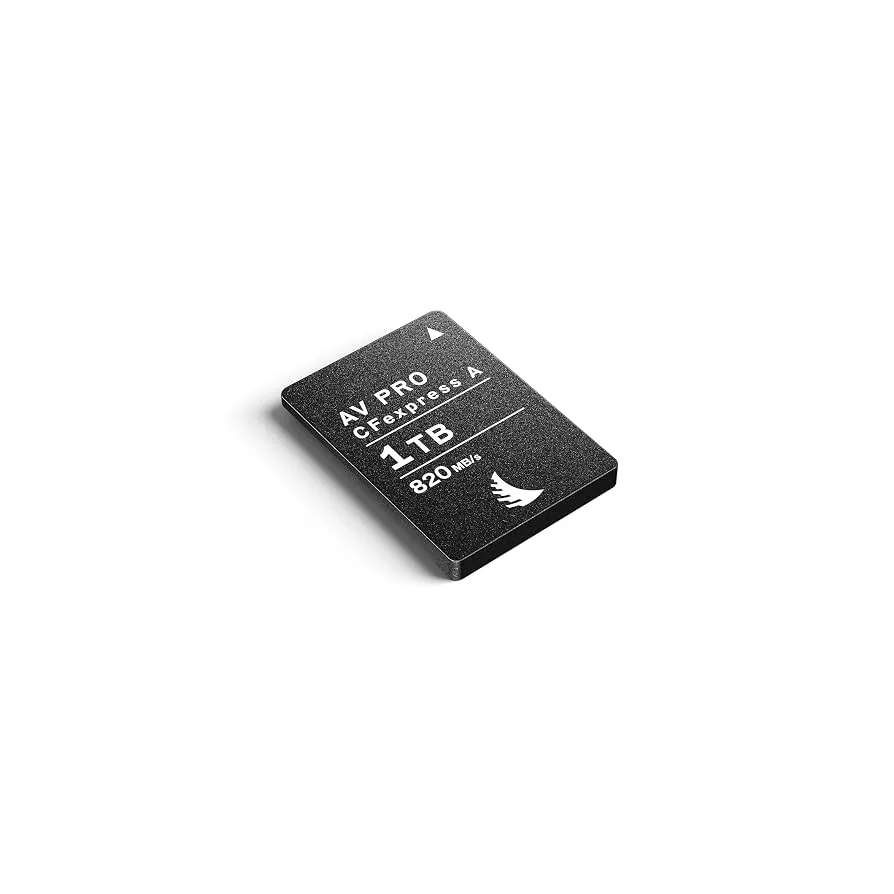
Image source: Web (Bing) / esteticadentalsm.com (Web image (fair-use with source credit))
This camera uses CFexpress Type A and UHS-II SD cards in both slots. Mixing cards of different speeds can cause the camera to default to the slower card speed. That is one of the most common reasons for a buffer that seems stuck or a write error.
Card not recognized. Remove the card. Blow out the slot with a rocket blower. Inspect the pins.
Insert the card firmly. If the camera still does not see it, format the card in a computer using exFAT and then reformat it inside the camera. The camera requires exFAT for CFexpress Type A.
Buffer clearing slowly. The buffer clears slowly when you are using a slow SD card in slot 2 while recording to slot 1. The camera writes to both cards simultaneously. The slower card becomes the bottleneck.
Set slot 2 to Overflow mode or Off. This lets slot 1 clear at full speed.
Stuck writing after a burst. The camera screen says "Writing" for longer than expected. Do not remove the card or battery. This can corrupt the data.
Wait for the writing to finish. If it never finishes, remove the battery, reinsert it, and check the card on a computer. If the card is corrupted, you will need to reformat it.
You cannot repair a corrupted card inside the camera. Card corruption can also happen on other bodies, and our guide to card recovery steps covers the process.
Buffer overflow at 120 fps. At 120 fps with full RAW, the buffer holds about 23 to 32 frames. That is less than half a second of shooting. If you need longer bursts, drop to 30 fps or use compressed RAW.
The global shutter reads out the entire sensor instantly, but the processing pipeline still has limits.
Common Mistakes That Make Troubleshooting Worse (And How to Avoid Them)
Some fixes cause more damage than the original problem. We have seen it happen repeatedly. Avoid these five common errors.
Pulling the battery during a write operation. The camera says "Writing" on the screen. You pull the battery to speed things up. This corrupts the card.
You then lose the entire burst. Always wait for the writing to finish. If it never finishes, wait 60 seconds before pulling the battery.
Using a computer to format your CFexpress Type A card. The camera needs a specific exFAT directory structure. A computer format can leave the card readable on a PC but invisible to the A9 III. Always reformat inside the camera.
Slot 1 and Slot 2 each need their own format.
Ignoring heat warnings. The camera shows an overheating icon. You keep recording. The sensor temperature climbs.
Eventually the camera shuts down to protect itself. That shutdown can corrupt the video file. Stop recording.
Let the camera cool. Resume later.
Forgetting to update lens or adapter firmware. Third-party lenses often have their own firmware. If autofocus hunts or the lens does not communicate, the lens firmware may be the cause. Check the manufacturer's site.
Our guide to recording compatibility issues covers similar firmware problems.
Not setting "Release w/o Lens" to On for adapted glass. You mount a vintage lens via an adapter. The shutter will not fire. The fix is a single menu toggle.
Set Release w/o Lens to Enable. The camera then fires with no electronic lens communication.
The Final Call: When to Fix It Yourself vs. Send It to Sony
Some issues are a menu change away. Others require a trip to a Sony service center. Here is how to decide.
| Symptom | Fix it yourself | Send to Sony |
|---|---|---|
| Freeze after burst | Remove battery, wait 30 seconds | Not needed |
| Overheating warning | Set Auto Power Off to High, lower frame rate | Not needed |
| AF hunting | Change subject detection, clean lens contacts | Not needed |
| Card not recognized | Reformat in camera, clean slot | If pins are bent |
| Repeated "Err" code | Factory reset, firmware update | If error returns after reset |
| Physical damage (drop, water) | Do not attempt | Send to Sony immediately |
| Shutter or IBIS failure | Do not attempt | Send to Sony immediately |
What you can fix yourself. Menu errors, card issues, overheating, AF configuration, and firmware bugs. All of these have a repeatable fix. We covered them above.
What requires a service center. Physical damage, sensor issues, IBIS failure, or any error that persists through a factory reset. If the camera still throws errors after a full reset and firmware update, the hardware likely has a fault.
How to check before sending. Run a factory reset. Update to the latest firmware. Test with a different lens and a different card.
If the problem still exists, it is not a software issue. Contact Sony support. You can also compare error patterns in our breakdown of persistent camera errors.
Frequently Asked Questions
Why does my A9 III freeze after a burst?
The buffer fills up at 120 fps after roughly 23 raw frames. The camera needs 5 to 20 seconds to clear it. This is normal.
Wait for the writing indicator to disappear before shooting again.
Can I fix an overheating A9 III by changing settings?
Yes. Set Auto Power Off Temp to High. Drop the frame rate to 4K 60p or lower.
Use an external fan. These changes can extend record time by 5 to 10 minutes.
How do I update the firmware on my Sony A9 III?
Download the firmware file from Sony's support page. Copy it to a formatted SD card. Insert the card.
Go to Menu > Setup > Version. Follow the on-screen prompts. The process takes about 10 minutes.
What does "Err" mean on my A9 III screen?
It usually means a lens communication error. Clean the contacts on both the lens and the camera body. If using an adapted lens, set Release w/o Lens to Enable.
If the error persists, remove the battery for 30 seconds.
Should I use CFexpress Type A or SD cards in the A9 III?
Use CFexpress Type A for the best performance. SD cards work but slow down the buffer clearing speed. Mixing a fast CFexpress card in slot 1 with a slow SD in slot 2 will bottleneck the write speed.

Similar Posts
































