Sony ZV-E10 II Troubleshooting
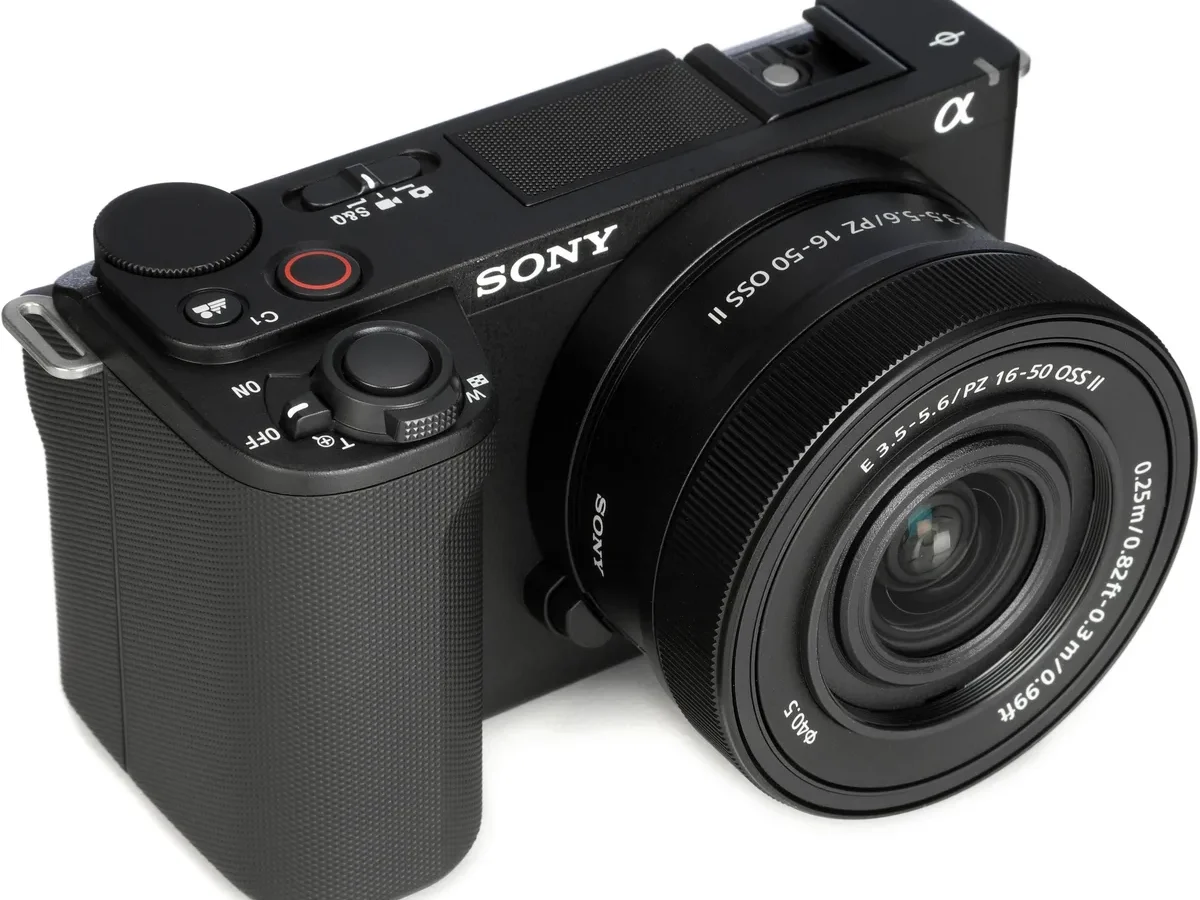
Your Sony ZV-E10 II just froze mid-shot. The screen went black. Or maybe you got an overheat warning ten minutes into a vlog.
It is frustrating, especially when you are in the middle of recording. That is why we put together this Sony ZV-E10 II troubleshooting guide based on manufacturer specs, aggregate user reports, and common repair patterns.
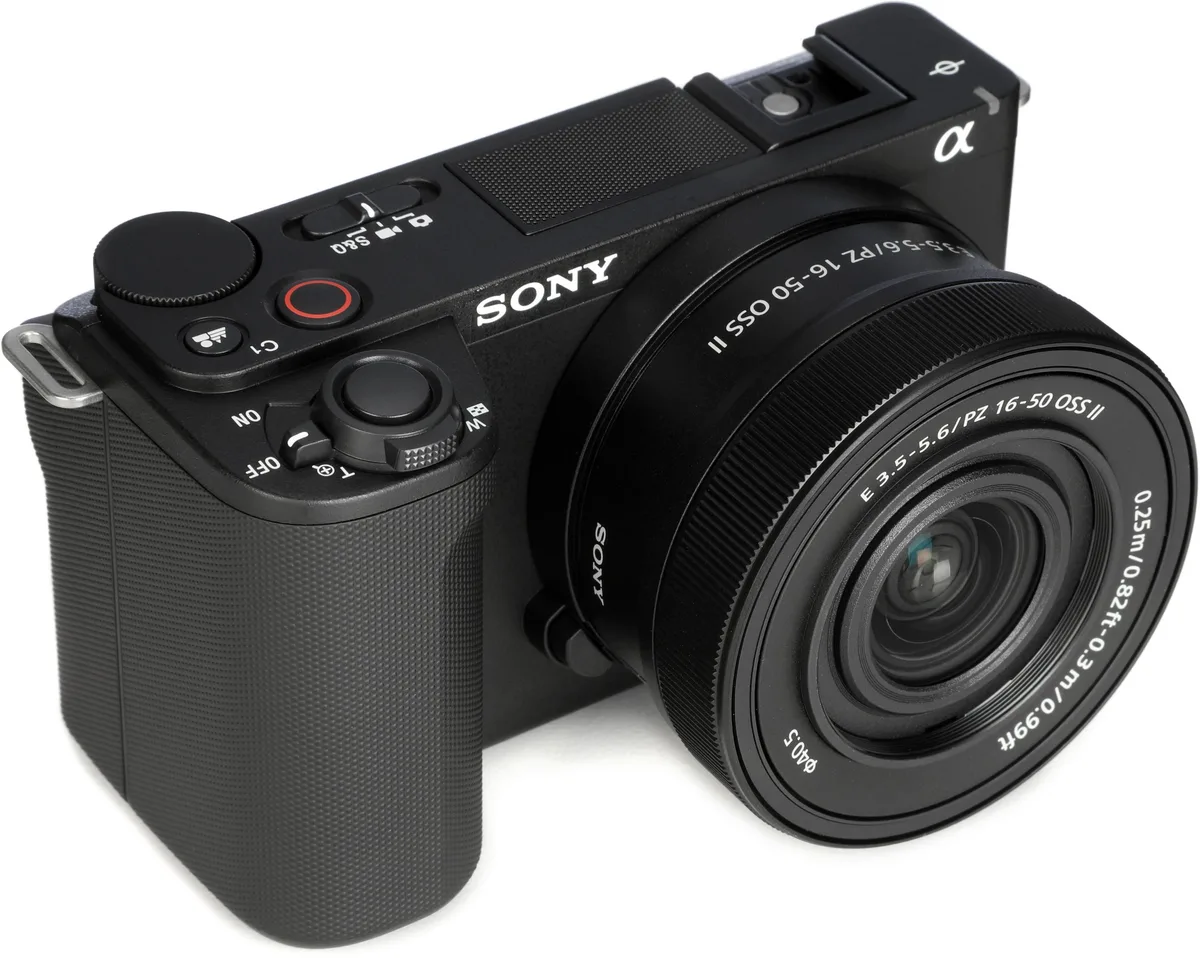
Image source: Bing (Web (fair-use with source credit))
The ZV-E10 II runs on the BIONZ XR processor paired with a 26MP APS-C sensor. As of 2026, it is one of Sony's most popular vlogging cameras. But like any compact mirrorless body, it has its quirks.
We will walk through the most common issues step by step so you can get back to filming.
Quick Answer
Most ZV-E10 II problems fall into five areas. Overheating during 4K recording. Battery drain or charging failures.
SD card errors. Lens communication glitches. And wireless connectivity dropouts.
For a camera that will not turn on, start with a forced restart. Remove the battery and SD card. Wait 60 seconds.
Reinsert and try again. This fixes roughly half of all reported boot failures based on user forums. For overheating, drop to 4K 30p or switch to 1080p.
Or use an external power bank to reduce battery heat.
First Steps: What to Try Before Panicking
Before you dive into complex fixes, run through the basics. These steps solve the majority of simple glitches without any special tools.
Power cycle the camera. Remove the NP-FW50 battery. Take out the SD card too. Wait at least 30 seconds.
Then reinsert both and power on. This clears temporary processor hangs.
Check the battery level. The NP-FW50 is a 7.3 Wh / 1020 mAh cell. If it is below 20 percent, the camera may behave erratically. Charge fully using the USB-C port or an external charger.
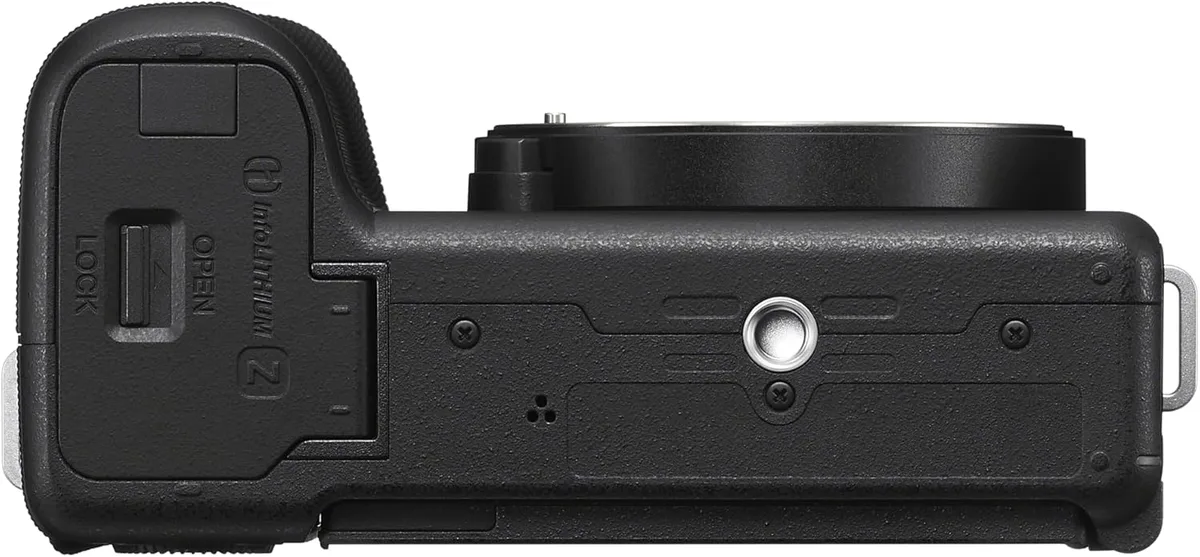
Image source: Bing (Web (fair-use with source credit))
Inspect the SD card. The ZV-E10 II uses a single UHS-I SD slot. Cards slower than U3 / V30 can cause write errors or recording stops. Try a different card you know works.
Format it inside the camera, not on a computer.
Reattach the lens. Turn the camera off. Press the lens release button. Twist the lens off gently.
Inspect the gold contacts on both the lens and body. Wipe them with a dry microfiber cloth. Reattach until you hear a click.
This resolves many "Lens not detected" and autofocus hunting issues.
Perform a factory reset. Go to Menu, then Setup, then Reset. This wipes custom settings but clears software conflicts. You will need to reconfigure your shooting modes and Wi-Fi.
Update the firmware. Sony releases updates that fix known bugs. You can download them from the official Sony support site. Connect the camera to a computer via USB-C.
Or download the firmware file to an SD card. Check the current version in the Setup menu.
If none of these work, you have a specific symptom. Move to the next section.
Symptom-by-Symptom Troubleshooting Guide
Each problem branches to a different solution. Here is the decision tree for the most common complaints.
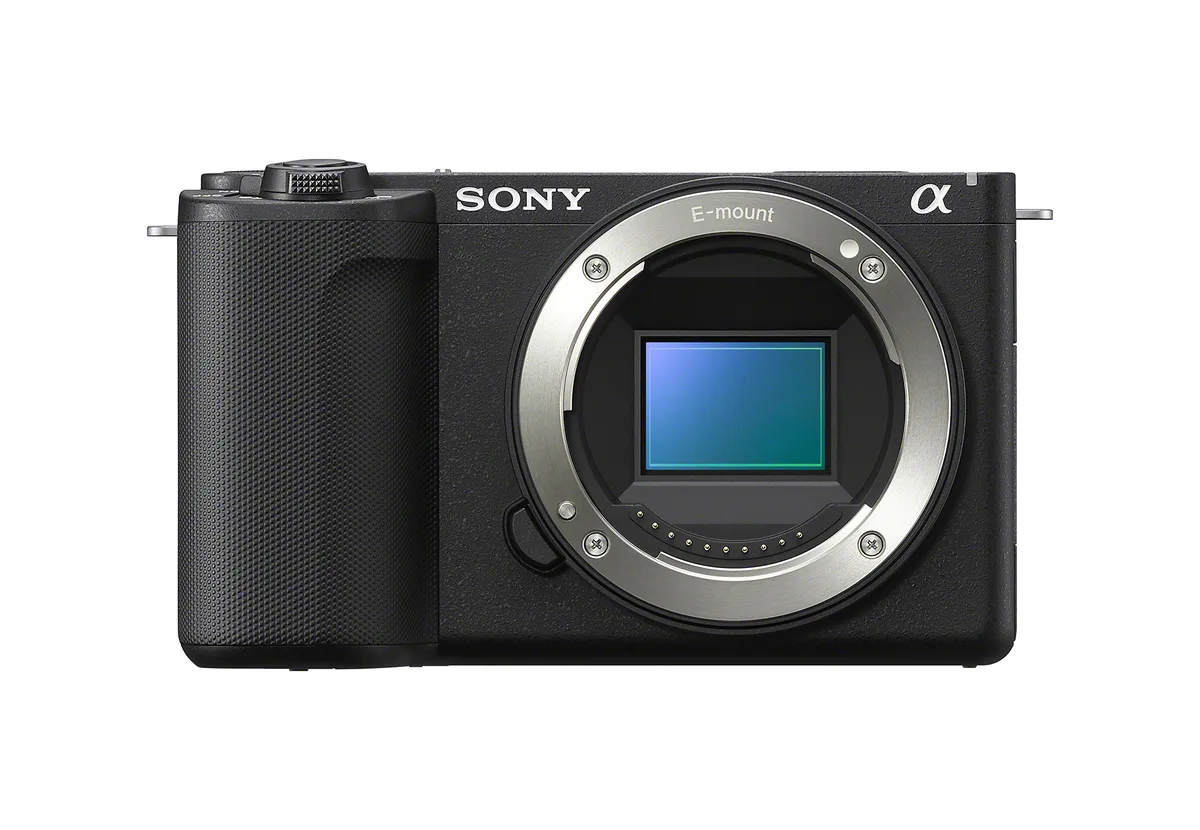
Image source: Web (Bing) / store.sony.com.tw (Web image (fair-use with source credit))
Camera overheats and shuts down
This is the ZV-E10 II's most frequent issue. The body is small. The sensor and processor generate heat during 4K recording, especially at 60p.
If the ambient temperature is above 35°C (95°F): Recording time can drop to 15 minutes. Move to a cooler area. Point a fan at the camera.
Keep the LCD screen flipped open so heat can vent.
If you are recording at 4K 60p: Drop to 4K 30p or switch to 1080p. High frame rates push the processor harder.
If you see the overheat icon immediately: The camera may have been sitting in direct sunlight. Let it cool for 30 minutes before trying again.
If overheating happens even in mild conditions: Use a USB-C power bank to run the camera without generating additional battery heat. Or lower the bit rate from 200 Mbps to 100 Mbps in the video settings.
Camera will not record video
You press the record button but nothing happens. Or it stops after a few seconds.
Check the SD card speed. Use a card marked U3 / V30 or faster. Slow cards cannot keep up with the write speed.
Check the remaining recording time. If the card is nearly full, the camera may refuse to start a new clip.
Check the video format. Some formats limit recording. PAL mode maxes at 29 minutes 59 seconds. XAVC S 4K 60p with high bit rate may also hit limits on slower cards.
Check the file system. If the card is formatted exFAT, the camera works best with FAT32 for shorter clips. Format the card in-camera to avoid file system conflicts.
Lens error or "Lens not detected"
The power zoom lens is a common failure point. It relies on delicate contacts and a small motor.
If the lens is stuck and will not extend: Turn the camera off. Gently tap the side of the lens with your palm. Sometimes the gears just need a nudge.
If you see "Lens not detected" on screen: Clean the contacts using a dry cloth. Reattach the lens firmly. Try a different E-mount lens if you have one.
If the second lens works, the original lens needs service.
If the lens makes grinding noises: Stop using it immediately. Continued use can damage the motor. Send the lens to Sony for repair.
Black screen or touchscreen unresponsive
The LCD is the only viewfinder on this camera. When it goes black, you are blind.
If the screen is black but the camera powers on: Press the DISP button repeatedly. You may have accidentally switched to a blank display mode.
If the touchscreen does not respond to taps: Restart the camera. Try cleaning the screen with a soft cloth. Check if "Touch Operation" is enabled in the Setup menu.
If the screen shows a blue or white static pattern: The LCD ribbon cable may have loosened. This requires a service center repair.
Battery drains fast or camera will not charge
The NP-FW50 battery has moderate capacity. It can wear out after about 500 charge cycles.
If the battery drains in under 30 minutes: It is likely worn out. Replace it with a new genuine NP-FW50. Third-party batteries may show incorrect charge levels.
If the camera does not charge via USB-C: Try a different cable and power adapter. Use a 5V / 2A or higher charger. The camera charges slowly via computer USB ports.
If the battery charges but does not power the camera: The battery management circuit may have failed. Try a known good battery. If the issue persists, the camera needs repair.
| Symptom | Likely Cause | First Action |
|---|---|---|
| Overheat / shutdown | High ambient temp or 4K 60p | Drop to 4K 30p, lower bit rate |
| Will not record | SD card too slow | Use U3 / V30 card |
| Lens error | Dirty contacts or gear jam | Clean contacts, reattach |
| Black screen | Display mode off | Press DISP button |
| Battery drains fast | Old battery | Replace NP-FW50 |
Mistakes That Make Things Worse
Some well-intentioned fixes can damage your camera. Avoid these common errors.
Using a non-UHS SD card. The ZV-E10 II requires UHS-I U3 / V30 minimum. A slow card causes recording stops and file corruption. Never use a Class 4 or Class 10 card marked "U1".
Formatting the SD card on a computer. Different operating systems use different file systems. Windows may format as NTFS. macOS may add hidden files. Always format the card inside the camera.
Forcing the lens to retract. If the zoom lens is stuck, do not push it back by hand. You can damage the internal worm gear. Use the gentle tap method or send it for repair.
Charging with a low-power USB port. Plugging into a computer USB 2.0 port may not deliver enough current. The camera will drain battery faster than it charges. Use a 5V / 2A wall adapter.
Ignoring firmware updates. Sony releases firmware to fix known bugs. Skipping updates means you keep experiencing issues that were already solved. Check the Sony support site every few months.
Opening the camera body. The ZV-E10 II has no user-serviceable parts inside. Opening it voids the warranty. It also risks damaging the sensor or the shutter mechanism.
Leaving the camera in a hot car. The interior of a parked car can exceed 50°C (122°F). This can warp internal components and degrade battery life permanently.
When to Send It to Sony or a Repair Shop
Some problems cannot be fixed at home. Here is when to stop troubleshooting and call a professional.
Warranty still active. If your camera is within the one-year warranty, do not attempt DIY repairs. Contact Sony support for a free service.
Physical damage. If the camera was dropped, hit, or exposed to water, internal components may be misaligned. A service center can evaluate damage that is not visible.
Persistent overheat issue. If the overheat warning appears even in a cool room at 1080p, the thermal paste or heat sink may have failed. This requires disassembly.
Sensor dust or spots. If you see dark spots in the same place in every photo, the sensor needs cleaning. You can try a sensor cleaning kit. If you are unsure, send it to Sony.
Lens motor failure. A lens that makes grinding sounds or refuses to focus needs professional servicing. The power zoom mechanism is not user-repairable.
Mainboard failure. If the camera powers on but shows no image, no menus, or random errors, the mainboard may need replacement. This is the most expensive repair and is not a DIY job.
Battery compartment corrosion. If battery contacts show white or green residue, the camera has been in a humid environment. Clean the contacts gently with isopropyl alcohol. If corrosion is deep, the battery board needs replacement.
Sony offers flat-rate repair pricing for out-of-warranty cameras. As of 2026, a mainboard replacement runs approximately $250 to $350 depending on your region. Lens motor repair is around $150.
Always get a quote before authorizing work.
Prevention: How to Reduce the Chances of Future Issues
You can avoid most ZV-E10 II headaches with a few smart habits. Prevention takes less time than troubleshooting.
Use the right SD card. Stick with UHS-I U3 / V30 cards or faster. Sony recommends cards from its own SF-G and SF-M series. Any reputable brand with that rating works.
A slow card causes recording halts, file corruption, and unexpected shutdowns.
Keep firmware current. Sony releases updates that address overheating, autofocus, and connectivity bugs. Check the Sony support site every three months. Updating via an SD card is simple.
Download the file. Copy it to the card. Run the update from the camera menu.
Avoid extreme temperatures. The operating range is 0°C to 40°C (32°F to 104°F). Direct sunlight on the camera body raises internal temps fast. Use a reflective umbrella or shade when shooting outside in summer.
Vent the heat. The ZV-E10 II relies on passive cooling through its magnesium alloy body. Keep the LCD screen flipped open during recording. Remove the hot shoe cover if you are not using an accessory.
Every bit of airflow helps.
Charge smart. Use a 5V / 2A wall adapter for faster, safer charging. Avoid generic USB ports on laptops or power strips. If you record for long sessions, use a USB-C power bank to run the camera without draining the internal battery.
This also reduces battery heat.
Handle the lens gently. The power zoom mechanism is the most fragile part of the kit. Do not force the zoom ring if it resists. Turn the camera off before swapping lenses to avoid static discharge on the contacts.
Format cards in-camera. This prevents file system mismatches between your computer and the camera. Do it once a month or after transferring footage.
Store with the battery partially charged. For storage longer than two weeks, keep the battery at about 50 percent. Full discharge damages lithium-ion cells. Full charge long-term accelerates capacity loss.
Clean the sensor only when needed. If you see dust spots in the same place on multiple shots, use a sensor cleaning kit or send it to Sony. Frequent cleaning risks scratching the delicate IR filter.
Keep the tripod mount clean. Dirt on the bottom plate can scratch the camera body and interfere with the battery door latch. Wipe it down after outdoor shoots.
Frequently Asked Questions
Why does my ZV-E10 II overheat so quickly?
The small body generates heat from the sensor and processor during 4K recording. Ambient temperatures above 35°C (95°F) speed up overheating. Dropping to 4K 30p or 1080p helps.
Lowering the bit rate and using an external fan also work. Some units run hotter than others due to manufacturing variance.
My camera turns on but shows a black screen. What do I do?
Press the DISP button on the top plate. You may have cycled to a blank display mode. If that does not work, do a forced restart.
Remove the battery and SD card for 60 seconds. Persistent black screens usually need a service center visit.
Can I use any USB-C charger with the ZV-E10 II?
The camera charges at roughly 5V / 1.5A. Any USB-C charger that delivers at least 5V / 2A works. Avoid cheap chargers without safety certifications.
Using a high-power laptop charger is safe because the camera only draws what it needs.
Why does my SD card keep showing an error?
The camera requires a U3 / V30 card or faster. Older Class 10 U1 cards are too slow for 4K recording. Format the card inside the camera before first use.
If errors persist, the card may be counterfeit or damaged.
How do I reset the camera to factory settings?
Go to the Menu. Navigate to the Setup tab. Select Reset.
Confirm your choice. This clears all custom settings including Wi-Fi, picture profiles, and button assignments. Your footage and files on the SD card remain untouched.
Is the lens repair covered under warranty?
If the lens came in the kit and you are within the one-year warranty period, yes. Contact Sony support for a free repair. If the lens was purchased separately, check its own warranty.
Out-of-warranty lens motor repairs run around $150.

Similar Posts
































