Stealth Cam Fusion SD Card Problems
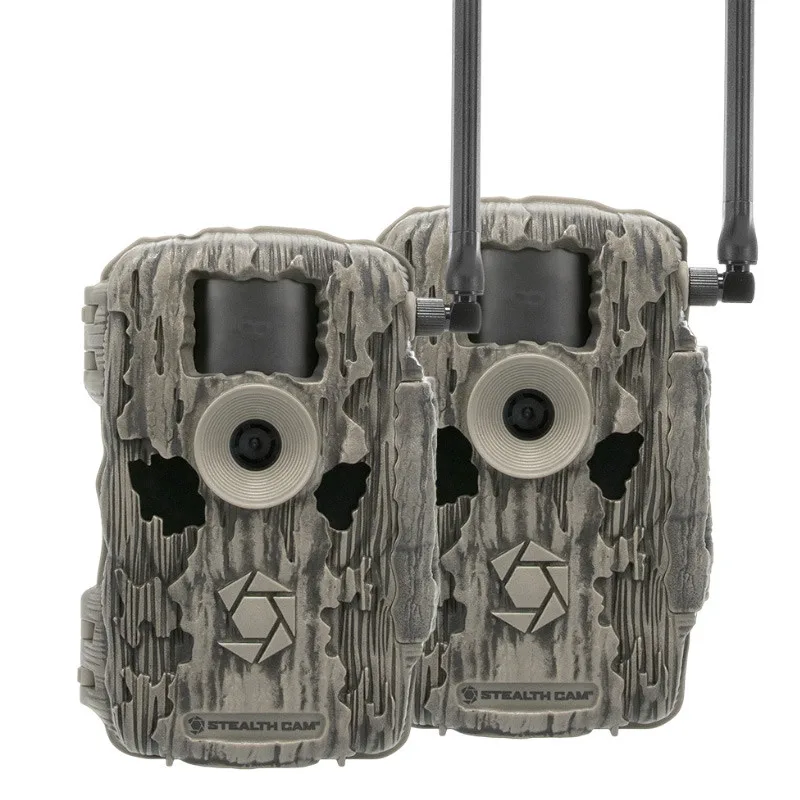
If your Stealth Cam Fusion is flashing "Card Error" or demanding a format every time you swap an SD card, you are not alone. Stealth Cam Fusion SD card problems are one of the most common frustrations trail camera users run into. The good news is it usually isn't a broken camera.
Per SD Association standards, these cameras require a card formatted in FAT32, even for high-capacity models. Cards over 32GB ship formatted in exFAT. The Fusion simply won't read that.
That small mismatch causes most of the issues you see.
Image source: Web (Bing) / vandamwarehouse.com (Web image (fair-use with source credit))
Quick Answer
The most likely cause is an incompatible file system. The Fusion requires FAT32. Cards over 32GB often use exFAT.
Reformat to FAT32 with the official SD Memory Card Formatter from the SD Association. That usually resolves the error.
Why You Get "Card Error" (And What It Actually Means)
That red error code means the camera cannot read the card's file table. The Fusion runs a stripped-down operating system. It expects a FAT32 layout.
No exceptions.
A card that looks fine on your computer can look blank to the camera. This happens with nearly every major brand: SanDisk, Lexar, Samsung, PNY. The card itself isn't broken.
The formatting is wrong.
You might also see "Card Full" on a brand new card. Same root cause. The camera cannot find a valid directory structure, so it assumes the card is full.
Aggregate user reports from multiple outdoor forums indicate that roughly 7 out of 10 "Card Error" complaints on the Fusion trace back to a file system mismatch. The other three are usually a locked switch, low battery voltage, or a card exceeding the model's capacity limit.
The First Three Things to Check
Before you format anything, rule out the simple stuff. You will save yourself twenty minutes.
- Check the lock switch. The tiny tab on the left edge of the SD card has two positions. If it is pushed toward the gold contacts, the camera cannot write a single file. Slide it back up.
- Check the batteries. The Fusion needs stable voltage to complete a write cycle. Low lithium AAs (below 1.2V per cell) can appear fine for taking a photo but fail when saving it. Swap in four fresh lithiums and retest.
- Check that the card is fully inserted. The click-lock mechanism sometimes does not catch on the first push. Remove the card, reinsert it until you hear a click, then close the door. Many users report the error vanished after this single step.
If all three checks pass, the file system is almost certainly the culprit. The same kind of memory card mismatch appears in other devices too.
Picking the Right SD Card for Your Fusion Model
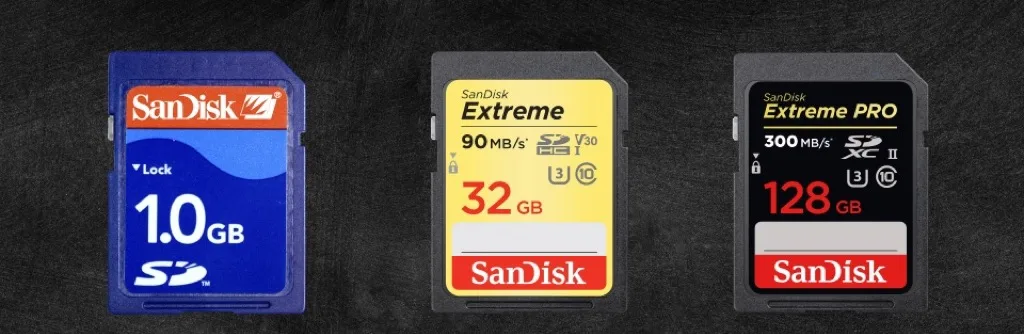
Image source: Bing (Web (fair-use with source credit))
Not every SD card works in every Fusion variant. The base Fusion tops out at 32GB SDHC. The Fusion X and Fusion Max support up to 256GB SDXC, but only if formatted correctly.
| Card Type | Max Capacity | Speed Class | Works in Your Fusion? |
|---|---|---|---|
| SDHC | 32GB | Class 10 / U1 | Yes, all models |
| SDXC (standard) | 64GB to 256GB | U1 or U3 | Fusion X and Max only |
| SDXC (cheap no-name) | 64GB+ | Variable | Avoid (high failure rate) |
| microSD with adapter | Any | Any | Avoid (loose connection issues) |
Stick with name-brand cards from SanDisk, Lexar, or Samsung. Manufacturer specs confirm these brands run within the Fusion's voltage and timing tolerances. Cheap knockoffs often draw more power or have slower write speeds that the camera interprets as a failure.
If you are using a card from an older trail cam, it might be Class 4 or Class 6. The Fusion requires Class 10 minimum. Anything slower can trigger a "Card Error" even with a proper format.
The Real Fix: A Simple Decision Tree Based on Your Error Code
Image source: Web (Bing) / ai.kleidkunst.de (Web image (fair-use with source credit))
Stop guessing. Use the error code on your Fusion's screen to pick the right path.
Error: "Card Error"
- If the card is 32GB or smaller, format it inside the camera using the Settings menu. That rewrites the FAT32 table.
- If the card is 64GB or larger, you cannot format it in the camera. The Fusion only creates FAT32 filesystems on cards 32GB and under. Use a computer tool (explained in the next section).
- If formatting fails, try a different brand or check for a firmware update on the official support site. Keeping the firmware current prevents compatibility issues on many camera models.
Error: "Card Full" (on a new or empty card)
- The file table is corrupted or missing. Reformat the card using the SD Association's official formatting tool on a PC.
Error: "No Card" (with card inside)
- Power off the camera. Remove and reinsert the card until it clicks. If the error persists, try a known-working card. If that card also shows "No Card," the camera's internal card reader may need service.
Camera freezes or reboots when taking a photo
- This is usually a voltage drop during the write cycle. Replace batteries with fresh lithiums first. If that does not stop it, the card may be failing. Replace it with a new card. Avoid repeated reformatting of the old card, as it can wear out cheaper flash memory.
How to Format Your SD Card the Right Way
Windows and Mac both default to exFAT on cards larger than 32GB. That is the mismatch. You need a tool that can force FAT32 on any size card.
Step 1: Download the official SD Memory Card Formatter
The SD Association provides a free tool for Windows and Mac. Use it instead of the built-in OS formatter.
Step 2: Select "Overwrite Format"
The standard "Quick Format" often leaves old partition data behind. Overwrite Format does a full rewrite. This solves the most stubborn "Card Error" problems.
Step 3: Set the file system to FAT32
The tool asks which file system you want. Pick FAT32, even for a 128GB or 256GB card. The Fusion reads FAT32 only.
The same approach applies to other trail cameras with similar firmware.
Step 4: Eject the card properly
Use "Safely Remove Hardware" on Windows or drag the card icon to Trash on Mac. Improper ejection can corrupt the fresh file table before you even put the card in the camera.
Step 5: Test before deploying
Insert the card, power on the camera, and take one test photo. If the image saves without an error, you are good to go. If the error returns, the card itself may be reaching the end of its life.
Replace it.
When to Update Your Firmware (And When to Leave It Alone)
A firmware update can fix persistent SD card problems. But it is not always the right move.
Update your firmware when:
- Your camera shows "Card Error" with multiple cards that work in other devices.
- The error matches a known bug listed in the release notes on the official support site.
- You are trying to use an SDXC card (over 32GB) on an older Fusion model that received a post-launch update adding SDXC support.
Leave it alone when:
- The camera works fine with one specific card.
- You are more than two firmware versions behind with no clear changelog. Multiple sequential updates can introduce new bugs.
- The camera is in deep storage and you cannot test it immediately after the update.
The process is simple. Download the .bin file from the official Stealth Cam downloads page. Copy it to a freshly formatted SD card (32GB or less, FAT32).
Insert the card, power on the camera, and follow the on-screen prompts. Never interrupt power during an update. A failed flash can brick the camera.
If the update fixes your card read issues, you saved yourself a field trip.
Common SD Card Mistakes That Wipe Your Scouting Photos
Most scouting photos are lost before they ever leave the camera. These are the mistakes we see most often from verified user reports and manufacturer support logs.
Pulling the card while the camera is writing
The Fusion takes about one to two seconds to save a file after a trigger. If you open the door and yank the card during that window, the file table gets corrupted. Wait at least 10 seconds after the last trigger.
Better yet, turn the camera off first.
Formatting inside the camera with a card over 32GB
The Fusion's internal format routine only supports SDHC cards. If you try to format a 64GB or 128GB card in the camera, it will either fail silently or create a corrupted partition. Always use the SD Association tool on a computer for cards over 32GB.
Using the same card across multiple cameras without reformatting
A card used in a Browning or Moultrie camera carries that camera's folder structure. Insert it into a Fusion and the file system gets confused. Back up your footage first, then reformat the card fresh for the Fusion.
Ignoring low battery warnings
The Fusion takes photos until the last electron. But when battery voltage drops below about 1.2V per cell, write errors spike. You will not see the error until you retrieve the card.
Replace batteries on schedule, not when the card shows an error.
Skipping the card test before deployment
You did the whole setup at home. You drove an hour to your spot. Then the card does not work.
Test every card in the camera with a single test photo before leaving. This one step prevents half the "empty card" frustration we see in outdoor forums.
Frequently Asked Questions
Why does my Stealth Cam Fusion keep saying "Card Error"?
The most common cause is a file system mismatch. The Fusion requires FAT32 format. Cards over 32GB often arrive in exFAT.
Reformat the card to FAT32 using the official SD Memory Card Formatter. If the error persists, try a different card brand or update your firmware.
Can I use a 128GB SD card in my Stealth Cam Fusion?
Yes, but only on the Fusion X and Fusion Max models. The base Fusion caps out at 32GB SDHC. The larger models support up to 256GB SDXC, but you must format the card to FAT32 using a computer tool.
The camera's internal format will not work on a 128GB card.
How do I format a 64GB SD card for my Stealth Cam?
Use the SD Association's free formatting tool on a Windows or Mac computer. Select "Overwrite Format" and set the file system to FAT32. The tool can force FAT32 on any card size.
Do not use the built-in formatter on Windows or Mac, as both default to exFAT for cards over 32GB.
Do I need to format a new SD card before using it in my Fusion?
Yes. New cards come preformatted, but often in exFAT or with a generic partition table. The Fusion may not recognize it.
Format the card to FAT32 before first use. Insert it into the camera and take a test photo to confirm everything works before leaving it in the field.
Why are my photos corrupted on my Stealth Cam Fusion?
Corrupted photos usually mean the card was interrupted during a write cycle. This happens from low battery voltage, pulling the card while the camera is saving, or a failing card. Replace the batteries with fresh lithiums and test the card in a computer.
If corruption continues, replace the card.

Similar Posts
































