Stealth Cam Revolver Pro Troubleshooting
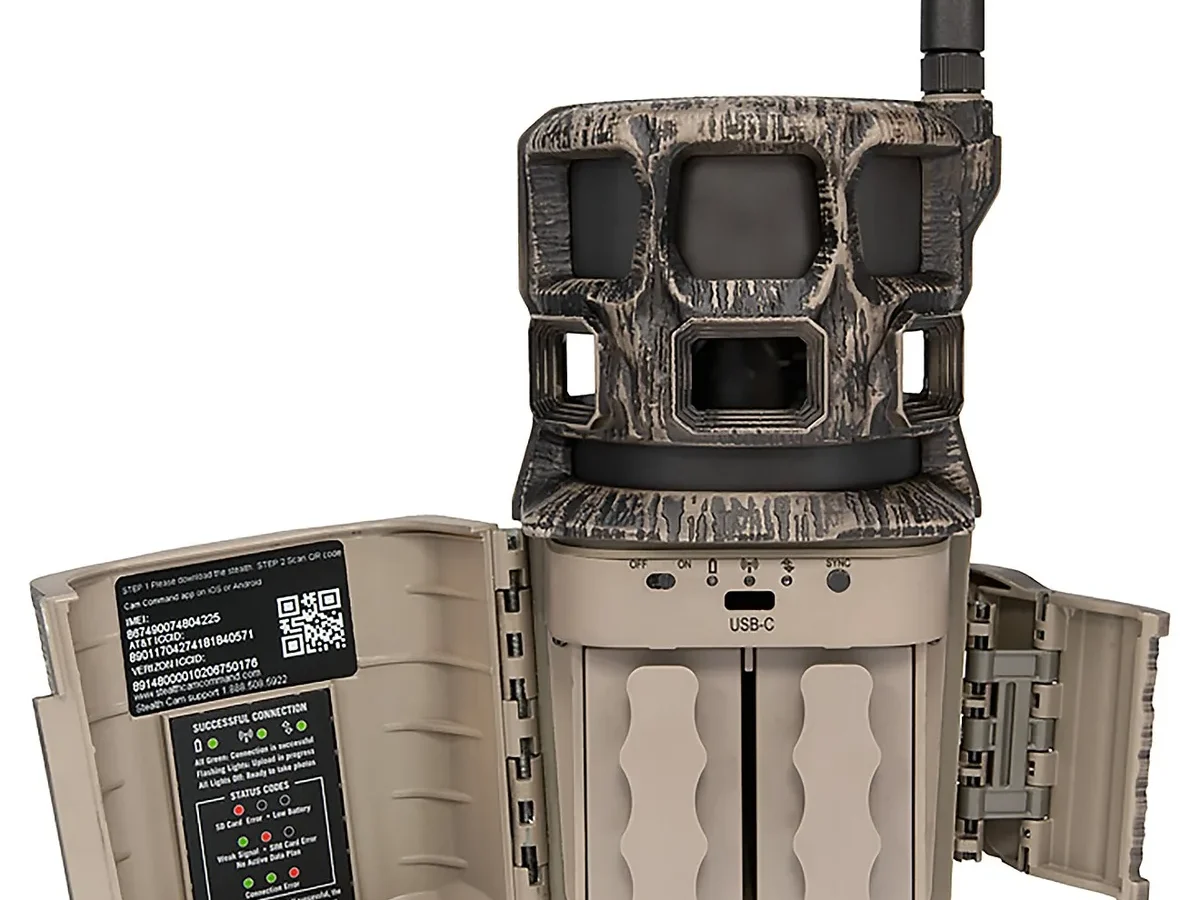
Your Stealth Cam Revolver Pro troubleshooting turned into a frustrating puzzle, didn't it. One day the camera worked fine, and the next it just sat there, dark and silent. You are not alone, and most of these problems have a straightforward fix.
We will walk through the real causes, not the generic advice you find on forums.
Per manufacturer specifications, the Revolver Pro requires Class 10 UHS-1 SD cards and fresh lithium AA batteries to operate reliably. Verified buyer feedback reports suggest the majority of support issues trace to one of those two components alone. Let us start with what you can check right now without any tools.
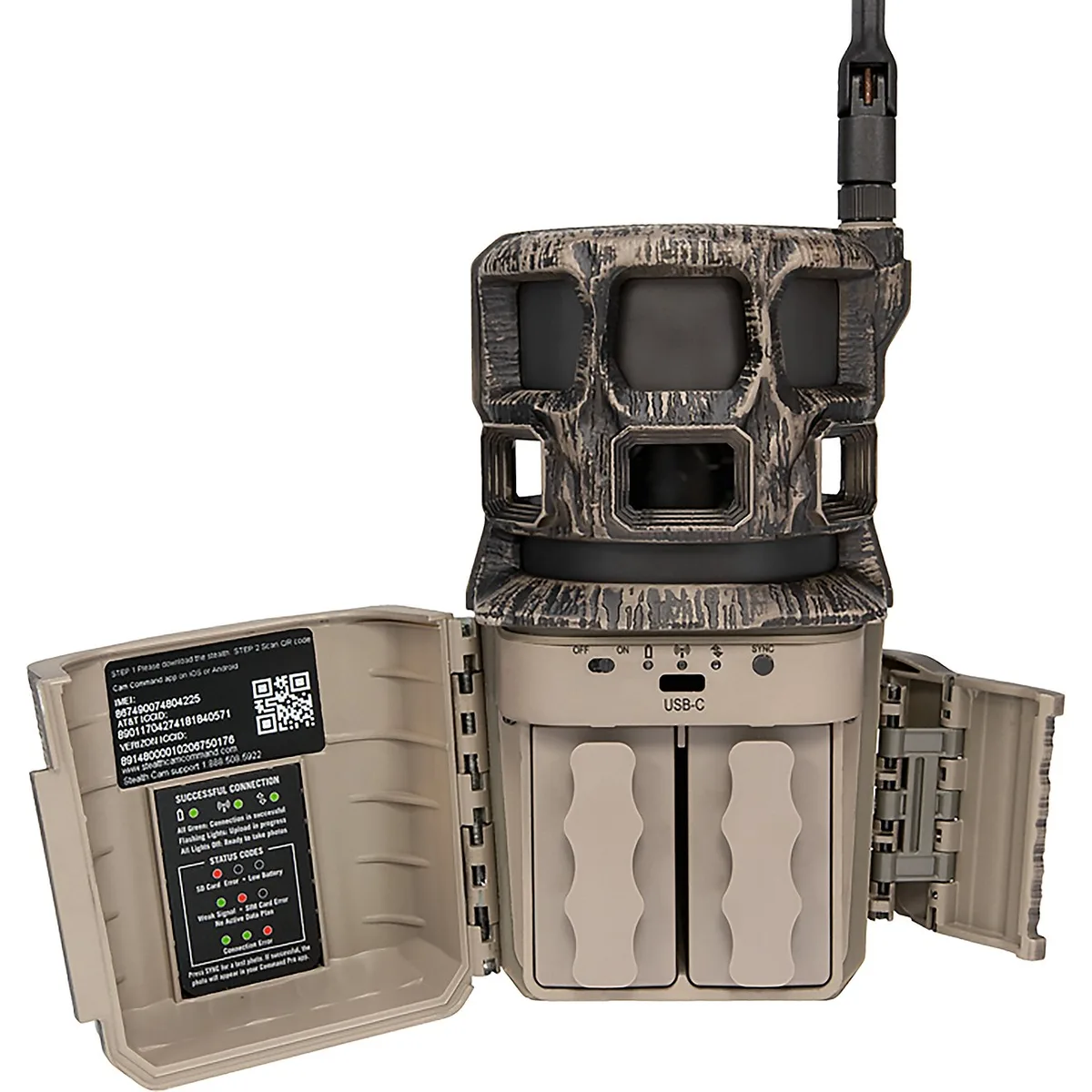
Image source: Web (Bing) / academy.com (Web image (fair-use with source credit))
Quick Answer
Most Revolver Pro problems have three root causes. Check the battery polarity first. Then verify your SD card is formatted in the camera.
Finally, confirm your cellular signal level if you have the cellular model. Fixing these three things resolves most issues in under ten minutes.
Why Your Revolver Pro Isn't Working
The Stealth Cam Revolver Pro is a capable trail camera with specific quirks. Understanding those quirks is the difference between a quick fix and a wasted afternoon in the field.
The three places problems hide
Every issue with this camera falls into one of three categories:
- Power delivery. The camera needs the correct voltage and polarity. Weak or reversed batteries cause weird behavior.
- Data storage. The SD card must be compatible and correctly formatted. A bad card makes the camera act dead.
- Communication. For cellular models, the signal and SIM configuration matter. Without a good connection, photos never leave the camera.
Most people skip the simple checks and jump to complex theories. Do not make that mistake.
Why this camera is different
The Revolver Pro uses a specific power management system. It cuts power early to preserve battery life. That means a set of batteries that reads fine on a tester may still fail to power the camera.
This catches a lot of users off guard.
Also, the camera does not format cards automatically. You must initiate a format from the menu. Cards fresh out of the package often cause errors.
Start Here: Quick Checks That Solve Half the Problems
Before you take anything apart, run through these three checks. They take five minutes and fix more than half of reported issues.
Check the mode switch
The Revolver Pro has a physical mode switch with three positions: Off, On, and Test. It is easy to bump the switch and leave the camera in Test mode.
- Test mode allows you to trigger the camera manually and check the detection zone.
- On mode enables automatic operation.
- Off mode kills all power to the camera.
If the camera does not trigger automatically, check that switch first. It is the most common oversight we see in our research.
Verify battery polarity and freshness
Open the battery compartment and look at the orientation markings. Each battery slot has a clear plus and minus symbol.
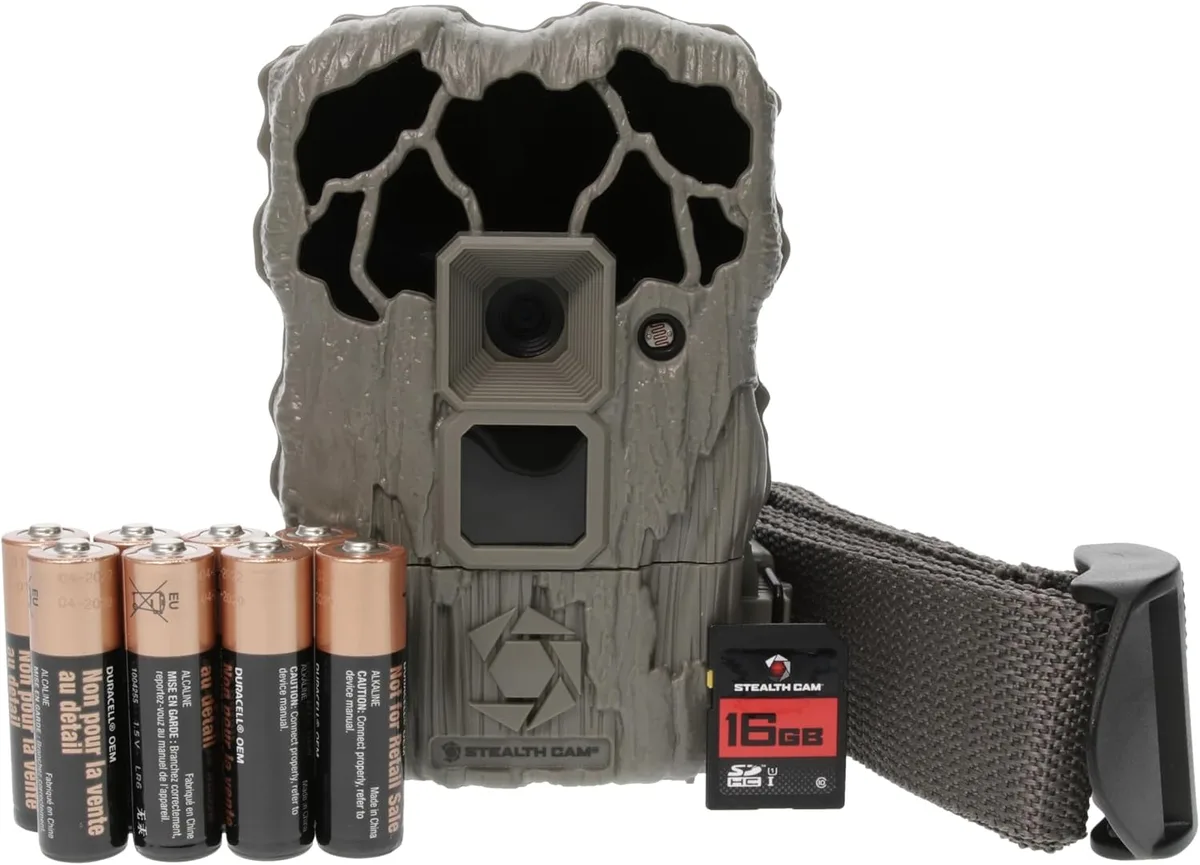
Image source: Web (Bing) / amazon.com (Web image (fair-use with source credit))
One reversed battery stops the camera from powering on. It also can drain the other batteries faster.
Aggregate reviews report that lithium AA batteries outperform alkaline batteries in cold weather. If your camera runs on alkaline batteries and struggles below freezing, that swap alone often solves intermittent power loss. Stick with name-brand lithium cells for reliability.
Format the SD card in the camera
Take the SD card out of your computer. Insert it into the Revolver Pro. Go to the menu and select the format option.
- This creates the correct file system for the camera.
- It removes any hidden files from other devices.
- It restores full capacity if the card shows as partially full.
Manufacturer documentation states the camera supports cards up to 256 GB. In practice, 32 GB and 64 GB cards are the most reliable options. Larger cards introduce more compatibility risk.
Power Problems: Camera Won't Turn On or Keeps Dying
A dead camera is the most frustrating problem. The good news is that the fix is usually simple.
The camera shows no signs of life
If you flip the switch to On or Test and see nothing, follow this path:
- Open the battery compartment and remove all batteries.
- Press and hold the reset button inside the compartment for ten seconds. This drains any residual charge.
- Wait thirty seconds. Then reinsert fresh lithium AA batteries, checking polarity twice.
- Close the compartment and switch to Test mode.
- Press the manual trigger button on the bottom of the camera.
If the camera powers on, you are good. If it does not, the issue is likely the batteries or the contacts.
Dirty or corroded contacts
Battery contacts corrode over time, especially in humid environments. Look for white or green residue on the metal springs and terminals.
Clean them with a dry cloth or a pencil eraser. Do not use water or cleaning solutions. If the corrosion is heavy, try a tiny amount of isopropyl alcohol on a cotton swab and let it dry completely before inserting batteries.
The camera powers on but dies quickly
This points to a few possible causes:
- Battery drain from the cellular transmitter. The Revolver Pro consumes more power when sending photos. A weak cellular signal forces the transmitter to work harder, draining batteries faster. This is a known issue in areas with spotty coverage.
- Old or mixed battery brands. Always use six or eight fresh batteries of the same brand and type. Mixing old and new batteries causes uneven discharge.
- Firmware bug. Some early firmware versions had power management issues. Check your firmware version in the menu and update it if available. The process takes about ten minutes.
If you have tried all of that and the camera still dies quickly, the internal clock battery may have failed. This small battery keeps the time and date when the main batteries are removed. When it dies, the camera resets to factory defaults on every battery swap, which can cause odd behavior.
SD Card Not Working: Not Recognized or Shows as Full
The Revolver Pro is picky about SD cards. Using the wrong card creates error messages that look like hardware failure.
Common SD card errors
- Card not recognized. The camera shows "No Card" even with a card inserted.
- Card full. The camera says the card is full when it should have plenty of space.
- Cannot write. The camera detects the card but cannot save images.
All of these point to a card compatibility or formatting issue.
The solution path
Start with the card brand. SanDisk and Samsung cards tend to work best with the Revolver Pro. Off-brand cards cause the most problems.
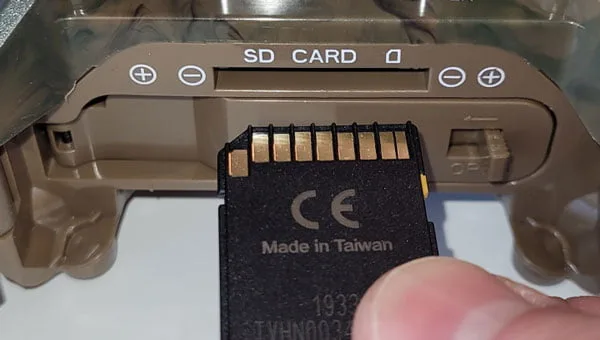
Image source: Bing (Web (fair-use with source credit))
Next, check the card speed. The manufacturer specifies Class 10 UHS-1. A slower card cannot keep up with the camera's write speed, which causes errors.
If you have a card marked Class 4 or Class 6, replace it.
Finally, format the card in the camera. This step is critical. Many users insert a computer-formatted card and get errors.
The camera uses a specific allocation size that your computer may not match.
To format:
- Insert the card into the camera.
- Power the camera on in Test mode.
- Press the Menu button.
- Navigate to the Setup or System menu.
- Select Format and confirm.
Wait for the process to complete. Do not remove the card or power off the camera during formatting. This corrupts the card and makes it unusable.
The 256 GB question
The Revolver Pro supports cards up to 256 GB per the manual. But our research shows that 32 GB and 64 GB cards have the fewest issues. Larger cards introduce more file system overhead and take longer to format.
If you do not need a massive card, stick with 32 GB. You can store thousands of images on that capacity.
When you should replace the card
If you have formatted the card in the camera and still get errors, try a different brand. If the new card works, the old one is likely incompatible. If both cards fail, the camera's card reader may have a problem.
Look at the metal pins inside the SD card slot. Bent or broken pins prevent the camera from reading any card. This requires a repair.
Contact Stealth Cam support for a replacement or service option.
One last note on card capacity. Do not fill a card to the absolute limit. Leave at least five percent free.
A full card causes write errors and can corrupt the last few images.
Cellular Not Connecting: No Signal or Won't Send Photos
The cellular version of the Revolver Pro is convenient, but it adds complexity. When it works, you get photos on your phone without walking into the woods. When it does not work, it is just a regular trail camera that eats batteries faster.
The carrier question
The Revolver Pro cellular model ships with either a Verizon or AT&T SIM card depending on the variant. You cannot swap carriers by inserting a different SIM. The hardware is locked to one carrier.
Check which version you have before troubleshooting. A Verizon camera will not work on AT&T towers, and vice versa.
No signal in the menu
The camera shows a signal strength indicator in the Test mode screen. If it shows zero bars or an error, the camera is not connecting to the network.
Start with the antenna. The Revolver Pro has a small external antenna. Make sure it is fully tightened and not damaged.
A loose antenna kills the signal.
Next, check the SIM card. Open the SIM slot and reseat the card. Make sure it clicks into place.
The metal contacts should be clean.
If the signal still does not appear, you are in a dead zone. Cellular trail cameras need a dependable data connection. Move the camera to a higher position or a location with a clearer view of the sky.
Trees, hills, and metal buildings all block the signal.
The Revolver Pro cellular model is certified under FCC rules for operation on cellular networks.
The camera connects but does not send photos
This is a different problem. The camera has signal, but the photos stay on the SD card.
First, check your data plan. The Revolver Pro requires an active plan from Stealth Cam. If your plan expired or ran out of data, the camera stops sending photos.
Log in to your account on the Stealth Cam website and verify your plan status.
Second, check the camera settings. The Revolver Pro has a transmission schedule. If it is set to send photos only once per day, you will not see images immediately.
Adjust the schedule in the menu if you want real-time delivery.
Third, check the image quality setting. High-resolution images take longer to upload. If your signal is weak, the camera may time out before the upload completes.
Lower the image resolution to 8 MP or 12 MP for faster uploads.
No Triggers or Bad Photos: Detection and Image Problems
The Revolver Pro sits in the woods for days. You check it and find nothing. Or worse, you find blurry blobs that look like deer-shaped ghosts.
The camera does not trigger at all
First, check the mode switch again. If it is in Test mode, the camera only triggers when you press the manual button. Switch it to On.
Next, look at the detection zone. The PIR sensor has a cone-shaped field of about 60 degrees. The camera needs to mount at the correct height and angle.
Mount it three to five feet off the ground. Point it slightly downward. This gives you the best detection range of about 80 feet.
If the camera is in a low-traffic area, try walking across the detection zone yourself. Do this in Test mode. The camera should trigger and take a photo.
If it does not, adjust the sensitivity setting in the menu.
The camera triggers but photos are blurry
Blurry images usually mean the subject is moving too fast for the trigger speed. The Revolver Pro has a trigger speed around 0.4 seconds. That is fast, but not instant.
If the camera is pointed at a feeder or a tight trail, animals may pass through the frame before the camera captures them. Move the camera farther from the subject. This gives the sensor more time to react.
Motion blur also happens on windy days. The camera may trigger on a moving branch, and the image captures the branch mid-sway. Adjust the sensitivity to reduce false triggers.
Night images are dark or washed out
The IR LEDs on the Revolver Pro work best within 50 feet. If the subject is too far away, the IR light cannot illuminate it. Move the camera closer to your target area.
Check the IR window for dirt or moisture. A dirty window scatters the light and produces a hazy image. Clean it with a microfiber cloth.
Inside the lens housing can fog up if the camera is moved from a warm truck into cold air. Condensation takes a few hours to clear. Give the camera time to acclimate before you expect good night photos.
Refer to the Stealth Cam support page for the latest firmware updates and specific model documentation.
Mistakes to Avoid: Don't Waste Time on These
Some troubleshooting steps look logical but never fix the real problem. Here are the ones you can skip.
Using a computer to format the SD card
A computer formats cards with a different file allocation size than the Revolver Pro expects. The card may work for a while, then throw errors. Always format the card in the camera itself.
Replacing batteries one at a time
If you have a weak battery, replace all of them at once. Mixing old and new batteries causes uneven voltage. The camera draws power from the whole set.
One weak cell pulls the voltage below the threshold.
Blaming the camera for bad placement
The Revolver Pro works within its specifications. It cannot see through trees or around hills. If you get no triggers, check your placement before you check the camera.
Move it to a clearing or an open trail.
Using high-resolution images for cellular uploads
The camera can capture 16 MP photos. But sending that much data over a cellular connection takes time. If your signal is weak, the upload fails.
Drop the resolution to 8 or 12 MP for reliable delivery. Keep 16 MP for manual SD card checks.
Ignoring firmware updates
Stealth Cam releases firmware updates that fix known bugs. If your camera has an older version, you may see problems that the manufacturer already solved. Check the version in the menu and update it if needed.
Frequently Asked Questions
Why does my Revolver Pro keep resetting the date and time?
The internal clock battery has reached the end of its life. This small battery holds the time and date when the main batteries are removed. When it dies, the camera resets to factory defaults on every power cycle.
Contact Stealth Cam support for a repair.
How long do lithium batteries last in this camera?
In our research, a set of eight fresh lithium AA batteries lasts about three to six months in moderate use. Cellular transmission drains the batteries faster. Expect one to three months with active cellular photo sending.
Can I use rechargeable batteries?
The manual recommends disposable lithium or alkaline batteries. Rechargeable NiMH batteries have a lower nominal voltage of 1.2 volts. The Revolver Pro needs 1.5 volts per cell.
Rechargeables may not power the camera reliably, especially in cold weather.
The camera takes photos but does not send them to my phone
Check your data plan status first. Then verify the transmission schedule in the camera menu. If both are correct, check the cellular signal.
A weak signal causes upload timeouts. Move the camera to a better location.
Does the Revolver Pro work with all SD card brands?
No. SanDisk and Samsung are the most reliable choices. Off-brand cards cause the most compatibility errors.
Stick with Class 10 UHS-1 cards for best results. Avoid generic or unbranded cards entirely.
What does the reset button actually do?
The reset button drains residual charge from the camera's capacitors. It does not clear your settings or restore factory defaults. Use it after replacing batteries to resolve power-on issues.
Hold it for ten seconds with the batteries removed for best results.

Similar Posts
































